
Using the below methods, you can take screenshots in your Samsung Galaxy Note 20. The good news is that it’s a pretty simple process, and with the latest Android 13 update, Samsung has made it even easier. Whether you want to capture a funny meme, save an important message, or show off your high score in a game, taking a screenshot is a handy feature on your phone. And the best part? You don’t need any unique apps or tools to do it. In this article, we’ll give you a brief overview of the various methods to take a screenshot on your Samsung Galaxy Note 20, so you can easily capture and share whatever’s on your screen.
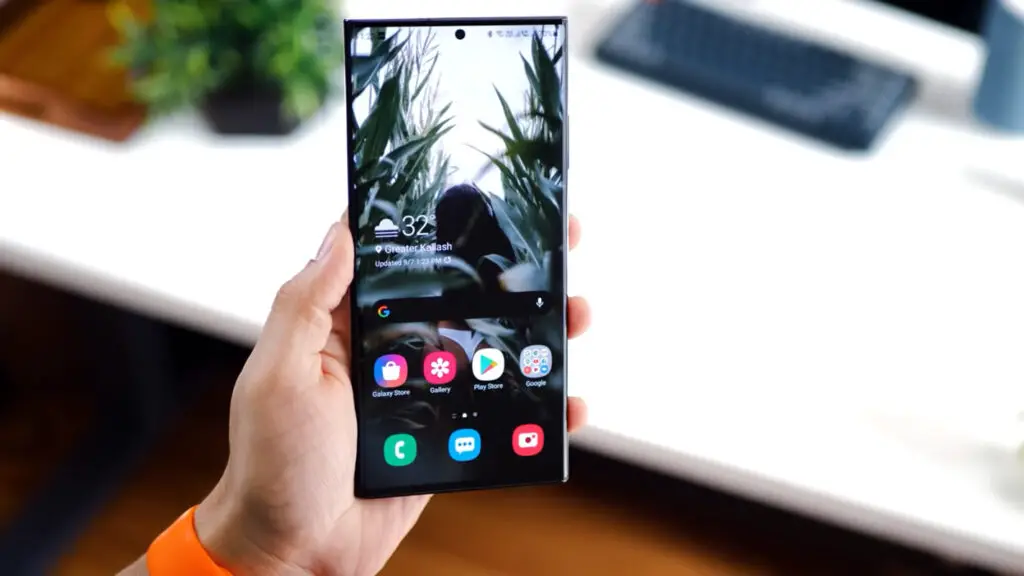
This Mobile comes with Android 10, One UI Core 2.1, So you can take screenshots using the Palm swipe method. We also added some third-party apps to make this process easy. If you are a regular user, the Palm swipe and Key combination method are enough; You Don’t need new apps.
Supporting versions

- SM-N980F
- SM-N980DS
- SM-N9810
- SM-N981B
- SM-N981N
- SM-N981U
- SM-N981U1
- SM-N981W
Different Ways to Take Screenshots in Samsung Galaxy Note 20 (SM-N980F/DS/N9810/B/N/U/U1/W)
It is always a wise idea to avoid specific apps for simple tasks. When you are not satisfied with the standard method or need Advanced customizations, you can use other particular apps to take screenshots. Or you can stick with in-built system methods.
1. Using Physical Key combinations
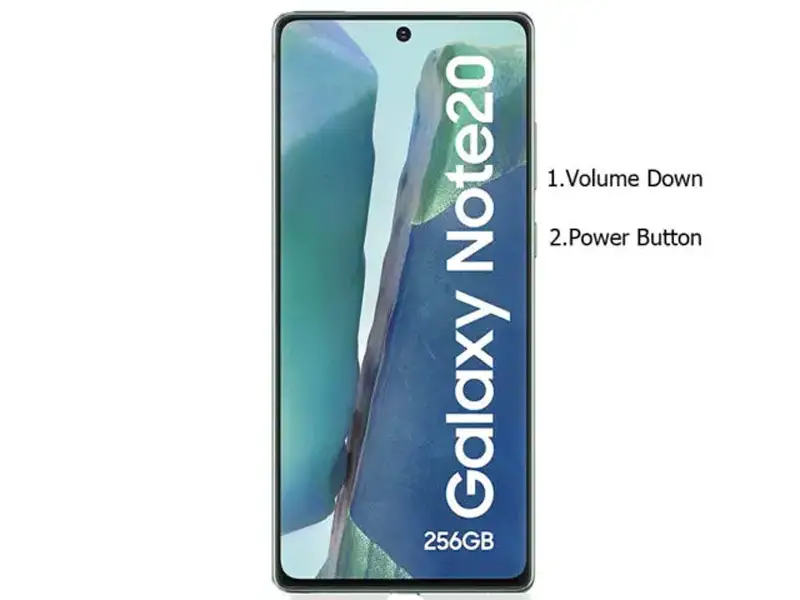
You can use your Volume Down+ Power Button to take screenshots. Use your Left hand to Hold the Volume Down Button from the back Right-hand and Finger to Power Button. If you Hold it from the back, you can quickly Press the combinations.
You can find these photos in Gallery Screenshots Folder.
2. Using Palm Swipe
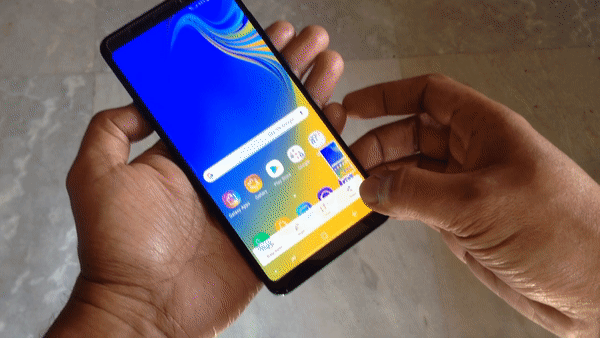
Samsung Galaxy One UI-based series has unique features like palm swipe gestures. To Access this feature, Go to Settings >> Advanced features >> Palm Swipe to Capture >> Enable. After enabling this feature, swipe your palm from left to right above the sensor to capture screenshots.
3. Ask Google Assistant
Instead of Bixby, Samsung allows users to use Google Assistant in the new “A” series. You should set up your Google Assistant before this process. You can do this by going to settings-> Voices Assist-> Google. Toggle the gear icon.
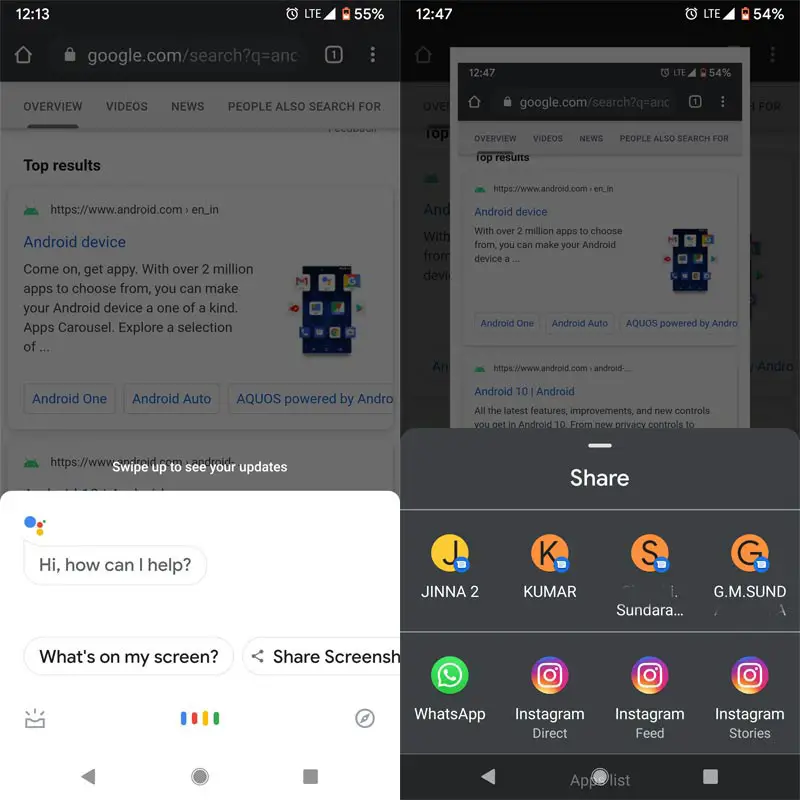
After the setup process, Wherever you want to take a screenshot, long-press the Home Button and Ask Google Assistant to Take a Screenshot. After it takes a screenshot, you can share and save them.
4. Using Assistant Menu
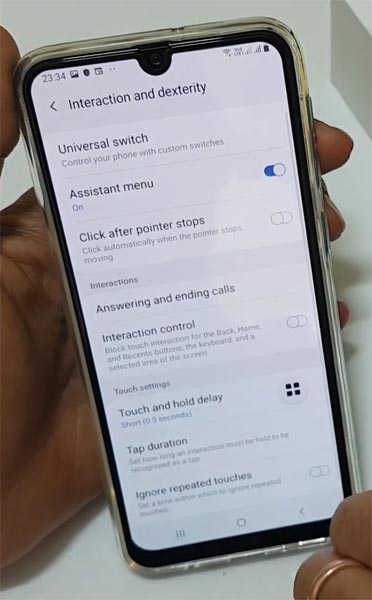
This menu also has an exclusive Samsung One UI feature, like a touch assistant in the Google Play Store. By enabling this option, you can add shortcuts or quick actions and access them anywhere on your Mobile.
- To activate this, Go to Settings >> Accessibility >> Interaction and dexturity>> Assistant menu>> Enable.
- After enabling this feature, You will get the icon as a screen overlay app. If you press the icon, you will get some options. Select a screenshot from the options.
5. Accessibility Menu
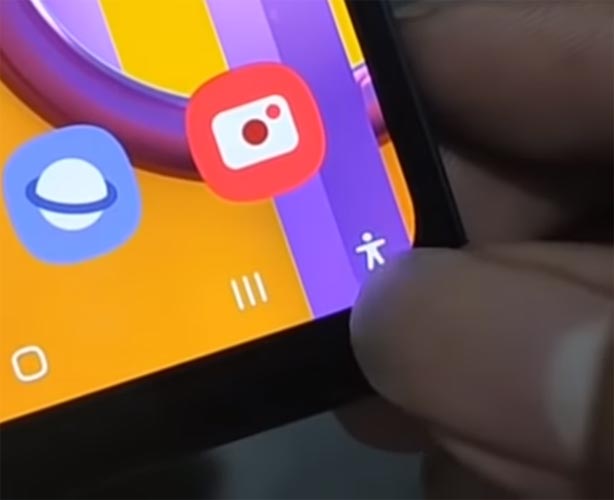
Yes, you can also use the Accessibility menu to take a screenshot.
- To activate this, Go to Settings >> Accessibility >> Installed services>> Accessibility menu>> Enable.
- After enabling this feature, You will get the additional stick man icon to activate the button navigation in the navigation. If you press the icon, you will get some options. Select a screenshot from the options.
6. Using Apps
Screenshot Easy App
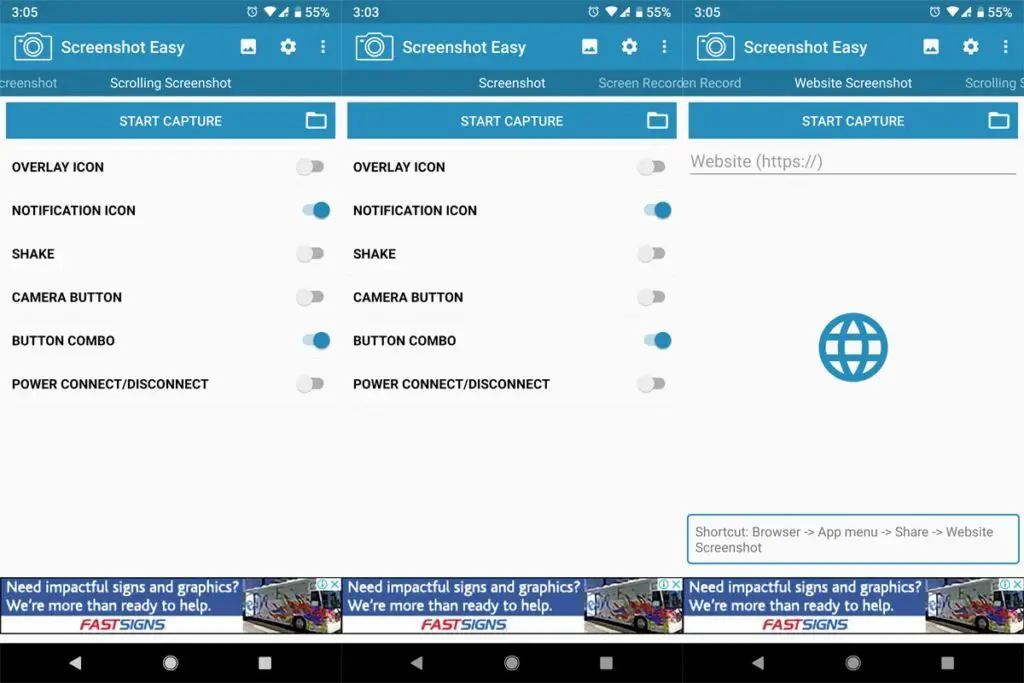
- Download Screenshot Easy App from Play Store.
- Beyond Just a Screenshot, you can do many things like Screen Recorder, Entire Website Page Capture, and Scroll Capture.
- After installing this app, you can see this app in the Notification Bar. If you tap Capture, It will capture the current screen on your Mobile.
Screenshot Touch App
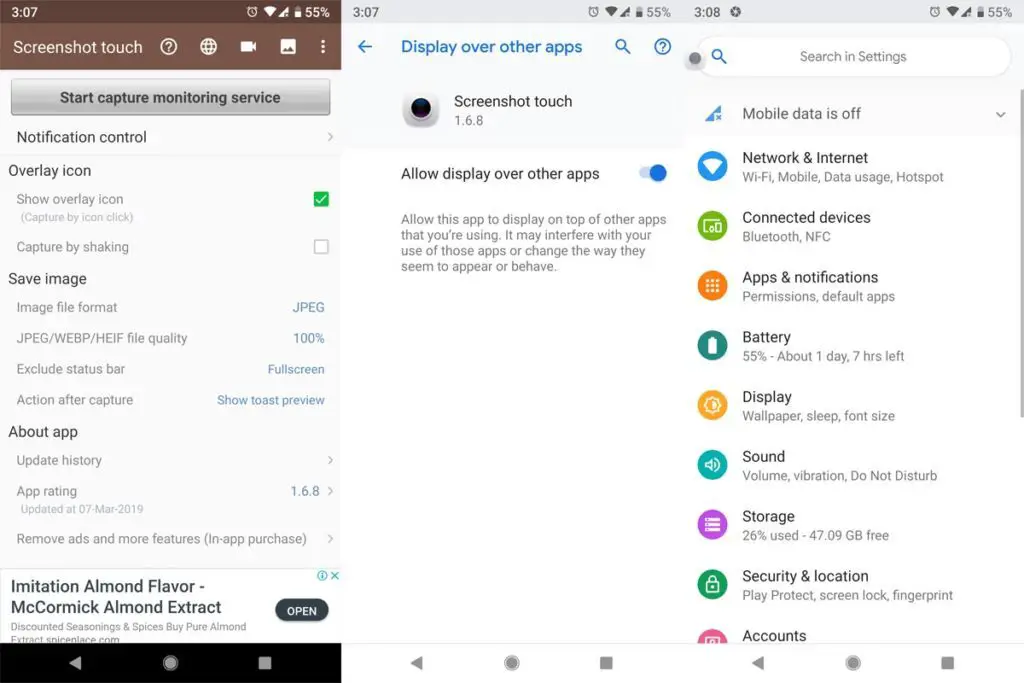
- Download the Screenshot Touch App from Play Store.
- It is similar to the above app. But I think it is easy to use because of the Touch Assistive menu. When you tap that Logo, It will Pop-up with the option for capture.
Touch Master App
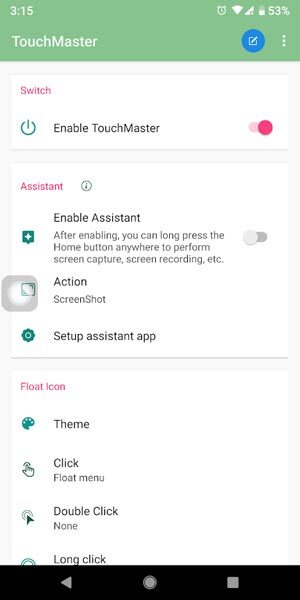
- Download the TouchMaster (Assistive Touch) App from Play Store.
- Many Touch Assistants are available, But they are loaded with unwanted features. This app can make our work done with less storage.
Conclusion
In mid-range Mobile, Bixby can work better. But Samsung soon drops Bixby. Taking Screenshots in Samsung Galaxy Note 20 is similar in terms of Software and OS, and thus the same methods will work for them. So, You can stick with Google Assistant. If you are a regular user, I advise using Physical keys because you rarely use the Screenshot feature. Palm swipe may take accidental screenshots. But, If you are a Developer or some techie guy who uses several screenshots, use In-Built Palm Gesture or Play Store Apps. If you install from third-party sites, Always check the Background activities to avoid stealing your data. If you have other methods, comment below.

Selva Ganesh is a Computer Science Engineer, Android Developer, and Tech Enthusiast. As the Chief Editor of this blog, he brings over 10 years of experience in Android development and professional blogging. He has completed multiple courses under the Google News Initiative, enhancing his expertise in digital journalism and content accuracy. Selva also manages Android Infotech, a globally recognized platform known for its practical, solution-focused articles that help users resolve Android-related issues.