
You can use the below method to Disable Google Assistant in Android Auto. Technology has made our lives easier as the world becomes more connected. One of the most innovative technologies is Android Auto, which allows us to connect our smartphones to our car’s infotainment system for a safer and more convenient driving experience. However, while Google Assistant is the default voice input on Android Auto, it can be frustrating when it doesn’t recognize our language, city, or street names. In this article, we’ll explore the issue and provide a simple workaround to fix it.
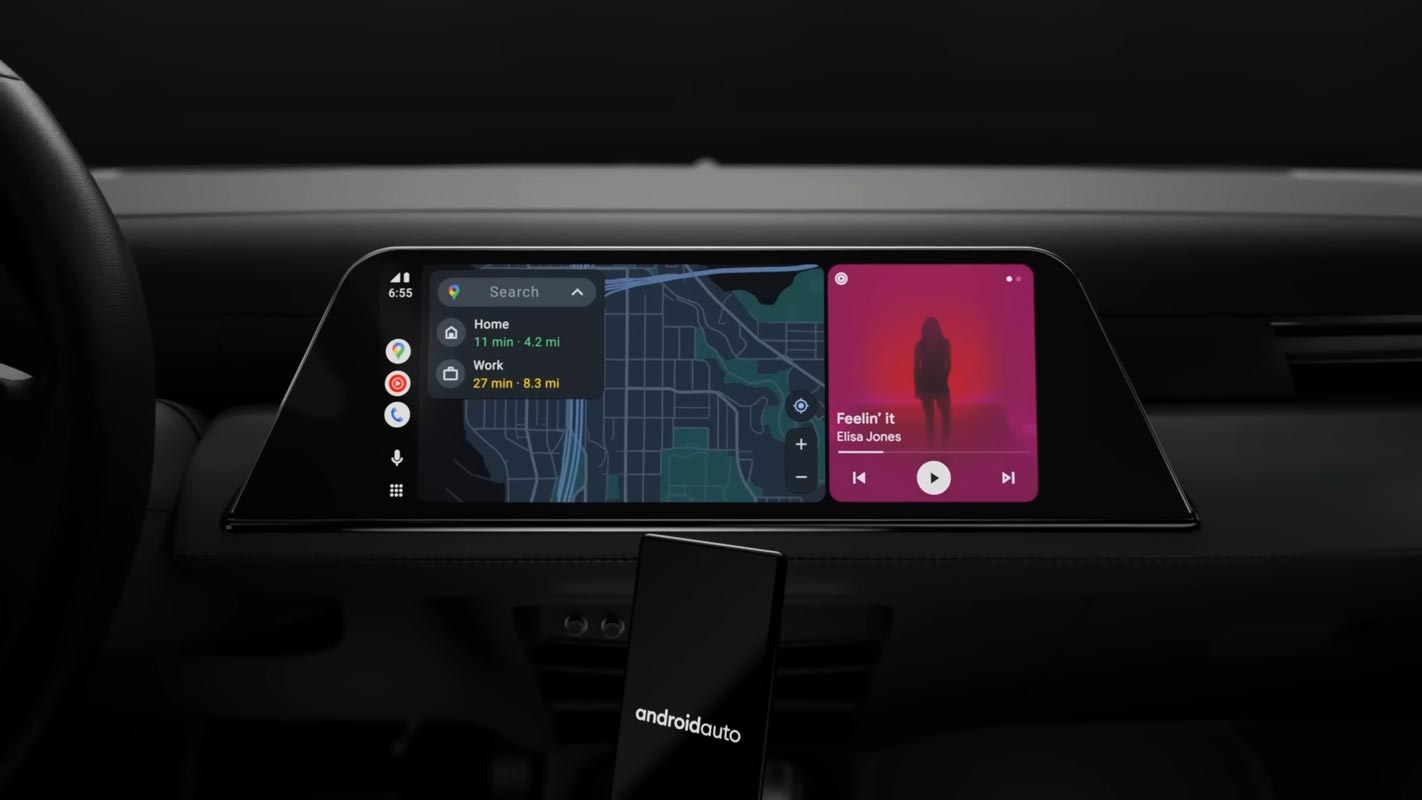
Google Assistant in Android Auto
As mentioned earlier, Google Assistant is the default voice input on Android Auto, but it can be problematic when it doesn’t recognize your language or country’s city and street names. This can be a real issue when driving and inputting a new address into your GPS. Thankfully, there’s a workaround that can help fix this problem.
Why Doesn’t Google Assistant Recognize Your Language?
Google Assistant uses machine learning and natural language processing to understand and respond to our commands. However, it’s not perfect, and it has limitations regarding language support. Google Assistant supports more than 30 languages, but you’re out of luck if your language isn’t on that list.

How to Disable Google Assistant on Android Auto?
If you’re tired of Google Assistant not recognizing your language or city and street names, you can disable it on Android Auto. Here’s how:
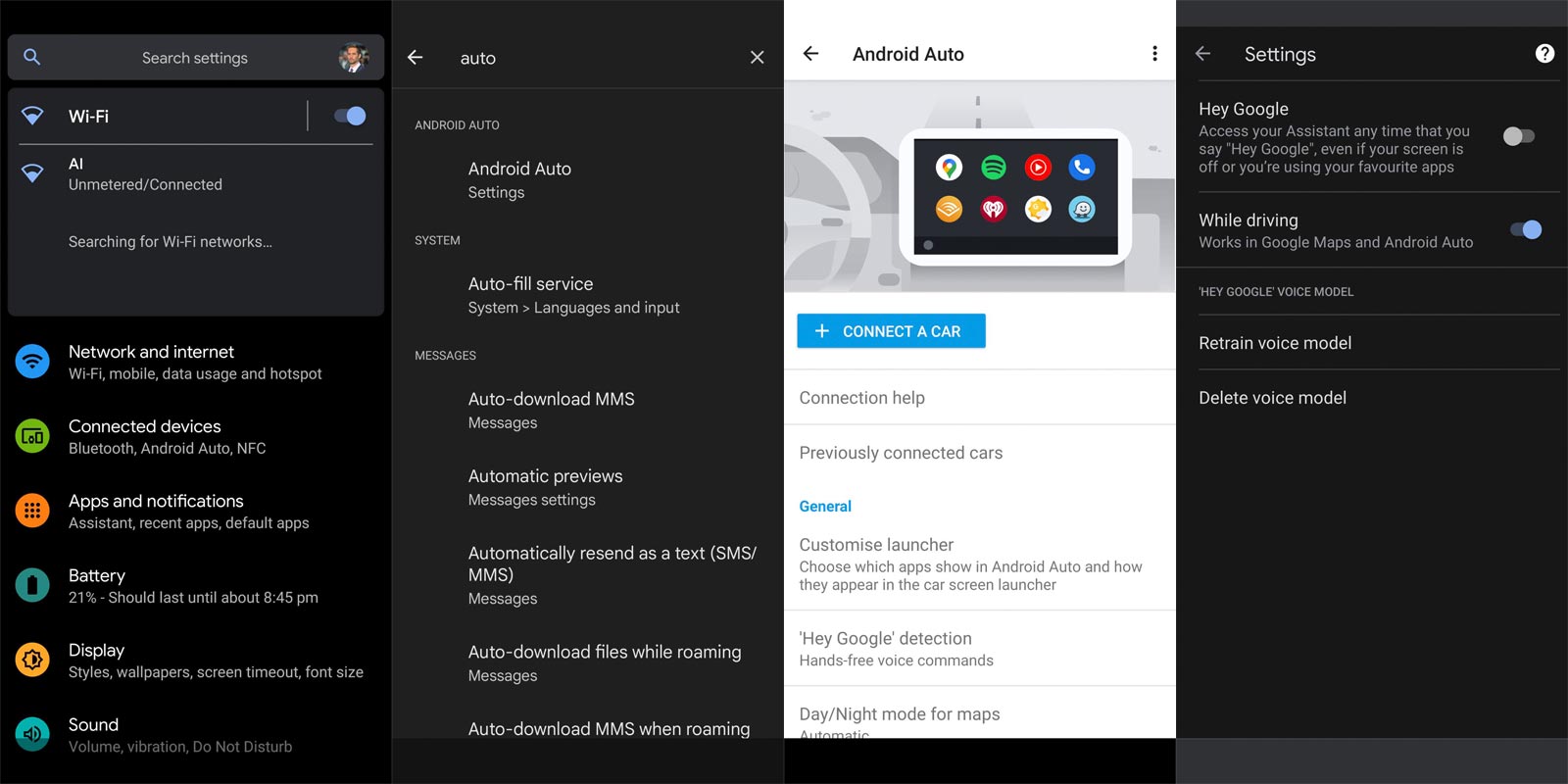
- Open your phone’s Settings app.
- Search for “Android Auto” in the search bar.
- Tap “Android Auto” and scroll down to “Hey, Google Detection.”
- Turn off the “While driving” setting.
- That’s it! Google Assistant will no longer jump in while driving and is connected to Android Auto.
How to Use Waze Voice Recognition on Android Auto?
If you’ve disabled Google Assistant on Android Auto, you can still use voice recognition to input new addresses into your GPS. Waze’s voice recognition system works well and recognizes many city and street names that Google Assistant does not. Here’s how to use it:
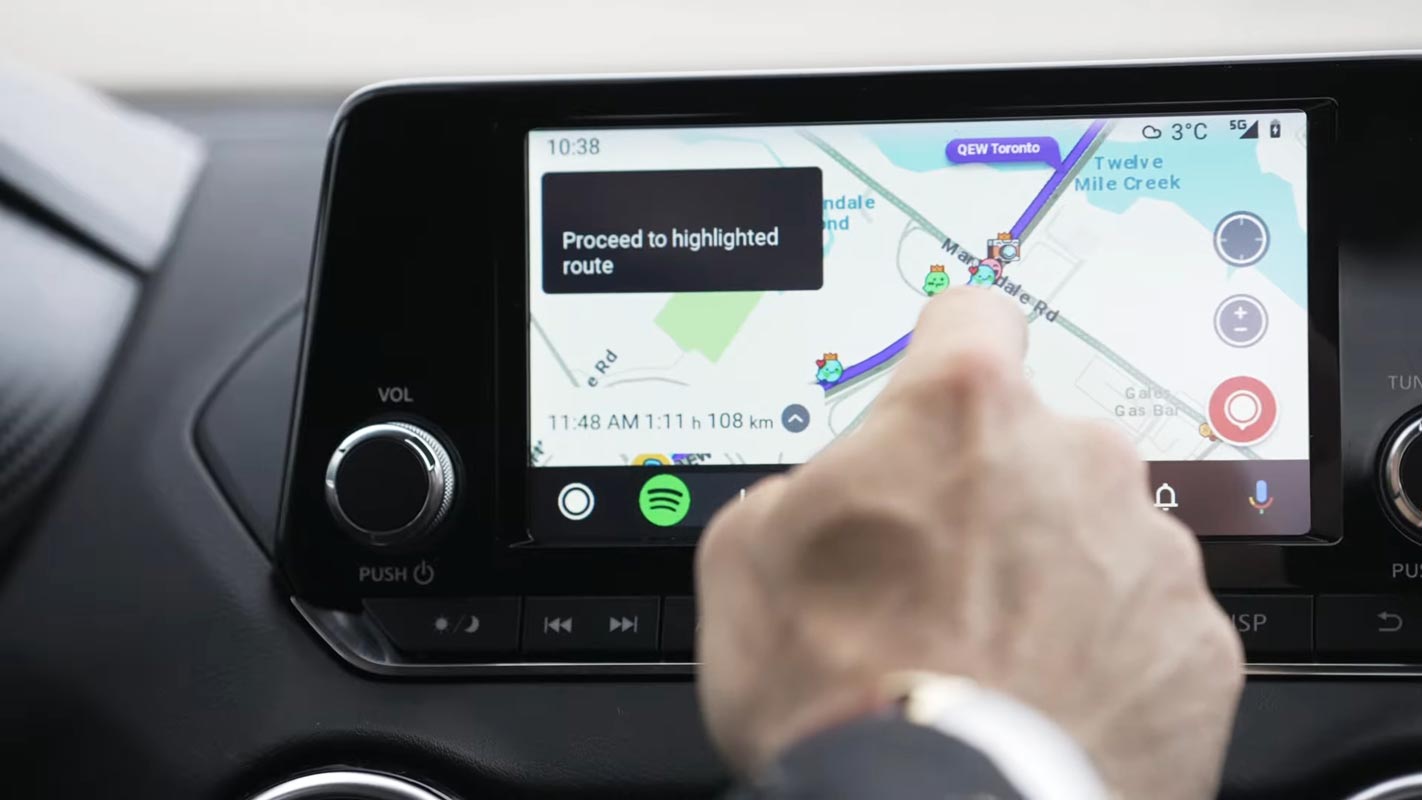
- Open Waze on your phone.
- Tap on the magnifying glass icon to enter the search bar.
- Tap on the microphone icon to activate voice recognition.
- Say the address you want to navigate to.
- Waze will recognize your voice and input the address into your GPS.
The Benefits of Using Waze Voice Recognition
While Google Assistant is a great feature, it has its limitations. Waze’s voice recognition system recognizes more city and street names, making it a better option for navigating areas where Google Assistant might struggle. Additionally, if you’ve disabled Google Assistant on Android Auto, using Waze’s voice recognition can help you input new addresses without manually typing them in.
FAQs
Can I use another voice assistant with Android Auto?
Yes, Google Assistant is the default voice assistant supported on Android Auto. You can use Other Maps-based apps like Waze, But it moreover looks like the same advice as Google Assistant.
Will disabling the Hey Google detection feature affect other features on my phone?
No, disabling this feature only affects the activation of Google Assistant while driving with Android Auto. It will not affect other parts of your phone.
How can I report the issue of my language not being supported on Android Auto?
You can report the issue to Google through the Google Assistant Help Center or the Android Auto Help Center. Be sure to include details about your language and any specific issues you’re experiencing.
Are there any third-party apps that can provide voice recognition support for my language on Android Auto?
There may be third-party apps available that can support specific languages. Still, it’s essential to research and ensure they are safe and compatible with Android Auto before downloading and using them.
Will future updates to Android Auto support more languages?
Future updates to Android Auto may include support for additional languages and accents. Keep an eye out for announcements and updates from Google.
Wrap Up
Having a voice assistant that doesn’t recognize your language can be frustrating, especially when using Android Auto while driving. However, there are ways to work around this problem, such as turning off the Hey Google detection feature in Android Auto settings or entirely disabling the Google Assistant on your phone to allow other voice recognition systems to work. It’s important to remember that technology constantly evolves, and updates and improvements may become available better to support a broader range of languages and accents.

Selva Ganesh is a Computer Science Engineer, Android Developer, and Tech Enthusiast. As the Chief Editor of this blog, he brings over 10 years of experience in Android development and professional blogging. He has completed multiple courses under the Google News Initiative, enhancing his expertise in digital journalism and content accuracy. Selva also manages Android Infotech, a globally recognized platform known for its practical, solution-focused articles that help users resolve Android-related issues.