
Google TV Ambient Mode on Chromecast is designed to elevate the user’s viewing experience by enabling customization of the TV’s behavior during periods of inactivity. Unfortunately, some users encounter an unforeseen problem where the Ambient Mode deactivates unexpectedly after idleness on Chromecast with Google TV. This guide addresses this issue by providing a viable workaround to ensure that the Ambient Mode functions seamlessly as intended. By understanding the problem and implementing the suggested solutions, users can maximize the potential of Ambient Mode, enjoying a more dynamic and personalized interface on their TV screens, even during periods of inactivity.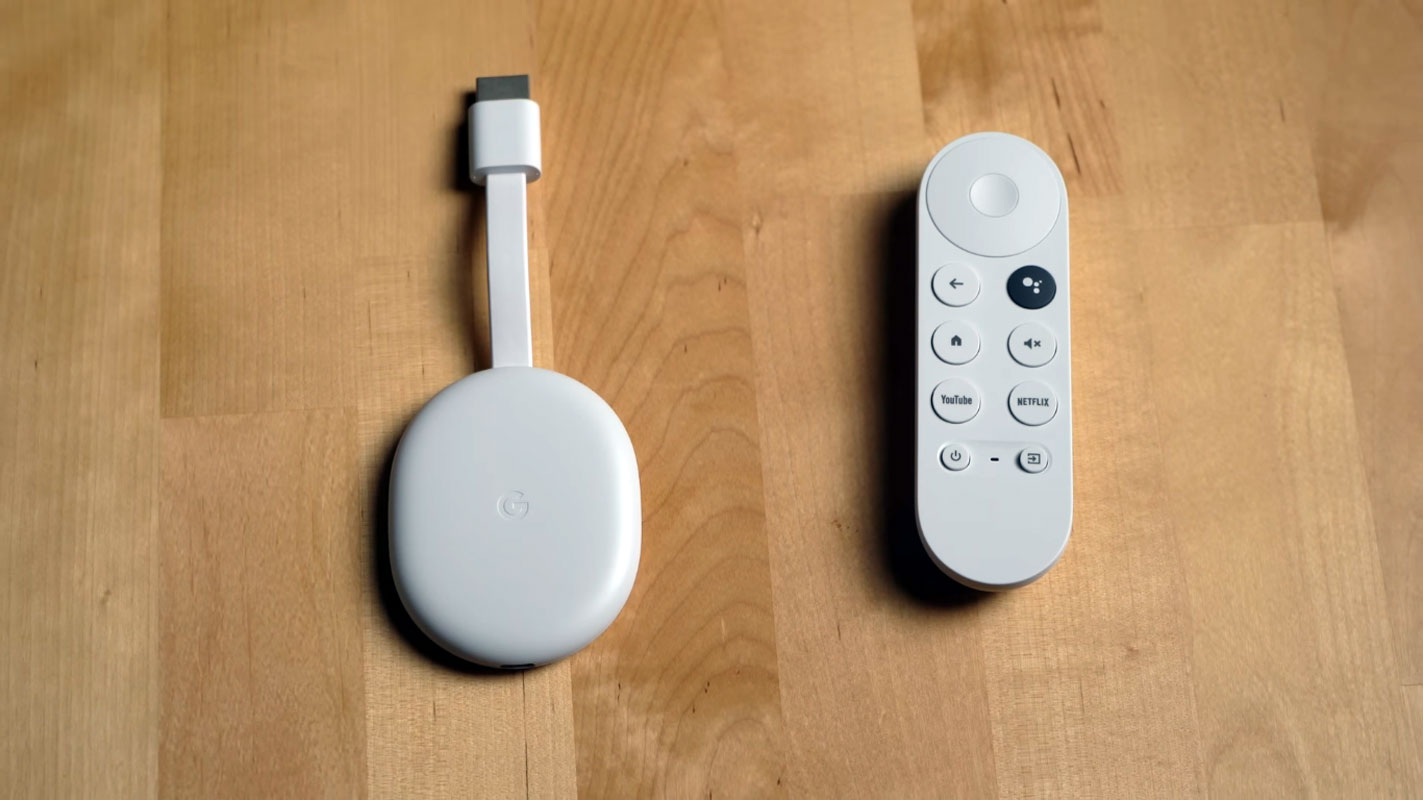
Understanding the Issue
When using Chromecast with Google TV, users can choose when their TV should go to sleep if not in use. They can opt for a range from 15 minutes to never. Selecting “never” triggers the Ambient Mode after a period of inactivity. However, the Ambient Mode turns off contrary to the chosen settings.
Importance of Ambient Mode
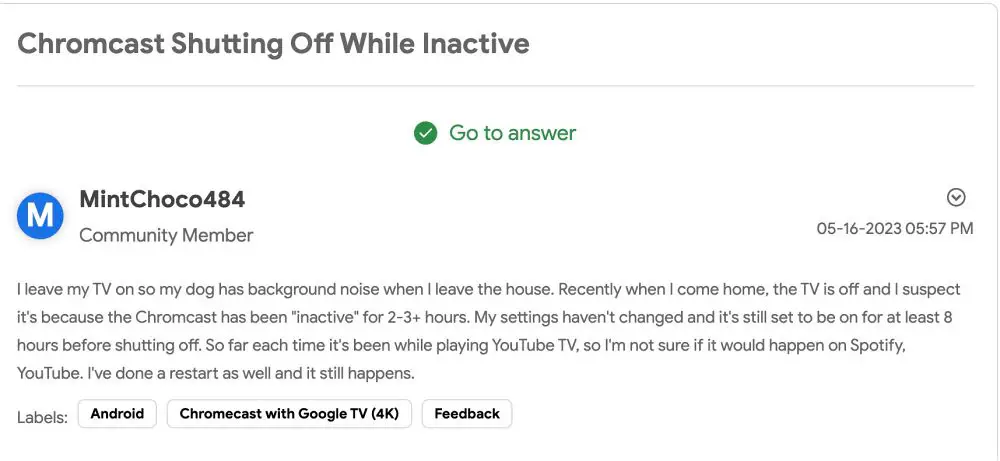

The Ambient Mode is a valuable feature as it transforms the TV into an information hub or a digital photo frame, displaying helpful information or personal photos when the TV is idle. It adds a dynamic element to the user’s viewing experience.
Disabling Ambient Mode in Google TV Chromecast
You’ll need to enable the hidden Stay Awake feature to prevent the Chromecast from powering off due to inactivity and maintain the Ambient Mode continuously.
- Navigate to Settings > System > About > Android TV OS build.
- Press the Select button on the remote about seven times.
- This will enable Developer Options on your TV.
- Now, go to Settings > Developer options > and enable Stay awake.
Balancing Power and Screensaver Activation
Enabling Stay Awake ensures your TV remains awake, preventing the Ambient Mode from turning off. However, this also means that the screensaver won’t activate. As this post explains, you can utilize a Python script for both functionalities.
Advanced Options with Python Script
For users seeking to enjoy the Ambient Mode and have the screensaver kick in, following a technical approach by running a Python script is advised. Detailed instructions can be found in a post available for reference.
FAQs
What is Google TV Ambient Mode?
Google TV Ambient Mode transforms the TV into an information display or digital photo frame when idle, enhancing the user’s viewing experience.
Why is the Ambient Mode turning off on my Chromecast?
The Ambient Mode may turn off due to a setting mismatch or a software glitch. Enabling the Stay Awake feature can help resolve this.
Can I have both the Ambient Mode and screensaver active simultaneously?
Enabling Stay Awake ensures the Ambient Mode is always on, but it prevents the screensaver. Advanced users can use a Python script to achieve both functionalities.
How do I disable Ambient Mode on Chromecast temporarily?
You can’t temporarily disable Ambient Mode, but you can prevent it from turning off by enabling the Stay Awake feature.
Are there any downsides to enabling Stay Awake on Chromecast?
Enabling Stay Awake keeps your TV awake continuously, potentially consuming more power. However, it ensures the Ambient Mode remains active.
Wrap Up
Google TV Ambient Mode, a feature available on Chromecast, adds a touch of elegance to your TV’s appearance when it’s not in active use. It transforms your TV into a canvas for displaying diverse information or even cherished personal photos. However, some users have experienced an inconvenience wherein the Ambient Mode unexpectedly deactivates after inactivity on Chromecast with Google TV. Addressing this issue is crucial to ensure this engaging feature’s uninterrupted and optimal utilization.
By taking the necessary steps like enabling the Stay Awake option or, for those seeking both functionalities, employing a Python script, users can tailor their TV’s behavior to align precisely with their preferences. This empowers users to balance enjoying the Ambient Mode’s aesthetic appeal and other features while ensuring the TV remains desired even during idleness.

Selva Ganesh is a Computer Science Engineer, Android Developer, and Tech Enthusiast. As the Chief Editor of this blog, he brings over 10 years of experience in Android development and professional blogging. He has completed multiple courses under the Google News Initiative, enhancing his expertise in digital journalism and content accuracy. Selva also manages Android Infotech, a globally recognized platform known for its practical, solution-focused articles that help users resolve Android-related issues.