
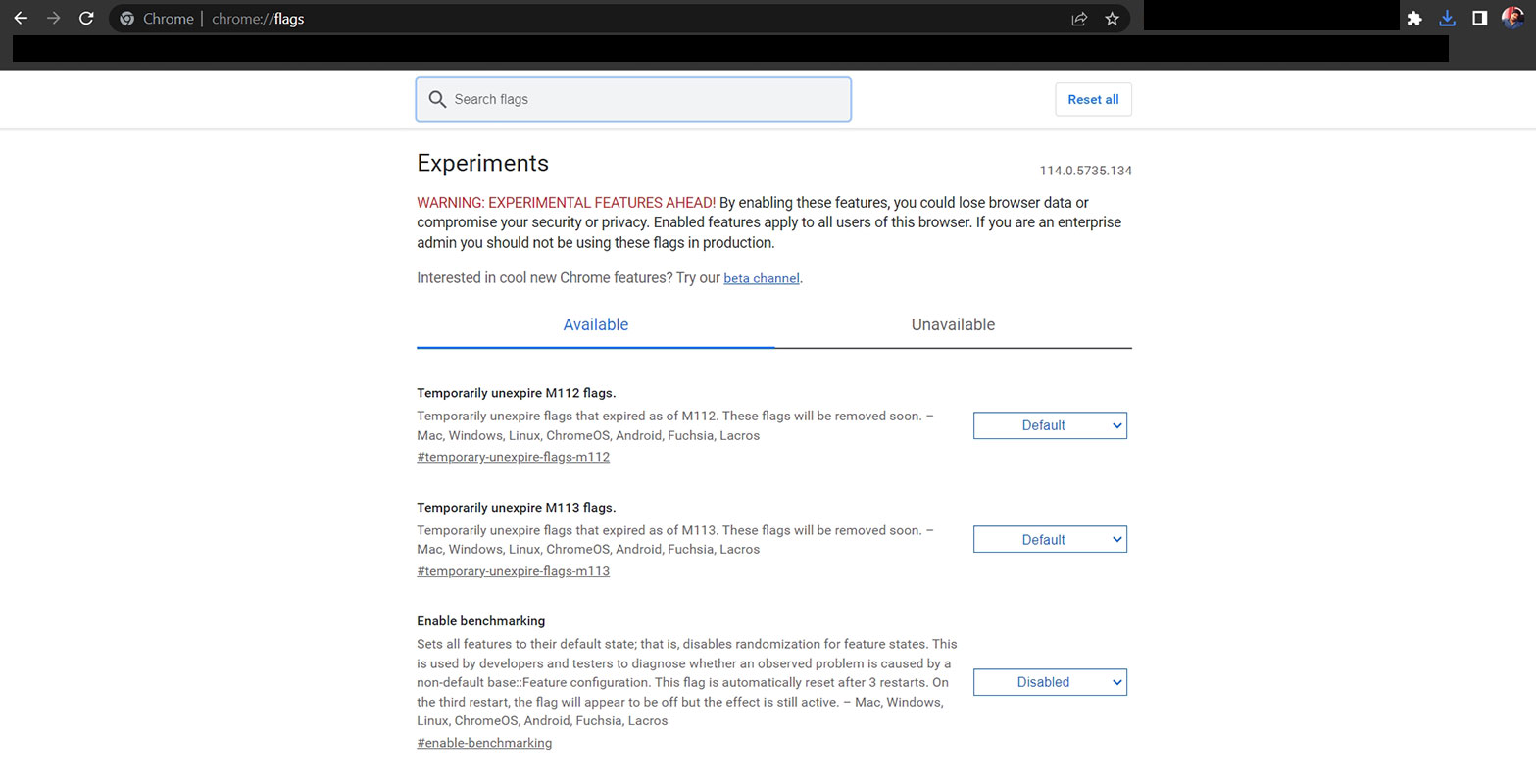
If you enjoy exploring the depths of technology and pushing the boundaries of your ChromeOS ecosystem, then you’re likely familiar with the term “flags.” Chrome flags refer to experimental features and tools embedded within the Chrome browser and ChromeOS. These hidden gems are either in the testing phase or have not yet made it to the stable version of the software. This article will delve into Chrome flags, understand their purpose, and learn how to turn them on and off.

What are Google Chrome Flags?
As an avid ChromeOS enthusiast, you may have encountered the term “flags” in the context of Chrome Unboxed or other tech sources. These flags are essentially experimental features and tools that are an integral part of Chrome and other software. While some flags eventually become mainstream features, others may depreciate for various reasons. Chrome flags are experimental features and tools embedded within the Chrome browser and ChromeOS. They serve two primary purposes: testing new features before their official release and facilitating developmental goals. These flags are initially turned off by default or only available in developmental software versions.

The Benefits of Using Chrome Flags
Enabling Chrome flags can offer several advantages for tech enthusiasts and early adopters. Here are a few reasons why you might want to allow Chrome to flags:
- Access to Cutting-Edge Features: By enabling flags, you can gain early access to new, cutting-edge features that are not yet widely available in Chrome or ChromeOS. For instance, Picture in Picture (PiP) was once an experimental feature accessible through flags before becoming a standard feature in many Chromium-based browsers.
How to Enable Google Chrome Flags?
Enabling Chrome flags is a straightforward process. Follow these steps to unlock the hidden features:
- Open your Chrome browser or ChromeOS device.
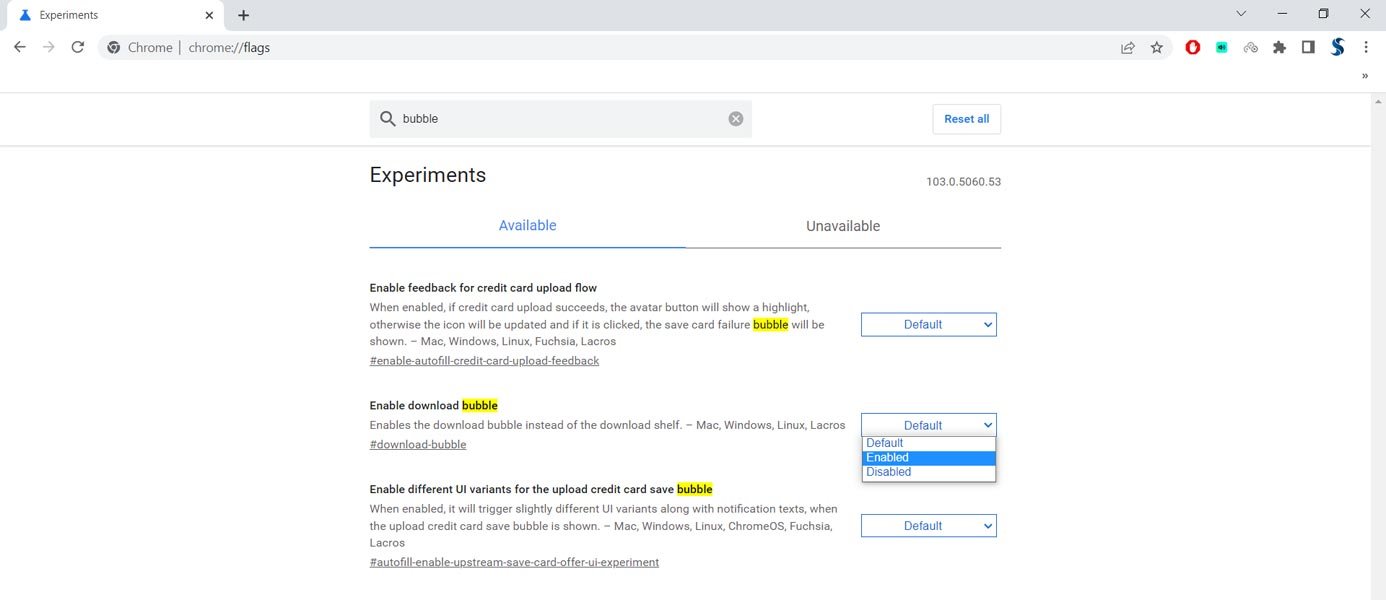
- In the URL bar, also known as the Omnibox, type or paste the following: chrome://flags.
- A warning message will appear, cautioning you about the potential instability of enabling flags. Take note of the risks involved.
- Scroll through the list of available flags or use the search function to find a specific flag.
- Once you’ve found the flag you want to enable, click on the drop-down menu next to it.
- Select the “Enabled” option from the drop-down menu.
- After enabling a flag, you will be prompted to relaunch Chrome for the changes to take effect.
Precautions and Troubleshooting
While enabling Chrome flags can provide access to exciting features, it’s essential to exercise caution. Here are some precautions and troubleshooting tips to keep in mind:
- Potential Instability: Enabling flags may result in a less stable user experience, including occasional crashes or bugs. If you encounter issues, remember that you can easily reset all flags to their default settings using the “Reset all” button at the top of the chrome://flags page.
- Data Backup: It’s crucial to back up your device regularly, especially when experimenting with experimental features. If you encounter a severe issue preventing you from accessing Chrome, you may need to perform a powerwash, reset your device to its factory settings, and erase any local data. Ensure you have backups of any important files before proceeding.
How to Disable Google Chrome Flags?
You can quickly turn off Chrome flags if you no longer wish to use a specific flag or encounter issues after enabling it. Here’s how:
- Open your Chrome browser or ChromeOS device.
- In the URL bar, type or paste chrome://flags.
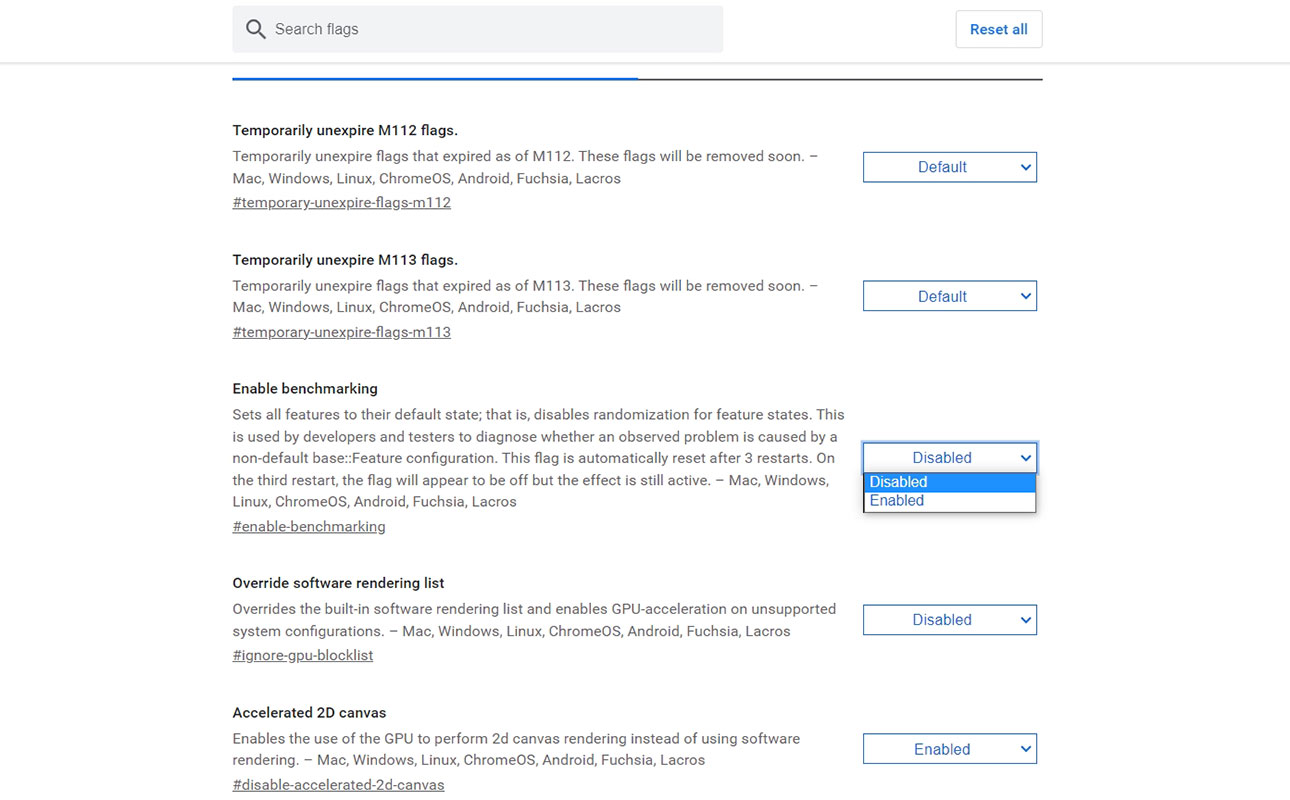
- Locate the flag you want to disable.
- Click on the drop-down menu next to the flag and select the “Default” or “Disabled” option.
- Relaunch Chrome for the changes to take effect.
FAQs
Are Chrome flags safe to enable?
Enabling Chrome flags comes with a certain level of risk, as they are experimental features. While most flags are relatively stable, some may cause crashes or other issues. It’s recommended to proceed with caution and be prepared to troubleshoot any problems that may arise.
Can I reset all Chrome flags to their default settings?
Yes, you can easily reset all Chrome flags to their default settings using the “Reset all” button at the top of the chrome://flags page.
Will enabling Chrome flags void my warranty?
Enabling Chrome flags does not void your warranty. However, it’s essential to note that experimental features may have unintended consequences or cause instability in your system. Exercise caution and consider the potential risks before enabling flags.
Can I enable Chrome flags on my mobile device?
Chrome flags are only accessible on desktop versions of Chrome and ChromeOS. They are not available on mobile versions of the Chrome browser.
Where can I find more information about specific Chrome flags?
For detailed information about specific Chrome flags, you can visit the Chromium Source Code website or search for reputable tech sources that cover Chrome flags and experimental features.
Wrap Up
Chrome flags provide tech enthusiasts a playground to explore new and experimental features within the Chrome browser and ChromeOS ecosystem. You can access cutting-edge tools and functionalities by enabling flags before they become mainstream. However, it’s crucial to exercise caution and be aware of the potential risks of allowing experimental features. Unlock the hidden potential of your Chrome experience by diving into the world of Chrome flags. Discover exciting features and stay at the forefront of technology.

Selva Ganesh is a Computer Science Engineer, Android Developer, and Tech Enthusiast. As the Chief Editor of this blog, he brings over 10 years of experience in Android development and professional blogging. He has completed multiple courses under the Google News Initiative, enhancing his expertise in digital journalism and content accuracy. Selva also manages Android Infotech, a globally recognized platform known for its practical, solution-focused articles that help users resolve Android-related issues.