
When you can find the error source, you can fix the issue. It is small or big. But, When you can’t see which source is making errors even if it is a minor issue, you can’t deal with it. Screen overlay detected an error in Android mobile is like that. This kind of error can happen when one of your apps is running in the background, and another app is also trying to run in the background or accessing the same permission. You will notice this issue when using VPN apps or eye-protecting apps. Those apps are always run in the background or draw over other apps. I gave only examples. There are a lot of apps that can cause an issue- screen overlay.
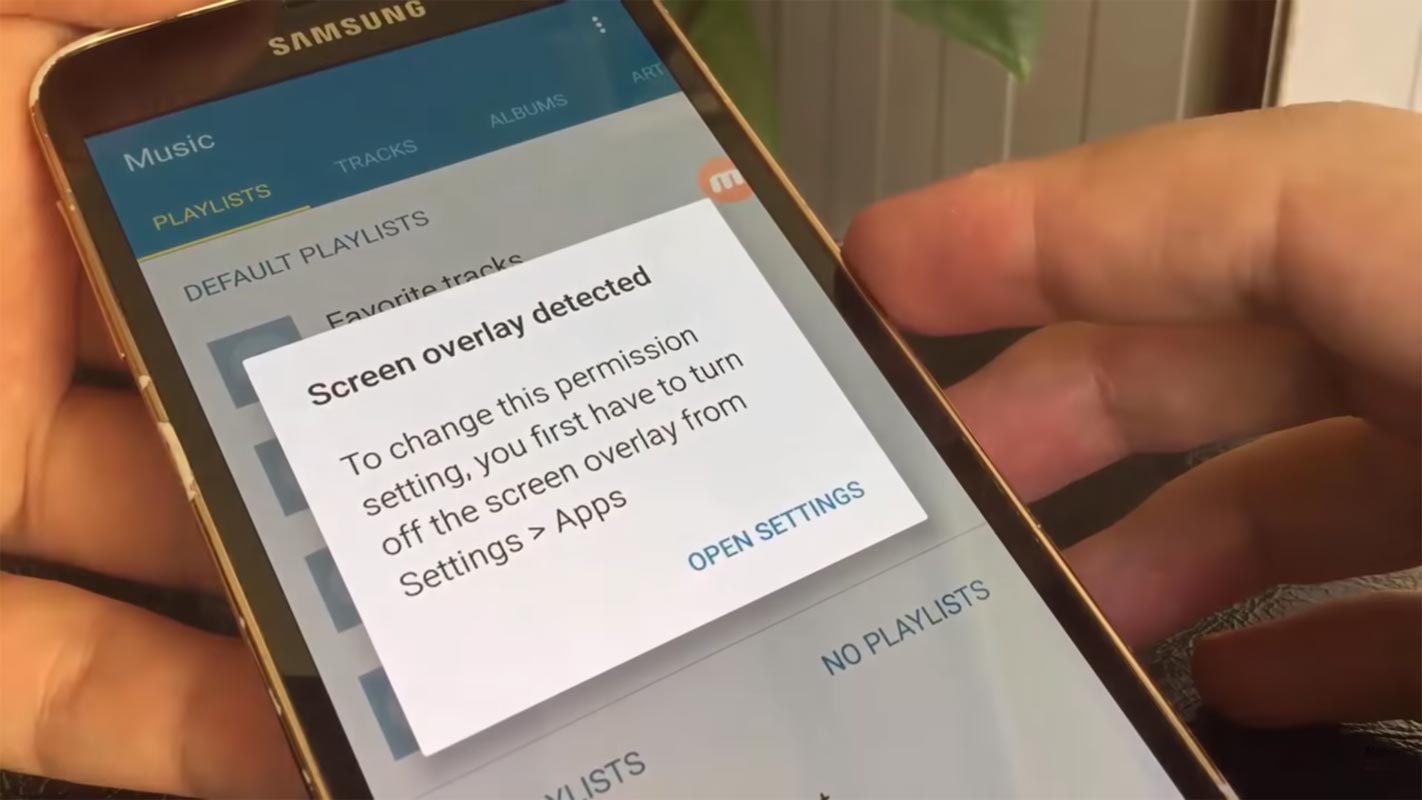
Eye protectors run over on every app. It is like a filter added on the surface of other apps. VPN apps are running on all apps networks to ensure you have a private connection. The apps are doing their job. But, When they didn’t allow us to install other apps, the problem rise. I will give some fix ideas. I will start from a simple step to advanced. Start with simple. When it doesn’t help, you can move to other methods. Most of the time, this error happens on Samsung Marshmallow version mobiles. This is not exclusive to Samsung mobiles; Screen Overlay Detected issue is standard on most of the Android mobiles on Marshmallow version and above.
How to find the apps that causing Screen Overlay Detected issue?
You may wonder why this error is happening on your mobile. When two apps want to access the same permission, this issue can arise. For example, a VPN app accessing the entire network of your mobile and running in the background also runs overall apps data connection. When another app wants to access the same system, you will get the error. Now you can understand the concept. So, When you install the app, pause the other app that using the permission. When you want to give storage permission and find this error, Check with ES file explorer. So based on the permission you want to offer, you can check the app that causing the problem.

Fix Screen Overlay Detected in Android Mobiles (Allow Draw Over other Apps)
As I said earlier, I will start with simple ideas. When you face issues, the fix is not needed to be Engineering level. Most of the time, simple fix like restart your mobile can fix the whole problem.
Method 1: Disable/Pause VPN and Eye Protecting Apps
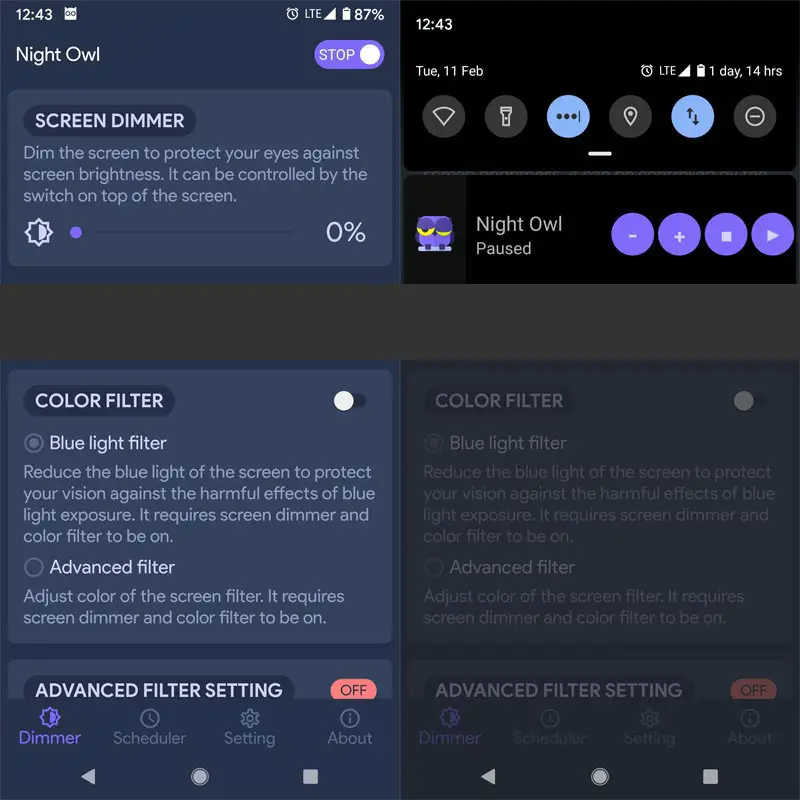
When you get Screen Overlay Detected notification, the first thing you should do is check you are using VPN or Eye protecting apps that are running in the Notification and the background. When you find these apps are running in the background, disable them, and install and enable permissions in the new app. Now you can see that the new app can run without any error notifications. I will give the steps for Cloudflare warp ap. Based on your Free or Paid Android VPN apps, the levels may vary.
1.1 Steps to disable and pause Cloudflare warp app
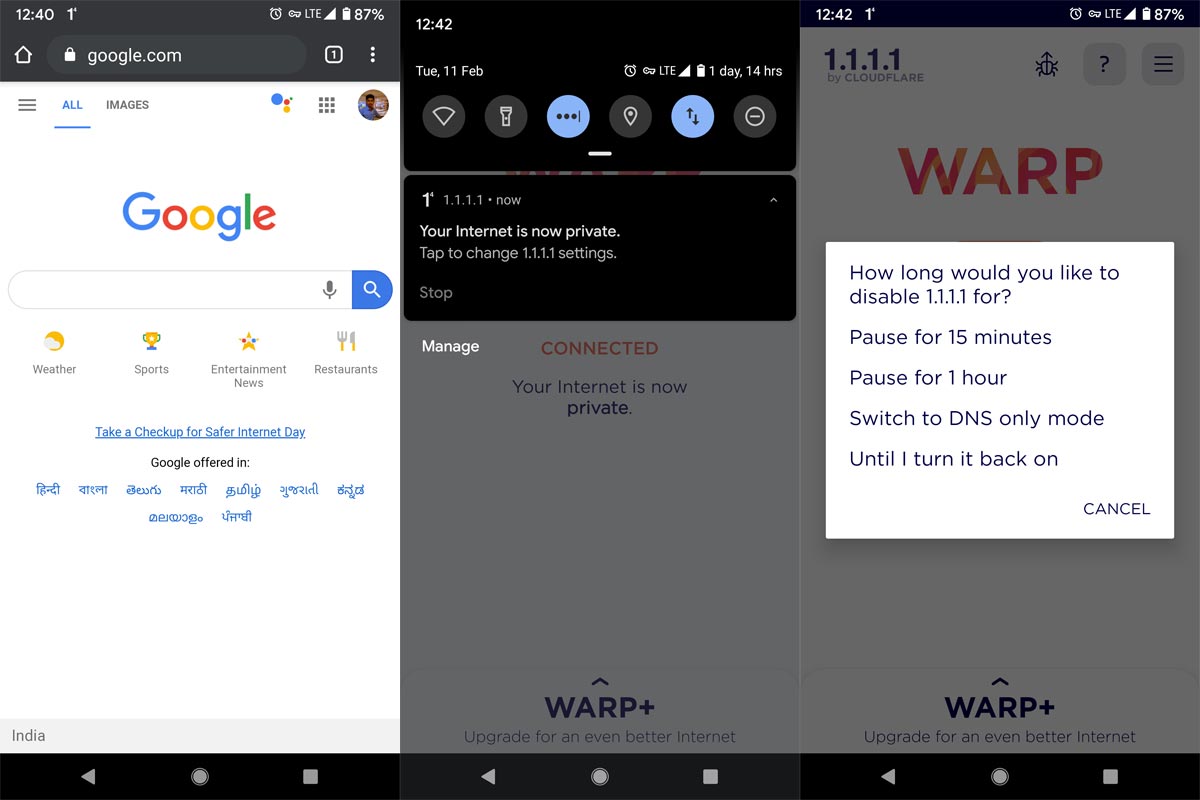
- Open 1.1.1.1 App.
- Select the Disconnect button. It will ask how you want to disable the app like a particular time or permanently. You can choose to pause or stop. Both will work.
- After the Pause/Disable, Now try to install your desired app. Now you can see that the app installs without any error.
2. Fix Screen Overlay Detected Using Default Settings in your mobile
Yes, we can fix the issue using the default settings option in our Android Mobile. The process may vary based on mobile manufacturers. So, follow the steps that match your current mobile manufacturer.
2.1 Stock Android Mobiles (Asus, Moto, Nexus) (Versions- Marshmallow, Nougat, and Oreo)
You can easily find your mobile is Stock Android or not with UI and App icons. If you are using third-party launchers, disable them also.
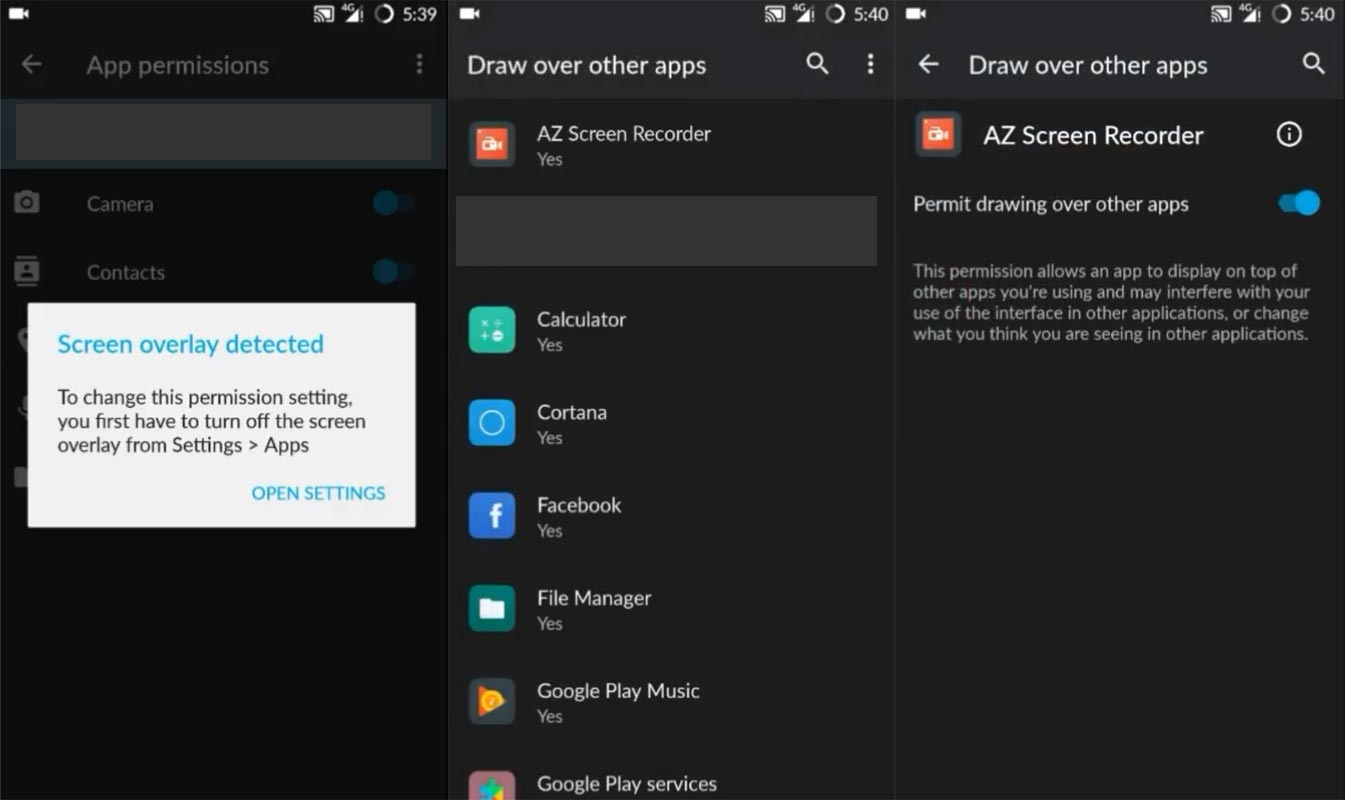
- Open Settings. Search for the term “Over other.”
- You will get a “Draw over other apps” option if you are in Marshmallow and Nougat version. “Display over other apps,” if you are in the Oreo version.
- Select the option and allow permission to your installed new app.
2.2 Fix Screen Overlay Detected in Samsung Galaxy mobiles
Most of the Samsung Old mobiles faced this issue. Nowadays, they are updated a lot of features, and most of the time, your device can resolve this kind of problem. But when you are using Oreo and below Android versions, you may still face this issue. Fortunately, we can fix the error like stock Android mobiles. But, the steps may vary.
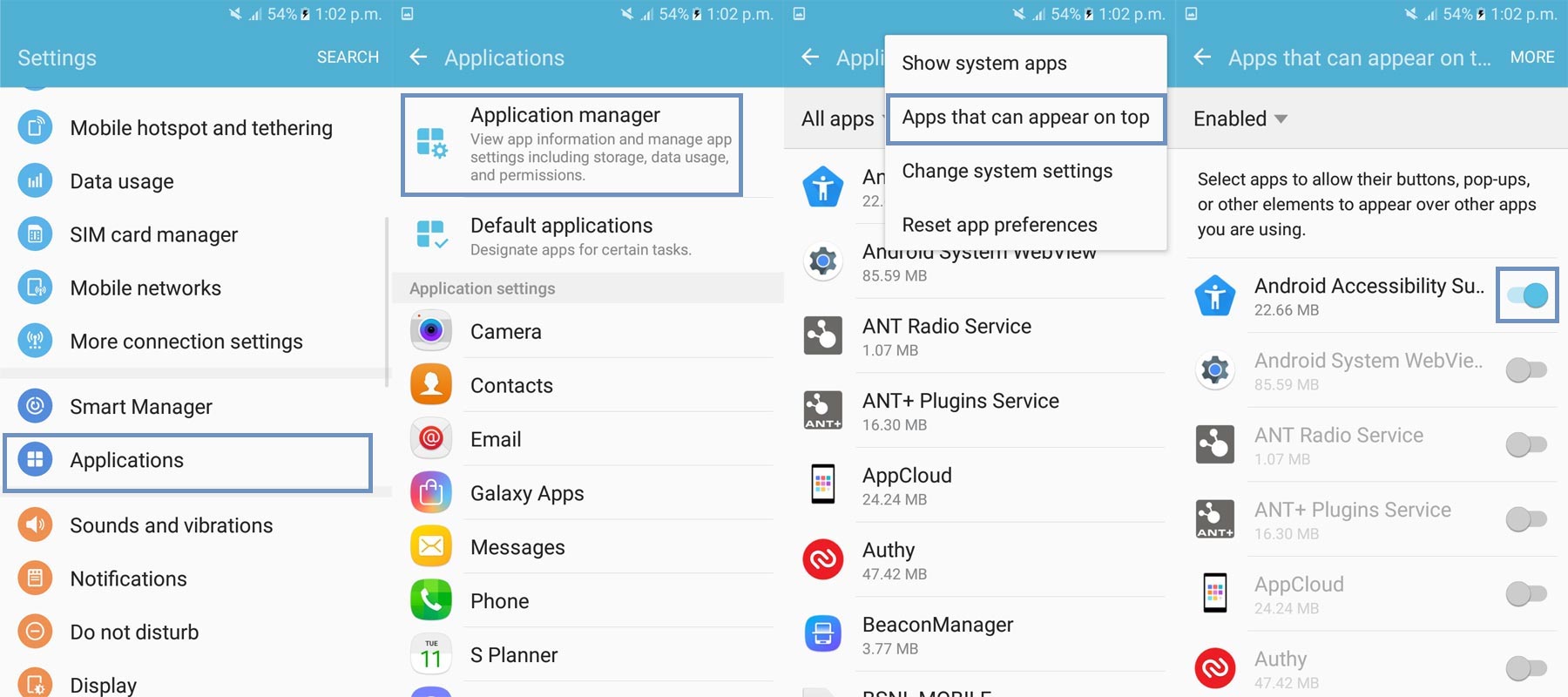
- Open Settings. Select Applications> Application manager.
- After opening the Application manager, select “more.” You will receive further options from the menu.
- Select the option “Apps that can appear on the top.” You will receive a lot of installed applications with the enable button choice. Enable the option to your installed new app. Now you can use your new app without any issues.
2.3 LG Mobiles
LG mobile’s settings lightly vary, compare with other above settings. Most of the carrier-locked Old LG mobiles like LG G5, G4, G3 are many mobiles in this category.
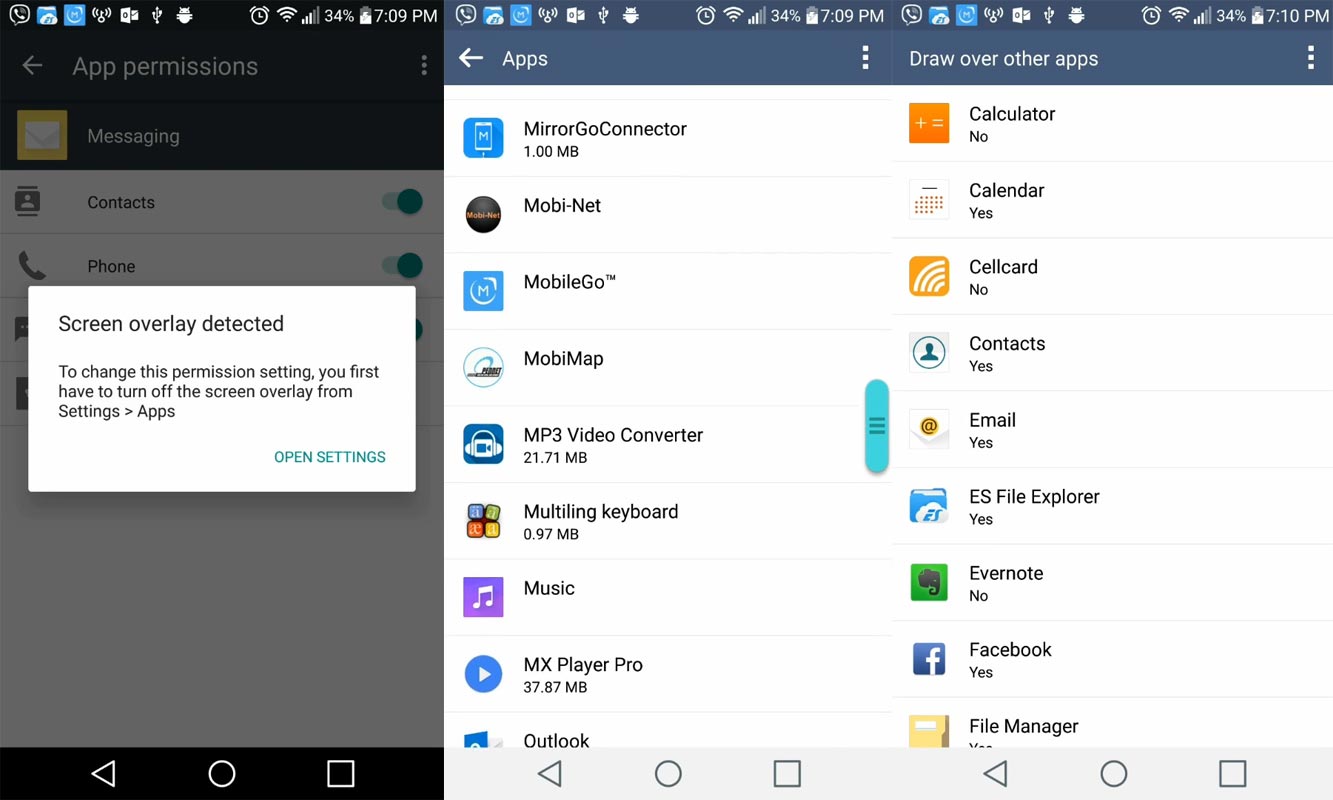
- Open Settings. Select Applications> Select the three-dot icon on the top right side then select “Configure apps.”
- You can see the option “Draw over other apps.”
- You will receive a lot of installed applications with the enable button choice. Select the “Yes” option for your installed new app. Now you can use your new app without any issues.
3. Un-Install Screen overlay apps
When you can’t install/use your new app, you should uninstall the already installed app. You can install those apps later. Here you may have a question, How I can find the app that causes Screen overlay detected an error. I already explained the idea before. When you install the app that accesses the same permission, you may receive the error. So, by Un-Installing the apps, you can fix the issue.
4. Safe Mode
If you can’t enable the permissions in normal mode, you can enable and disable the permissions in a secure way. Based on the manufacturers, the method to boot into safe mode differ. In stock Android, Long press the power button and select boot into safe mode. In Samsung mobiles, Switch off your mobile. Press the power button when the Samsung logo appears, release the power button and press the Volume Up button. After booting into safe mode, follows the below steps.

- Open Settings. Select Applications> Select the three-dot icon on the top right side then select “Configure apps.”
- You can see the option “Draw over other apps.”
- You will receive a lot of installed applications with the enable button choice. Enable all permissions for your installed new app. Now you can use your new app without any issues.
5. Using third-party apps
When none of the above methods works for you, then you can use third-party apps. Don’t download these apps from other sites. Always download and install apps from the Play Store. There are plenty of apps available in the Play Store for this Screen overlay detected fix. But I will suggest the one app that can work with all versions and all manufacturers.
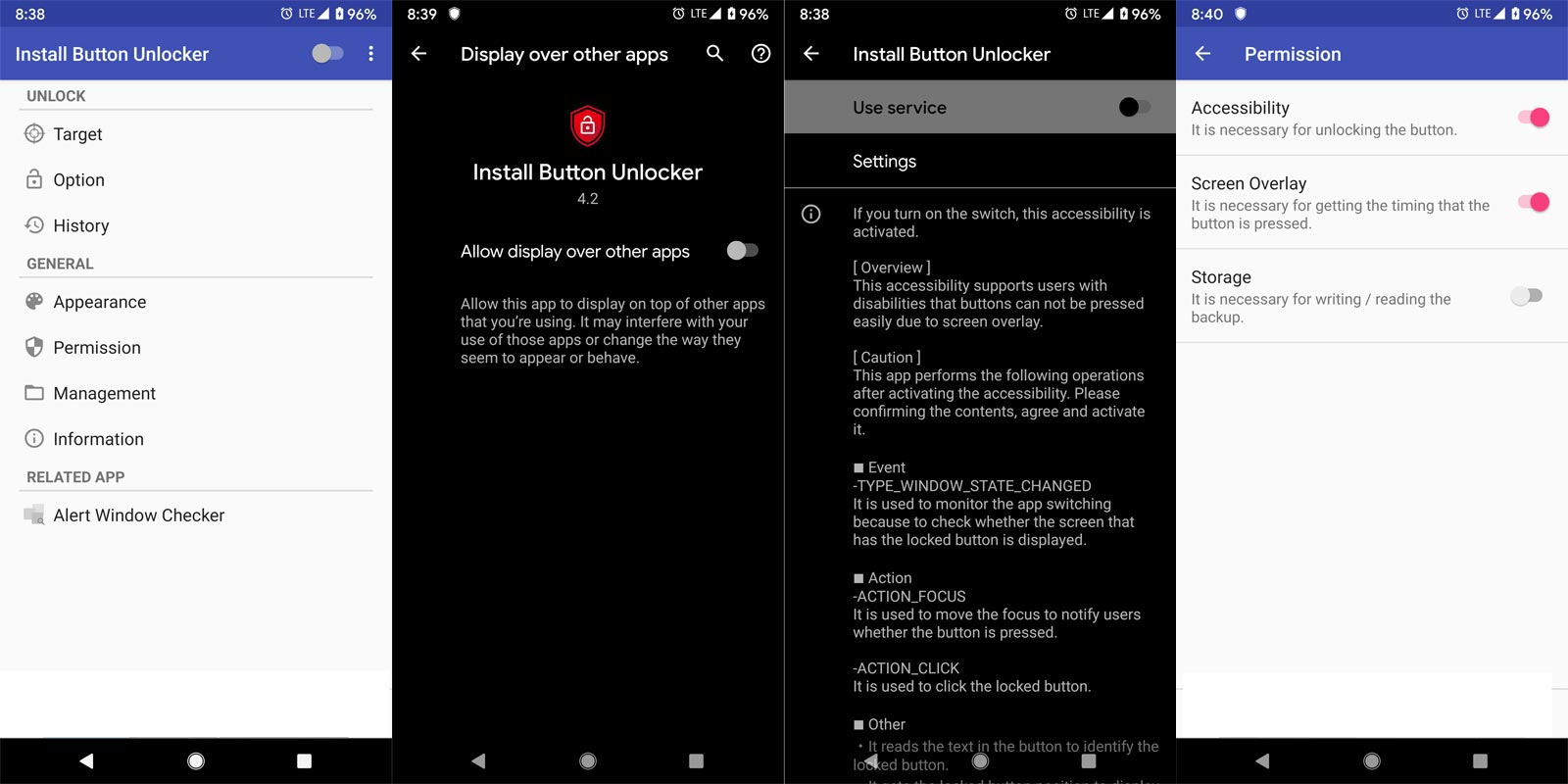
- Download and Install Button Unlocker – Fix Screen Overlay Error.
- Open the app and give the necessary permissions. You should provide Accessibility and Display over other apps permission from your mobile.
- After enabling these options, Go to the Button Unlocker app and select permissions. Enable Accessibility and Screen Overlay. Hereafter you won’t get any Screen overlay detected an error in your mobile when opening and using other apps.
Wrap Up
Every OS has its problems. Nowadays, the Screen Overlay Detected error is not happening in the latest Android versions. But, Marshmallow is not the too old version. Most of the apps supporting mobiles from the Lollipop version. But, If you have an idea about upgrading your mobile, Stock Android phones are available under $300, Xiaomi K30 5G is also under $300. So, updating your mobile will not cost you too much. I hope you fix your issue using the above methods. When you tried another way that works like a charm, comment below. This will help our friends also.

Selva Ganesh is a Computer Science Engineer, Android Developer, and Tech Enthusiast. As the Chief Editor of this blog, he brings over 10 years of experience in Android development and professional blogging. He has completed multiple courses under the Google News Initiative, enhancing his expertise in digital journalism and content accuracy. Selva also manages Android Infotech, a globally recognized platform known for its practical, solution-focused articles that help users resolve Android-related issues.