
For Some good reasons to save regular users from bricking Their mobiles, Mobile companies won’t support direct firmware downloads other than Google. Since mobiles are working at the level PC, They may go through issues. In the significant damage, We have to flash the full firmware to make the phone to performing live. To handle those situations, developers try their best to provide a firmware hub where we can download the official firmware for Downloading Sony Firmware files from users Xperifirm. The app must connect with the live server to download the files. Sometimes, You may get the Sony Xperifirm failed to connect to the server. We can fix those issues using the below methods.
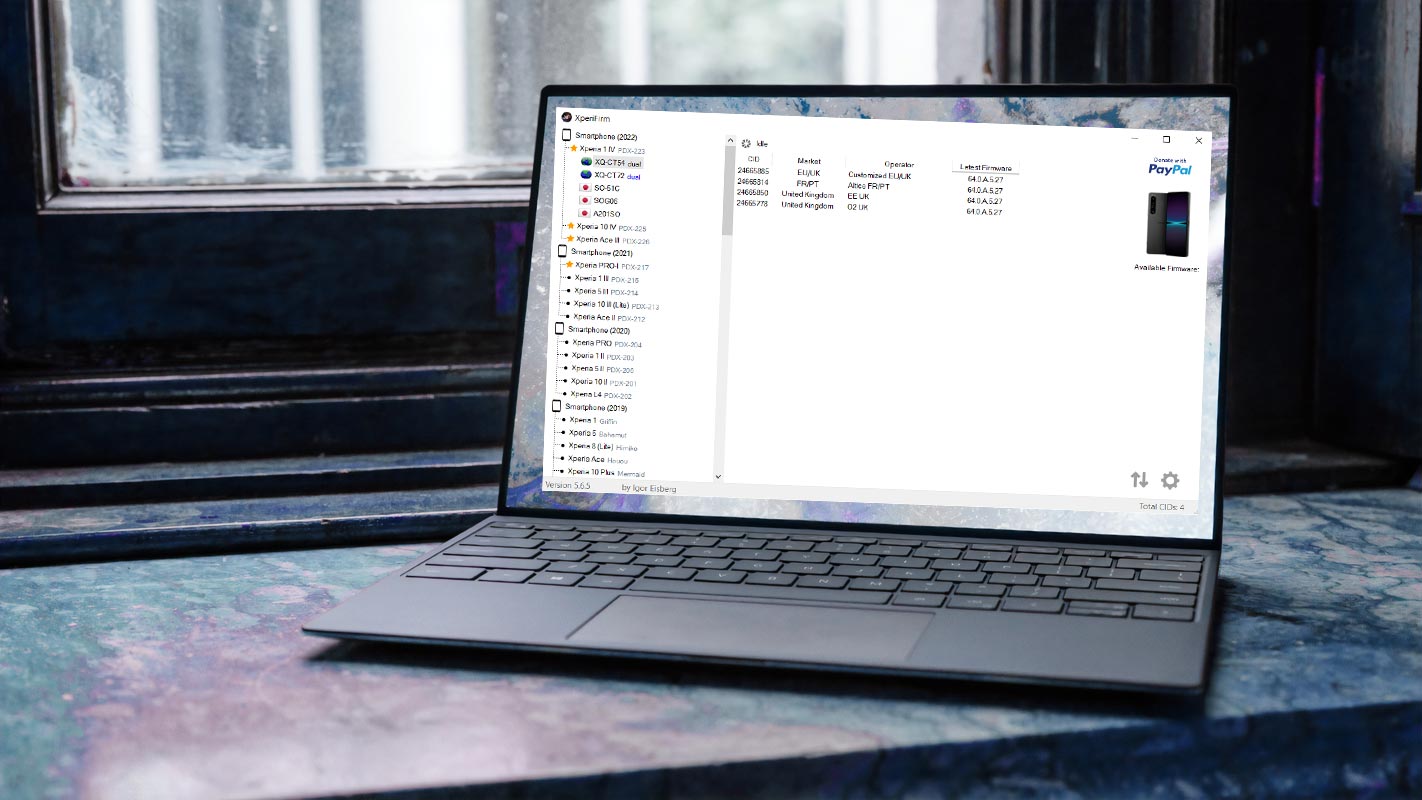
How to Fix Sony Xperifirm failed to connect to the server?
There are plenty of reasons that can affect the connectivity of Xperifirm with the server. Based on the success, you can move from one method to another.
Run As Administrator
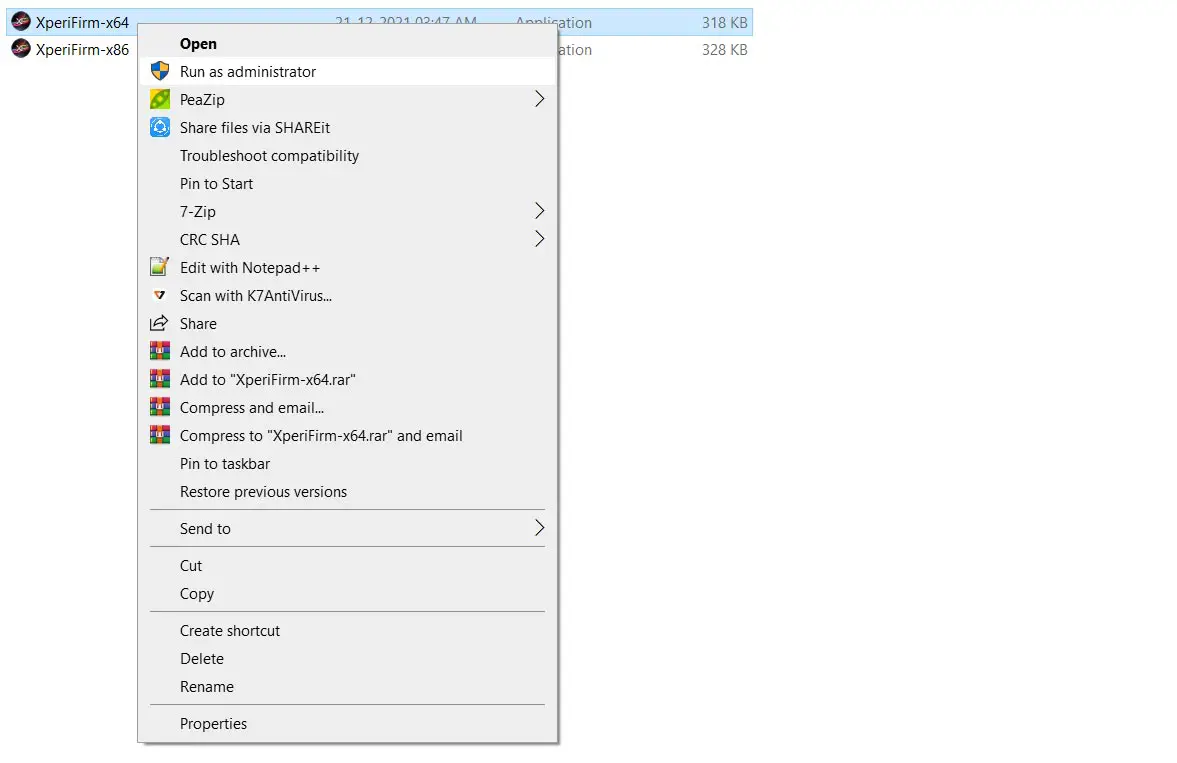
Since the app doesn’t have enough connectivity permission, It may not connect with the server. Run the app with “Run as Administrator “permission on your Windows device. When you still face issues, move to another method.

Use With VPN
Sometimes your Internet provider may blocklist some IPs used by the Xperifirm to connect with the server. We can bypass this restriction using VPN connections. It would help if you used system-level VPNs or the Cloudflare Windows apps to ignore the connection.

Allow the Xperifirm in your Anti-Virus App
It would help if you allowed the path of the Xperifirm app. Since We Run Xperifirm without installing the path option, most of the time will work. Sometimes, Your Anti Virus app may restrict the other apps from accessing the Internet connection.
Use the Latest version of Xperifirm
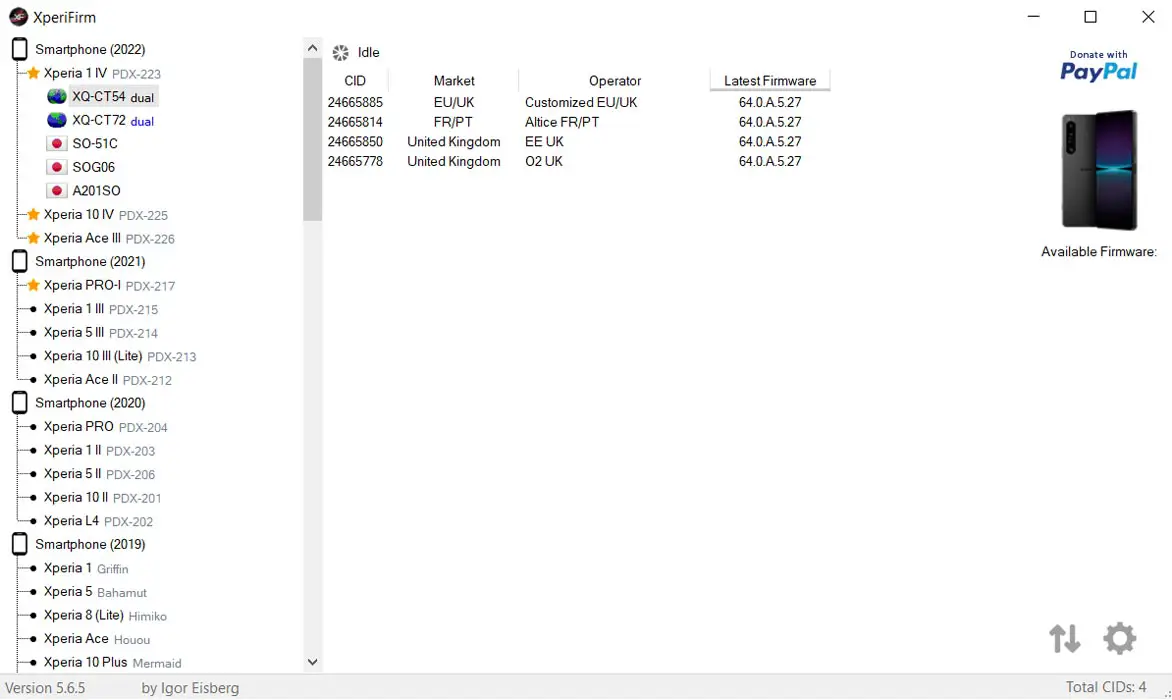
This method will always work. Since Sony restricts the server connection often, Using old versions of Xperifirm may not always work. You have to use the latest version. You can download the newest version from the official XDA site or Here- XperiFirm 5.6.5 (by Igor Eisberg).
Use the appropriate Windows Version of Xperifirm

Even though Xperifirm can work in all Windows versions, using appropriate X64 or X86 architecture builds can fix the connectivity issue.
How to Download and Flash Sony Xperia Official Firmware?
Getting started…
1: Download RAW firmware using Xperifirm
-
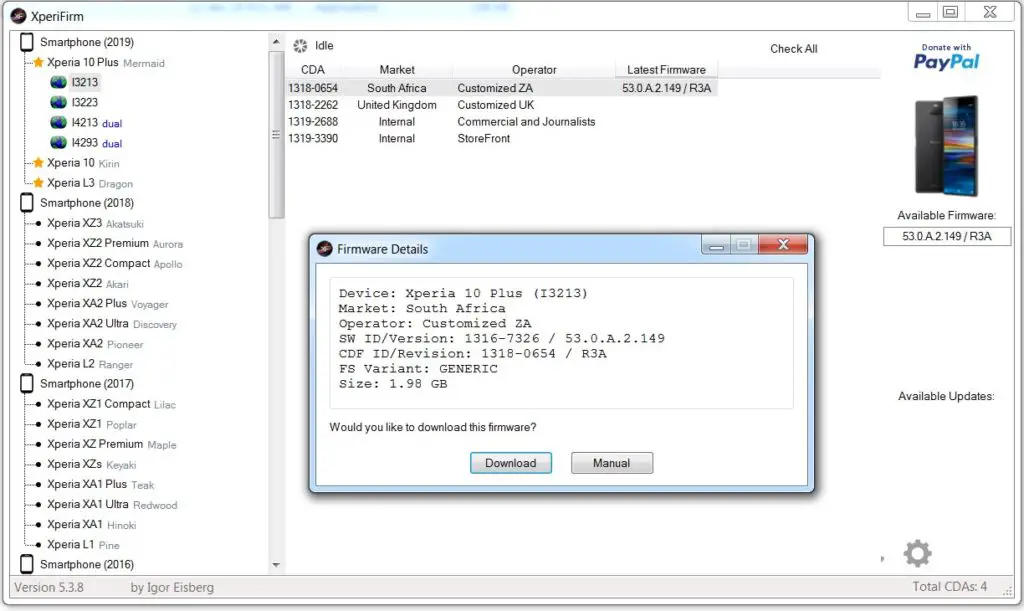
Extract the XperiFirm zip files on your PC and install the application file. Launch/open the app after installation to continue
-
Choose your Sony Xperia device model to download its firmware files based on your region/country. When you have seen the different firmware for your device based on your region, go ahead to download it.
-
After the download, locate and delete any file with the following name – fwinfo.xml in the downloaded files. The data is not necessary, so don’t panic about exercising your delete button on it.
After the steps above, move on to Androxyde FlashTool steps.
2: Creating a .ftf file Using Androxyde FlashTool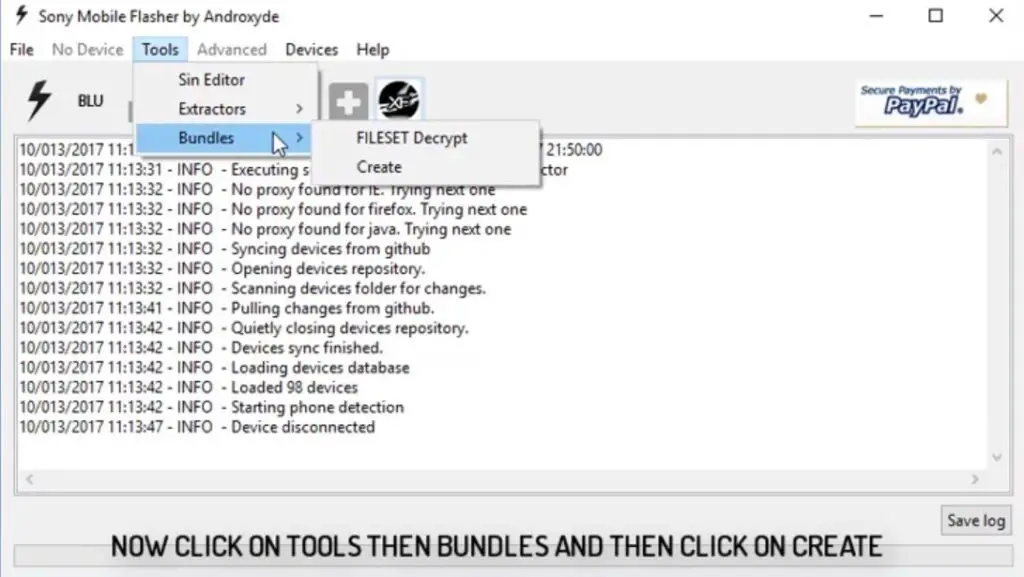
-
Navigate to Tools > Bundles > FILESET Decrypt >Select files from Folder (Select whole folder).
-
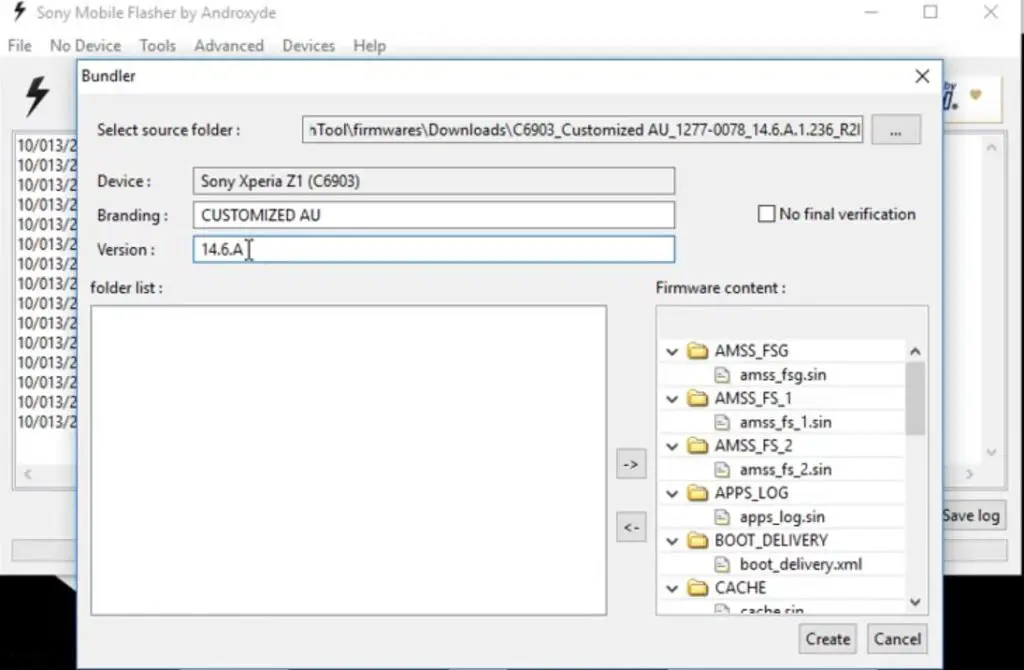
Select all the firmware files downloaded from Xperifirm; select the right arrow in the flash tool. It will move all of your data into “Firmware Content.” Now tap on “Create / Convert.” Give Device Name, Branding, and Version From the Xperifirm Tool (You can also give your Details, But to avoid confusion, follow the correct details).
-
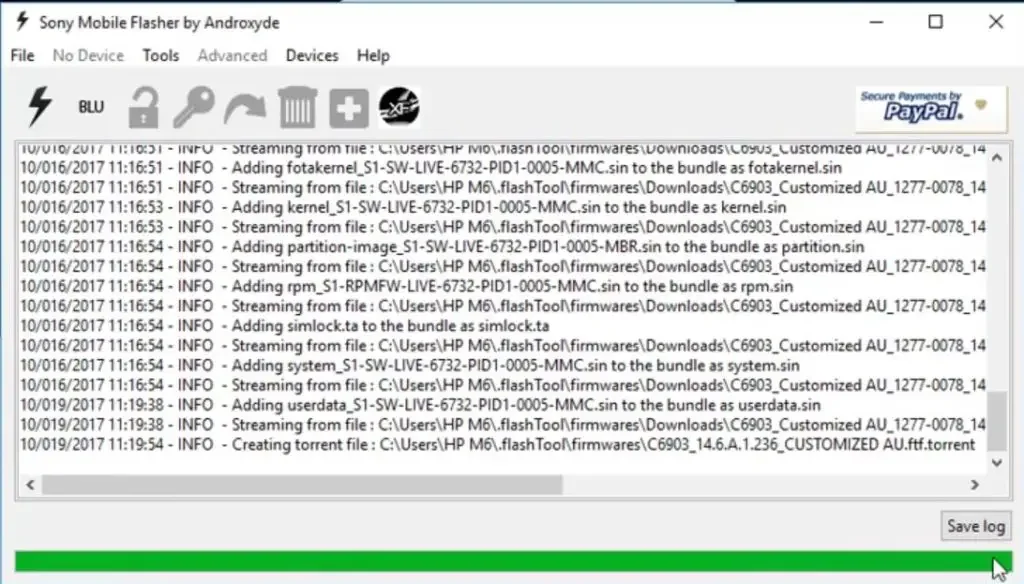
Wait for the process complete. After the entire process, you can find the .ftf file in the log.
-
Now, you got the .ftf file needed for flashing Sony Xperia devices. You can flash the .ftf file using Androxyde FlashTool.
3: Flash a new firmware in your Sony Xperia Devices
Soon you have a .ftf file from the above steps. Since you have downloaded the Androxyde FlashTool, continue below
By default, the downloaded file will be in the Flashtool subfolder. If you installed other than C:/ in Windows, Copy the downloaded firmware files (with .ftf extension) to this folder C: Flashtool/firmware/Downloads.
-
Connect your Xperia mobile device via USB Data Cable
-
Ignore the Fastboot mode steps; instead, select the flash button with an electric symbol. It would help if you chose Flashmode too.
-
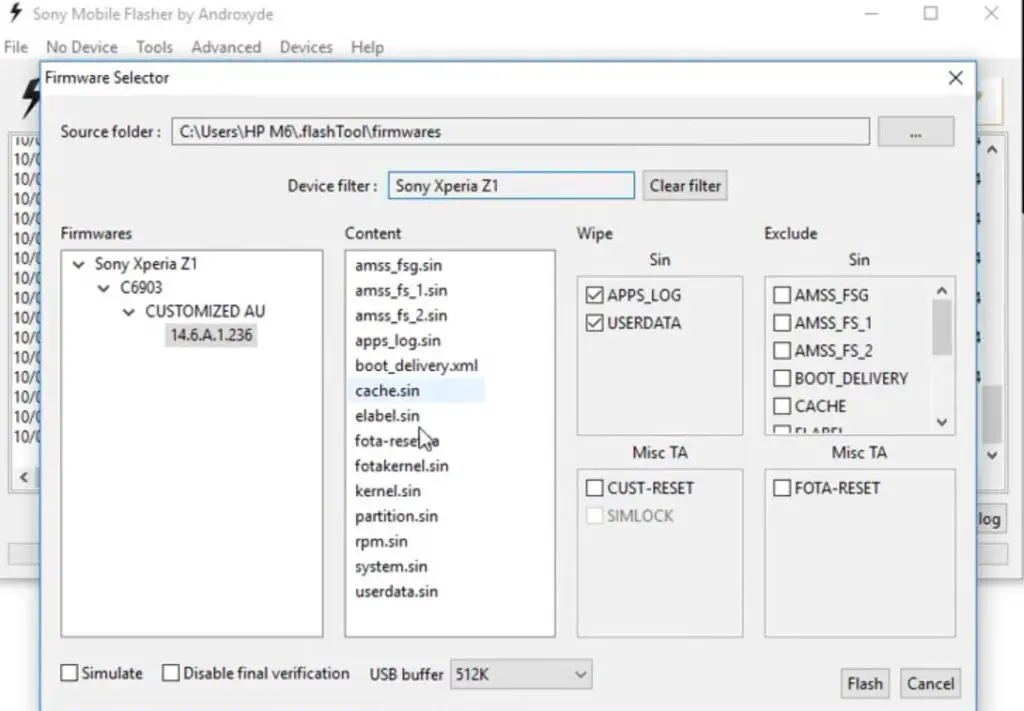
Select the folder like C: Flashtool/firmware. You will find the created .ftf file with the version. Select the file.
- In the device Filter option, Select your device.
-
On the right side, you will find “Wipe.” Tick the “Wipe data” and “Wipe Cache” options.
-
Also, tick no “Final Verification” and tap ok.
-
Follow the onscreen instructions that will appear to keep going
-
Then, wait for the process to be complete.
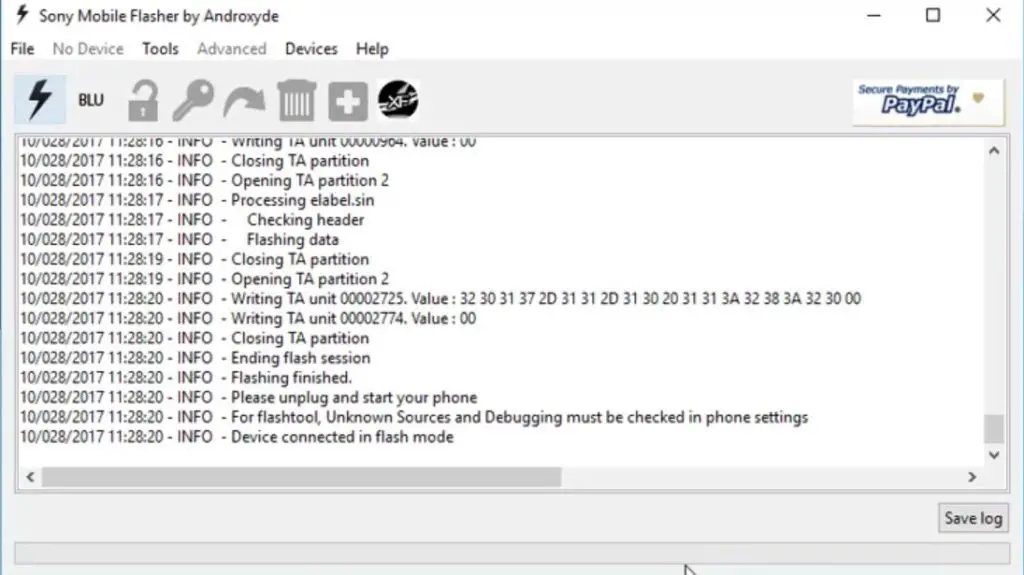
Once the process is complete, You will get the message “Flashing Finished.” Turn on your Sony Xperia mobile device; you have just flashed new firmware into it.
Wrap Up
Since Xperifirm is the only way currently working correctly for downloading Sony firmware, We rely on this software, and it has to work. Also, It doesn’t have a complicated setup and use. After launching the app, everything works in the background, and you can easily download the firmware you want. Suing the above methods, I hope you can Fix Sony Xperifirm failure to connect to the server. Did the method work, or are you still facing issues? Share your experience below.

Selva Ganesh is a Computer Science Engineer, Android Developer, and Tech Enthusiast. As the Chief Editor of this blog, he brings over 10 years of experience in Android development and professional blogging. He has completed multiple courses under the Google News Initiative, enhancing his expertise in digital journalism and content accuracy. Selva also manages Android Infotech, a globally recognized platform known for its practical, solution-focused articles that help users resolve Android-related issues.