
Android phones don’t sync with our PC like Macbook and iPhone Sync. Chromebooks are better with Pixel Phones. But, With Windows PC, none of the Mobile PC Suite work that much good. Yes, I know there are plenty of Apps that are available with your mobile manufacturer. But none of them works as expected. But, after the release of “Your Phone” app from Microsoft, Now you can easily sync your data between your mobile and PC. You can also make an Android Mobile Calls using Windows 10. The results are pretty great than expected. All You need is Android Mobile and Windows 10 PC/Laptop. I will explain the whole process from the setup.
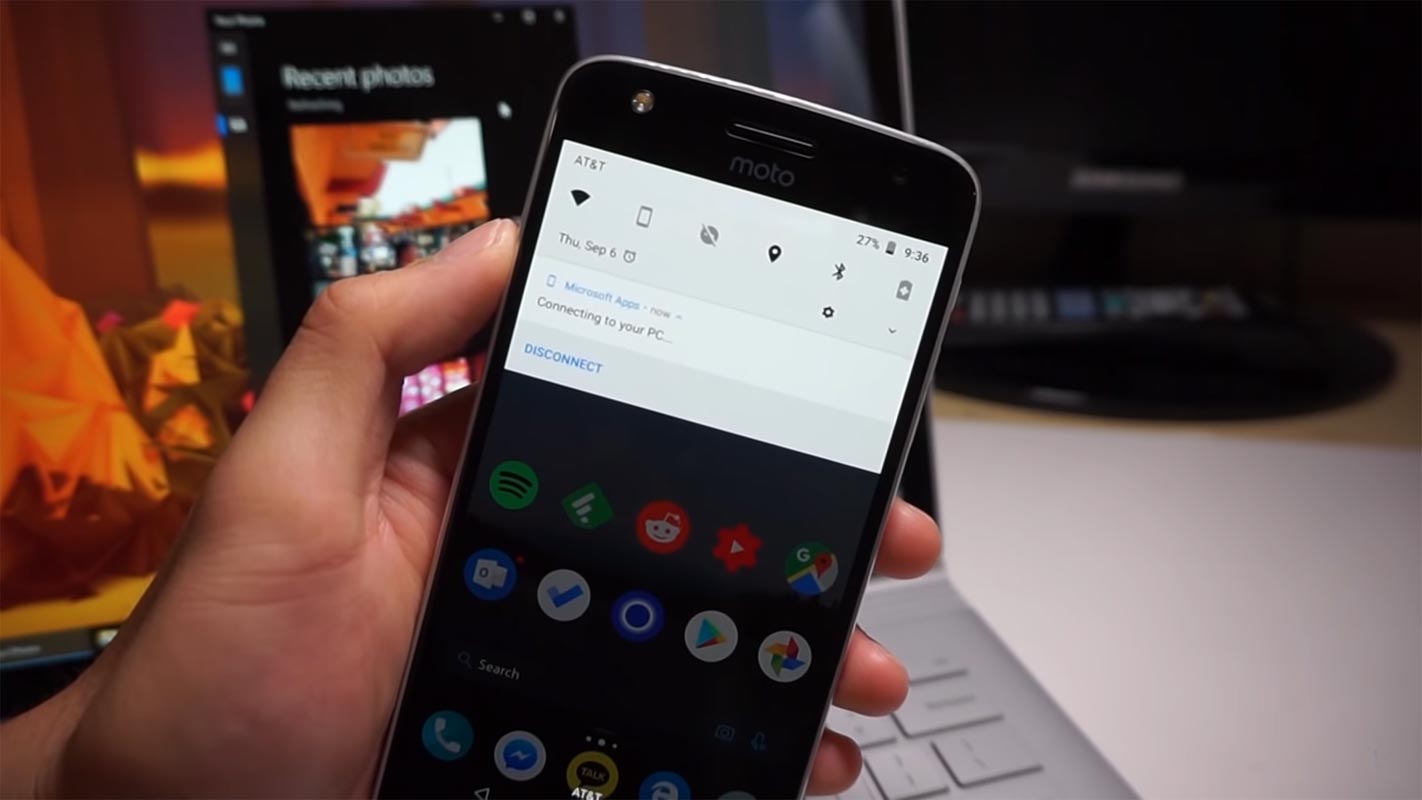
The PC Suite from the Mobile Manufacturers can only share the media files and flash the firmware updates. Only Samsung SmartSwitch does this much. Other Manufacturer PC Suite can’t even share the media files from PC to Phone and vice-versa.
Make Android Phone Calls in Windows 10 PC using Your Phone Companion App
We have to set up the apps on both your Mobile and Windows 10 OS. To avoid confusion, I separate the steps into two parts.

Features
You can access your necessary mobile features from PC Like Photos, Messages, Notifications, and calls.
- Photos– Photos (Google Photos, Phone Memory) will be sync from the Default Gallery app and File Manager.
- Messages– Messages can be sync in real-time.
- Notifications– To get the notifications properly, you have to enable the notification access permission from your mobile.
Requirements
- Your phone Android version should be Nougat and above (7.0+)
- Your Windows 10 should be on the above May 2019 Update (Windows 1903).
- Both mobile and your PC Should be connected in the Same Wi-Fi with Bluetooth paired on.
- You should turn off the Focus Assist (Windows Key>Settings>Focus Assist>Off) on your PC.
1. Setup PC- Install Your Phone Companion
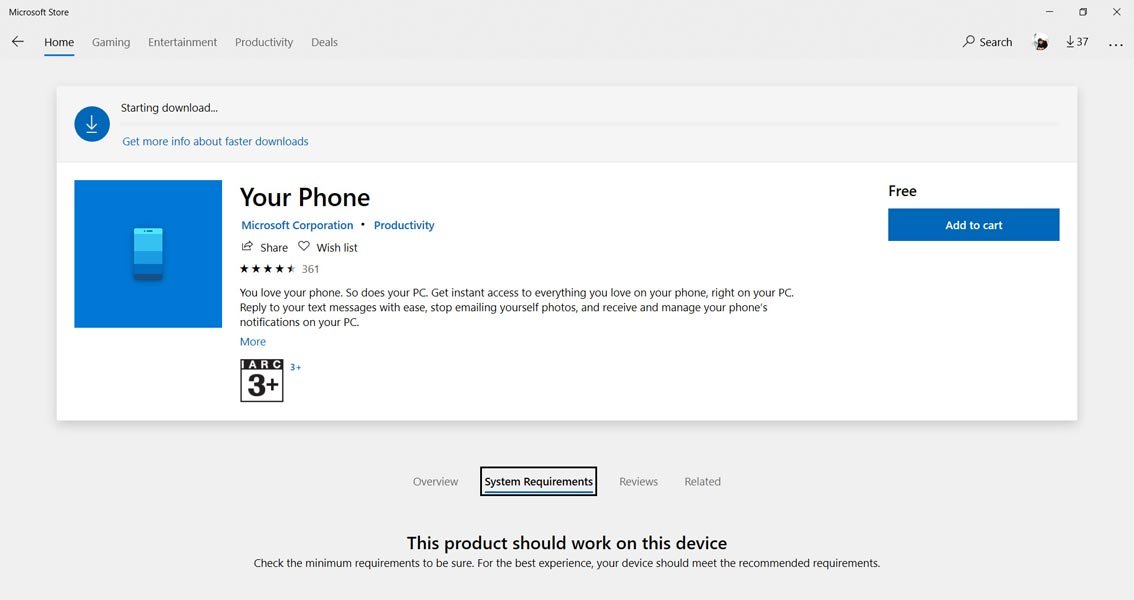
- Install Your Phone app from Microsoft Store.
- Open App and Log in with your Microsoft account. The Account should be the same as the mobile Microsoft account that we are going to log in.
- After login with your Microsoft Account, Allow necessary permissions.
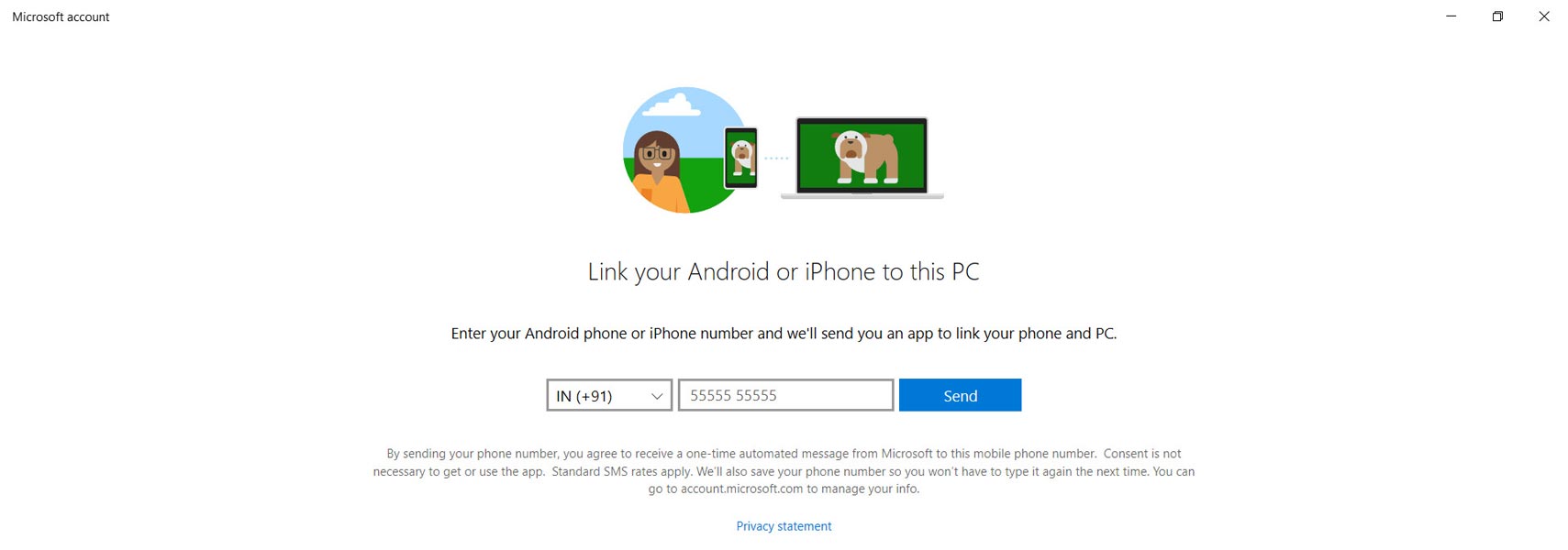
- Open the app and enter your mobile number. You will get the Installation link to your mobile via message.
2. Setup Mobile- Install Your Phone Companion
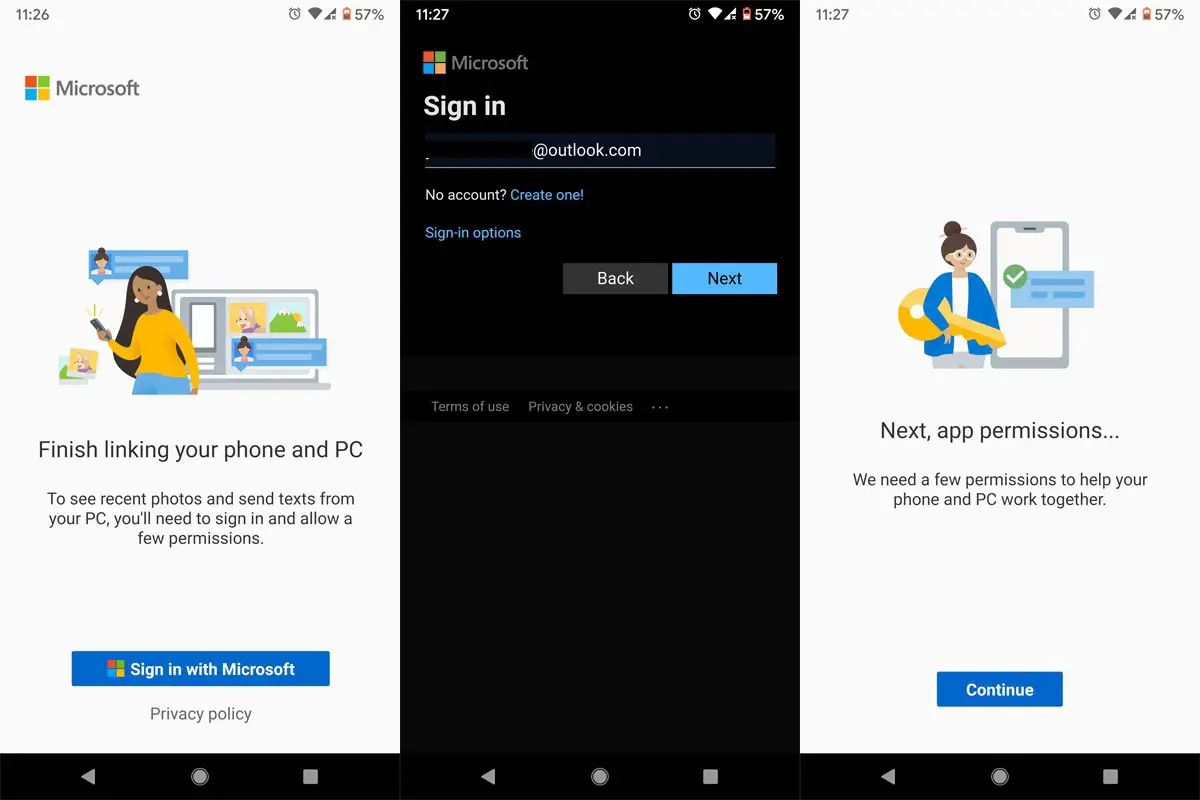
- You can download the app from the link that you received in the message or Install Your Phone Companion app from Playstore.
- Open App and Log in with your Microsoft account. The Account should be the same with the Windows 10 logged in Account.
- After login with your Microsoft Account, Allow necessary permissions.
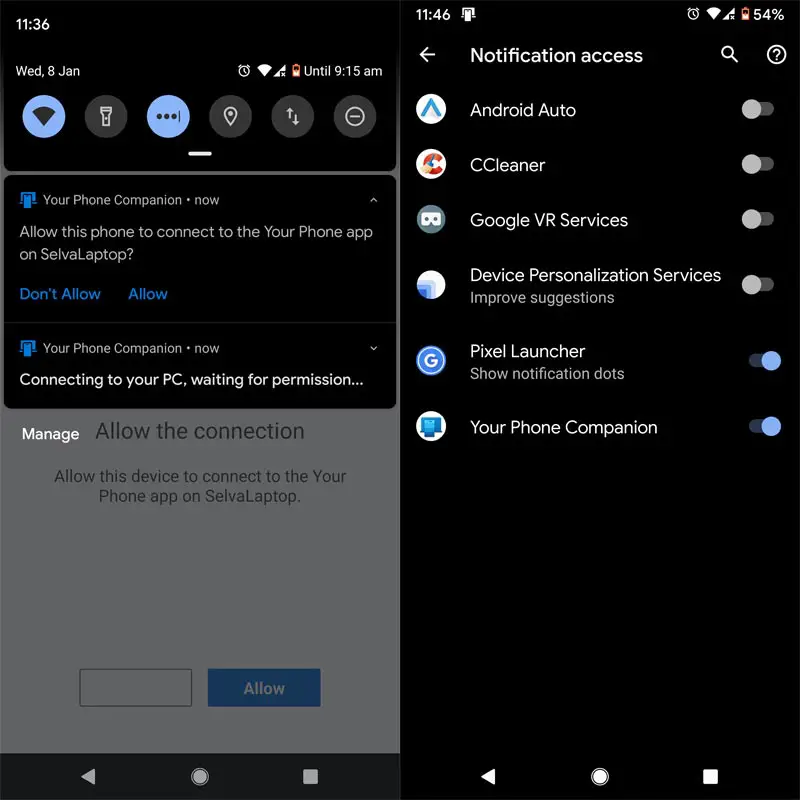
- In your PC, Select connect your mobile and allow connectivity on your mobile. To get the notifications properly, allow Your Phone Companion app in the Notification Access.
3. Make Phone Call
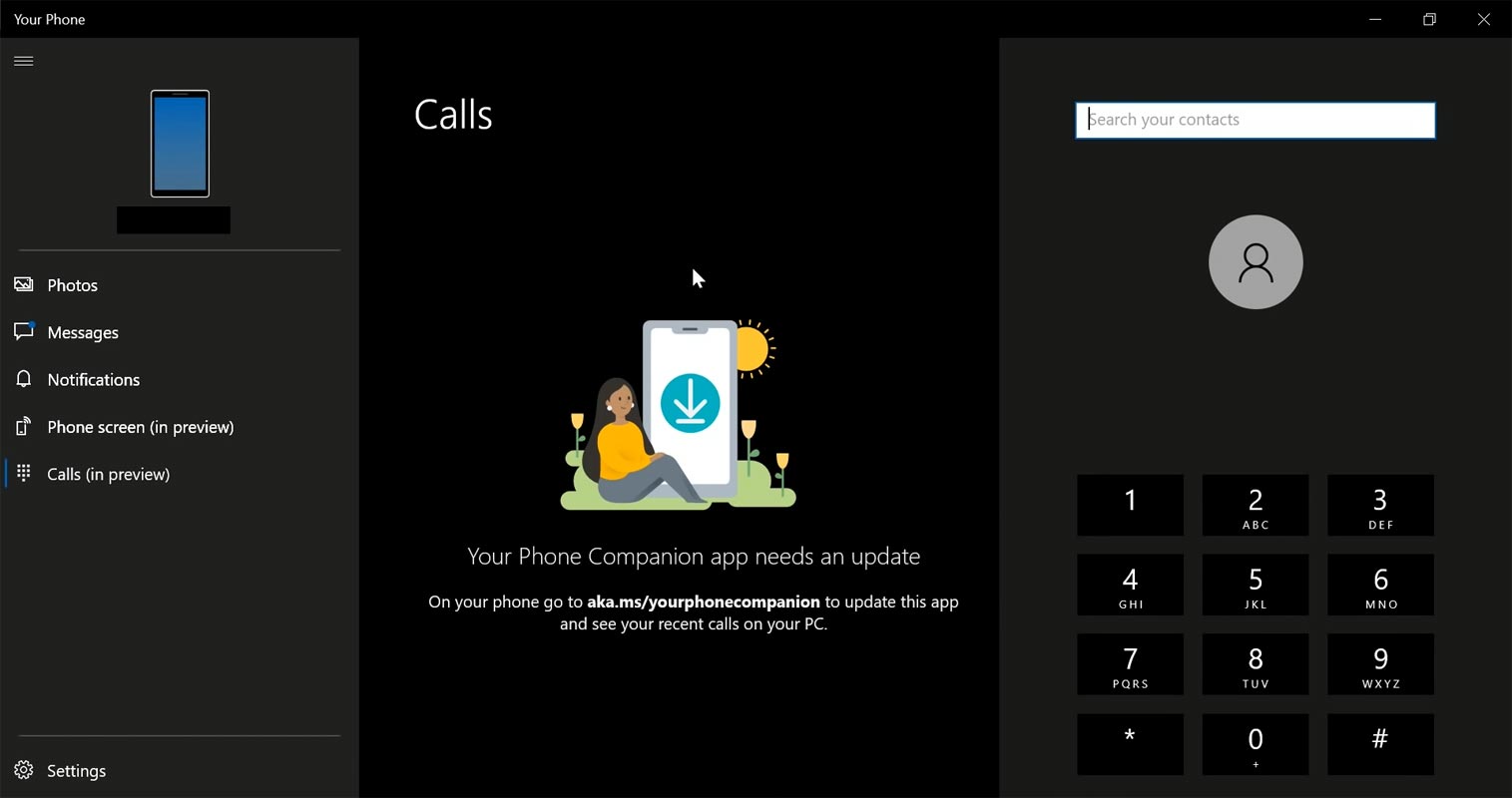
- You set up everything, Open the Your Phone app from Windows. You can see Photos, Messages, Notifications, Phone Screens, and Calls options.
- Select Calls. You can either search from your contacts or dial the number. If you muted your Mic, Enable your Windows Mic. If you connected headphones, the call conversation could be made through the headphone.
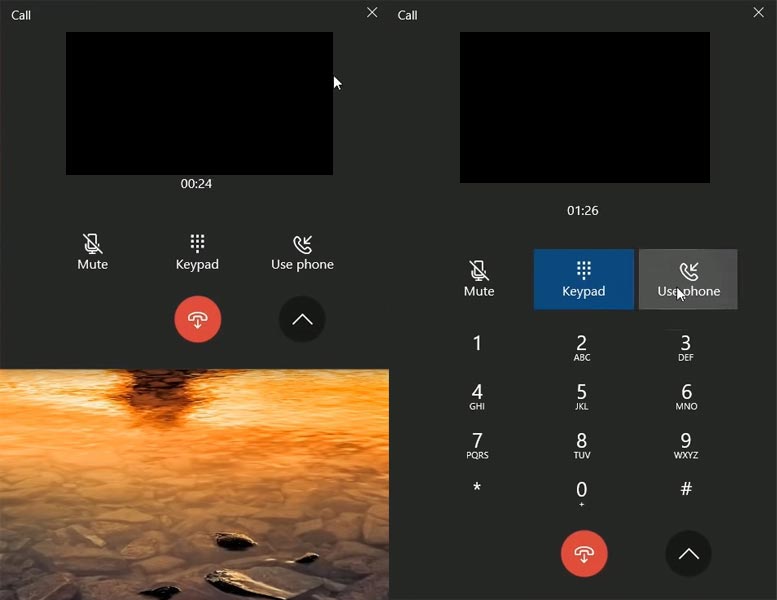
- The Call quality is Based on your connectivity and quality of the mic. You can also get the calls from your mobile if you connected through the Your Mobile app. You can detach the Call tab. Also, You will get the additional features within the call tab.
FAQ
Are the calls made in Data or From My Mobile Plan?
The App works as a screen mirror. So, the calls are made through your mobile as per your mobile operator plan. You can access the calls through your PC.
How to View Recent Phone Calls from PC?
Open your phone app from your PC. Tap on Calls. You will get the recent calls you made from your mobile.
How to Mute Phone Calls from PC?
You can use the Mic symbol in the app or use your default PC Mic mute option.
Wrap Up
None of the Software can sync this much flawless between the Windows 10 PC and Android Mobile. The Chromebook sync works perfectly with Pixel and Android One Phones. The Samsung SmartSwitch is best if you have Samsung phones. But, sometimes, it acts like a glitch, and Voice calls are not that much good. Some High-End Flagship mobiles like Galaxy Note 10,9 comes with a link to windows feature. That works great with Windows 10. You can also play games using this feature. But not all Samsung mobiles have this feature. But, You can adjust some settings to enable the link to windows on One UI mobiles. If you are a person who spends most of the time on your PC, Phone Companion is a great choice. Comment your experience below, after Making your mobile calls in your Windows 10 PC.

Selva Ganesh is a Computer Science Engineer, Android Developer, and Tech Enthusiast. As the Chief Editor of this blog, he brings over 10 years of experience in Android development and professional blogging. He has completed multiple courses under the Google News Initiative, enhancing his expertise in digital journalism and content accuracy. Selva also manages Android Infotech, a globally recognized platform known for its practical, solution-focused articles that help users resolve Android-related issues.