
In a fast-paced digital landscape, updates often promise innovation and improvement. However, the recent T-Mobile app update for Android users might have left some longing for the familiarity of the previous version. While reversing or downgrading an app is typically discouraged due to security and functionality concerns, there are instances where the new iteration might have inadvertently omitted essential features or introduced bugs, prompting users to consider reverting to the previous version. If you find yourself in this predicament, navigating the process cautiously becomes crucial. Despite the risks in reversing updates, the allure of regaining a smoother and more familiar user experience may prompt some users to explore this unconventional solution. Understanding the implications and ensuring compatibility is vital before undertaking any such action.
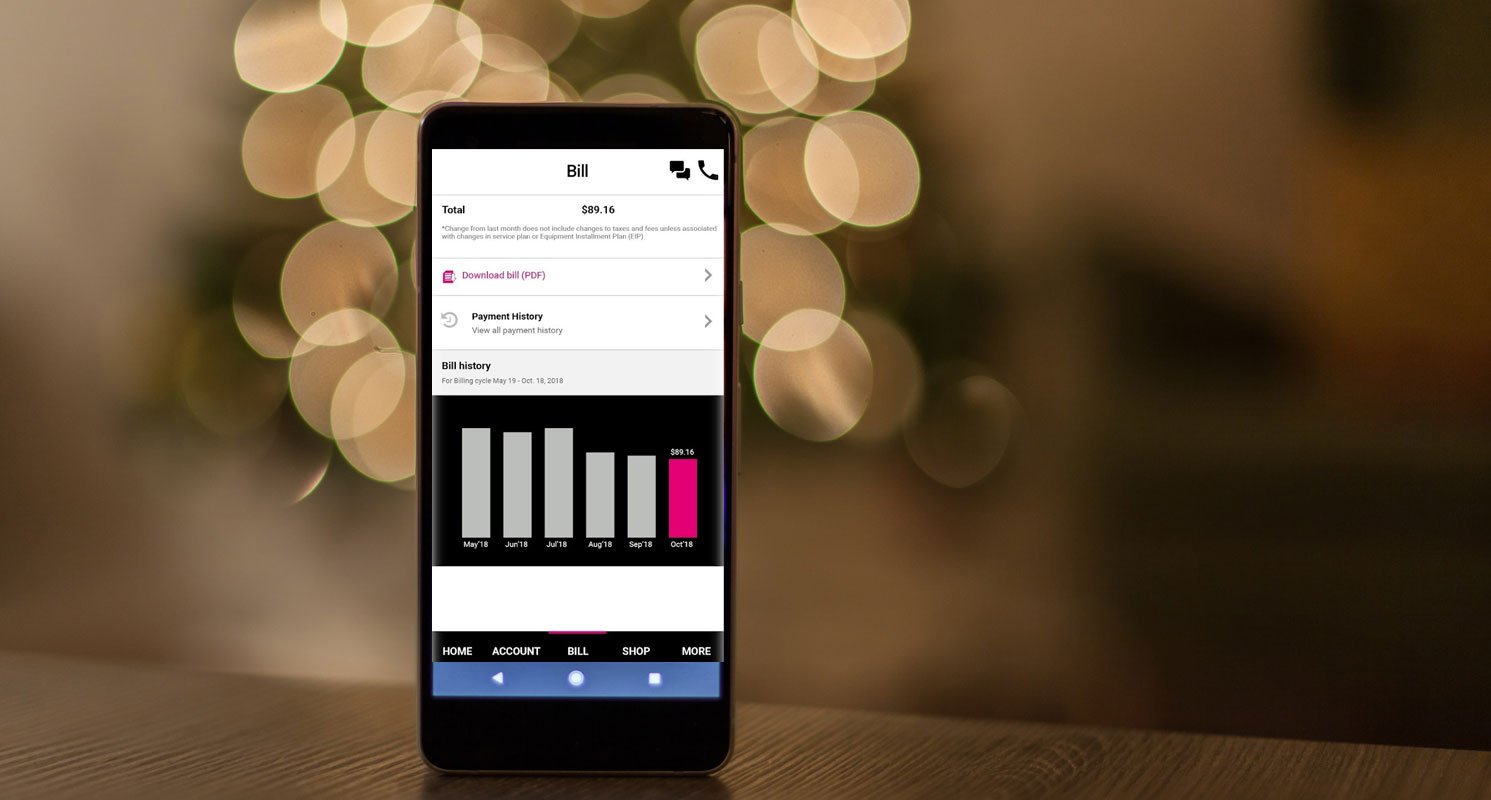
Why must you reverse/downgrade the T-Mobile app update on your mobile device?
Indeed, not all of us love new versions of our favorite. This is usually because we have become so familiar with the old version (or interface) that the latest update may seem messy or uncomfortable. In such a situation, the best solution is to roll back the app update so you can still use the old version.
Regardless, we can’t stop developers from rolling out new app updates. However, some persons who have activated “Automatic updates” apps will automatically update to the latest version once their device is connected to the Internet. Thus, there is an update rollout from the developer. So, the best you can do is to stick to your preferred version and not update.

T-Mobile is one of the apps many of us use frequently, and if you’re looking for a way to get back to the old version (because you don’t know the new interface that rolled out with the latest version), follow the steps below.
How do you reverse/downgrade the T-Mobile app update on Android Mobiles?
Depending on your Android device’s OS, there are different ways to roll back updates. For example, you can try the steps below if your Android device runs on Android 6.0 or older.
- Tip: If your device runs on newer Android and the latest PlayStore versions, click on your Profile icon to access the menu options.
- Open the Google Play Store app on your mobile smartphone.
- On the homepage, tap the navigation icon at the top-left corner (the three horizontal dashes).
- Tap on My Apps from the side menu.
- Scroll down or search for T-Mobile on your apps list.
- Open T-Mobile when you see it and tap on the Uninstall Updates button.
- Confirm the actions, and that’s it.
Stop Automatic App Update after uninstalling the updates
After reverting the update, you must turn off “Automatic Updates” so your apps won’t update to their latest version when you connect to a WiFi network. Below are the steps to turn off automatic updates on Android smartphones.
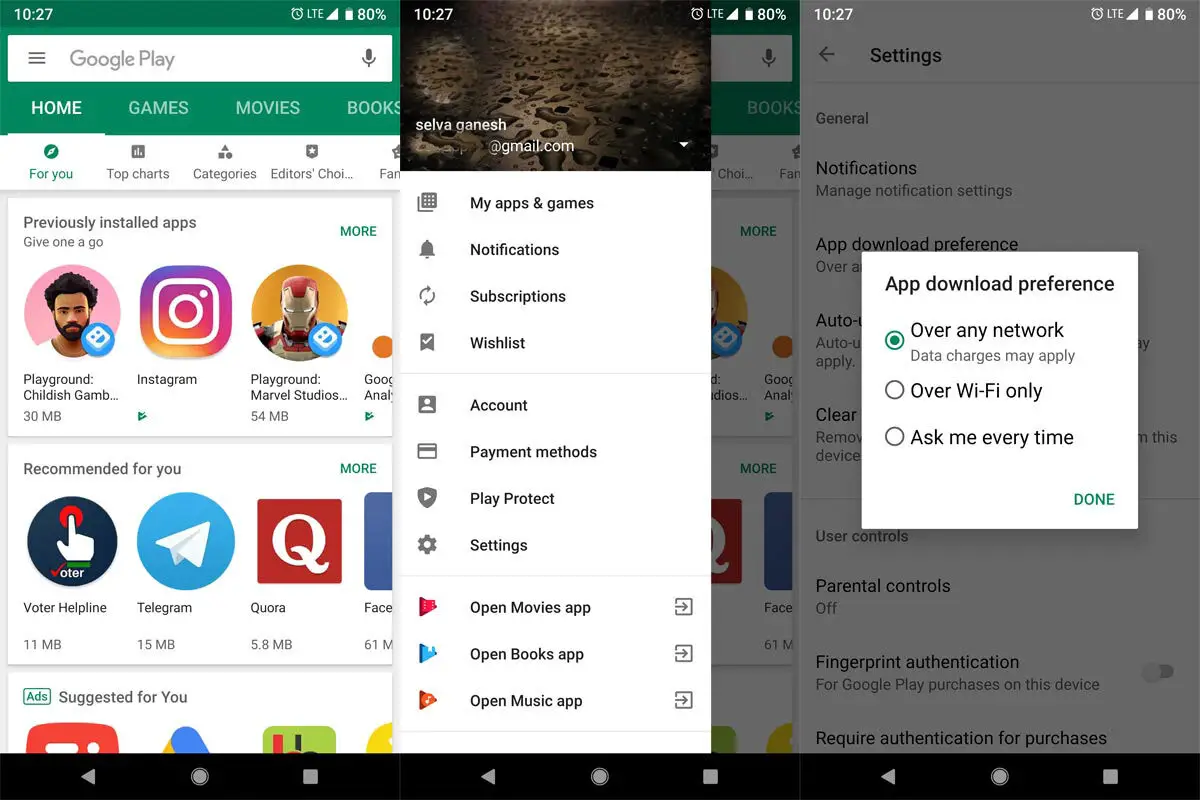
- Open the Google Play Store app on your mobile smartphone
- On the homepage, tap the navigation icon at the top-left corner (the three horizontal dashes).
- Tap on Settings from the side menu
- Go to General and tap on “Auto-update apps.”
- Select the “Don’t auto-update apps” option and then “Done.”
Sideload the Old version of the T-Mobile App
You must choose the app based on your Android version and the “no dpi” universal app. The above official uninstalls update will be helpful when the current update affects your app. But when you want to use the two or three versions of the old update, you must manually install the app version using third-party sites.
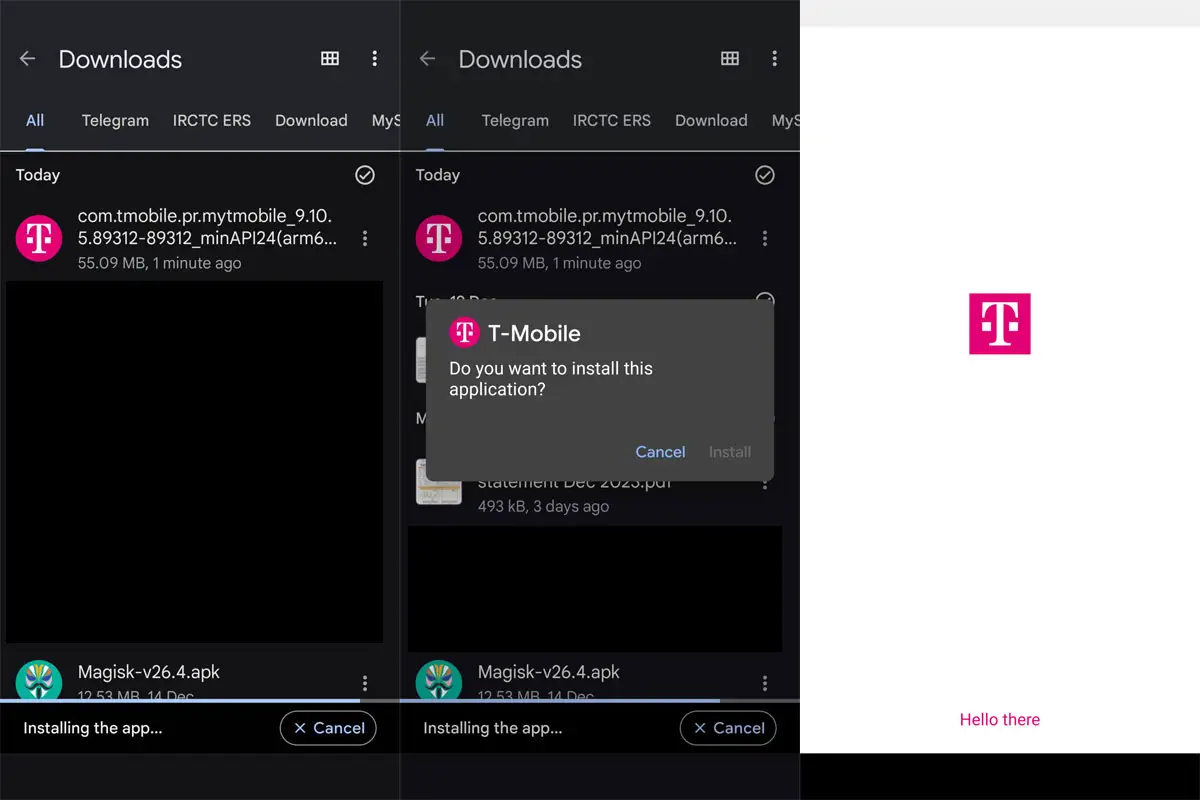
- Download the Old T-Mobile from APK Mirror or similar safe sites.
- Install the app. Sometimes, the Installation may ask to replace the app version. Allow replacing.
Wrap Up
The method above will help you return the T-Mobile on your phone to the previous version you prefer. App developers always push updates in the Play Store to make the app with new features. When they leave some valuable elements in the new app update, we choose the Alternative apps. But we may not find other valuable features of the Original app whenever we go for alternatives. So, It is better to downgrade/reverse the T-Mobile app. Also, it would help if you stopped automatic updates; otherwise, you will always need to revert your apps to their old versions. Some Android TV apps don’t support the latest Twitter UI. In those situations, you have to use the Android TV sideload method. We hope this article helps you out with your needs. When you face any issues during the Twitter reverse process, Comment below.

Selva Ganesh is a Computer Science Engineer, Android Developer, and Tech Enthusiast. As the Chief Editor of this blog, he brings over 10 years of experience in Android development and professional blogging. He has completed multiple courses under the Google News Initiative, enhancing his expertise in digital journalism and content accuracy. Selva also manages Android Infotech, a globally recognized platform known for its practical, solution-focused articles that help users resolve Android-related issues.