
It is quite disappointing that one of the most anticipated smartphones of the year launches without LED notification feature. Most of the users didn’t use Notification as per the Manufacturer thought. But it is not true. So, that Manufacturers removing Notifications LED from the devices. The Samsung Galaxy S10 does not support LED notification, and its subsequent variants won’t come with this feature either. However, there are other ways to get notified of new alerts on the device. There are about ways to get notified about new messages or alerts on your new S10. 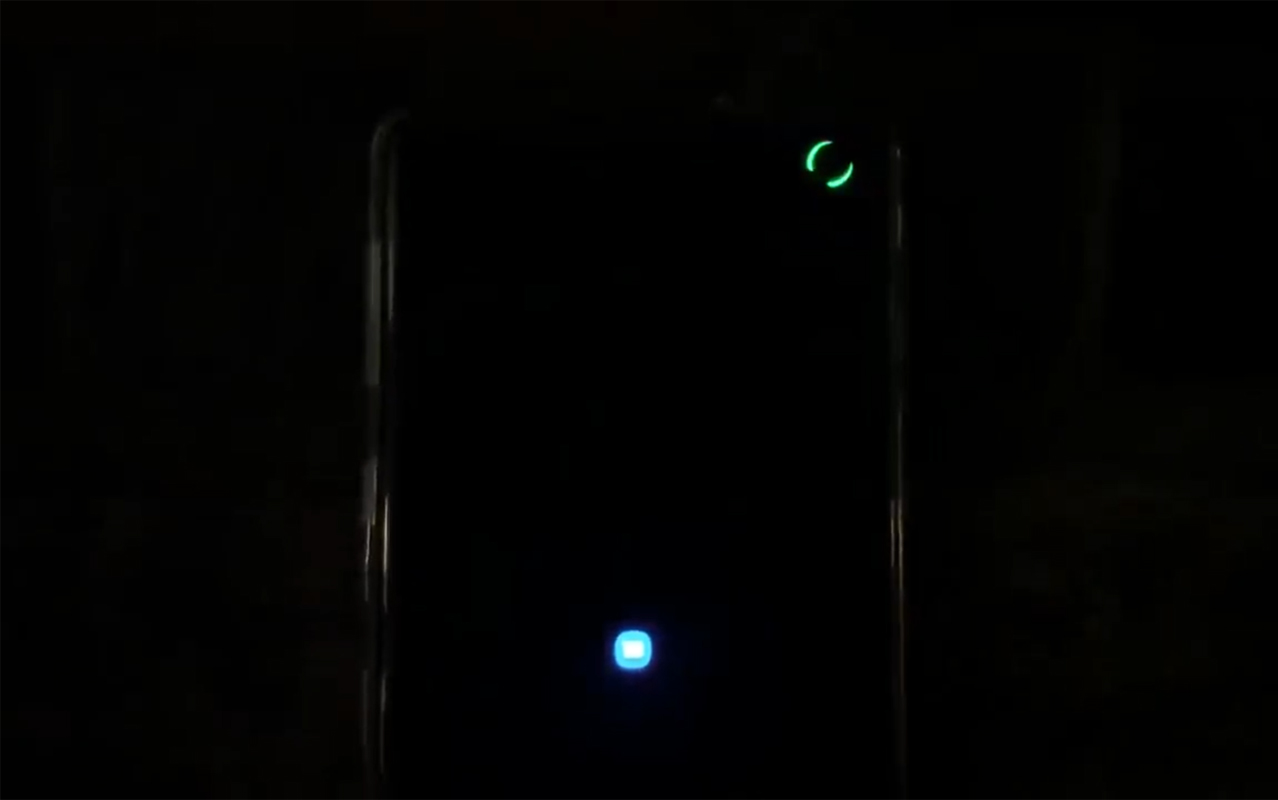
Since this feature on the device, users are searching to know if there are possible ways to receive notifications. Well, it is essential because if you don’t get notified instant notifications, you could miss some important messages.
Supporting Versions
- S10, S10 Plus, and S10e.
How to get notified of new messages and alerts on Samsung Galaxy S10
Method one: Camera Cut Out
Most of the people asked us can we get the notification using the new camera cut out in the display. The Answer is “Yes.” But you have to install an app from Play store.

- Download and install Always On Edge App from Play Store.
- Open the app. Based on your needs to configure the time and Personalized settings.
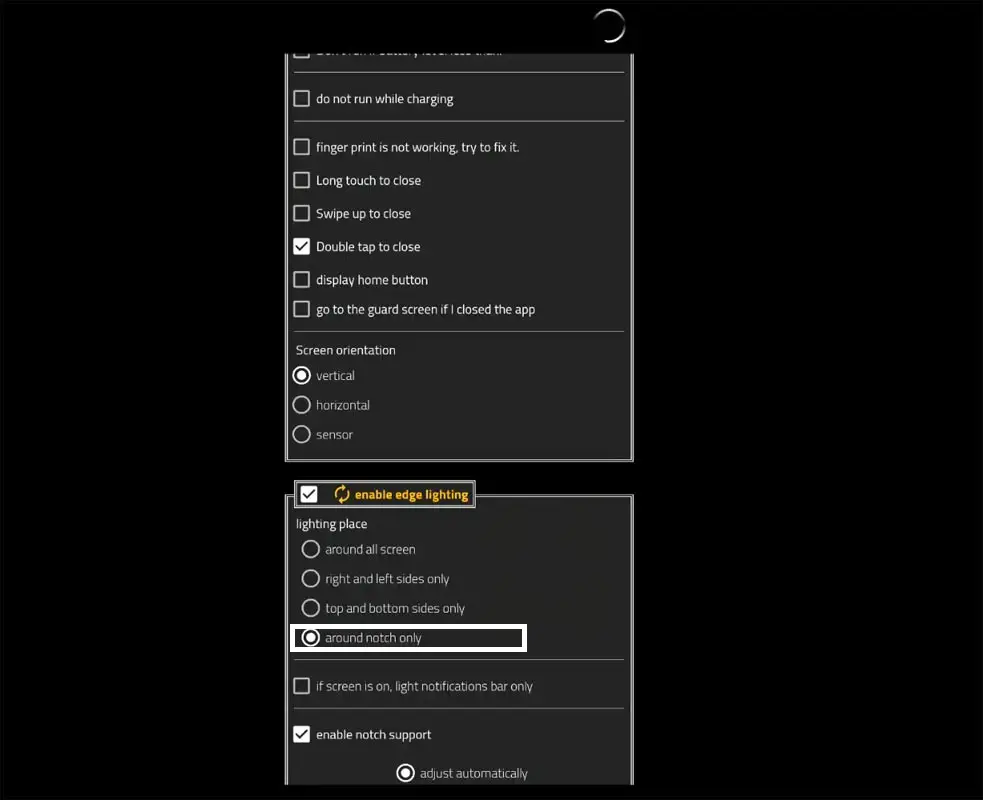
- Scroll down, Enable Edge Lightning >> Around Notch Only. That’s all. Hereafter you will get notified by Camera cut out Lightning. I love this method. It gives us a feel; there is a notification LED.
Method Two: Enable edge lighting
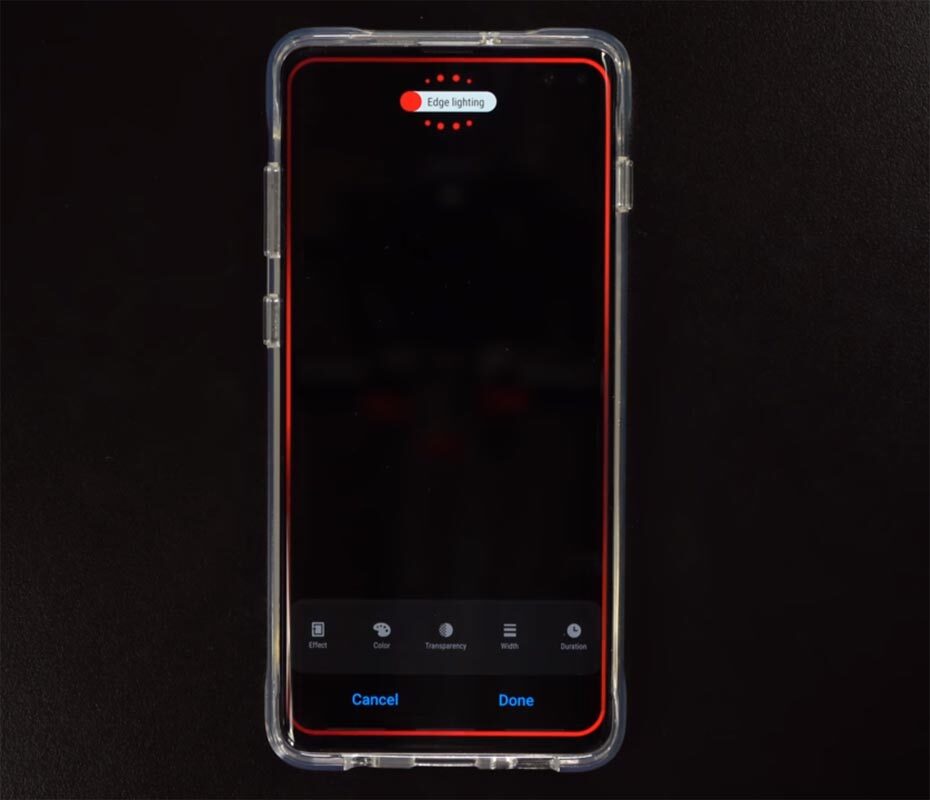
This is the second method we are going to discuss in this article. It is all about activating a hidden feature on your S10 device which will trigger lights to display on the edges of your screen display once a notification enters. Even you can customize how this light show shines, the color that should display, and quite other flexible options.
It may even be that this is better than the native LED light notification which you cannot fully customize how it acts. Also, to activate this feature isn’t a stressful thing to do. It is just as if you’re trying to enable your Bluetooth from the device settings menu.
The edge lighting feature is available on the device settings menu and here’s how to activate it.
-
Go to device Settings
-
Scroll down to the Display row and tap on it.
-
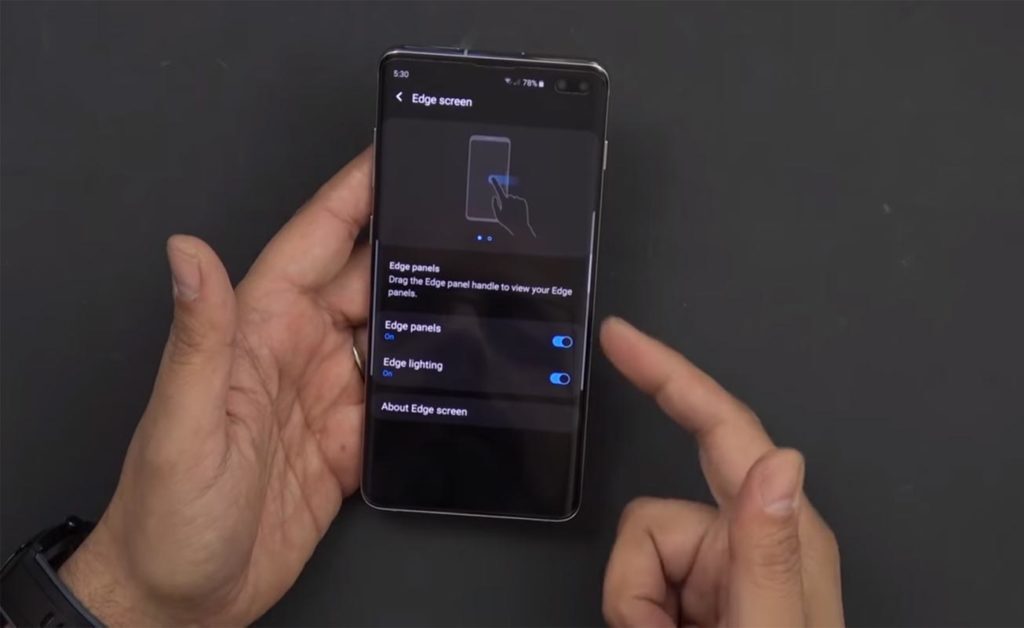
Further, scroll down until you see the Edge Screen option, then, touch on it
-
There are two options here, select/click on Edge Lighting.
-
On the next menu, set Edge Lighting to be always on.
This will cause your device to show lights around its edges when you receive new notifications. Also, the options to customize this feature are available right on the menu. So, if you wish to customize the lights that show and how long they should shine, you can as well set them from here. Edge Lighting is not restricted to any form of alert; once a new notification enters your S10 display, the lights start shinning immediately and lasts for the duration you set.
Now, let’s move to the next method through which you’ll be notified of new notifications.
Method Three: Use your back flashlight
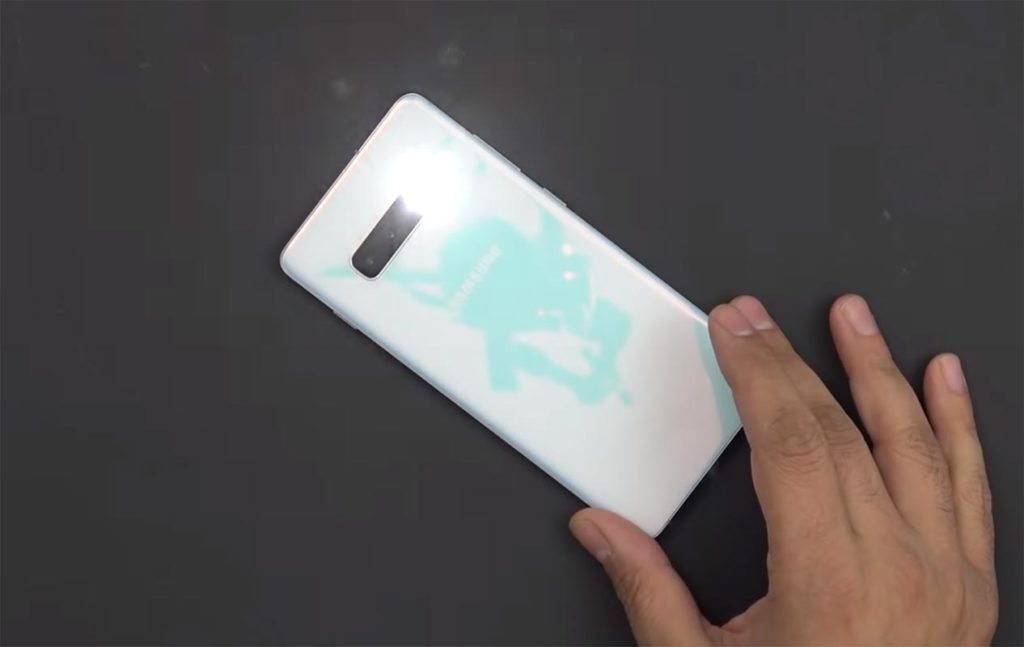
At the rear side of this device lies a flashlight sensor primarily meant to illuminate the photos you take in low light areas. Nevertheless, you can configure this flashlight to serve as a notification for new alerts received on your Galaxy S10 device. This now means that the rear flashlight on Samsung Galaxy S10 helps for multipurpose. But, you’ll not get to see this flashlight notification if the device is dropped on a surface with the rear side facing down; thus, it has a disadvantage.
Similarly, the process to activate this feature is just like the one above. The feature is hidden in your device settings. Initially, you may not know that activating a function found in the “Accessibility” menu would trigger notifications alerts. This setting is, however, available as an advanced setting. But you don’t have to panic; there’s nothing superior about it.
So, to make use of your rear flashlight as a notification light, follow the steps below;
-
Go to your Samsung device settings menu and scroll down to the Accessibility option
-
Tap on the option and further tap on the “Advanced Settings” option
-
Now, activate the “camera flash” option
Once this option is activated on your S10, the flashlight at the rear side would dim twice each time there’s a new notification. Some people believe this is the best way to get notified on new alerts, but, unfortunately, we don’t agree to that. This is because, unless the device is kept on a surface with its rear panel facing up, that’s when you can see the dimming flashlight and check out the notification you’ve got. Everyone’s got a different preference anyway.
Let’s get to see the last method for this cause. It may be the one you’d prefer over the orders.
Method Four: Enable screen flash
This is the last method for this action. It is not so different from the other ones we have discussed so far. You’ll find the settings to activate this feature in the same place where the “camera flash” is located. How does this option notify you of new alerts? It will cause your screen to flash a light upon any new notification received on your S10 device. It doesn’t matter if the device screen is on or not. This feature is quite better because it is significant.
To activate the Screen Flash feature, follow the steps below;
-
Go to your Samsung device settings menu and scroll down to the Accessibility option
-
Tap on the option and further tap on the “Advanced Settings” option
-
Now, activate the “screen flash” option
This feature is found below the Camera Flash option.
Conclusion
It is true that there is no LED notification indicator available on the Samsung Galaxy S10, but, as you can see, there are up to a lot of flexible options through which you can get notified of new alerts the device. I Prefer Camera Cut-out Flash. Well, you can Also activate two of these features at the same; enabling the Edge Lighting and the Camera Flash options would be a perfect match. The Screen Flash option is quite good, but it is not the best.
So, if you have got the S10 already, you’ve just been shown how you could get alerted of new notifications, so you don’t miss out on certain things.
Conclusively, asides these methods discussed in this article, there is virtually no other way to receive notifications on Galaxy S10. Also, these methods will work on the upcoming models with also do not feature a notification LED light indicator.

Selva Ganesh is a Computer Science Engineer, Android Developer, and Tech Enthusiast. As the Chief Editor of this blog, he brings over 10 years of experience in Android development and professional blogging. He has completed multiple courses under the Google News Initiative, enhancing his expertise in digital journalism and content accuracy. Selva also manages Android Infotech, a globally recognized platform known for its practical, solution-focused articles that help users resolve Android-related issues.