
Gmail is a handy email tool that many of us use daily. However, its convenience and user-friendly interface are costly – it’s not the most secure email service. If you’re looking to send a secure email in Gmail, there are steps you can take to make sure your message is protected. When using Mobile OTP Verification Required confidential mode in Gmail, you can send an email safeguarded from being forwarded, copied, printed, or downloaded by the recipient. Furthermore, you can set an expiration date for the Email, which will revoke access when you decide. Moreover, with the Gmail website or app, you can withdraw access to the Email anytime, giving you complete power over who has access to your private information.
Why Send Secure Emails?
You might need to send a secure email to Gmail for several reasons. Perhaps you’re sending sensitive information, such as financial or medical details. Maybe you want to prevent the recipient from sharing the Email with anyone else. Whatever the reason, Gmail’s confidential mode allows you to send a secure email that can’t be forwarded, copied, printed, or downloaded. You can also set an expiration date for the Email, meaning access to the message will be revoked after a specified time.
How to Send Mobile OTP Verification Required Emails in Gmail?
Sending an email on a computer may seem more secure than sending one on a smartphone. If you’re looking to send a secure email in Gmail on your computer, you can follow these simple steps:

- To begin, open your preferred browser and navigate to Gmail.com.
- To start composing a new email in Gmail, click the “Compose” icon in the screen’s upper-left corner.
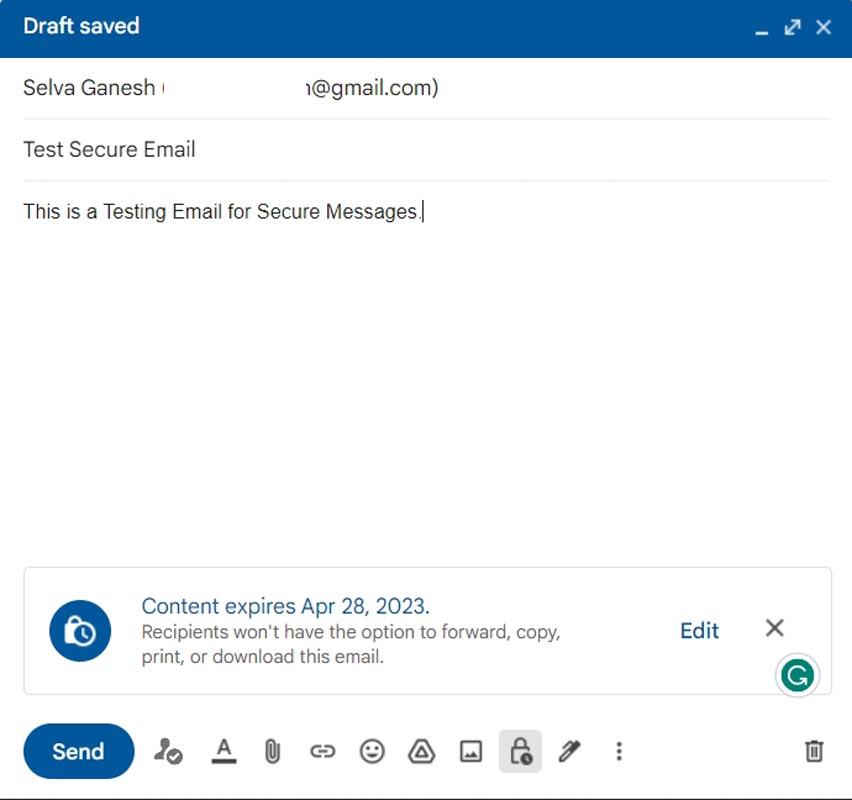
- In the new email window, click the “Turn on confidential mode” icon, which looks like a padlock with a clock.
- Set an expiration date for the Email in the pop-up menu.
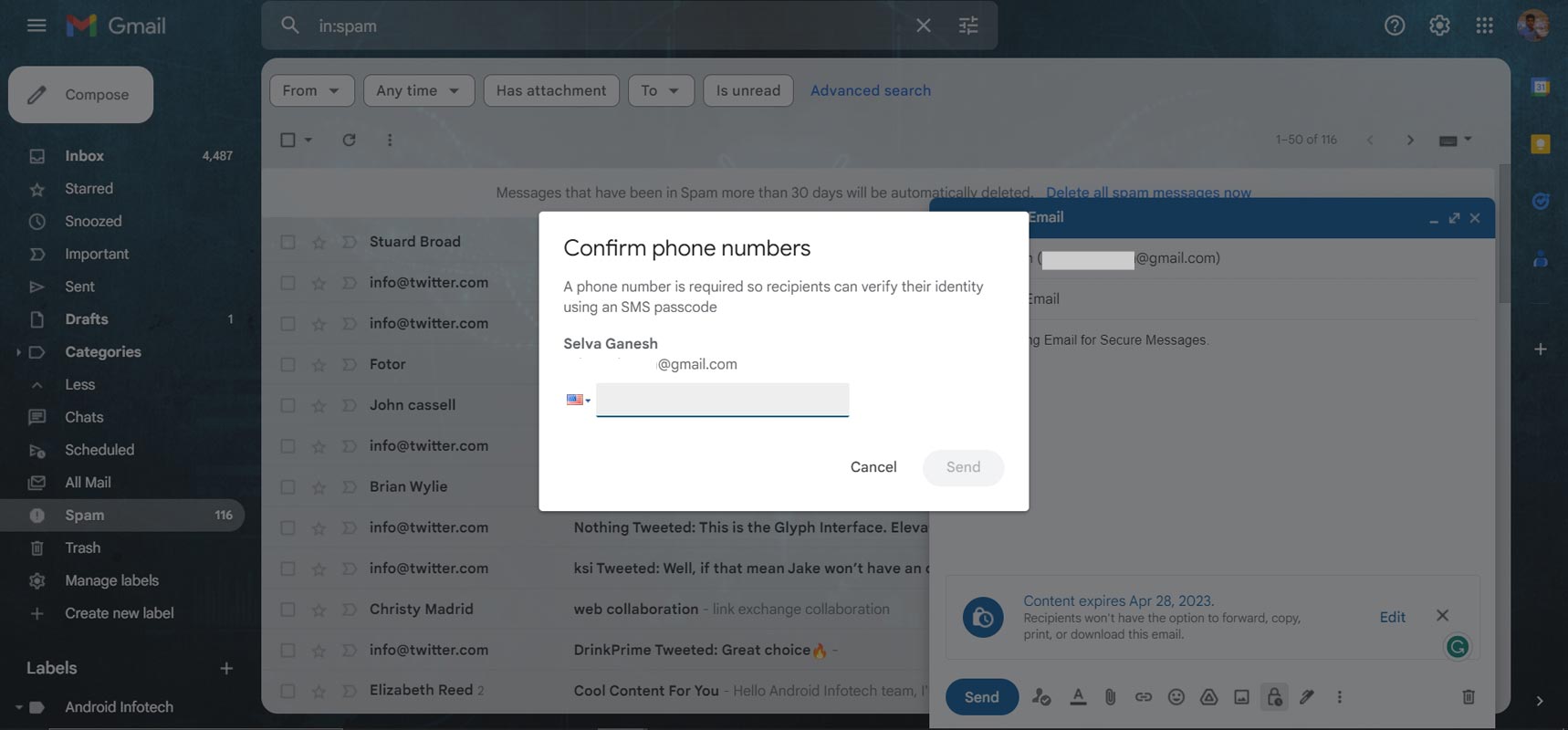
- Toggle on the SMS passcode option if you wish to use it.
- Once you’ve finished composing your Email, click Send.
That’s it! Your Email is now sent securely, and you can rest easy knowing it can’t be forwarded, copied, printed, or downloaded by the recipient.
How to Open Mobile OTP Verification Required Emails in Gmail?
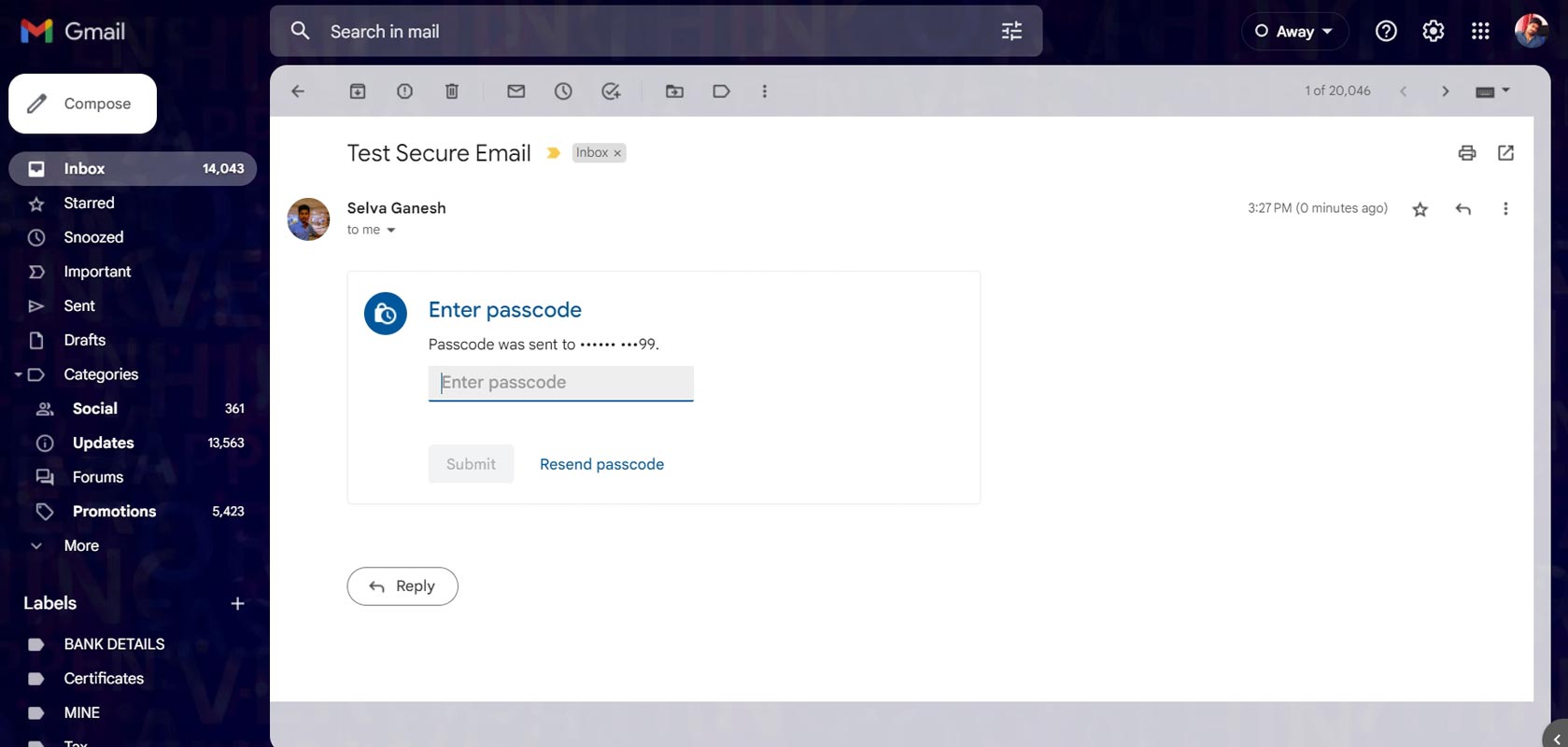
After receiving the Email from the Sender, Select Verify with SMS code. Input your SMS Code to open your Email.
How to Send a Secure Email in Gmail on an Android Smartphone
The steps are slightly different if you’re using an Android smartphone to send your Email. Here’s what you need to do:
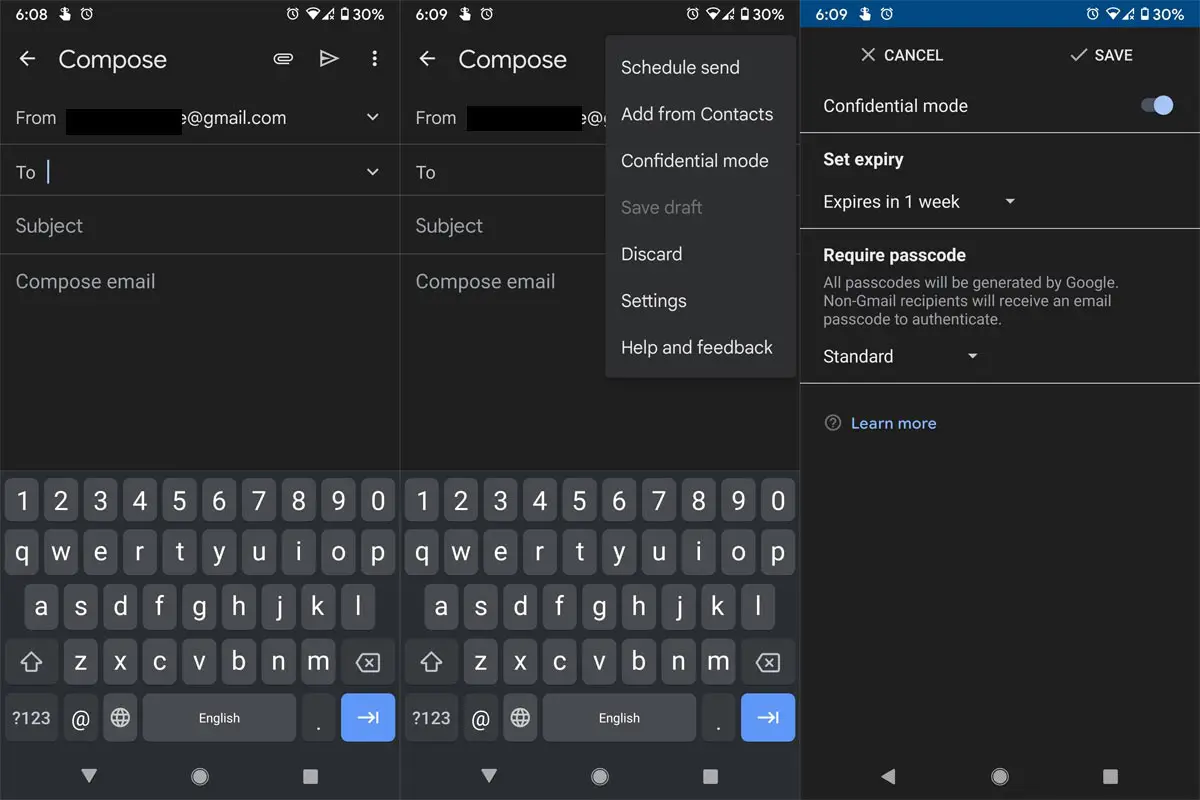
- Open the Gmail app on your smartphone.
- Tap on the Compose icon, a red circle with a white pencil in the bottom-right corner.
- Tap the three-dot menu icon in the top-right corner of the new email window.
- Tap on “Confidential mode.”
- Set an expiration date for the Email in the pop-up menu.
- Toggle on the SMS passcode option if you wish to use it.
- Once you’ve finished composing your Email, tap Send.
Again, your Email is now sent securely, and the recipient won’t be able to forward, copy, print, or download it.
FAQs
Is Gmail a secure email service?
Yes, Gmail is generally considered to be a secure email service. However, it’s not perfect, and there are steps you can take to make sure your emails are even more secure.
Can I send an email in confidential mode from my iPhone?
Yes, you can send an email in confidential mode from your iPhone. The steps are similar to sending an email on an Android smartphone.
Can I revoke access to a confidential email after it’s been sent?
Yes, you can revoke access to a confidential email at any time. Go to your Sent folder in Gmail and open the personal Email. You’ll see an option to remove access.
Is confidential mode available for all Gmail users?
The confidential mode is available for all Gmail users on computer and smartphone devices.
How do I know if a secure email has been received and opened?
You can’t know if a secure email has been received and opened. However, you can see users access the Email by checking the sent messages in your Gmail account.
Can I send attachments in a secure email?
Yes, you can send attachments securely, like in a regular email. However, remember that the recipient won’t be able to download or print the attachment if you’ve enabled the confidential mode.
Are there any limitations to sending secure emails through Gmail?
There are a few limitations to sending secure emails through Gmail. For example, the recipient must have a Gmail account, and the confidential mode may not be available in certain countries or organizations that use G Suite.
Wrap Up
Sending a secure email in Gmail is simple. The steps are easy to follow whether you use a computer or an Android smartphone. By using the confidential mode, you can rest easy knowing that your message is safe and only the intended recipient can access it.
You can protect sensitive information by using confidential mode and other security features. The process for activating confidential mode on an Android smartphone is similar, with the only difference being the placement of the icons. If you wish to use an additional layer of protection, you can toggle the SMS passcode option, which will require the recipient to enter a code sent to their phone to access the Email. Overall, sending a secure email to Gmail is quick and straightforward.

Selva Ganesh is a Computer Science Engineer, Android Developer, and Tech Enthusiast. As the Chief Editor of this blog, he brings over 10 years of experience in Android development and professional blogging. He has completed multiple courses under the Google News Initiative, enhancing his expertise in digital journalism and content accuracy. Selva also manages Android Infotech, a globally recognized platform known for its practical, solution-focused articles that help users resolve Android-related issues.