
Samsung announced a bunch of New A Series phone with a reasonable price tag. Before this Samsung, A series phone is like entry flagship phones. They always cost high than the budget series. But the New A series phones are like Budget variants but some unique features like In-Display fingerprint sensor and Android Pie 9.0 Version and two or Three rear cameras, Water Drop notch screen. So, If you purchased the Samsung Galaxy A50, there are some tips you should know to use your mobile flawlessly. Taking screenshot is essential tips in this. Below we mentioned some methods. Palm Swipe option is available in A50. I Think it will be a handy option for you to take screenshots.
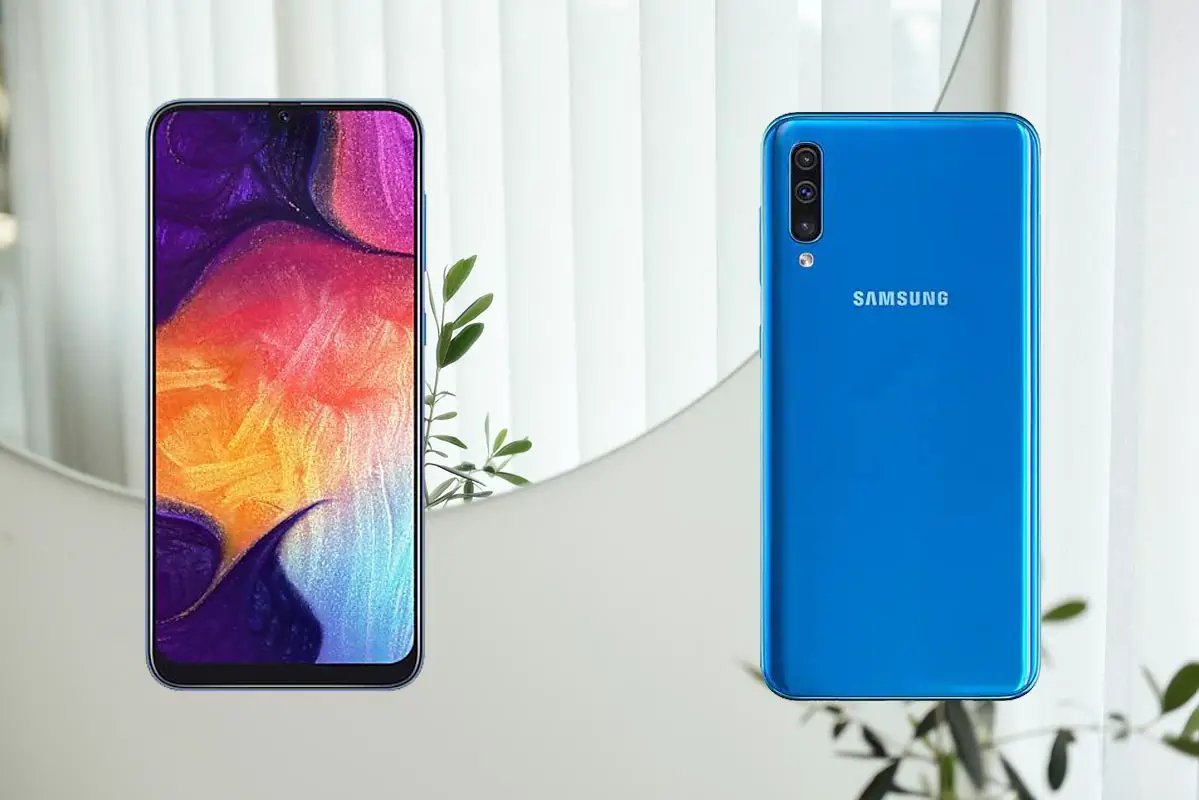
Supporting versions: All Variants of Samsung SM-A505F/DS.
Take Screenshots in Samsung Galaxy A50
Method 1: Using Physical Key combinations
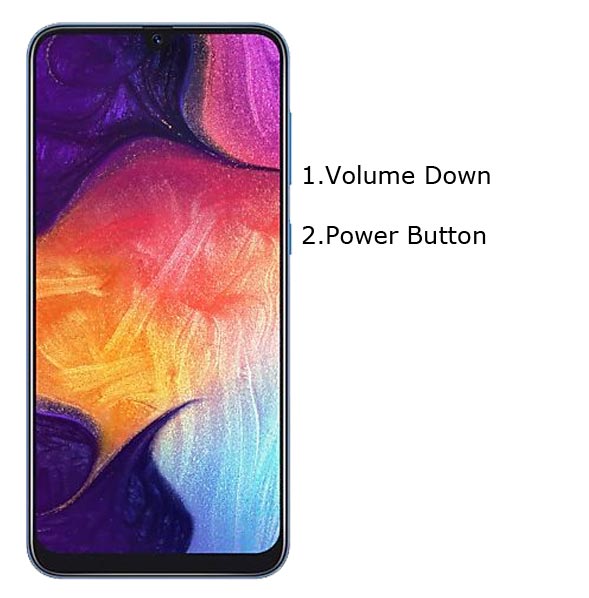

You can use your Volume Down+ Power Button to take screenshots. Use your Left hand to Hold Volume Down Button from back Right-hand and Finger to Power Button. If you Hold from the back, you can easily Press the combinations.
You Can find these photos in Gallery Screenshots Folder.
Method 2: Using Palm Swipe
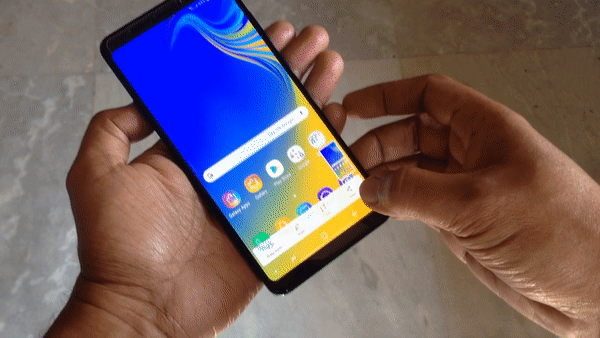
Samsung Galaxy A50 has unique features like palm swipe gestures. To Access this feature, Go to Settings >> Advanced features >> Palm Swipe to Capture >> Enable. After enabling this feature, swipe your palm from left to right above the sensor to capture screenshots.
Method 3: Using Apps
Screenshot Easy App
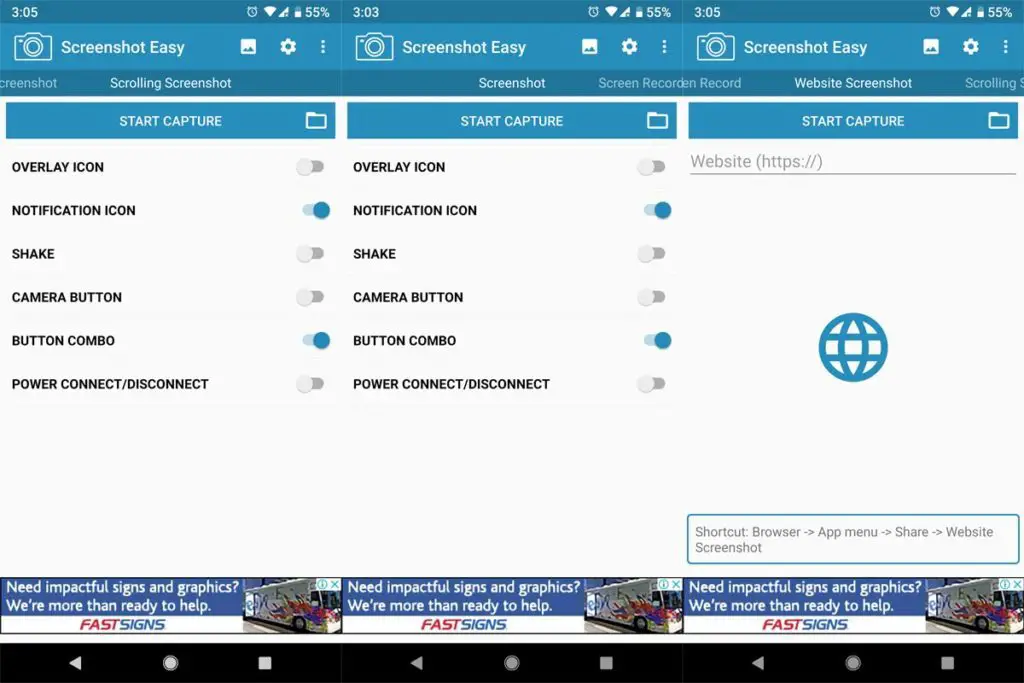
- Download Screenshot Easy App from Play Store.
- Beyond Just a Screenshot, you can do a lot of things like Screen Recorder, Entire Website Page Capture, and Scroll Capture.
- After you Install this app, You can see this app in the Notification Bar. If you tap Capture, It will Capture the current screen on your Mobile.
Screenshot Touch App
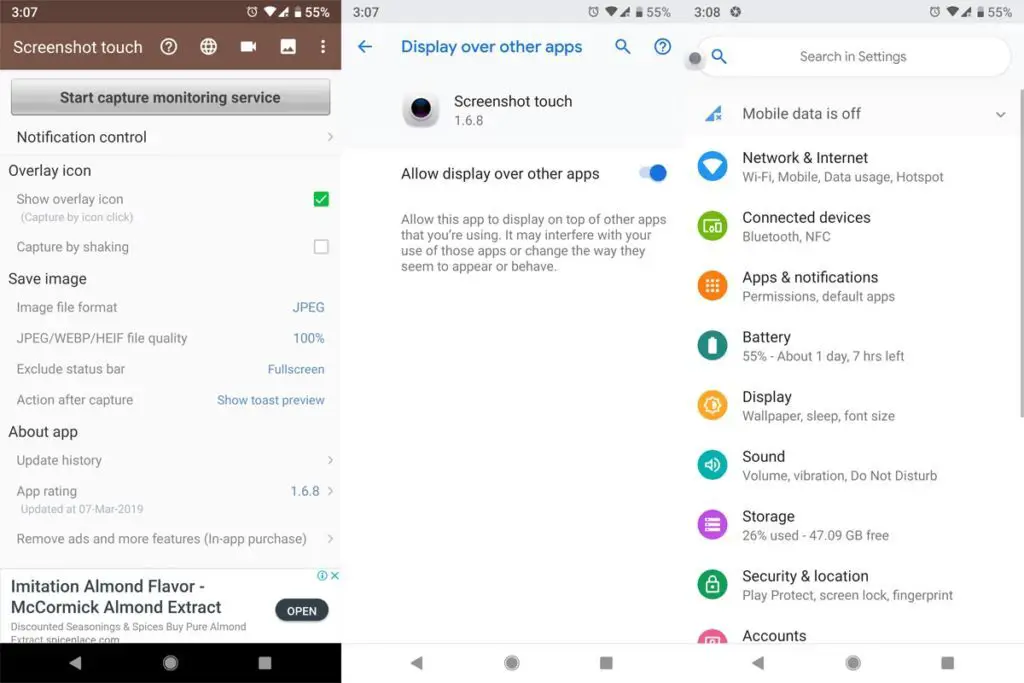
- Download Screenshot Touch App from Play Store.
- It is similar to the above app. But in my usage, It is easy to use, because of the Touch Assistive menu. When you tap that Logo, It will Pop-up with the option for capture.
Touch Master App
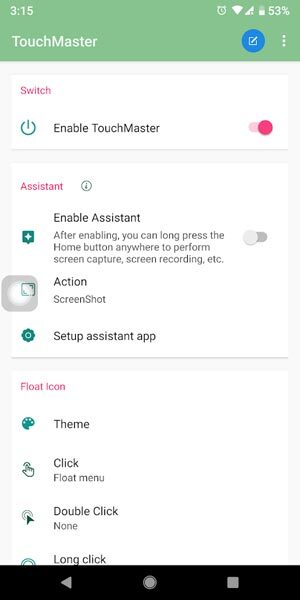
- Download TouchMaster (Assistive Touch) App from Play Store.
- There are a lot of Touch Assistants available, But they are loaded with some unwanted features. This app can make our work done with less storage.
Conclusion
If you are a Regular user, I advise you to use Physical keys, because you will rarely use the Screenshot feature. Palm swipe may take accidental screenshots. But, If you are a Developer or some techie guy who use various screenshots, use In-Built Palm Gesture or Play Store Apps. If you install from third-party sites, Always check the Background activities to avoid your Data stolen.

Selva Ganesh is a Computer Science Engineer, Android Developer, and Tech Enthusiast. As the Chief Editor of this blog, he brings over 10 years of experience in Android development and professional blogging. He has completed multiple courses under the Google News Initiative, enhancing his expertise in digital journalism and content accuracy. Selva also manages Android Infotech, a globally recognized platform known for its practical, solution-focused articles that help users resolve Android-related issues.