
WhatsApp, owned by Meta, has enhanced its video call capabilities by introducing a novel screen-sharing feature, aligning with other leading video conferencing platforms like Zoom and Google Meet. This cutting-edge addition fosters smoother collaboration and communication for its users. This article will delve into the details of leveraging WhatsApp’s screen-sharing functionality on Android, iOS, and Windows devices, unlocking the potential to elevate your overall communication experience. By enabling users to share their screens during video calls, WhatsApp opens up new avenues for virtual meetings, providing visual aid during discussions, troubleshooting technical issues, or simply sharing moments more intimately. Embracing this feature will undoubtedly revolutionize how users connect and interact on the platform, ushering in a new era of seamless virtual communication.
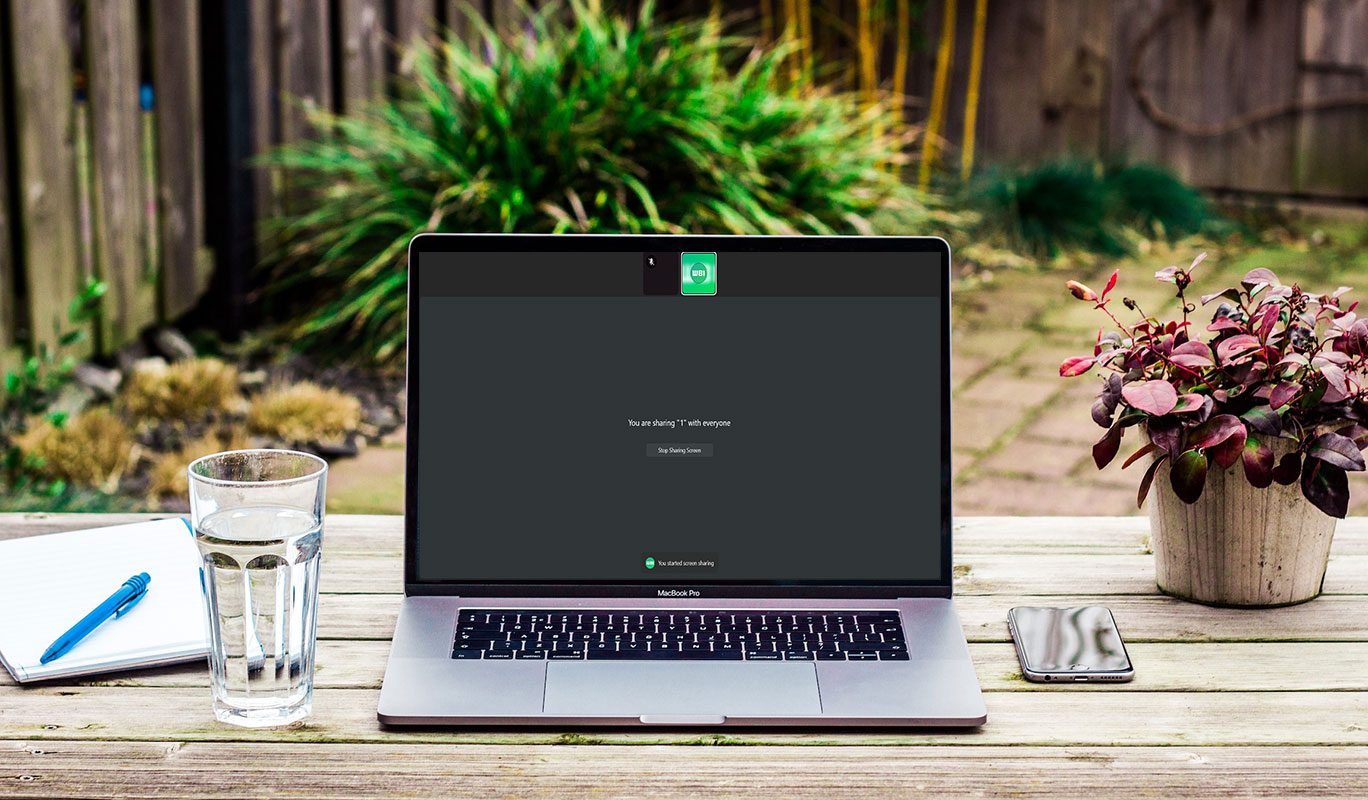
WhatsApp screen-sharing
WhatsApp’s screen-sharing feature allows users to display their entire screen or a specific app during video calls. It is ideal for a wide range of activities, such as sharing work-related documents, browsing photos with family, planning trips, shopping online with friends, or providing tech support to grandparents. This feature was introduced to keep WhatsApp competitive amidst the rise of other messaging apps like Telegram, Signal, and Discord.
WhatsApp screen-sharing on Android
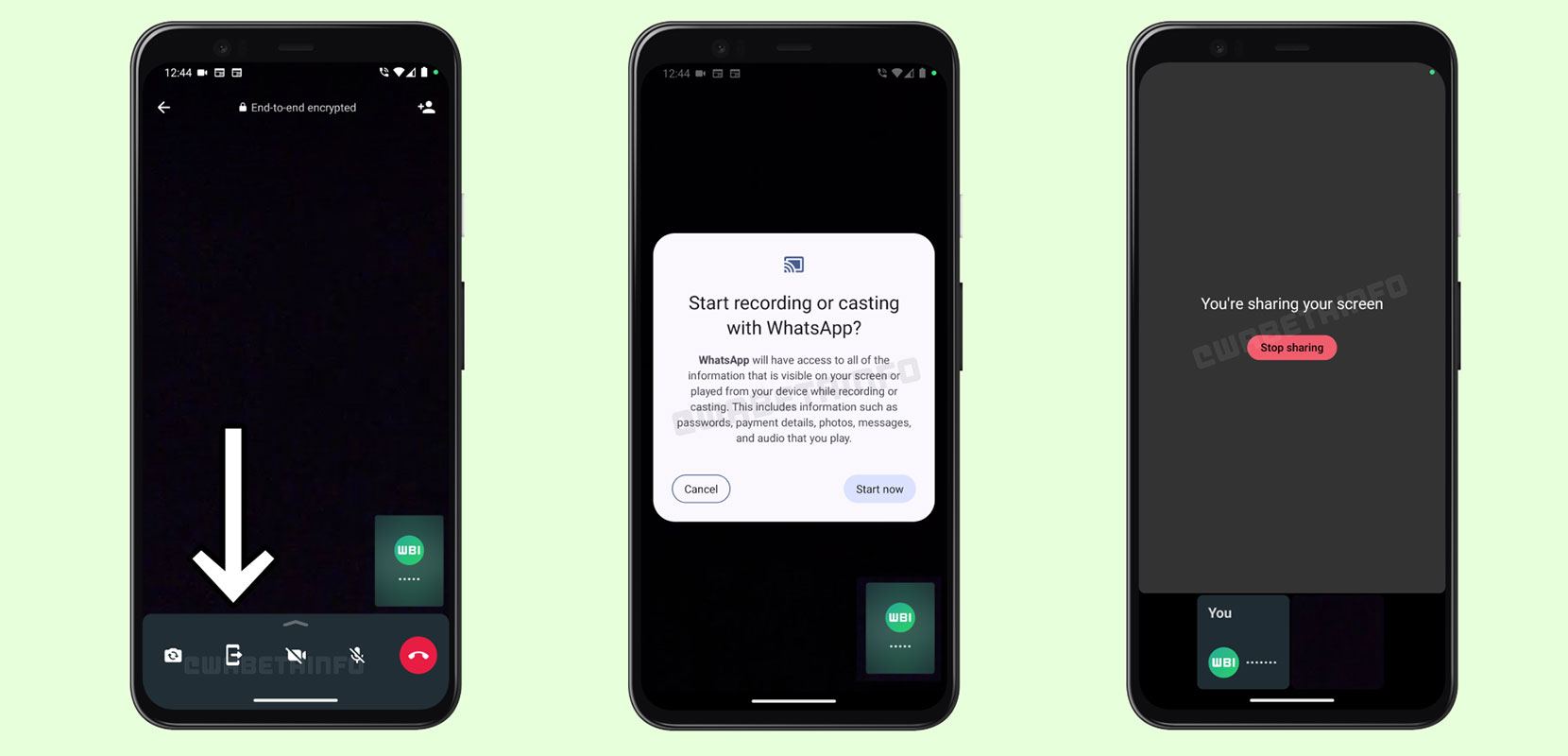

On Android devices, the screen-sharing feature is accessible by tapping the new icon in the call control view. When you share your screen, everything visible on your device will be recorded and shared with the recipient. However, it’s essential to note that this feature may not be available on older Android versions and might not work in significant group calls. Additionally, the recipient must have an updated version of WhatsApp to view the shared content.
The user has complete control over this feature and can stop the process anytime. To enable screen-sharing, users must grant permission during the video call.
WhatsApp screen-sharing on iOS
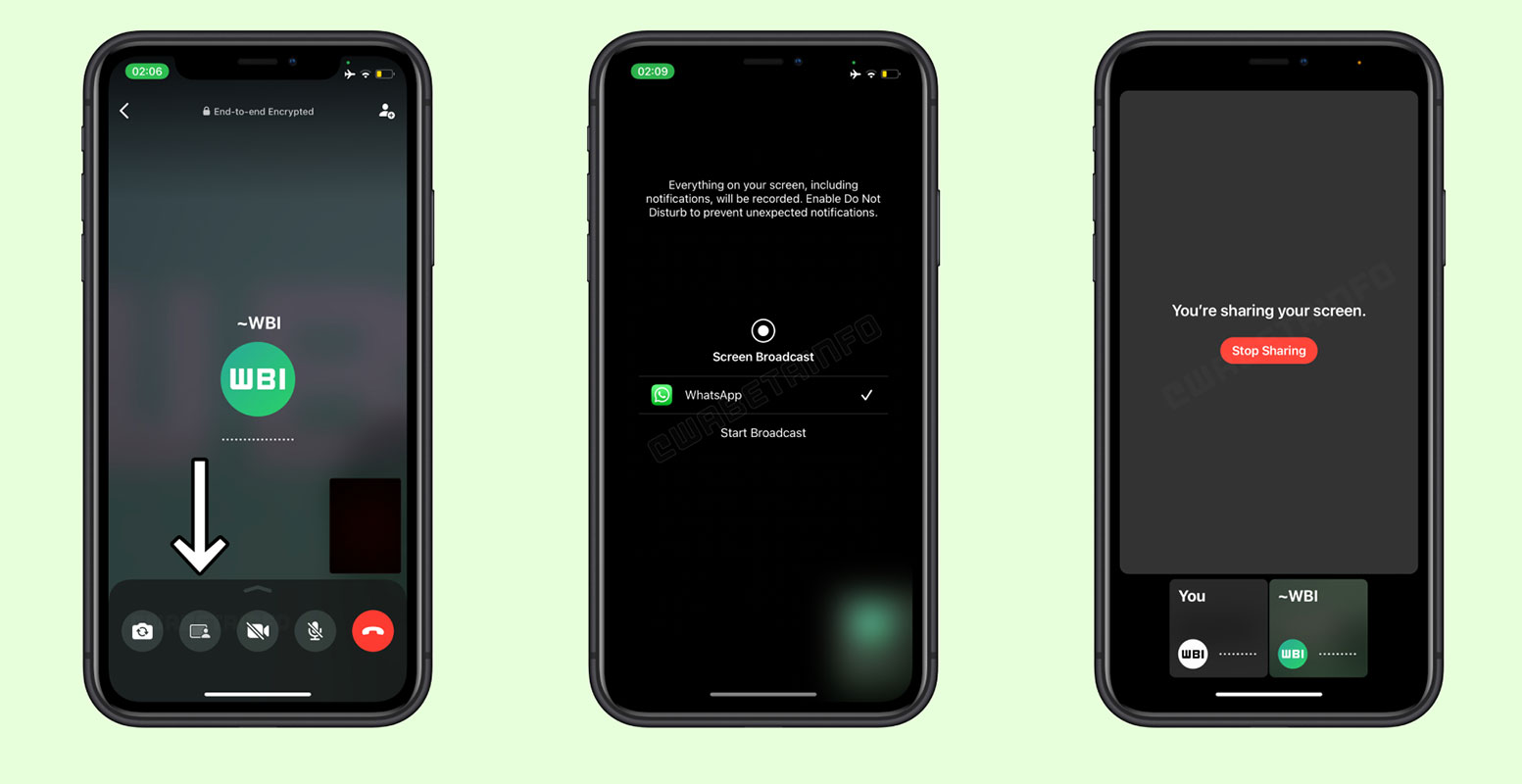
WhatsApp users on iOS devices can also enjoy the screen-sharing feature during video calls. Beta testers can experiment with this feature by installing the latest WhatsApp beta for iOS updates from the TestFlight app.
When screen-sharing is enabled, an icon appears at the bottom of the video call screen, allowing users to share their screen content with everyone on the call. Notifications and other on-screen elements are also visible to recipients, so it’s advised to enable “Do Not Disturb” mode or a preferred focus mode to avoid interruptions.
As with Android and Windows, users have complete control over screen-sharing and can stop it anytime. The content is only shared when users grant permission.
WhatsApp screen-sharing on Windows
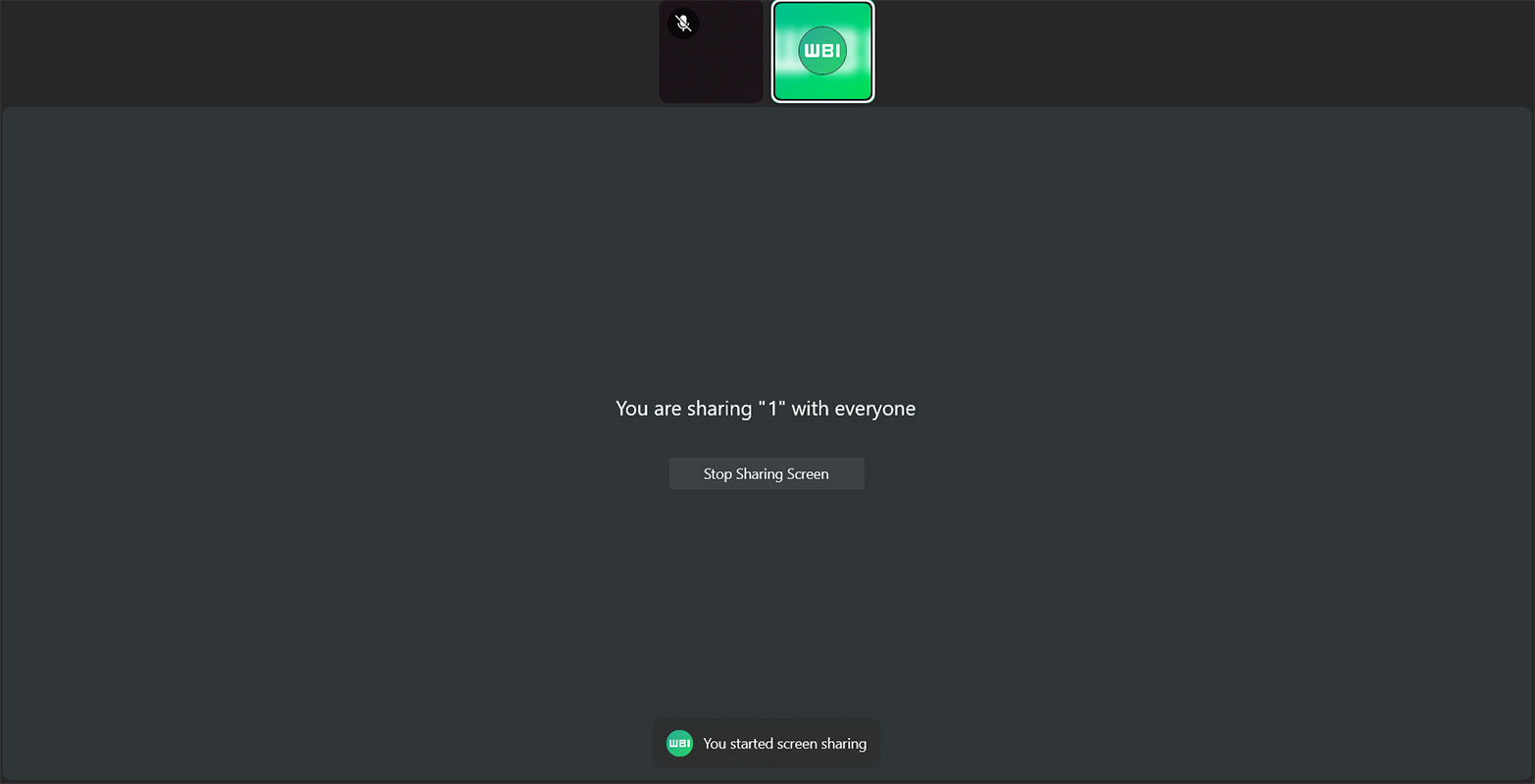
The screen-sharing option can be found for Windows users in the video call’s bottom control. When selected, users can choose to share a specific window or their entire screen with everyone on the call, including those using mobile devices. As with Android, users can halt screen-sharing at any point by clicking the “Stop Sharing Screen” button.
Using caution when sharing your screen is crucial, as sensitive information may be visible to others during the call. While the feature is available to some beta testers through the latest WhatsApp beta for Windows update, it will eventually roll out to more users.
Benefits of Using WhatsApp Screen-sharing
The screen-sharing feature on WhatsApp offers several benefits:
- Seamless Collaboration: Sharing your screen during a video call enables easy collaboration for work-related tasks or projects.
- Demonstrations and Troubleshooting: screen-sharing helps demonstrate how to perform tasks or troubleshoot issues remotely.
- Enhanced Communication: It improves communication by making discussions more interactive and visual.
- Personal and Professional Use: screen-sharing can be used for personal and professional purposes, making it versatile and practical.
Tips for Using WhatsApp Screen-sharing Effectively
To make the most of WhatsApp screen-sharing, consider these tips:
- Prepare in Advance: Organize your screen content beforehand to avoid confusion during the call.
- Communicate Clearly: Explain your actions and the content you share to keep everyone on the same page.
- Mind Privacy: Avoid sharing sensitive or personal information during screen-sharing.
- Utilize it Sparingly: Only use screen-sharing when necessary to prevent overwhelming participants.
- Be Tech-Savvy: Familiarize yourself with the screen-sharing process to ensure a smooth experience.
Privacy and Security Considerations
While WhatsApp prioritizes user privacy and security, exercising caution when using the screen-sharing feature is essential. Be mindful of your content and ensure all participants consent to the screen-sharing session. Avoid sharing sensitive information that could compromise your privacy or the privacy of others.
FAQs
Can I screen-share during a group call?
Screen-sharing may not work in significant group calls on some devices or WhatsApp.
Can I control what I share during screen-sharing?
Yes, you have complete control over your content and can stop screen-sharing anytime.
Is WhatsApp screen-sharing available for all users?
The feature is gradually rolling out to Android, iOS, and Windows users.
Can I share a specific app instead of my entire screen?
Yes, WhatsApp allows you to share your entire screen or a specific app during screen-sharing.
Is screen-sharing available in the stable version of WhatsApp?
Screen-sharing is available to some beta testers and will be rolled out to more users.
Wrap Up
WhatsApp’s innovative screen-sharing feature has proven to be a valuable asset to the platform, delivering a seamless video call experience across Android, iOS, and Windows devices. Its versatility extends beyond simple screen display, empowering users to elevate their communication, collaboration, and technical assistance. Whether it’s giving dynamic presentations, co-browsing websites, or remotely guiding others through troubleshooting processes, this feature fosters enhanced productivity and understanding.
Furthermore, WhatsApp places utmost importance on safeguarding user privacy and security, ensuring that personal information remains protected during screen-sharing sessions. By adhering to strict guidelines and implementing robust encryption measures, the platform encourages users to embrace this powerful tool confidently. As the boundaries of virtual communication continue to expand, WhatsApp’s screen-sharing feature stands at the forefront of revolutionizing how we connect and interact, bridging gaps, and fostering meaningful engagements across the globe.

Selva Ganesh is a Computer Science Engineer, Android Developer, and Tech Enthusiast. As the Chief Editor of this blog, he brings over 10 years of experience in Android development and professional blogging. He has completed multiple courses under the Google News Initiative, enhancing his expertise in digital journalism and content accuracy. Selva also manages Android Infotech, a globally recognized platform known for its practical, solution-focused articles that help users resolve Android-related issues.