
For most of us, we want to have the same files and stuff on our mobile phones to also be available on our PC so that we can quickly access them at any time from either device (mobile or PC). Well, there is a traditional method that most use for this action. However, this conventional method is not so reliable at all times, and it can be slow. The traditional way we are talking about is the use of USB cables; this is the popular means to transfer files from phone to PC. But we can’t carry USB cables all the time. So, In this article, we are sharing the best three ways to run file transfer wirelessly between Android phone and PC.
Wirelessly transfer files from your Android phone to PC and vice versa
Method 1: using cloud storage
There are quite a lot of cloud storage platforms; however, we will be talking about two (Google Drive and DropBox). These are the most used and popular cloud platforms which work perfectly for the purpose being discussed in this article.
Google Drive
This is Google’s cloud storage platform. It allocates up to 15GB of free space when you sign up, and it is accessible on all platform. Saving your files, documents, and media to Google Drive makes it possible for you to access the data from your mobile phone, as well as your PC. Also, Google Drive helps to synchronize your data across all devices you have your Google account signed-in on, so you can access a file from any of your device irrespective of the device OS or brand.

Android Mobile Steps
All you need do is to download
-
The Google Drive app for Android and install on your phone
-
Upload your files, media, and documents using the Share option in Android.
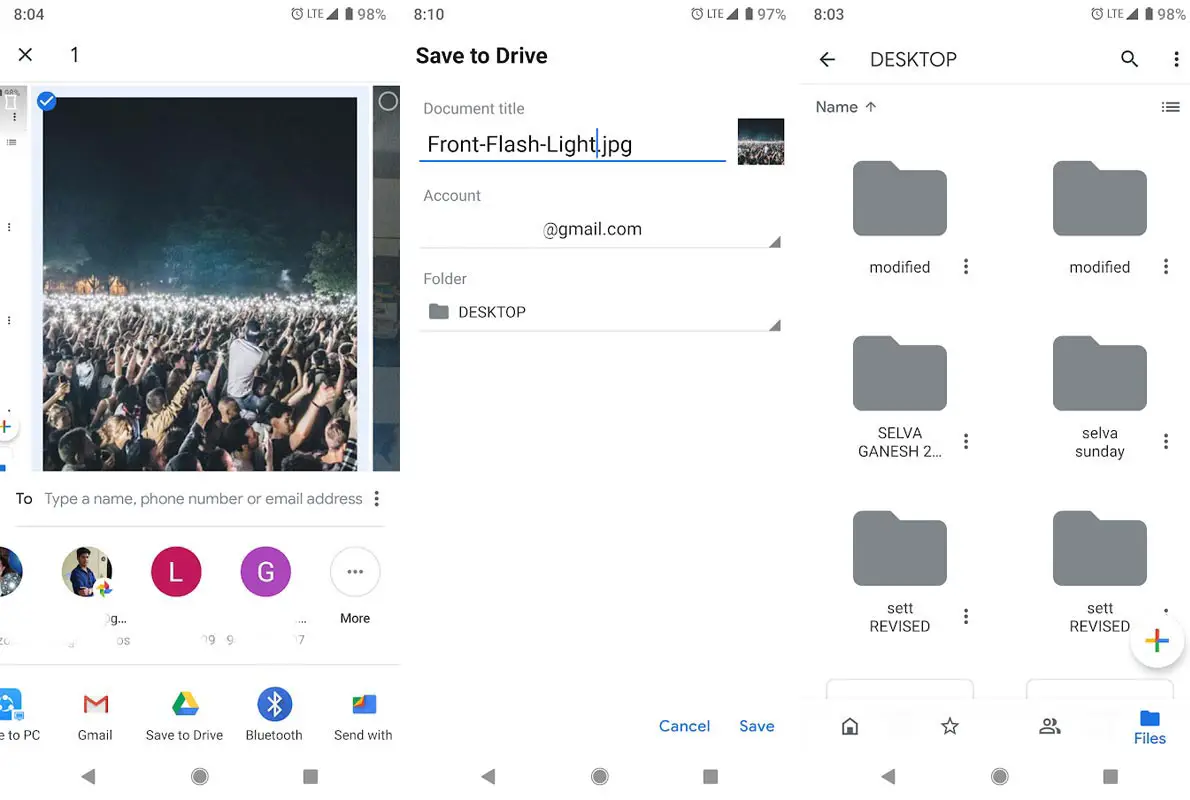
- Google drive will ask for the Options like which Account drive and the folder. After selecting the account and folder, select save.
- The file will be uploaded to the respective account folder.
PC Steps
-
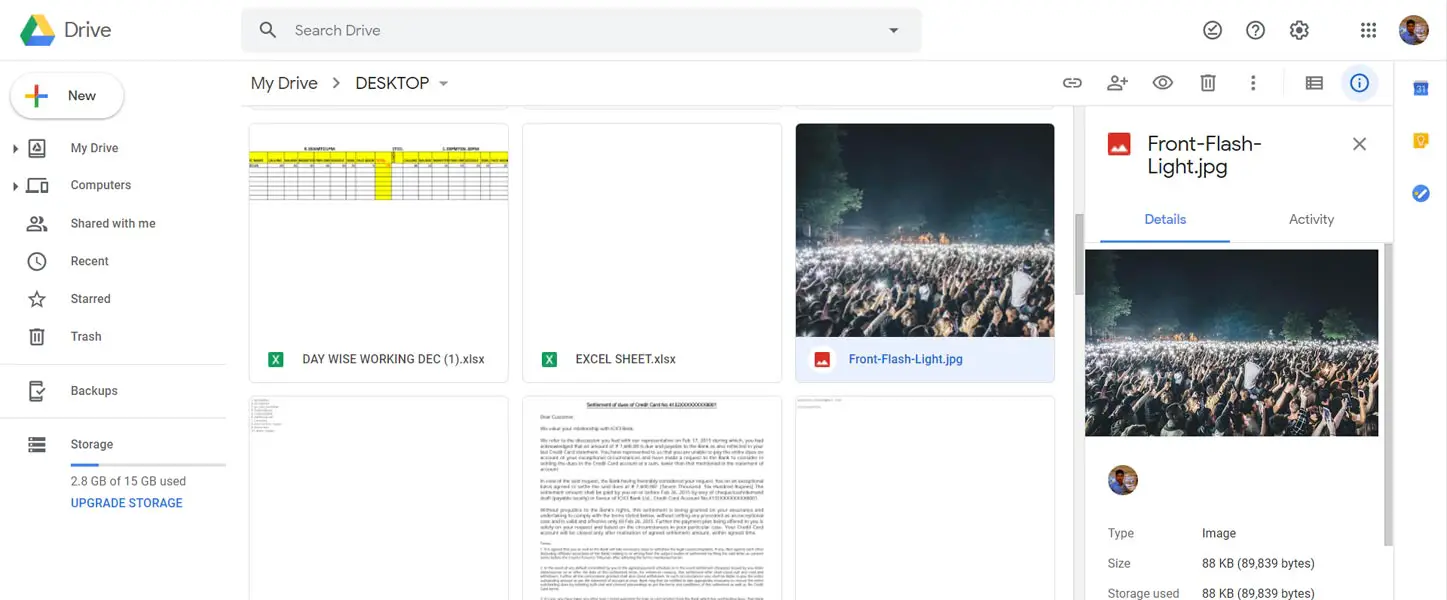
Login to https://drive.google.com on PC.
- Navigate to the folder, where you uploaded your file. You can download and use the data from there.
Restrictions
-
Some .exe files cannot be uploaded.
Dropbox
Dropbox is yet another excellent cloud storage platform you can use to synchronize your files across your devices. As a cloud storage platform, Dropbox allows you to upload virtually everything on your phone to the cloud and grants you access to them any time the files are needed. This cloud platform is accessible on all platforms, and its interface is merely intuitive.
Android Mobile Steps
To use Dropbox
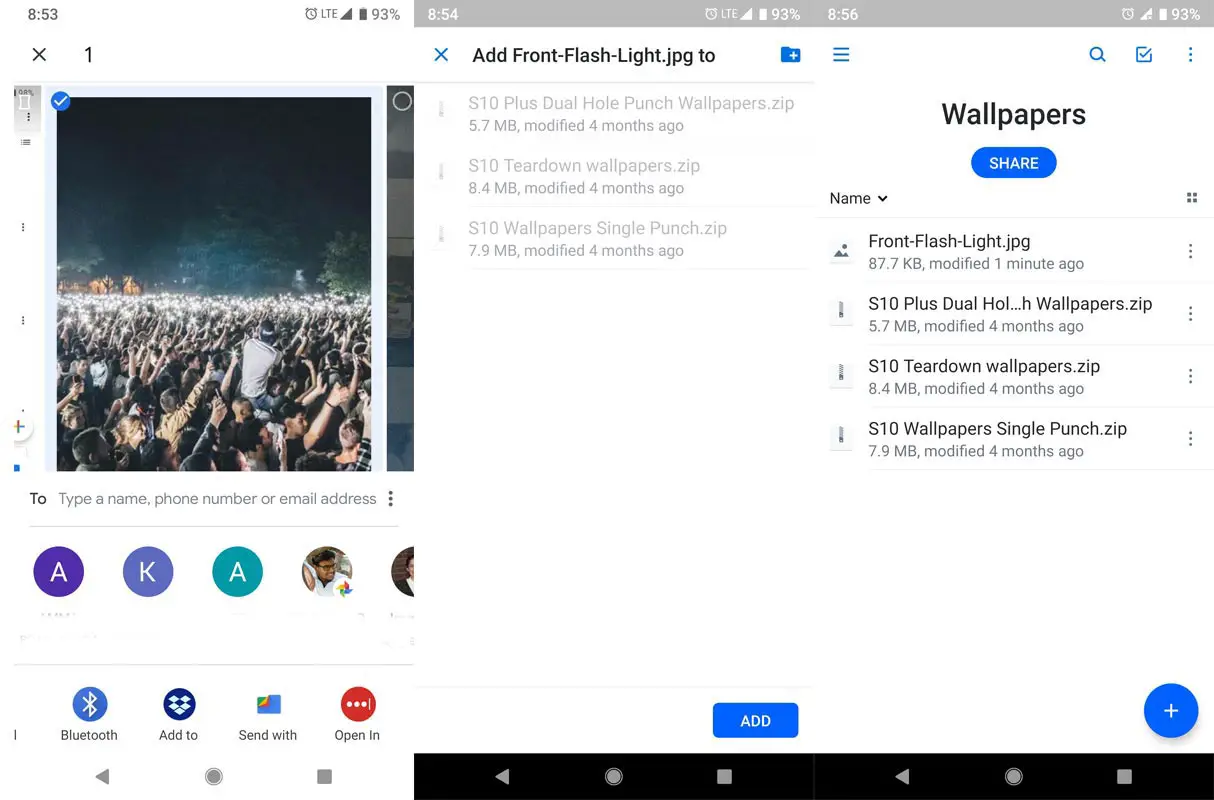
- Download the DropBox Android app and install on your smartphone
-
When you select Share, It will ask for the folder to save. Select your folder; It will Upload your file to the respective folder.
PC Steps
-
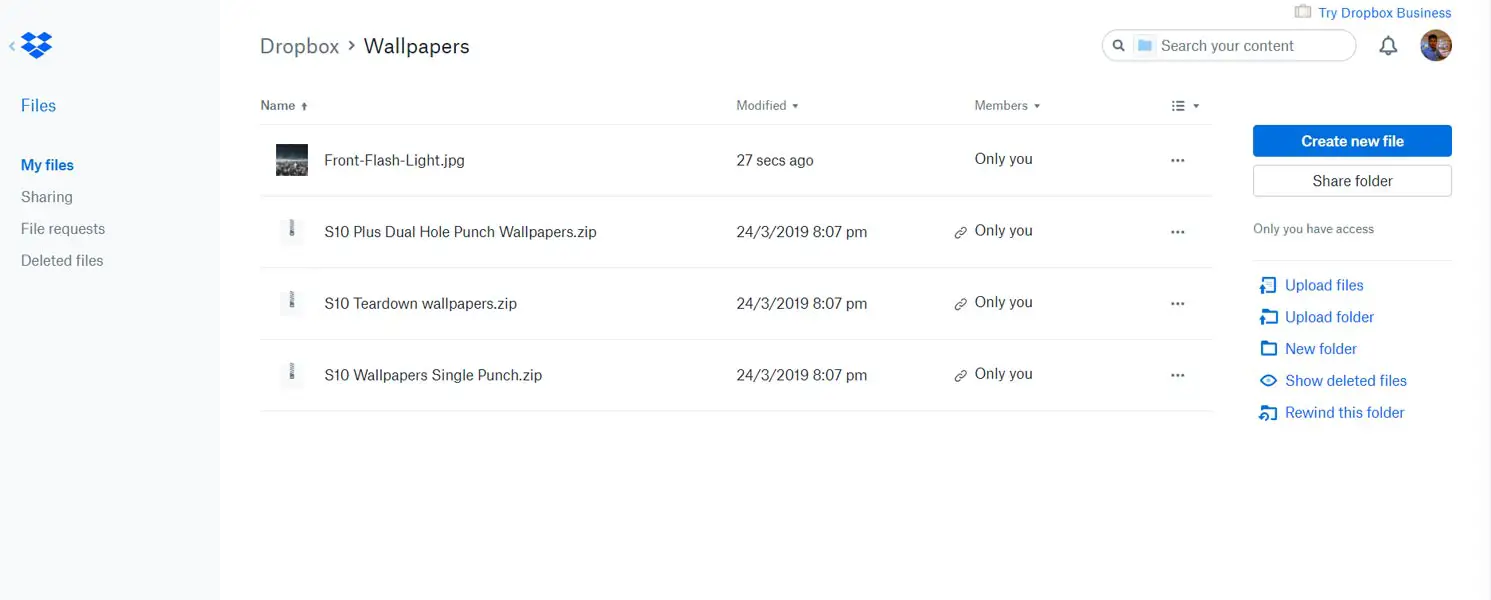
Download the Dropbox PC app and also install on your computer
-
Sign in and access your files from your PC or any other device. You can find your data in your uploaded folder.
Regarding Cloud Share
With cloud storages, you can transfer any file from your PC to mobile phone or vice versa. The data you can sync and transfer via this method include media files, documents, apk files, and presentations. But, this method may not be useful If you didn’t have or don’t want Accounts in the Cloud storage. Also, some files cannot be uploaded. Example some .exe files can’t upload to Google Drive, But it can be uploaded to Dropbox. Some .img files can’t be uploaded to Dropbox, But, it can be upload to Google Drive.
Method 2: Using Share apps
Also, you can use some file-sharing apps to transfer your files from your Android smartphone to your PC. Some file transfer apps that work perfectly for this action are ShareIt and PC Companion by Microsoft.
SHAREit
This is a cross-platform application for sharing of different types of file. Using this file transfer app, you will be able to transfer all your media, contacts, apps, and document files from your phone to PC wirelessly, and it happens very fast.
Using SHAREit requires you download and install the app on your phone and PC, then follow the steps below to transfer your files wirelessly.
- Download SHAREit For Mobile
- Download SHAREit For PC
-
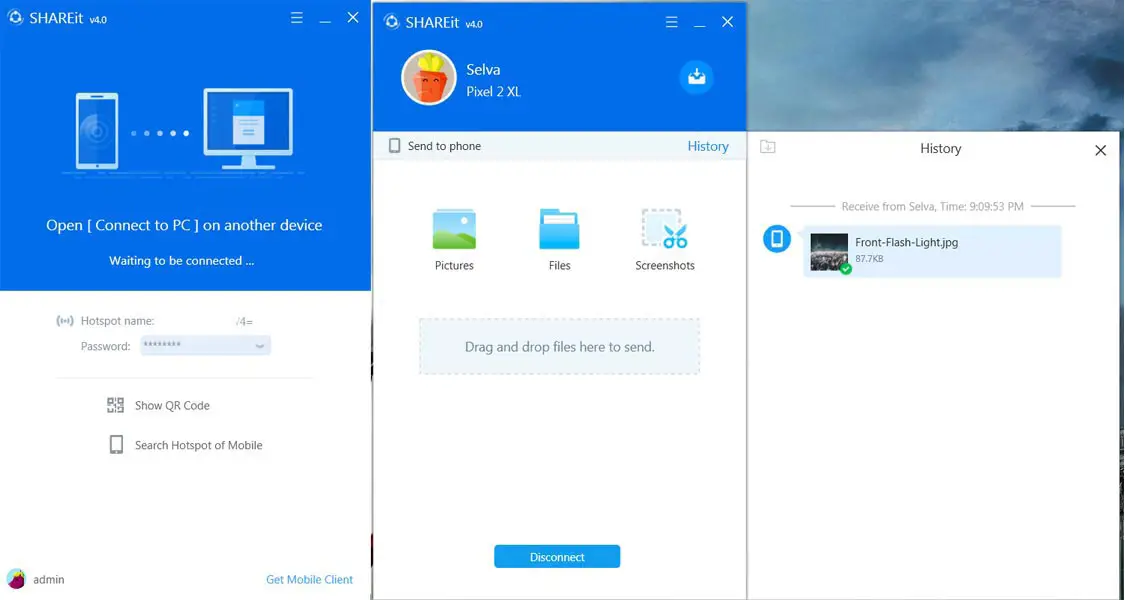
Launch SHAREit on PC; it will reveal a QR code which you’re expected to scan with your mobile phone
-
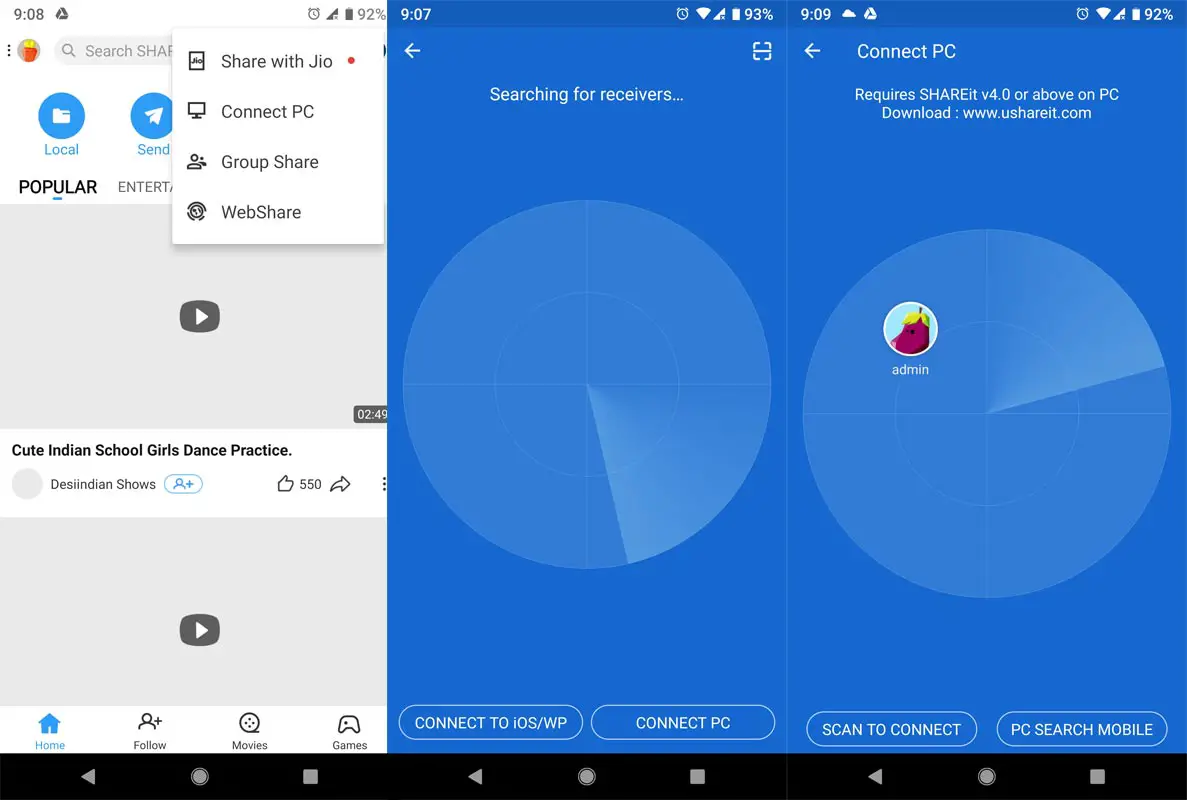
Launch SHAREit on your mobile phone and choose “connect to PC.”
-
Scan the QR code to connect your phone and PC
-
Start transferring your files between the connected phone and PC
PC Companion (Your Phone) by Microsoft
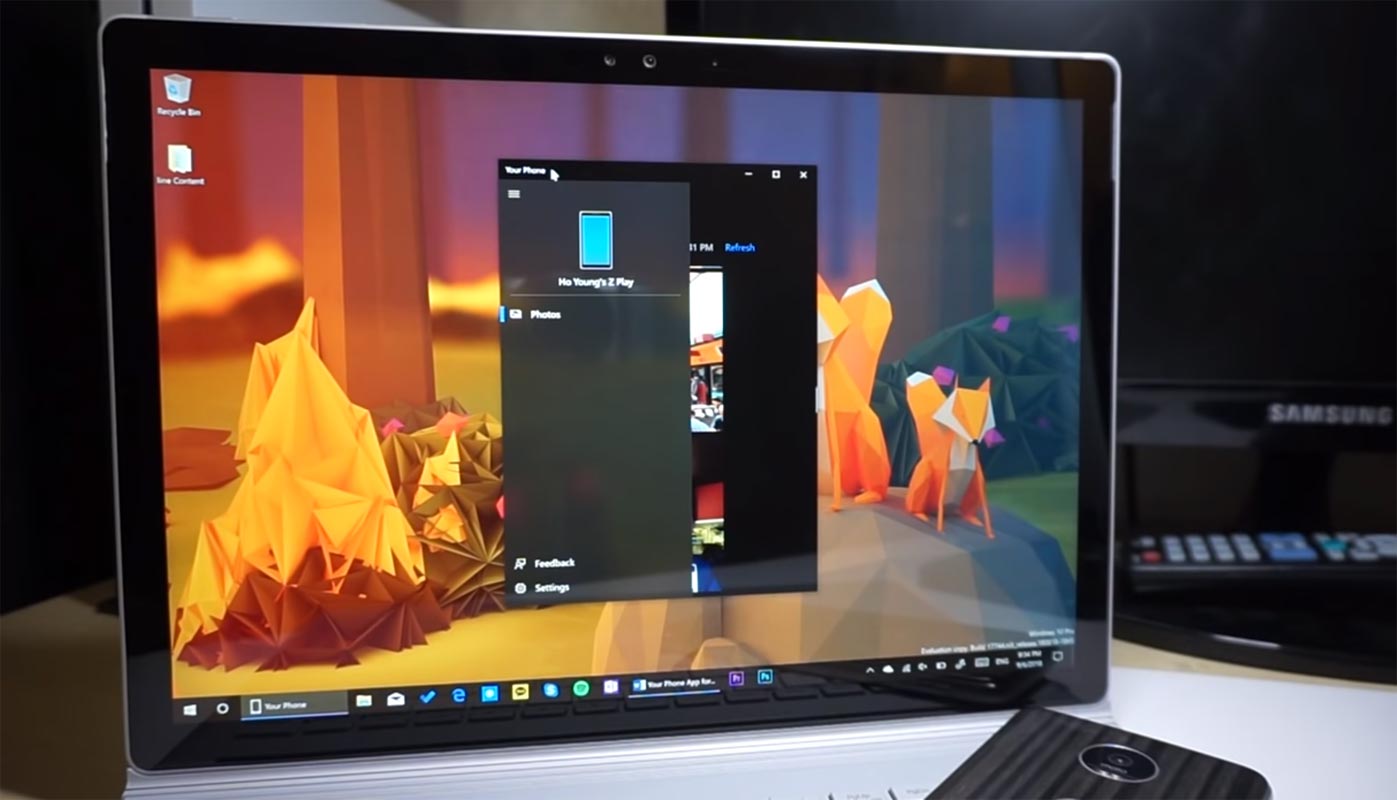
PC companion (Your Phone) is an app from Microsoft which is only available to Windows 10 users (October 2018 update version and newer). The app helps to synchronize your phone and Windows PC so you can quickly transfer files from your mobile device to your PC. To get started with this method, you have to ensure your PC runs on any of the newer versions of Windows 10.
System requirements for this method
-
A PC running Windows 10 October 2018 Update or later.
-
An Android phone is running Android 7.0 (Nougat) or above.
How to use:
On your computer:
-
Press Windows key + S to open the search function, then search for “Your Phone.”
-
Click on the app from the search result and sign-in with your Microsoft account
-
Enter the mobile number on your Android device (the one you want to sync with your PC).
-
A text will be sent to the phone number with a link to download Your Phone Companion app for your mobile.
On your Android phone
-
Download and install the PC Companion app.
-
Launch the app and also sign in with your Microsoft account (enter the same Microsoft account details as you entered on PC).
-
That’s all; you can now start accessing your files on PC
Method 3: Using KDE connect
With this application, you will be able to synchronize your mobile phone and PC, and receive phone notifications on PC, as well as access all the files saved on your phone directly from your PC. Using KDE Connect allows you to do a lot of things, such as;
-
Reply messages that enter your phone directly from your PC
-
Use your phone as a remote to control your PC
-
See your phone battery level from PC
-
Wirelessly share files and links between devices
And quite many more actions.
How to transfer files using KDE Connect
-
Download the Windows executable file
-
Install the Android app from Google Playstore
-
Connect your PC and smartphone to the same wifi network
-
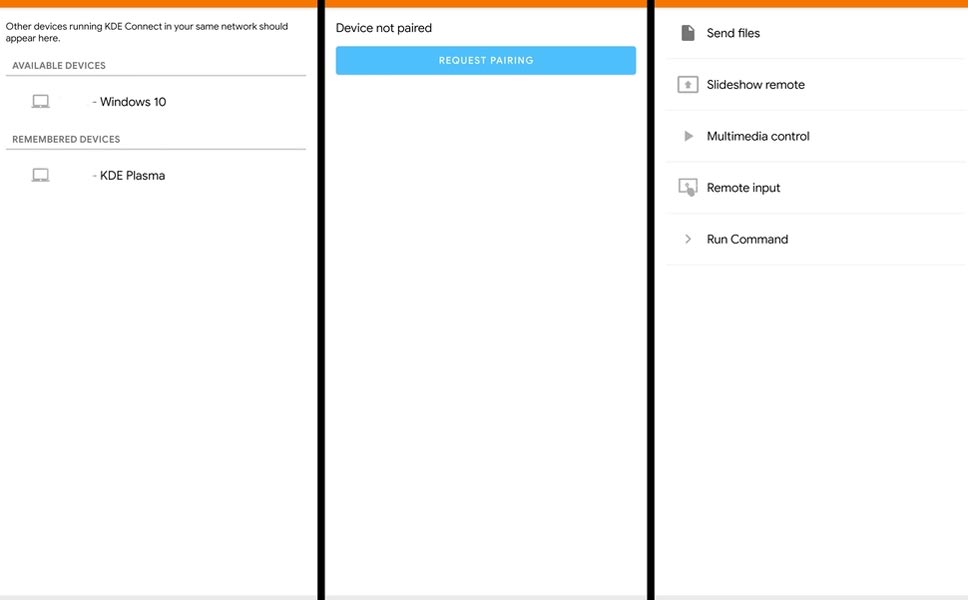
Launch the app on your phone; you’ll see your PC on Available Devices
-
Click to pair and connect the two devices
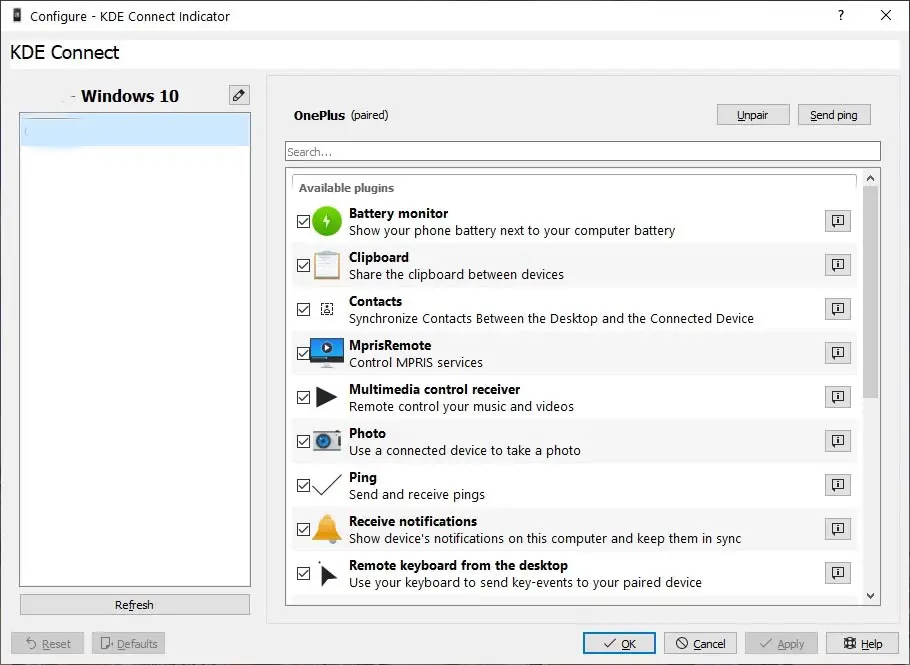
Once your phone is paired with your PC, you can start exploring all the features of KDE connect, which includes wireless file transfers amongst other exciting features.
KDE Connect is more vast and comprehensive than all other methods discussed here. However, not everyone may find it easy to use.
Wrap Up
There are plenty of ways to transfer the data between your Android Mobile and PC. New Galaxy Note 10 Link to windows is next level in this process. Beyond this, you can also use the Old School method- Bluetooth. Most of the time, the Bluetooth process is easy, and one always working method. If I missed any technique, or you have any suggestion, comment below.

Selva Ganesh is a Computer Science Engineer, Android Developer, and Tech Enthusiast. As the Chief Editor of this blog, he brings over 10 years of experience in Android development and professional blogging. He has completed multiple courses under the Google News Initiative, enhancing his expertise in digital journalism and content accuracy. Selva also manages Android Infotech, a globally recognized platform known for its practical, solution-focused articles that help users resolve Android-related issues.