
We can’t ignore WhatsApp on our mobile. You can use any messaging app, But, WhatsApp becomes a universal messaging service app on all smartphones. Due to its flexibility and features, people always prefer this app. WhatsApp also keeps adding a lot of enhancements frequently. When you make chats, you share important files with others. So, backup is necessary for messaging apps. WhatsApp has it’s own scheduled automatic backup method to Google Drive. The problem is, It can be used to restore all messages. It is encrypted. You can’t view the individual files and restore them. But, We can Backup WhatsApp Media Files like photos and videos to Google Photos so that you can see those files preview and download them individually from the Cloud storage. Even if your local storage lost, your data are safe with Google.
Even though you use Google Drive backup, I advise you to opt for this method and Disable the Video and Photos upload in the default backup. I will explain below why I am suggesting this idea.
Why should you use Google Photos to Backup Media files?
If you didn’t use the pricing plans, Google Drive is limited to 15 GB Storage. If you back up all the media files in Google Drive, your storage will become full soon. But, the alternative is, When you use Google Photos, you can get Unlimited standard quality photos and videos. When you have pixel phones, you can get limited time full quality images and videos. So, use the backup like this- Use Google Drive to backup text messages and media files to Google Photos. I will explain the steps to do this in the parts below. Text messages, Images, and Documents backup will not get more than 100-200 MB, Even if you have thousands of messages. Because when uploading to the cloud, It will compress the files. But, When you upload videos, It will take more storage.

If you use iOS devices, You can use iCloud to make a backup of text messages and Google Photos to backup media files. When you are using paid service and have a lot of storage, you don’t need alternative storage ideas.
Automatically Backup WhatsApp Media files using Google Photos (Photos and Videos)
You can set up the backup in an effortless manner. Once you set, you don’t have to copy or move the files between folders. Google Photos will take an automatic backup when it’s finding new media files in WhatsApp folders. Follow the steps below to do this.
Note
- You should have to work WhatsApp with some messages and media files.
Steps- Android Devices
- Download and Install Google Photos on your Android mobile.
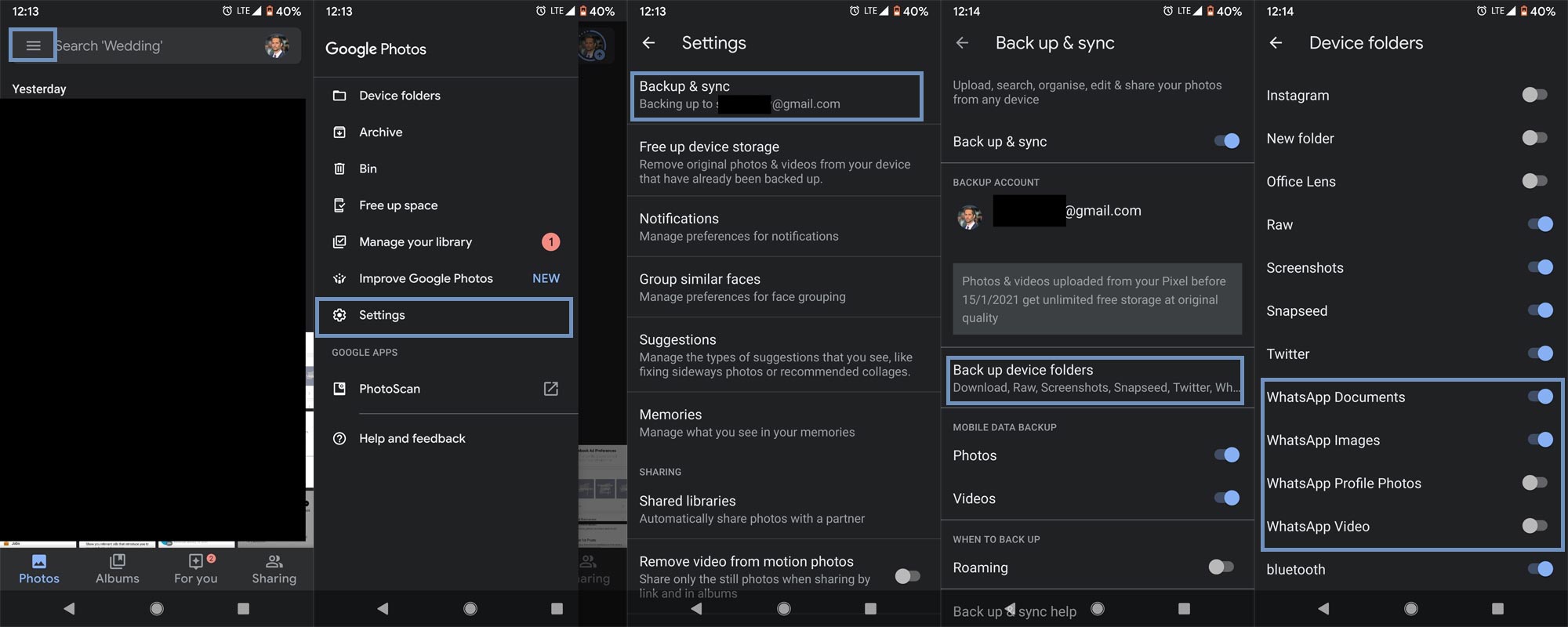
- Open the Google Photos app and select the hamburger menu.
- Select Settings> Backup and sync. Then choose Back up device folders.
- Enable WhatsApp Documents, Images, Profile Photos, and Video. That’s all hereafter; the media files will automatically backup to Google Photos.
Steps- iOS Devices
- Download and Install Google Photos on your iOS mobile.
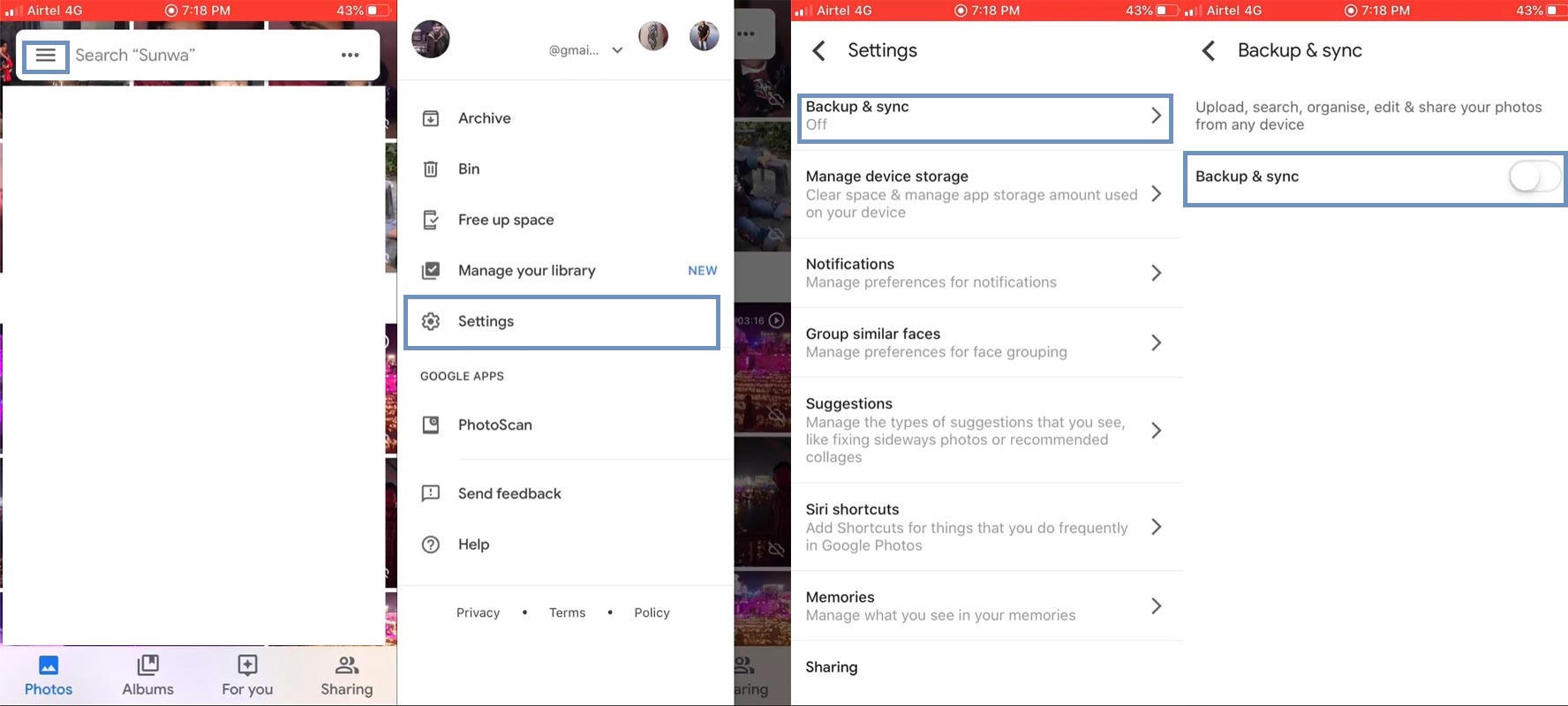
- Open the Google Photos app and select the hamburger menu.
- Select Settings> Backup and sync. Enable this option.
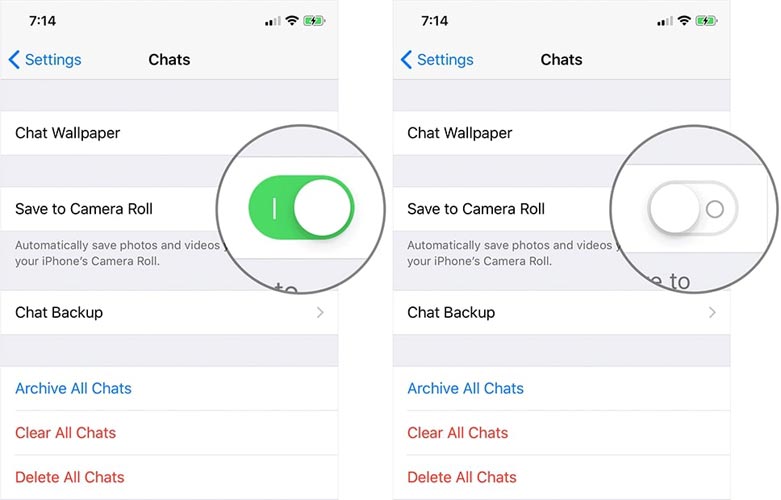
- Now open WhatsApp>Settings> Chats> Save to Camera Roll. Hereafter all your photos and videos will upload to Google Photos.
- You can disable the video upload to iCloud in WhatsApp> Settings>Chats>Chat Backup> Disable Videos upload.
Upload Unlimited Photos and Videos to Google Photos
By default, your storage will set to Original, It means, your room will reduce when you upload media files, But, your photos and videos will save in original format. When you select unlimited storage, your media files will be compressed in quality. But, You won’t notice the difference unless your data are very high quality (Say 4K).
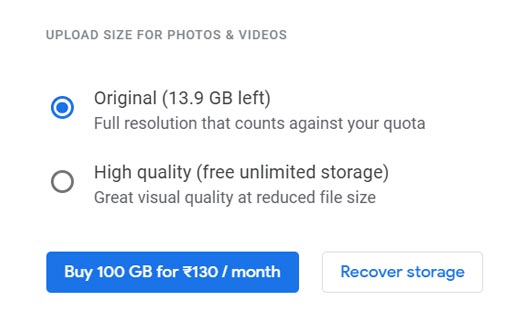
- The default Google Photos setup is the standard quality to upload unlimited media files. But, When you find your storage is reducing, you can change the settings in Web view. To do this, Go to Google Photos Web version and Settings. Set High Quality.
Wrap Up
You can’t use this method all the time to keep the Original format of photos and videos. Because when the person sends through WhatsApp, It automatically compresses the images and videos. But, You can send the original formats using send as a document option and Original quality setting. When you want to access particular backup files, using Google Photos is the right choice. Beyond only for WhatsApp, I advise you to use any one of the Photos backup service. Our photos are precious moments. Don’t lose them. When you have another alternative better than this method, comment below.

Selva Ganesh is a Computer Science Engineer, Android Developer, and Tech Enthusiast. As the Chief Editor of this blog, he brings over 10 years of experience in Android development and professional blogging. He has completed multiple courses under the Google News Initiative, enhancing his expertise in digital journalism and content accuracy. Selva also manages Android Infotech, a globally recognized platform known for its practical, solution-focused articles that help users resolve Android-related issues.