
Create a Real-Life JARVIS(J.A.R.V.I.S.) Using Google Gemini– Building a personal AI assistant that organizes, plans, and executes tasks in daily life is no longer a futuristic dream. With Google Gemini and its Gems feature, it is possible to create a practical assistant similar to Marvel’s JARVIS—a Daily Life Assistant that manages routines, tracks tasks, and keeps goals aligned. This article provides a step-by-step guide to building such an assistant, integrating it with Google Docs, Sheets, and Drive, and automating workflows for maximum productivity.
Why Build a Daily Life Assistant with Gemini?
Traditional task managers require constant manual updating and lack actual contextual memory. With Gemini Gems, you can design a custom AI assistant that:
- Reads structured files from Google Drive.
- Summarizes and prioritizes daily activities.
- Builds time-block schedules.
- Converts errands and notes into actionable tasks.
- Creates checklists and reminders automatically.
By maintaining a central source of truth—a single Google Doc or folder—this assistant ensures all routines and activities stay in sync across devices.

Prerequisites Before You Start
To create a fully functional AI-powered Daily Assistant, ensure the following are in place:
- Gemini Advanced or Gemini for Google Workspace subscription – free tiers do not allow Gem creation.
- Google Workspace integration is enabled, which ensures Gemini can access Docs, Sheets, and Drive content.
- Organized source document in Google Drive – this file serves as the assistant’s permanent reference.
Setting Up the Source Document in Google Drive
The Google Doc you create is the foundation of the assistant. It must be structured so that Gemini can consistently read and summarize.
1. Create a Central Document: “Daily Assistant Hub”
- Open Google Drive → Create a new Google Doc.
- Name it “Daily Assistant Hub.”
- Add clear headings such as:
- Today
- This Week
- Habits
- Errands
- Notes
2. Use Consistent Formatting
- Each task should be on a separate line.
- Add priority tags like [P1], [P2], or Work, Health, and Home categories.
- For shopping lists, use bullet points or simple tables for easier parsing.
3. Keep It Simple
Avoid deeply nested lists or complex tables, as they can confuse parsing. The simpler the structure, the more reliable the assistant becomes.
Creating the Custom Gemini Gem
Once your Google Doc is ready, it’s time to build the Gem.
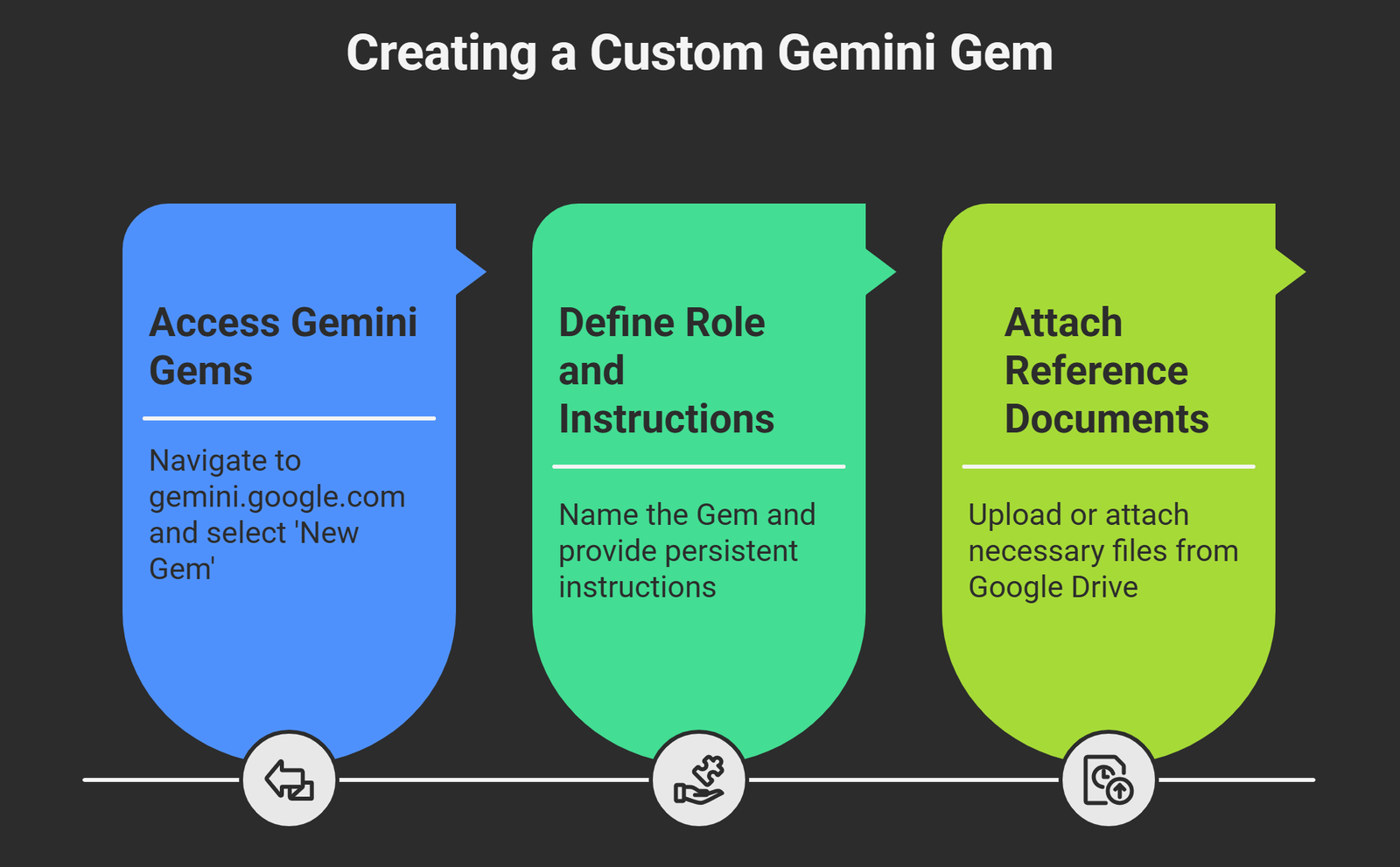
Step 1: Access Gemini Gems
- Go to gemini.google.com.
- Navigate to Explore Gems.
- Select New Gem.
Step 2: Define the Role and Instructions
When naming the Gem, choose something like “Daily Life Assistant.”
Provide persistent instructions, for example:
“Always read the sections ‘Today’ and ‘This Week’ from the ‘Daily Assistant Hub’ Doc in Drive. List the top 3 priorities, create a time-block plan, and surface overdue [P1] tasks. Respond in bullet points with checkboxes and include a motivational tip.”
Step 3: Attach Reference Documents
- Upload or attach the Daily Assistant Hub from Google Drive.
- If you have additional files (e.g., Workout Log, Shopping List), attach them.
- Unlike ad-hoc @-mentions, attached files become persistent references that are available in every session.
Using the Gem in Docs and Workspace
After setup, the Gem can be used directly in Google Docs and Workspace apps.
- Open your Daily Assistant Hub.
- Click Ask Gemini in the side panel.
- Run prompts such as:
- “Summarize Today.”
- “Create a time-block plan from 7:00–22:00.”
- “List overdue [P1] tasks and propose rescheduling.”
Gemini can insert outputs directly into the Doc, preserving the source of truth without losing context.
Daily Workflows You Can Automate
A real-life JARVIS is effective only when workflows are automated. Here are key examples:
Morning Planning
- Command: “Read ‘Today’ and ‘This Week’; generate top 3 priorities, a time-blocked plan, and a checklist with [ ] boxes.”
Quick Wins Sweep
- Command: “Identify tasks under 2 minutes from ‘Today’ and suggest completing them immediately.”
Note Parsing
- Command: “Parse new bullets under ‘Notes’ and categorize them into ‘Today’ or ‘This Week’ with proper tags.”
Errands & Shopping Management
- Summarize errands by proximity and store type.
- Convert shopping lists into aisle-order lists for efficiency.
Weekly Reviews
- Command: “List completed tasks, carry-over items, and progress on goals. Suggest a revised plan for ‘This Week.’”
Collaboration and Sharing
One of the most powerful features is collaboration:
- Share the Gem like a Google Drive file.
- Ensure the Doc is shared with the same people for consistent access.
- Family members or teammates can view, edit, or add tasks directly.
- Work together in real time via the Gemini side panel in Docs.
Tips for Reliability
To ensure your assistant remains accurate and consistent:
- Keep formatting stable – headings and bullet styles should not change frequently.
- Revalidate Drive access if Gemini fails to see updates.
- Avoid overloading Docs with deeply nested lists or excessive sections.
- Reattach files after major app or account changes.
Some users have reported intermittent access issues. Keeping documents well-structured and periodically validating file permissions minimizes disruptions.
Quick Start Checklist
- Enable Gemini with Workspace integration.
- Create the Daily Assistant Hub in Drive.
- Define the Gem instructions clearly.
- Attach Docs, Sheets, or Drive folders as references.
- Test prompts like:
- “Summarize Today.”
- “Build a time-block schedule.”
- “Roll over incomplete tasks.”
- “Generate weekly review.”
Learning More About Gemini Gems
- Explore the Gemini Help Center for updates on Gem creation.
- Review Gemini release notes for new features like shareable Gems and reference uploads.
- Experiment within the Gemini-in-Docs side panel, where outputs can be inserted and managed directly.
Final Thoughts
By combining Google Gemini, Gems, and a well-structured Google Doc, you can design a real-life digital assistant that mirrors the intelligence of JARVIS This system manages daily activities, streamlines decision-making, enhances focus, and improves collaboration. Your Daily Life Assistant becomes a central hub for productivity and personal growth with persistent context, clear structures, and automated workflows.

AITeam is the dedicated editorial team of Android Infotech, consisting of experts and enthusiasts specialized in Android-related topics, including app development, software updates, and the latest tech trends. With a passion for technology and years of experience, our team aims to provide accurate, insightful, and up-to-date information to help developers, tech enthusiasts, and readers stay ahead in the Android ecosystem.
For more about our team, visit our About Us page.