
Converting Word documents to PDF is one of the most common digital tasks today. PDFs are secure, widely accepted, and perfect for professional sharing. If you’re looking for a free, unlimited, and reliable way to convert Word files to PDF, Google Drive and Google Docs provide the most effective solution. Whether you’re handling a single document or hundreds of files, these methods ensure accuracy, speed, and accessibility across devices. Below, we explore step-by-step methods to convert unlimited Word documents to PDF using Google Drive and Google Docs, which are entirely free.
Why Use Google Drive to Convert Word to PDF?
Before jumping into the methods, it’s essential to understand why Google Drive is the ideal choice for Word-to-PDF conversion:
- Completely free with no hidden limits.
- Cross-platform support (works on Windows, macOS, Android, iOS, and Linux).
- High-quality PDF output while preserving formatting.
- Cloud-based storage makes files accessible anytime, anywhere.
- Batch-friendly workflow, practical for professionals dealing with bulk documents.
Method 1: Convert Word to PDF Using Google Docs Export
This is the most reliable method for converting Word documents to PDF while maintaining formatting, fonts, and image fidelity.

Steps to follow:
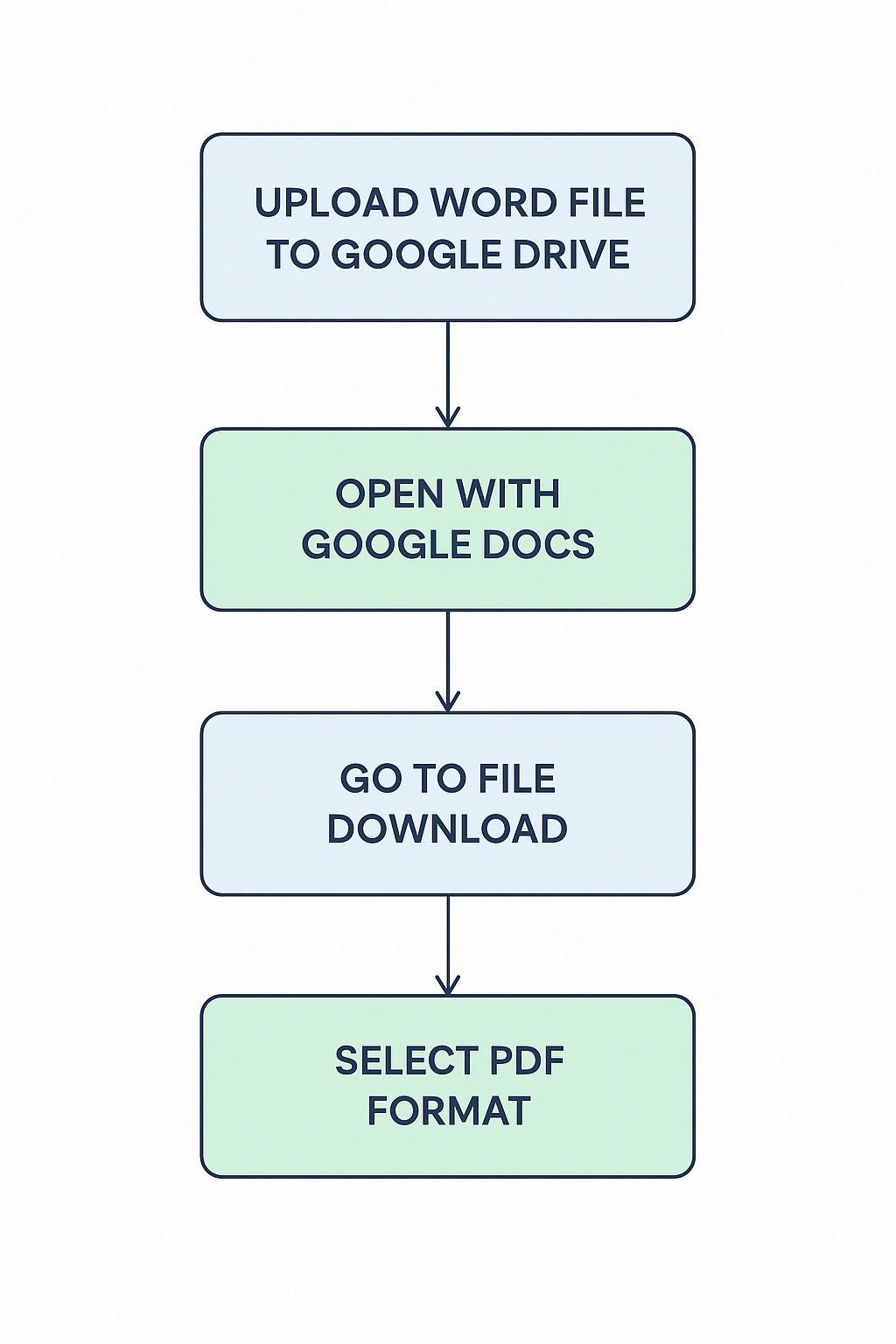
- Upload your .doc or .docx file to Google Drive.
- Right-click on the file → Open with → Google Docs.
- In Google Docs, go to File → Download → PDF Document (.pdf).
Why it works best:
- Preserves most original formatting.
- Works with large documents, tables, and embedded fonts.
- Ensures professional-quality PDFs suitable for business use.
You can repeat this method or use Method 3 for faster results for multiple documents.
Method 2: Convert on Upload + Auto-PDF Download
If you frequently upload Word files to Google Drive, this method saves time by auto-converting files into Google Docs upon upload.
Steps to follow:
- Open Google Drive (web).
- Click the gear icon (⚙️) → Settings → General.
- Check the option “Convert uploaded files to Google Docs editor format.”
- Upload your Word files; they’ll automatically become Google Docs.
- Open each converted file → File → Download → PDF Document.
Best use case:
- Ideal when you plan to edit Word files in Google Docs before exporting them as PDFs.
- Saves effort for frequent bulk uploads.
Method 3: Batch Convert Word Files to PDF in Google Drive
For users who need to convert dozens or hundreds of Word files, Google Drive offers an effective way to perform batch conversions without extra tools.
Option A: Browser Tab Method
- In Google Drive, hold Ctrl (Windows) or Cmd (Mac) and click multiple Word files.
- Open each in Google Docs (each file opens in a separate tab).
- In each tab, go to File → Download → PDF Document.
The PDFs will download simultaneously, providing near batch-level speed.
Option B: Folder-Based Organization
- Create a folder in Drive called “To-Convert.”
- Place all Word files into this folder.
- Open and process them daily, ensuring they’re organized for easy tracking.
- Export each one into a corresponding “Output PDFs” folder.
Extra Tip: Use consistent file naming to match Word files with their exported PDFs easily.
Method 4: Convert Word to PDF on Mobile (Android & iOS)
Google Drive and Docs apps make it easy to convert files on the go.
Steps to follow:
- Install Google Drive and Google Docs apps from the App Store or Play Store.
- Upload the Word file to Drive.
- Open the file in Google Docs.
- Tap the three dots (⋮) → Share & export → Send a copy → Select PDF.
- Save the PDF to your device or put it back into Drive.
Best for: Students, professionals, or freelancers who need quick conversions directly from their smartphones.
Method 5: Print to PDF from Google Docs
Sometimes, direct PDF download is blocked due to restrictions or add-ons. In this case, the Print-to-PDF method is the workaround.
Steps to follow:
- Open the Word file in Google Docs.
- Go to File → Print (Ctrl/Cmd + P).
- Under Destination/Printer, select Save as PDF.
- Click Save to download the PDF version.
Best for: Situations where download restrictions apply, such as school or company accounts.
Handling Special Conversion Issues
When converting Word to PDF, a few issues may arise. Here’s how to handle them effectively:
- Fonts and Layout Shifts: Disable “Convert uploaded files…” in Drive settings. Upload the .docx without conversion and export directly.
- Images/Tables Cut Off: Use File → Page Setup in Google Docs to adjust margins and paper size.
- Large Files: Allow Drive/Docs a few extra seconds to render before exporting.
- Password-Protected Word Files: Remove the password in Microsoft Word before uploading; Google Docs cannot open locked files.
- Offline Use: Enable Drive Offline, but note that PDF exports work more smoothly online.
Organizing Unlimited Word-to-PDF Conversions
Handling bulk document conversions becomes easier with structured organization.
- Folder Structure: Create dedicated folders:
- Source (Word)
- Working (Docs)
- Output (PDF)
- Version Control: Add version tags to filenames, e.g., Report_v2.pdf.
- Replace Old PDFs: Right-click the PDF in Drive → Manage Versions to update without changing links.
- Sharing PDFs: Use Google Drive share settings or attach directly via Gmail.
Advanced: Automating Bulk PDF Exports with Google Workspace Add-ons
Manual conversions can be time-consuming if you’re part of an enterprise or manage thousands of files. In such cases:
- Explore Google Workspace Marketplace Add-ons for automation.
- Use Google Apps Script or the Drive API to automatically batch-convert Word files to PDF.
This ensures a true one-click, large-scale conversion workflow for businesses and teams.
Wrap Up
Converting unlimited Word files to PDF using Google Drive is fast, free, and highly efficient. Whether you’re a student needing a few assignments in PDF format, a professional handling bulk reports, or a business managing document workflows, Google’s ecosystem offers all the tools you need without additional software.
Using the methods above — from simple exports to advanced batch processing — you can handle unlimited conversions seamlessly while keeping your documents organized and professional.

Selva Ganesh is a Computer Science Engineer, Android Developer, and Tech Enthusiast. As the Chief Editor of this blog, he brings over 10 years of experience in Android development and professional blogging. He has completed multiple courses under the Google News Initiative, enhancing his expertise in digital journalism and content accuracy. Selva also manages Android Infotech, a globally recognized platform known for its practical, solution-focused articles that help users resolve Android-related issues.