
If you find your Windows computer struggling with resource issues and experiencing sluggish performance, one effective solution is to disable the Xbox Game Bar. This not only alleviates the strain on your system but also eradicates those pesky game bar overlays that tend to pop up when you use a specific key combination, such as Windows + G. Let’s delve into the various methods you can employ to deactivate the Xbox Game Bar on your Windows 11 or Windows 10 system. By doing so, you can enjoy smoother, more responsive computing and bid farewell to the interruptions caused by the game bar, ultimately enhancing your overall Windows experience.
Adjusting Game Bar Settings on Windows
On Windows 11
Windows 11 doesn’t offer a dedicated button to turn off the Xbox Game Bar like Windows 10. However, you can adjust its settings to limit and minimize its background usage. Here’s what you need to do.
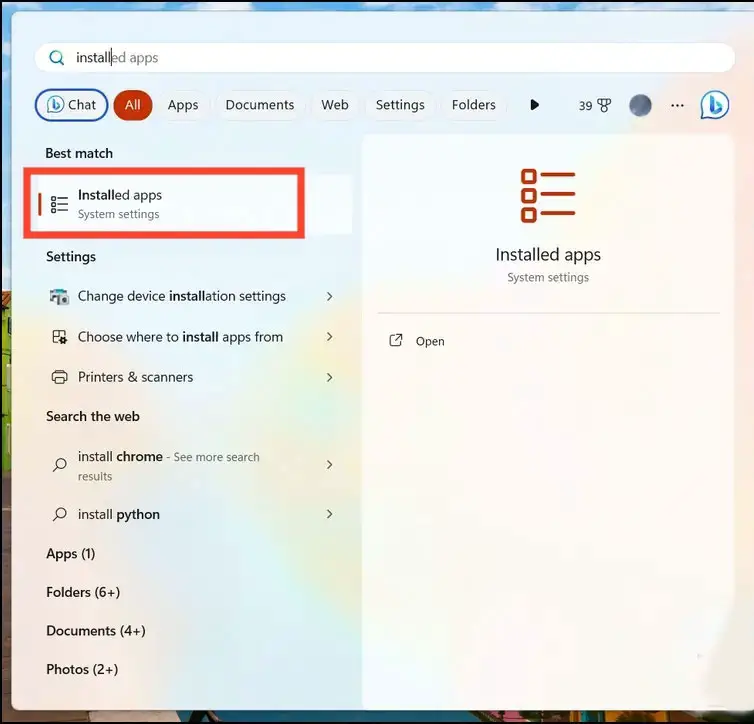
- To initiate, press the Windows key and conduct a search for “Installed apps” to access the list of applications currently installed on your system.

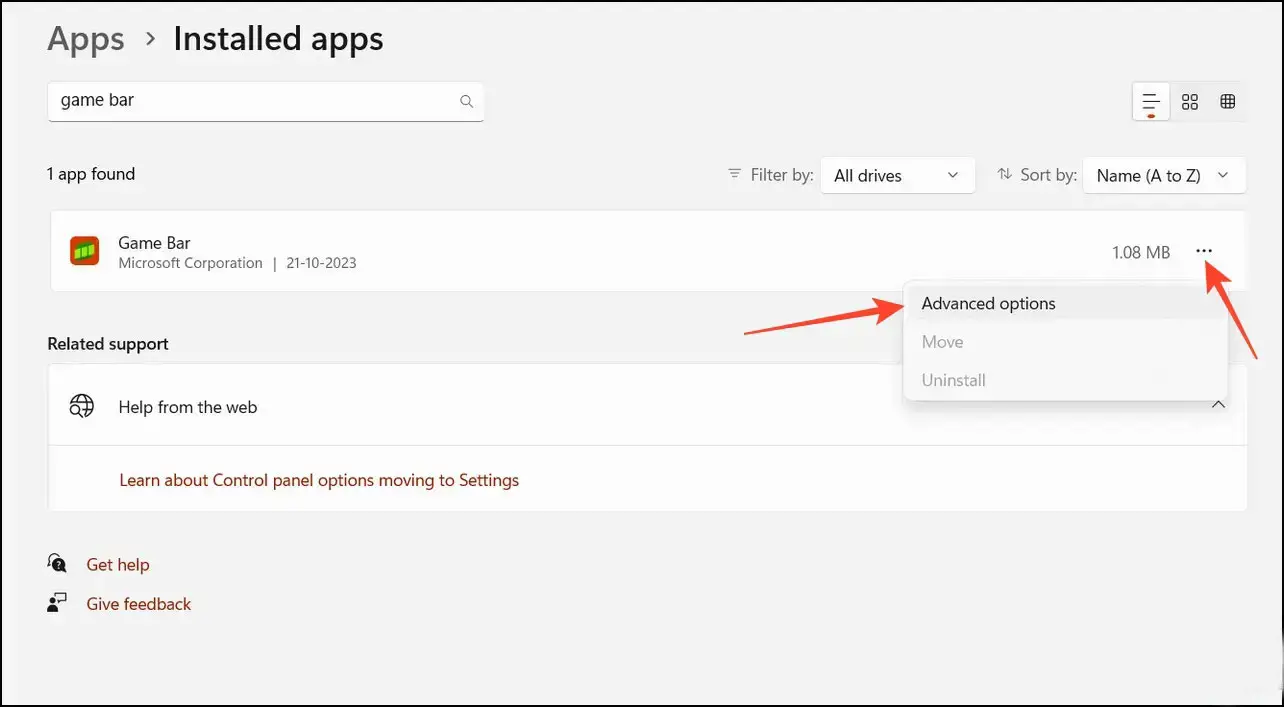
- Search for Game Bar and click the three-dot menu next to it to open Advanced Options.
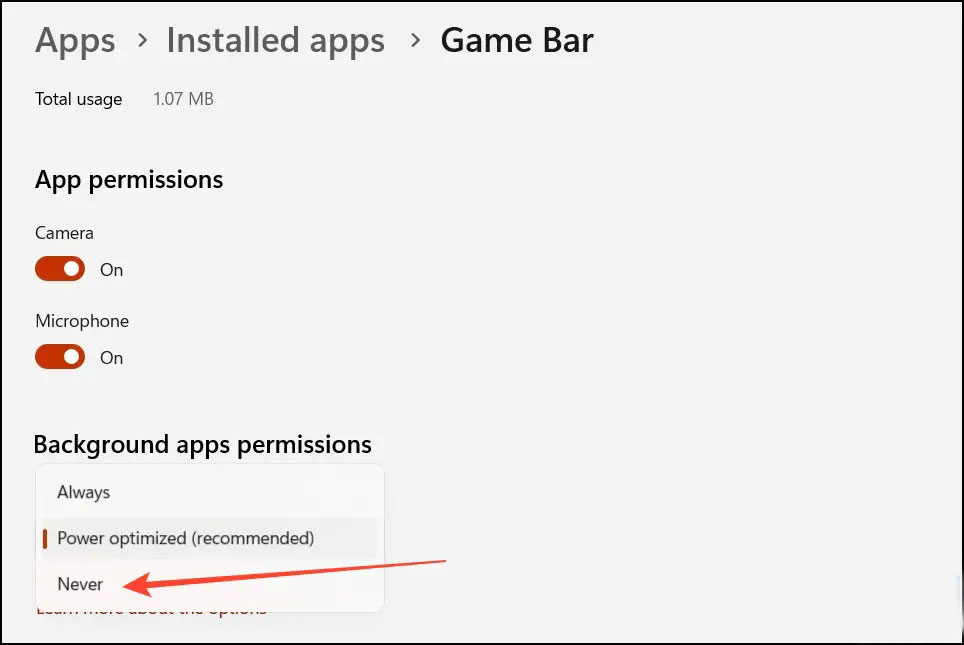
- Locate Background Apps Permissions and set it to Never.
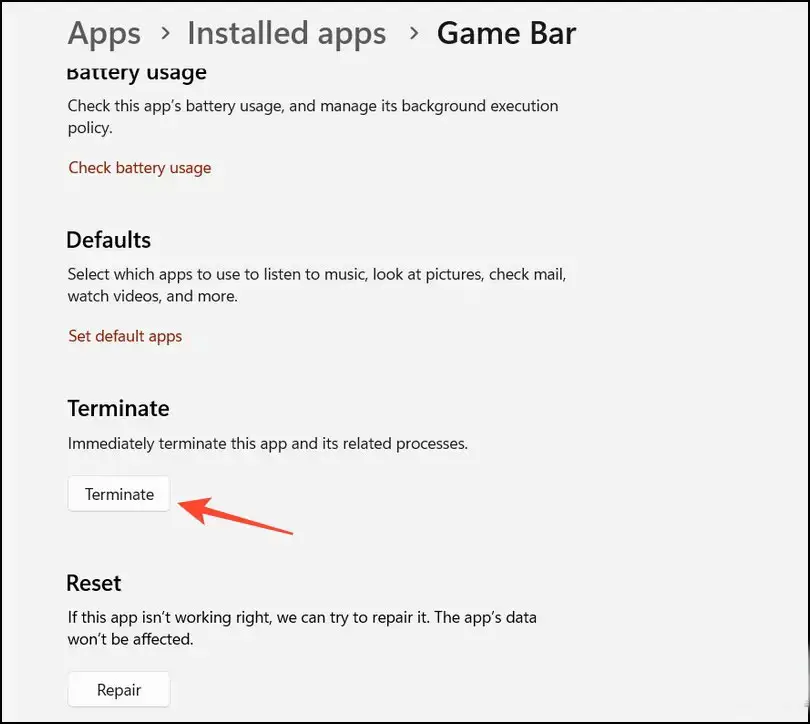
- Scroll down to the bottom to Terminate all running instances of the Xbox Game Bar.
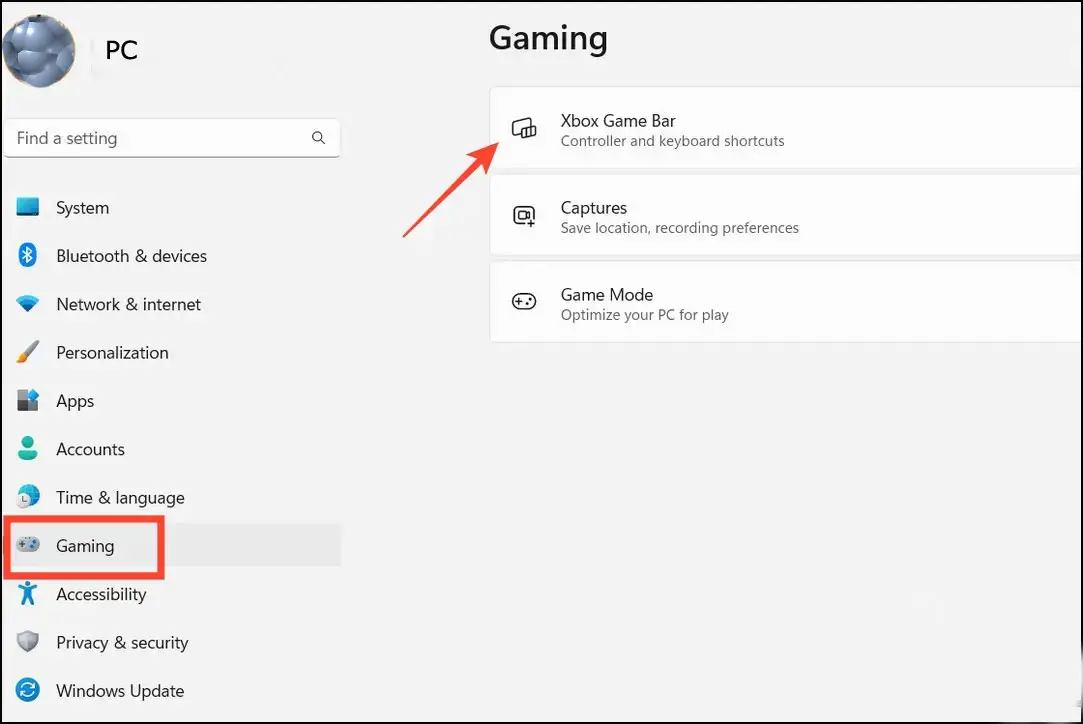
- Next, expand Gaming in the left sidebar to configure Xbox Game Bar settings.
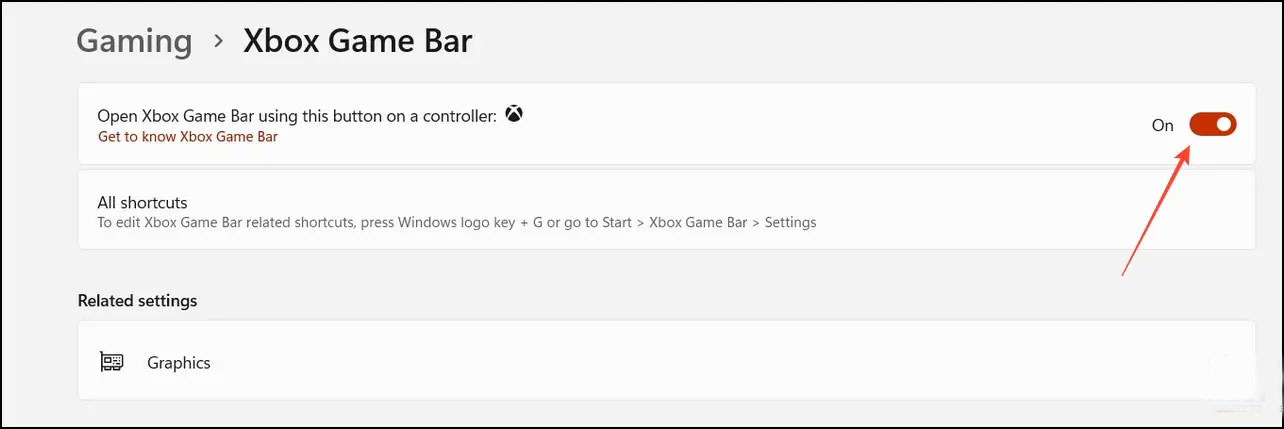
- Finally, turn off the Xbox Game Bar feature using the toggle button.
On Windows 10
Disabling the Xbox Game Bar on Windows 10 is relatively straightforward.
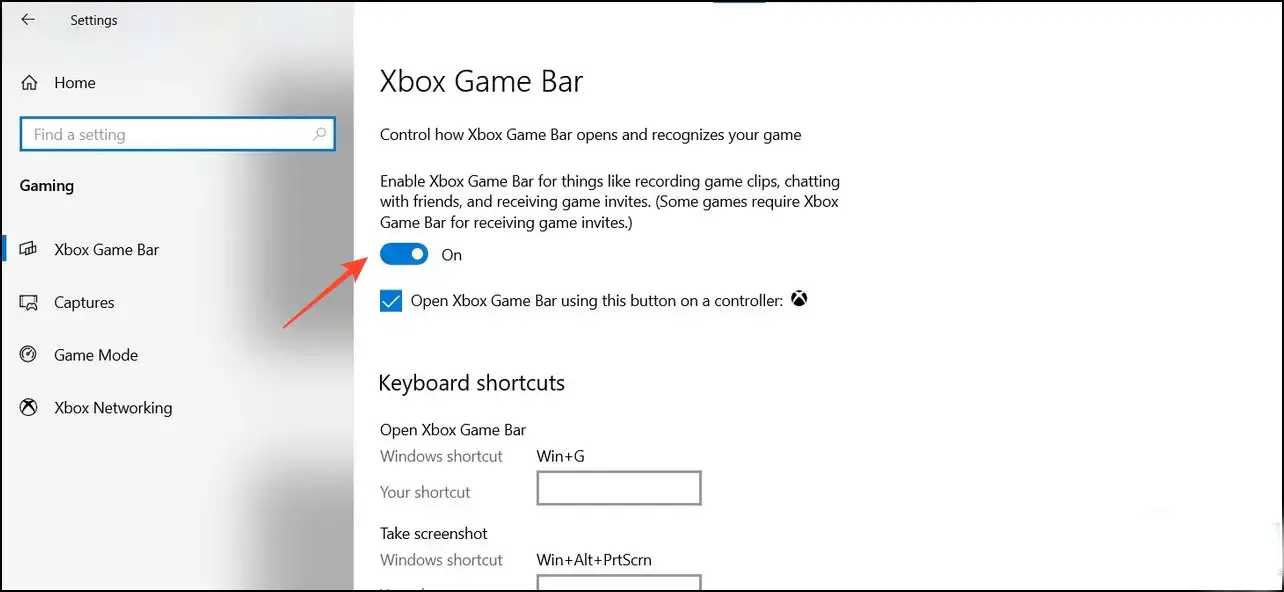
- Open Settings on your Windows 10 system and click Gaming.
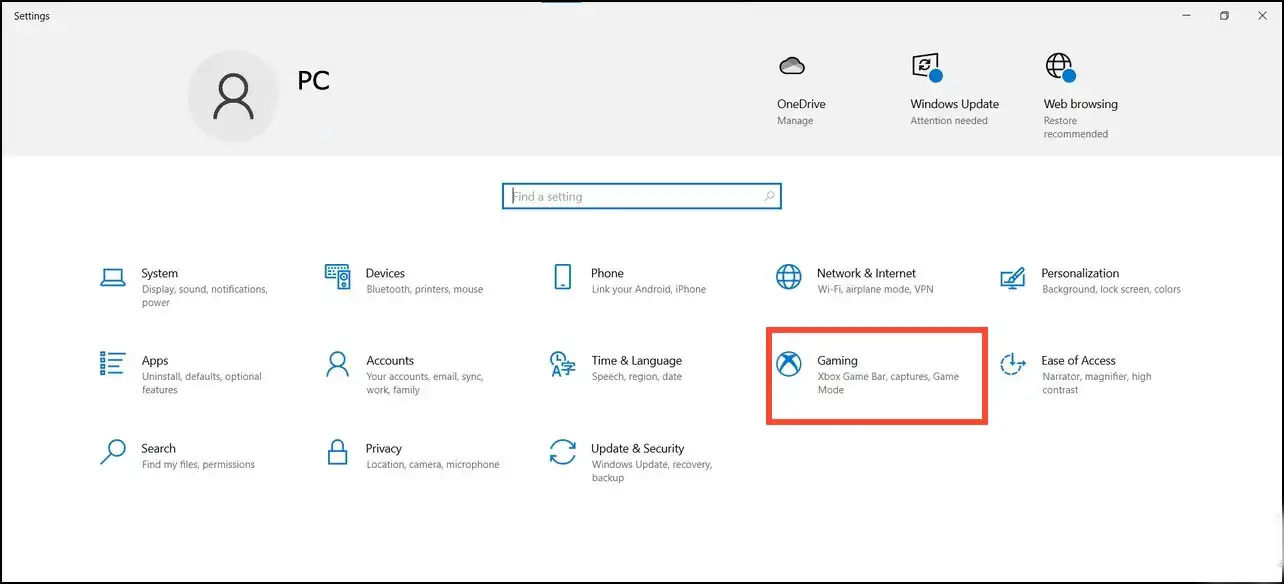
- Expand the Xbox Game Bar and turn off its toggle button to deactivate it.
Using Windows PowerShell
Windows PowerShell is a one-stop solution to manage all Windows components and services. As a result, you can utilize it to deactivate the Xbox Game Bar on Windows 10 or 11. Follow these steps for a simple solution:
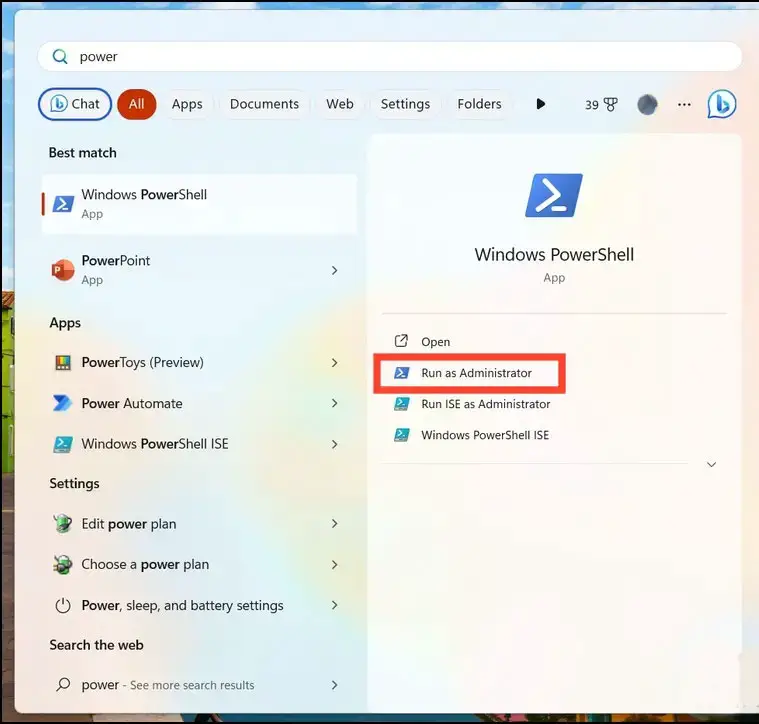
- Search PowerShell in the Windows search bar to run it with elevated permissions.
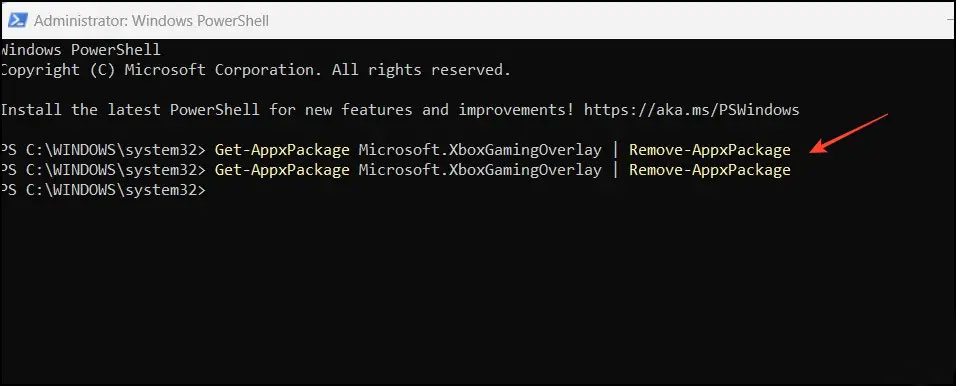
- Copy-paste the following commands and execute them in the terminal individually to disable the Xbox Game Bar on Windows.
Editing Registry Values
Besides PowerShell, you can use the registry editor app to edit system values for disabling the Xbox Game Bar. Once you’ve altered it, reboot the system to see the applied changes:
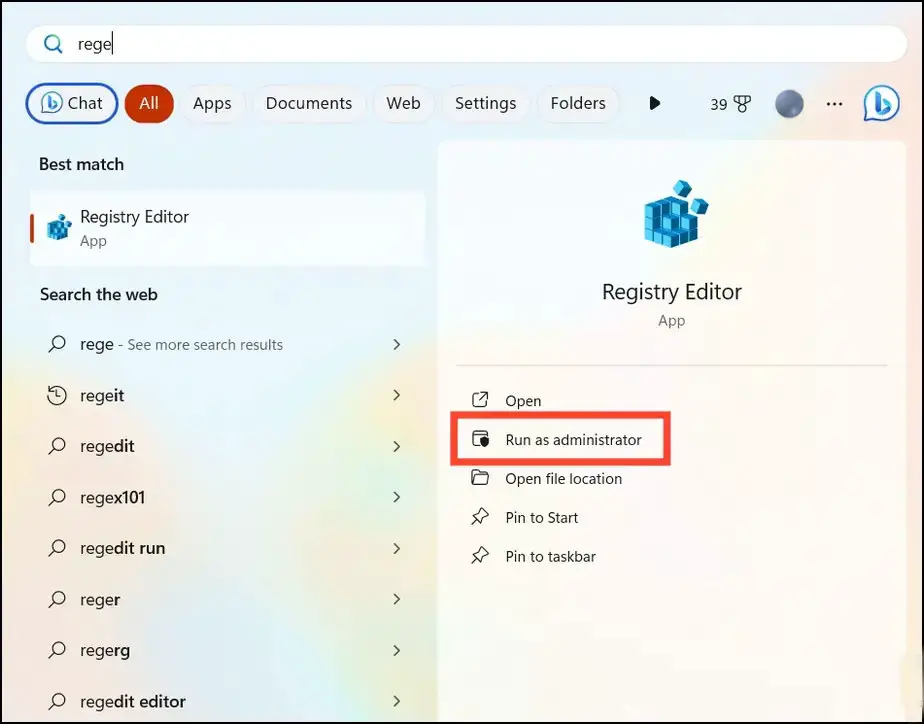
- To access the “Registry Editor” application with administrative privileges, press the Windows key and look for it in the search.
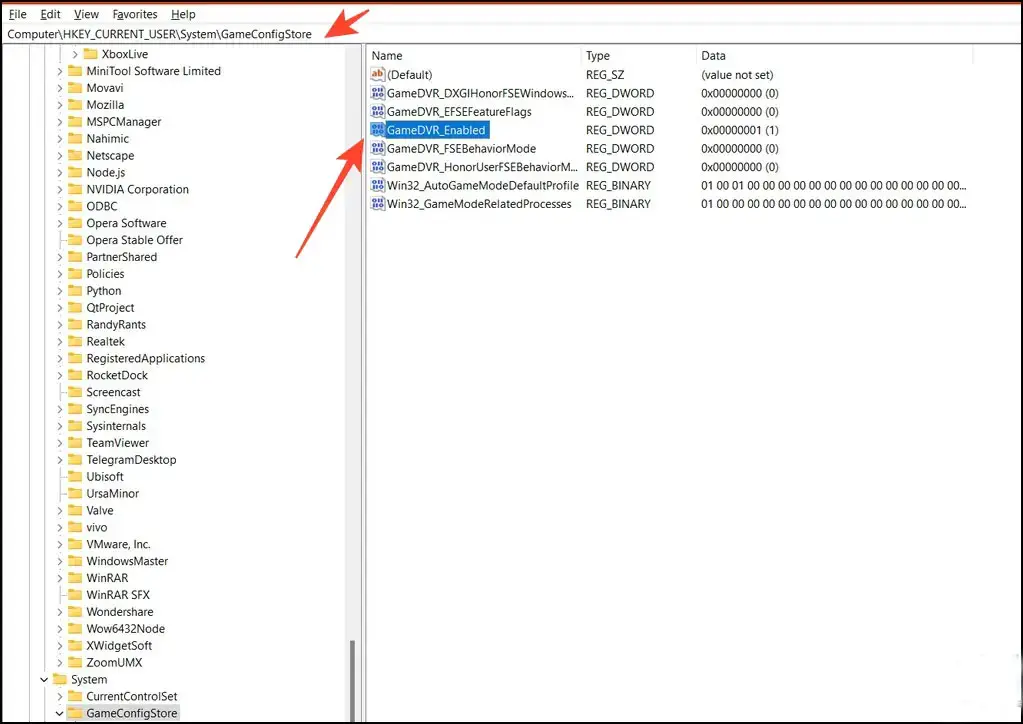
- Copy and paste the following path into the search bar for swift navigation.: Computer\HKEY_CURRENT_USER\System\GameConfigStore.
- Double-click the GameDVR_Enabled key to configure its value.
- Set the Value Data to 0 and click OK to save changes.
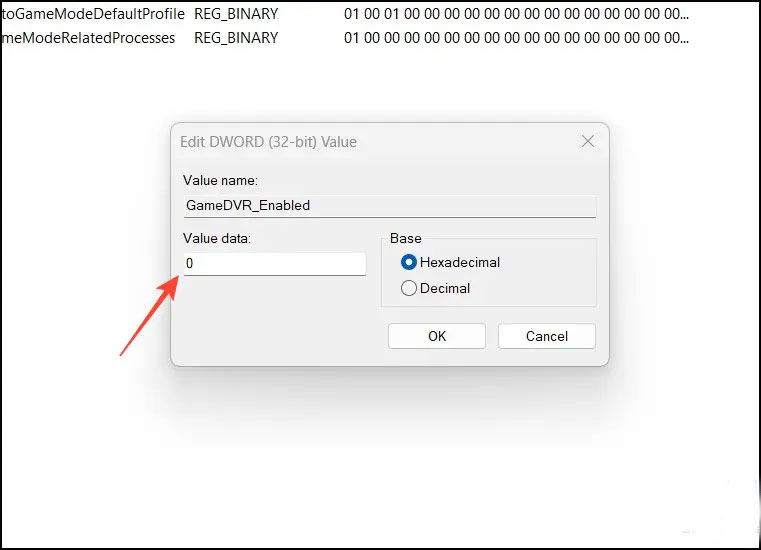
On Windows 10, copy-paste the following directory in the navigation bar to set the AppCapturedEnabled key value to zero.
Using Group Policy Editor
Like Registry Editor, Group Policy Editor is a unique Windows feature app that allows you to control the variables of your system environment. You can turn off the Windows Game recording and broadcasting component that triggers the Xbox Game Bar. Here’s what you need to do:
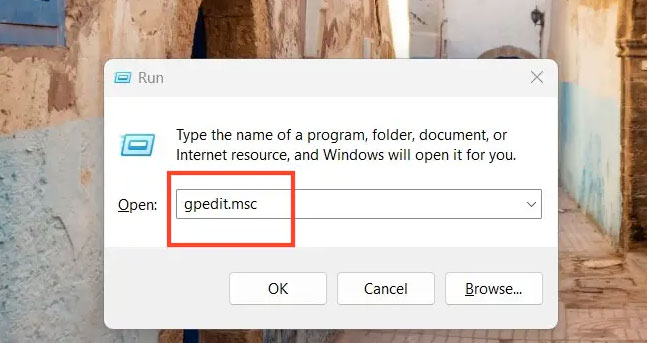
- Press the Windows + R hotkey to open the Run dialog and type “gpedit. msc” to access the Group Policy Editor.
- Navigate to the following path inside the Group Policy Editor Window: Local Computer Policy > Computer Configuration > Administrative Templates > Windows Components > Windows Game Recording and Broadcasting.
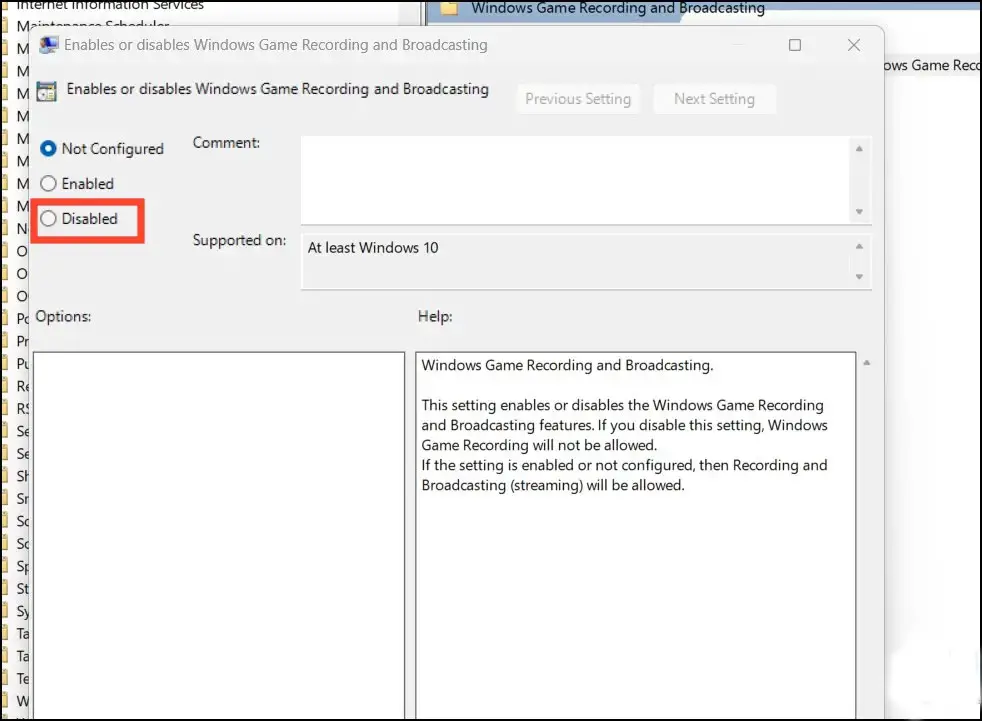
- Double-click the Enable or Disable Game broadcasting policy.
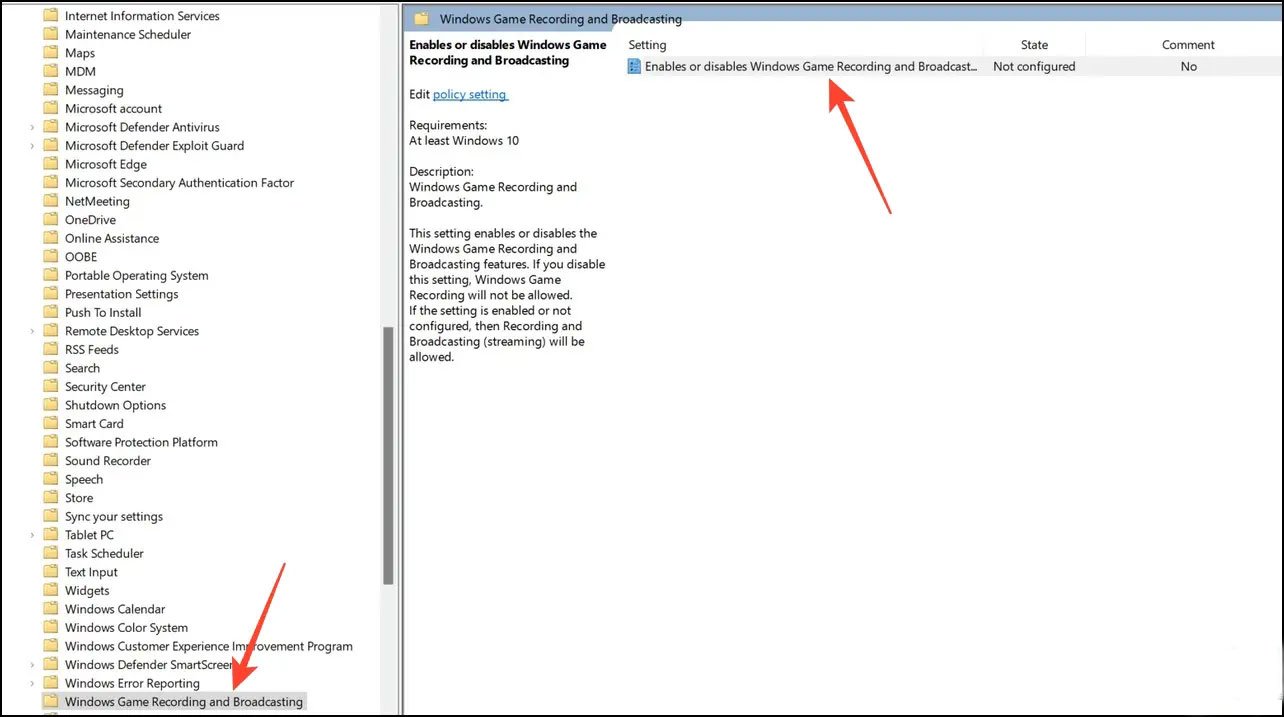
- Set the policy value to Disabled and click Apply to save changes.
Using Command Prompt
Lastly, you can use the Command prompt app to disable the Xbox Game Bar by running a single command. Here’s how:
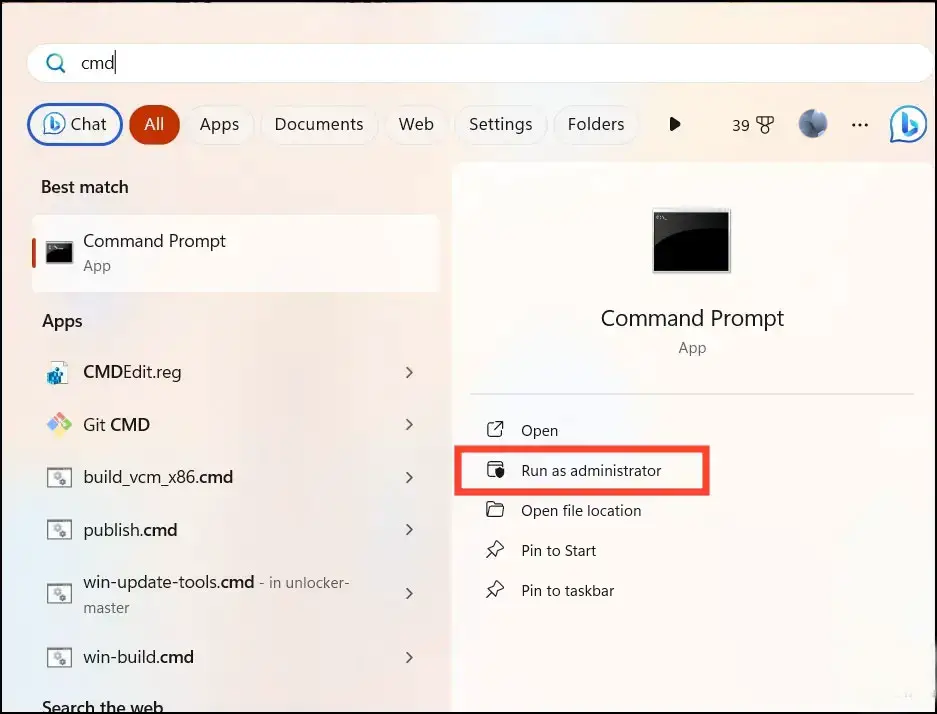
- To begin, locate “Command Prompt” in the Windows Search Bar and commence it with administrative privileges.
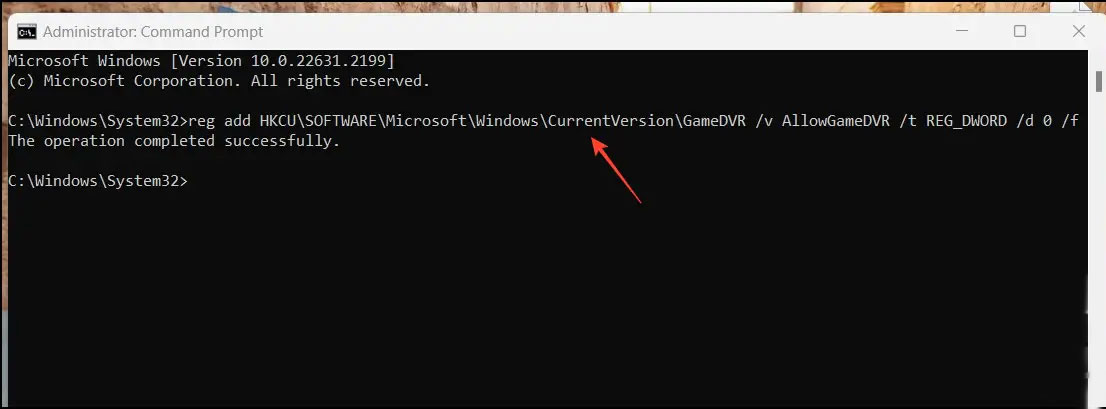
- Copy-paste the following Command in the terminal to execute and disable the Xbox Game Bar on Windows: reg add HKCU\SOFTWARE\Microsoft\Windows\CurrentVersion\GameDVR /v AllowGameDVR /t REG_DWORD /d 0 /f
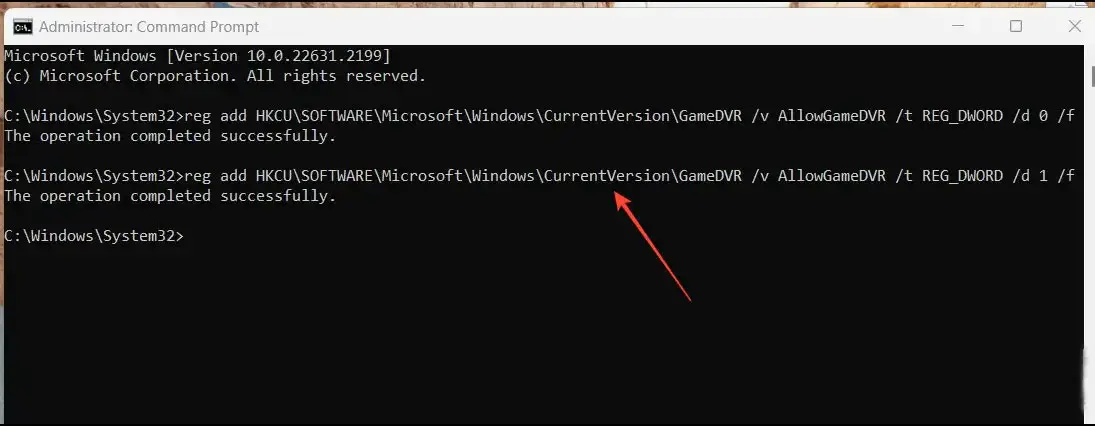
- If you wish to revert it, you can undo it by executing this Command: reg add HKCU\SOFTWARE\Microsoft\Windows\CurrentVersion\GameDVR /v AllowGameDVR /t REG_DWORD /d 1 /f
FAQs
What is the Xbox Game Bar, and why should I disable it?
The Xbox Game Bar is a Windows feature that allows you to access various gaming functions while playing games. However, if you’re experiencing performance issues or find its overlays intrusive, disabling it can help improve your gaming experience.
Are these methods reversible if I change my mind later?
Yes, most of the methods mentioned in this article are reversible. You can enable the Xbox Game Bar again or revert changes made in the registry or group policy editor if needed.
Do I need advanced technical skills to use these methods?
While some methods may require elevated permissions and command-line usage, they are generally straightforward and can be followed by users with basic technical knowledge.
Can I disable the Xbox Game Bar for specific games only?
Yes, you can configure the Xbox Game Bar to be disabled for specific games. This can be done through the Xbox Game Bar settings in Windows.
Will disabling the Xbox Game Bar affect my gaming experience negatively?
Disabling the Xbox Game Bar should not negatively impact your gaming experience. It can lead to improved performance and fewer distractions during gameplay.
Conclusion
Disabling the Xbox Game Bar on Windows 11 or 10 can be a game-changer, significantly improving your system’s performance and ensuring a hassle-free gaming experience. These five methods provide various options for your specific preferences and technical expertise. Whether you’re well-versed in using PowerShell for system tweaks, comfortable navigating the Registry Editor, familiar with Group Policy Editor, or prefer the straightforward approach of the Command Prompt, there’s a method that suits your needs. By choosing the one that aligns with your skills and comfort level, you can bid farewell to the intrusive game bar overlays and enjoy a smoother and more responsive Windows gaming experience.
These methods not only boost your gaming performance but also optimize your overall system functionality, ensuring that your Windows PC operates at its best.

Selva Ganesh is a Computer Science Engineer, Android Developer, and Tech Enthusiast. As the Chief Editor of this blog, he brings over 10 years of experience in Android development and professional blogging. He has completed multiple courses under the Google News Initiative, enhancing his expertise in digital journalism and content accuracy. Selva also manages Android Infotech, a globally recognized platform known for its practical, solution-focused articles that help users resolve Android-related issues.