
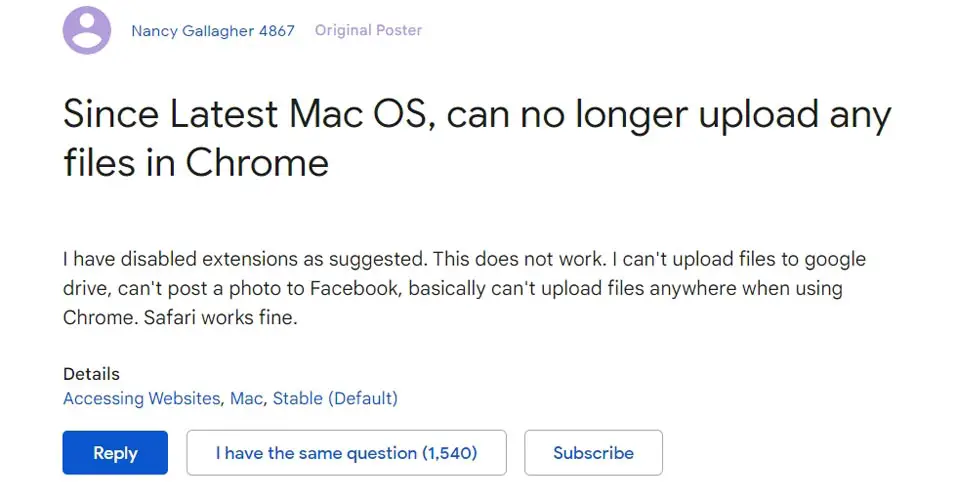
If you’re a Mac user and encountering issues while trying to upload files in Google Chrome, you’re not alone. This issue appears to be isolated to the Chrome browser on Mac OS, while other browsers, such as Safari and Edge, work perfectly fine. Interestingly, the issue primarily affects the M1 model, while different variants remain unaffected. In this article, we will provide you with two methods to fix the problem of being unable to upload files using Chrome on macOS. Let’s explore these methods and get your file uploads working again.
Understanding the Issue with Chrome on Mac OS
Before we move forward with the solutions, it is essential to grasp the underlying cause of the problem. The inability to upload files in Chrome on macOS can be attributed to incorrect permissions or access restrictions within the browser. Fortunately, we have identified two effective methods to tackle this issue, which we will discuss in the following sections.

Method 1: Remove Chrome Permissions
To fix the problem of being unable to upload files, you can try removing Chrome permissions related to the Downloads folder. Follow the steps below:
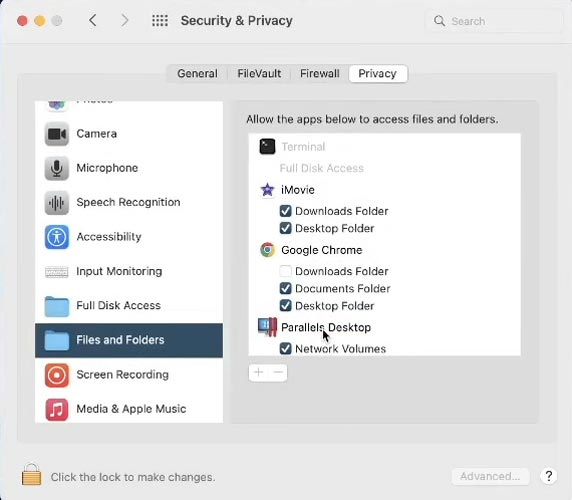
- Click on the Apple menu located on your Mac’s top menu bar.
- From the dropdown menu, select “System Preferences.”
- Open the System Preferences window and click on “Security & Privacy.”
- Within the Security & Privacy settings, navigate to the “Privacy” tab.
- On the left sidebar, select “Files and Folders.”
- Scroll down and find “Chrome” in the application list.
- Uncheck the checkbox next to “Downloads.”
Once you have completed these steps, relaunch Google Chrome and check if the issue of being unable to upload files has been resolved.
Method 2: Add Chrome to Full Disk Access
Another effective method to fix the file upload issue is granting Chrome entire disk access on your Mac. Follow the steps below:
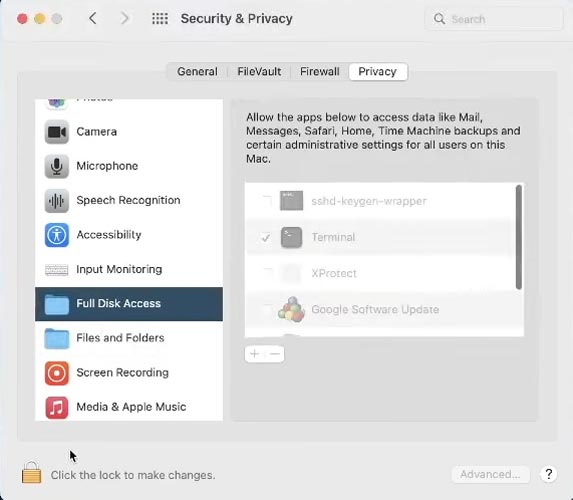
- Click on the Apple menu located on your Mac’s top menu bar.
- From the dropdown menu, select “System Preferences.”
- In the System Preferences window, click on “Security & Privacy.”
- At the bottom left corner of the Security & Privacy settings, click the lock icon and enter your admin password to make changes.
- Select the “Full Disk Access” option from the left sidebar.
- Click the “+” button and browse for “Google Chrome” in the Applications folder.
- Select “Google Chrome” and click “Open.”
Now, relaunch Chrome and try uploading files. The issue should be resolved, and you should be able to upload files without hindrance.
FAQs
Why can’t I upload files in Chrome on Mac OS?
The issue of being unable to upload files in Chrome on Mac OS is likely due to incorrect permissions or access restrictions within the browser. By adjusting these settings, you can resolve the problem and regain the ability to upload files.
Is this issue specific to the M1 model?
Yes, the issue of not uploading files in Chrome on Mac OS seems to be specific to the M1 model. Other variants of Mac seem to be free from this bug.
Are there any other methods to fix this problem?
The two methods described in this article are widely recognized and efficient solutions to resolve the problem of file uploads in Chrome on macOS. However, if these methods do not work, you may attempt clearing the browser cache or updating Chrome to its latest version.
Will these methods work on older versions of Mac OS?
Indeed, the methods outlined in this article should also apply to older versions of Mac OS. While the specific steps may vary slightly depending on your OS version, the overall process remains consistent.
Can I use these methods for other browsers as well?
The methods discussed in this article are specifically tailored for resolving the file upload issue in Chrome on Mac OS. However, you can try similar approaches for other browsers if you encounter similar problems, but the steps may vary based on your browser.
Wrap Up
In this article, we’ve covered the issue of not being able to upload files in Chrome on Mac OS. We’ve shared two reliable methods to tackle this problem: removing Chrome permissions and granting Chrome exclusive disk access. By following these steps, you should be able to overcome the file upload issue and enjoy a seamless experience with Chrome on your Mac. We sincerely hope this article has helped resolve the file upload problem you faced. If you have any questions or encounter difficulties, please refer to the FAQs section below.

Selva Ganesh is a Computer Science Engineer, Android Developer, and Tech Enthusiast. As the Chief Editor of this blog, he brings over 10 years of experience in Android development and professional blogging. He has completed multiple courses under the Google News Initiative, enhancing his expertise in digital journalism and content accuracy. Selva also manages Android Infotech, a globally recognized platform known for its practical, solution-focused articles that help users resolve Android-related issues.