
If I say there will be a separate Password Manager service for storing your Password with Subscription before a few years, You may laugh. But, Password manager app users and their Subscriptions become high day by day. Since People have begun to do everything Online and they have become easily vulnerable because of easy Passwords. In real-time, We can’t always remember Strong passwords. So, there is a need to Store and Fill in the Password on our desired site. Nit everybody needs a Subscription-based Password Manager. But everyone should use a Strong password. In those situations, You can use free tools. Google itself has a Password Manager to store and fill our Passwords. But for some reason, You may experience not filling the Passwords, or For new sites, it may not Ask Store since Google didn’t have an option to add the Password manually. We should work on some alternate methods to fix the issues. Using the below ways, you can Fix Chrome Password Manager Not Working in Windows and Mac PCs.
Google Chrome Password Manager
Google Chrome comes with a built-in “Password Manager” that saves your passwords and usernames to make it easier for you to log in to your account on different websites and platforms. You don’t need to do anything to activate this password manager; however, if it’s not working on your Chrome browser – talking about the password manager – there are ways to get it to work.
The reason why your Chrome browser is no longer saving passwords for auto-filling of online forms and logins can be linked to a “bug.” If you’re using an older version of Chrome, the problem can be due to a bug. Regardless, here are ways to re-enable the feature on your browser.

Fix Chrome Password Manager Not Working in Windows, Linux, and Mac PCs
These safe-to-practice techniques will help you re-enable the Password Manager feature built into the Google Chrome browser on mobile and PC. The following methods will work on All PC versions of Chrome browser regardless of the PC OSes.
1. Ensure The Feature is Enabled On Your Browser
Maybe you mistakenly turned off the password manager feature, so you need to re-enable it from the settings page. To do this, follow the steps below:
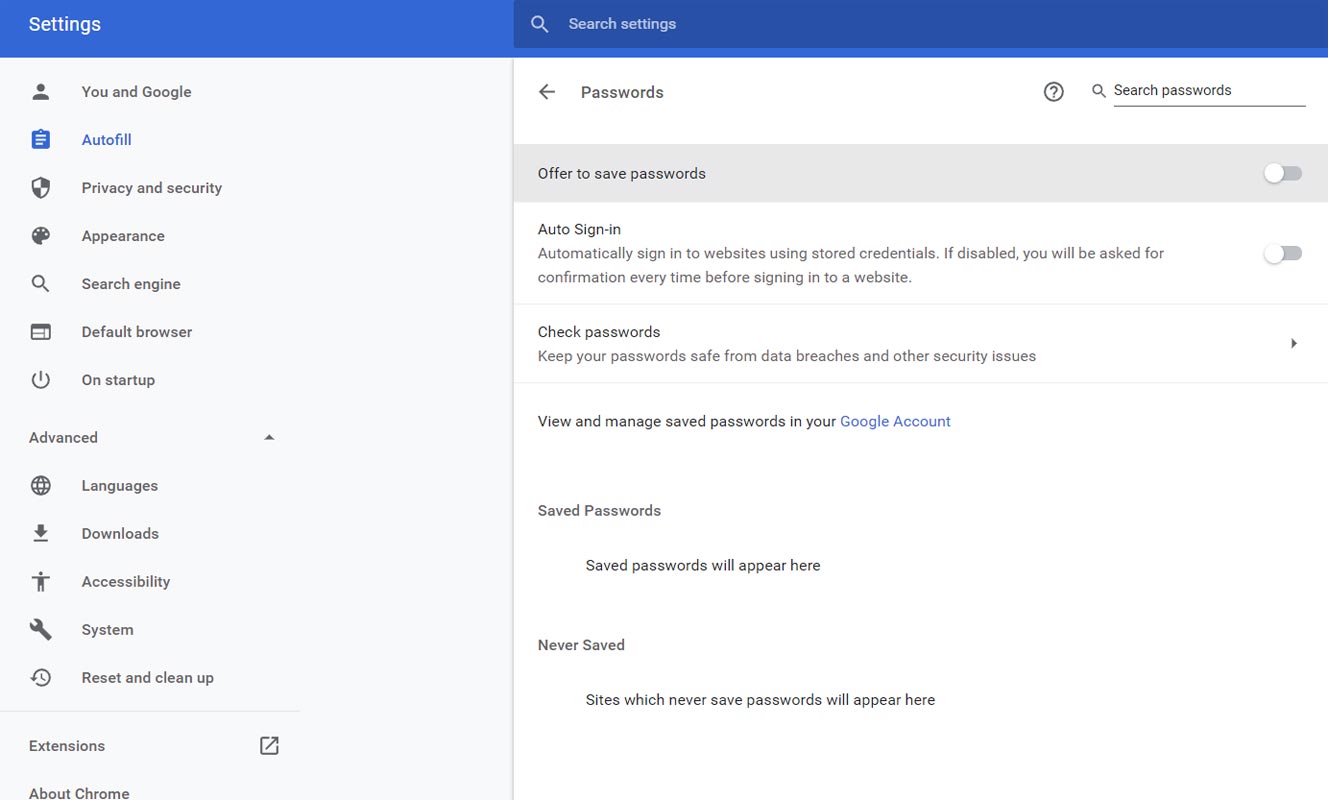
- On your Chrome browser, go to the settings page (Chrome://settings/)
- Navigate to the Auto Fill>>Passwords.
- Toggle the “Offer to Save Passwords” option and “Auto Sign In.”
- Once these two settings are active, Chrome will offer to save your login information when you enter them on a website that requires registration/login.
Note: If you’re not logged in to your Google account on the Chrome browser, that could be the cause. So, log in to your account, and It may just fix the issue.
2. Update Your Browser Version
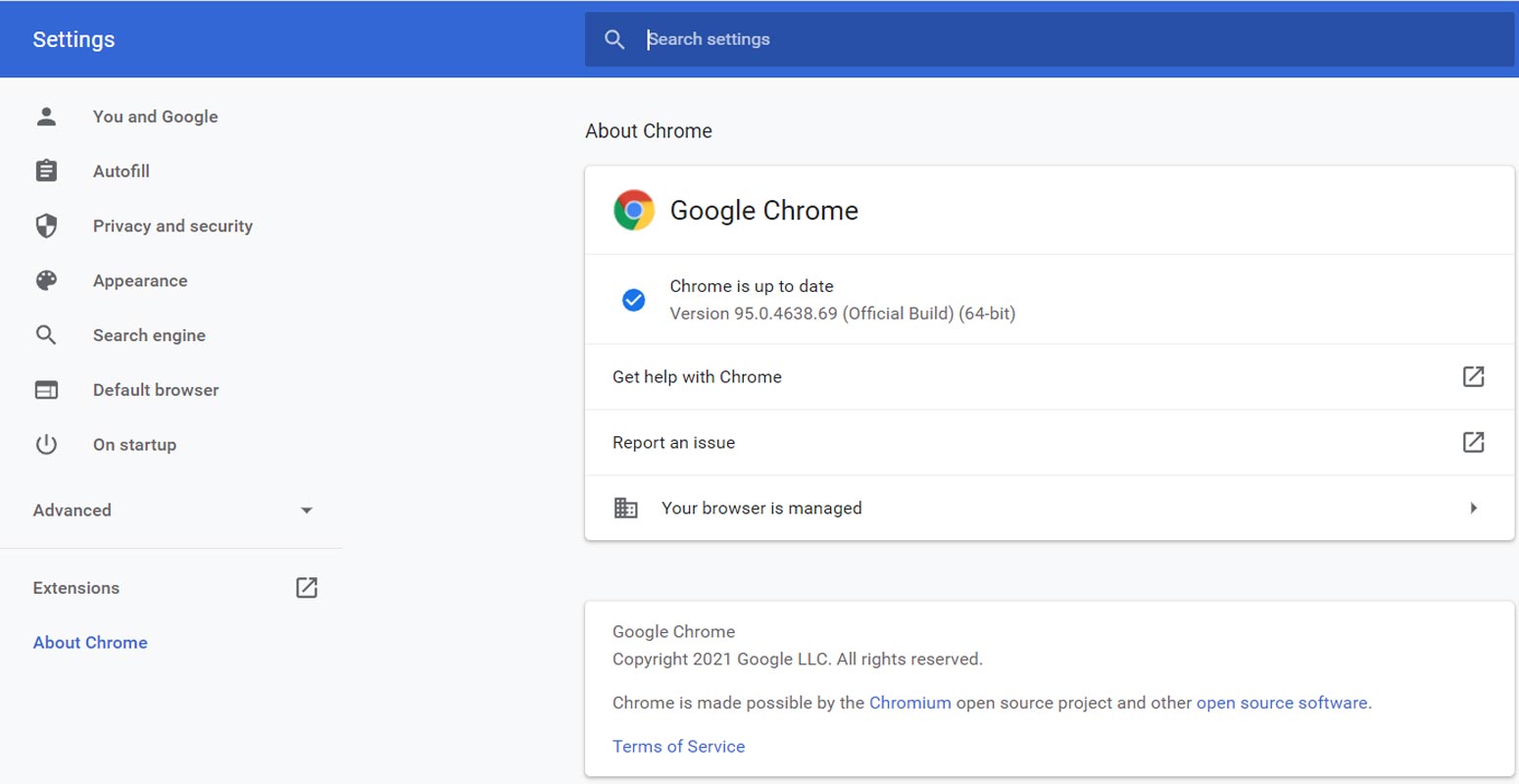
Most times, when you’re using an old version of an app, you’d most likely face different issues with the app’s features. That said, if your Chrome browser is not the latest version, you should update it. This may imply uninstalling the Chrome browser, downloading the newest version from the official website, and re-installing it.

Notwithstanding, you can click on the “More” options feature and select “Update Chrome,” which would appear as one of the dropdown options. This fix applies to both Chrome for desktop and the mobile app version for Android. After updating Chrome to the latest version and you’re still experiencing the issue, then you should try the other possible fixes below.
3. Add a New Profile
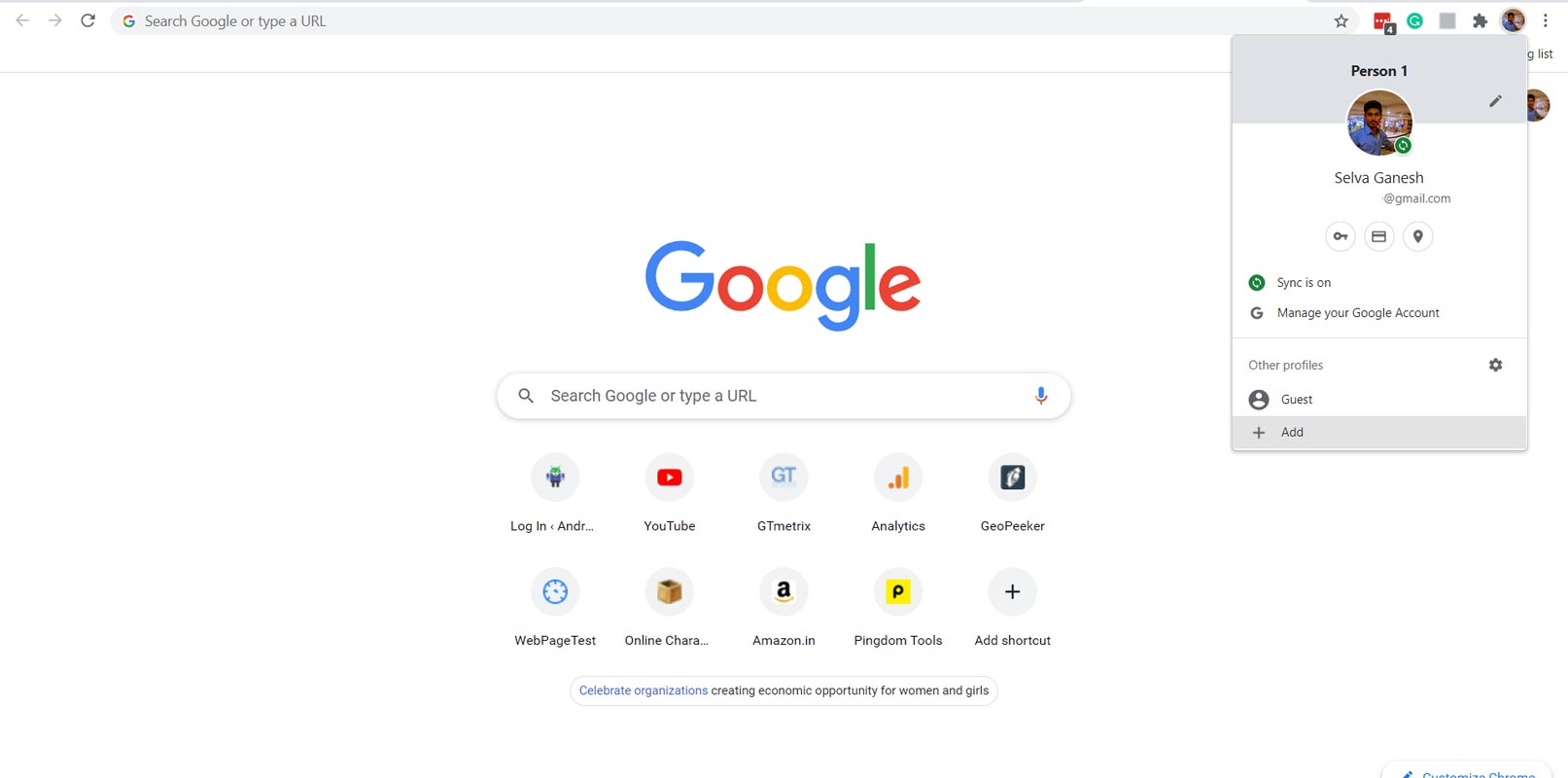
Some people who faced this same issue have alleged that they could sort this out by creating a new Chrome profile. What does it mean to create a new Chrome user account? This does not mean to sign in to a new Google account; to create a new Chrome browser profile, follow the guide below:
- On Chrome, click on your account icon at the top-right corner
- Go to Manage People.
- Click on Add person.
- Customize the new profile by setting a name and avatar.
- Add the person and then restart your browser (close it and reopen it).
Note: You can log out of your Google account on Chrome and sign in to another Google account to see if It will solve this issue.
4. Clear Cache and Cookies
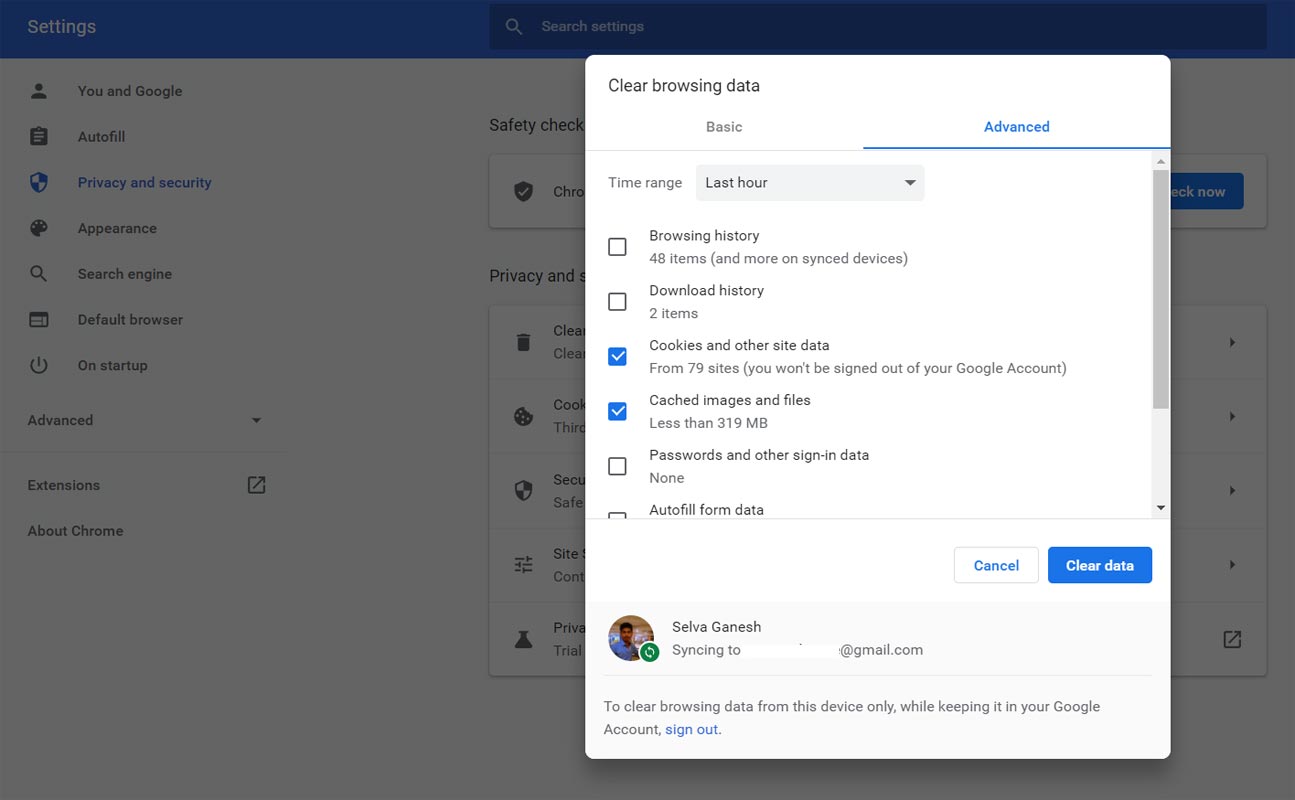
Yes, cookies and cache may be the reason why your passwords and form-filling information are not saved on Chrome. So, when you have tried the tricks above, and none of them seemed to work, you should clear your browser’s cache and cookies. This option is available on the settings page, and it has helped a couple of people to fix the Password Manager issue with the Chrome browser.
- Go to settings and search for “Cache” (click on the search bar on the settings page and search for cache).
- Click on the “Clear Cache” option and also check the “Clear Cookies” option.
- This will reset your Chrome browser and fix the password manager issue.
5. Enable Password to fill manually in Chrome Flags
Rarely the filling option may be triggered by the other extensions, Resulting in it being disabled. We can enable it in the Google Chrome Flags.
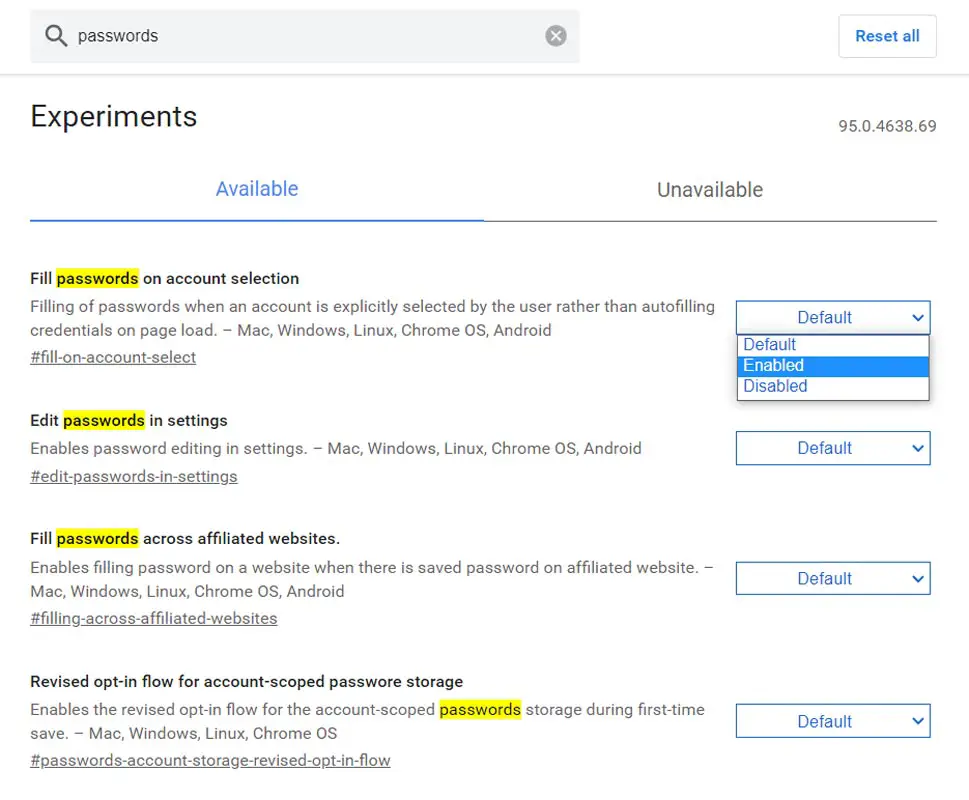
- Go to the search bar and type the “chrome://flags/” URL.
- You will get a bunch of options.
- Search for “Passwords.”
- Enable “Fill passwords on account selection” and “Fill passwords across websites.”
- Relaunch Google Chrome. Now Password Manager can fill the stored site’s user name and Password.
6. Use a 3rd-Party Password Manager App/Plugin/Extension
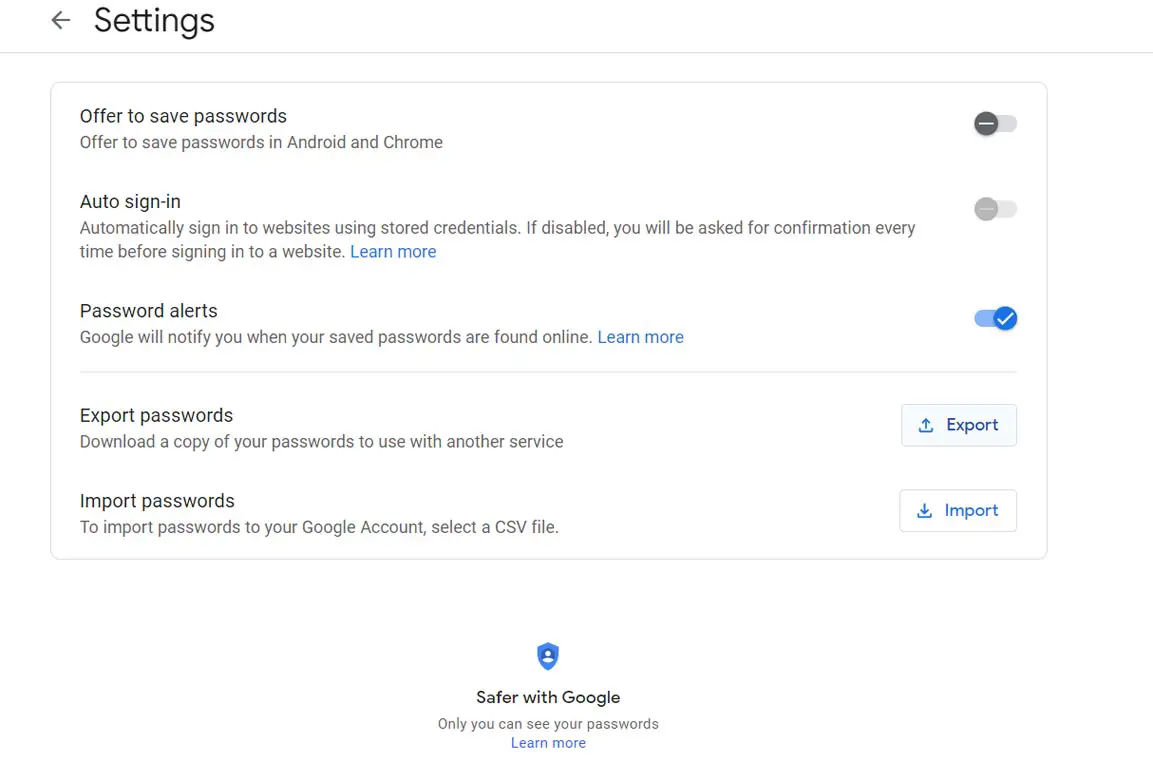
You should get the built-in Chrome password manager to work after trying out the recommendations above; however, if the issue is not yet fixed and you still wish to use the Chrome browser, you need to install a “Password Manager” extension or application. You will find a lot of 3rd-party password managers on the Chrome Webstore, but not all of them are safe to use.
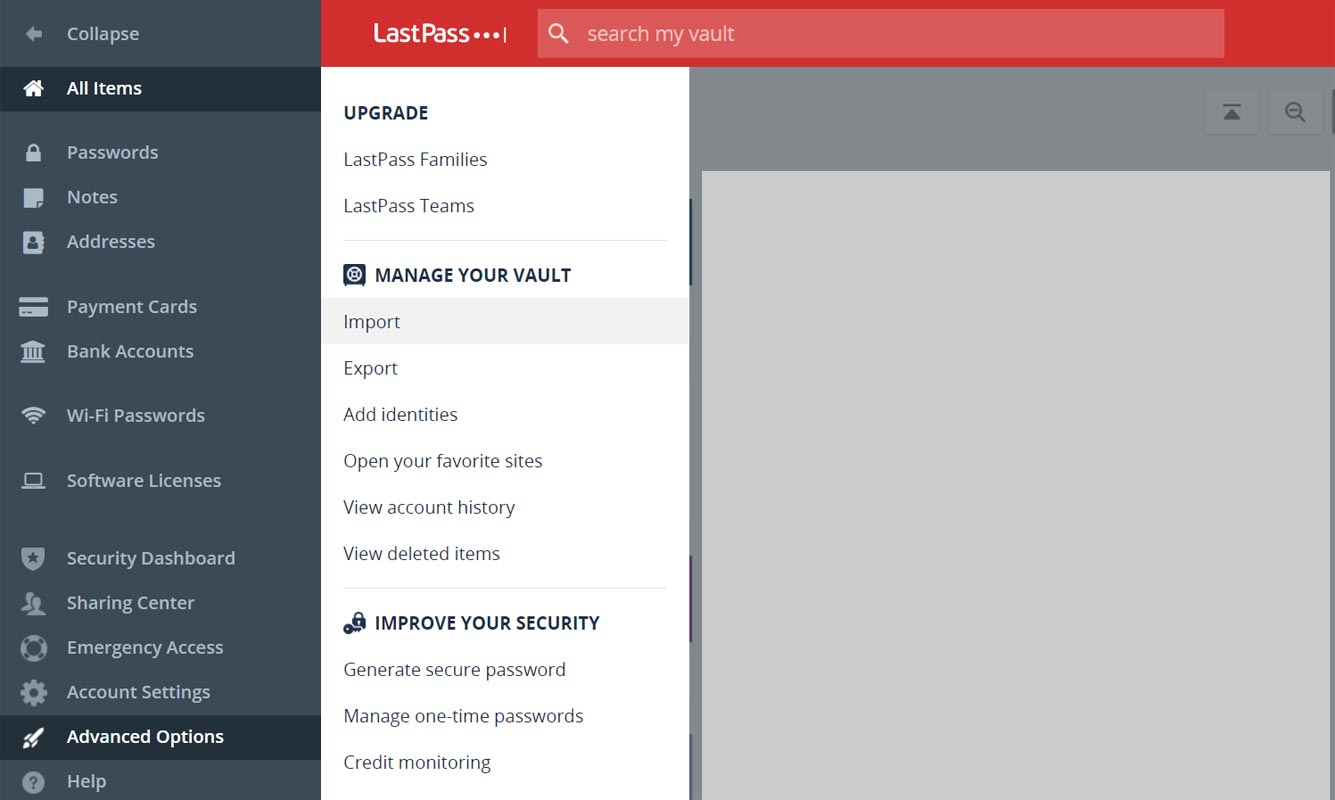
Password Managers like LastPass and Sticky Passwords are among the reliable and safe plugins you should add to your Chrome browser for password management. On Android, you should install a Password Manager application; interestingly, LastPass and Sticky Passwords also have a mobile app version for Android devices. You have to export the Google Password Manager as a .csv file and import it to the third-party apps. It is always a wise idea to use the second option also.
7. Report To Google
When you have tried out everything explained above, yet, nothing worked fine – may be using a 3rd-party application to save your passwords doesn’t sit well – and so you need to get back the original password manager on Chrome; your final resort would be to report the error to Google.
Google has different forums and communities for its various products. So, here’s the Chrome forum link. When you join the discussion, search for topics relating to the problem you face and check the comments. Alternatively, you can create a new thread for the issue you’re facing. A community mod responds to you, and you’d be given clear guides on how to fix the problem.
Wrap Up
Compared with third-party apps, We can trust the Google server for correct Auto Fillings. Most Third-Party apps always struggle once or twice a month with their server, resulting in passwords not filling when we need them. These tips shared in this article are the safest possible ways to get Password Manager to start working again on your Chrome browser. With the help of the built-in password manager, you’d find it easier to log in on websites and also fill forms. Hopefully, this article answered the question you were searching for. Now, may we know if it helped you? Comment below.

Selva Ganesh is a Computer Science Engineer, Android Developer, and Tech Enthusiast. As the Chief Editor of this blog, he brings over 10 years of experience in Android development and professional blogging. He has completed multiple courses under the Google News Initiative, enhancing his expertise in digital journalism and content accuracy. Selva also manages Android Infotech, a globally recognized platform known for its practical, solution-focused articles that help users resolve Android-related issues.