
Google Maps, a peerless navigation software hailing from Silicon Valley, is the preferred choice for numerous individuals searching for reliable directions. Despite its acclaim, certain users grapple with an unusual predicament: the high-pitched voice issue. This guide explores practical workarounds, offering solutions to alleviate this vexing problem and elevate the overall navigation experience. By understanding the intricacies of addressing the high-pitched voice concern, users can regain control over their navigation settings, ensuring a smoother and more enjoyable journey through the seamless features provided by Google Maps.
High-Pitched Voice Issue: Unraveling the Dilemma
Users often find themselves perturbed by the unexpected high-pitched voice while using Google Maps. This issue can significantly diminish the user experience and hinder the app’s functionality.
The Importance of Fixing the Issue
A flawless navigation experience is crucial; any hindrance, like a high-pitched voice, can lead to frustration. Resolving this problem ensures a smoother and more enjoyable journey.

Changing the Default Voice
One quick fix that has proven effective for many is changing the default voice. Follow these steps:
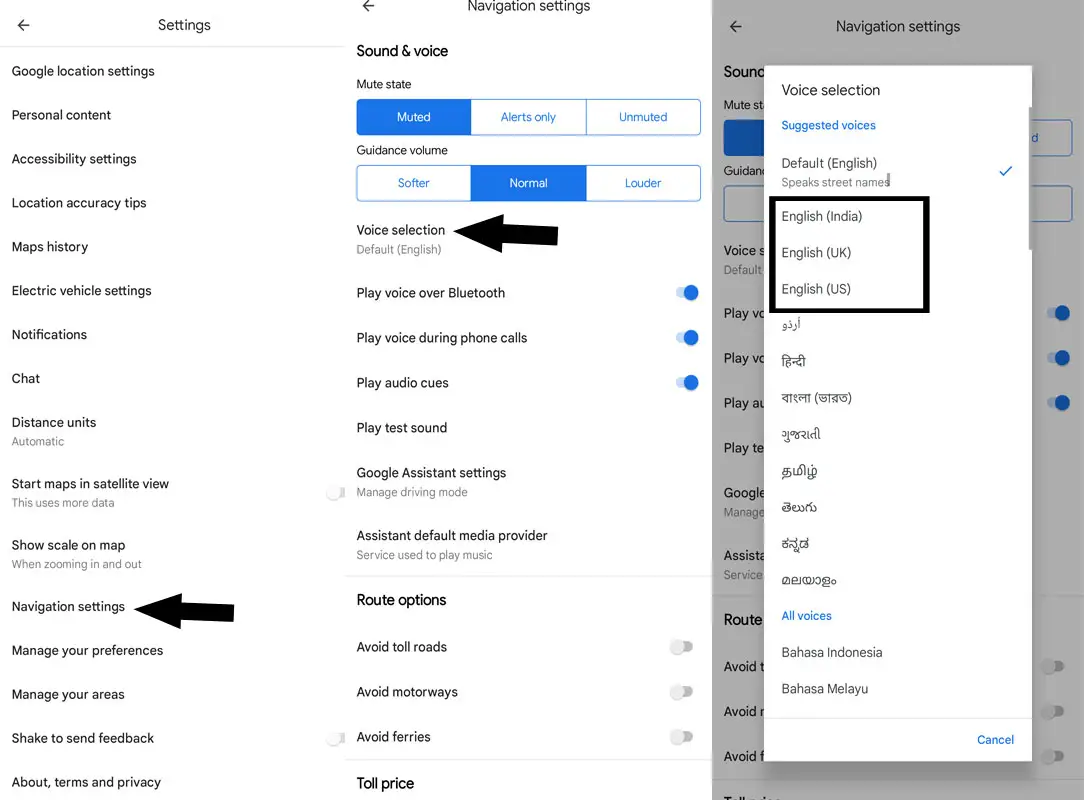
- Open Google Maps and tap on your profile at the top right corner.
- Select Settings > Navigation Settings > Voice Selection.
- Choose the language of your choice (e.g., UK English).
This simple adjustment has relieved numerous users, offering a personalized and more comfortable navigation experience.
Language Selection
Another approach involves tweaking the language settings:
- Launch Google Maps.
- Go to Settings > Navigation Settings > Voice Selection.
- Experiment with different languages to find the one that suits you.
Sometimes, a change in language settings can surprisingly eliminate the high-pitched voice issue.
Possible Causes of the Issue
App data corruption is a potential culprit behind the high-pitched voice problem. The solution might be to delete the corrupted data and allow the app to create a fresh instance.
Deleting App Data
Follow these steps to delete app data:
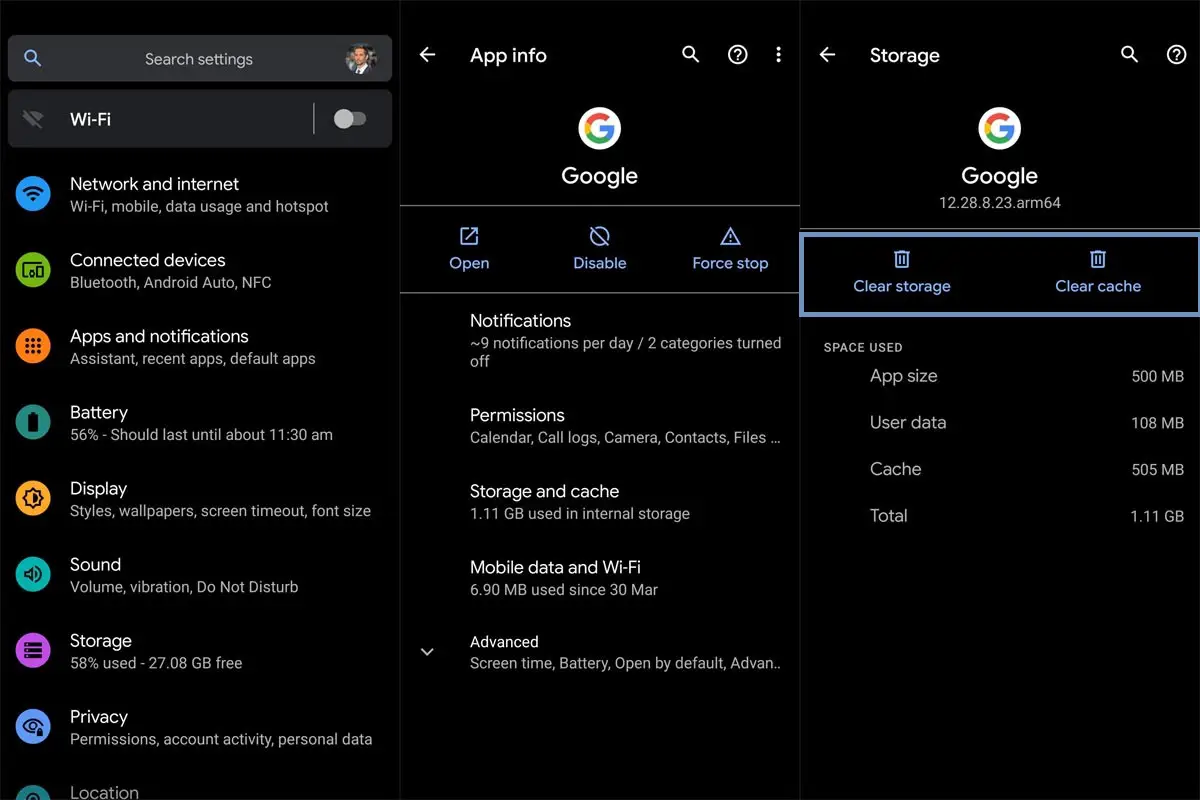
- Head over to Settings > Apps > See All Apps > Google Maps.
- In Storage and Cache, tap on Delete Data > OK.
- Launch Maps, sign in and check the results.
Deleting app data ensures a clean slate, potentially resolving the high-pitched voice issue.
Testing the Solutions
We encourage users to try these solutions and check the results. Your feedback is essential in ensuring the effectiveness of these workarounds.
Common Mistakes to Avoid
While troubleshooting, avoid common mistakes like overlooking settings or rushing through the process. Take your time to ensure a successful fix.
User Feedback
Many users have shared positive experiences after implementing these solutions. Join the community of problem-solvers and enjoy a seamless navigation experience.
Advanced Troubleshooting
For persistent issues, consider advanced troubleshooting:
- Ensure your app is updated.
- Check for device compatibility.
- Seek help from Google support forums for personalized assistance.
FAQs
Can I revert to the default voice if I don’t like the changes?
You can always return to the default voice by following the same steps and selecting the original language.
Will deleting app data erase my saved locations?
No, deleting app data only removes temporary files. Your saved locations and preferences remain intact.
Why does the language change fix the voice issue?
Sometimes, glitches in the language settings can cause voice distortions. Changing the language helps reset these settings.
What if none of the solutions work for me?
If the issue persists, consider contacting Google support for personalized assistance.
Can I use Google Maps without signing in?
Yes, you can use the basic features without signing in, but signing in allows for personalized settings and saved locations.
Wrap Up
In conclusion, rectifying the high-pitched voice quandary in Google Maps proves to be within reach by implementing the outlined workarounds. Following the provided solutions, users can seamlessly tailor their navigation experience to their preferences, eliminating the disruptive high-pitched voice issue. Personalizing settings becomes critical to enjoying uninterrupted navigation, allowing individuals to navigate quickly and comfortably. Moreover, ensuring a clean slate for the application by employing strategic measures, such as deleting app data, further contributes to the effectiveness of the remedies. In adopting these approaches, users overcome the specific challenge of the high-pitched voice and enhance their overall interaction with Google Maps, transforming it into a more personalized and gratifying navigation tool.

Selva Ganesh is a Computer Science Engineer, Android Developer, and Tech Enthusiast. As the Chief Editor of this blog, he brings over 10 years of experience in Android development and professional blogging. He has completed multiple courses under the Google News Initiative, enhancing his expertise in digital journalism and content accuracy. Selva also manages Android Infotech, a globally recognized platform known for its practical, solution-focused articles that help users resolve Android-related issues.