
It is wise to always use Google Play Store apps, instead of sideloading the apps from other sites. But, Sometimes, the installation and update process through the Play Store may not happen as we expect. When you have issues in apps, you can fix that using re-install or update. But, What if you face problems in the Play Store itself. We can’t update the Play Store or Re-Install it unless we have root access. So Below, I listed all the possible fix solutions for Google Play Store Issues in Android Mobiles. The process will start from simple solutions to advanced levels. Always start from the beginning. When you can’t get the results, you can move to another step.
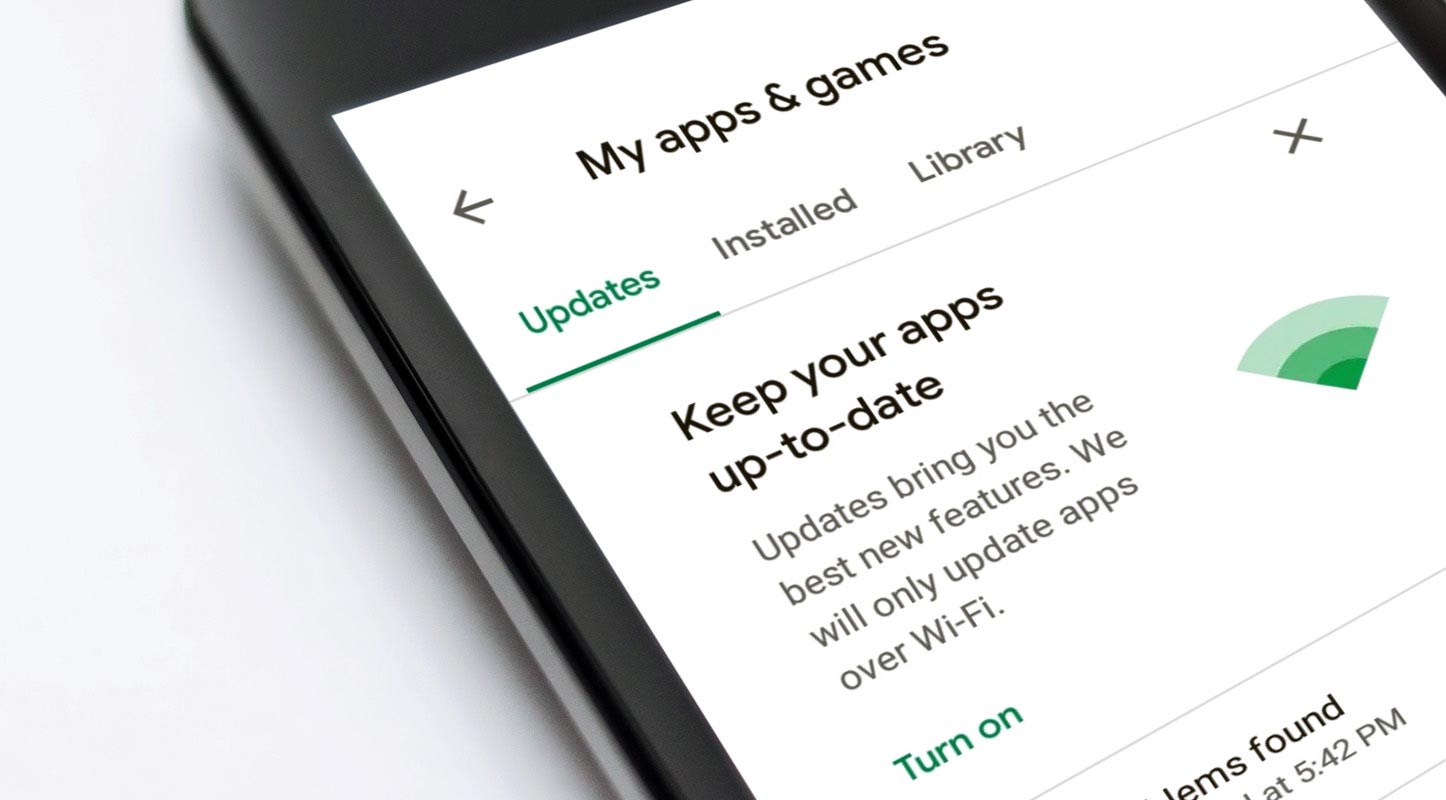
Fix All Google Play Store Issues in Android Mobiles
The following solutions based on the problem. So, If your issue matches, then follow the individual fix. Sometimes, you have to choose more than one repair. All possible fix assumes that you have a stable internet connection.
1. Google Play Store Automatically Force Close, Won’t open or show Blank Screen
When you open the app, it “Force close” automatically or Freeze or Show Blank screen follow the below steps.

1.1 Clear Cache and Data
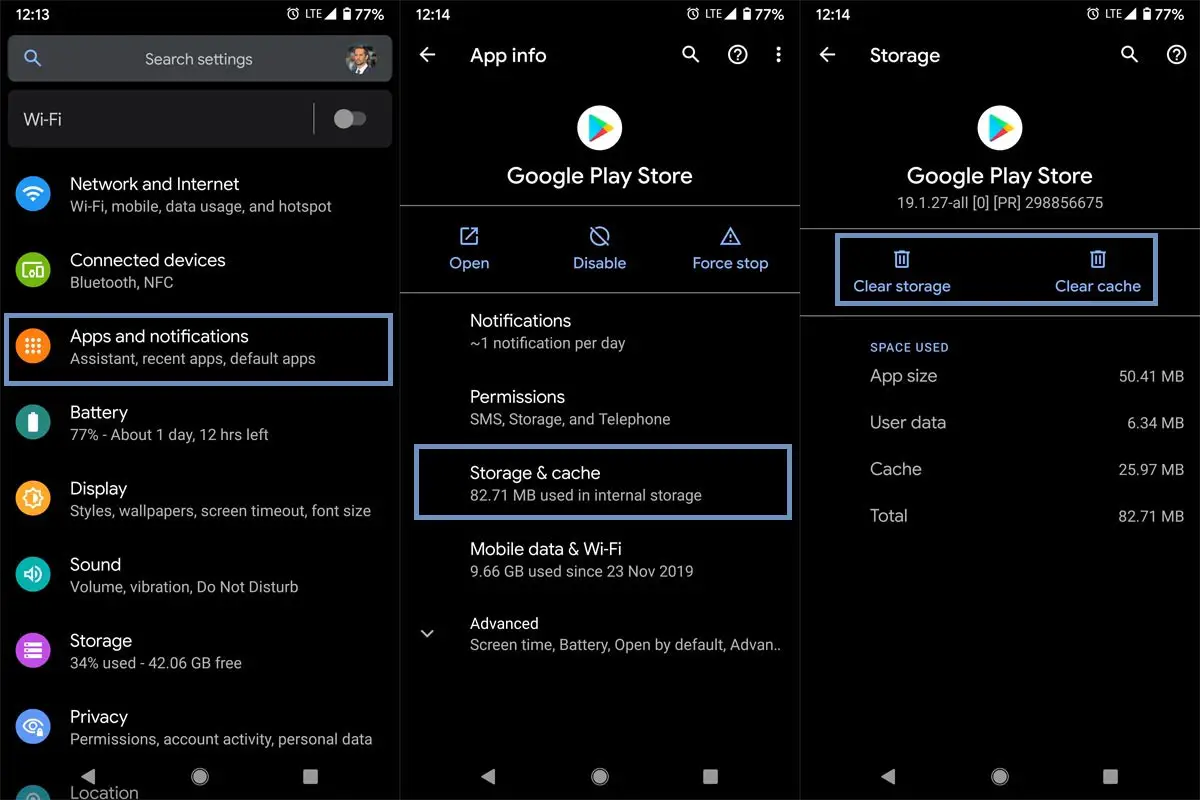
- Go to Settings and Open “Apps and Notifications.”
- Choose All apps and Open Google Play Store.
- Select “Storage.” Then choose “Clear Cache.”
- Now open the app if you face the issue again, Clear Data too.
- When you remove data, you have to set up the Play store from the beginning. But you don’t have to worry. It will retrieve the data from your Google Account.
1.2 Check Mobile internal storage
When you do not have enough free room, Your app can’t fetch from the internal memory. It will result in the force close the app.
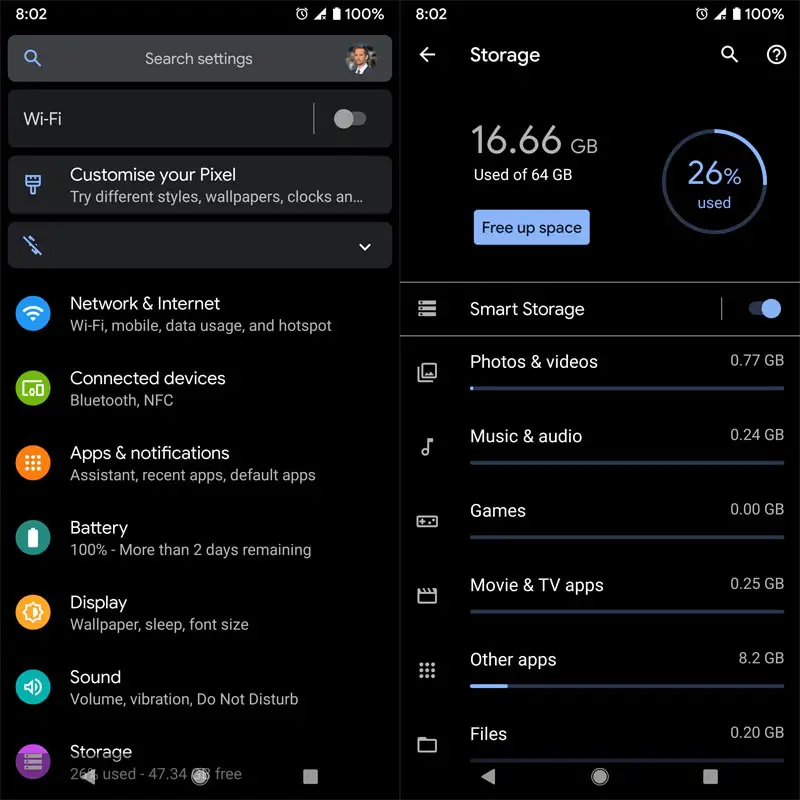
- Go to Settings> Storage.
- You should have at least 10% free memory on your mobile. Example- If your mobile has 64 GB internal memory means, you should maintain at least 6 GB of free space to use your mobile without reduction speed.
- When you have less memory than this free up some space by uninstalling the unwanted apps. If you have essential photos and videos, try to use Cloud storage like Google Photos.
1.3 Un-Install and Re-Install Play Store updates
Recent updates may be a problem causing force close issues. Follow the below steps to uninstall the latest updates.
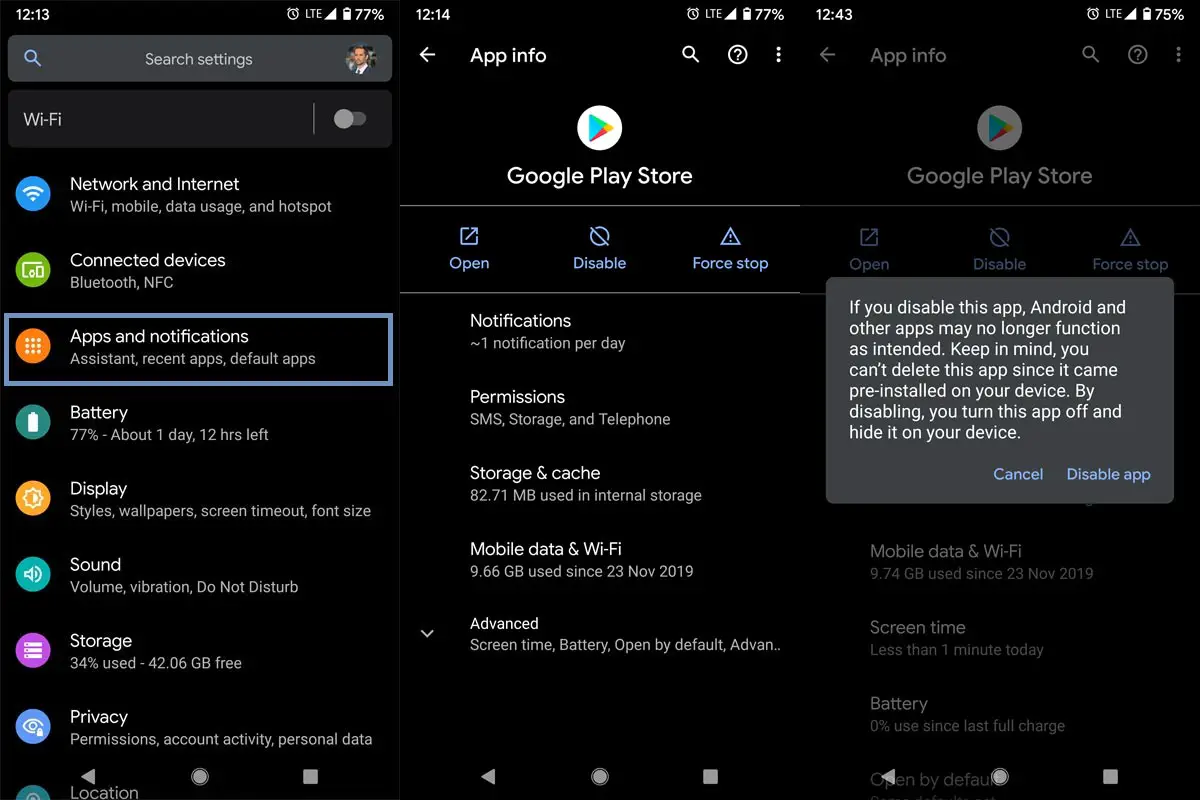
- Go to Settings and Open “Apps and Notifications.”
- Choose All apps and Open Google Play Store.
- Select “Storage.” Then choose “Un-Install updates.”
- When you can’t find the option, choose to disable it will ask you to back to the factory version? Select yes. After this process enables Play Store again.
1.4 Sideload Play Store Working version
When you can’t get the working version of the Play Store by uninstalling updates, you can sideload the Play Store app.
- Download one version down the Play Store app.
- Install the app like regular third-party apps installation. When you can’t install the app due to unknown source enable, follow the below steps to disable it.
1.4.1 Steps to activate unknown source app installation
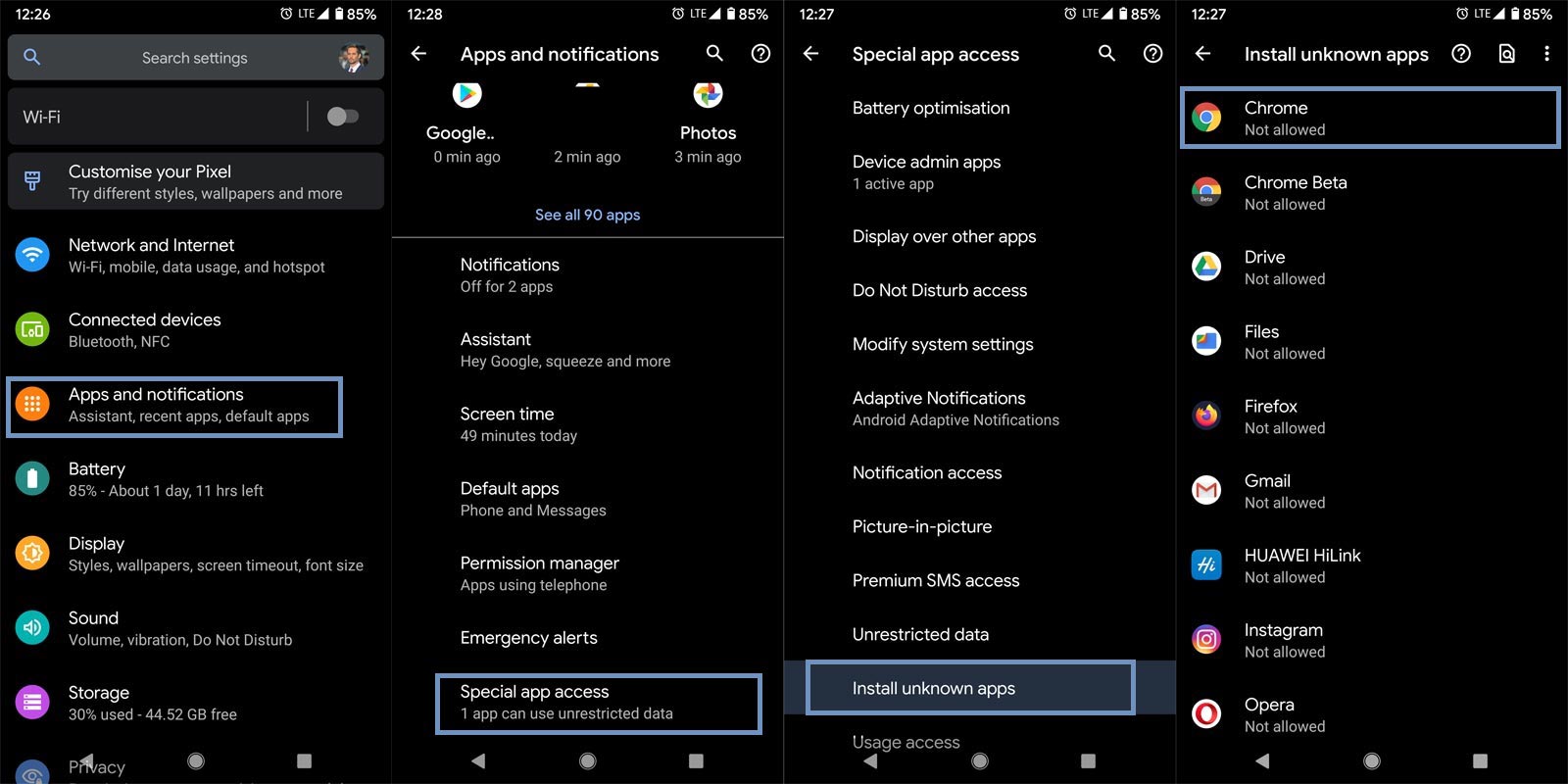
- Navigate to your device settings menu and select “Apps & Notifications.”
- Click on the “Advanced” row or click on the “three vertically arranged dots.”
This option varies by devices; some people will see the “Advanced” option, while some will have to click on the dots at the top-right-edge of their screen
- Click on “Special App Access.”
- Select “Install Unknown Apps.”
- Now, tick the apps you wish to grant access to sideload APK files on your Android device.
Interestingly, you can revoke this permission at any time you wish by simply turning off the access (following the same steps above).
And this is it; following these steps, you can grant permissions to certain apps on your Android to install APK files.
2. Common Google Play Store Error codes and fix
When you can’t open the app or freeze issues, you can follow the above methods to fix it. If you get the error codes in your Play Store app, follow the below methods based on the error code you got. I try to give you the exact solution for the particular error code. When it doesn’t work, You can try other methods also.
2.1 Error DF-BPA-09, rh01 / RPC: s-5: AEC-0
This error is related to Google Play Services. By clearing cache and data in the Google Play services app, we can fix this issue.
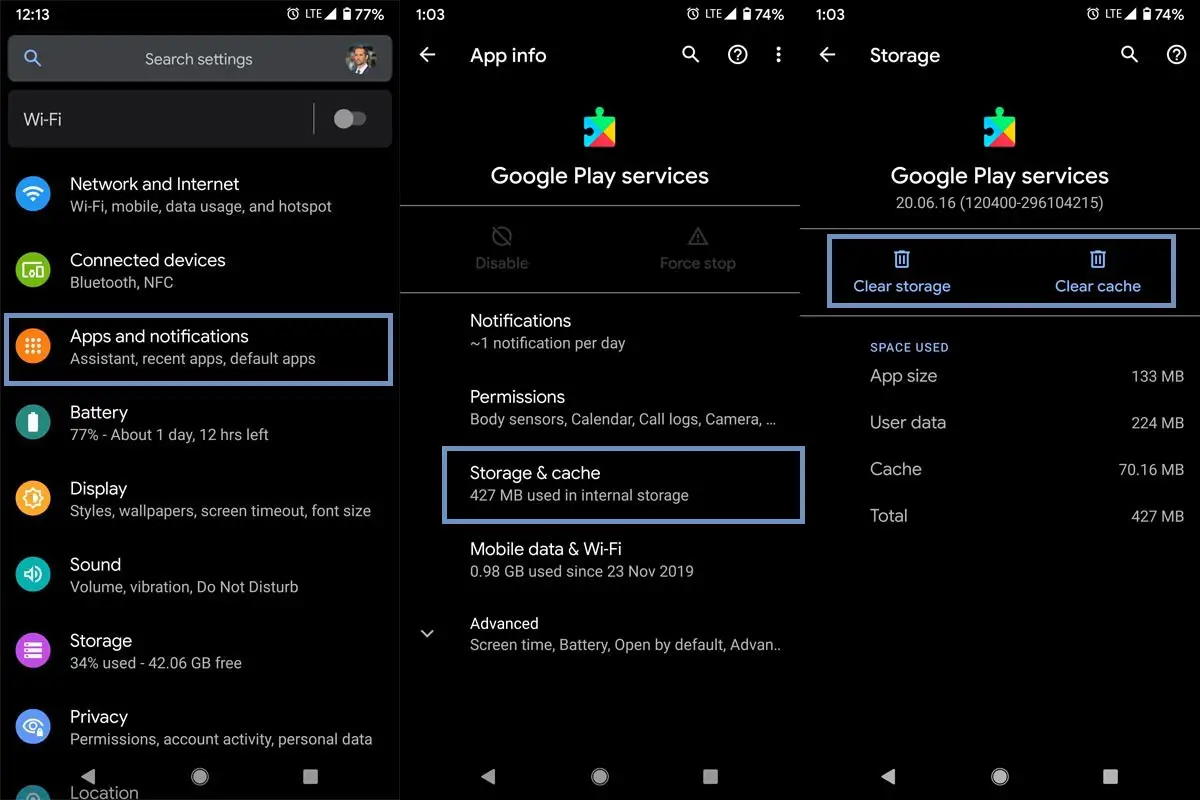
- Go to Settings and Open “Apps and Notifications.”
- Choose All apps and Open Google Play Services.
- Select “Storage.” Then choose “Clear Cache.”
- Now open the app if you face the issue again, Clear Data too.
- When you clear data, you have to set up the Play store from the beginning. But you don’t have to worry. It will retrieve the data from your Google Account.
2.2 DF-BPA-30, “Authentication required”, RPC:S-3, RPC:aec:0, 100, 403, 406, 491, 501, 921, 923 Errors
This error is related to Google Accounts. Remove the Google account sync and account and add them again.
2.2.1 Steps to disable sync between Accounts in Android Mobiles
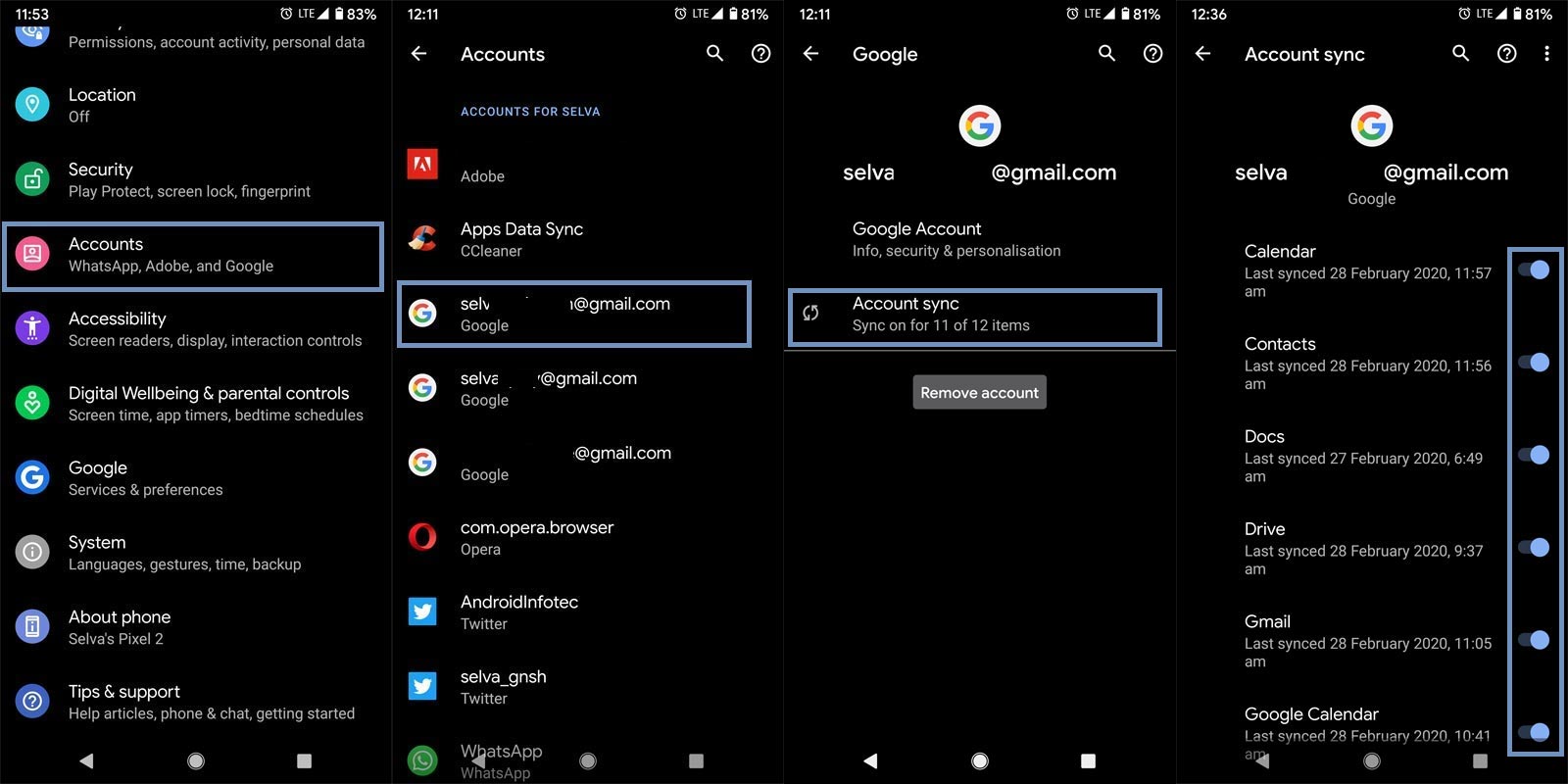
- Go to Settings and Choose Accounts.
- You will get the multiple signed-in accounts. Choose the Google account in which you want to stop the sync from your mobile.
- After the selection, chose “Account sync.”
- Disable the sync one by one.
2.2.2. Remove Primary Google Account from your Android in Settings
Use this method. When you want to sell your mobile or when you are going to give your mobile to others permanently. Some Stock Android mobiles allow us to directly remove the primary Google Account even if you have only one account signed in.
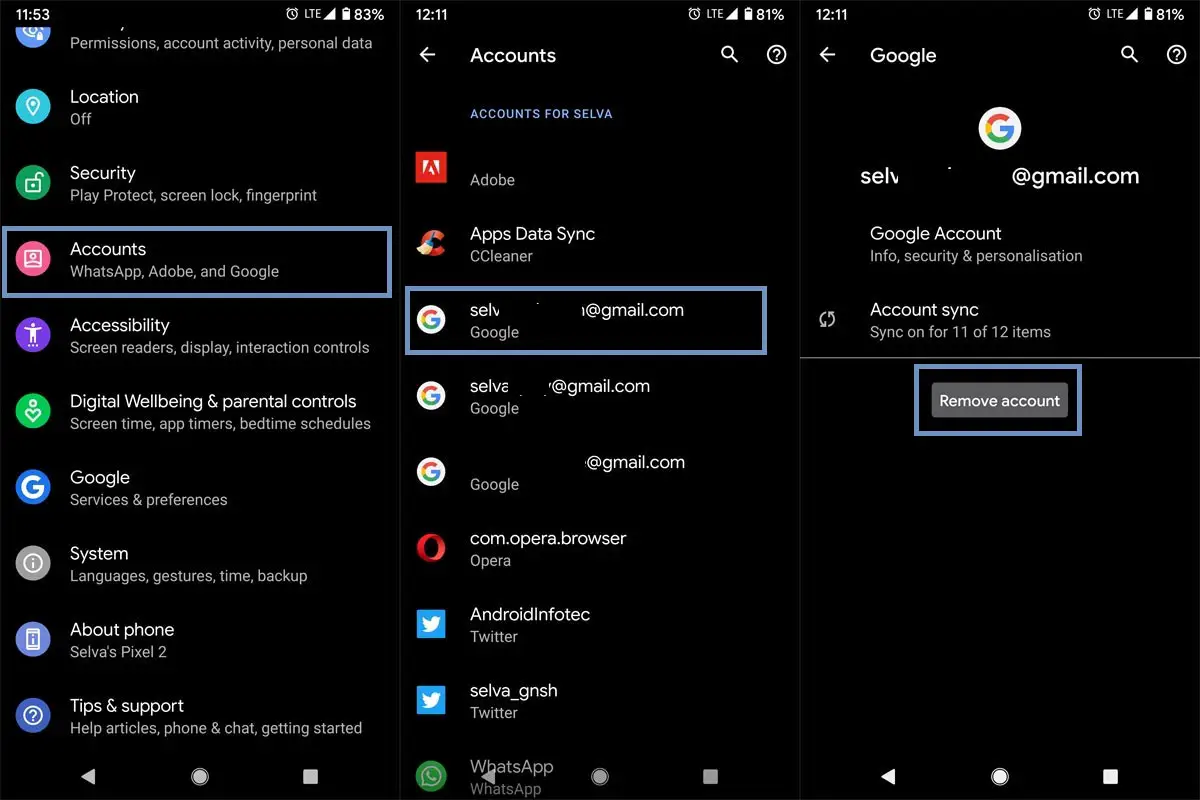
- Go to Settings and Choose Accounts.
- You will get the multiple signed-in accounts. Choose the Google account which you want to remove from your mobile.
- You can find the Remove option after you select the account. Select “Remove account.” After the removing process, you can add the account again and open the Play Store app. Now your app should work.
2.3 Errors- DF-DLA-15, rh01, RPC:s-5:AEC-0, 100, 110, 406, 413, 492, 497, 498, 501, 504, 906, 919, 921, 923, 940
When you get the errors mentioned above, follow the below method. By clearing Play Store cache data, you can resolve the issue.
2.3.1 Clear Play Store Cache and Data
- Go to Settings and Open “Apps and Notifications.”
- Choose All apps and Open Google Play Store.
- Select “Storage.” Then choose “Clear Cache.”
- Now open the app if you face the issue again, Clear Data too.
- When you remove data, you have to set up the Play store from the beginning. But you don’t have to worry. It will retrieve the data from your Google Account.
2.4 Invalid Package Error
Play Store always suggests compatible apps. When the apps are not fit for our signed-in mobile and tablets, It will show you the “Compatible devices not found.” In rare cases, the app may try to install when it can’t push the app on your mobile; It will show the error. It means you have to find the offline app or attempt to use the sideload method.
2.5 Error codes with Payment mention
When you get the error code with the word payment, It means the app may be required in-app purchase account. Thus, you have to set up the fee for your Google Account. You can refer How to get the Refund in the Play store If anything goes wrong.
3. App Installation Errors and Fix
When you want to fix the app installation errors other than Play Store error itself, follow one of the below methods.
4. Reset Your Mobile
It should be your final choice. When you are confident, there are no working methods and tried all solutions and can’t access or fix the PlayStore issues using the above fix methods; You can do this Reset process.
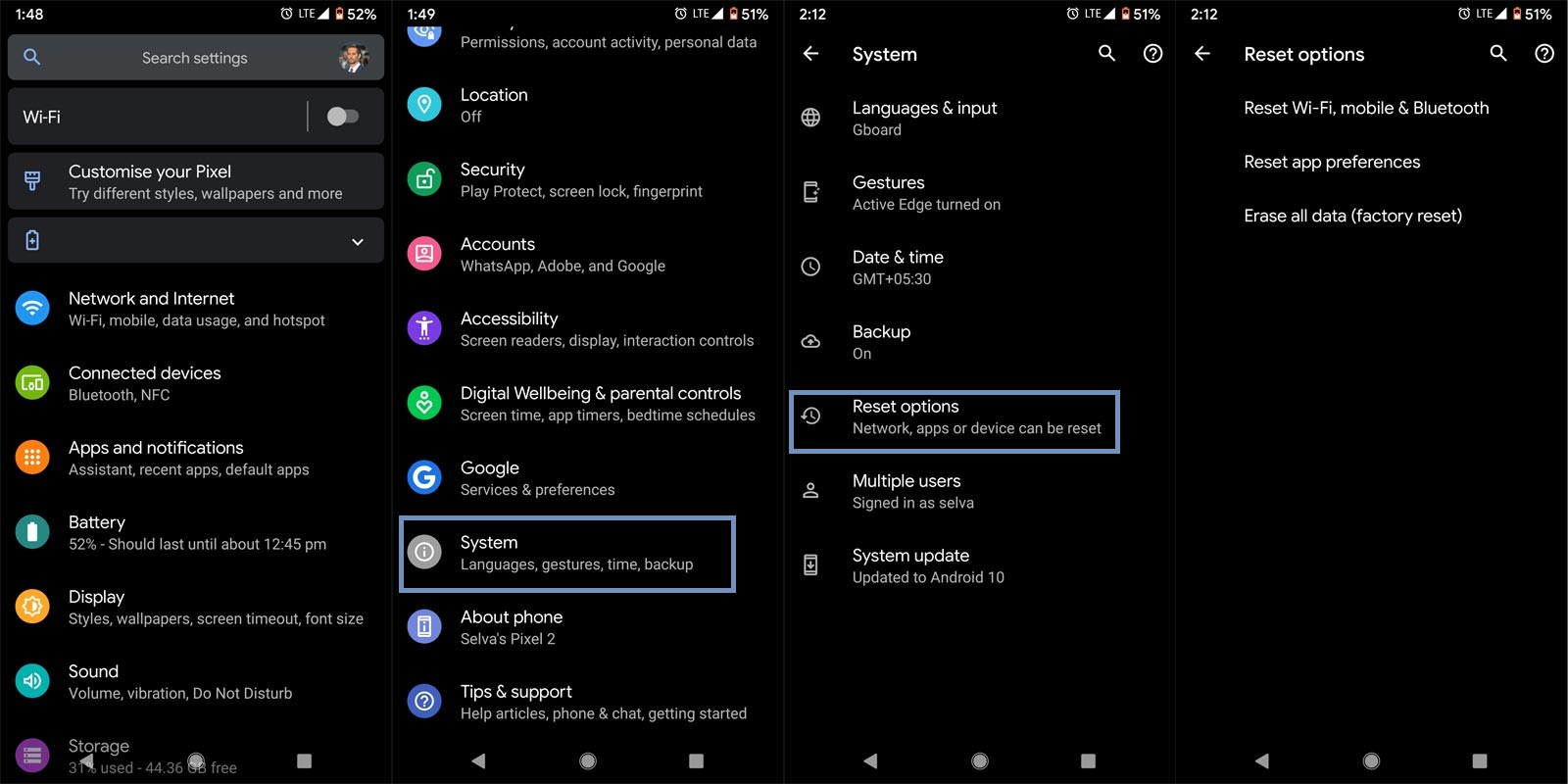
Take complete Backup on your mobile. You can do a soft reset or hard reset. To Reset your mobile, Go to settings> System>Reset Options> Reset app preferences/ Factory Reset.
- Soft Reset/App Preference Reset– This option will remove all the custom settings we made and return to the default settings. It will not delete user data.
- Hard Reset/Factory Reset– It will remove all user data. Your mobile OS will become new, like when you purchased. You have to set up everything from the beginning.
Initially start with the Soft Reset. When you can’t connect again, You can do the Hard reset.
Stock Recovery method
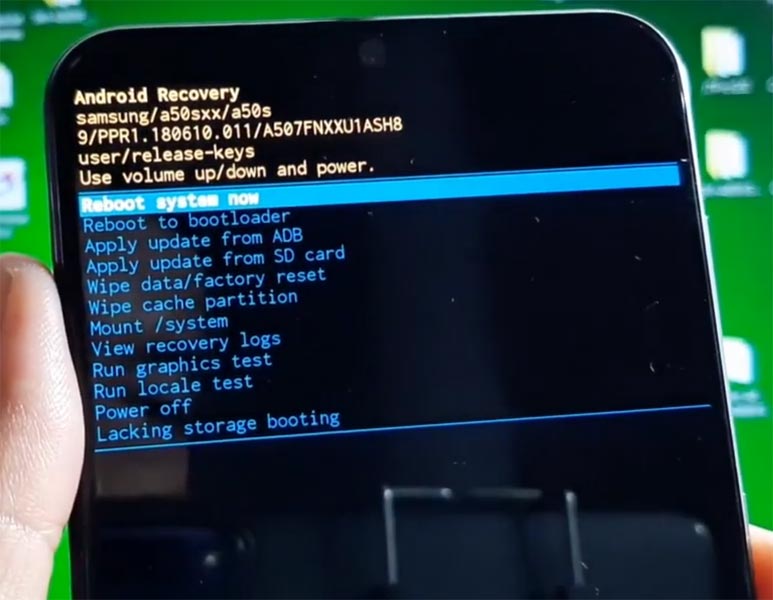
- Switch off your device. Then, enter into the Stock Recovery mode. To do this- Press and hold down the Volume Up + Power buttons at the same time for some time. It will boot your mobile into Recovery mode.
- If you didn’t use Rooted mobiles, most of the time, you have Stock Recovery, which is provided by your official mobile manufacturer. If you have stock recovery, you have the direct option as “Wipe Data/Factory Reset.” Navigate to this option and confirm it using the power key button. Remember, It will delete your entire mobile data. So, Backup first before the process.
TWRP Recovery method
When you use Rooted mobiles, you either use Stock Recovery or TWRP custom recovery. If you have Stock Recovery, you can use the above process. When you installed TWRP on your mobile, follow the steps below.
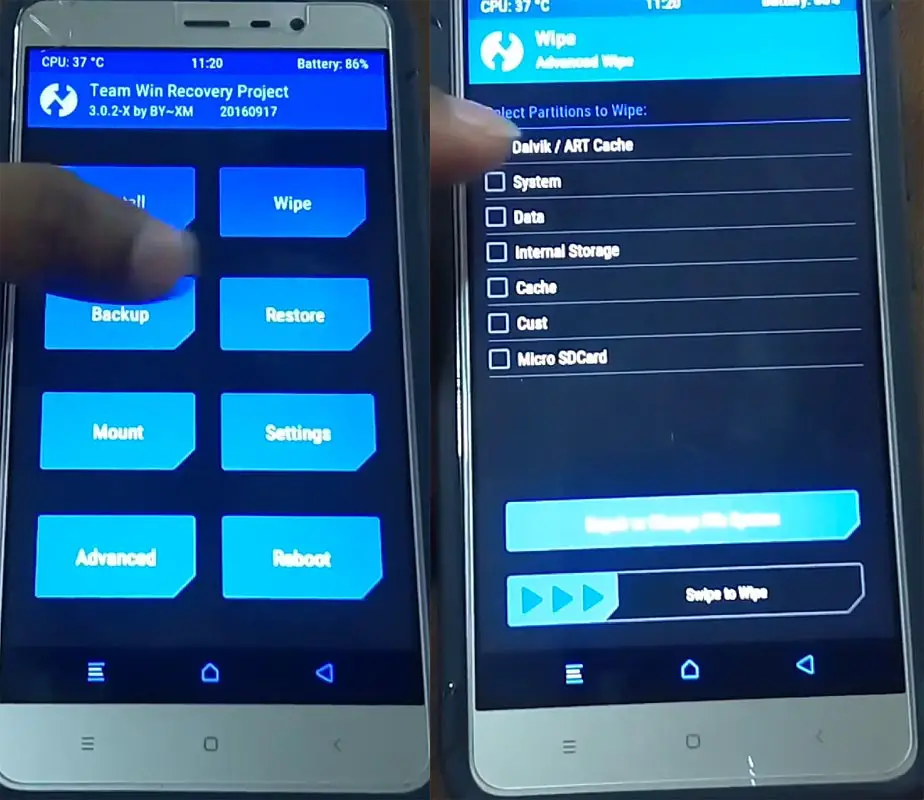
- The Keycombinations will boot your mobile into TWRP Recovery mode.
- On the Home screen, you can find the option as “Wipe.” Select the wipe option; you will receive further details. Select “Dalvik, Data, and Internal Storage.” Don’t select the System. It will wipe your OS. After selecting other choices, swipe to erase the data. When the process completes, return to home and boot into OS.
Wrap Up
Most of the Google Play Store issues can be resolved by clearing cache and data. Some account-related issues need to sign out of the Google Account. Sometimes when you have only one Google Account, you can’t remove the primary Google account. In those cases, you have to follow other methods to remove the account. Mobile Reset should be your final choice. Even If the Backup and Restore can give you back your most of the app data, It may take a long time to set up your mobile again. What is your experience after following these solutions? Did you fix your Play Store issue? Comment below.

Selva Ganesh is a Computer Science Engineer, Android Developer, and Tech Enthusiast. As the Chief Editor of this blog, he brings over 10 years of experience in Android development and professional blogging. He has completed multiple courses under the Google News Initiative, enhancing his expertise in digital journalism and content accuracy. Selva also manages Android Infotech, a globally recognized platform known for its practical, solution-focused articles that help users resolve Android-related issues.