
In the era of seamless connectivity, Bluetooth has revolutionized how we interact with our devices. However, even with the technological strides, Samsung Galaxy Tab S9 FE/FE+ users may encounter perplexing Bluetooth pairing and detection issues. The frustration arises when attempting to connect with devices running different Bluetooth versions. This guide aims to unravel the complexities associated with Bluetooth connectivity on the Galaxy Tab S9 FE/FE+, providing step-by-step solutions to address pairing glitches and the device’s inability to detect Bluetooth signals. Users can navigate potential hurdles by delving into troubleshooting methods and optimizing settings, ensuring a smooth and uninterrupted Bluetooth experience on their Samsung Galaxy Tab S9 FE/FE+.
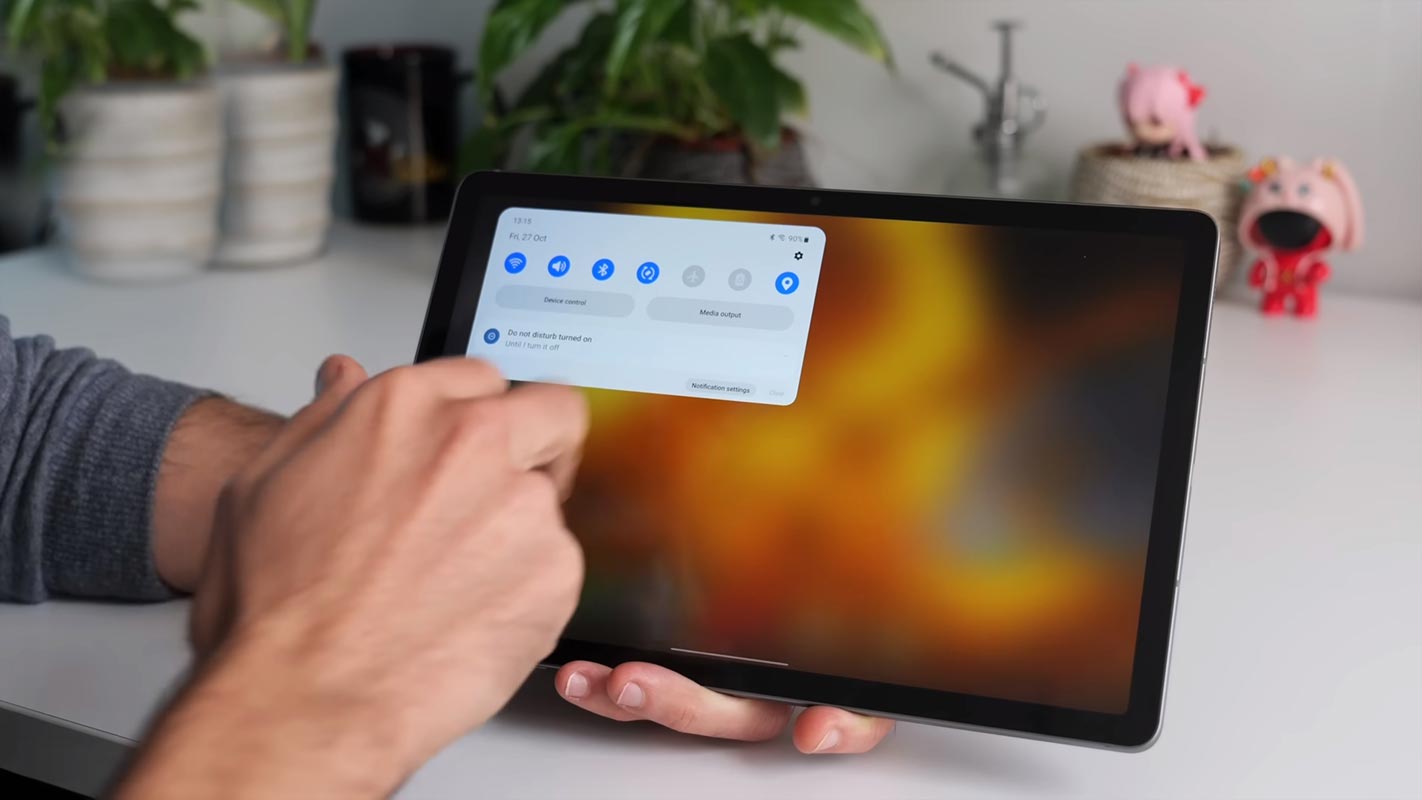
You won’t notice any lag even if it doesn’t have apt-X HD. But when you face any issues connecting your Bluetooth to other devices, you can fix your mobile using one of the below methods.
Reasons for Samsung Galaxy Tab S9 FE/FE+ SM-X510/B/X610/X616B Bluetooth connectivity issues
These reasons will give you an idea of how Bluetooth works and its criteria for making the connection. So, based on the reasons, you can try the exact solution instead of all.

Version Compatibility
Bluetooth devices are backward compatible. Even if you have the latest version, 5.0 and above, It can connect with the older versions like 4.0 and 2.1. In rare situations, old devices like featured phones may not connect with your new mobile. You don’t have to worry about the version unless your mobile is too old. You can quickly get the version info in the specifications of your device information.
Bluetooth Range
Even if you have the latest version, When your destination device has an old version, it has limited range capacity. So, try to connect in close range. The range depends on the Bluetooth class. However, in the theoretical stage, we can tell that Version 2.1 and 4.0 can connect up to 100 meters. Where 5.0 can go up to 400 meters. In real life, 2.1 and 4.0 can connect devices within 5-25 meters, whereas the 5.0 version can connect with the device within 50 meters. This range is for mobiles without barriers. If there are many barriers, the coverage area may be affected. When you consider high-performing machines, the content may vary.
Poor Hardware
Yes, Not all devices use genuine internal parts. The performance of the same Bluetooth version with Reputable manufacturers and low-budget variant devices may vary. Example- You have Bluetooth 4.1 on popular mobile devices, and the same version of a low-budget Bluetooth speaker may not give you a wide coverage area.
Fix Samsung Galaxy Tab S9 FE/FE+ SM-X510/B/X610/X616B Bluetooth issues
You can resolve most of the Bluetooth issues unless the hardware fails. I will start from the entry-level fix to advanced techniques. Start when it does not work, then you can move to other steps. Below, I will mention Android mobiles and Bluetooth devices. The Bluetooth devices can be headphones, Speakers, TVs, PCs, USB keyboards, and Mouse and Game controllers. The fix steps will work on all devices when you connect the particular device with Android mobile.
1. Restart both Samsung Galaxy Tab S9 FE/FE+ Mobile and Bluetooth devices
This step may look simple. If you have the experience, you will agree. There may be some glitches or software issues that can happen. But You can resolve most of the electronic problems by restarting. So, By Restarting your mobile and the Bluetooth device, you can fix the problem. This method may work when you suddenly face challenges with regular working devices.
2. Check Bluetooth Power on Both devices
It is a necessary step. When one of the device’s Bluetooth is off-stage, and you don’t notice, you try other methods, and none of them will work. First of all, check the Bluetooth status on both devices.
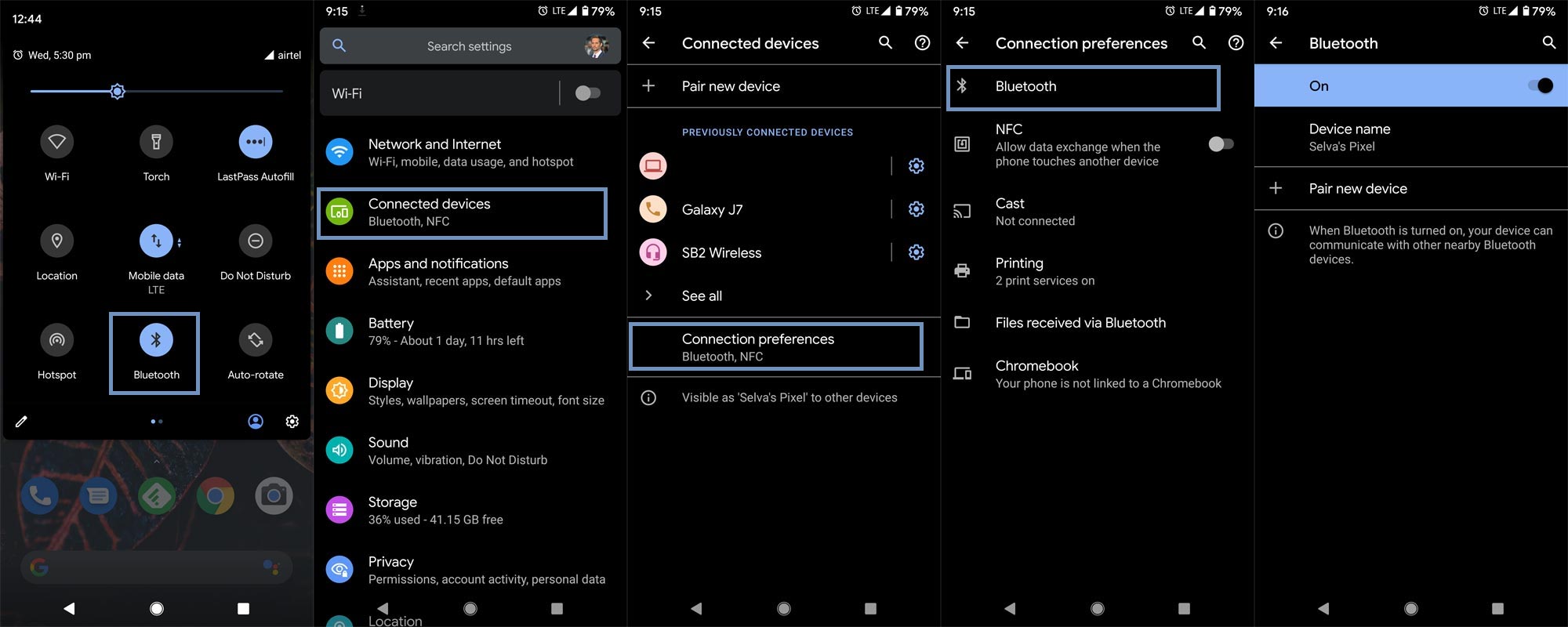
- In Android Mobiles, you can check this in a notification or Go to Settings> Connected devices> Bluetooth>Turn on and allow the Discoverable option.
- Press the power button for a few seconds for Bluetooth headphones. You can check the status by the LED indicator provided on the mobile.
When confident about the power source, move to the steps below.
3. Remove/Forget and Pair again with saved Bluetooth devices
Sometimes, the paired Bluetooth devices may not connect again. It can happen due to you changing the name of the mobile. So, based on the device type, unpair/remove the particular device from your Android mobile and try to pair it again. To do this, follow the below steps.
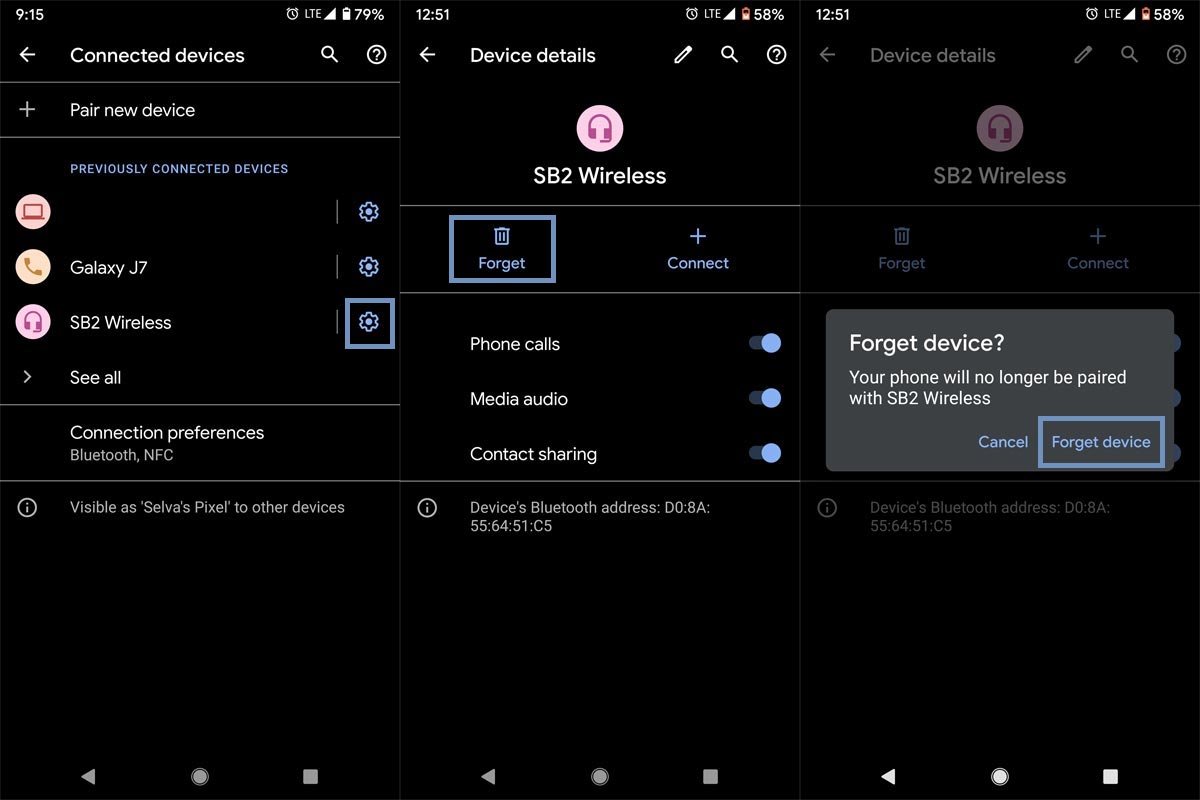
- Go to Settings> Connected devices> Bluetooth> Select the gear icon or more options near the paired devices. Select Remove/Forget.
- After forgetting the connected device, turn on both Bluetooth and try to pair them again.
4. Check connection with other Bluetooth devices
Check with other Bluetooth devices when you can’t connect your Samsung Galaxy Tab S9 FE/FE+ with a particular device. By doing this, we can discover whether our mobile has issues or the device is. The connecting device probably has problems when there is no issue with your mobile. Also, do this using the method as an alternative. Connect a particular device with other mobiles. There is a chance that sometimes, both devices independently work great. But, If you try to pair one with others, you may face issues. It may be due to the version or pair issue. In that situation, try to unpair and pair again.
5. Check compatibility between the devices
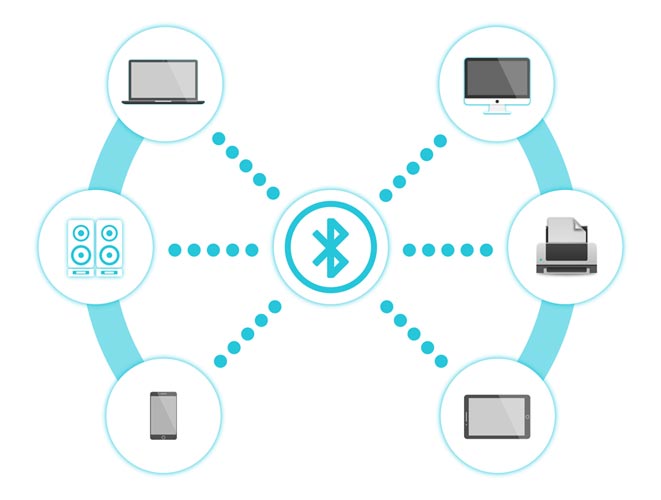
Most Bluetooth connection equipment will work with the Samsung Galaxy Tab S9 FE/FE+. But Not all will work. Devices like keyboards, mice, and game controllers may not work sometimes. So, Check the manual before connecting.
6. Activate supportive Bluetooth Codecs in your Samsung Galaxy Tab S9 FE/FE+
If your Android device runs on the Android Oreo (8.0 or 8.1) OS system or any later versions, it supports aptX HD, and you can activate it quite easily. Remember, your Samsung Galaxy Tab S9 FE/FE+ mobile and Audio devices should keep the same technology.
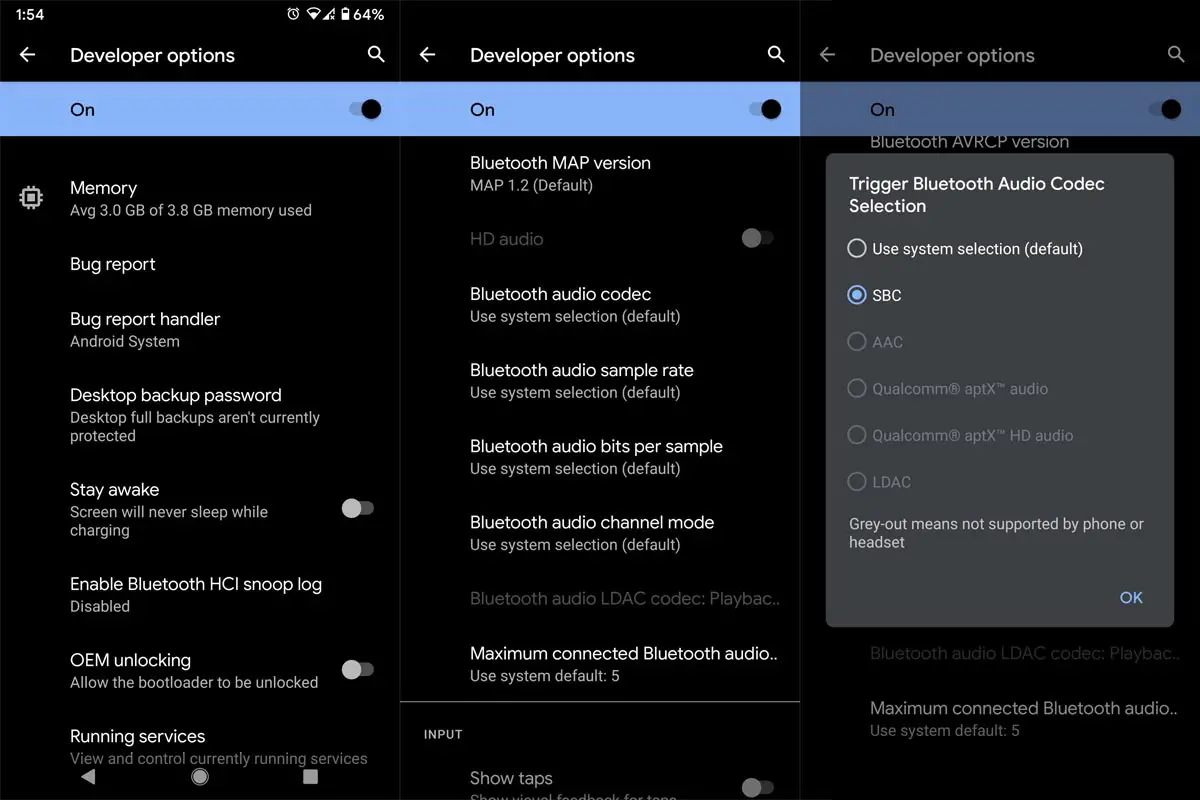
- Turn on Bluetooth and connect the device to your mobile.
- On your Android device, open the Settings page and scroll to the “About Phone” or “About Device” options, depending on the one you see.
- When you open the About page, look for Build Number; if you didn’t see it, look for Software Information and tap on it.
- Tap on the “Build Number” option seven times when you see the “Build Number” option. You will see a notification that reads, “You are now a developer.”
- Go to the Settings main page and look for “Developer Options.” Tap on the option and then tap on “Audio Codec.” You should see the list of all codecs supported on your device – most apparently, you’d also find aptX HD in the list.
- From the list of codecs available/supported on your device, tap on aptX HD to activate it. Once activated, if you have an aptX HD-enabled Bluetooth device, you can enjoy 24-bit Audio when you stream from your device.
If your device does not support apt-X HD, you can choose LDAC or AAC – they are still suitable codecs that transmit good audio quality.
7. Clear Cache and Data in Bluetooth App
Bluetooth connection happens via an in-built system app. There is a chance of a Bluetooth address registered on your mobile. As a result, you can’t connect the device again. We can pair the device with a fresh start by removing Data and Cache. Even if we remove the paired device, follow the steps below to remove cache data in Bluetooth.
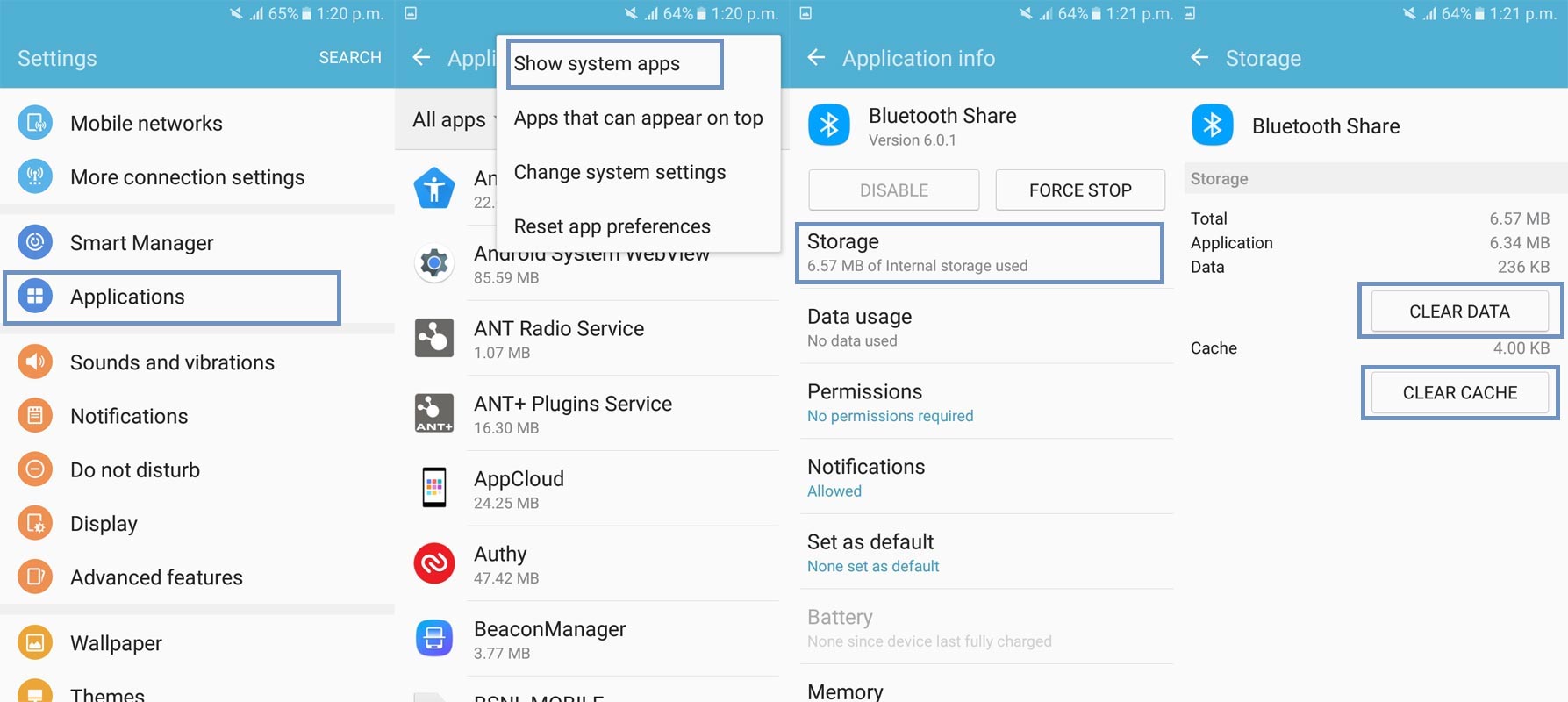
- Turn off Bluetooth.
- Go to Settings> Applications> More> Show System Apps> Select Bluetooth Share. You can’t find the Bluetooth app if you don’t enable the System apps. Don’t change other app settings. It may affect your mobile.
- After selecting the Bluetooth Share app, Go to Storage and Clear cache and data. Turn on Bluetooth again and try to pair it with the device. It will not affect your mobile. But, when the Unfortunately app stops working, you can fix the issue.
8. Install the latest software
You may need to check out a newer software update available for your device. The bug is likely causing your device connectivity issues, and there may be a fix in a newer software version, thus upgrading to your device’s most recent version. To check out this, follow the steps below.
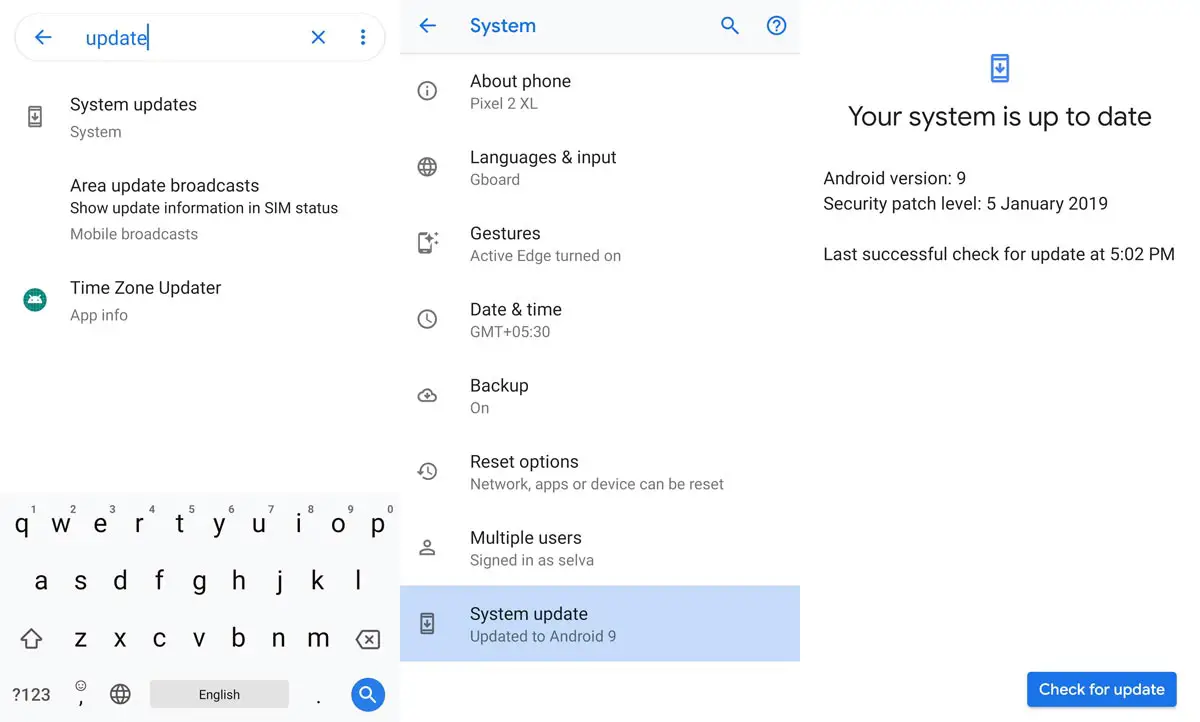
-
Go to your mobile device settings.
-
Scroll down to the About Section and click on the “Software update” option
-
Tap the “Download and install” option
-
Wait for the search to complete to see if any new updates are available.
-
If there’s an updated version, click on the download option to update your device software.
However, kindly try other solutions below if this method doesn’t work.
9. Try with Samsung Galaxy Tab S9 FE/FE+ Safe Mode
We can do a lot of things in Safe mode. When your mobile usually works up, you can boot into safe mode and debug the issues. It will remove the third-party app’s influence over System apps. Based on the manufacturers, the method to boot into safe mode differs.
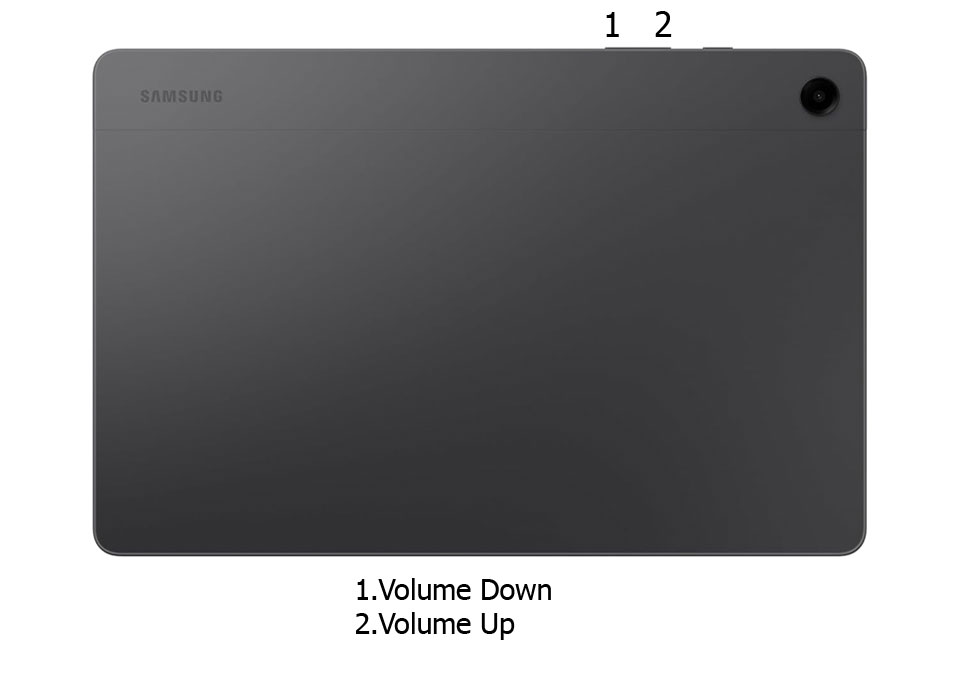 In Samsung mobiles, Switch off your mobile. In Samsung Galaxy Tab S9 FE/FE+, Long press the power button and select boot into safe mode. Press the power button when the Samsung logo appears, release the power button, and press the Volume Up button. After booting into safe mode, try to pair again. When you can connect successfully, check with the recently installed apps.
10. Change Bluetooth AVRCP protocol Version
AVRCP is an Audio/Video Remote Control Profile. It is always set up based on mobile default. But sometimes, by changing the version, we can rectify the issue. To do this, you have to enable the Developer Options. After enabling Developer options, follow the below steps.
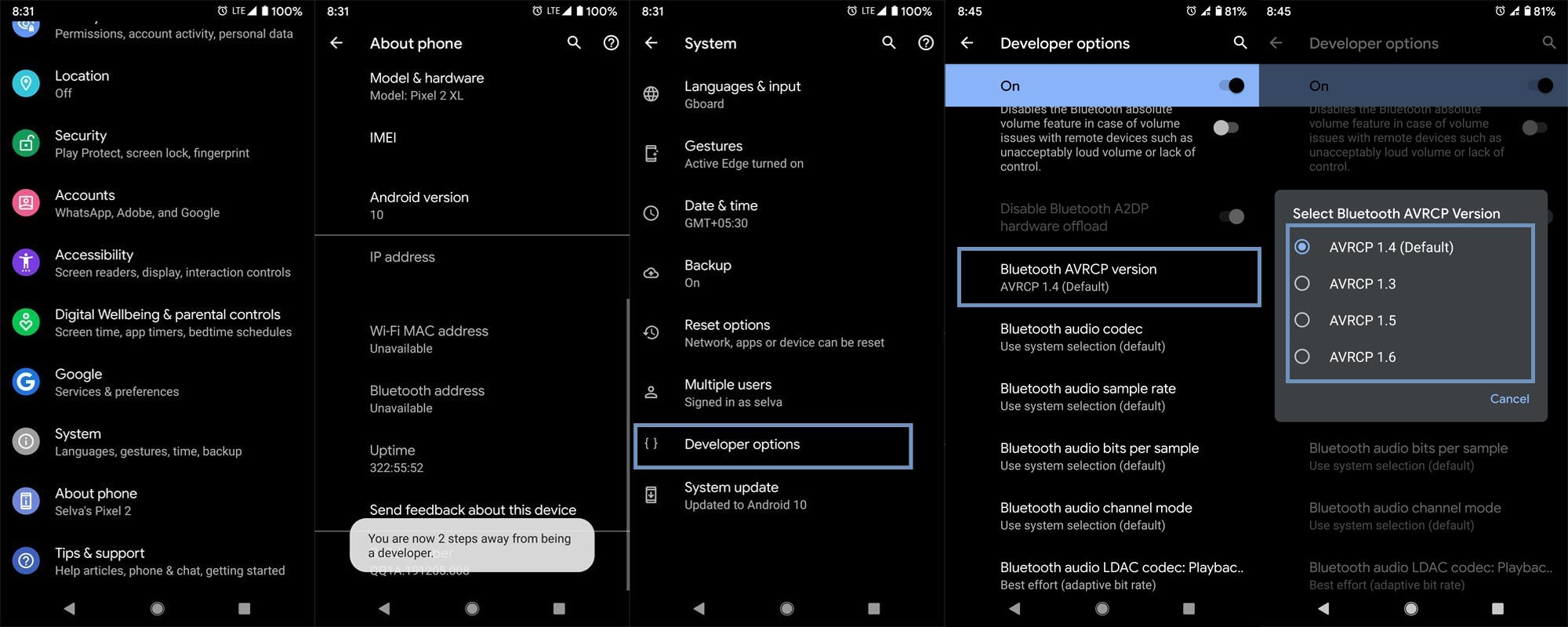
- Enable Developer Options. To do this, go to settings >>> about >>> Tap on the “Build Number” 7-10 times consistently to enable “Developer Options.”
- Then go to Settings>System>Advanced>Developer Options and choose the “AVRCP version.”
- You will get the versions based on your mobile; try different versions. One of the AVRCP versions must work with the other Bluetooth device.
11. Change the limit of Bluetooth Connectivity devices
You can limit the number of devices that connect with your Android mobile. In most mobiles, it is always set to high value. However, some manufacturers determine this value to save the battery. You may wonder, I connect only one device; what is the issue? Sometimes, the mobile itself is considered one device. Your Fit devices may always connect with your mobile. So, By maximizing the value, we can resolve the problem. When you have Fit devices like Fitbit, you can stream Spotify.
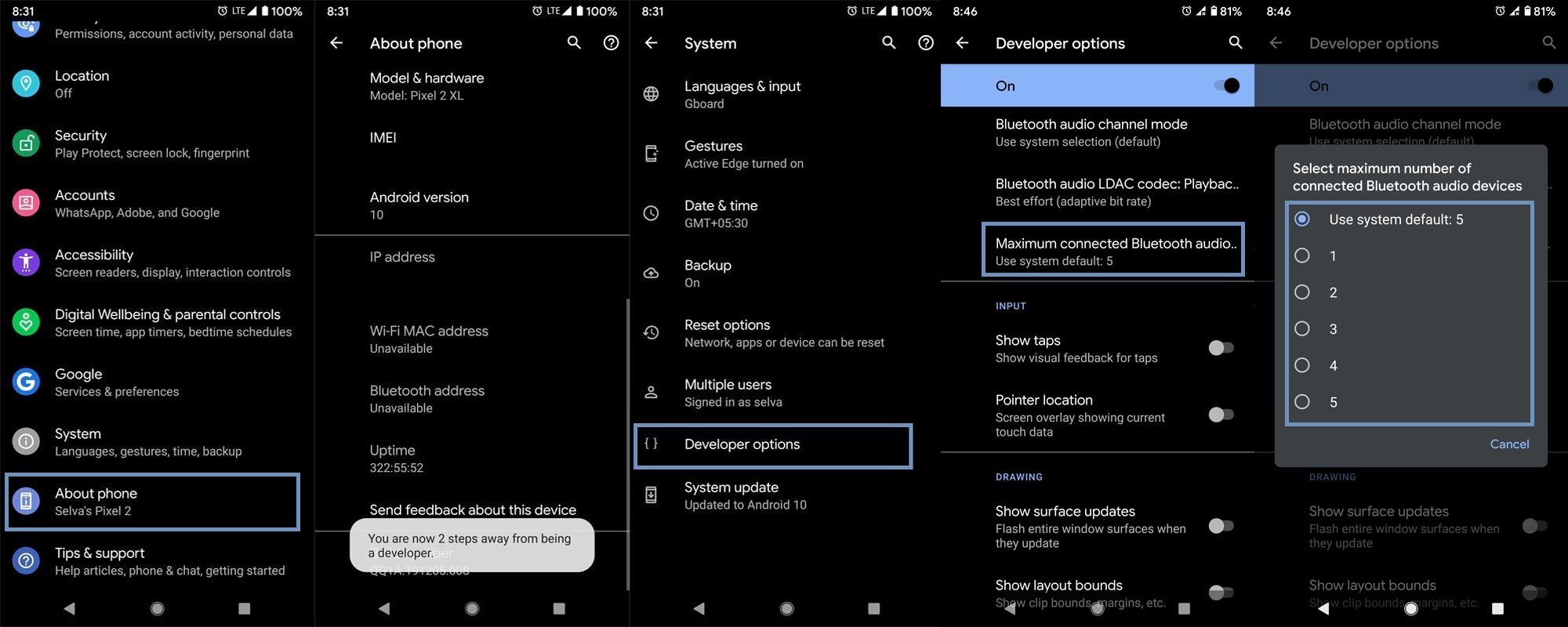
- Enable Developer Options. To do this, go to settings >>> about >>> Tap on the “Build Number” 7-10 times consistently to enable “Developer Options.”
- Then go to Settings>System>Advanced>Developer Options and choose “Maximum connected Bluetooth.”
- You will get the numbers based on your mobile; choose the maximum value. After the setting, try to connect your device.
12. Check Bluetooth hardware status
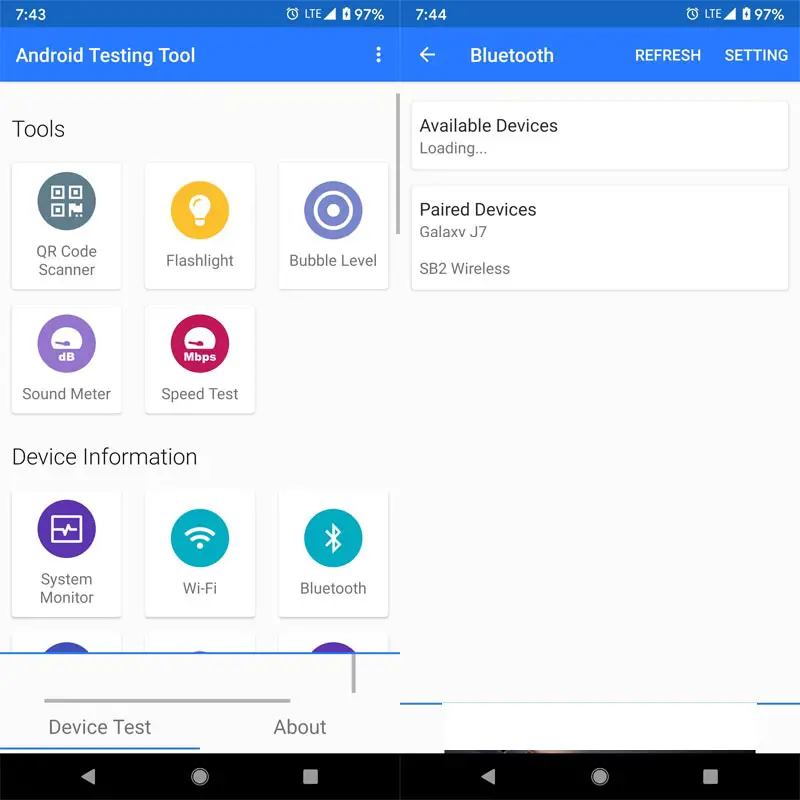
In rare situations, your Bluetooth hardware may fail. To test Bluetooth hardware, you can use any hardware test app. Here, I am using the Test Your Android app. After the installation, Go to Device Information and select Bluetooth. If the app can connect to Bluetooth, you are good to go. When you face issues, There may be a chance of hardware failure. Contact your nearby mobile service center.
13. Fix firmware using Samsung SmartSwitch
Compared with other manufacturers, Samsung SmartSwitch is an excellent PC suite that can help you in many situations. When you already Use SmartSwitch, your Samsung Galaxy Tab S9 FE/FE+ is stuck at the boot logo. We can Flash the firmware using SmartSwitch to back up the same software. So, The chance for data loss is less. When you don’t have a backup, this method will not help you. You can move differently.
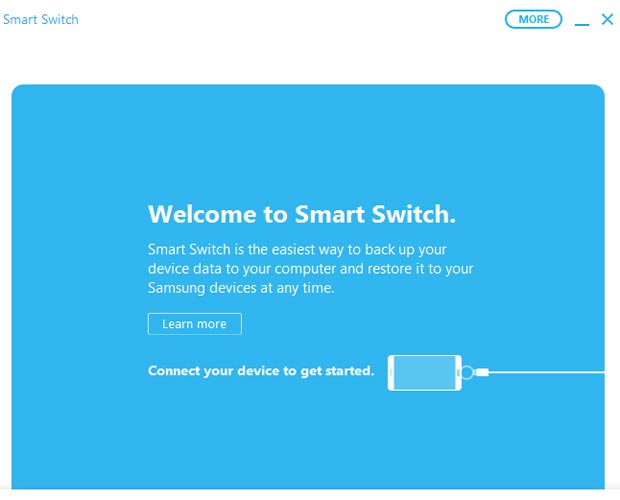
- Download and Install the Samsung SmartSwitch Windows/Mac version.
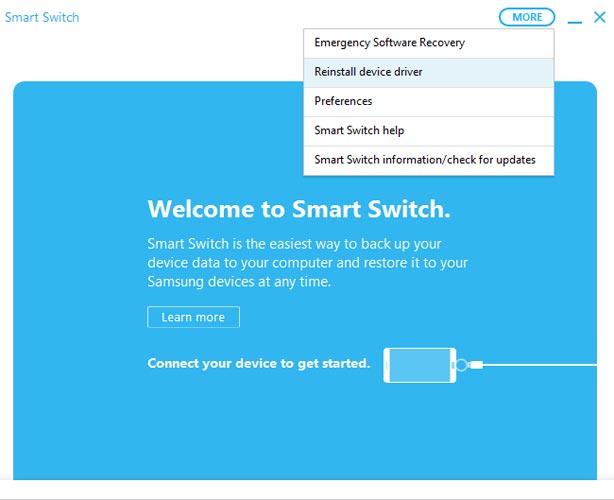
- Install Device Driver from the More option in the connect screen.
13.1 Restore Mobile Using Emergency Recovery
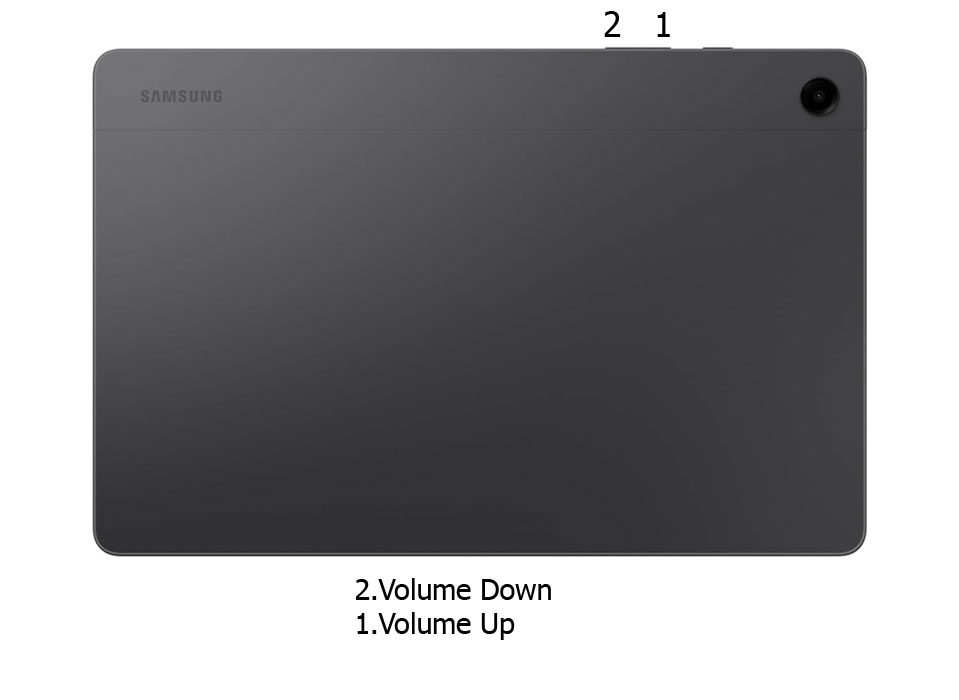
- Put your Samsung Galaxy Tab S9 FE/FE+ mobile into download mode by pressing the Volume Down+ Power Button. Then, connect your mobile to your PC using a USB Cable.
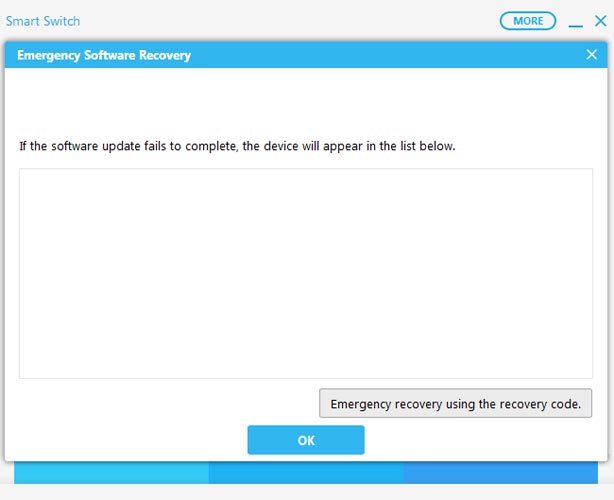
- After connecting the mobile with the PC, Select “Emergency Software Recovery.” When you get the mobile in the list, proceed with the steps. Your stuck boot logo will be repaired in this process. Move to the below method when you didn’t get the list mobile and have a mobile backup using SmartSwitch.
13.2 When You Have SmartSwitch Backup
The backup method will help you when you have backup data using SmartSwitch. Remember, you will lose your data when you don’t have a backup.
- Put your Samsung Galaxy Tab S9 FE/FE+ mobile into download mode by pressing the Volume Down+ Power Button. Then, connect your mobile to your PC using a USB Cable.
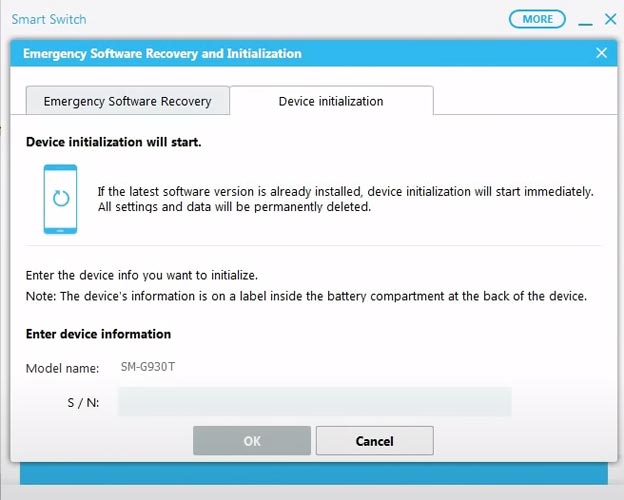
- After connecting the mobile with the PC, Select “Emergency Software Recovery.” Then, in another tab, choose “Device Installation.” Finally, type your mobile model number and S/N. We can find the name and value of S/N on mobile phone backside stickers with IMEI or in the retail box.
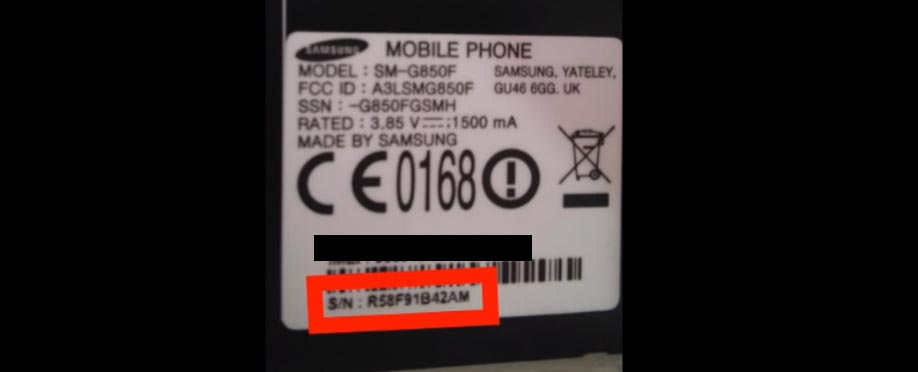
- It will automatically detect the latest software version and update it.
- After the successful update, restart your mobile and set up everything with the same Google Account.
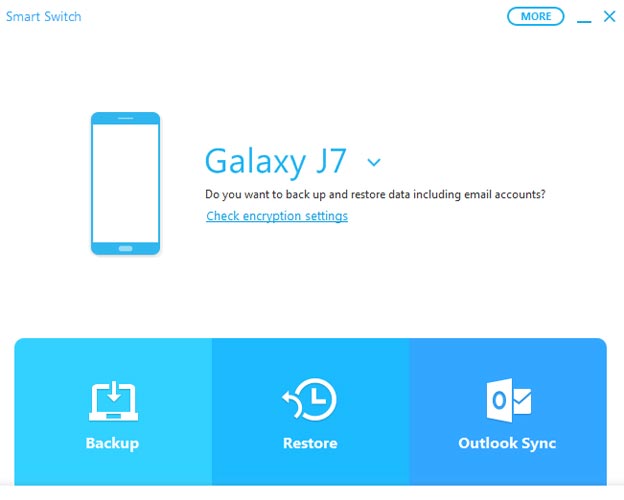
- Now relaunch SmartSwitch and Choose Restore. Allow necessary permissions on your mobile. Finally, select your backup data and restore it to your Samsung Galaxy Tab S9 FE/FE+ mobile.
14. Reset Your Samsung Galaxy Tab S9 FE/FE+ Mobile
It should be your final choice. You can do this Reset process when you are confident that there are no hardware issues, have tried all methods, and can’t connect with the other Bluetooth devices.
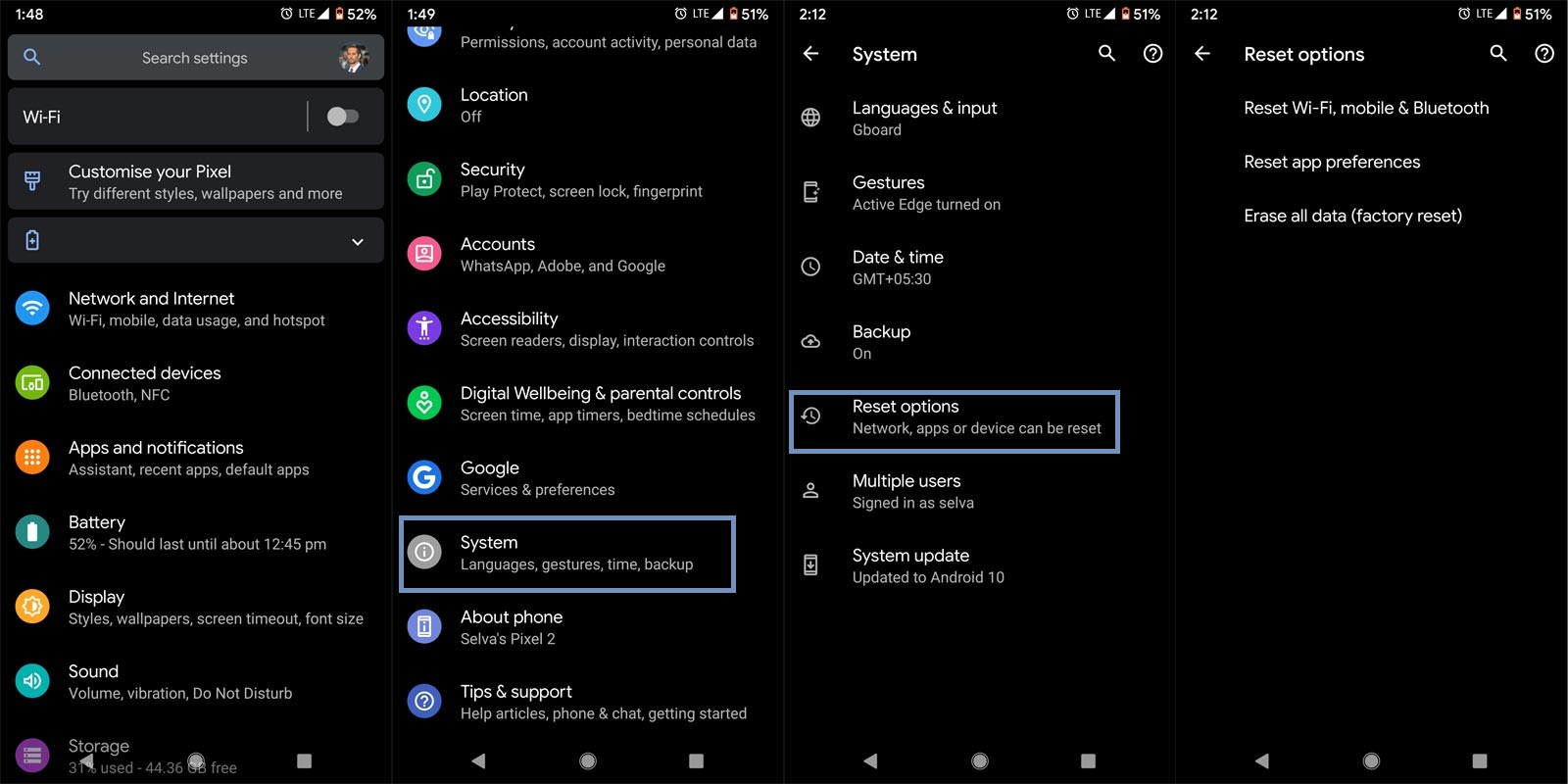
Take complBackupckup on your mobile. You can do a soft reset or hard reset. To Reset your mobile, Go to settings> System>Reset Options> Reset app preferences/ Factory Reset.
- Soft Reset/App Preference Reset– This option will remove all the custom settings we made and return to the default settings. It will not delete user data.
- Hard Reset/Factory Reset– It will remove all user data. Your mobile OS will become new, like when you purchased it, and you must set up everything from the beginning.
Initially, start with the Soft Reset. When you can’t connect again, You can do the Hard reset.
Stock Recovery method
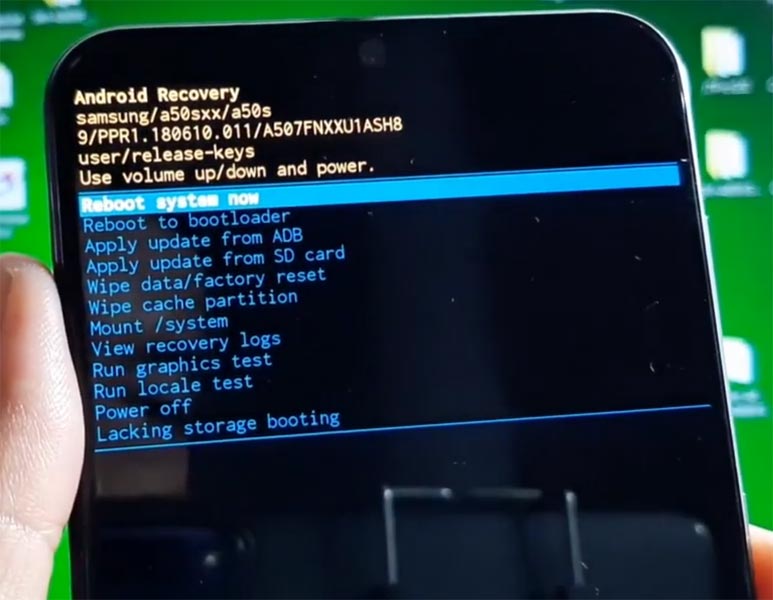
- Switch off your device. It will boot your mobile into Recovery mode. To do this, press and hold down the Volume Up + Power buttons simultaneously for some time. Then, enter into the Stock Recovery mode.
- If you don’t use Rooted mobiles, you have Stock Recovery, which your official mobile manufacturer usually provides. If you have stock recovery, you have the direct option of “Wipe Data/Factory Reset.” Navigate to this option and confirm it using the power key button. Remember, it will delete all of your mobile data. Backup checks first before the process.
TWRP Recovery method
When using Rooted mobiles, you use Stock Recovery or TWRP custom recovery. If you have Stock Recovery, you can use the above process. When you install TWRP on your mobile, follow the steps below.
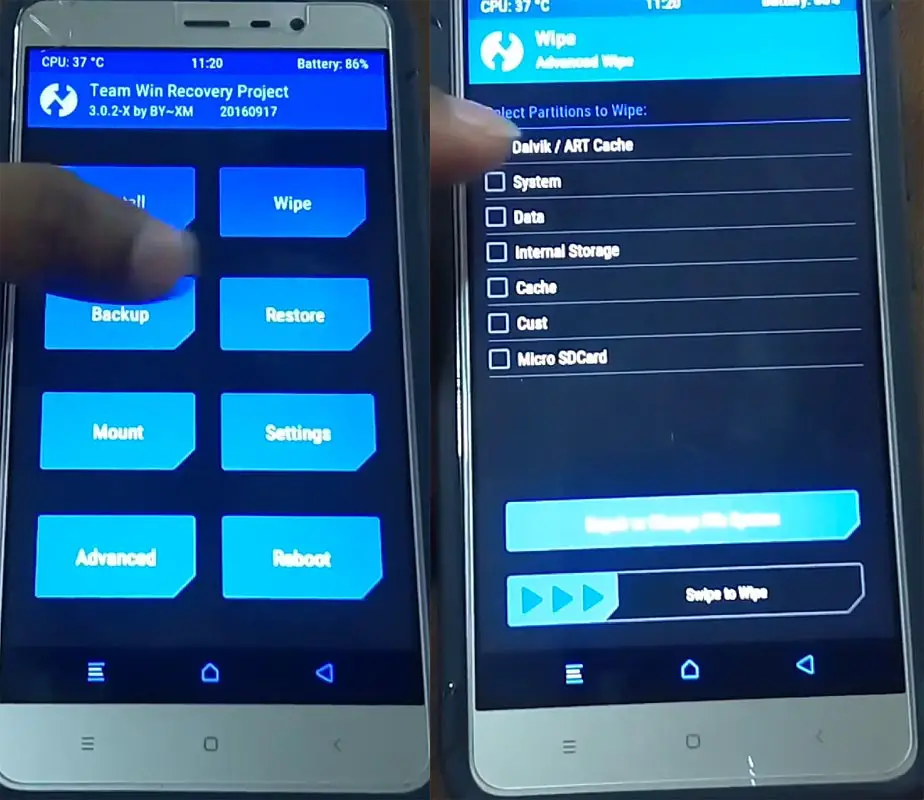
- The Key combinations will boot your mobile into TWRP Recovery mode.
- On the Home screen, you can find the option “Wipe.” Select the wipe option; you will receive further details. Select “Dalvik, Data, and Internal Storage.” Don’t select the System, and it will wipe your OS. After selecting other choices, swipe to erase the data. When the process is complete, return to home and boot into OS.
15. Flash Complete Samsung Galaxy Tab S9 FE/FE+ Firmware using ODIN
In this method, we will use full flash firmware in your boot logo stuck to the Samsung Galaxy Tab S9 FE/FE+ mobile. It is a Data loss process. So when you don’t have any choice, and none of the above methods don’t work for you, you can use them. Refer to Flash Samsung Galaxy Tab S9 FE/FE+ Firmware using ODIN.
Wrap Up
We are ahead in most of the technologies. A Bluetooth connection is an excellent, affordable choice for the transmitter and receiver. But Bluetooth is the only choice that works well Regarding the relationship between cross-platform devices. Yes, there are other technologies like Wi-Fi Direct. But You need a third-device Internet connection for that. It would always help to be careful when third-party apps ask you for hardware-level permissions like location and connectivity. As I mentioned, we can resolve any issues with the Bluetooth connection unless you have a hardware failure. Did you fix your Bluetooth problem on your Samsung Galaxy Tab S9 FE/FE+? Comment below.

Selva Ganesh is a Computer Science Engineer, Android Developer, and Tech Enthusiast. As the Chief Editor of this blog, he brings over 10 years of experience in Android development and professional blogging. He has completed multiple courses under the Google News Initiative, enhancing his expertise in digital journalism and content accuracy. Selva also manages Android Infotech, a globally recognized platform known for its practical, solution-focused articles that help users resolve Android-related issues.