
Unlock Native PDF Support on Google Chrome Android: How to Enable It– Google Chrome, the most widely used browser on Android, has long lacked native PDF viewing capabilities. However, recent updates indicate that Google addresses this limitation, providing users with a seamless PDF experience directly within Chrome. Here’s everything you need to know about this exciting development.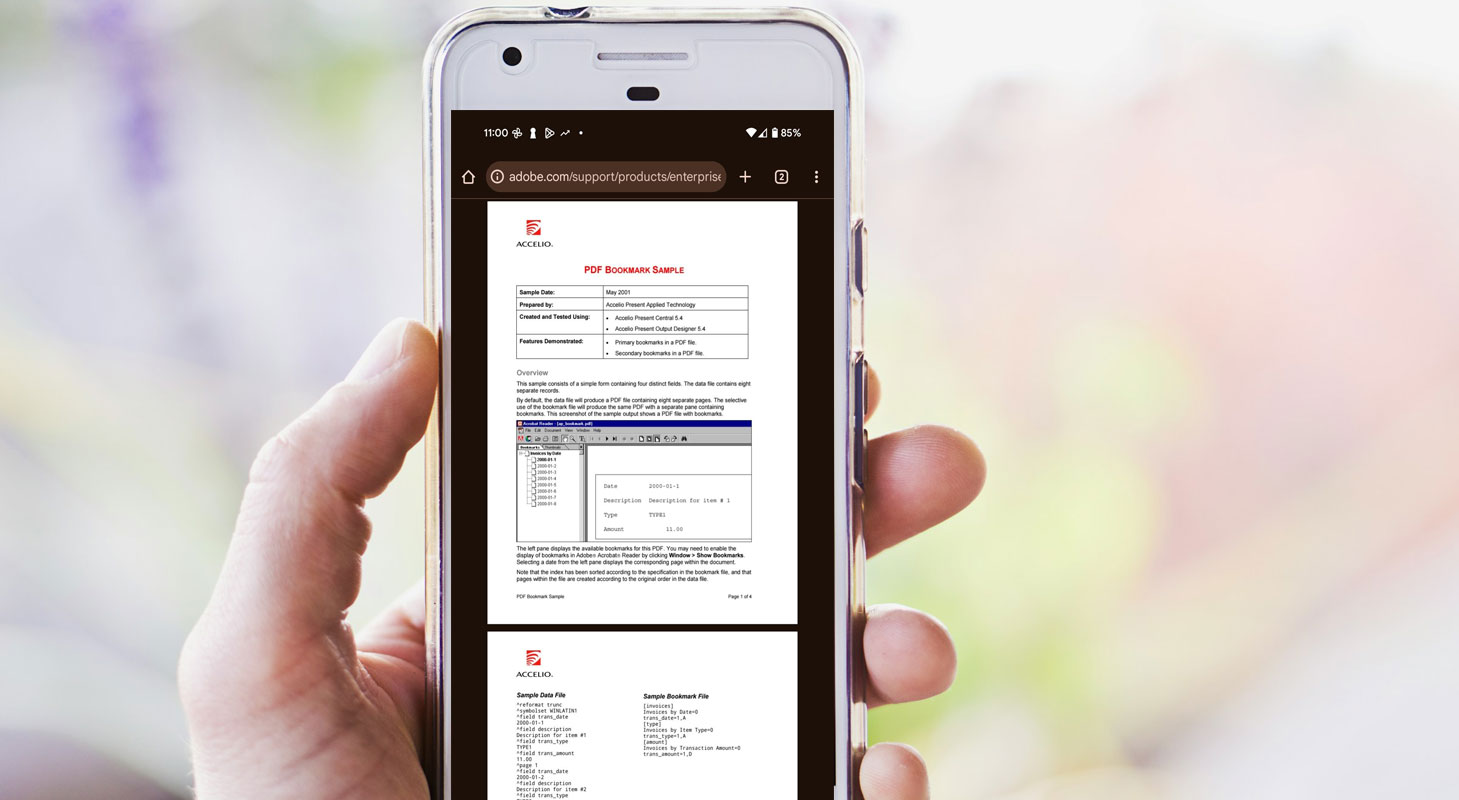
Why Native PDF Support Matters in Chrome
Until now, opening PDFs in Chrome required third-party apps like Google Drive or Files by Google. While Chrome dominates the browser market, this gap in functionality has been a consistent inconvenience for users. With native PDF support, users can now directly view and interact with PDF files without switching apps.
The Journey to Enabling Native PDF Viewer
Earlier this year, Google introduced an experimental PDF viewer via Chrome flags. However, the feature didn’t initially work as expected. Fast forward to recent months, and Google has made significant progress, with some users now able to test the native PDF viewer in Chrome’s beta versions.

How to Enable Chrome’s Experimental PDF Reader on Android
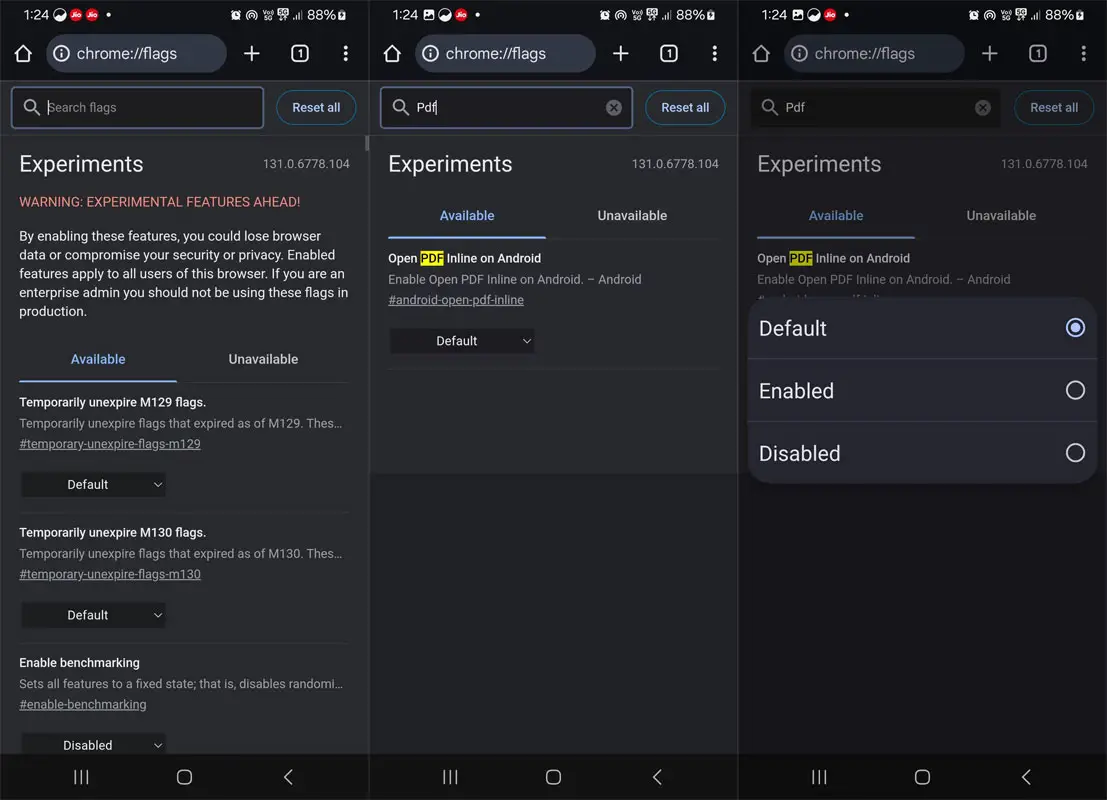
The native PDF viewer is being tested and requires enabling experimental Chrome flags. Follow these steps to activate the feature:
- Open Google Chrome on your Android device.
- Type chrome://flags into the address bar and press Enter.
- Search for the following flags:
- Open PDF Inline on Android
- Open PDF Inline on Android pre-V
- Tap the dropdown menu next to each flag and select Enabled.
- Restart Chrome by tapping the Relaunch button at the bottom.
Once these flags are enabled, you can open downloaded PDFs directly in Chrome.
Features of Chrome’s Native PDF Reader
The native PDF reader in Chrome offers essential tools for viewing and annotating PDF files. Here’s a closer look:
Text and Keyword Search
Using Chrome’s built-in search feature, users can search for specific words or phrases within the PDF.
Annotation Tools
Tap the pencil icon to annotate PDFs with a pen or highlighter. You can customize the color and width of these tools, providing flexibility for different annotation needs.
Undo and Erase Options
Mistakes are easily fixed using the eraser tool or undo buttons. This ensures a smooth annotation experience.
Lock Annotations
The eye icon lets you lock annotations, allowing you to focus on viewing the document without accidental edits.
Technical Insights: Under-the-Hood Enhancements
Google Chrome utilizes the Jetpack PDF support library, a robust framework for native PDF viewing.
Compatibility Across Android Versions
- Android 15 devices come with this functionality built-in.
- Android devices 12, 13, or 14 can access it via Google Play System Updates.
Availability of Chrome Flags
- “Open PDF Inline on Android” supports Android 15.
- “Open PDF Inline on Android pre-V” extends support to Android 12 and later.
Both flags are included in Chrome 132 and newer versions, with broader availability expected soon.
What’s Next for Chrome’s PDF Viewer?
While the experimental flags are promising, Google is expected to enable native PDF support by default in future Chrome updates. For those eager to explore this feature, activating the flags is the quickest solution.
In addition to native PDF viewing, enabling other experimental Chrome flags can further enhance your browsing experience.
Wrap Up
Native PDF support in Google Chrome is a game-changer for Android users. By integrating a powerful PDF reader directly into the browser, Google eliminates the need for third-party apps, making PDF interactions seamless and efficient. Try it out today and enjoy the convenience of viewing and annotating PDFs directly in Chrome!

Selva Ganesh is a Computer Science Engineer, Android Developer, and Tech Enthusiast. As the Chief Editor of this blog, he brings over 10 years of experience in Android development and professional blogging. He has completed multiple courses under the Google News Initiative, enhancing his expertise in digital journalism and content accuracy. Selva also manages Android Infotech, a globally recognized platform known for its practical, solution-focused articles that help users resolve Android-related issues.