
Build Your Own Personal Reel Library in Notion for Free– Instagram Reels are among today’s most powerful tools for inspiration, learning, and content creation. But saving them inside Instagram often becomes a frustrating scroll-back exercise, where you can barely find what you saved weeks ago. Using Notion as your Reel library is the most innovative, most efficient solution. With Notion’s flexibility, you can create a personal, searchable hub for all your saved Reels—organized by categories, tags, and notes—ready to use whenever needed. We’ll set up your free Notion system to collect, manage, and quickly retrieve Instagram Reels without chaos.
Create a Dedicated Reel Database in Notion
Start by building your Reel Library inside Notion.
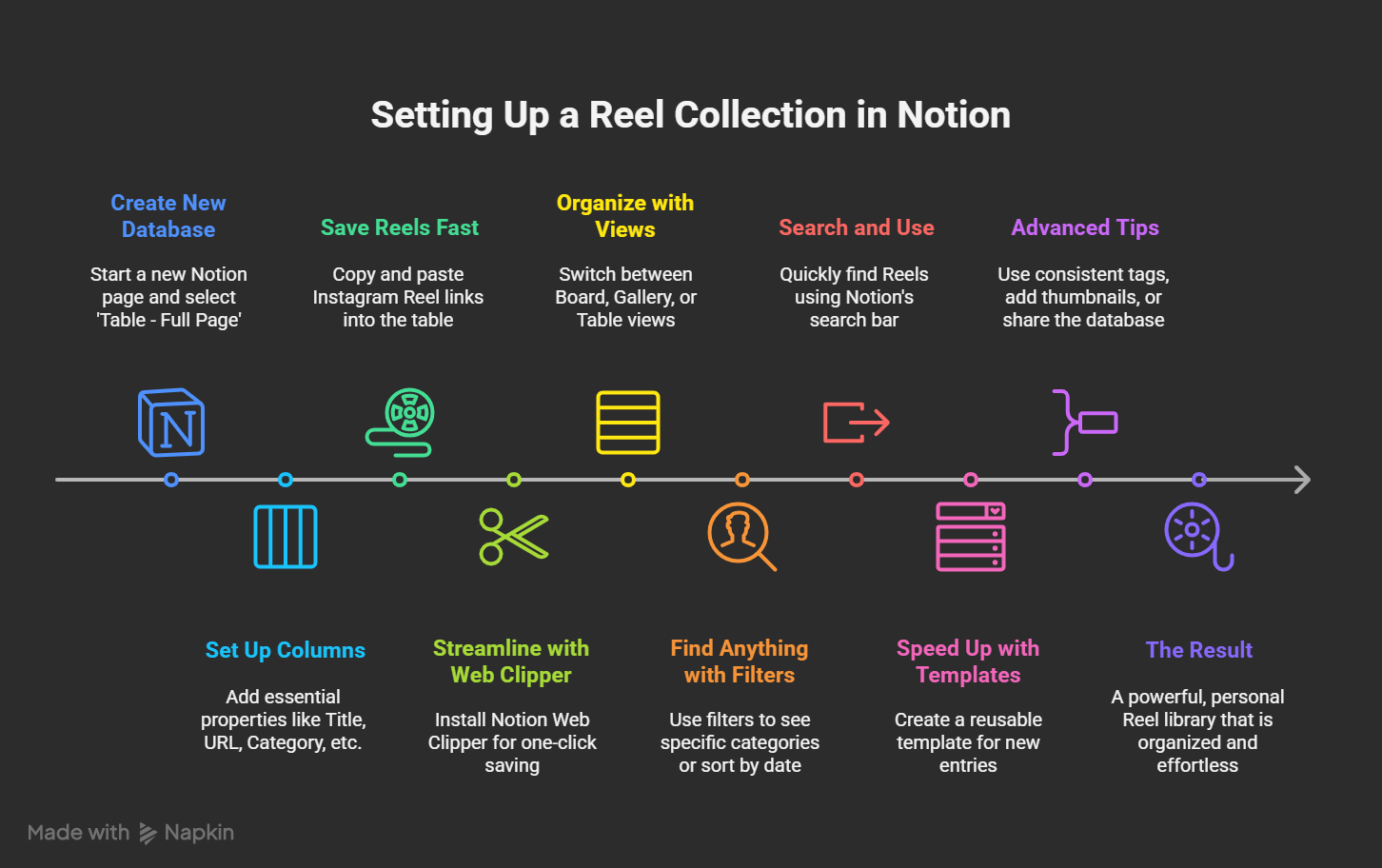
- Open Notion → click “+ New Page.”
- Select Table – Full Page as your database type.
- Give it a name such as “Reel Collection”, “Content Inspiration Hub”, or “Ideas Library.”
This table will act as the central place where every Reel you save lives. Unlike Instagram’s basic “Saved” section, Notion gives you structure, filters, and search power.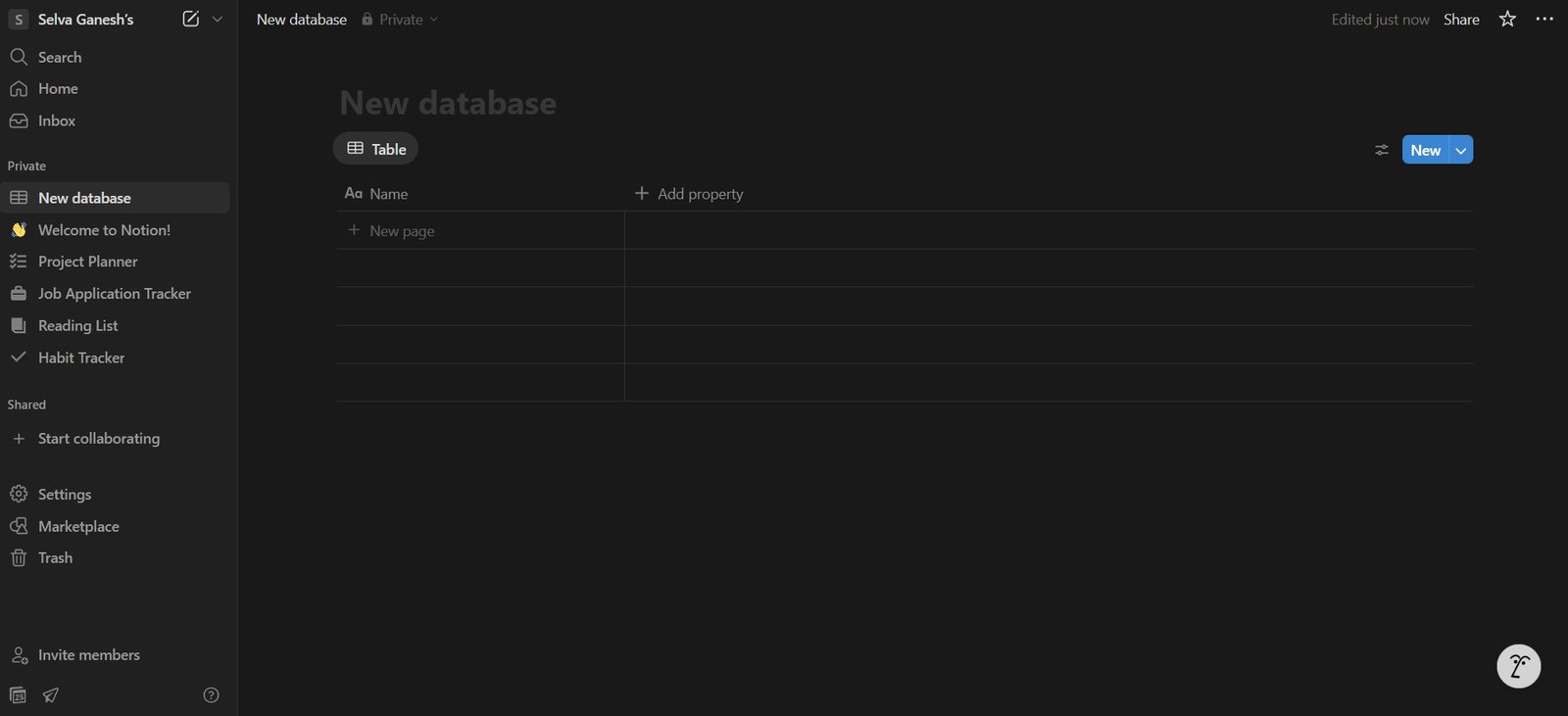

Add Smart Columns for Better Organization
To make your Reel library efficient, customize your table with beneficial properties (columns):
- Title (Text): A custom name for the Reel so you can recall it easily.
- URL (Link): Paste the Reel link here—one click will take you directly to Instagram.
- Category (Select/Multi-Select): Create categories such as Fitness, Cooking, Marketing, Fashion, Travel.
- Tags (Multi-Select): Add keywords like #transition, #videoediting, #recipe, #outfitideas.
- Notes (Text): Write why you saved it or how you plan to use it.
- Status (Select): Options like Saved, To Try, Used for workflow management.
With these columns, you can filter, sort, and search your Reels database instantly without scrolling endlessly.
Save Instagram Reels Quickly into Notion
The next step is mastering the input process so that saving doesn’t feel like a chore.
Manual Save Method
- On Instagram, tap Share → Copy Link.
- Open Notion → Add a new entry in your Reel Library.
- Paste the link in the URL column, add a title, notes, and tags.
Pro Tip – Use Notion Web Clipper
Install the free Notion Web Clipper extension (available on Chrome, Edge, and Firefox). With it, you can:
- Save Instagram Reels links directly into Notion without opening the app.
- Choose the Reel Library database as the destination.
- Add notes instantly while clipping.
This small step saves massive time and makes your workflow seamless.
Organize Reels with Multiple Views in Notion
Notion’s biggest strength is the ability to view your database in different layouts depending on how you want to browse.
Board View (Kanban Style)
- Organize by Category or Status.
- Example: Drag a Reel card from “Saved” to “Used” once you’ve implemented the idea.
Gallery View (Visual Thumbnails)
- Displays Reels with cover previews.
- Perfect for those who prefer a visual browsing experience.
Table View (Structured List)
- A clean, searchable list format.
- Best for fast searching when you know the keyword or category.
Filters and Sorting Options
- Filter by Category: Example → Show only Marketing Reels.
- Filter by Status: Example → Show only To Try Reels.
- Sort by Date Created: Newest Reels appear first for quick access.
This flexibility allows you to retrieve content effortlessly, no matter how large your collection grows.
Retrieve and Use Saved Reels Effortlessly
The real magic comes when you must find and reuse your saved inspiration.
- Use Notion’s search bar to find Reels by keywords in the title, tags, or notes.
- Example: Type “transition” and instantly see all Reels where you used that word.
- When ready to use, click the URL link, and the Reel will open directly on Instagram.
This search-friendly method means you’ll never lose track of a valuable Reel again.
Speed Up Your Workflow with Notion Templates
To make adding Reels even faster, create a template button in Notion.
A sample Reel template might look like this:
- Title: (Custom Reel Title)
- URL: (Paste Instagram link here)
- Category: (Dropdown: Fitness, Fashion, etc.)
- Tags: (#keyword1, #keyword2)
- Notes: (Why you saved it or usage idea)
- Status: (Default → Saved)
Every time you add a Reel, click the template, fill in the details, and you’re done in seconds.
Advanced Tips for Scaling Your Reel Library
If you plan to save dozens—or even hundreds—of Reels, here are advanced tips to keep your system clean and efficient:
- Use Consistent Tags: Instead of random tags, create a standard tag system like #editing, #musicideas, #contentstrategy.
- Add a “Priority” Column: Mark some Reels as High Priority to remind yourself which to try first.
- Embed Thumbnails: Add screenshots or cover images of Reels in Gallery view for visual memory triggers.
- Share with a Team: If you work with a content team, you can share the database so everyone can contribute ideas.
- Weekly Review: Once a week, check your “Saved” Reels and move some to “To Try” or “Used.”
Why Notion Beats Instagram’s Native Save Feature
While Instagram lets you save Reels in folders, it lacks search, tagging, note-taking, and workflow management. Notion, on the other hand, provides:
- Custom tagging and categories → no more random scrolling.
- Centralized notes → reminders of why you saved something.
- Search power → find content by keyword instantly.
- Flexible views → browse visually, by status, or in list form.
- Collaboration → share your Reel hub with colleagues or clients.
This makes Notion a game-changer for content creators, marketers, and anyone who consumes Instagram Reels regularly.
Example Reel Library Setup
Here’s how a sample Reel entry might look in your Notion database:
- Title: “Smooth Travel Transition Reel”
- URL: (Instagram Link)
- Category: Travel
- Tags: #transition, #videography, #travelideas
- Notes: Use this editing style for the Bali trip video
- Status: To Try
With just a few clicks, you can filter all Travel Reels or search “transition” to find it instantly.
Wrap Up: Build Your Personal Instagram Reel Hub in Notion
Setting up a Reel Library in Notion transforms a cluttered “saved section” into a powerful, searchable content system. This setup helps you:
- Collect Reels easily with Web Clipper.
- Organize with categories, tags, and notes.
- Retrieve and use Reels faster with filters and search.
- Stay productive with workflow statuses and templates.
Instead of endless scrolling on Instagram, you’ll have a structured, creative hub that saves time and sparks inspiration whenever needed.

Selva Ganesh is a Computer Science Engineer, Android Developer, and Tech Enthusiast. As the Chief Editor of this blog, he brings over 10 years of experience in Android development and professional blogging. He has completed multiple courses under the Google News Initiative, enhancing his expertise in digital journalism and content accuracy. Selva also manages Android Infotech, a globally recognized platform known for its practical, solution-focused articles that help users resolve Android-related issues.