
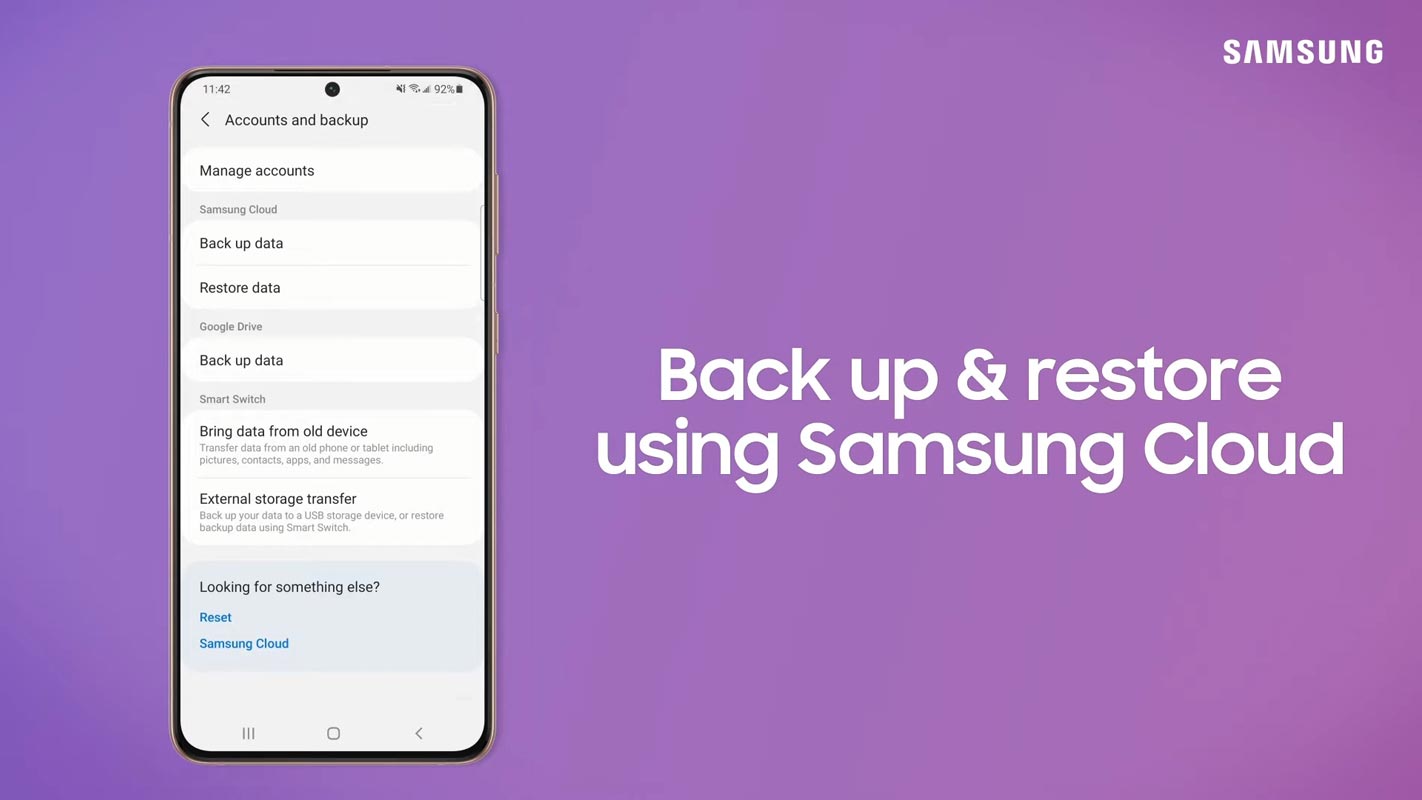
You can set up Cloud Storage Backup on Samsung Galaxy Mobiles using the methods below. Even though All Android Mobiels provide backup options, Samsung is always top on the notch, and you can restore everything, including your Wallpaper and Settings. With the increasing amount of important data that we store on our mobile devices, it becomes imperative to have a reliable backup system in place. Samsung Galaxy phones have an in-built cloud backup storage system that makes it easy to back up and restore your phone data.
Samsung Free Cloud Storage
As you may already be familiar with Samsung Cloud Backup and Restore, Samsung Cloud is a free service that comes pre-installed on all Samsung Galaxy devices, and it allows users to back up and sync their device data to the cloud. Accessing data from any device, location, and time is made possible through cloud computing, eliminating the concern of losing important information due to device loss or damage. This includes contacts, calendar events, photos, videos, music, and other files.
To start using Samsung Cloud, users must set up a Samsung account on their devices. After that, they can easily back up their data by going to the “Settings” app on their device, then to the “Cloud and accounts” section, and selecting “Samsung Cloud.” From here, users can choose the data they want to back up and tap the “Back up now” button to start the process.

How to Setup Cloud Storage Backup in Samsung Galaxy Mobiles?
Samsung Cloud seamlessly integrates into your Samsung account, allowing easy access via your phone or tablet settings. To access Samsung Cloud, follow these steps:
- Go to Settings.
- Tap on your name at the top of the screen.
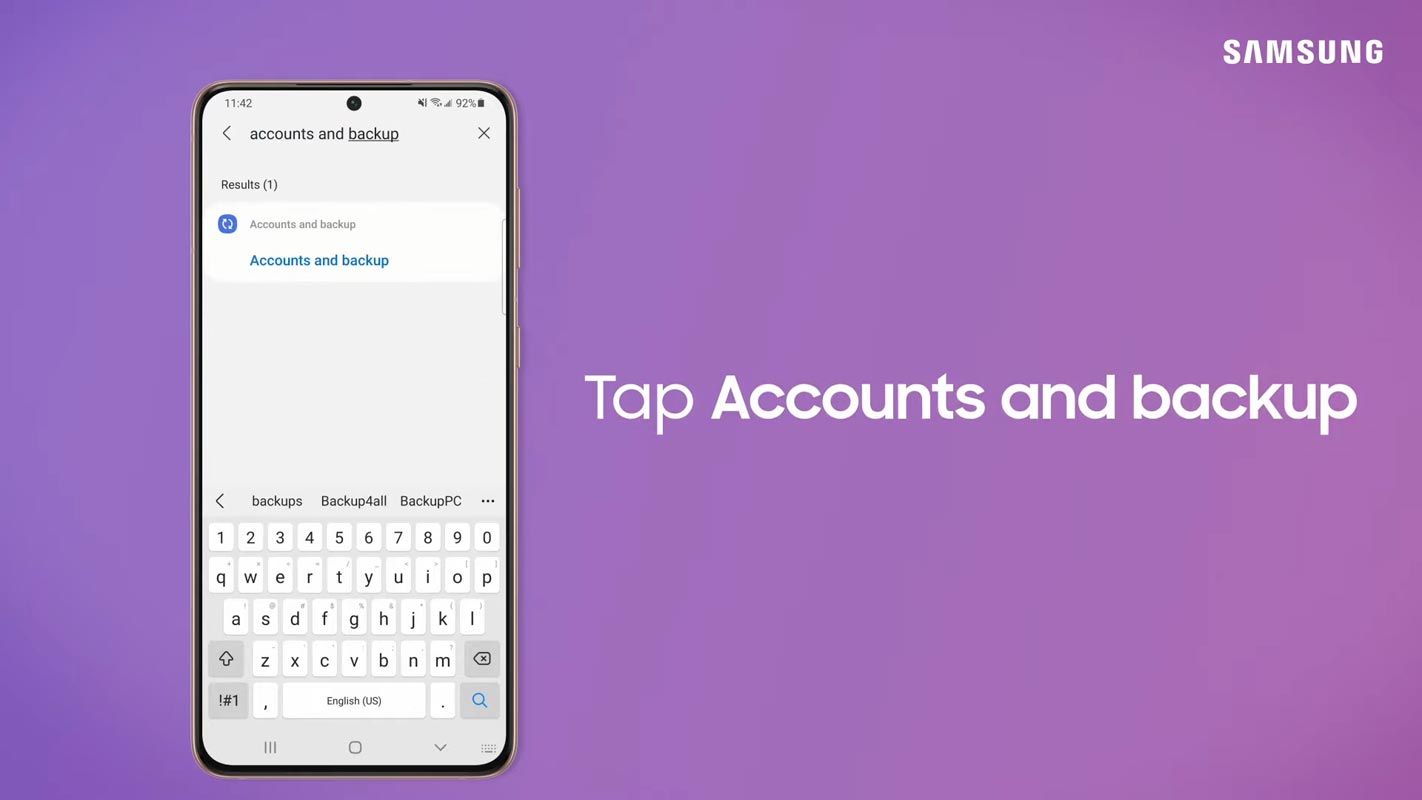
- Select Search and type “Accounts and Backup.”
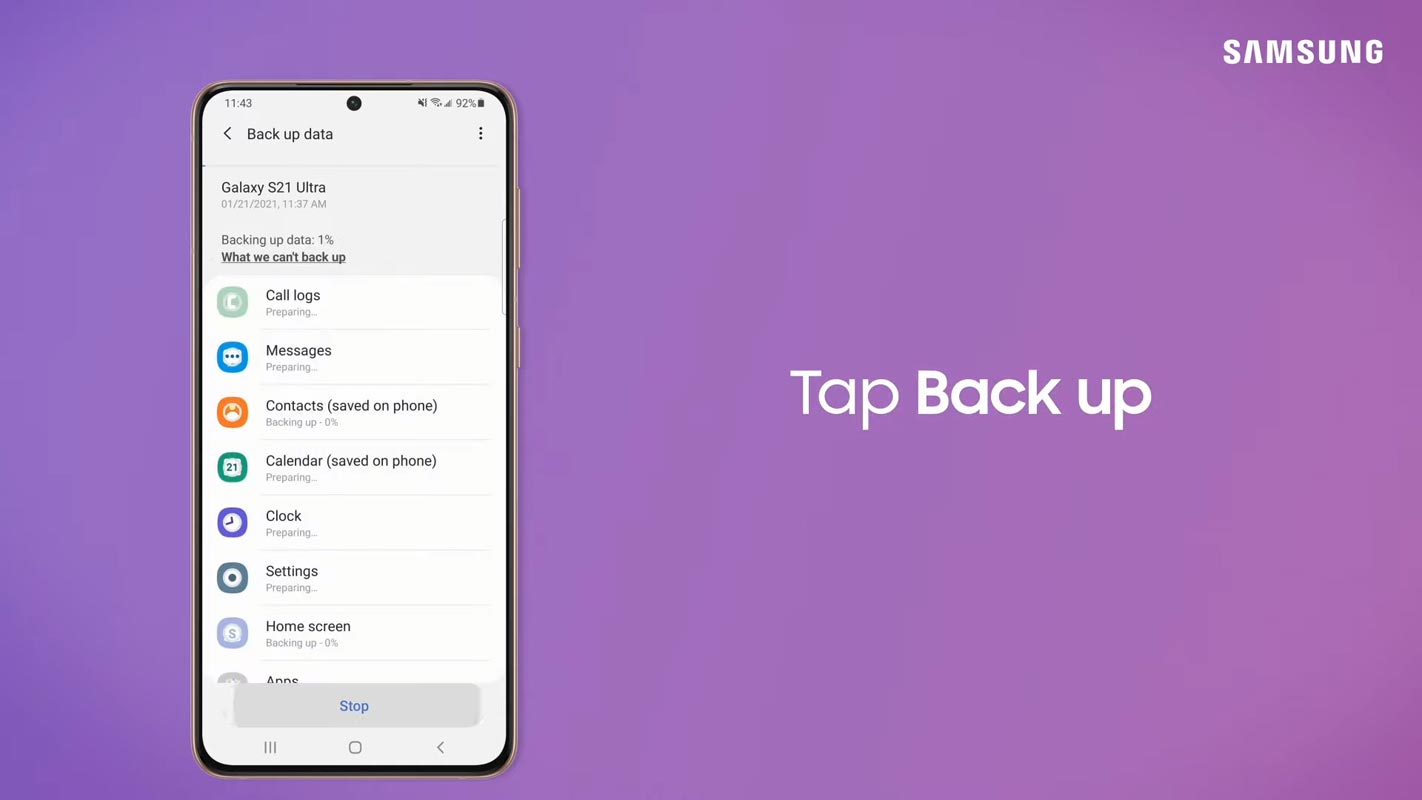
- Tap on Samsung Cloud. Choose What details you want to back up.
- From here, you can manage the following options:
- Sync: Select which apps or settings to automatically sync with Samsung Cloud, e.g., Contacts or Samsung Notes.
- Backup data: Create a device backup for future access.
- Restore: Download a previous device backup to retrieve lost data.

How to Access Samsung Cloud Storage on PC?
You can view your Cloud data on a PC using most web browsers, with Chrome recommended for the best experience.
To access Samsung Cloud on a computer:
- Open your preferred web browser and go to support.samsungcloud.com.
- Click Sign in, enter your Samsung account details, and sign in again.
- If you are uncertain about your account details, click on “Find ID” or “Reset password” after hitting the “Sign in” button.
- Once signed in, you can view all your synced data.
- To make accessing Samsung Cloud more convenient, you can bookmark the URL by clicking the Bookmark icon in the address bar.
- To log out, hover over your name in the top right corner of the page and click “Sign out.”
Fix Two Step Verification issue
You may experience 2-step verification twice when signing into Samsung Cloud through a web browser. The first time is during the initial sign-in, the same as signing into your Samsung account on your phone. You’ll receive a verification code via text message, which you’ll need to enter.
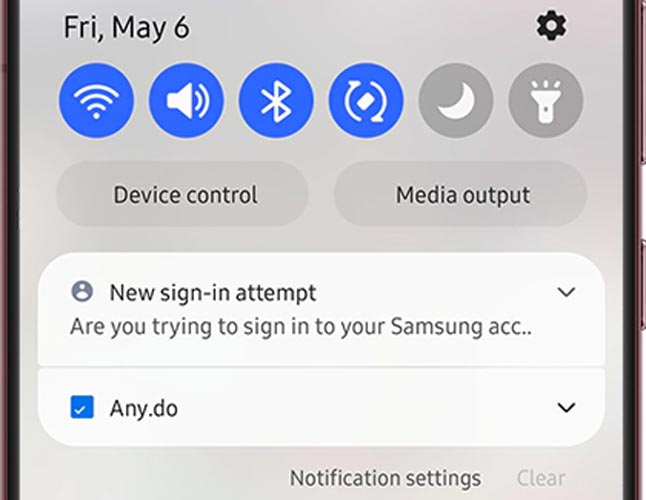
The second time occurs when you’ve signed in, attempted to access your Cloud data, and received a verification notice. The notification can be triggered by clicking “Make sure it’s really you” or may appear randomly on your phone. The information, not a text message, may take a few minutes to arrive and prompt you to “Allow access to Samsung Cloud data?” Once you tap the notification and “Allow,” you can view your data in Samsung Cloud.
Features
One of the key features of Samsung Cloud is that it provides real-time backup. This means that any changes made to the data on the device are automatically backed up to the cloud, so users don’t have to worry about manually backing up their data. The service, sufficient for most users, offers 15 GB of free storage space. Extra storage can be acquired if needed.
In addition to backing up data, Samsung Cloud also allows users to restore their data in case of a lost or damaged device. To restore data, users need to log into their Samsung account on their new device, and the data will be automatically restored.
Wrap Up
Samsung Cloud is a handy feature for Samsung Galaxy users. It provides a reliable, easy-to-use solution for backing up and restoring critical data. It is available for free with every Samsung Galaxy device. Cloud backup storage is a superior solution for storing and protecting your data. It offers numerous benefits over traditional storage methods. With cloud backup, you can access your data from any device, anywhere, and anytime. You don’t have to worry about losing it due to lost or damaged hardware.
The data is stored on secure servers maintained by professional IT teams. It provides more protection and reliability than keeping it on a physical device. So, if you own a Samsung Galaxy phone, use this fantastic feature and protect your valuable data.

Selva Ganesh is a Computer Science Engineer, Android Developer, and Tech Enthusiast. As the Chief Editor of this blog, he brings over 10 years of experience in Android development and professional blogging. He has completed multiple courses under the Google News Initiative, enhancing his expertise in digital journalism and content accuracy. Selva also manages Android Infotech, a globally recognized platform known for its practical, solution-focused articles that help users resolve Android-related issues.