
Sometimes unofficial version software works better-solving problems. When you notice Samsung mobiles can be flashed using ODIN, which is not an official software. But it works well and fixes most of the firmware issues and for rooting purposes. Even if Samsung has SmartSwitch software, It doesn’t work well on dealing with problems. The Same goes for Xioami. Most of the operations can be done using ADB and Fastboot. You can install firmware and flash image files. But when you want to flash firmware, It is better to use Xiaomi Flash Tool. It can work well with all variants and most of the Android MIUI versions. All you need to do is get the correct firmware or flash files and using Flashtool. Your work is done.
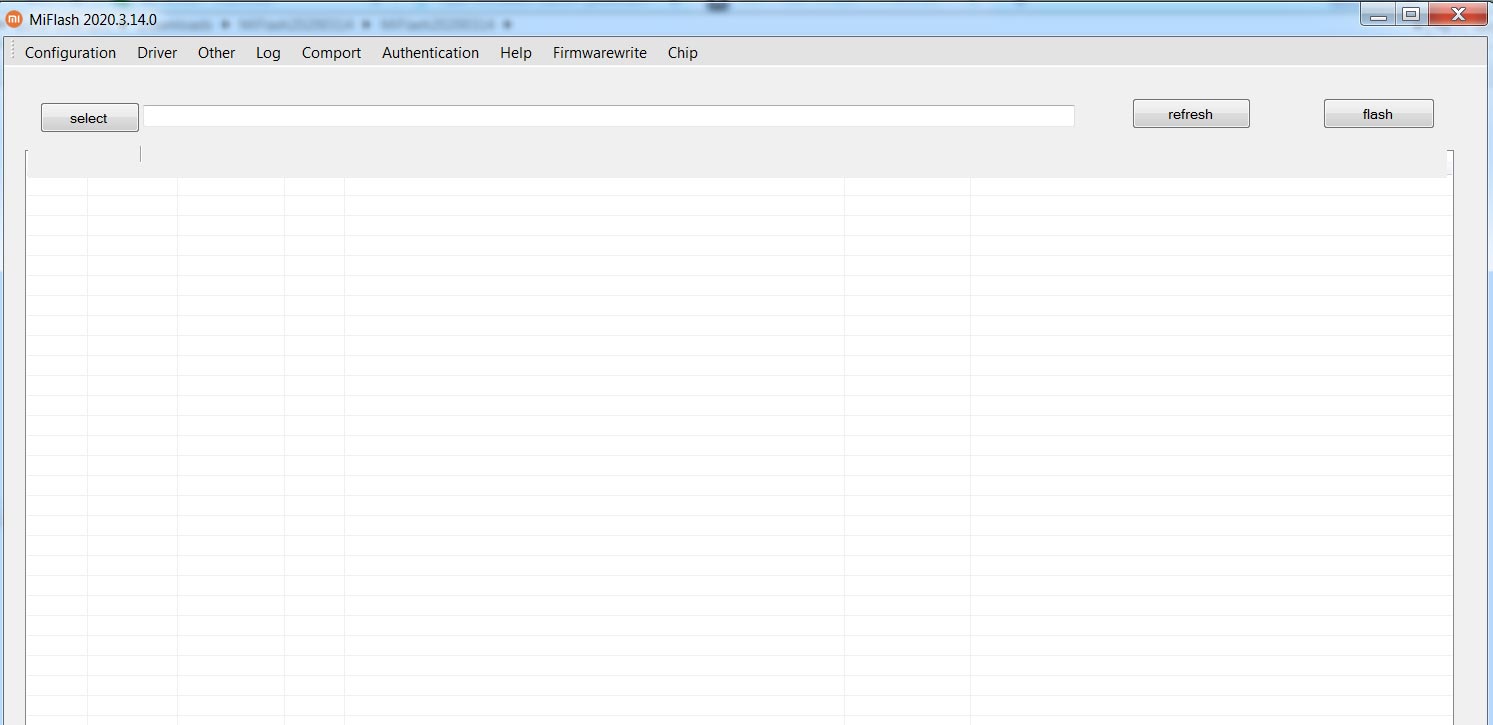
Supporting Versions
-
All Xiaomi mobiles, including the Redmi and “Mi” series, will work.

Pre-requisites for using the Xiaomi Flash Tool
To serve as a guide; before you use the Odin app to flash or root any Xiaomi mobile device, take note of the following things;
-
The Xiaomi mobile device must have a battery percentage above 50%
-
You should back up the files and everything on the device.
- Install ADB USB Driver.
Xiaomi Flash Tool Download Links
Below are the links to download the available Magisk app versions. If you can’t download the files below, you can try our AFH Mirror.
- MiFlash20200314.zip (Latest)
How to use Xiaomi Flash Tool to flash the firmware and other files
The following instructions are general. It is better to refer to the individual firmware flash tutorial.
- Download ADB drivers and install it on your PC.
- Download the Xiaomi Flash tool from the above links.
- Extract the files from the Zip.
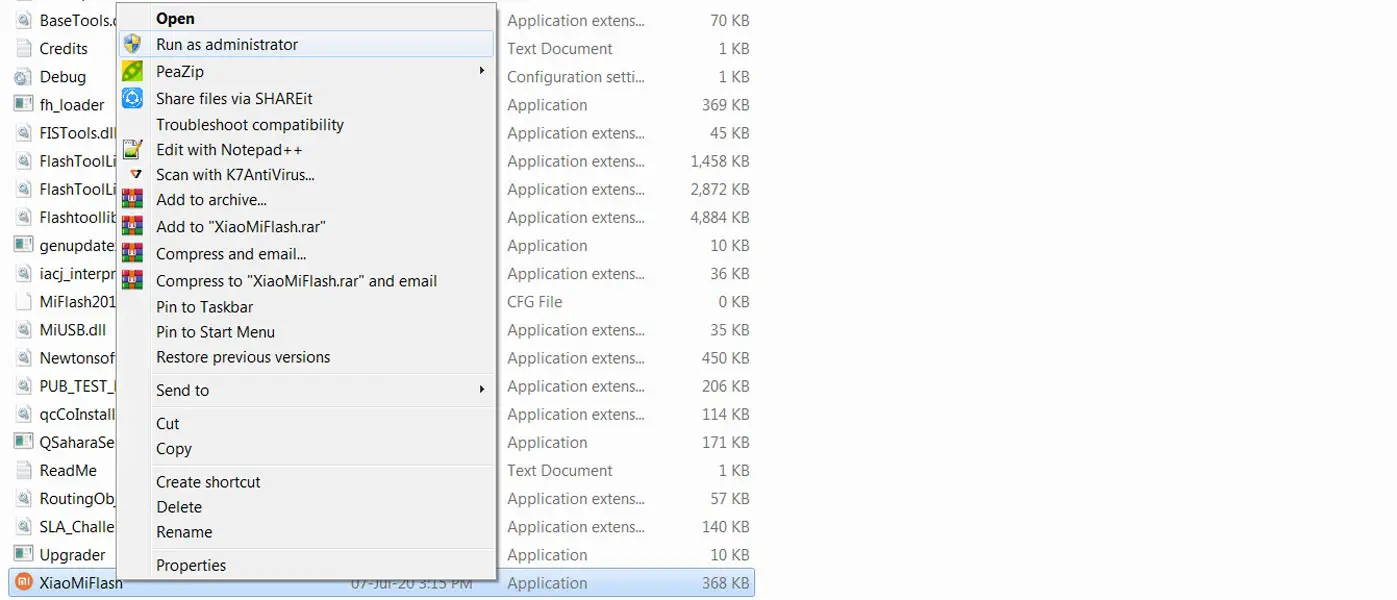
- After the extraction, Right-click on the “XiaoMiFlash” software on your PC and choose “Run as Administrator.”
- We use Administrator Because the USB driver should have the General access So that you can get the access everywhere without any folder restrictions. If you already installed the ADB drivers, you may know these kinds of issues.
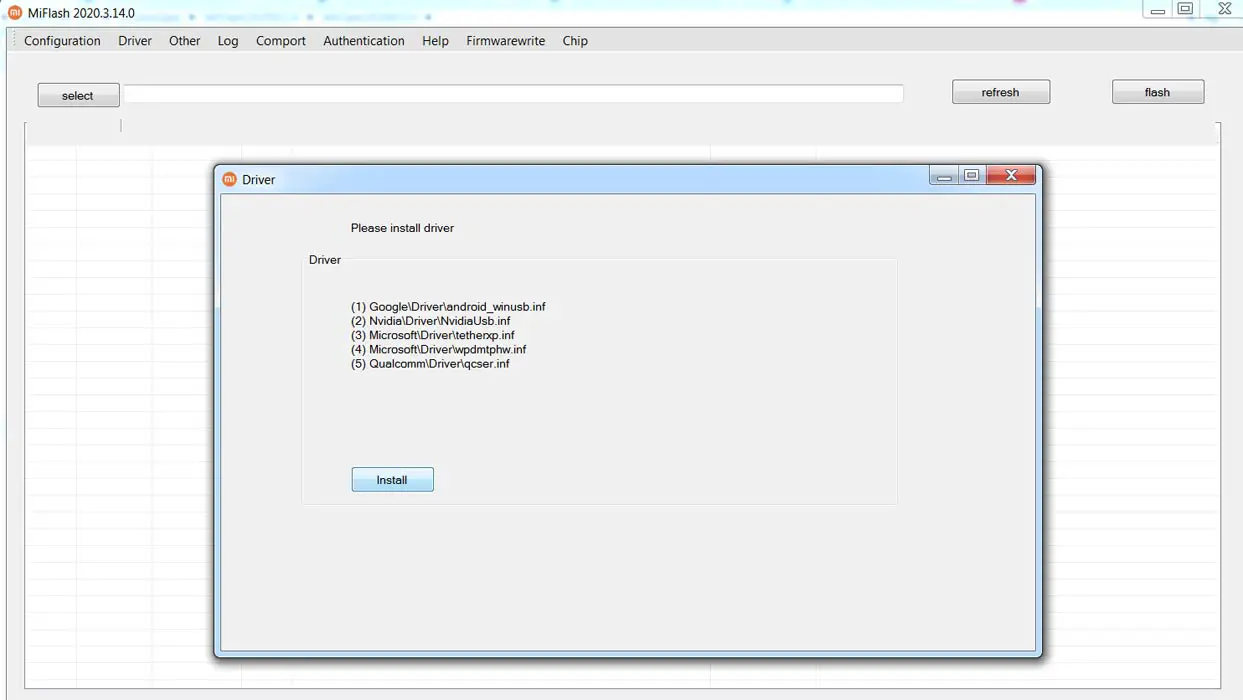
- Navigate to “Driver” and Install all the necessary Driver files.
- Download the necessary firmware for your mobile and copy it to your PC.
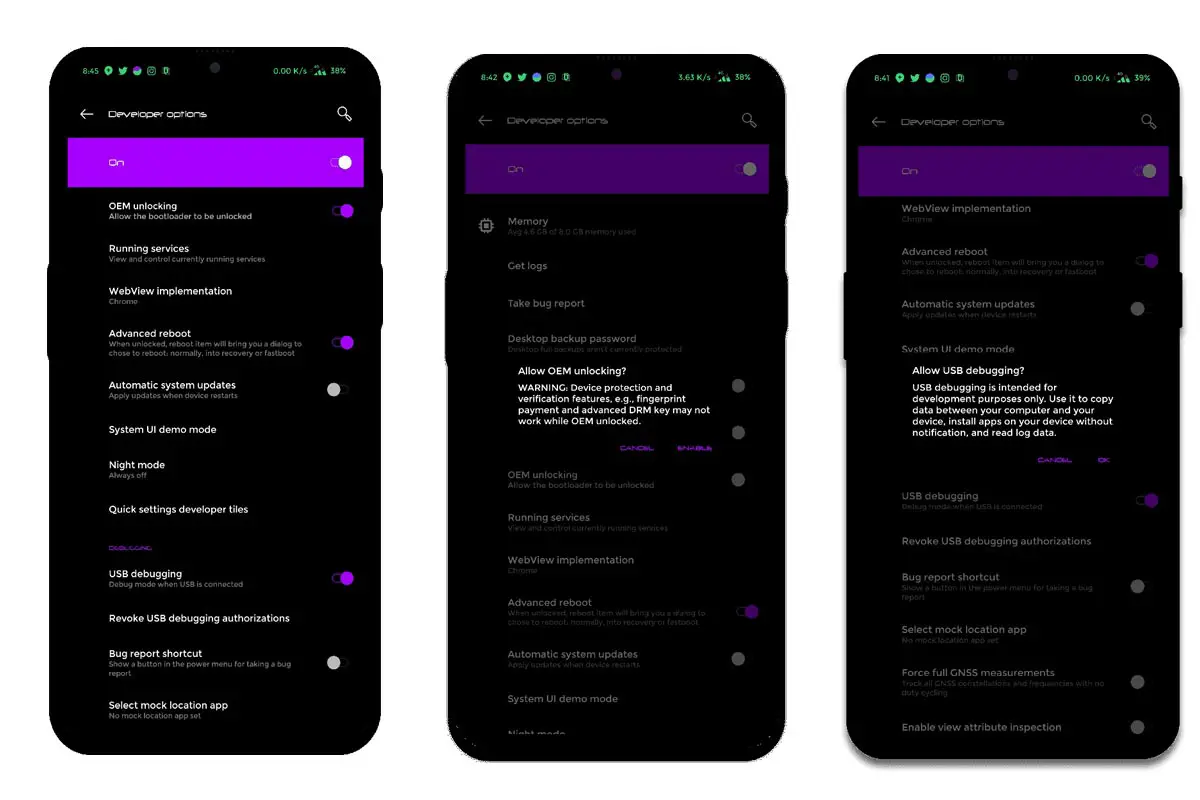
- Enable USB Debugging Mode and OEM Unlock; you’ll find these options at Settings >>> Developer options. If you didn’t see the developer options on your settings menu, then go to about >>> build number; click on the “Build Number” row for about ten times regularly to activate “Developer Option” on your mobile.
- Switch off your device. Then, enter into Fastboot mode. To do this- Press and hold down the Volume Down + Power buttons at the same time for some time.
-
Press the Volume Up button to continue when you see the warning message.
-
Now, connect the Xiaomi mobile to the computer via USB cable.
- Select “Refresh” in the app; you will get the device ID in the list.
- When you didn’t get the device, Repeat the above steps.
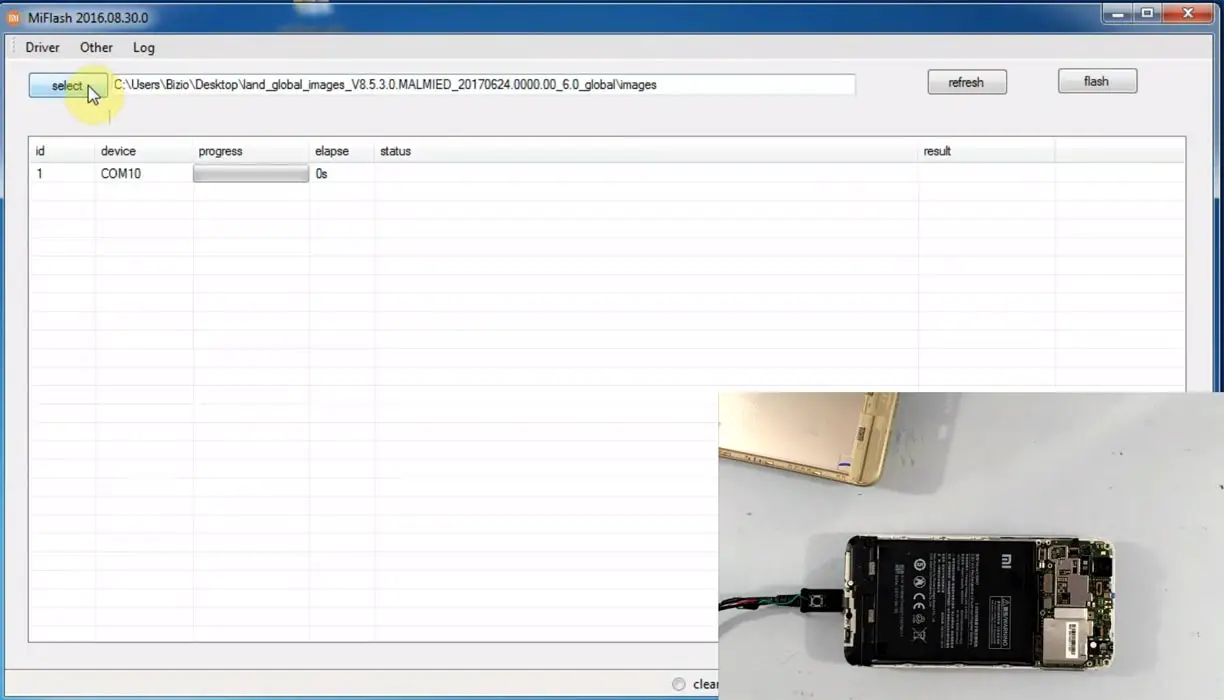
- After getting your mobile ID, Choose firmware using the “select” tab.
- Choose “save user data” in the bottom dot options.
- Now select “Flash.” The software will flash the firmware to your mobile.
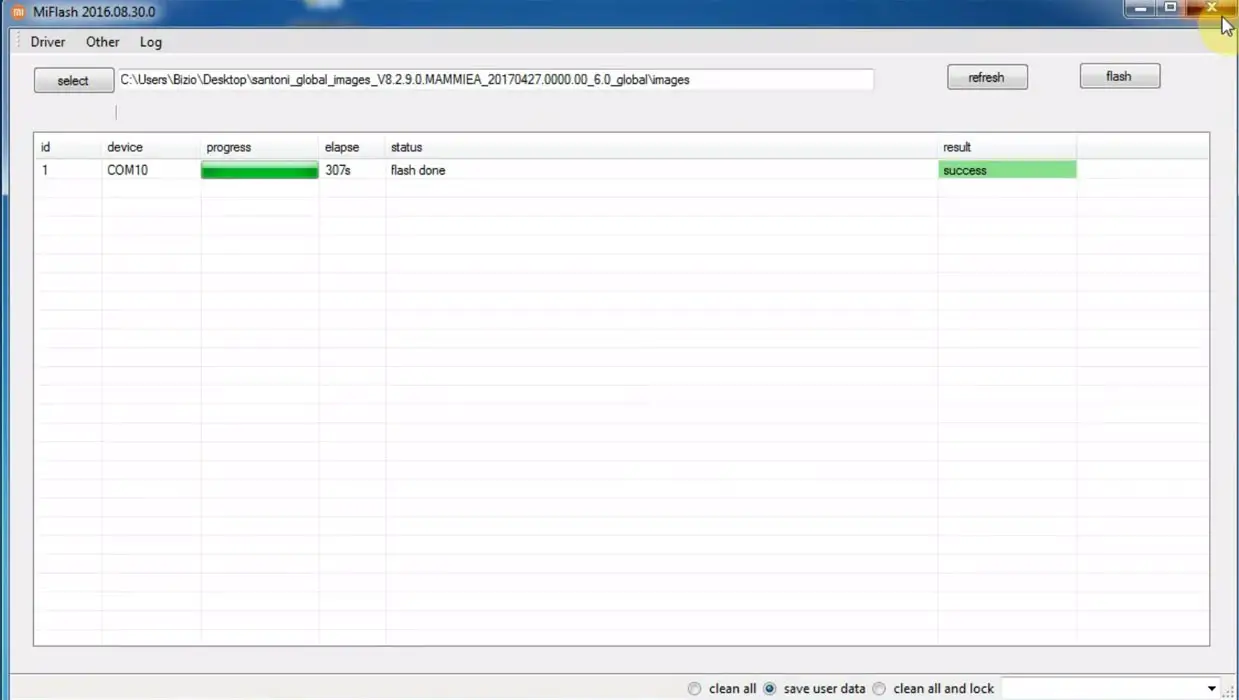
- You will get the “Success” message once the flash firmware is done.
- After the process complete, Press Volume Down+ Power button to exit Fastboot mode.
Troubleshoot
We try to give a fix for general errors. Most of the errors can be solved using the below methods.
Downloaded but can’t find the file
- Check with your download location in your browser.
- If you download using Chrome, Because of the Chrome 85 update, It may warn about the .exe file. Select the “Keep” option in the download section.
- Your security software may accidentally identify the software as non-compatible. Whitelist the USB driver file in your security software.
Installed but PC can’t detect the mobile
Most of the time, Your mobile media files can access through PC. It means we installed the driver correctly. When you can’t see the mobile logo in devices, check in the Control Panel that you install the file correctly or not if you install the file other than the OS path, Un-Install USB driver and install it again the OS driver.
Xiaomi Flash tool can’t identify the mobile
Most of the users use ODIN for flashing firmware and for root methods. For this purpose, the USB driver is mandatory. When you didn’t install the ADB USB driver, the Xiaomi Flash tool can’t check your mobile. The issue can happen for several reasons. When your Flashtool has identified your device, you will get the Device ID. When you can’t see the message, It means there is an error.
Enable USB Debugging
-
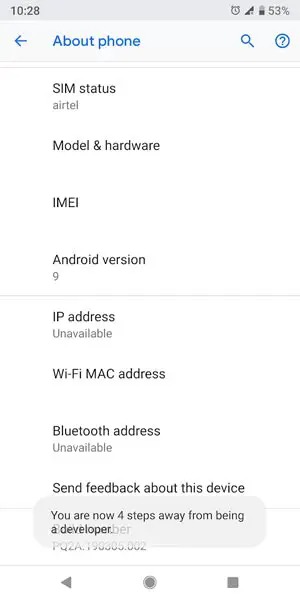
Enable USB Debugging Mode and OEM Unlock on your mobile. To do this; go to settings >>> about >>> Tap on the “Build Number” 7-10 times consistently to enable “Developer Options” then go to the “Developer Option” and enable USB Debugging Mode and OEM Unlock. There is no complicated process in the Xiaomi mobiles.
Use Different USB Cable
Not all USB cables are eligible for data transmission. Some lines are only capable of charging. Always try with official Xiaomi cables or High-Quality Cables.
Un-Install Xiaomi Flash tool
All of this Xiaomi Flash tool files can run without installation. But If you installed an executable file, You can Un-Install using the below method. In some situations, when you install more than one Flash Tool, It may create conflict. To avoid this, We have to Un-Install one of the Flash Tool. Check the availability in the control panel and remove it if you find more than one.
- You can remove the installation in Control Panel> Programs> Programs and Features. Based on your version installation, You can find the file name.
- After Selecting the file name, Choose “Un-Install.”
- You will get the dialogue Box with the Remove option.
- Choose “Remove.” You will get the message after the successful removal.
Wrap Up
Even if Xiaomi selling affordable mobiles, The problem with Xiaomi phones is software. There is no proper software for flashing firmware. So, We have to use third-party apps for flashing methods. Using the above Xiaomi Flash tool, we can flash any range of mobile from budget to flagship mobiles. When you use Android One Xiaomi mobiles like A1 or A2, You can try with the adb sideload method. The above process may not work for you Since it is a Stock Android mobile. For any Xiaomi mobile that using custom skin OS like MIUI, the above Flash Tool will work well when you face any issues during the installation, Comment below.

Selva Ganesh is a Computer Science Engineer, Android Developer, and Tech Enthusiast. As the Chief Editor of this blog, he brings over 10 years of experience in Android development and professional blogging. He has completed multiple courses under the Google News Initiative, enhancing his expertise in digital journalism and content accuracy. Selva also manages Android Infotech, a globally recognized platform known for its practical, solution-focused articles that help users resolve Android-related issues.