
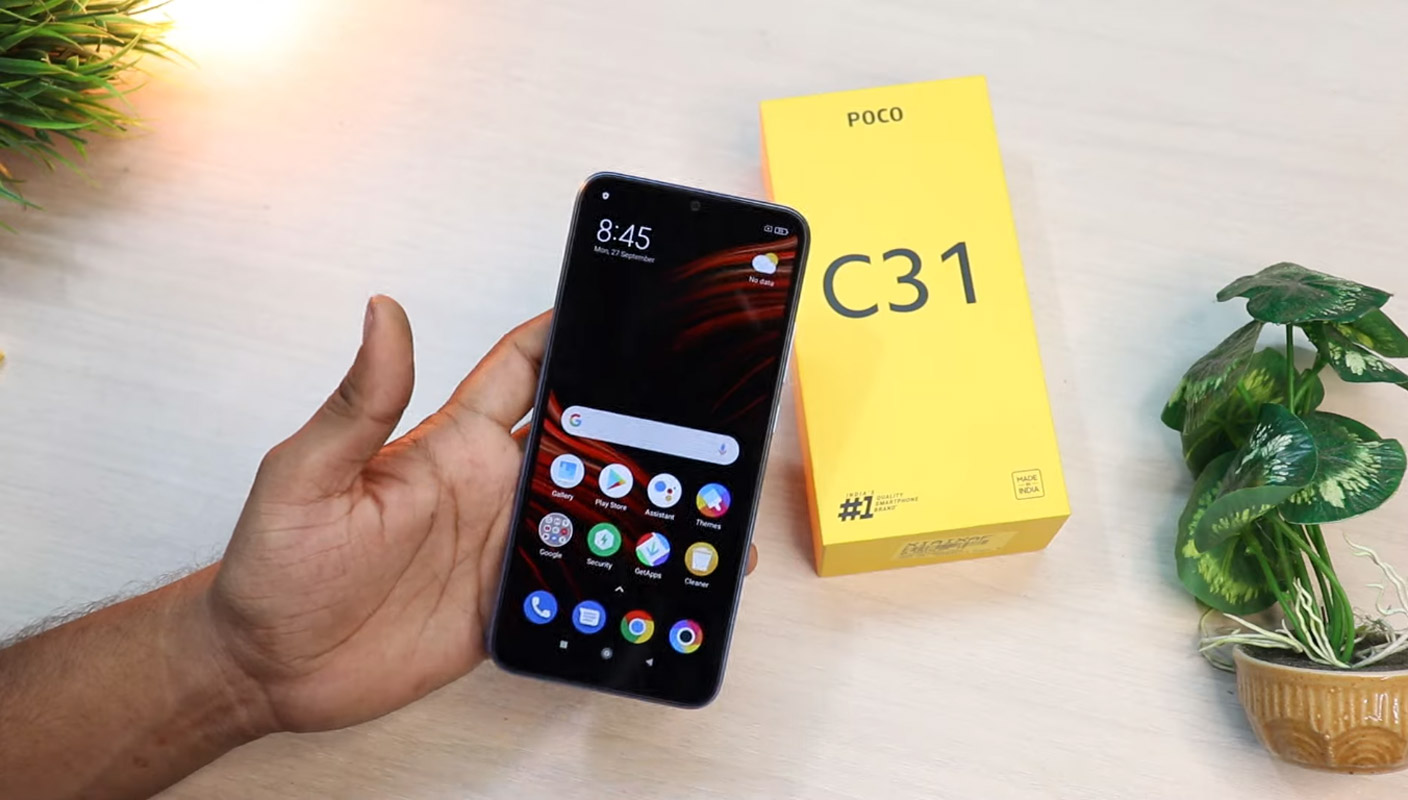
Initially, Xiaomi planned to keep the Poco like a OnePlus mobile where they deal with budget flagship phones. But, Due to market trends and price, they also have to jump into mid-range mobiles. Xiaomi Poco C31 is a mid-range mobile with decent specs. It comes with an Android 10 based MIUI 12 version. Since Xiaomi Poco C31 already comes with the Android 10 version, You don’t need to update your mobile manually. But when you face any issues during the regular OTA method, you can use one of the below methods to update your mobile.
If the Internal way does not work for you, try the Xiaomi Flash Tool process. Most of the time, it gives you a high success rate. When you accidentally bricked your mobile, you can use the Xiaomi Flash Tool method. You can use this method to Remove root access from your mobile and bring back Stock Recovery. There are a lot of features like Adaptive Brightness, Adaptive Battery, and a Lot of UI enhancements.
Xiaomi Poco C31 MIUI 12 Android 10 ROM Firmware Flash (angelicain)
Official OTA Method
If you’re going to update a security patch to the current month, don’t go for the manual method. Try this Automatic method.

The process is straightforward;
-
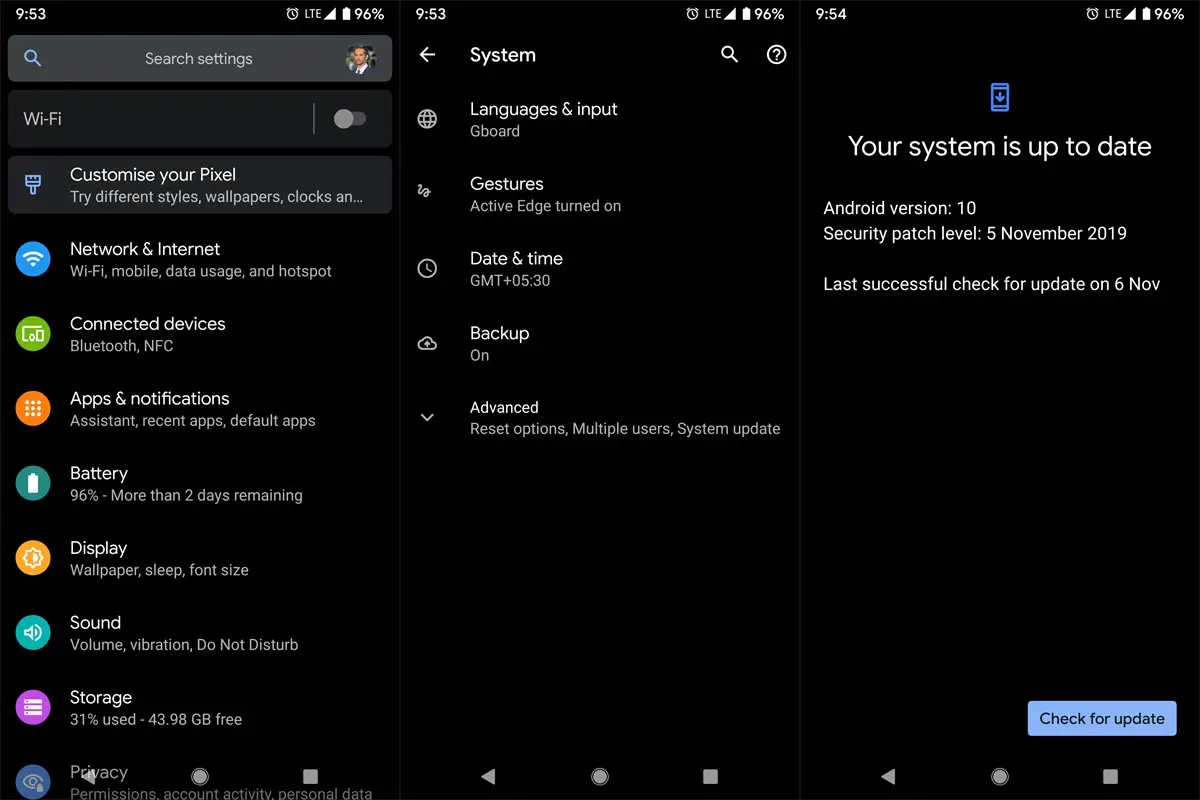
Go to your device setting menu and scroll down to the bottom.
-
Tap on “Software Update”
-
You may have to refresh the page to start the OTA upgrade process.
Xiaomi Poco C31 MIUI 12 Android 10 ROM Flash Manual Method (International Variants)
Note
- Check Your Device Mobile No. If you flash a Different model number, you will lose some features based on your region.
- Battery Percentage Above 50.
- Backup Your Device.
Download Firmware
Using Internal Memory Method
This method doesn’t require PC support, download, and installs within your mobile. It will work only with Stock firmware installed on your mobile. If you are already using Custom OS, move to the following method.
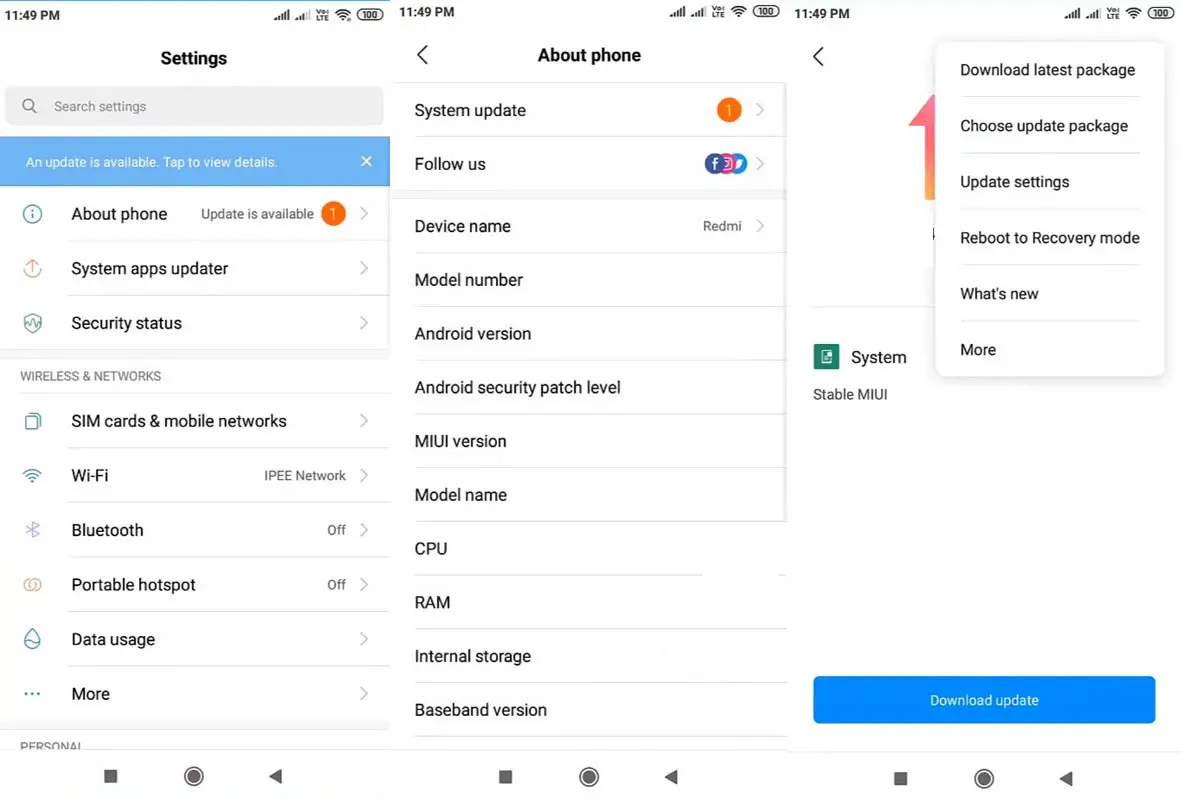
- Copy downloaded firmware to your mobile, and copy it to your Internal Root Memory. Copy>> Internal memory. Please don’t put it in any folder, and Don’t change the file’s name.
- Now Go to settings >> About Phone >> System Update.
- Select the three-dot icon and select the “Choose update package.”
-
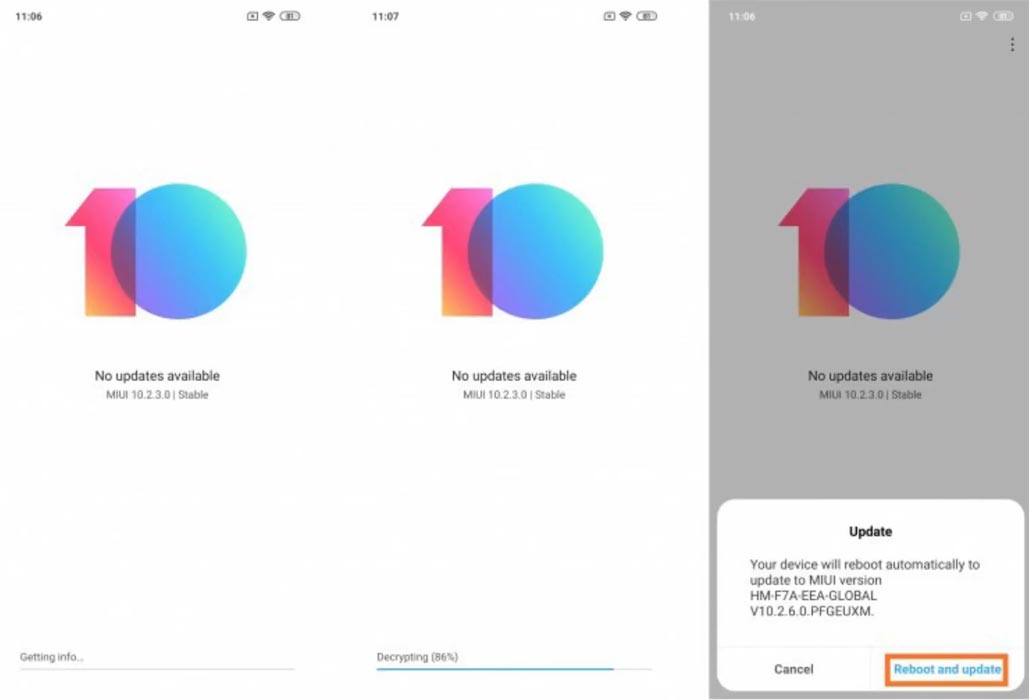
Select the firmware file from your file and select it and update it.
-
The file will automatically install once the decryption process is over.
-
Your mobile will reboot automatically and do the update process. Instead of downloading from Server, this update process will update your Internal memory.
Stock Recovery Method
- Download firmware from the above link and copy it on your mobile.
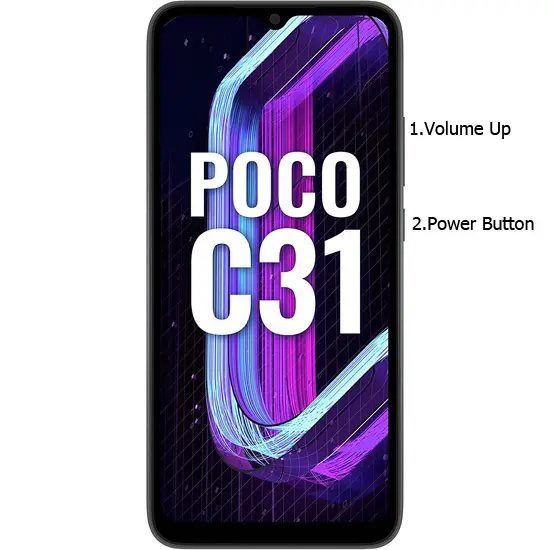
- Switch off your device. Then, enter into Recovery mode. To do this, press and hold down the Volume Up+ Power buttons simultaneously for some time.
-
Press the Volume Down button to continue when you see the warning message.
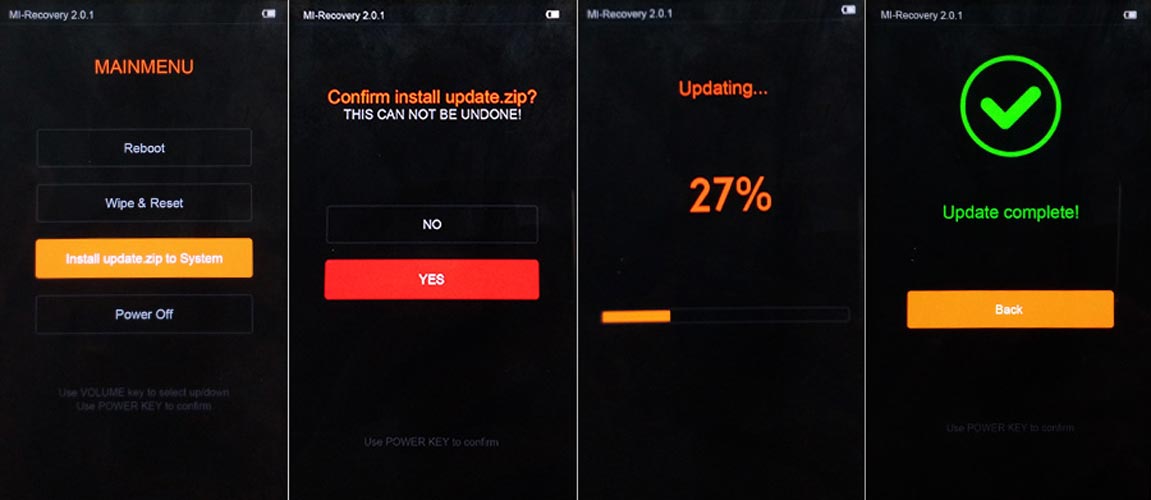
- Select “Install update.zip to the system.” select the storage where you downloaded your firmware file.
- Wait for the process to complete. Don’t interrupt your mobile during the process.
Xiaomi Poco C31 MIUI 12 Android 10- Xiaomi Flash Tool Method
We can use this method to flash firmware if you use Custom ROM or a rooted device. It would be best if you had a PC for this process. If you are already rooted or have Custom OS, your bootloader is unlocked. But if you relocked your bootloader, you should unlock the bootloader. After unlocking, Follow the below steps one by one carefully.
Unlock Xiaomi Poco C31 Bootloader using ADB and Fastboot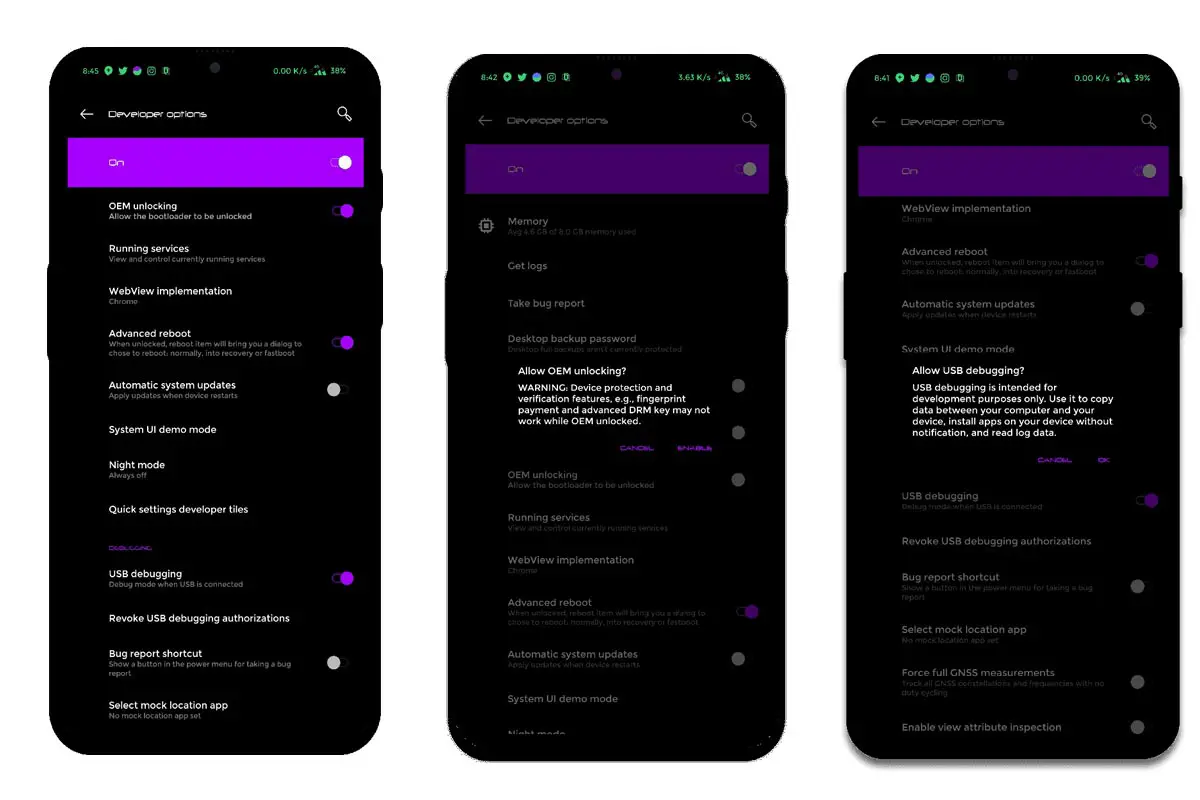
-
Enable USB Debugging Mode and OEM Unlock on your mobile. To do this, go to settings >>> about >>> Tap on the “Build Number” 7-10 times consistently to enable “Developer Options,” then go to the “Developer Options” and enable USB Debugging Mode, OEM Unlock. There is no complicated process in Xiaomi Poco C31.
-
Also, download the ADB drivers. Install it on your PC.
- Go to the official Mi Bootloader Unlock website and log in with your Mi Account.
- Enter your Mobile details like phone number, IMEI, reason. You will get the confirmation code on your mobile. Enter the confirmation code on the Mi website and request for unlocking. You will receive a confirmation mail after the approval in 2-10 Days.
-
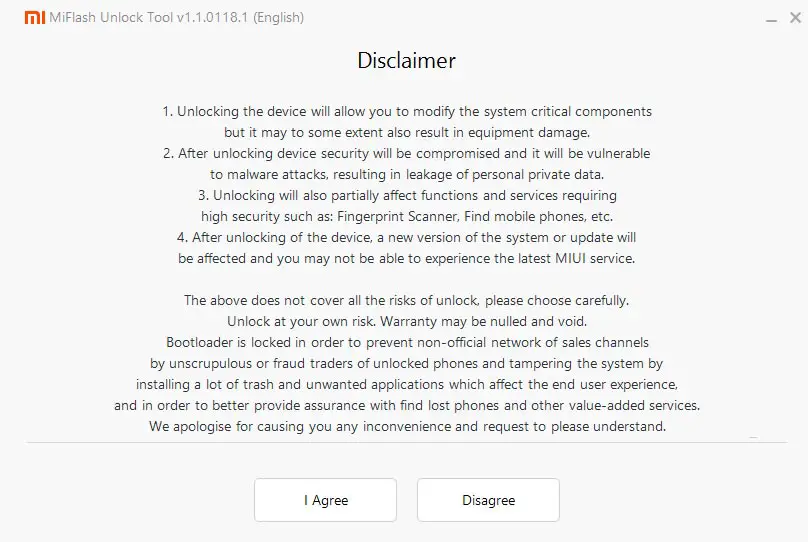
Install the Mi Flash Tool in the received mail. Log in with your Same Mi Account, which is used to get the software.
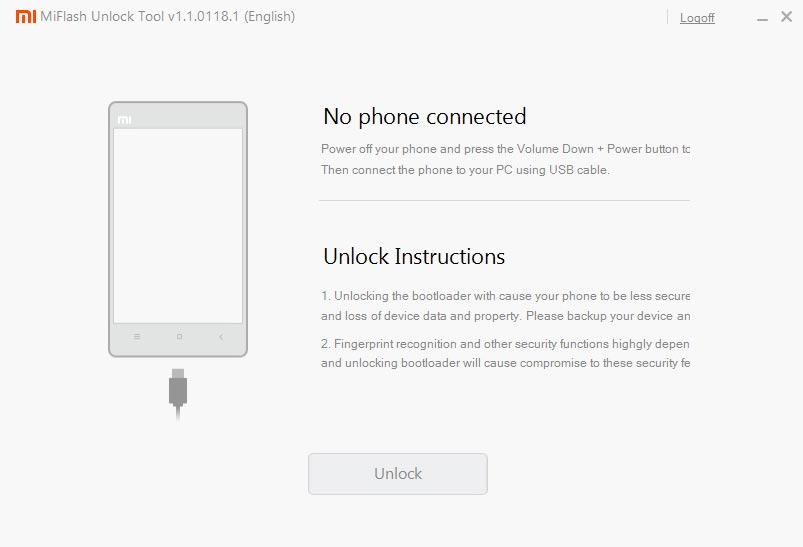
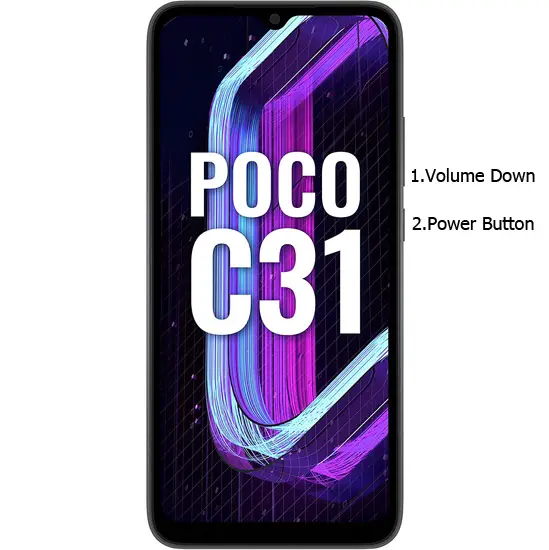
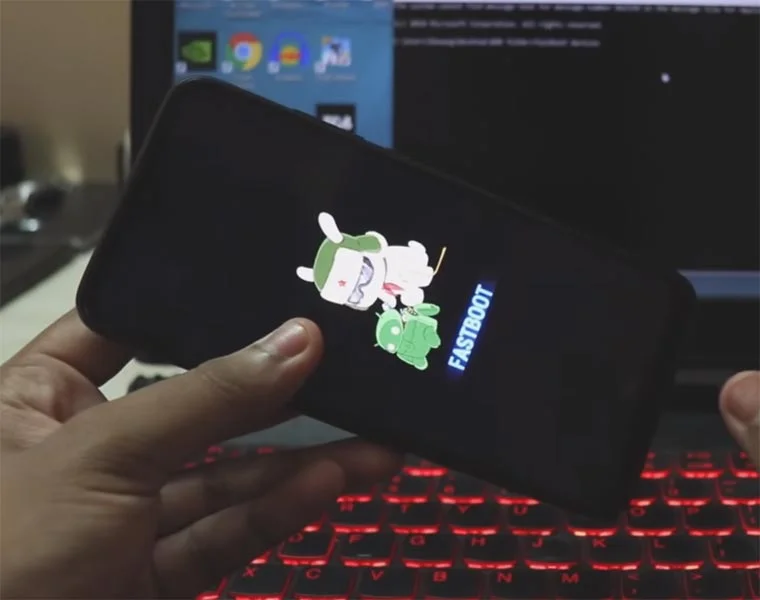
- Switch off your device. Connect your mobile to the PC. Then, enter into Fastboot mode. To do this, press and hold down the Volume Down + Power buttons simultaneously for some time. It will boot your mobile into Fastboot mode.
-
After you successfully boot into Fastboot mode, Select Unlock. It will take 2-3 minutes to finish the process. After the successful process completion, Reboot your mobile.
-
Check again to enable “Developer Options,” then go to the “Developer Options” and enable USB Debugging Mode, OEM Unlock. Sometimes they disabled themselves after the boot.
Flash Xiaomi Poco C31 Android 10 Firmware using Xiaomi Flash Tool
- Download the Xiaomi Flash tool.
- Extract the files from the Zip.
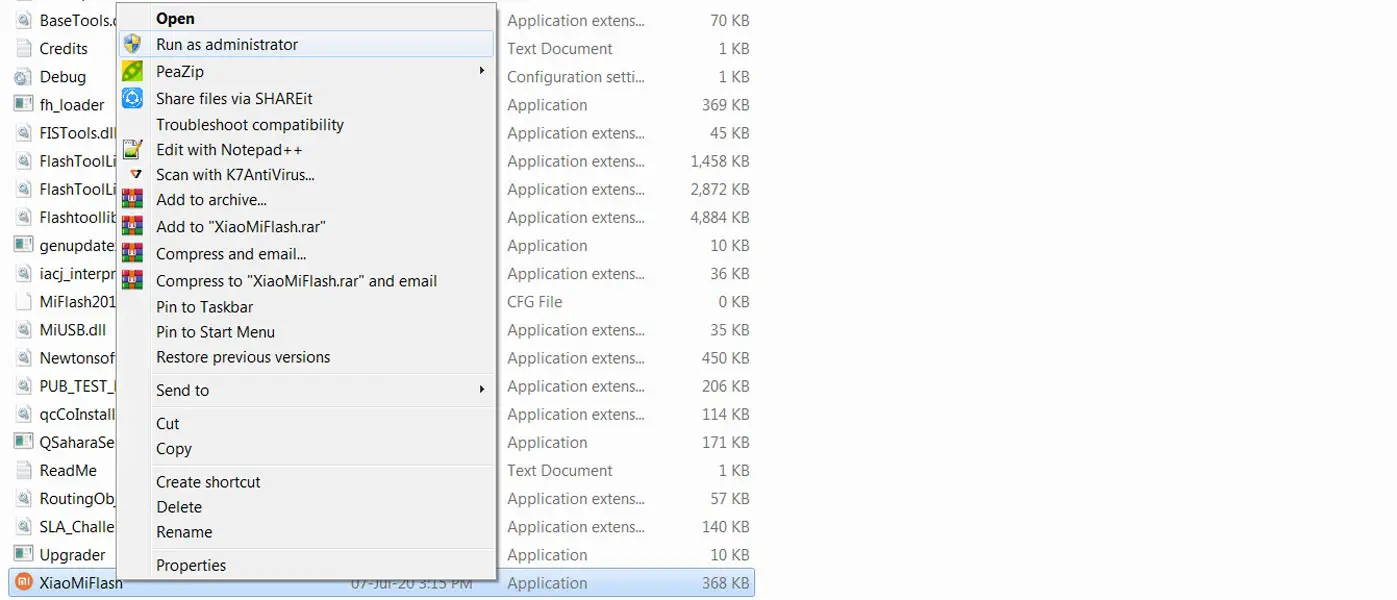
- After the extraction, Right-click on the “XiaoMiFlash” software on your PC and choose “Run as Administrator.”
- We use Administrator Because the USB driver should have General access To get access everywhere without any folder restrictions. If you have already installed the ADB drivers, you may know these issues.
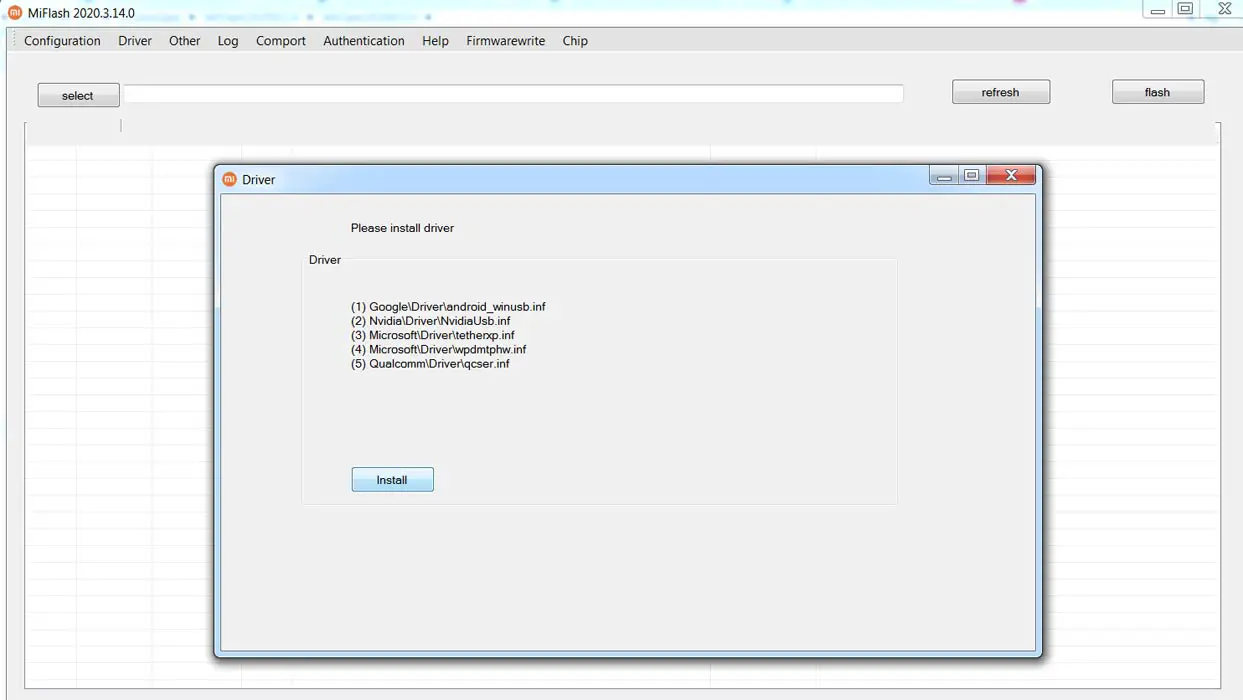
- Navigate to “Driver” and Install all the necessary Driver files.
- Download the necessary firmware for your mobile and copy it to your PC.
- Switch off your device. Then, enter into Fastboot mode. To do this, press and hold down the Volume Down + Power buttons simultaneously for some time.
-
Press the Volume Up button to continue when you see the warning message.
-
Connect the Xiaomi Poco C31 mobile to the USB cable computer.
- Select “Refresh” in the app; you will get the device ID in the list.
- When you didn’t get the device, Repeat the above steps.
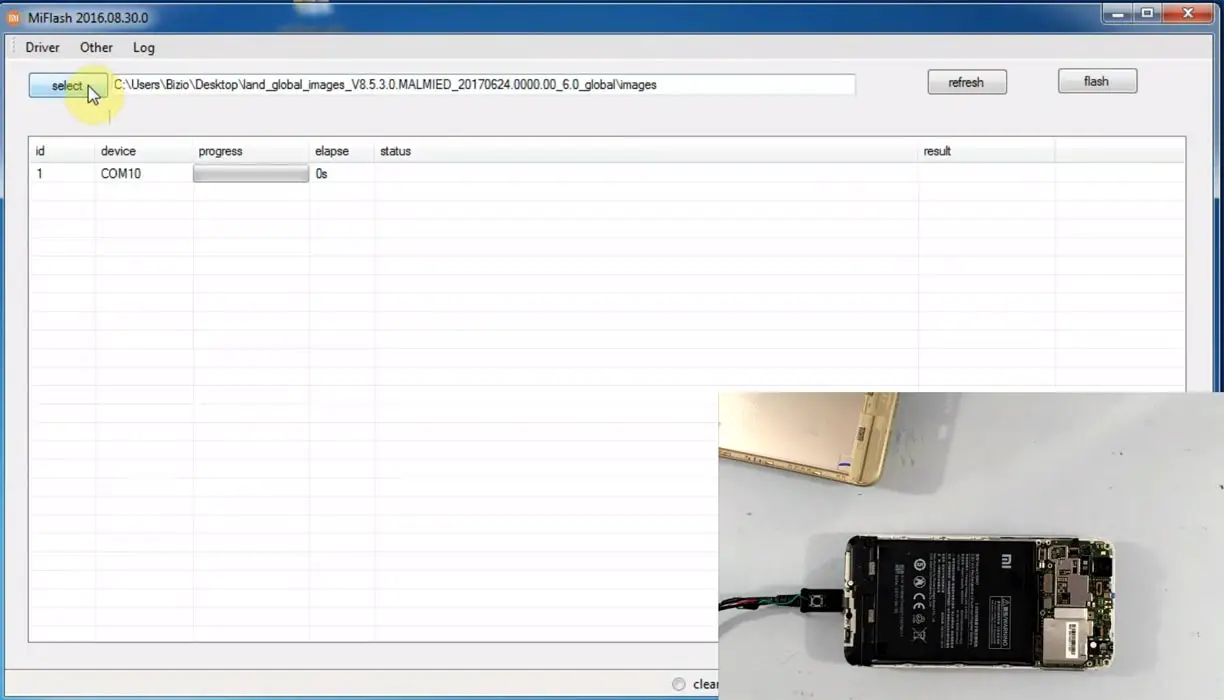
- After getting your mobile ID, Choose firmware using the “select” tab.
- Choose “save user data” in the bottom dot options.
- Now select “Flash.” The software will flash the firmware to your mobile.
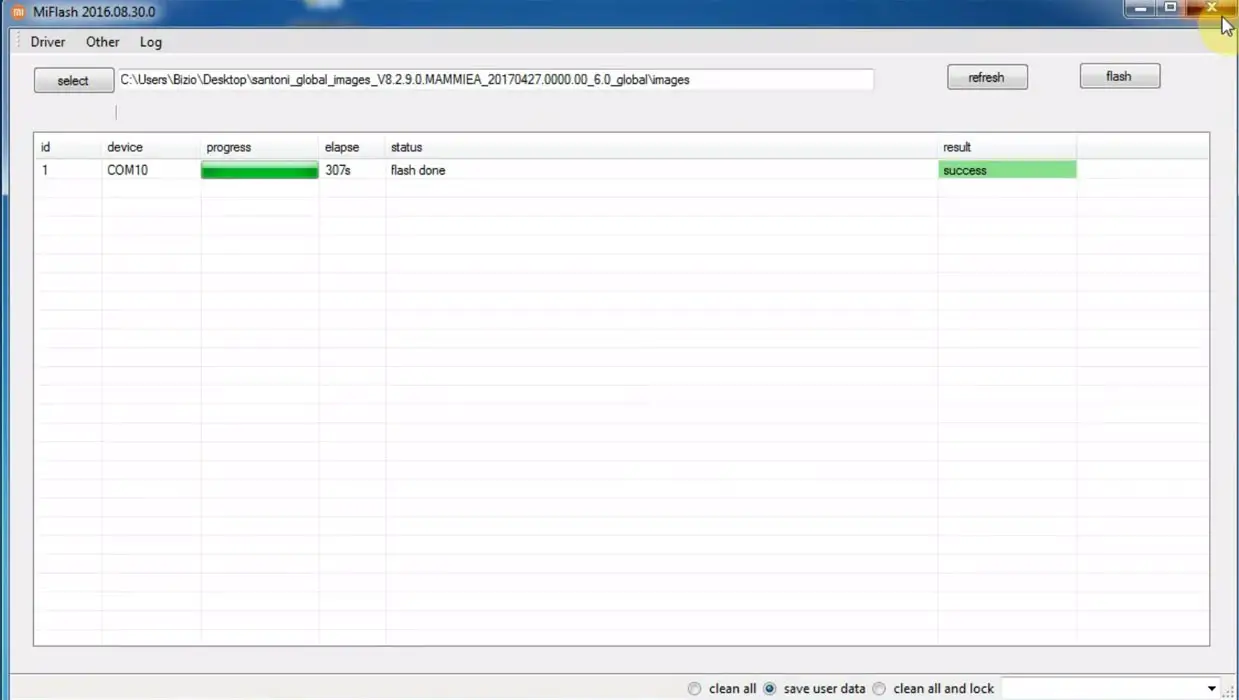
- You will get the “Success” message once the flash firmware is done.
- After the process is complete, you must press the Volume Up+ Power button to exit Fastboot mode.
- You can Check the Firmware Details->Settings->About->Version.
Xiaomi Poco C31 MIUI 12 Android 10 Features
There are plenty of features added in the Android 10 based MIUI 12 version compared with the MIUI 11 version. Here I mentioned some important features. MIUI 12 comes with both exclusive Xiaomi and Android 10 general features.
MIUI 12 Features
Here I will mention only features not available in other mobile manufacturers’ Android 10 versions, exclusive to Xiaomi mobiles.
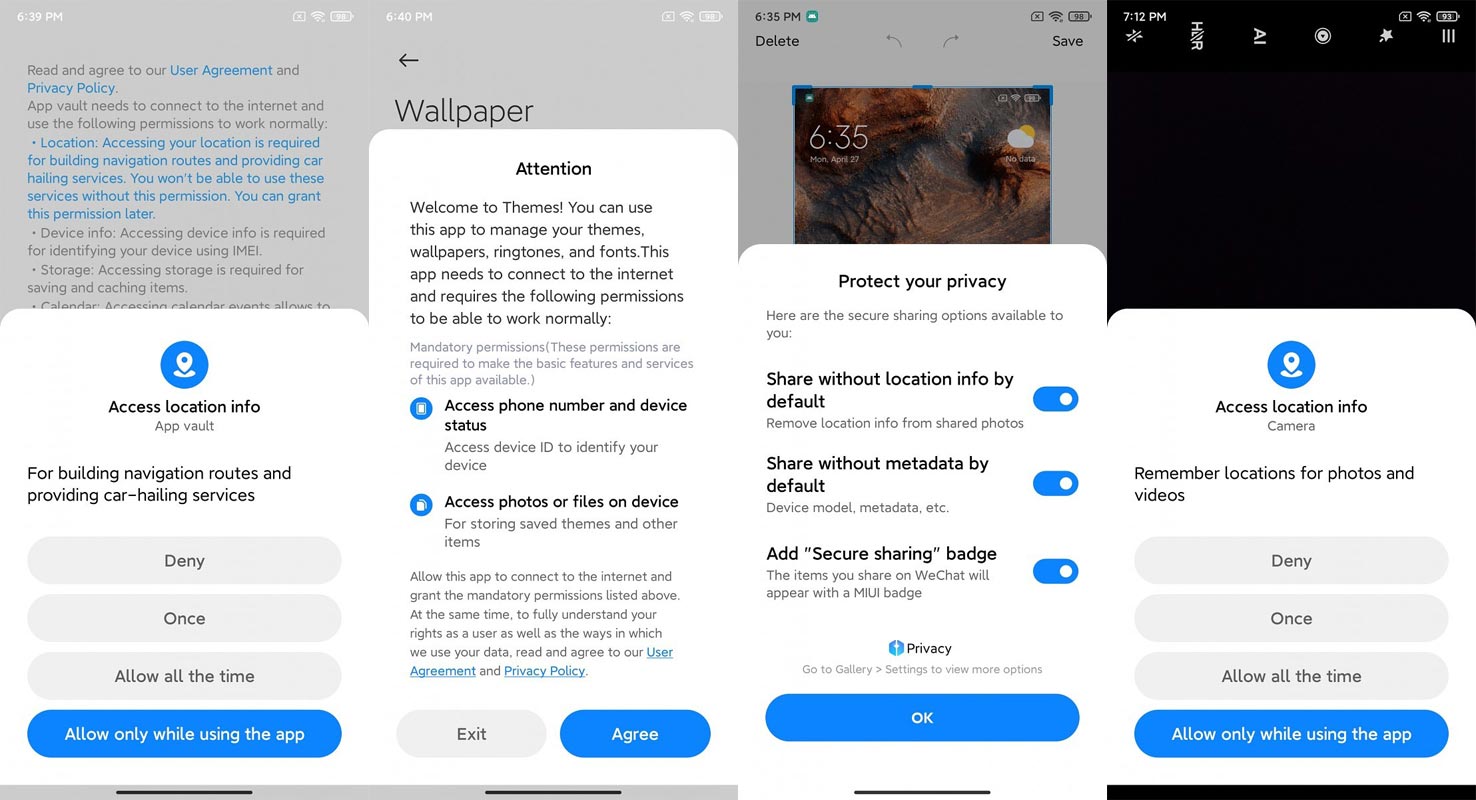
Improved Privacy features
From Android 10, every mobile manufacturer takes privacy as a serious concern. But MIUI 12 is more accessible, and you have complete control over system apps. Xiaomi also has security features.
Mi Share
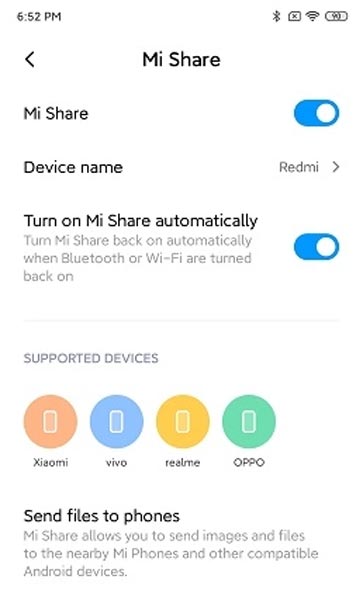
It is an Airdrop alternative from Xiaomi. You can send the files to Xiaomi, Oppo, Vico, and Realme phones. The list will increase to other manufacturers in the future.
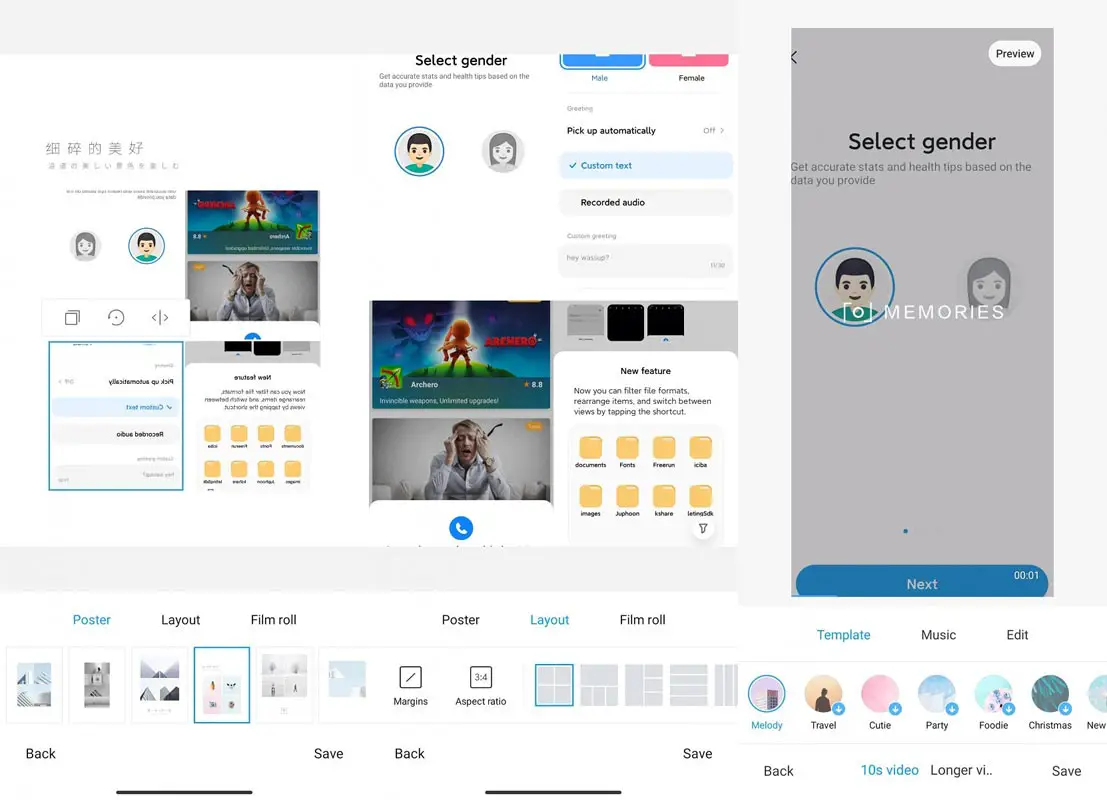
File Manager Memories
File Manager can now show Memories like Google Photos. Based on your Photos and video date, It can produce random reminder-based videos or slideshows.
Ambient Display Customization
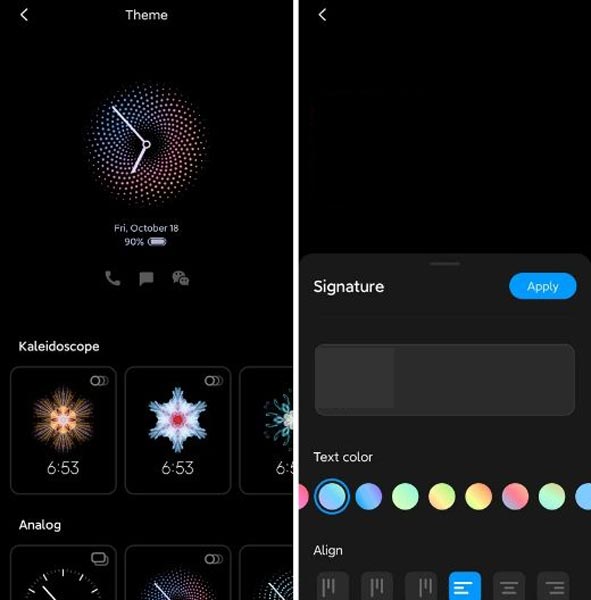
The ambient display views necessary notifications and time while saving battery power. Because of this, most of the mobiles stick with minimal setup. While preserving the power in MIUI, you can customize the display.
File Manager Improvement
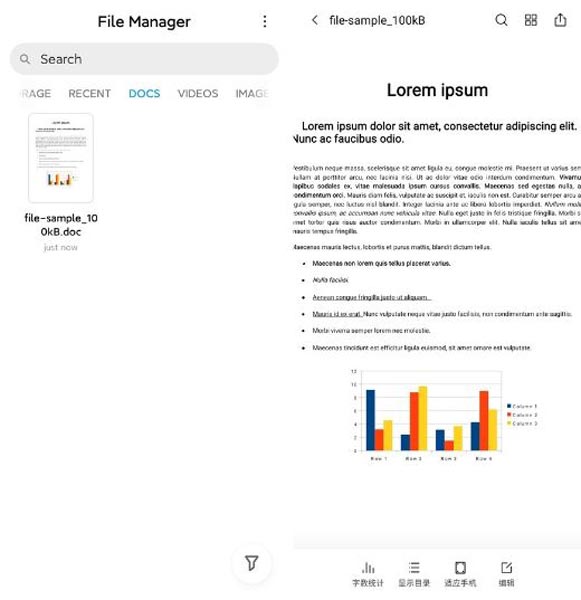
With the new File Manager, you don’t need third-party apps to open the document files. It can spread most PDF, Word, and other document types without additional apps.
Tasks Tab in Notes
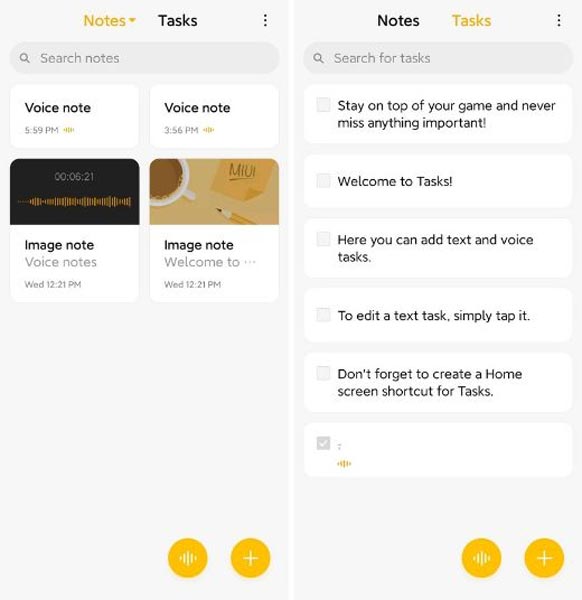
Now you can add tasks in your Notes app. You can use Notes for simple reminders and shopping lists. We can use functions before travel preparations; they may not have features like Google Keep and Tasks. But We can use native apps for minimal tasks.
Disable All Sensors
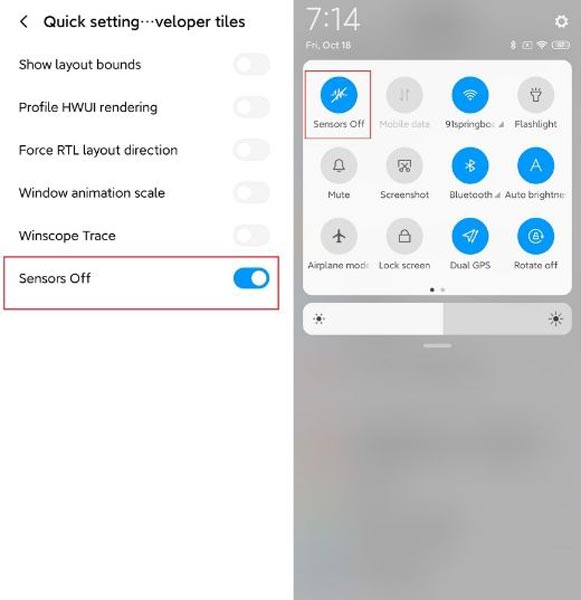
Putting your mobile into Flight mode will disable the Network antenna and other sensors. But It will not disable all sensors. In rare situations, you may need to disable all your mobile Sensors. Using this new MIUI feature, you can do the process. Even if it may not help most users, the part is there.
Live Caption
-
You know this already; if you turn on Subtitles on Youtube, It will auto-generate the captions. It Doesn’t require Wi-Fi/ Data. We can work on the Same functionality all over your device videos. This feature is not yet available. But, It will be rolling out soon.
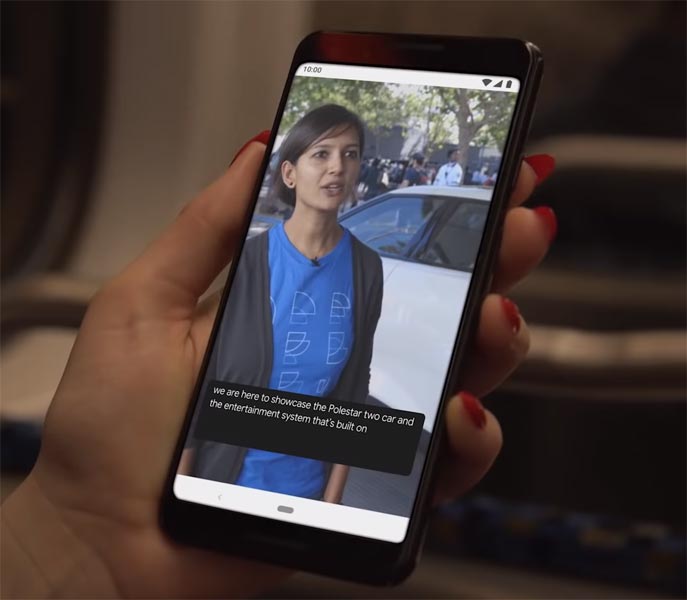
-
The language limit depends on Google Data.
Smart Reply
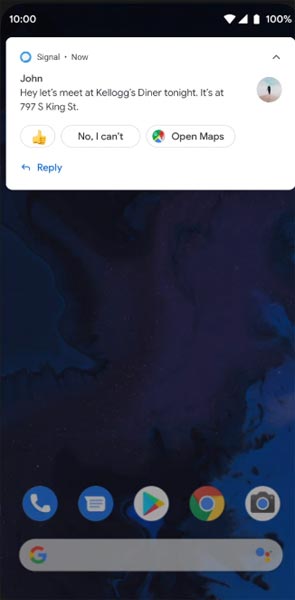
-
It is already available in the Pie version. But it is limited. Now you can explore more actions when you get the messages. You can Open Links, Open Apps based on the Messages.
Sound Amplifier
-
Now we can adjust the Volume and Tune, Equalize using the in-built feature. You can do many things like Reduce noise, Enhance the Tune like that. We always do this using Third-party apps.
Enhanced Gesture Navigation
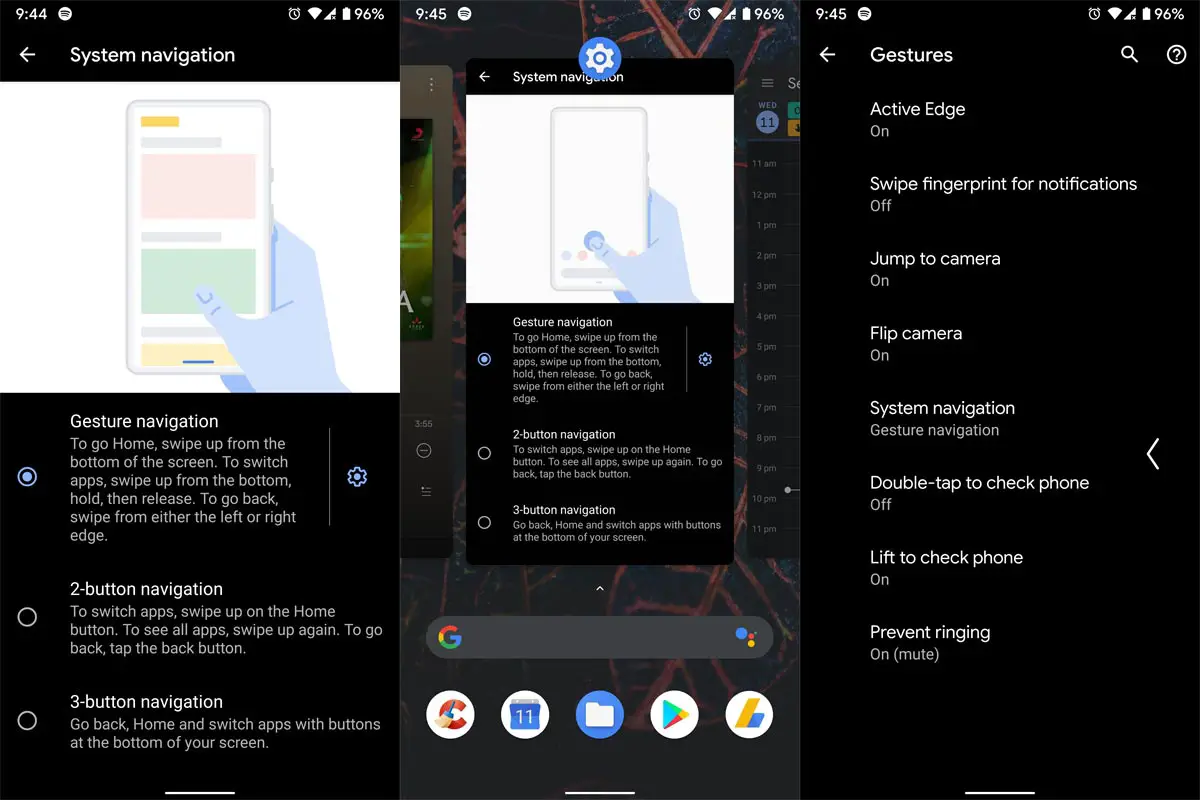
-
The True Gesture Navigation has finally arrived. It may not be best compared with OnePlus devices, But It is way better than the Pie 9.0 version. If you swipe From Left to Right, It goes forward. Right to Left goes Backward. Home button work as usual. You can access recently used apps By Swiping Quarter Screen to the Top. Simple Navigation to avoid confusion.
Dark Mode
-
It is not like Night Mode. It didn’t add a filter on display. If you have OLED Display, It will surely save your battery power from 5-30% based on your usage.
Privacy
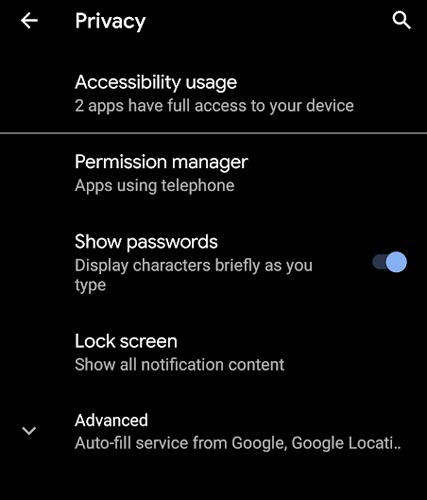
-
Google always added enhanced Privacy features in every Android version. In the 10th version, You can handle your privacy a lot better. It will always tell you when your installed apps access your location in the background to manage whether you need that permission on Always or During the app usage.
Direct System Updates
-
Unlike regular OTA updates from your Manufacturers, the frequent patch updates will be handled by Google After you update to the Android 10 version. The update will utilize the Google Play App. If you have Custom Skin OS from your Manufacturer, Google will not change the UI. They will handle only Patch updates. The direct Security patch update is one of the most critical steps taken from their side. It will help all the users who are tired of their manufacturer’s Late updates.
Focus Mode
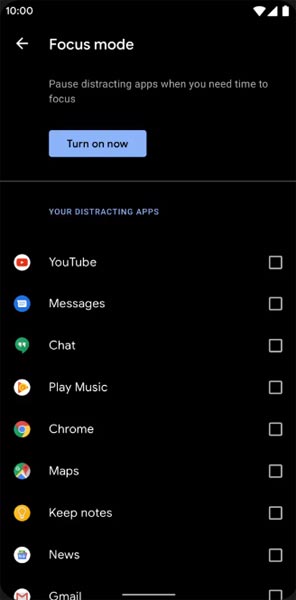
-
It can be an additional function of Digital well-being. Now you can Pause some apps to avoid the Notifications For a short time or a Long time. Some mobiles are made based on this scenario. To avoid distractions and get focused on what you are doing. Think you are Studying, and a Single Whatsapp message can redirect you. With the help of this feature, you can use only Study apps during your Study time.
Family Link
-
It is like Parental Control. You can control the App Timings within your Added Google Accounts.
Other improvements and changes
- HEIF Image, Monochrome Camera Support.
- New Set of Emoji.
- Enhanced Adaptive Battery Improvements compared with the Pie version.
- Contaminant Detection- Your mobile will alert you if any moistures are in your USB Ports.
- Attentive Display- If you look at your mobile, It will always wake.
- You can use three-finger gestures to take a screenshot.
Final Words
If you are in Stock firmware, Use the Internal memory or Stock recovery-based method. It is comfortable and safe; You can update it like a Regular OTA Update. But if you were already using Rooted devices, You can try TWRP based method. Don’t download any third-party apps; sometimes, it may trigger the updates process. There are a lot of new Gestures available in this update; try them also. In my opinion, When you hate MIUI, You can try to root your Xiaomi Poco C31 and install custom ROMs. They are better compared with some other Custom Skin OS. But the new MIUI is better. So try to use this OS instead of a Custom OS. But the decision is your choice…:)

Selva Ganesh is a Computer Science Engineer, Android Developer, and Tech Enthusiast. As the Chief Editor of this blog, he brings over 10 years of experience in Android development and professional blogging. He has completed multiple courses under the Google News Initiative, enhancing his expertise in digital journalism and content accuracy. Selva also manages Android Infotech, a globally recognized platform known for its practical, solution-focused articles that help users resolve Android-related issues.