
When you don’t force users and provide useful Real world features, People will automatically buy your product. Even if many companies trying their best in the Android sector, None of them can provide simple and useful features like Google. To provide a better experience, Google released Pixel Phones, and in the Android TV sector, They released Google TV UI with a new Chromecast. The unique feature of this UI is it is neat and clean like Stock Android. It doesn’t have a heavy customized UI with lots of Ads. But recent update playing Google TV Auto Video Preview Ads on the Home Screen. Fortunately, we can disable it using the settings. Since it is played with sound, It will be annoyed sometimes.
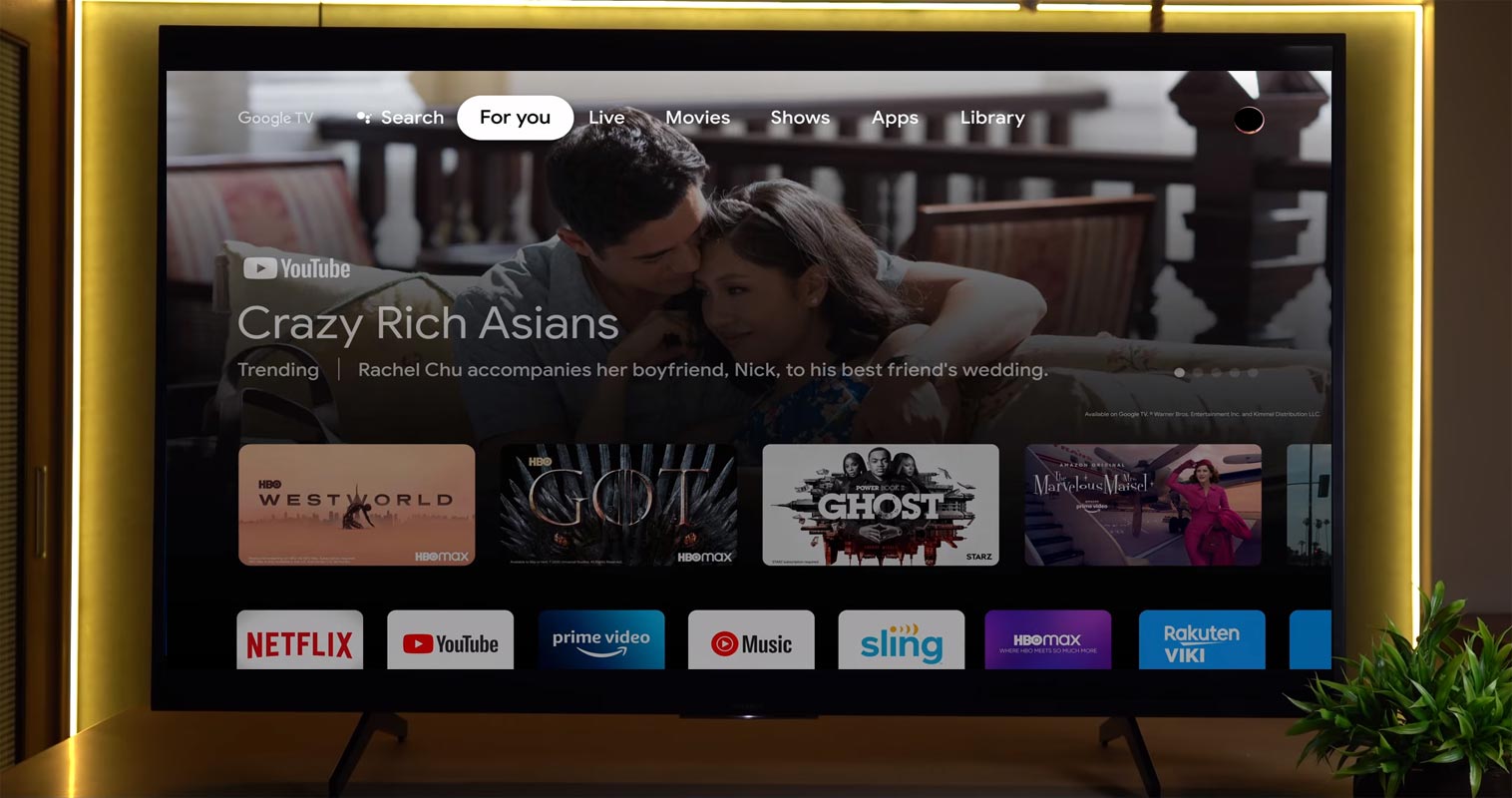
Many of us have gotten used to seeing adverts while streaming or accessing stuff over the internet. But when these ads are displaying on our devices’ home screens, it becomes more annoying and obtrusive. One of the recent updates to Google TV is the addition of video ads on the home screen. Unfortunately, these video ads autoplay on your Google TV home screen, and it’s just so annoying.
As expected, many Google TV users are out on the internet looking for ways to disable these ads entirely or at least stop them from auto-playing. Well, the truth is you remove the ads entirely, but here’s the workaround on how to stop its autoplay function.

AutoPlaying Google TV Video Preview Ads in the Home Screen
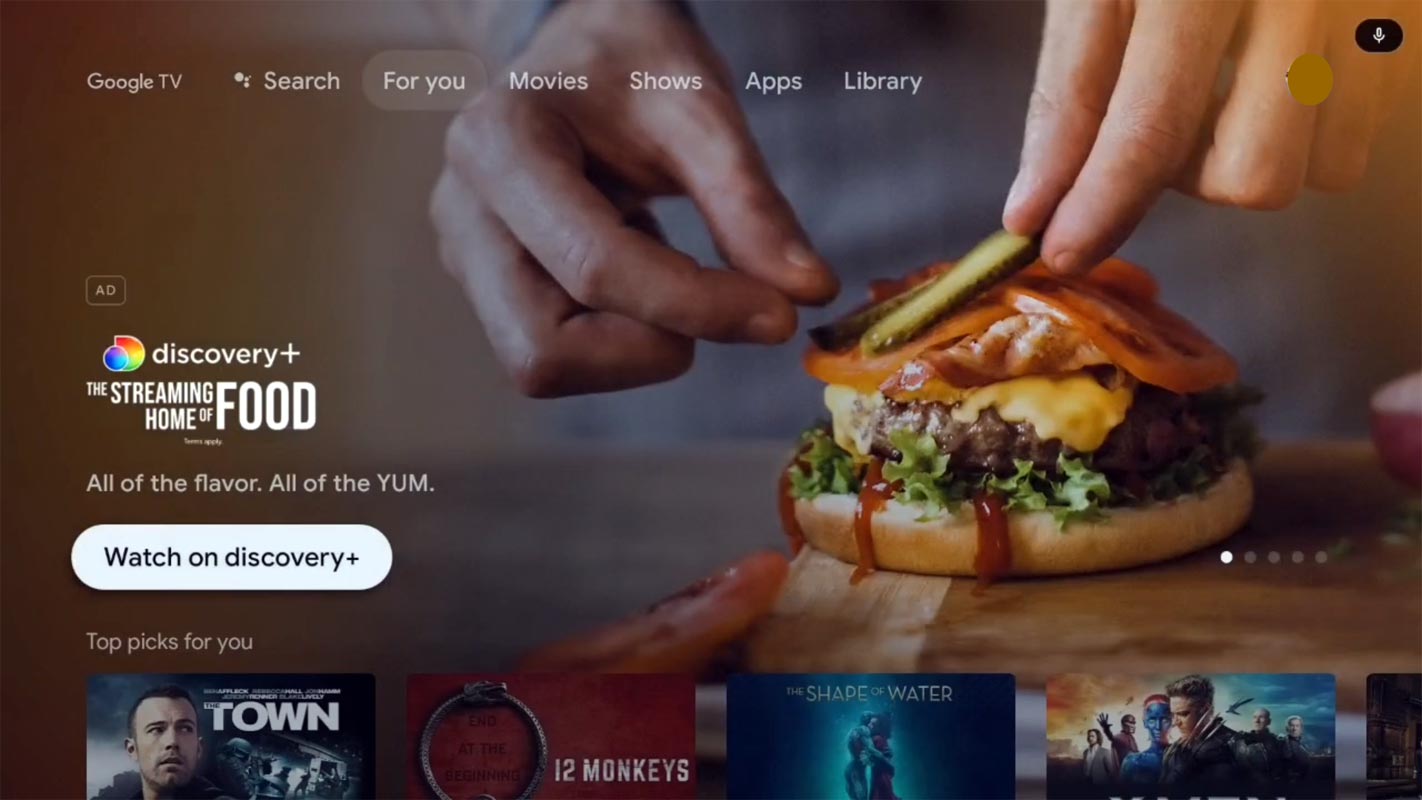
Chromecast with Google TV features a new “For you” tab where you can easily see your favorite apps, shows/movies you’re still watching, and other tailored recommendations. Since most popular apps like Peacock and BBC already certified Google TV, You can get most of the favorite content recommendations.
A row shows you what seems like Android TV’s staff picks; however, this row includes an ad in the first slot. Things had been like this until the latest updates to Google TV; now, this row contains video ads that play automatically. Unfortunately, the videos typically have audio, which makes things worse.
Well, it’s not like the video starts playing immediately you visit your Android TV’s home screen. Actually, it only starts playing automatically if you hover your mouse on it. If you’re accessing other menus or rows on your Google TV home screen, the video won’t Autoplay, but the moment your mouse comes to that row, it starts. Then, after few seconds, It will go as a full-screen video.
How to Disable Autoplay Preview Ads in Google TV?
The option to do this is available on the settings menu. One of the most annoying parts of this ad is that it covers the entire screen once it starts playing; you can exit the fullscreen view by pressing any directional keys. Not everyone would get pissed with these ads, but for the few of us who don’t like it at all, here’s how to disable the autoplay function.
Method 1: Using Settings
- Go to the home screen of your Android TV and select the Settings option (located at the top).
- Select Device Preferences and go to the Home screen
- From the home screen settings, turn off “Enable video previews” and “Enable audio previews.”
That’s all you need to do, and the whole ad preview saga will come to an end. First, however, it is important to say that this does not remove the ad entirely from its slot.
Method 2: Uninstall Updates
- Go to the home screen of your Android TV and select the Settings option (located at the top).
- Select Apps>Google Home>Uninstall Updates.
- It should downgrade to version 3.0.10 or below. Also, Disable the Auto Updates in the Play Store. When you can’t uninstall the updates move to other methods.
Method 3: Disable Google Play Services
- Go to the home screen of your Android TV and select the Settings option (located at the top).
- Select Apps>Google Play Services>Disable.
- It may affect Google Apps like YouTube, Stadia. However, other than Google apps, all other third-party apps will work.
Method 4: Use Third-Party Home Launchers
Most of the users prefer Google TV for its UI experience. But the Auto Preview Ads are annoying. So until the permanent fix, You can try alternative Android TV Home launchers in the Play Store.
Method 5: Sideload Google Home App Old version
- Download Android TV Home old version.
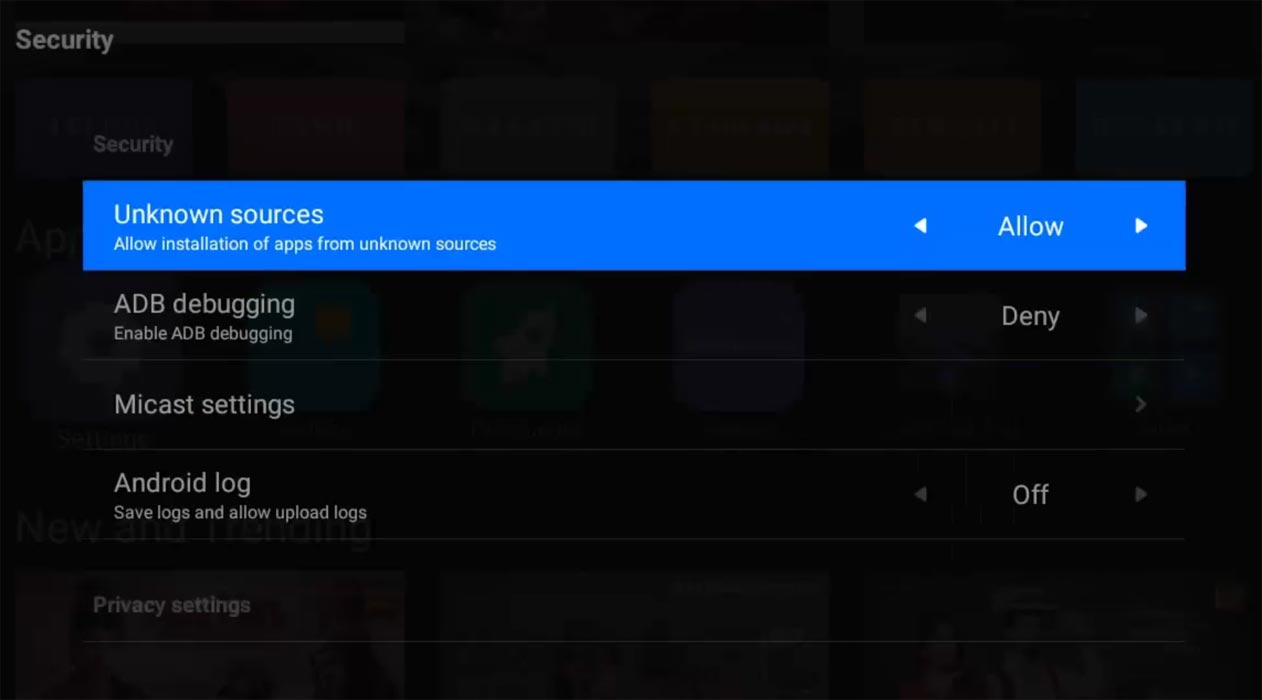
- Enable Unknown Sources App installation in Settings.
- Copy it in your external storage. Then, install it on your Google TV. It will ask for the replacement; confirm. Since we are installing near new version, there will be no issues. But when you face issues and are an advanced user, you can move to the ADB installation method.
Method 6: Push Google Home App Old version using ADB (Advanced Users)
- Download ADB drivers on your PC and Copy the Android TV Home old version app inside the folder. Then, rename the file into home.apk.
- Enable USB Debugging Mode and OEM Unlock on your mobile. To do this, go to settings >>> about >>> Tap on the “Build Number” 7-10 times consistently to enable “Developer Options,” then go to the “Developer Options” and enable USB Debugging, ADB Debugging Mode.
- Go to Settings>Network Settings and Note down your Android TV IP Address. Connect both TV and your PC with the same Wi-Fi connection. Type below command one by one and hit enter.
- adb connect <TV IP address>
- You can check the successful connection using the below command.
- adb logcat
- After the successful connection, type the below commands.
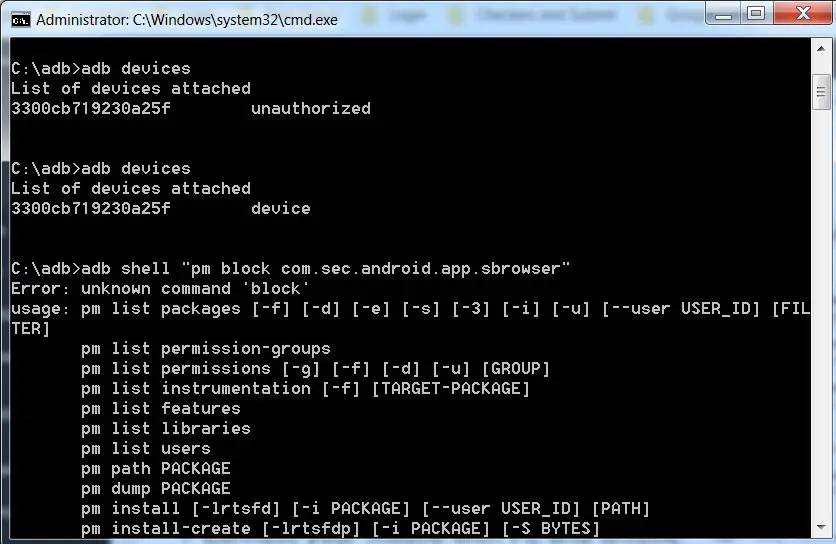
- adb push home.apk /data/local/home.apk
adb shell pm install -r -d /data/local/home.apk
- It will push your Old version app into your Android TV. Again don’t forget to disable the update in the Play Store settings.
Wrap Up
Google keeps adding useful features like Kids mode and Multi-user profile support in recent updates. However, users didn’t expect the massive whole screen Ads on the Home screen. Surprisingly, you only need the three steps explained above to fix the whole ad preview issue in other Android TVs. For as long as those preview options are turned off from the settings page, whether you hover your mouse on the ad or not, it won’t play automatically anymore. It would be best to understand that these big techs rely heavily on adverts to generate revenue; thus, the adverts on Android TV may not be discontinued any time soon.
Based on your experience level, you can choose your comfortable method. Or, when you don’t want to deal with the steps, You can wait for the new update; Google may give some additional control options to manage the preview Ads on Google TV. Did you try the methods and disable the Ads? Comment below when you face any issues. We try our best to help you with it.

Selva Ganesh is a Computer Science Engineer, Android Developer, and Tech Enthusiast. As the Chief Editor of this blog, he brings over 10 years of experience in Android development and professional blogging. He has completed multiple courses under the Google News Initiative, enhancing his expertise in digital journalism and content accuracy. Selva also manages Android Infotech, a globally recognized platform known for its practical, solution-focused articles that help users resolve Android-related issues.