
To root the Samsung Galaxy A15 4G/5G on Android 14 (SM-A155F/A156E/A156U) using Magisk, ensure understanding of the implications. As the device arrives with Android 14 as the default OS, remember it’s slated for two more major Android updates. Rooting, while offering customization benefits, can void warranties and compromise device security. Before proceeding, evaluate the necessity for rooting. Official versions guarantee stability, security, and ongoing support. If rooting serves a specific purpose like advanced customization or specific app requirements, proceed cautiously. Ensure compatibility with the device model and Android version to avoid potential complications. Otherwise, sticking with the official version remains advisable for stability and security unless clear on the intent and repercussions of rooting.
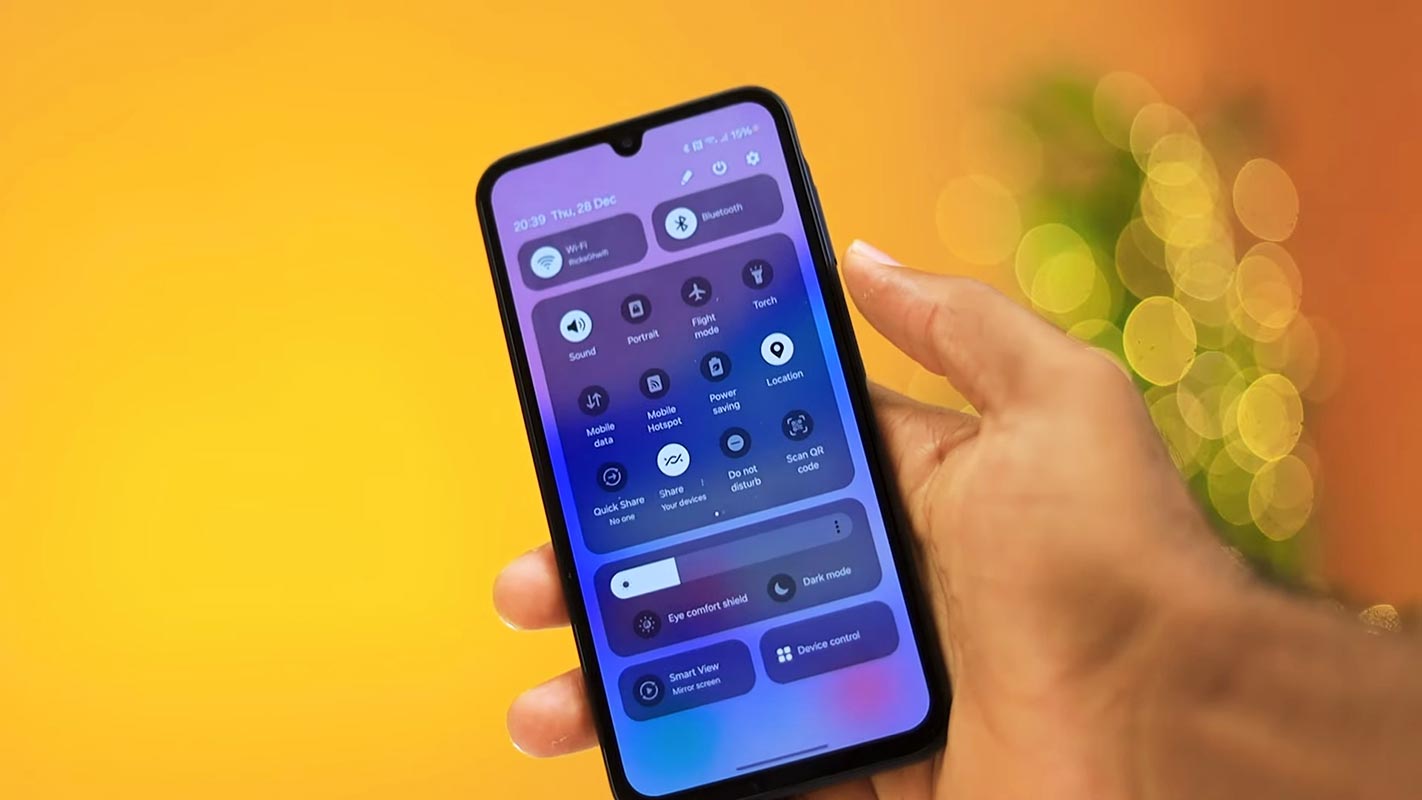
Since we are using Magisk in this method, We can’t install custom ROMs. But you can use most of the Root apps and Magisk Modules. After rooting, you will lose official updates. You have to update your mobile manually. So, Before proceeding with the process, you should know why you need to do it. If you are a regular user, you can try some alternatives for your purpose that don’t require Root. As a regular Root apps user and developer, you can follow the guide below to achieve Root on your mobile device.
Should you need to Root your Samsung Galaxy A15 4G/5G SM-A155F/A156E/A156U Android 14 version?
It would be best if you had a strong reason for rooting. Samsung Galaxy A15 4G/5G already got One UI 6 based on Android 14 and is already optimized. You have More than Enough 4-8 GB of RAM to use daily apps without lag for years. RAM may look insufficient because of Samsung’s Heavily customized OS. But, Trust me, One UI is far better than other Custom Skin OS. You can use this device without lag for years until Samsung messes with some Bloatware. Beyond that, there are no-go reasons; if you are addicted to some root apps or frequently using some Custom OS, you can proceed further. But if you want to root because everybody is doing it, I advise you not to root if you don’t have any experience. For regular users, It can become a Nightmare.

How do you root Samsung Galaxy A15 4G/5G Android 14 One UI 6? (SM-A155F/A156E/A156U)
First, thanks to the Developer- Meiker, for the Root method. topjohnwu – this genius is the one who discovered and maintained Magisk. Samsung Galaxy A15 4G/5G International variants have a flexible bootloader. It means that We can easily root the smartphone. The device can also accept installing TWRP recovery or any custom recovery file/app. Don’t try with Snapdragon US Variants like Verizon devices. They come with a locked Bootloader.
However, we will root this device using Magisk using the method below. You can install Official TWRP using the official app when it is released. However, TWRP recovery is a custom file we must install on your devices because you can root them successfully. This article explains the easiest method to follow and install Magisk on Samsung Galaxy A15 4G/5G. However, the tool required for rooting this device is the Magisk App.
You can flash TWRP once it is available. With the help of TWRP Recovery, you can quickly flash the Custom ROMs into your Samsung Galaxy A15 4G/5G. Before sharing the tutorial, you may want to know that you can easily install root apps on your device with Magisk. Does it seem complicated? Relax; we will explain everything succinctly in bullet points.
Things to check out for;
-
Check your device model number.
- You should back up your current files and data using The complete Data Loss Process (save them on external storage).
- Install the Latest Magisk Manager.
-
Make sure your device battery is above 50%
- You cannot use Samsung Pay, Secured Folder, or some official Samsung apps.
- You can’t update your firmware; to get new firmware, you must follow the below steps with the latest firmware.
- Read the full tutorial before the process.
1. Unlock Bootloader
-
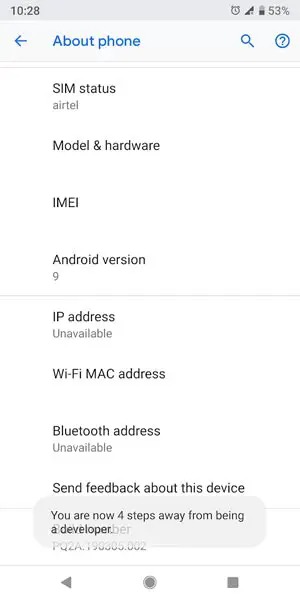
Enable USB Debugging Mode and OEM Unlock on your mobile. To do this, go to settings >>> about >>> Tap on the “Build Number” 7-10 times consistently to enable “Developer Options,” then go to the “Developer Options” and enable USB Debugging Mode and OEM Unlock. There is no complicated process in the Samsung Galaxy A15 4G/5G.
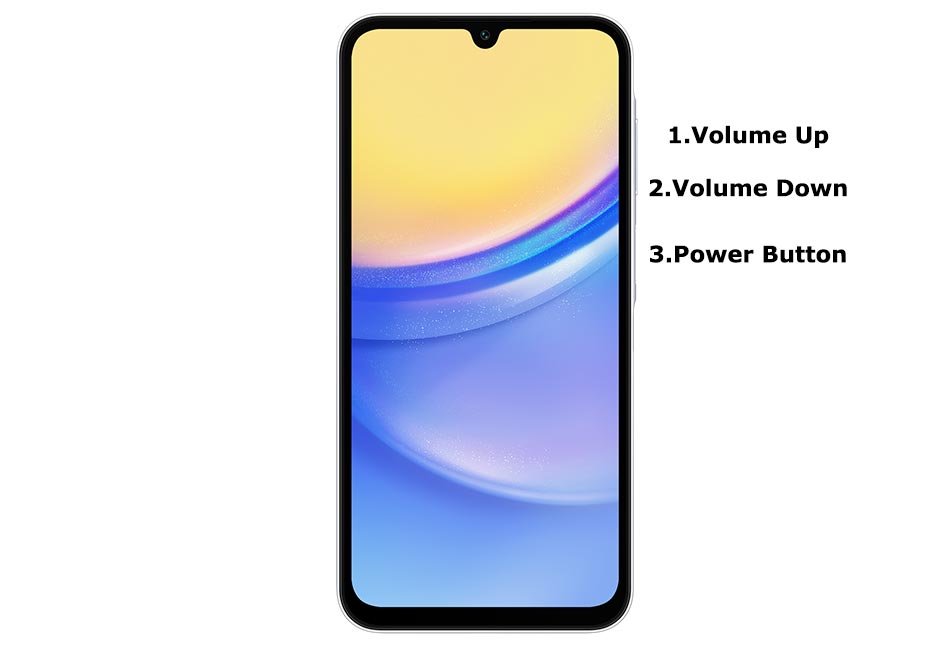
- Switch off your device. Enter Download Mode-> Volume Down Button and connect your mobile to your PC using a USB cable. When the Download mode warning screen Appears, Press the Volume Up button to unlock the Bootloader.
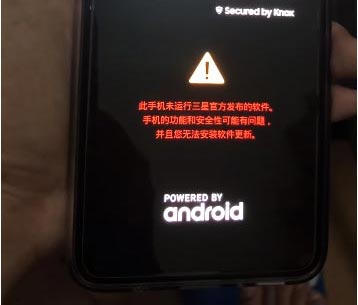
- The above process will wipe your user data. After setting up your device, Please recheck the OEM Unlock in the settings. Sometimes It Will Lock Again.
2. Preparing Patched Boot Image file
-
Download and install the Samsung USB driver to your computer system.
-
Also, download the ODIN software. Select the above Oreo version in the ODIN list. Then, install ODIN on your PC.
- Download Samsung Galaxy A15 4G/5G Android 14 Firmware and save it on your PC. Your Current OS and download version AP and CSC should be the Same.
- You can use Phone Info to know your firmware version.
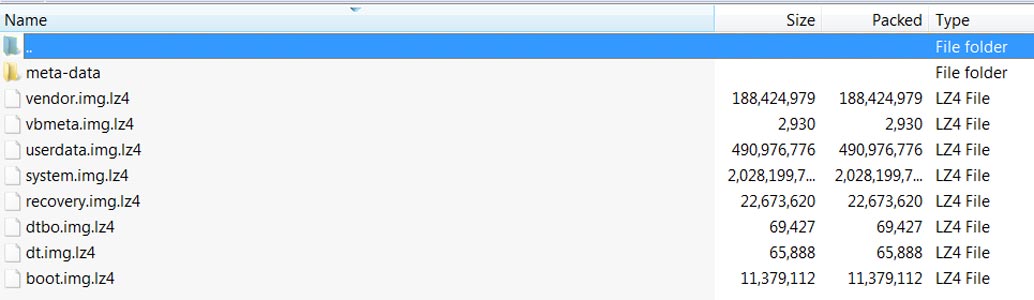
- Download 7Zip-ZS and LZ4, and Install both on your PC. Extract the files in the downloaded firmware using 7Zip-ZS. You will get four files. Click on the AP File and Extract it again. You will get some data along with the boot.img.lz4 and Vbmeta.img.lz4.
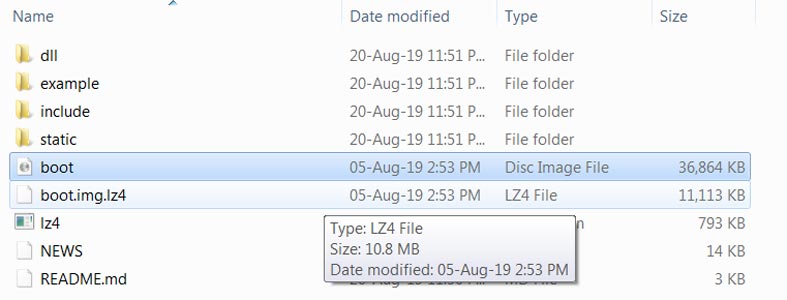
- Copy the boot.img.lz4 and Vbmeta.img.lz4 to LZ4 Installed Folder. Convert the lz4 file to a .img file by dragging the .img file to the lz4 application file. You have to remove the file from that application. The script will automatically convert the file to .img format. After the conversion, copy the boot and Vbmeta — img file to your mobile device.
- Download Magisk Manager (The latest version) or Magisk Canary and install it on your mobile device. Open Installed Magisk and Select Install in Magisk; it will ask For the zip file and Patch Boot Image File. Select the Boot Image file.
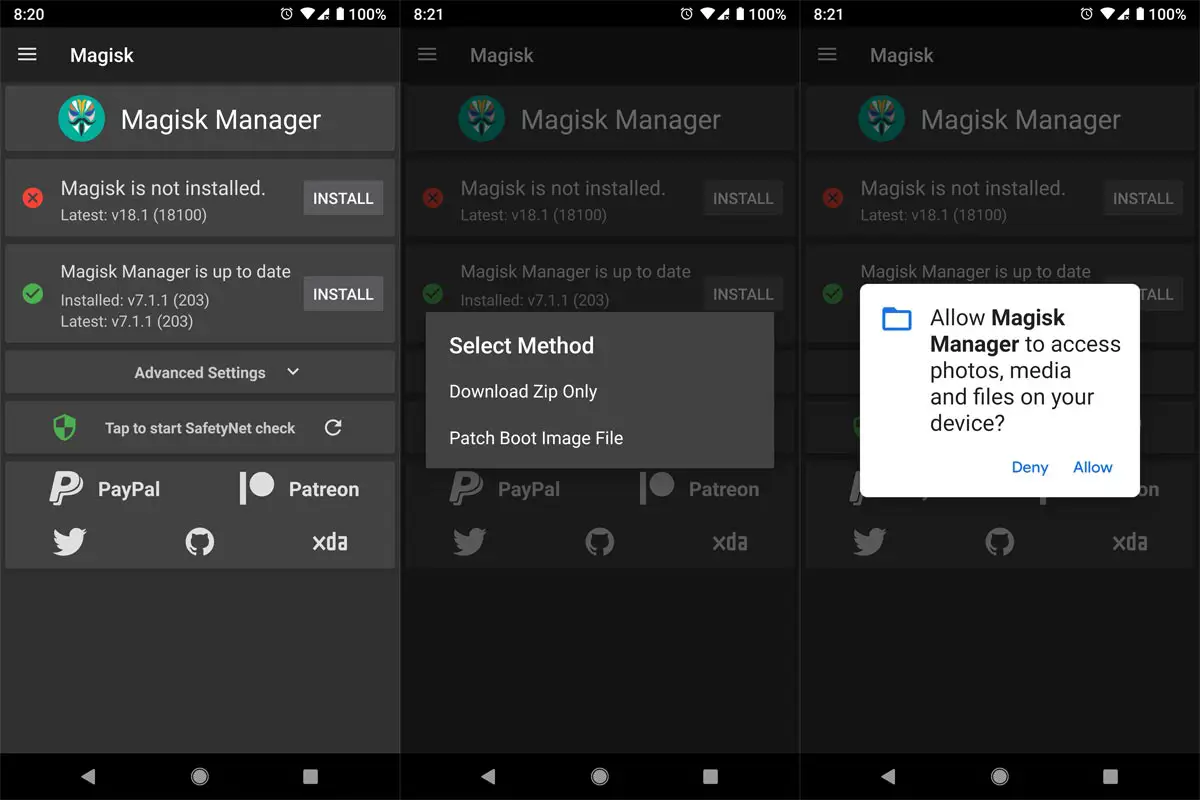
-
Navigate to your copied Boot Image File and patch the file.
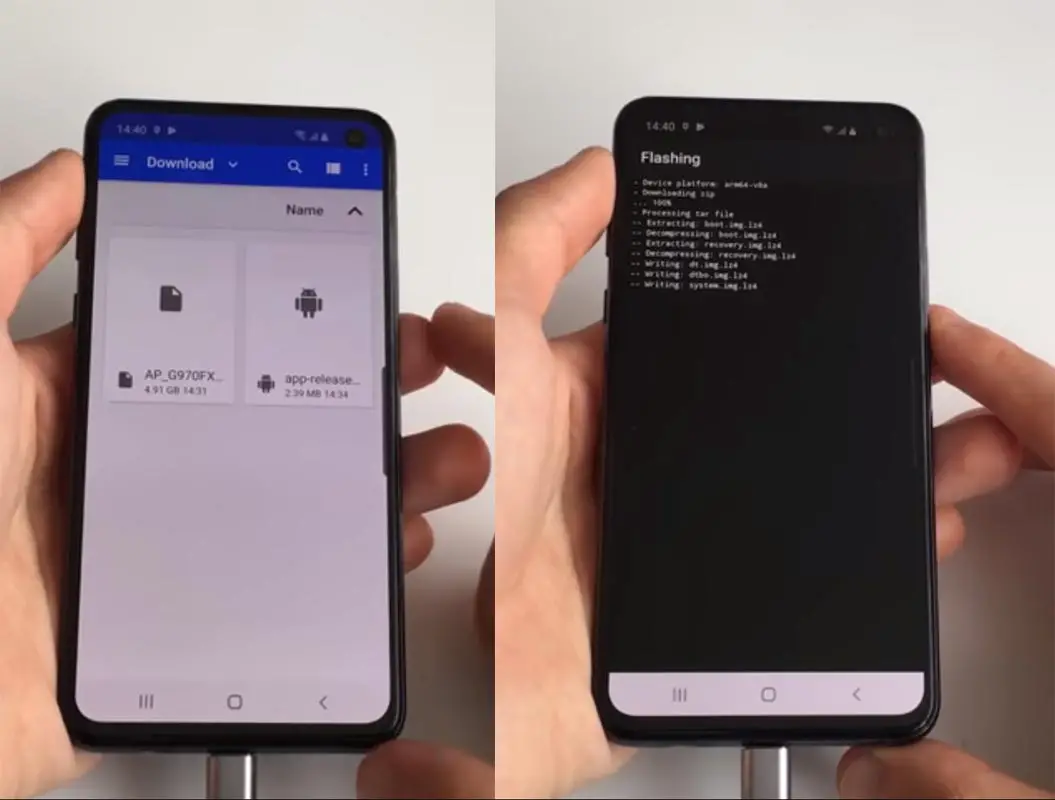
- Wait for the process to complete; in the end, you will get a magisk patched .tar file. The .tar file will be in the same Folder where you have the Stock firmware file. If you didn’t get the .tar and you got the .img file. No problem. Copy this file to your PC. We can convert the data there.
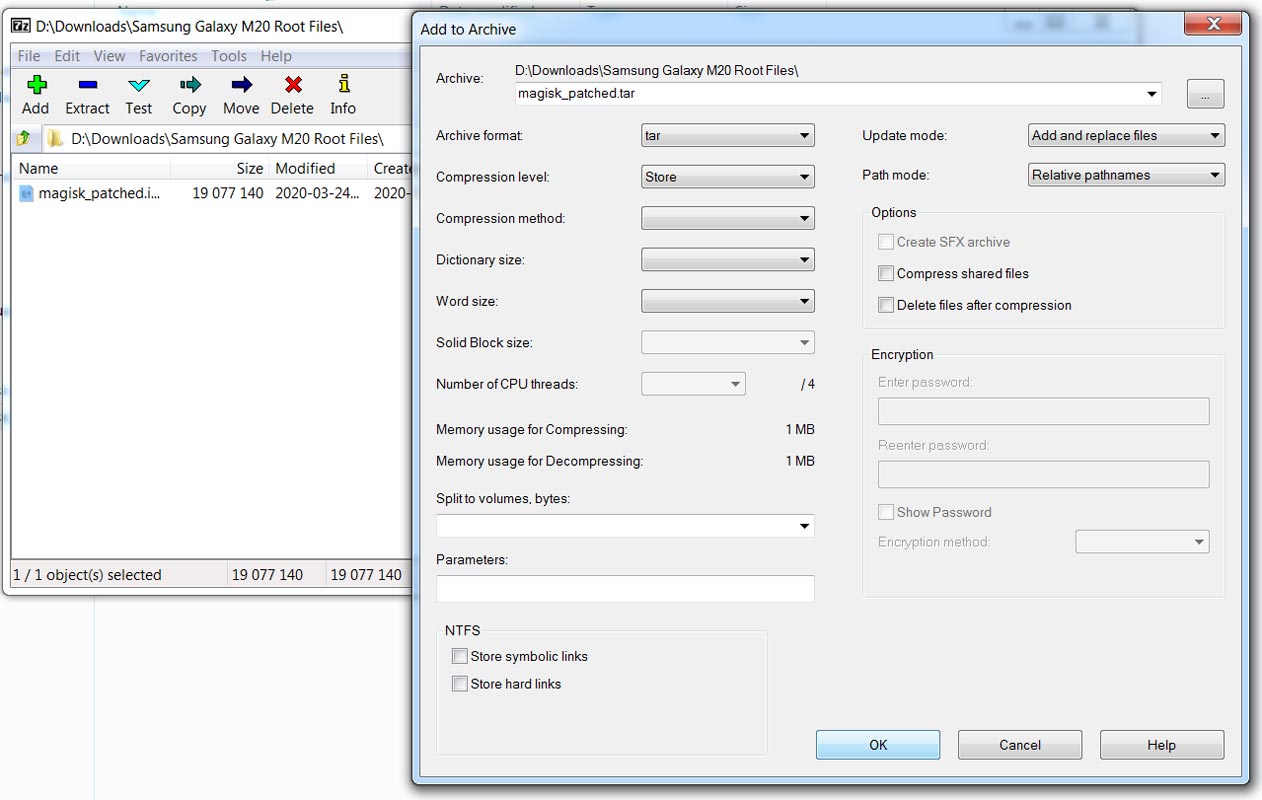
- When you get the .img file, Open the installed 7zip app. Navigate the magisk patched img file and select Add; choose .tar format and ok. Convert only boot—img file. After you get boot.tar, Drag the Vbmeta. img into boot.tar. The .tar has two file boots:img and Vbmeta. img. Now we have the ODIN flashable boot.tar file.

3. Flash Patched Boot and Vbmeta Image.tar using ODIN
- Due to Samsung’s new security restrictions, we can’t flash TWRP with Stock Boot on your mobile. So, we have to flash a patched boot using ODIN.
- Unlock your screen lock. There should be no fingerprint, PIN Lock, or Wipe. Set No lock in the settings.
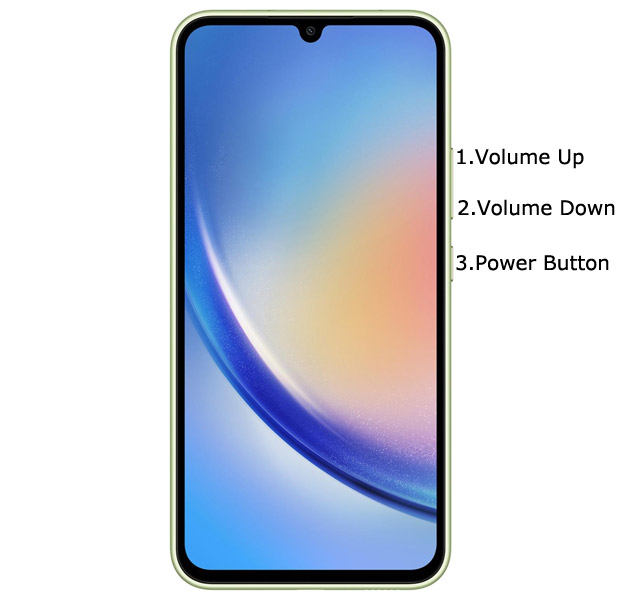
- Switch off your Mobile. Enter Download mode->Volume Down+ Volume Up Buttons and Connect Your Mobile To your PC via USB Cable; after the Samsung Logo appears, release all keys.
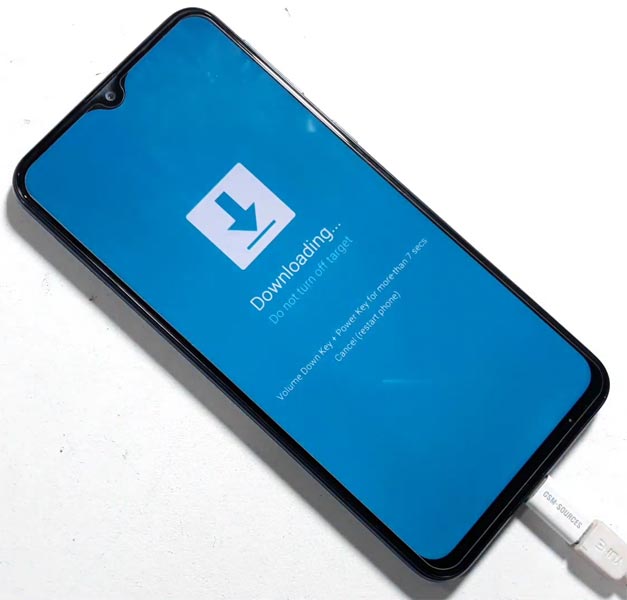
- After entering Download Mode, it will say Warning; press the Volume Up button to continue.
- Launch Odin Application.
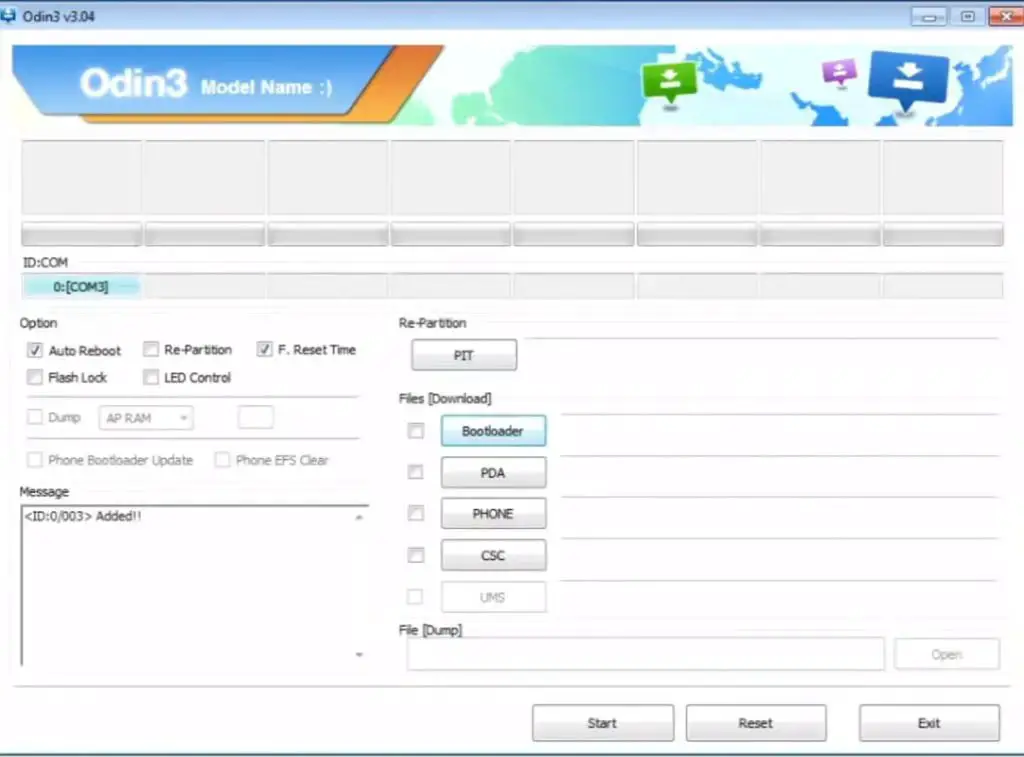
- It Will Show the message added.
- If you did not get this message, Repeat the above steps.
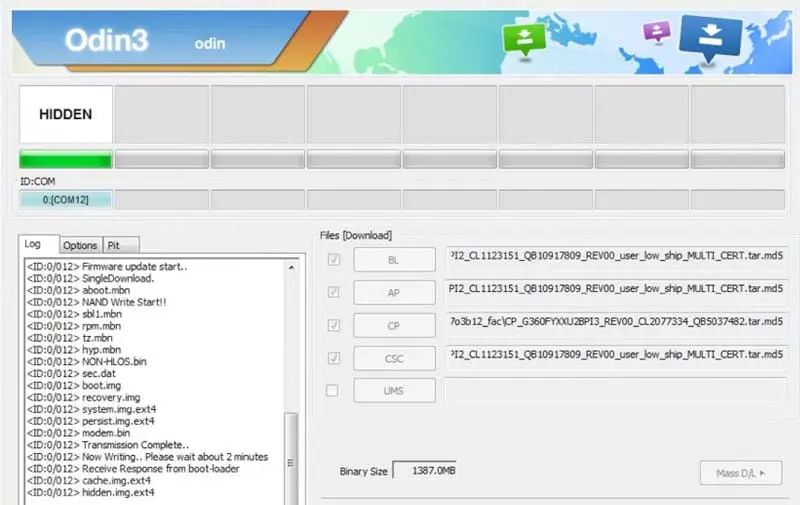
- After getting the added message, select the AP/PDA Button, browse for the patched Magisk .tar file, and fix it. You should choose and flash the other three non-patched firmware files along with this file. We only have to flash the magisk patched boot image file. Un-Tick the Auto-Reboot.
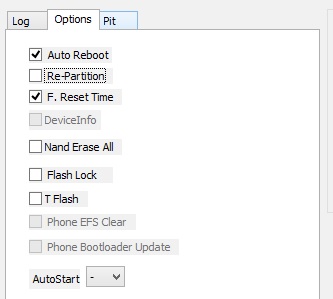
- Press Start and wait for the tasks to complete. After completing the process, Press the Volume Down+ Power button to exit Download mode. Immediately Press the Volume Up+ Volume Down + Power buttons when the screen goes off to boot into Recovery mode.
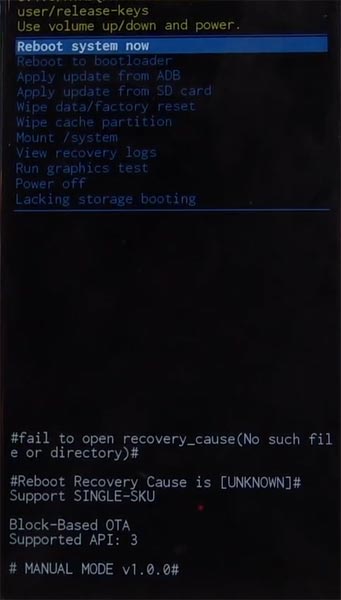
- After entering Stock recovery mode, Go to Wipe Data/Factory Reset and Select Yes to wipe data. It will erase the saved data on your device. Don’t Boot into OS; read below Boot stages before booting.
Boot into Rooted OS
- Press and Hold the Volume Up + Power buttons, and release all the keys once the Bootloader warning appears. Next, you have to set up your device like a new device. Then, you can select the root status using the Root Checker.
- Stock Recovery Boot – Press and Hold the Volume Up + Power buttons and release keys while holding the Volume Up key.
- You will see Magisk Manager in your App drawer. You can install Magisk Manager on your mobile if you can’t find the app.
What More?
You don’t need to root your Samsung Galaxy A15 4G/5G Android 14. It will boot you to a Non-Rooted environment. If you thought you could Improve Performance By Root, your device could perform well with the Mediatek Dimensity 1080 processor and 6-8 GB RAM. If you don’t know how much RAM you need, You will never use this much RAM. It would help if you did not Boot into Normal OS Booting by pressing the power button after the firmware flash.
When you accidentally urge and boot frequently, Don’t panic; switch off your device and boot into Rooted OS using the abovementioned keys after setting everything up. You can optimize your battery without Rooting if you root your device because of the battery drain issues. Beyond this, if you want to Disable Bloatware apps, you can do that without using this method. If you have any suggestions or doubts, comment below.

Selva Ganesh is a Computer Science Engineer, Android Developer, and Tech Enthusiast. As the Chief Editor of this blog, he brings over 10 years of experience in Android development and professional blogging. He has completed multiple courses under the Google News Initiative, enhancing his expertise in digital journalism and content accuracy. Selva also manages Android Infotech, a globally recognized platform known for its practical, solution-focused articles that help users resolve Android-related issues.