
Suppose you’re encountering Wi-Fi connectivity issues on your Samsung Galaxy F14 5G smartphone, specifically related to the Wi-Fi 802.11 a/b/g/n/ac standard. In that case, you can follow various troubleshooting steps to address the problem. A reliable Wi-Fi connection is essential for browsing the internet, streaming media, and downloading files, so resolving any issues that may arise is necessary. By implementing the solutions below, you can diagnose and rectify the Wi-Fi problem on your Samsung Galaxy F14 5G, enabling you to regain a stable and uninterrupted online experience.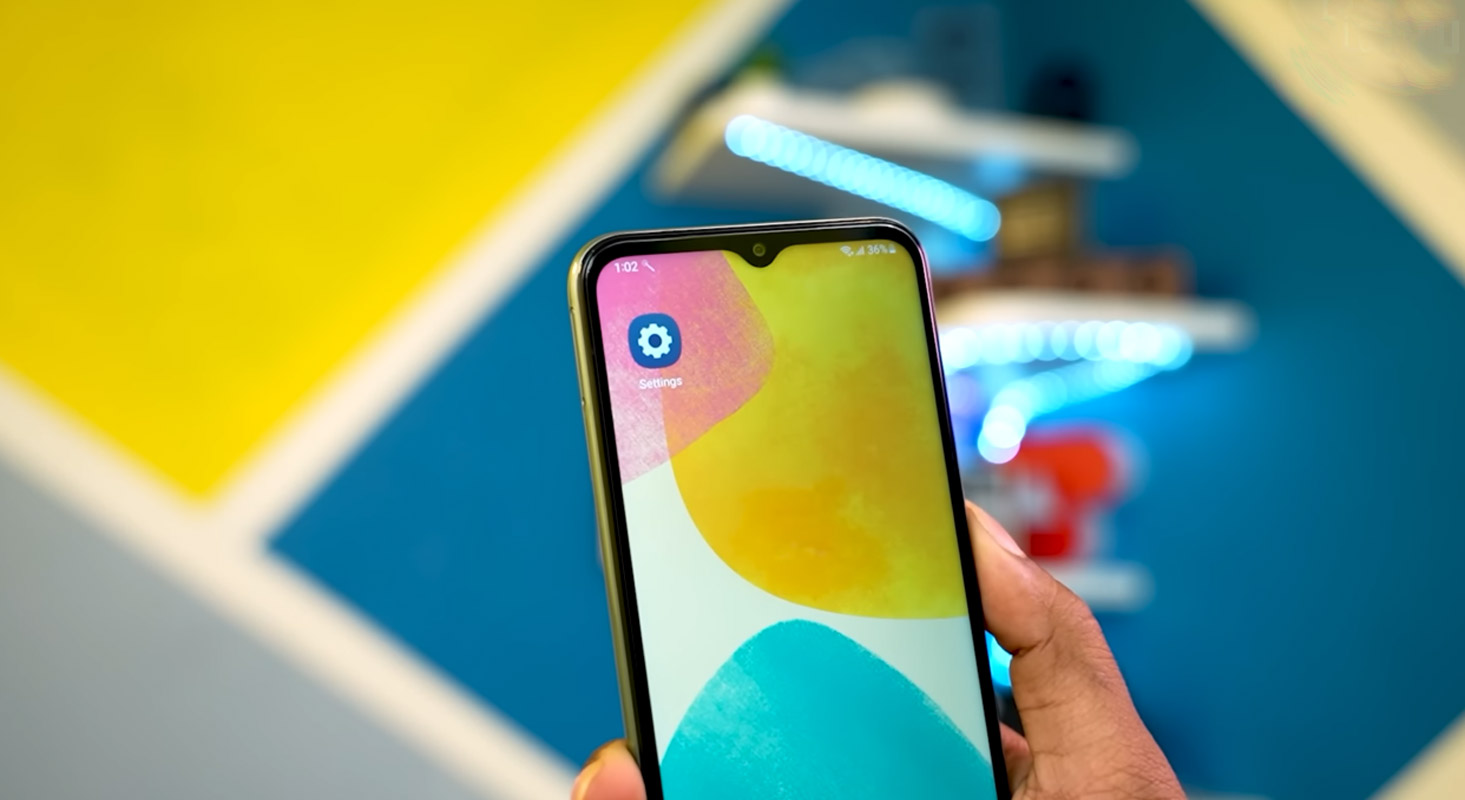
How to Fix Samsung Galaxy F14 5G Wi-Fi Not Working? (SM-E146B)
Due to the cost of mobile data, We can’t always stick with it. We rely on Wi-Fi networks whenever we get free at work or home. So, Wi-Fi not working in our Samsung Galaxy F14 5G will affect our daily usage. Below I will mention some fixed methods that always help resolve the issue. Based on the success/failure, choose the methods one by one. I assume you know there are no issues with your Wi-Fi network, and everything is right from the router side.
1. Check you are in the correct Wi-Fi network
It can happen when you have more than one Wi-Fi network in your house; sometimes, the No Internet Router connection may affect your Wi-Fi. It is better to check whether you are with the correct system.

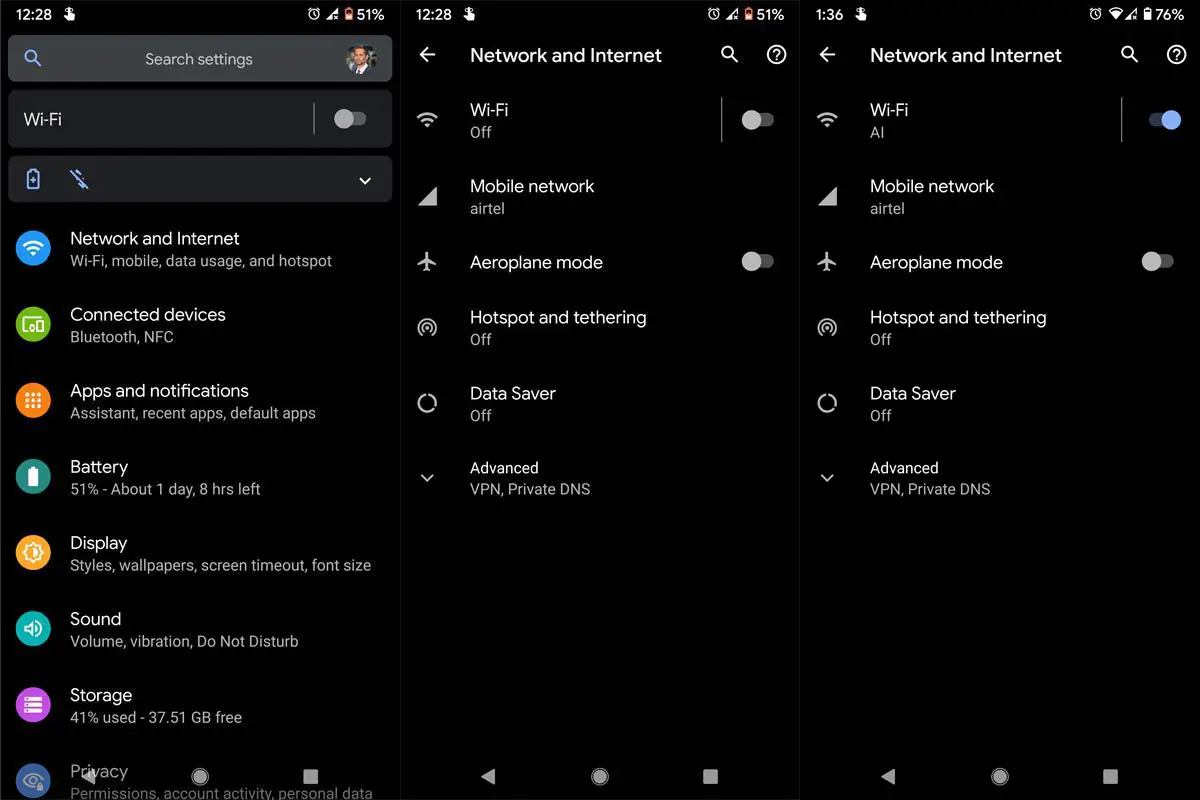
- Go to Settings>Network and Internet.
- Then Select Wi-Fi.
- Check the Wi-Fi name of your connection.
2. Check Samsung Galaxy F14 5G Wi-Fi Coverage strength using Dial Pad and Settings
You can’t connect with your Wi-Fi when you have weak coverage strength or a better signal but a low transmission speed. It is better to check both movement and transmission speed. Your current rate should be 50-100% of your Internet plan speed, and if you have a 100Mbps plan, your connection should be at least have 50Mbps.
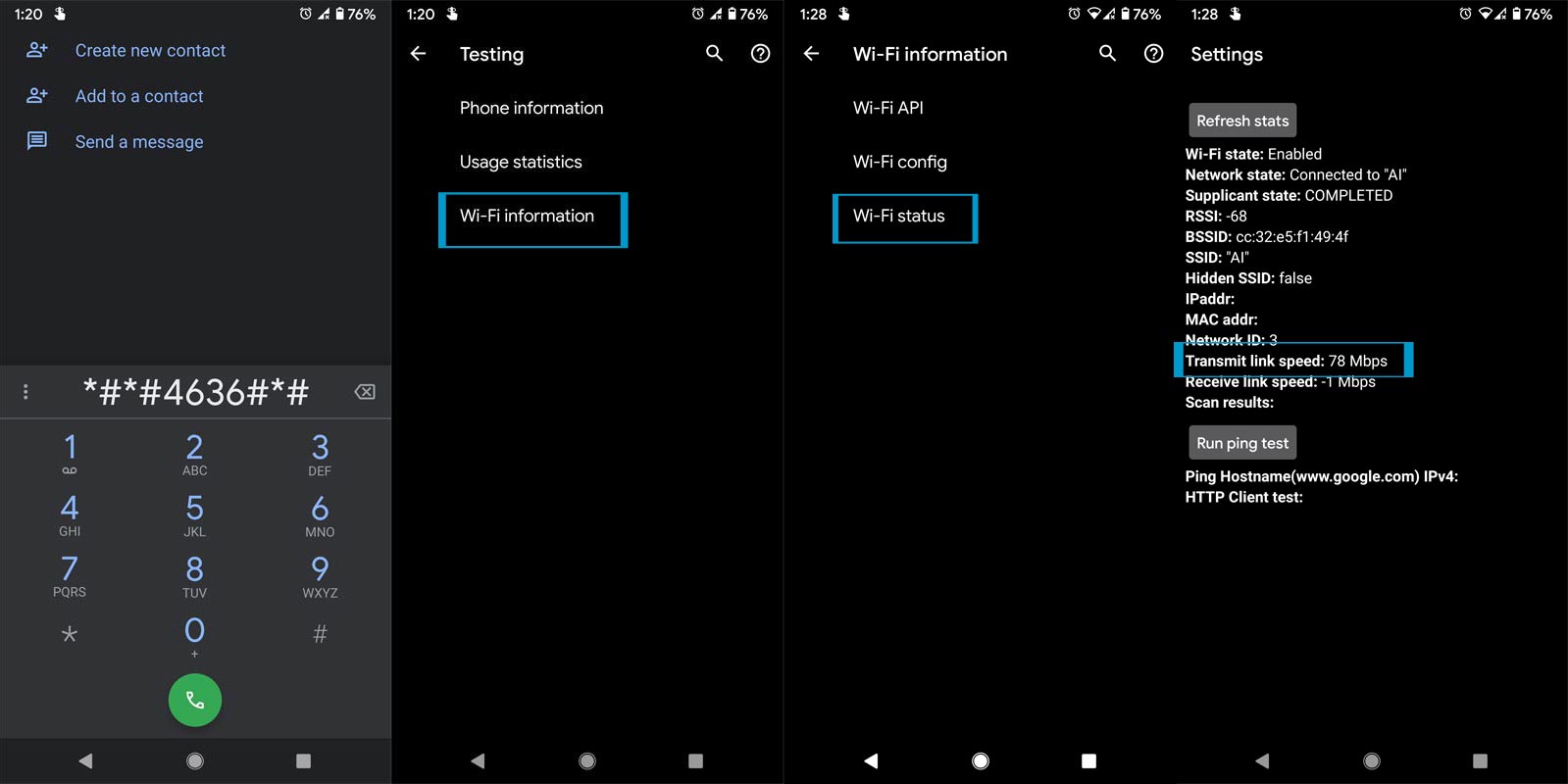
- Open your Dial pad on your mobile.
- Type “*#*#4636#*#*” or “*#*#4838#*#*.
- You will get the Testing screen. Select “Wi-Fi Information.” and then “Wi-Fi status.”
- Refresh stats to get the current connection details.
- Open your mobile browser and study with random pages to check whether it works. You can also use any apps that work with the data connection. Alternatively, you can also find strength in settings.
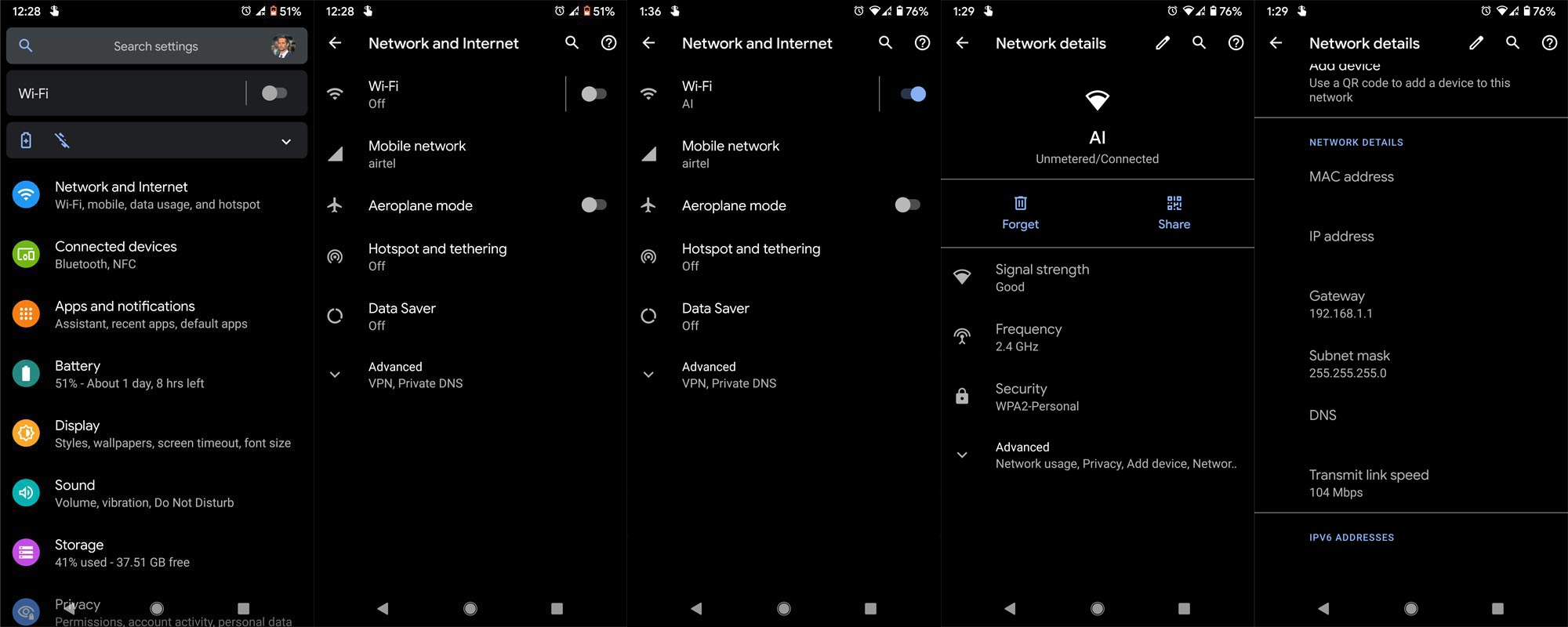
- Go to Settings>Network and Internet.
- Then Select Wi-Fi.
- Check the Wi-Fi name you are connected to and choose a gear icon near the Wi-Fi network.
- Select Advanced, and you can find the transmission speed.
3. Restart Your Mobile
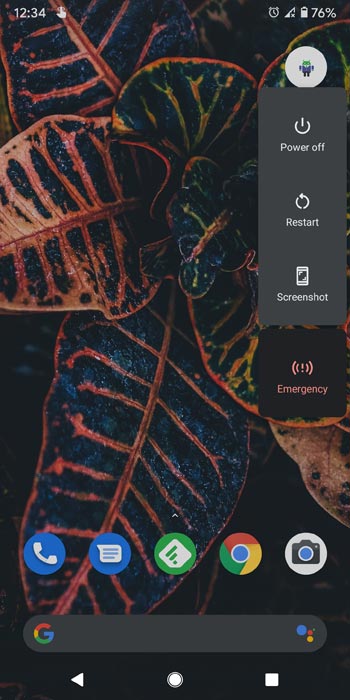
The restart method may look straightforward and not related to tech troubleshooting. But remember, a restart can resolve most of the electronic devices’ software issues and will work most of the time. Long press your power button for 10 seconds, It will trigger the power of your mobile, and your mobile will shut down in a few seconds.
4. Samsung Galaxy F14 5G DNS Settings
Like in PC, We can manually change our DNS settings on our mobile to avoid our ISP tracking. Most of the time, It will work well. But sometimes, based on some ISP, The DNS may not work correctly. When you set up manual DNS, disable it in your Settings and try to connect with your Samsung Galaxy F14 5G Wi-Fi connection.
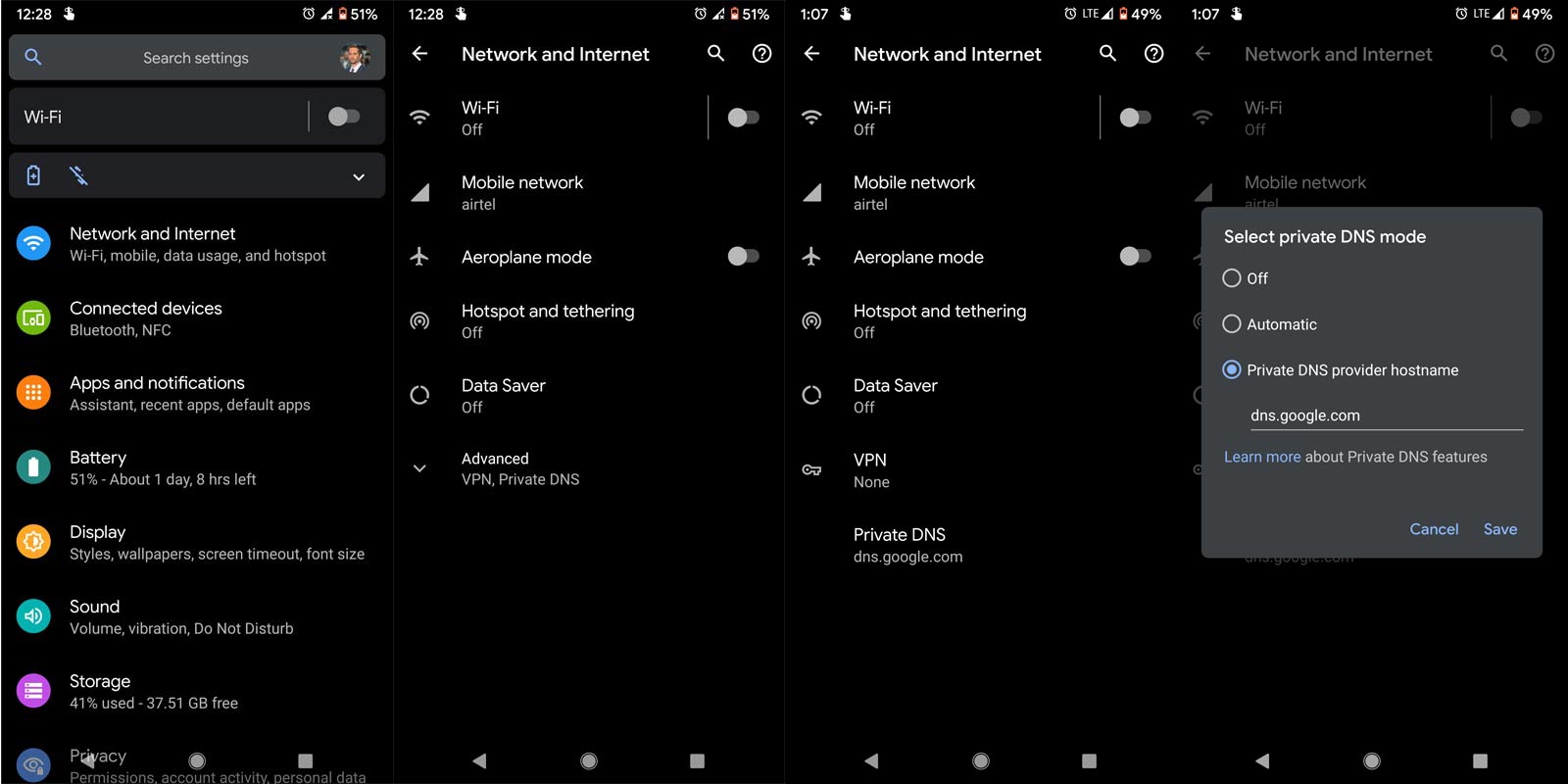
- Go to Settings>Mobile and Network.
- Then Select Mobile Network.
- You will get a lot of Options. Choose Advanced, then “Private DNS.” Select “Off.”
5. Check with VPN Settings
VPN connections are always slow and lag compared with regular networks. It is common in any system. Turning on Always-on VPN settings may sometimes affect your Samsung Galaxy F14 5G Wi-Fi. You can turn off the Always-on VPN in settings. Some best free VPNs are available on Android; you can use one if you feel it is functional.
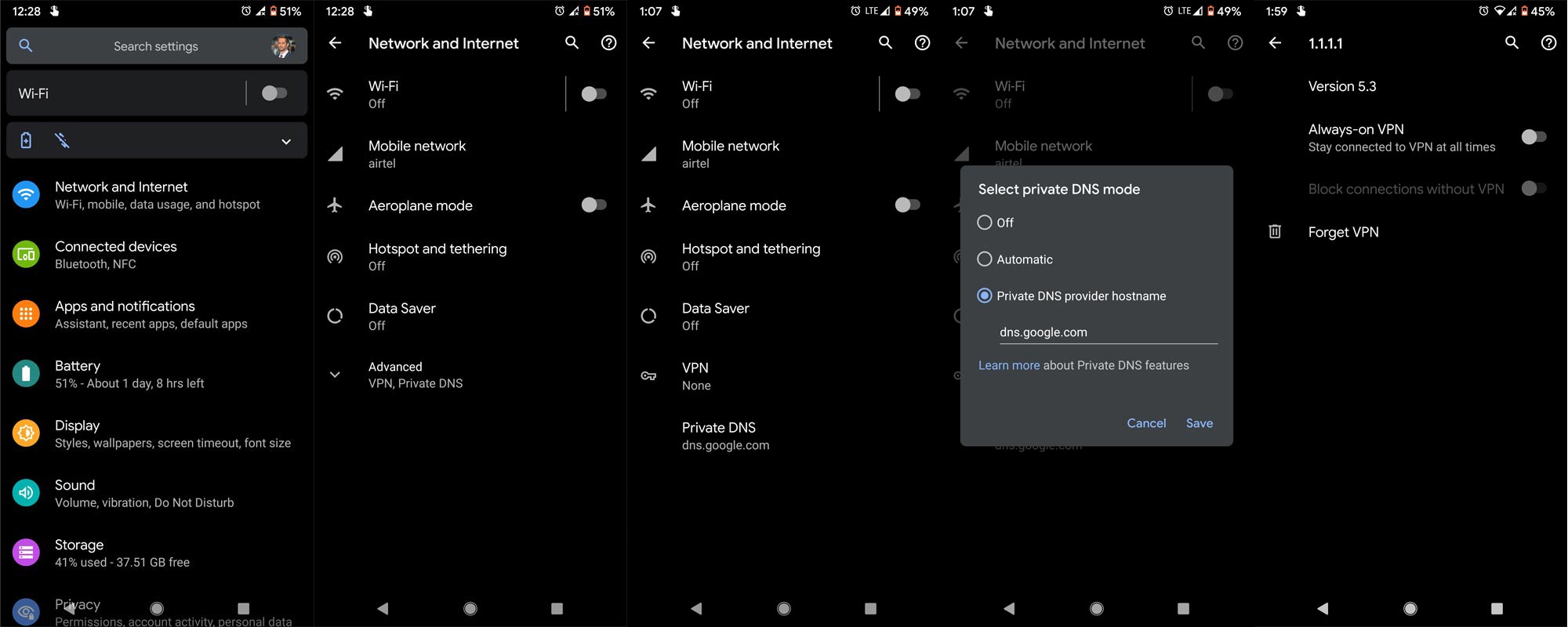
- Go to Settings>Mobile and Network.
- Then Select Mobile Network.
- You will get a lot of Options. Choose Advanced, then “VPN.” Choose VPN profile settings. Then Turn off Always-on VPN.
6. Reset Mobile Network settings
Instead of resetting your mobile, We can rest our network settings, which will adjust the default settings for your mobile. If our recent changes affect Wi-Fi, the Rest can help us restore the connection.
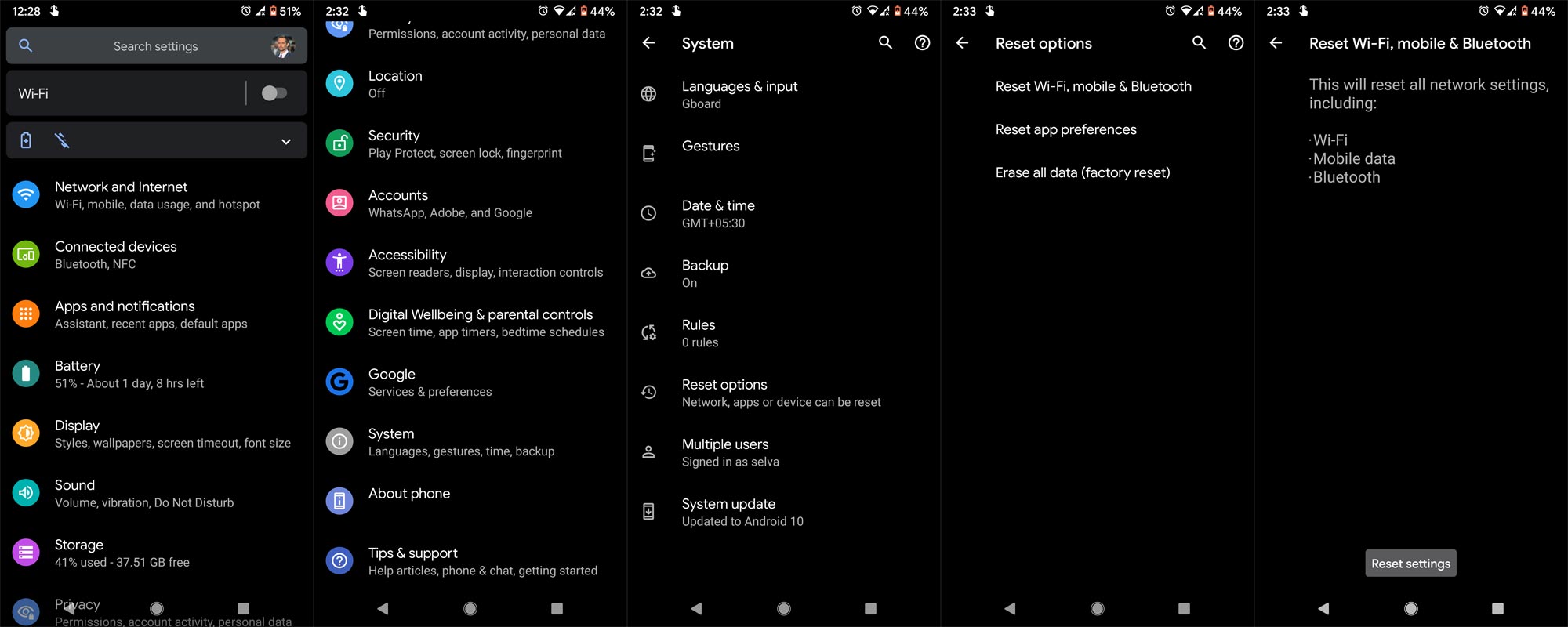
- Go to Settings>System.
- Scroll down to the bottom and choose Reset options.
- Select Reset Wi-Fi, mobile, and Bluetooth.
- Then choose Reset Settings.
7. Reset your Wi-Fi connection Using ADB Commands to Fix your Samsung Galaxy F14 5G
This process may work 50-60%. If you use Old Mid-range mobiles, the chances are less. But, We have a Samsung Galaxy F14 5G. So, it will work. The OS can still handle background commands, and thus, the ADB commands may work.
Steps
- Download the Samsung USB driver and install it on your PC.
- Also, download the ADB drivers. Install it on your PC.
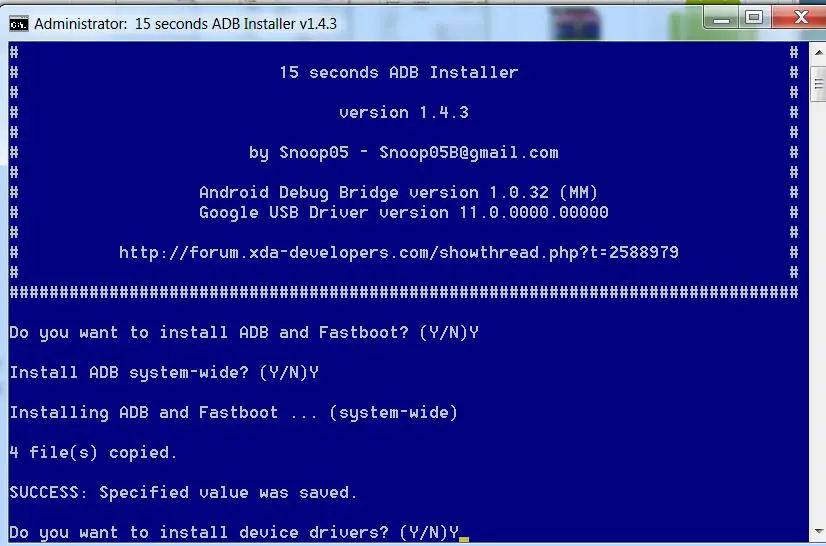
- Enable USB Debugging Mode and OEM Unlock; you’ll find these options in Settings >>> Developer options. If you didn’t see the developer options on your settings menu, go to about >>> build number. Click on the “Build Number” row about ten times regularly to activate the “Developer Option” on your device.
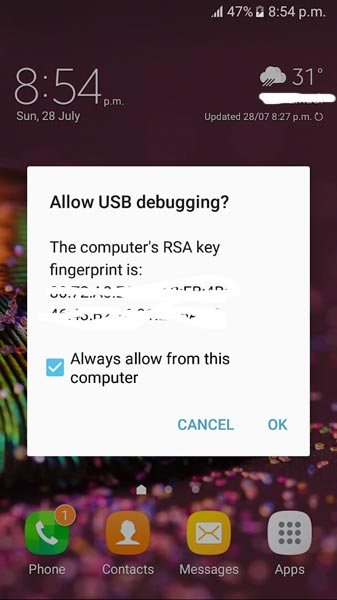
- Connect your mobile with a PC and unlock your mobile (Screen Lock).
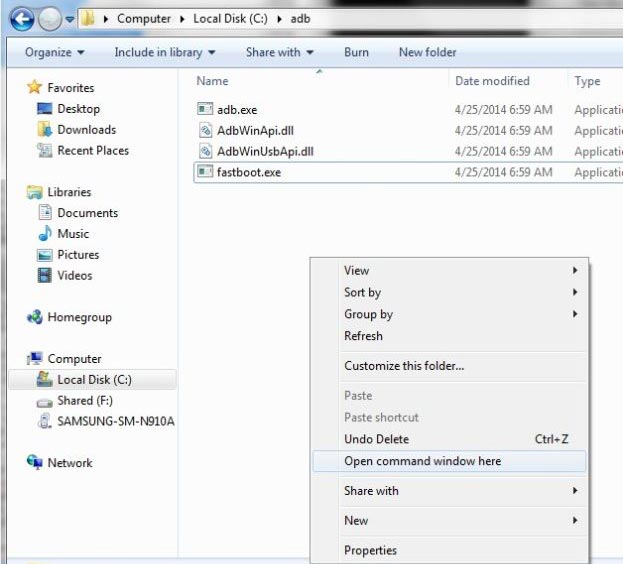
- Open a command prompt as Administrator and type below to check the ADB status.
- adb devices
- The above command will display some code for device detection. If you didn’t receive any response, Check with the USB Cable. If you get a response, move to the below commands.
- adb shell is stop -an android.intent.action.MAIN -n com. Android.settings/.wifi.WifiSettings
adb shell am start -a Android.intent.action.MAIN -n com. Android.settings/.wifi.WifiSettings
adb shell input key event 20 & adb shell input key event 23
- You can enter the commands individually, Or All commands and Hit Enter.
8. Reset Your Samsung Galaxy F14 5G Mobile
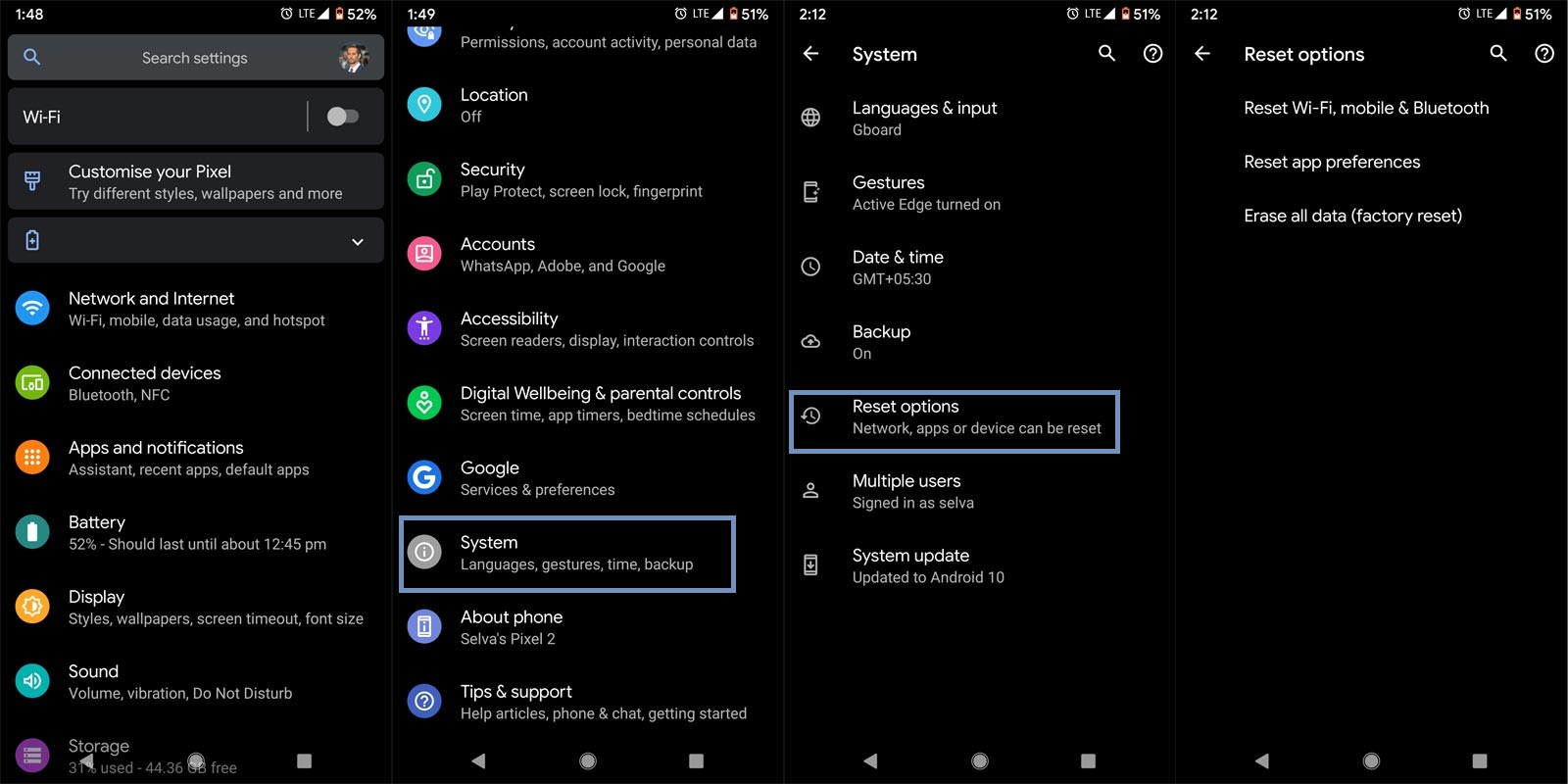
Take complete backup on your mobile. You can do a soft reset or hard reset. You can reset your Samsung Galaxy F14 5G if you follow all the methods and still face issues. To Rest your mobile, Go to settings> System>Reset Options> Reset app preferences/ Factory Reset.
- Soft Reset/App Preference Reset– This option will remove all the custom settings we made and return to the default settings. It will not delete user data.
- Hard Reset/Factory Reset– It will remove all user data. Your mobile OS will become new, like when you purchased it, and you must set up everything from the beginning.
You can also use your mobile recovery to reset when you can’t boot into your Mobile OS.
8.1 Stock Recovery method 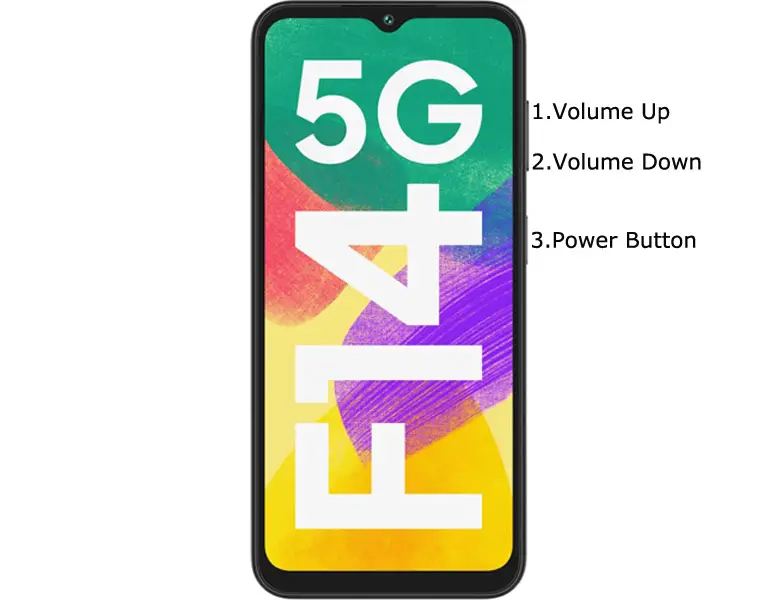
- Switch off your device. It will boot your mobile into Samsung Galaxy F14 5G Recovery mode. To do this- Press and hold down the Volume Up + Volume Down+ Power buttons simultaneously for some time. Then, enter into the Stock Recovery mode.
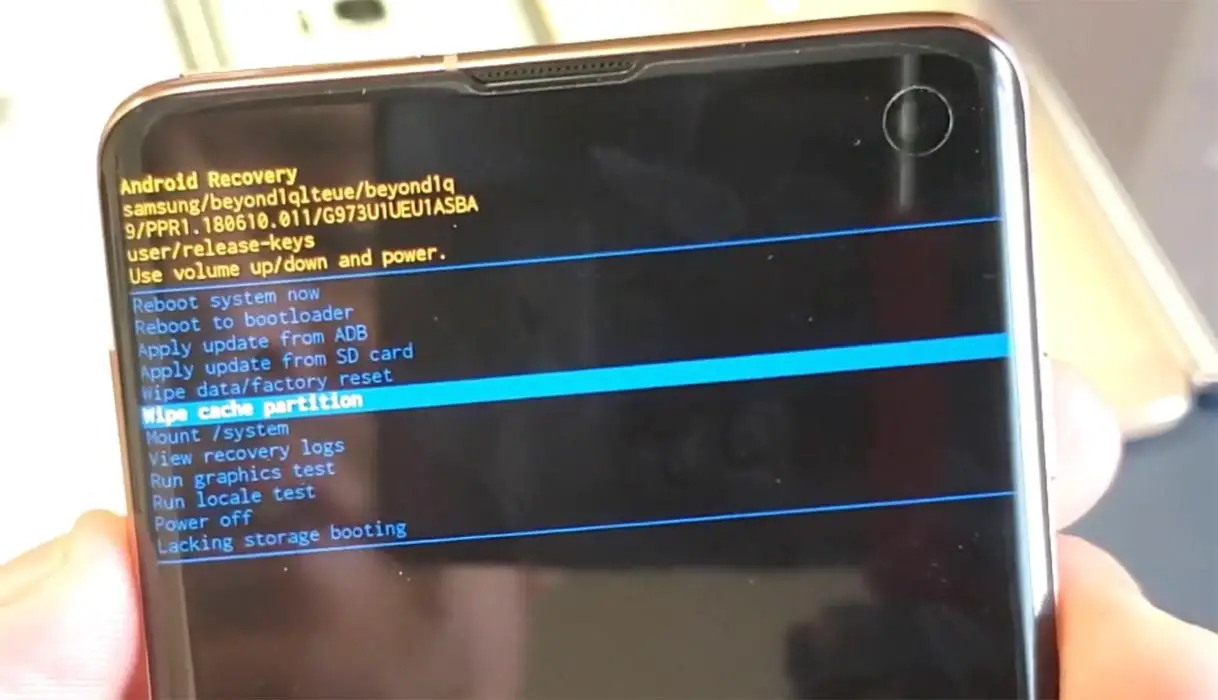
- If you don’t use Rooted mobiles, you have Stock Recovery, which your official mobile manufacturer usually provides. If you have stock recovery, you have the direct option of “Wipe Data/Factory Reset.” Navigate to this option and confirm it using the power key button. Remember, It will delete your entire data. So, backup first before the process.
8.2 TWRP Recovery method
When using Rooted mobiles, you use Stock Recovery or TWRP custom recovery. If you have Stock Recovery, you can use the above process. When you install TWRP on your mobile, follow the steps below.
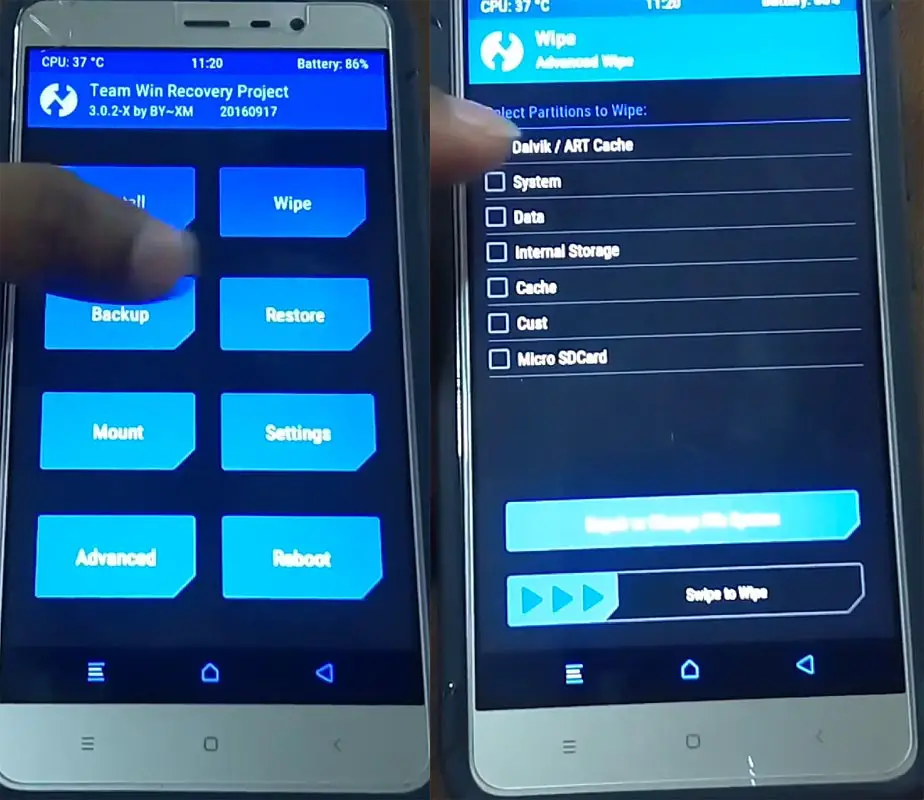
- The Key combinations will boot your mobile into TWRP Recovery mode.
- On the Home screen, you can find the option “Wipe.” Select the wipe option; you will receive further details. Select “Dalvik, Data, and Internal Storage.” Don’t select the system, and it will wipe your OS. After selecting other choices, swipe to erase the data. When the process completes, return to home and boot into OS.
9. Regular Software Updates
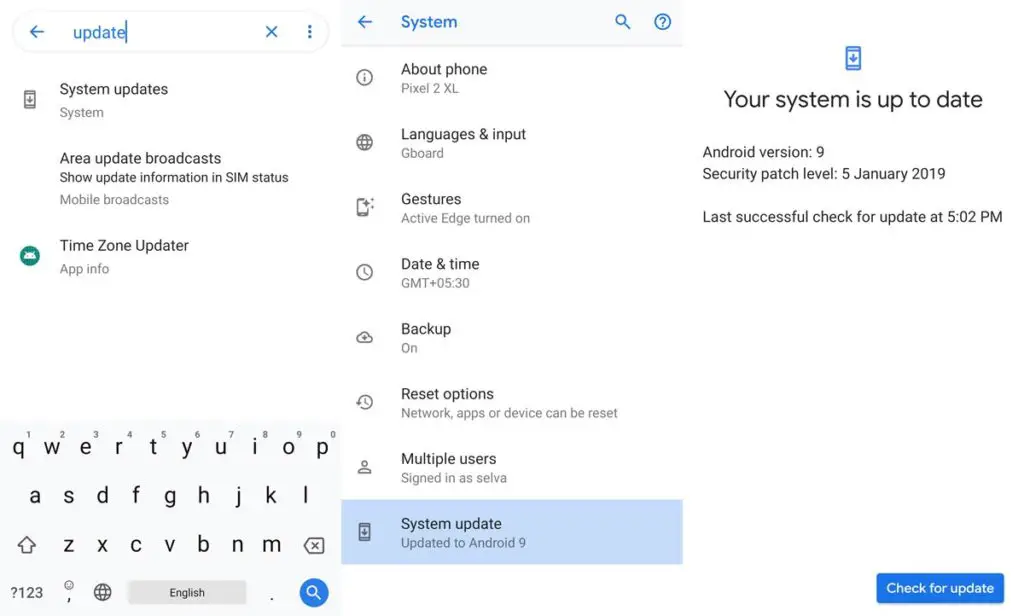
Mobile Manufacturers are rolling out updates to fix a lot of issues. It makes a lot of effort from their side. If you didn’t utilize the update, they would stop rolling out the updates regularly. So, it is our responsibility to install the updates. Most of the time, your mobile will remind you of these things. Some mobiles download the OTA in the background and ask us for permission to install the updates. After Android 10, Google rolled out important security patch updates via Playstore. So the process becomes comfortable. The updates have new features, but they also have fixed issues. So, update your mobile frequently.
You may need to check out a newer software update available for your device. To check out this, follow the steps below. The bug causing your Samsung Galaxy F14 5G device to freeze is primarily fixed in a newer software version, thus upgrading to your device’s most recent version. It is wise to take a complete backup before updating your mobile.
-
Go to your mobile device settings.
-
Scroll down to the About Section and click on the “Software update” option
-
Tap the “Download and install” option
-
Wait for the search to complete to see if any new updates are available.
-
If there’s an updated version, click on the download option to update your device software.
However, if there is no more original version, kindly try other solutions below.
10. Flash the Samsung Galaxy F14 5G stock firmware
When you have tried all the above methods and can’t connect with your Wi-Fi, the final choice for our fix is to flash the Stock firmware of the Samsung Galaxy F14 5G. Since it is a data loss process, I advise you to take a complete backup using Samsung SmartSwicth. You can restore the data once you fix the Wi-Fi issue.
Wrap Up
Nowadays, everything depends on Internet data. Other than checking notifications and chatting, Most of the time, to stream videos, we always prefer a Wi-Fi connection. Most people use Wi-Fi calling when they can’t get network coverage in their homes, which is necessary to stay connected with other people. So they always stick with Wi-Fi. When Wi-Fi is not working, it is not a pleasant experience. It will limit mobile users to only Cameras and Gaming when not working. Using the above methods, you can fix the Wi-Fi issue in your Samsung Galaxy F14 5G. Comment below when you have already set your problem in a new way. We will also update our post if we feel it works.

Selva Ganesh is a Computer Science Engineer, Android Developer, and Tech Enthusiast. As the Chief Editor of this blog, he brings over 10 years of experience in Android development and professional blogging. He has completed multiple courses under the Google News Initiative, enhancing his expertise in digital journalism and content accuracy. Selva also manages Android Infotech, a globally recognized platform known for its practical, solution-focused articles that help users resolve Android-related issues.