
Stuck issues can happen after the Root process or updates. Using the below methods, You can fix your Samsung Galaxy Z Flip 3 5G Stuck on Boot Start Screen Logo. The Samsung Galaxy Z Flip 3 5G is a powerful device with impressive hardware specs, 8GB of RAM, and a Qualcomm SM8350 Snapdragon 888 5G processor. While the device generally offers a smooth user experience, it can sometimes get stuck on the boot start screen logo. This issue can occur for various reasons, such as outdated software, conflicting apps, or errors caused by modifications made through root access. If your Galaxy Z Flip 3 5G is stuck on the boot start screen, don’t panic. There are several ways to fix this problem and get your device back up and running.
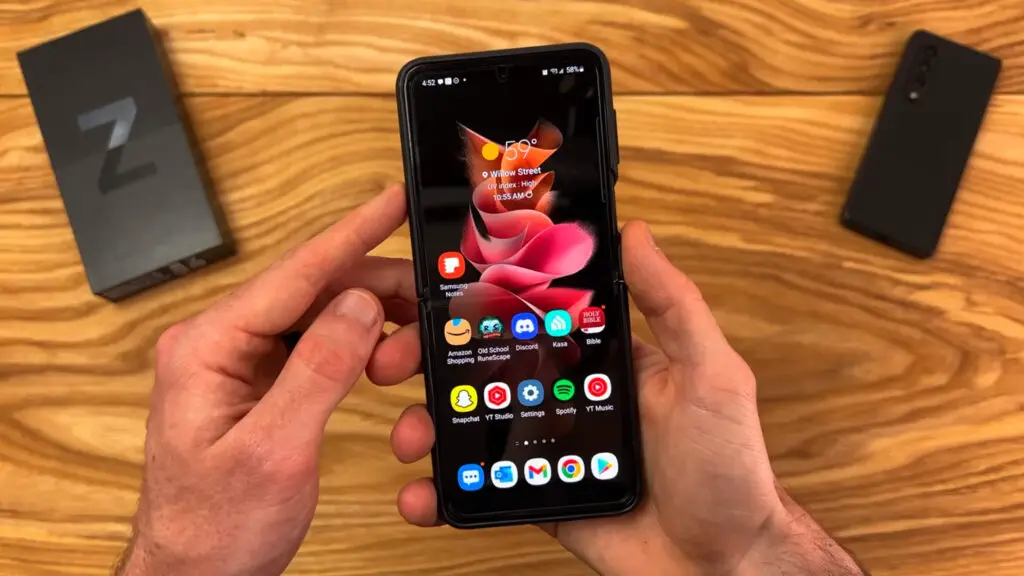
What is the Stuck in the Boot logo in Samsung Galaxy Z Flip 3 5G?
OTA updates are, most of the time, flawless processes. But when the mobile begins to finish the first boot after the update, It is a nail-biting situation for most users. Because sometimes the boot can take a long time than usual. If the boot happens after a long time, it is excellent. But it is not a good sign when the boot takes more than 20 minutes and is stuck on the Samsung Galaxy Z Flip 3 5G name logo. Even after your mobile is not booted into the regular screen, your mobile is stuck on the Samsung Boot logo. You can wait for a few minutes. You don’t need to worry. We can start with simple methods to fix these issues. Always start with a simple process. Most of the time, the boot is stuck and set in simple ways.
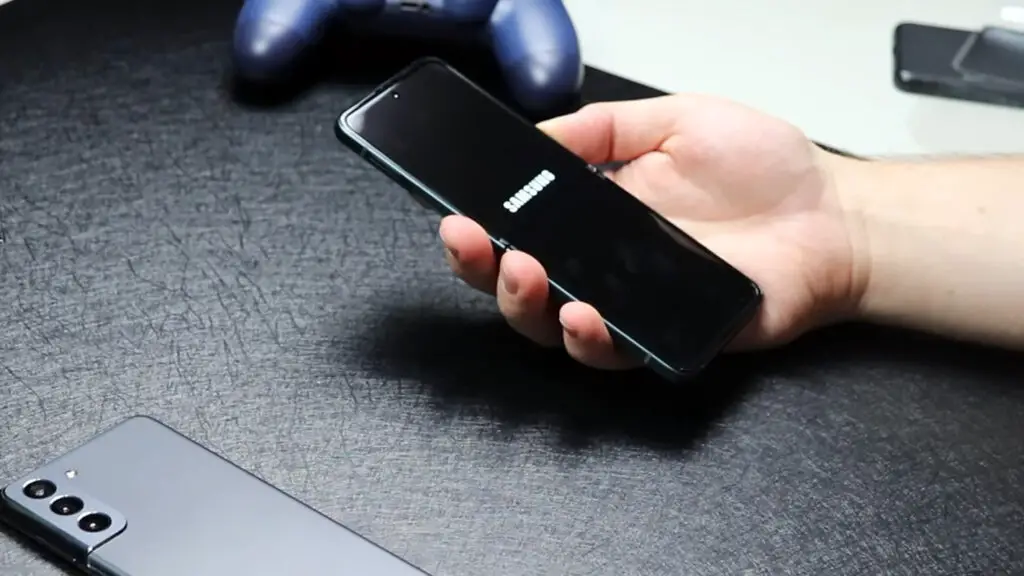 Boot logo stuck can happen for various reasons and different situations. It can occur when you restart the mobile after the monthly security patch updates or major upgrades like Pie and Android 10. Due to overwriting existing codes in the OS and the process not going as expected, We have to deal with this kind of problem. When you face this issue, Don’t rush for firmware flash, You will lose user data. The Firmware flash should be your last choice, and We can recover your mobile using different methods. The stuck can happen in the Samsung Logo and The Mobile details screen logo. For both screens, the following techniques will work.

How to Fix Samsung Galaxy Z Flip 3 5G Stuck on Boot logo (SM-F7110/B/N/U/U1/W)?
Our motto is as much as we can retrieve your mobile without losing data. But we must flash the full firmware to get your mobile back when we can’t. When you give more time than usual, and your mobile won’t boot into System OS, you can follow the below methods to fix your stuck Samsung Galaxy Z Flip 3 5G on the Boot logo.
1. Long Press Power Button
Even if it is a simple method, you may wonder what technology can help here. Most of the time, all electronic devices will work after the power is off and on, and it will work most of the time. Long press your power button for 10 seconds, It will trigger your mobile’s power, and your mobile will shut down in a few seconds.
2. Boot into Safe Mode
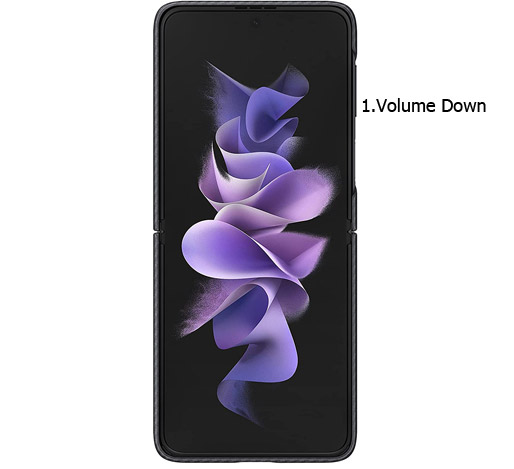
Sometimes third-party apps may trigger the new version, and it may cause the stuck-in boot logo. Try to boot into Samsung Galaxy Z Flip 3 5G Safe Mode by pressing Volume Down for 10-15 seconds. Your mobile will boot into Safe mode. Try to Un-Install the recently installed app before the OTA process. Also, check the compatibility in Play Store. When installing apps other than Play Store, Uninstall them and try to boot again.
3. Reboot using recovery
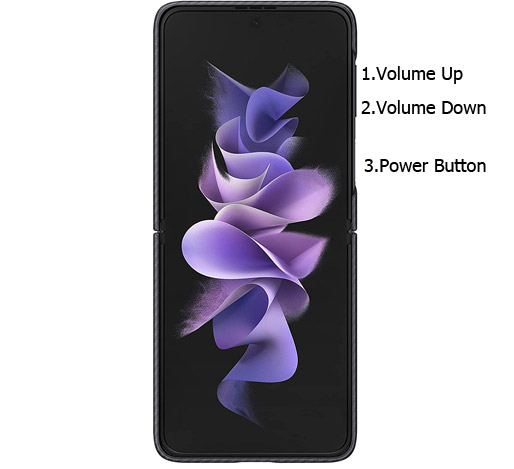
This method will not affect your User data. It will be only soft reset your mobile. To boot into recovery mode, you must press the Volume Up+ Volume Down+ Power Button on your mobile for 7-10 Seconds to boot into recovery mode. After that, it will boot you into the recovery mode or directly boot into System OS. The response may vary depending on the mobile manufacturers. If you received a Recovery mode menu, use the Volume keys to navigate and the Power button to confirm the selection.
3.1 Stock Recovery method
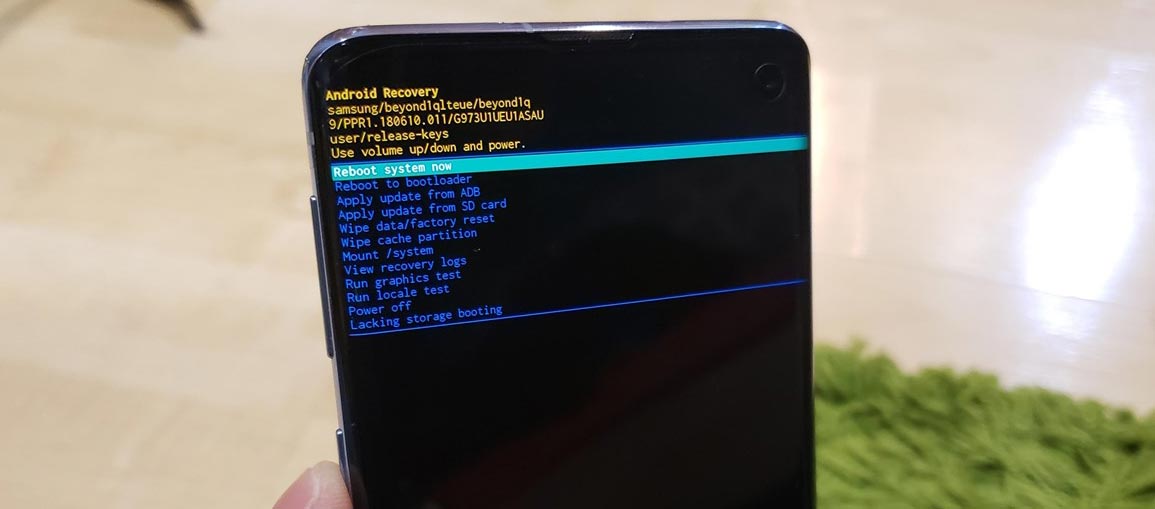
If you didn’t use Rooted mobiles, you have Stock Recovery, provided by your official mobile manufacturer. If you have stock recovery, you have the direct option of “Reboot System Now.” Navigate to this option and confirm it using the power key button.
3.2 TWRP Recovery method
When using Rooted mobiles, you use Stock Recovery or TWRP custom recovery. If you have Stock Recovery, you can use the above process. When you install TWRP on your mobile, follow the steps below.
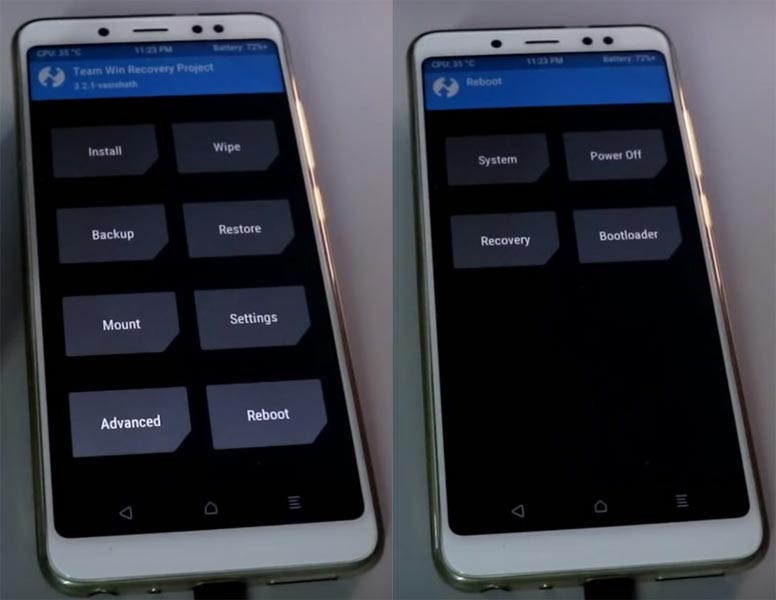
- The Key combinations will boot your mobile into TWRP Recovery mode.
- On the Home screen, you can find the option “Boot.” Select the item; you will receive further options such as System, Power Off, Recovery, and Bootloader. Select “System.” Your mobile will boot into a Normal OS.
4. Using ADB Commands to Reboot, your boot logo stuck Samsung Galaxy Z Flip 3 5G Mobile
This process may work 50-60%. If you use Old Mid-range mobiles, the chances are less. But it will work when you have Flagship mobiles or New mobiles. The OS can still handle background commands. So, the ADB commands may work.
Steps
- Download the Samsung USB driver and install it on your PC.
- Also, download the ADB drivers. Then, install it on your PC.
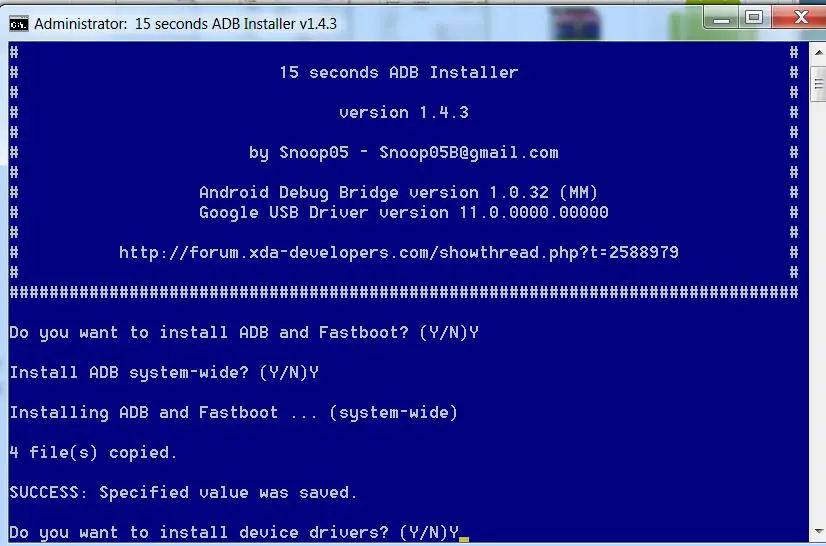
- Connect your mobile with a PC.
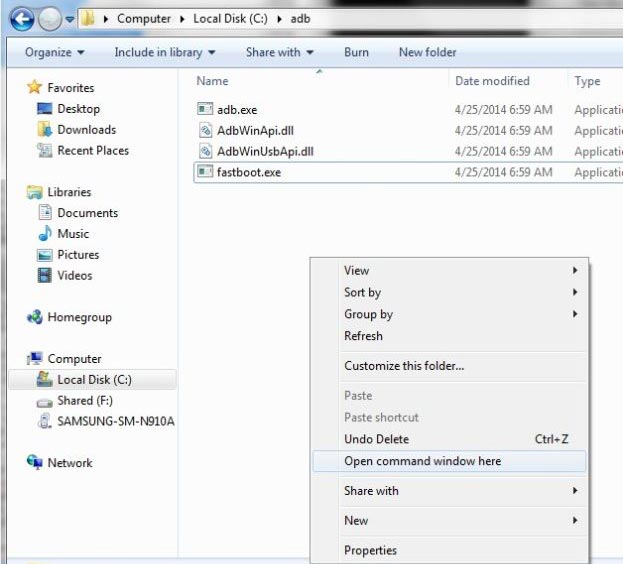
- Open a command prompt as Administrator and type below to check the ADB status.
- adb devices
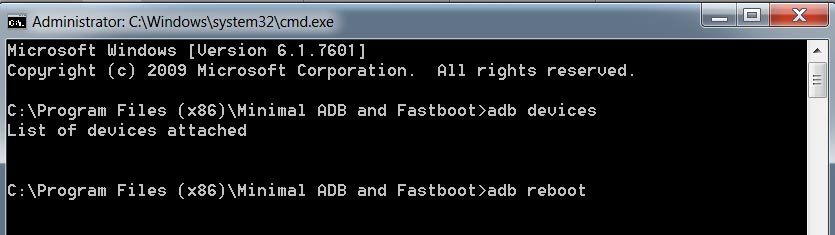
- It should display the connected devices. If you didn’t get the mobile, restart the command prompt and Disconnect and Connect your mobile. If you are detected, type the below commands.
- adb reboot
- The command will reboot your mobile.
5. Drain the Battery Completely
When You can’t Power off or Restart your mobile, Let the battery drain completely. Because of the massive battery may take 1-3 days, depending on your mobile battery backup, to remain. You can proceed with other ways when you don’t have this much time and want to urge fix methods.
6. Wipe Cache Data Partition
When you perform, restart using recovery, and you can’t boot into OS again. In this situation, we have another choice: to fix Wiping the cache partition. It also will not affect user data. It will wipe only cache data. You must press the Volume Up+ Power Button on your mobile for 7-10 Seconds. After that, it will boot you into the recovery mode or directly boot into System OS. The response may vary depending on the mobile manufacturers. If you received a Recovery mode menu, use the Volume keys to navigate and the Power button to confirm the selection. Remember to wipe only the cache partition, Not the Wipe Data/Factory Reset.
6.1 Stock Recovery method
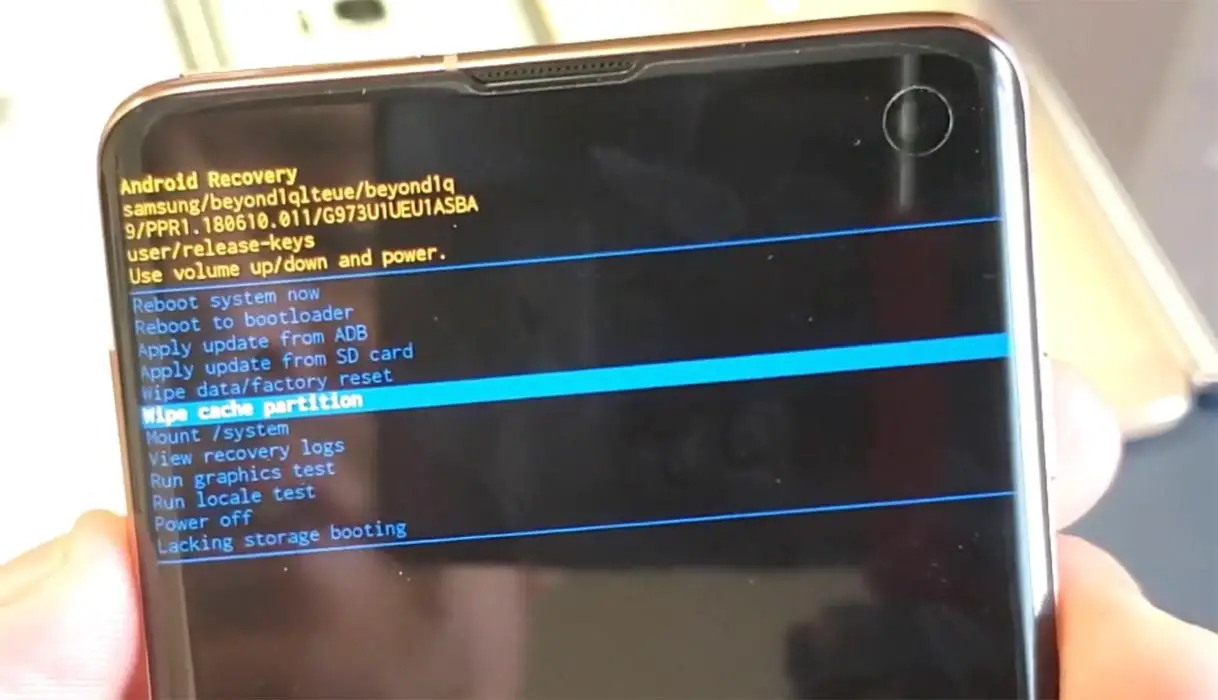
If you didn’t use Rooted mobiles, you have Stock Recovery, provided by your official mobile manufacturer.
- You can choose “Wipe Cache partition if you have stock recovery.” Navigate to this option and confirm it using the power key button.
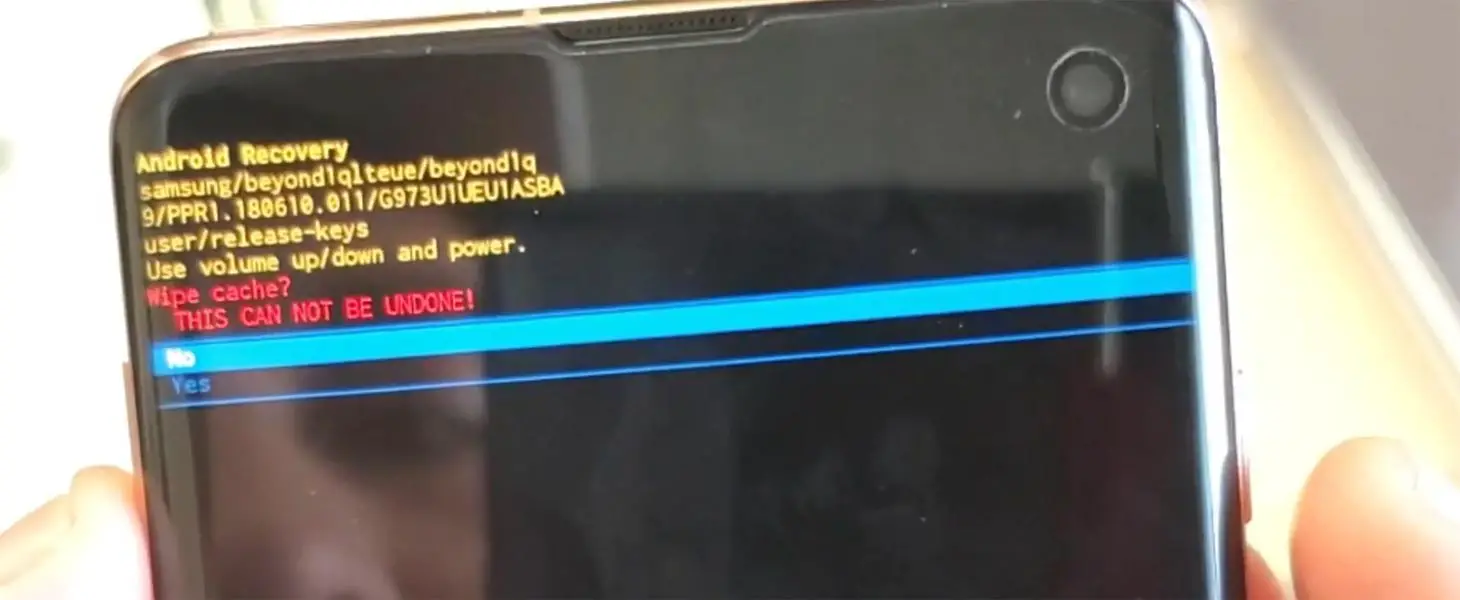
- It will ask you to confirm the process. Select “Yes.”
- Most of the time, it will boot into OS after the Wipe. When it returns to recovery, Select the Reboot system now.
6.2 TWRP Recovery method
When using Rooted mobiles, you use Stock Recovery or TWRP custom recovery. If you have Stock Recovery, you can use the above process. When you install TWRP on your mobile, follow the steps below.
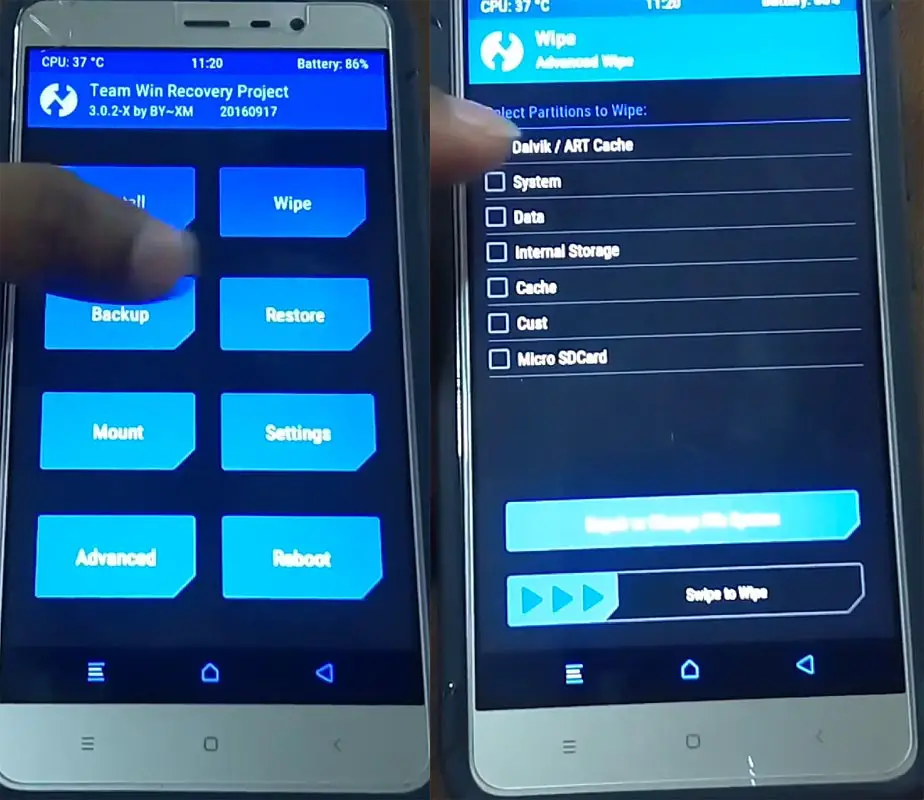
- The Key combinations will boot your mobile into TWRP Recovery mode.
- On the Home screen, you can find the option “Wipe.” Select the wipe option; you will receive further details. Select “Cache.” Don’t select the System, and it will wipe your OS. After selecting other choices, swipe to erase the data. When the process completes, return to home and boot into OS.
7. Disable Recently installed apps using ADB
You can often disable/remove the bloatware apps using Stock Android phones. If you are in Custom Skin OS, the chances of disabling the Bloatware apps are less. But, We can Disable the Apps using ADB without root. The methods may vary depending on the manufacturer. You have to find the particular Bloatware apps and disable them. I will give the overall idea about ADB steps and commands. But, the list of packages may vary depending on the manufacturers.
- Download the ADB drivers. Install it on your PC.
- Enable USB Debugging Mode and OEM Unlock; you’ll find these options in Settings >>> Developer options. If you didn’t see the developer options on your settings menu, go to about >>> build number. Then, about ten times regularly, click on the “Build Number” row to activate your device’s “Developer Option.”
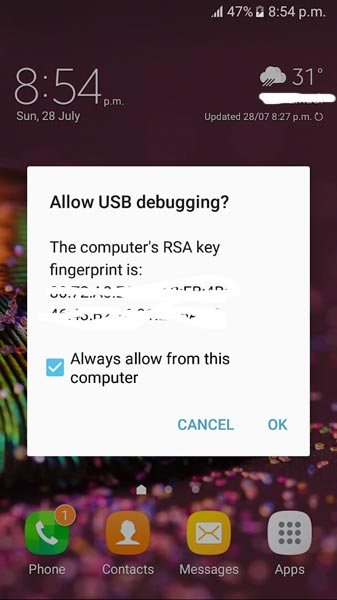
- Connect your mobile with a PC and unlock your mobile (Screen Lock).
- Open a command prompt as Administrator and type below to check the ADB status.
- adb devices
- The above command will display some code for device detection. If you didn’t receive any response, Check with the USB Cable. If you get a response, move to the below commands.
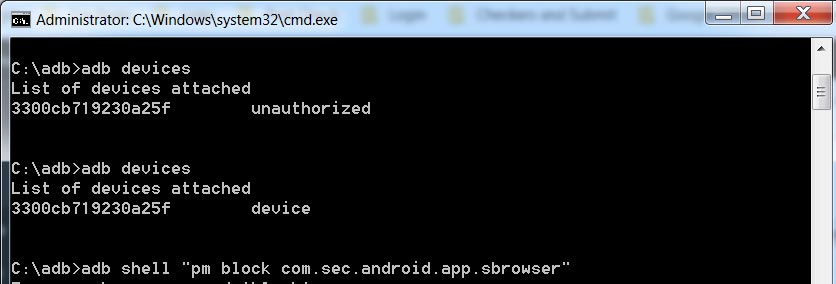
- You can disable the apps based on their adb package name. You can find these package names using the below command.
- adb shell pm list packages
- Based on the title, you can exclude unwanted apps. After that, use the am force-stop and pm disables commands with the Application package name.
- You can enter the commands one by one, Or All commands and Hit Enter. You can get the application package name in Play Store URL. It will start with com.instagram.android like that.
- am force-stop package name(e.g: com.sprint.w.installer)
pm disable-user package name
- Restart your mobile. Move to different methods when you are again stuck on your Samsung Galaxy Z Flip 3 5G mobile boot logon.
8. Fix firmware using Samsung SmartSwitch
Compared with other manufacturers, Samsung SmartSwitch is an excellent PC suite that can help you in many situations. When you already take a backup using SmartSwitch, your Samsung Galaxy Z Flip 3 5G is stuck at the boot logo. We can Flash the firmware using SmartSwitch to back up all the same software. So, The chance for data loss is less. When you don’t have a backup, this method will not help you. You can move differently.
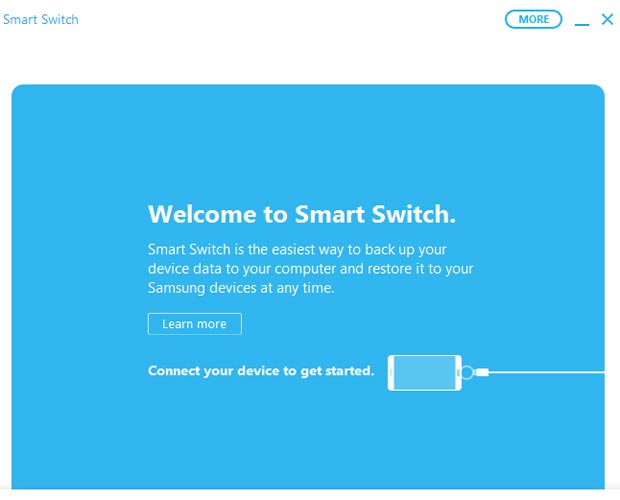
- Download and Install Samsung SmartSwitch Windows/Mac version.
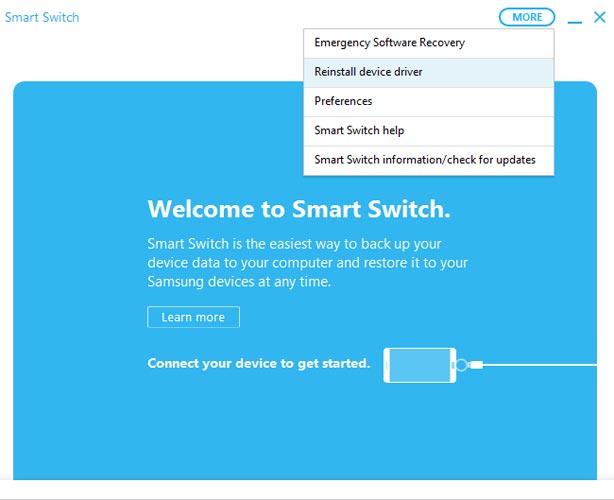
- Install Device Driver from the More option in the connect screen.
8.1 Restore mobile Using Emergency Recovery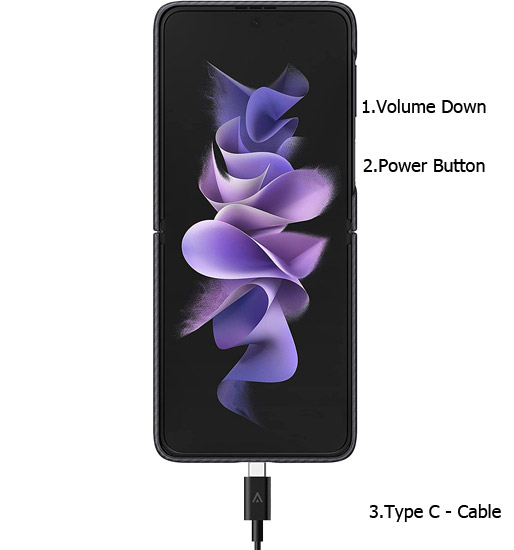
- Put your Samsung Galaxy Z Flip 3 5G mobile to download mode by pressing the Volume Down+ Power Button. Then, connect your mobile to your PC using a USB Cable.
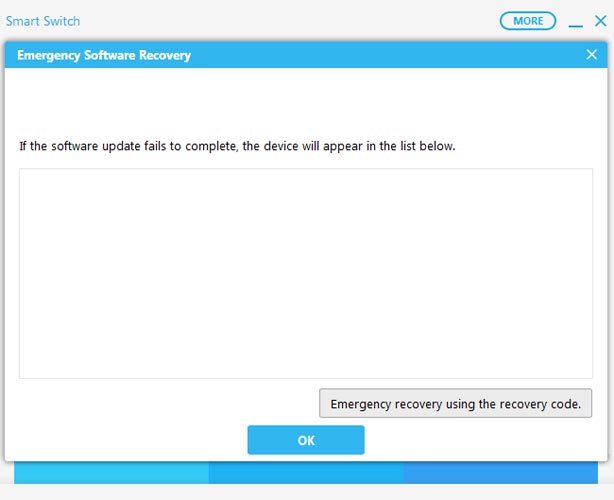
- After connecting the mobile with the PC, Select “Emergency Software Recovery.” When you get the mobile in the list, proceed with the steps. Your stuck boot logo will repair in this process. Move to the below method when you didn’t get the list mobile and have a mobile backup using SmartSwitch.
8.2 When You have SmartSwitch Backup
The backup method will help you when you have backup data using SmartSwitch. Remember, you will lose your data when you don’t have a backup.
- Put your Samsung Galaxy Z Flip 3 5G mobile to download mode by pressing the Volume Down+ Power Button. Then, connect your mobile to your PC using a USB Cable.
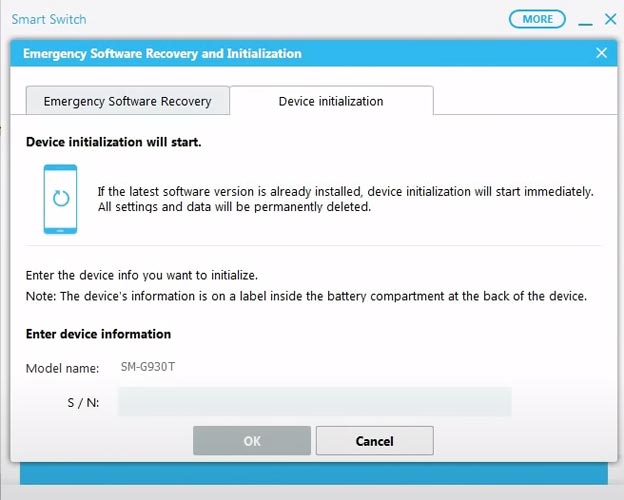
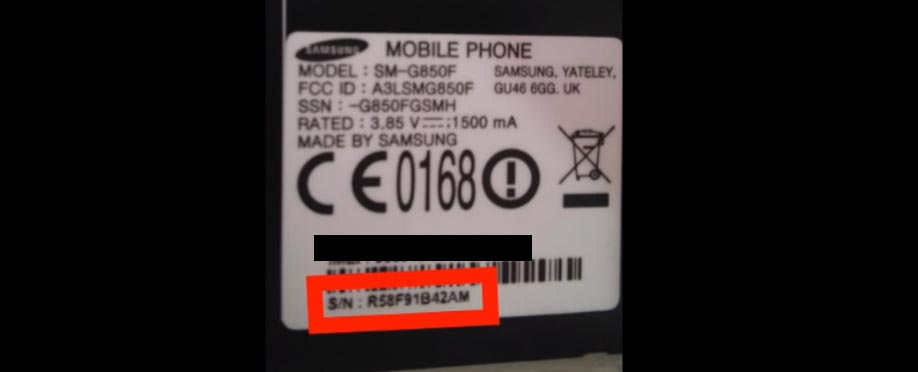
- After connecting the mobile with the PC, Select “Emergency Software Recovery.” Then in another tab, choose “Device Installation.” Finally, type your mobile model number and S/N. We can find the name and value of S/N on mobile phone backside stickers with IMEI or in the retail box.
- It will automatically detect the latest software version and update it.
- After the successful update, restart your mobile and set up everything with the same Google Account.
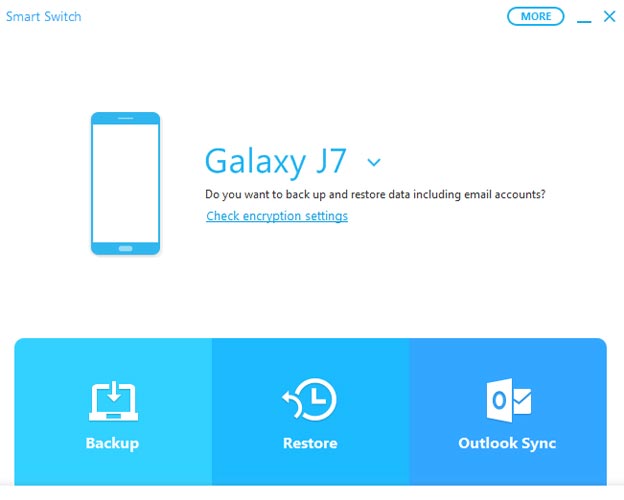
- Now relaunch SmartSwitch and Choose Restore. Allow necessary permissions on your mobile. Finally, select your backup data and restore it to your Samsung Galaxy Z Flip 3 5G mobile.
9. Flash Boot. img file using ODIN and Repair Boot logo stuck Samsung Galaxy Z Flip 3 5G
The boot image file is the main problem of being stuck in the boot logo. When we flash the particular boot image file, we can restore your mobile without losing data. But you should know what software version is already on the mobile. So you can always go with the latest boot image file. The following method may not work with carrier-locked mobiles like Verizon Wireless.
-
Download and install the Samsung USB driver to your computer system.
-
Also, download the ODIN software. Select the above Oreo version in the ODIN list. Then, install ODIN on your PC.
- Download the Samsung Galaxy Z Flip 3 5G firmware below and save it on your PC. Your Current OS and download version AP and CSC should be the Same.
9.1 Creating boot.tar file
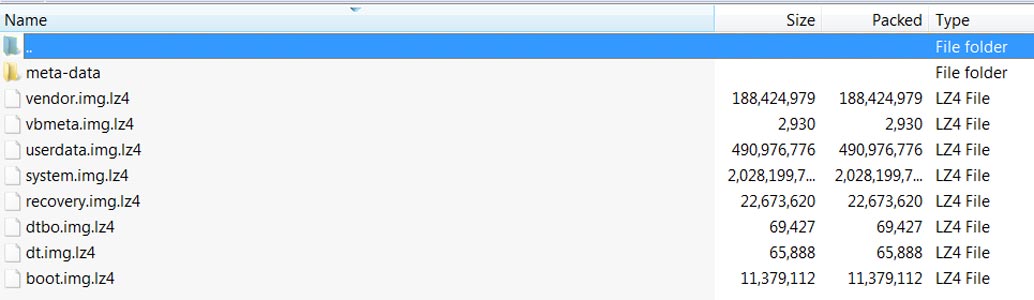
- Download 7Zip-ZS LZ4, and Install both on your PC. Extract the files in the downloaded firmware using 7Zip-ZS. You will get four files. Click on the AP File and Extract it again. You will get some data along with the boot.img.lz4.
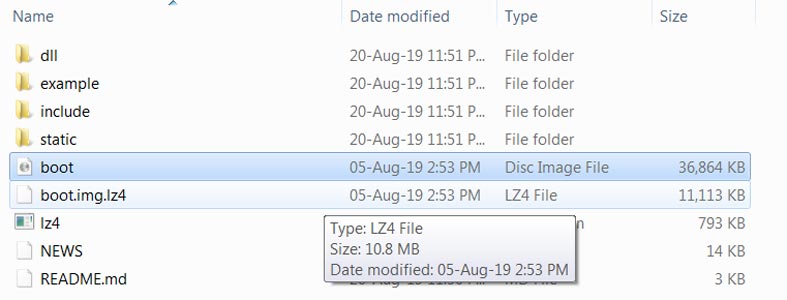
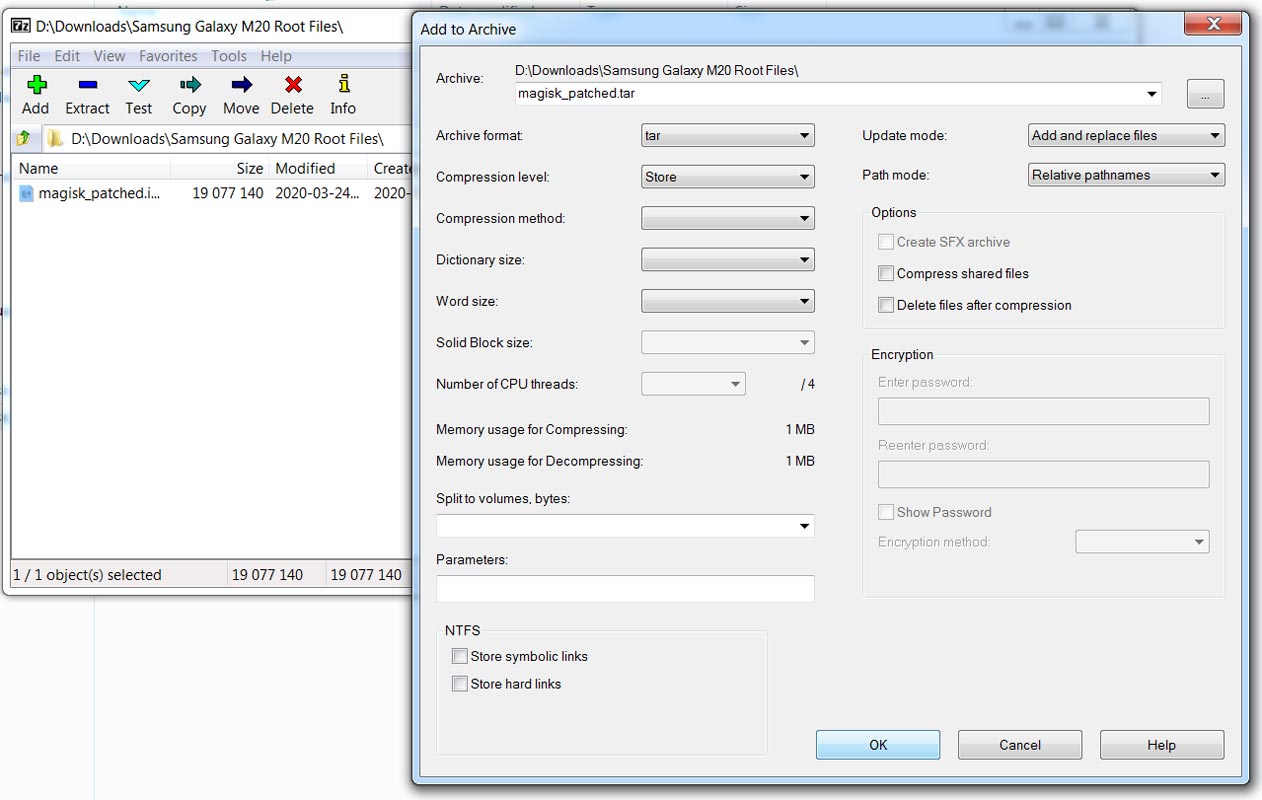
- Copy the boot.img.lz4 to the LZ4 Installed folder. Convert the lz4 file to a .img file by dragging the .img file to the lz4 application file. You have to remove the file from that application. The script will automatically convert the file to .img format. Again convert this .img file into .tar using 7ZIP. Copy the .tar file to the PC.
9.2 Flash boot.tar using ODIN
- Connect your USB cable to your PC. To do this, press and hold Volume Down+ Power Buttons and Connect Your Mobile To your PC via USB Cable; after Samsung Logo Appear, Release all keys. Then, enter Download mode. Switch off your device.
- Press the Volume Up button to continue when you see the warning message.
-
Connect the Samsung Galaxy Z Flip 3 5G mobile to the computer via a USB cable.
-
Launch the Odin app on your computer. If Odin identifies the device, it will show you a message that reads – added!!!
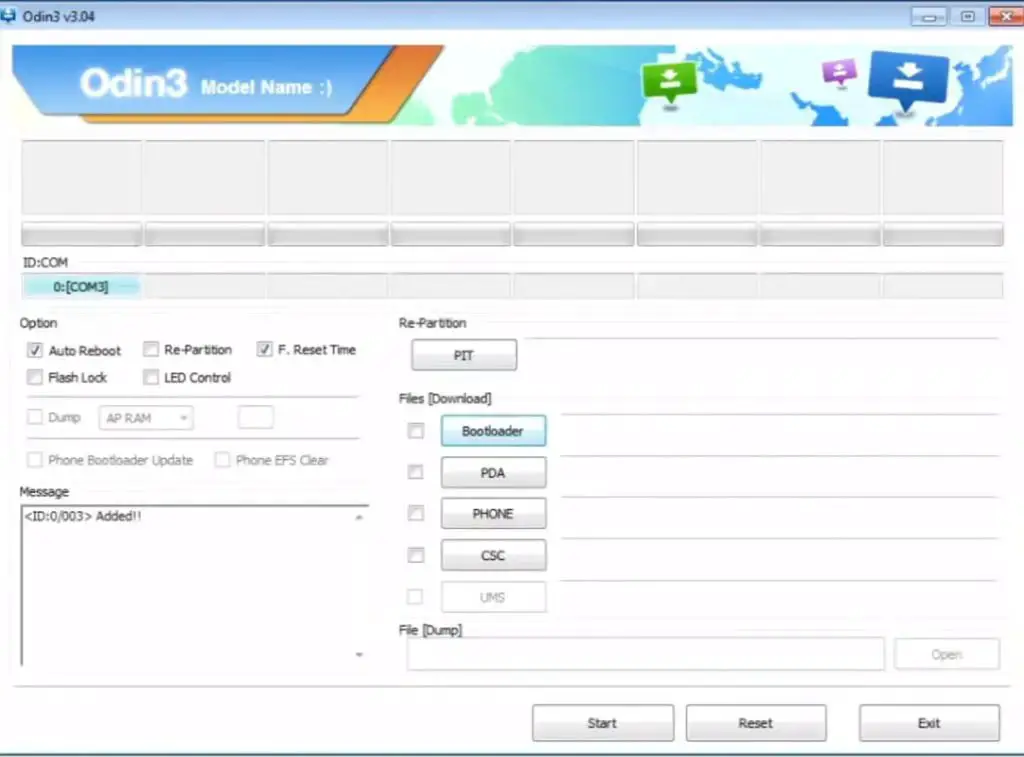
- However, you won’t see this message if the device is not connected to the PC correctly. So, you have to check the USB cable to see if it is reasonable and reconnect the device.
-
After connecting the Samsung device, click the PDA/PA/AP button to browse/search and get the TWRP from where you saved it on your PC. Also, navigate to “options” and Un-tick the Auto-Reboot.
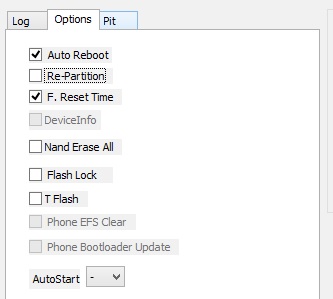
-
Click on “Start”
-
Once the file is booted into the device, reboot your device.
10. Flash Complete Firmware using ODIN
In this method, we are going full flash firmware in your boot logo stuck Samsung Galaxy Z Flip 3 5G mobile. It is a Data loss process. So when you don’t have any choice, and none of the above methods don’t work for you, you can use them. Refer- Flash Samsung Galaxy Z Flip 3 5G Firmware using ODIN.
Wrap Up
Even if the software updates process looks simple, 1-5% of people always face OTA updates issues. That’s why we suggest you always back up before updating your mobile. Always use cloud photo backup services like Google Photos. Compared with other mobile manufacturers, with the help of Samsung’s available tools, we can fix your Samsung Galaxy Z Flip 3 5G stuck on the boot logo.
If you face freeze and unresponsive issues on your mobile, You should try different methods than those mentioned above. It is always wise to give the first boot after the update. The first boot may take longer based on your available storage and app size. When you are confident that the mobile is stuck and given enough time for initialization, you can follow the above steps to fix your mobile. Comment below when you try different methods than above, and those techniques help you. We try to add if those methods work for everyone.

Selva Ganesh is a Computer Science Engineer, Android Developer, and Tech Enthusiast. As the Chief Editor of this blog, he brings over 10 years of experience in Android development and professional blogging. He has completed multiple courses under the Google News Initiative, enhancing his expertise in digital journalism and content accuracy. Selva also manages Android Infotech, a globally recognized platform known for its practical, solution-focused articles that help users resolve Android-related issues.