
In this article, we’ll explain how to use EaseUS Todo Backup to create a backup of your Windows 10 system and restore it, even if you’ve passed the 10-day limit. So, let’s begin! If you recently upgraded to Windows 11 but are now experiencing regret and want to switch back to Windows 10, you might be worried that you’re stuck with Windows 11 because the 10-day limit for reverting has expired. However, there’s no need to worry because there’s a solution.
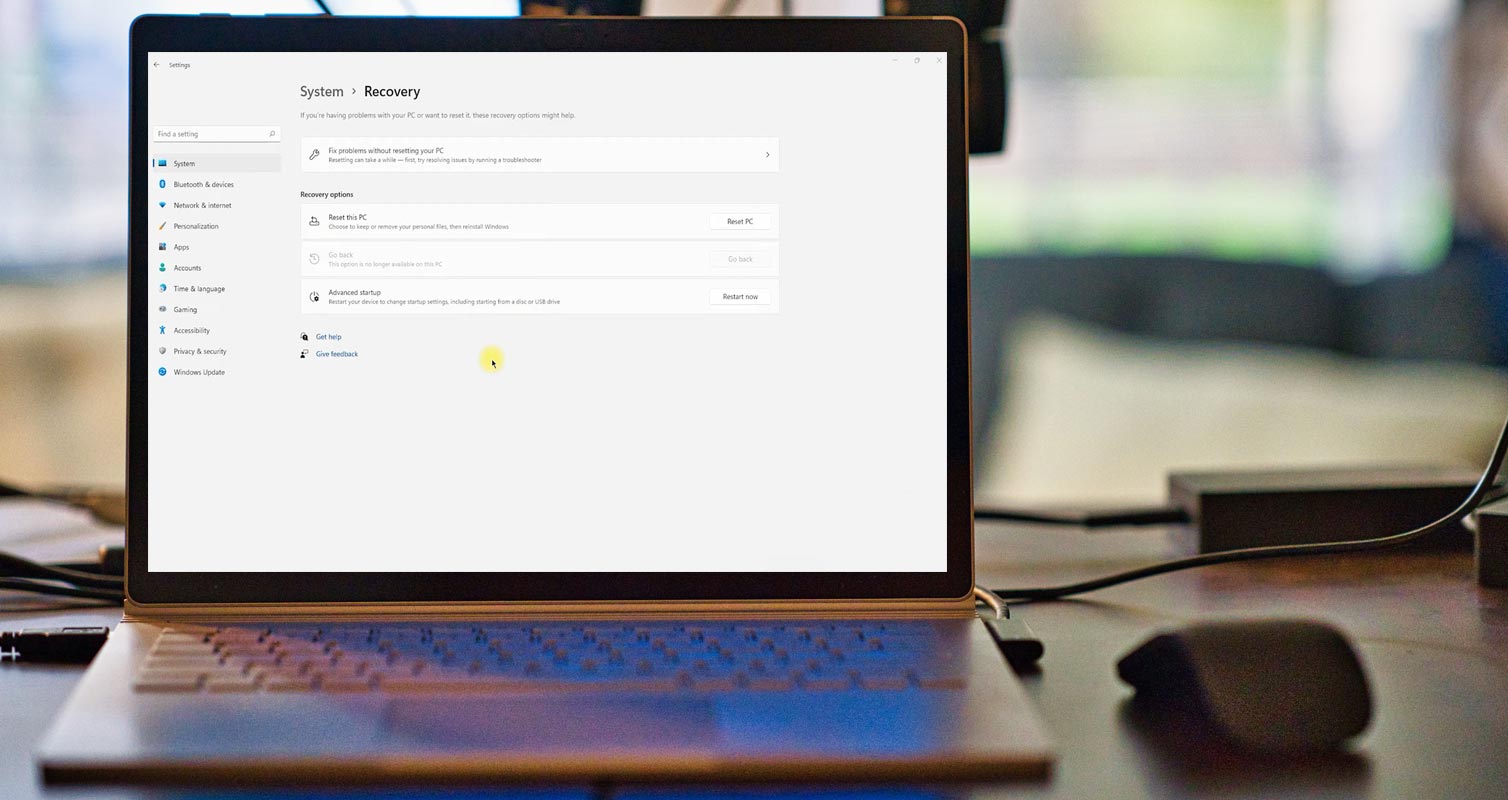
Why Backup & Restore?
Before we dive into how to back up and restore Windows 10, let’s first understand its importance. Backing up your system is crucial because it safeguards your data and system from any unforeseen errors, damages, or corruption. You never know when your computer might encounter a problem that requires a complete system restore. Having a backup handy can save you time, money, and energy.
Backup Windows 10 with EaseUS Todo Backup
The first step to revert to Windows 10 is to back up your system using EaseUS Todo Backup. If you haven’t upgraded to Windows 11 yet, it’s the perfect time to make a system backup. Follow these steps:
Step 1: Launch EaseUS Todo Backup
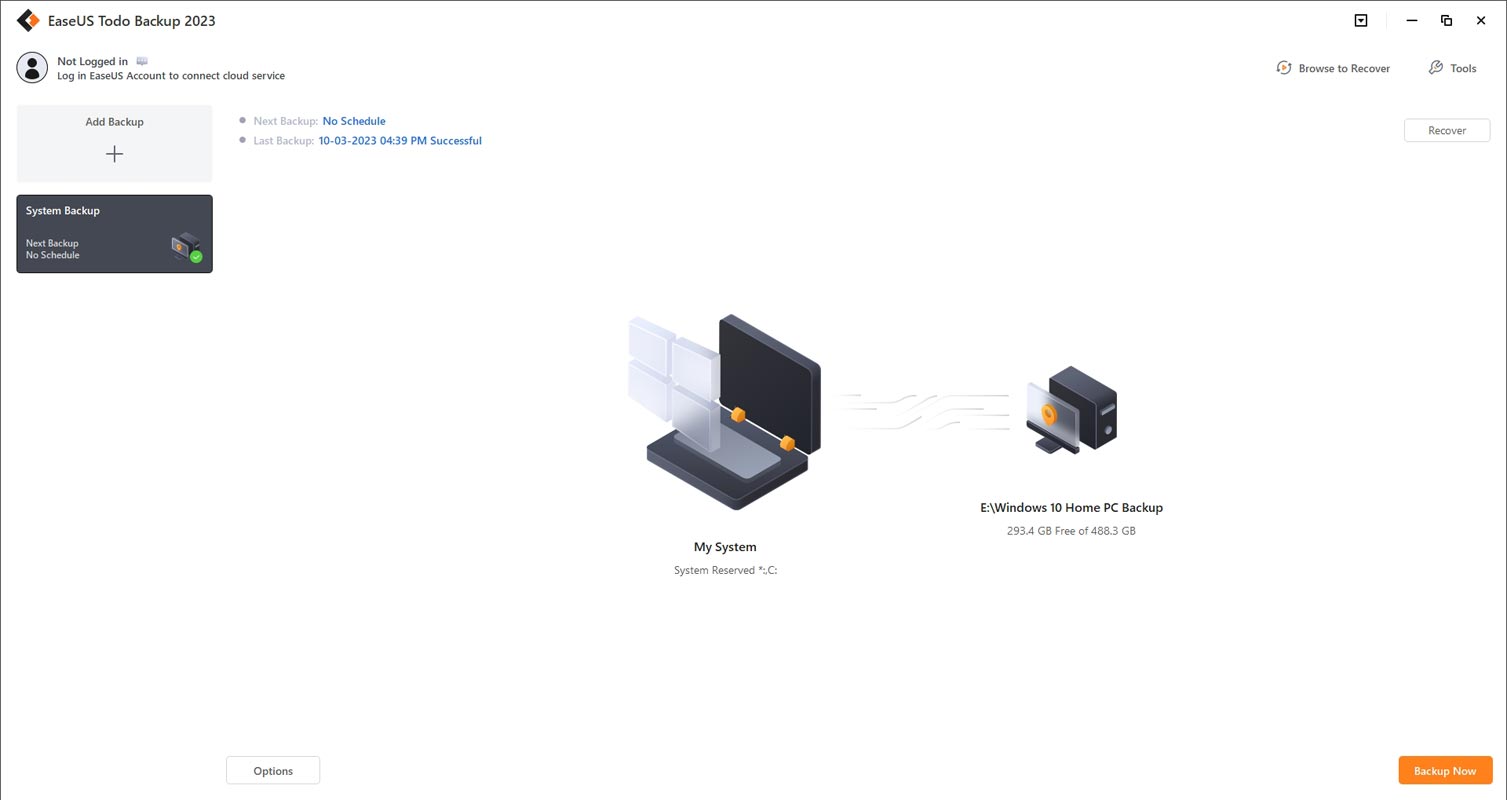
After installing EaseUS Todo Backup, launch the software and choose “Create Backup” on the home page.
Step 2: Select Backup Contents
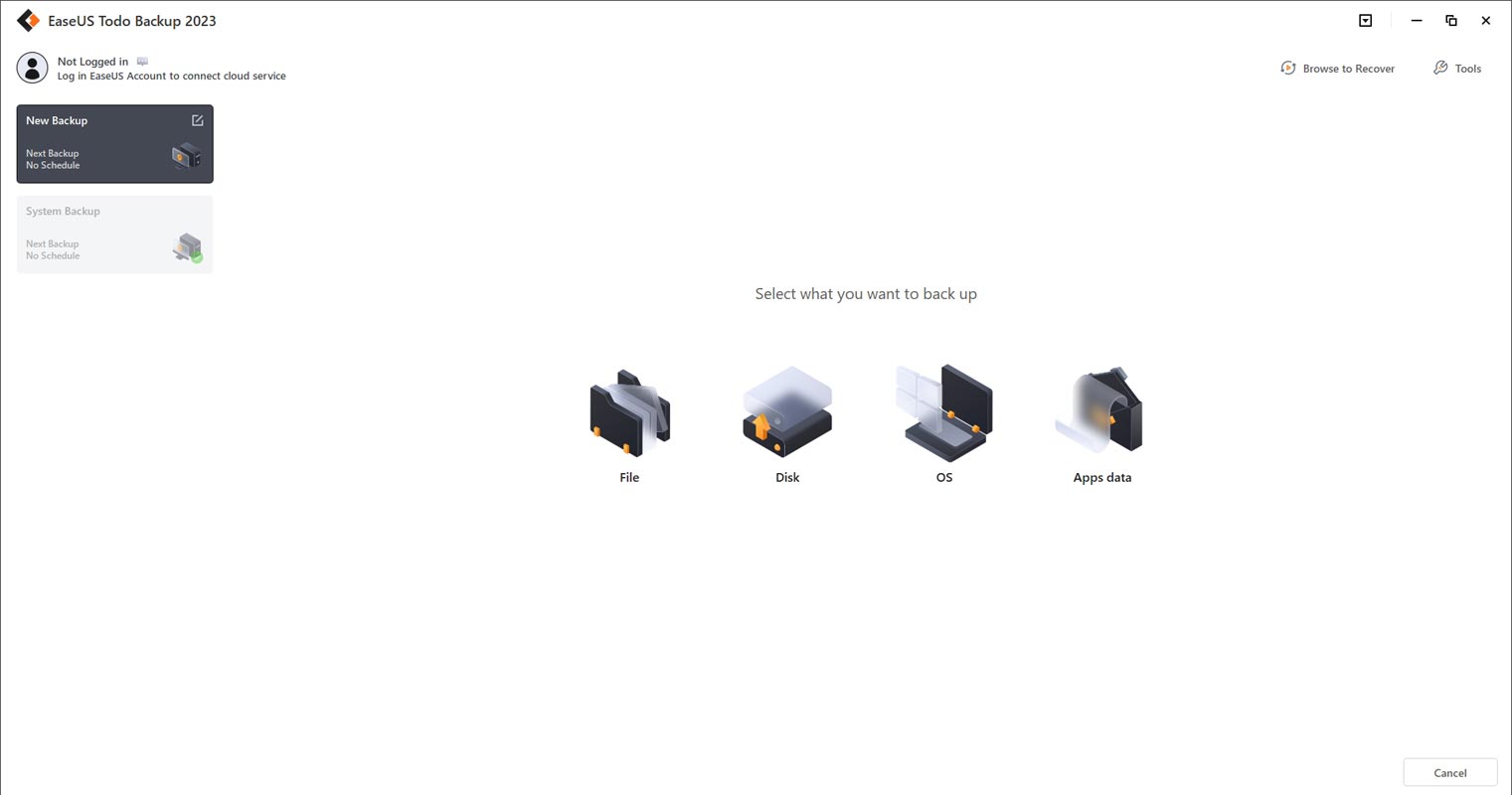
Click “Select backup contents” and choose “OS” among the four available categories.
Step 3: Select the Location
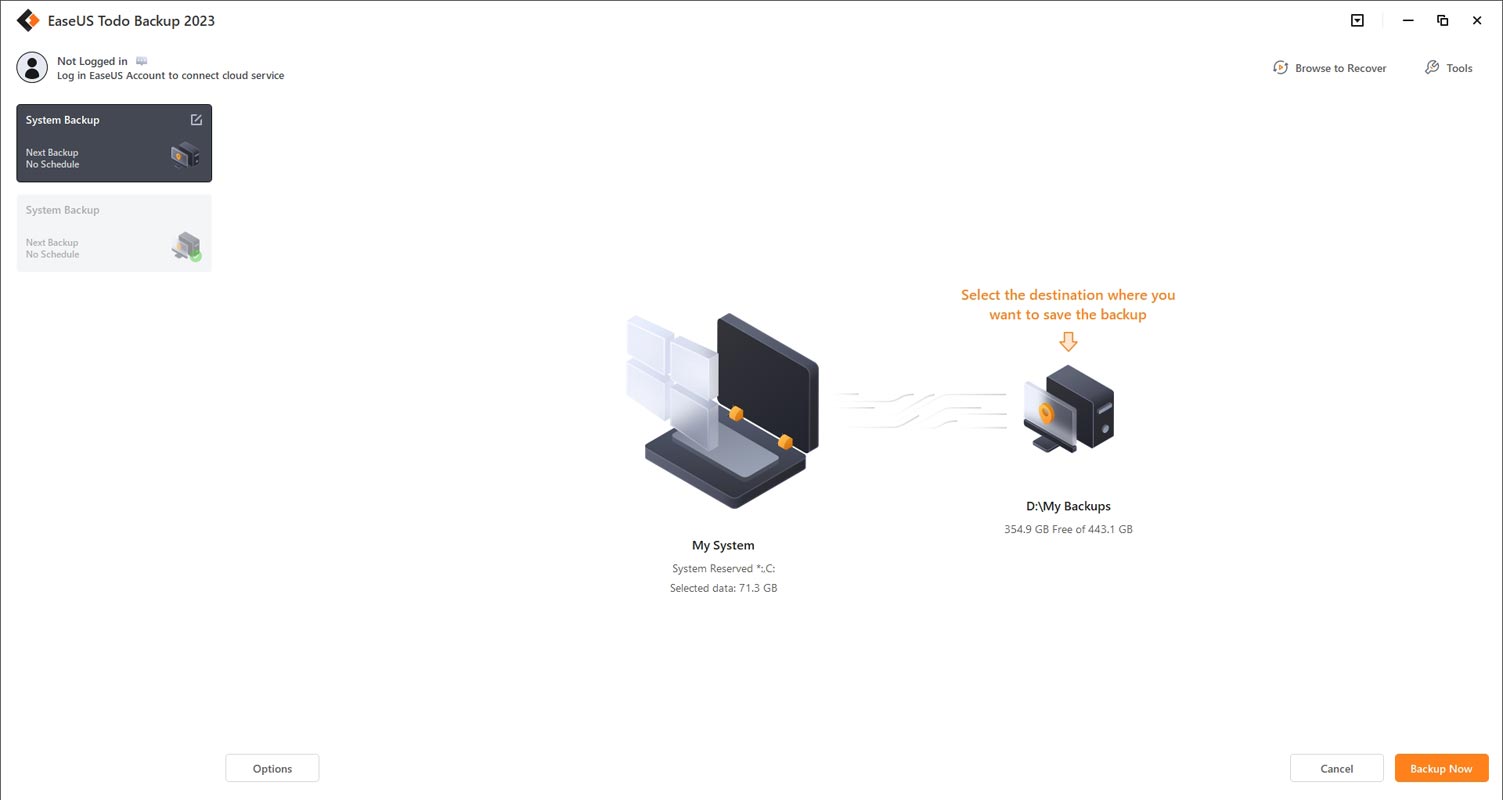
The best part about using EaseUS Todo Backup is that it makes the backup process easy. Once you select the “OS” category to start the backup, the system partition will be automatically selected for you. All that’s left for you to do is choose the location where you want to save the backup file. How convenient is that!
Step 4: Save the Backup File
You can save the backup file on your local drive, cloud, or NAS. Alternatively, connect an external hard drive to preserve the system backup files.
Step 5: Customize Settings
You can customize the settings in “Options” at the bottom left, such as compression, splitting, encryption, and email notification. After that, click “Backup Now,” and the process will begin. It is a wise idea to remove temporary files like previous Windows updates. It will reduce the total backup size.
Restore Windows 10 from the Backup
After the backup process, you can downgrade Windows 11 to Windows 10. Here’s how:
Step 1: Launch EaseUS Todo Backup
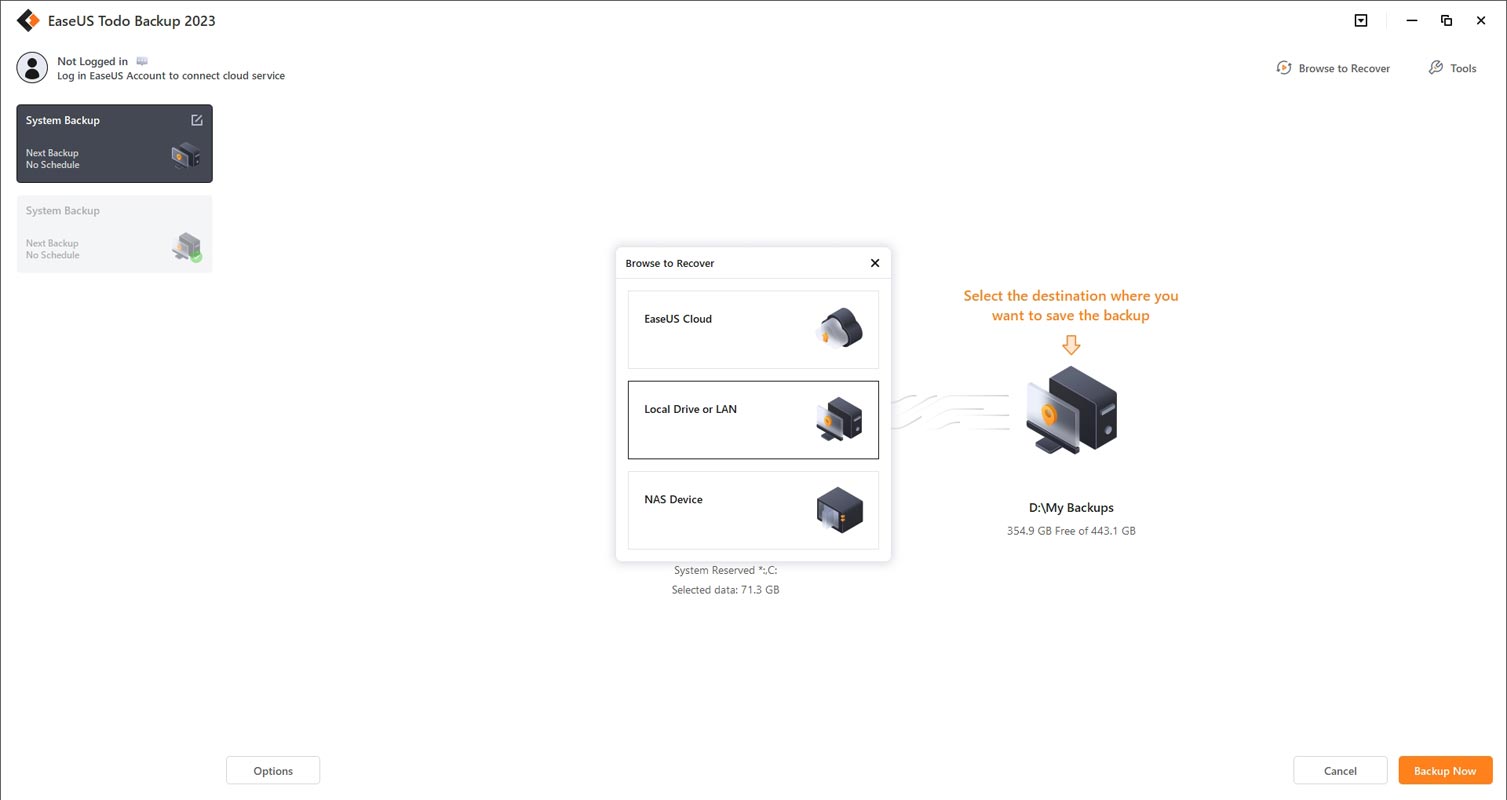
Launch EaseUS Todo Backup again and choose “Go Back” to restore the system backup.
Step 2: Select Backup Image
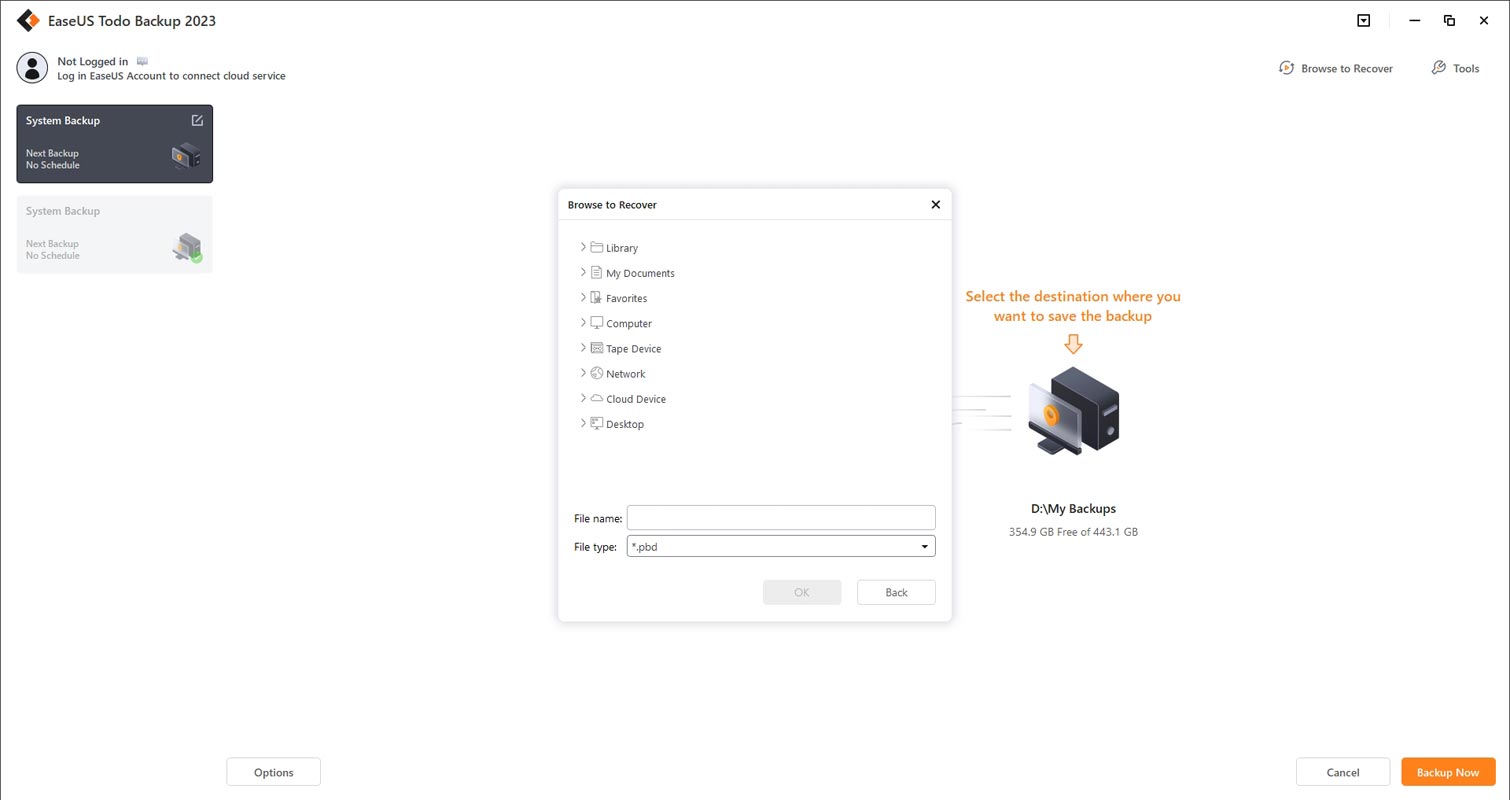
To restore your system backup using EaseUS Todo Backup, all you have to do is choose the backup image that you want to convert from the list. Easy peasy!
Step 3: Confirm Restore
Confirm the restore destination and your system partition, and click “Proceed” to start the restore.
FAQs
What is EaseUS Todo Backup?
EaseUS Todo Backup is software that allows you to back up and restore your system and data easily and quickly.
Can I use EaseUS Todo Backup to back up my files?
You can use EaseUS Todo Backup to back up your files, including documents, photos, videos, music, and more.
Does EaseUS Todo Backup support cloud backup?
EaseUS Todo Backup supports cloud backup, including Dropbox, OneDrive, and Google Drive.
What if I didn’t make a backup before upgrading to Windows 11? Is it still possible to revert to Windows 10?
Unfortunately, if you didn’t create a system backup using EaseUS before upgrading to Windows 11, you won’t be able to use EaseUS Todo Backup to revert to Windows 10. The 10-day limit to roll back to your previous operating system will have already expired. In this case, you’ll need to install Windows 10 cleanly.
How long does creating a system backup with EaseUS Todo Backup take?
The time it takes to create a system backup can vary depending on the size of your system partition and the speed of your computer’s hard drive. Generally, it can take anywhere from a few minutes to several hours to complete a full system backup. It’s a good idea to allow plenty of time for the backup process to finish and to avoid using your computer for any other tasks while the backup is in progress.
Can I use EaseUS Todo Backup to create backups of individual files and folders?
Yes, EaseUS Todo Backup offers a range of backup options, including file and folder backups, disk and partition backups, and complete system backups. You can choose the backup type that best meets your needs and preferences.
Is it safe to rely on backups created with EaseUS Todo Backup?
Yes, EaseUS Todo Backup is a reliable and trustworthy backup solution. It uses advanced encryption algorithms to protect your data, and it’s regularly updated to ensure compatibility with the latest Windows operating systems and hardware.
Do I need to purchase EaseUS Todo Backup to use it?
EaseUS Todo Backup offers both free and paid versions of its software. The free version includes essential backup and recovery features, while the paid version provides additional features and benefits. You can choose the version that best meets your needs and budget.
Wrap Up
While upgrading to Windows 11 may seem like an exciting change, it may not be the best decision for everyone. If the new operating system doesn’t suit your needs, you might want to revert to Windows 10. However, if you exceed the 10-day limit, you might be stuck with Windows 11. That’s where EaseUS Todo Backup comes in handy! By creating a system backup before upgrading, you can bypass the Windows rollback limitation and restore your system whenever possible.
It’s always better to be safe than sorry, and regularly backing up your system with EaseUS Todo Backup can help you avoid any potential data loss or system damage. So, take the time to create a system backup today and rest easy knowing that you can always revert to Windows 10 if you need to.

Selva Ganesh is a Computer Science Engineer, Android Developer, and Tech Enthusiast. As the Chief Editor of this blog, he brings over 10 years of experience in Android development and professional blogging. He has completed multiple courses under the Google News Initiative, enhancing his expertise in digital journalism and content accuracy. Selva also manages Android Infotech, a globally recognized platform known for its practical, solution-focused articles that help users resolve Android-related issues.




Leave a Reply