
For a considerable time, the irresistible charm of customization has played a pivotal role in propelling the widespread adoption of smartwatches. The profound capability to tailor every facet of your wrist companion, encompassing everything from the appearance of watch faces to the nature of notifications, bestows a distinctive touch upon your everyday existence. Here, within this guide, a treasure trove of insights emerges, guiding you through the intricate process of downloading and seamlessly installing the alluring Galaxy Watch 6 faces onto any compatible smartwatch. With the arrival of Samsung’s sixth iteration in its celebrated series, the stage is set for a spectacle; the spotlight now brilliantly illuminates the innovative new collection of watch faces that have swiftly ignited enthusiasm and anticipation among enthusiasts and users alike.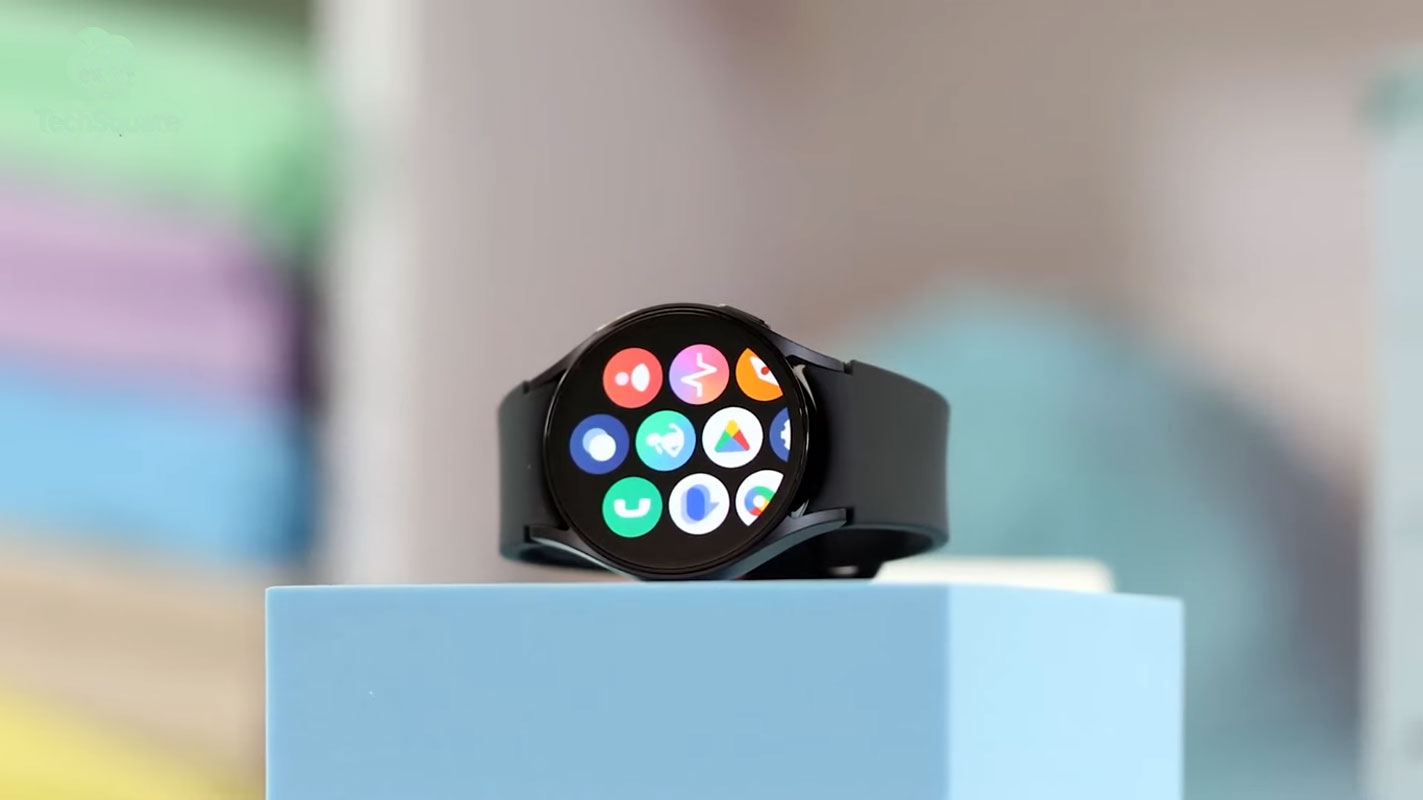
The Popularity of Galaxy Watch 6 Faces
In the world of smartwatches, the South Korean tech giant has consistently held a prime position. With each release, Samsung‘s offerings stand as the gold standard in innovation and design. The Galaxy Watch 6, the latest installment in their repertoire, introduces a host of alluring features that have piqued the curiosity of tech enthusiasts worldwide. Among the standout features are the new watch faces that combine functionality with visual appeal effortlessly.
Overview of the Installation Process
So, what’s the buzz about these watch faces? Imagine breathing new life into your trusty old smartwatch. This guide unlocks the potential of the Galaxy Watch 6 faces, showing you how to infuse your outdated watch with a fresh and invigorating user interface.
Installing Android SDK Platform Tools
- The first step to embark on this journey is to equip yourself with the essential tools.
- The Android SDK Platform Tools are your ticket to a seamless installation process.
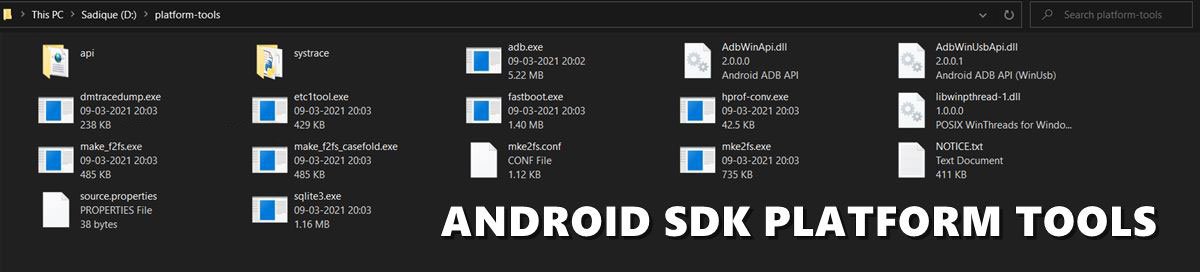
- These tools encompass ADB and Fastboot binaries, the backbone of this operation.
- Visit the official Google repository, download the tools, and extract them to a user-friendly location on your PC.
Acquiring Galaxy Watch 6 Faces
- Before you delve into the realm of customization, ensure you have the Galaxy Watch 6 Faces.
- Unzip the downloaded package and transfer the APK files to the platform-tools folder on your PC.
- This sets the stage for the transformation that’s about to take place.
Preparing Your Watch
- Navigate to your smartwatch’s settings and tap on “About Watch.”
- An intriguing Easter egg awaits – tap the “Software Version” seven times to unlock Developer Options.
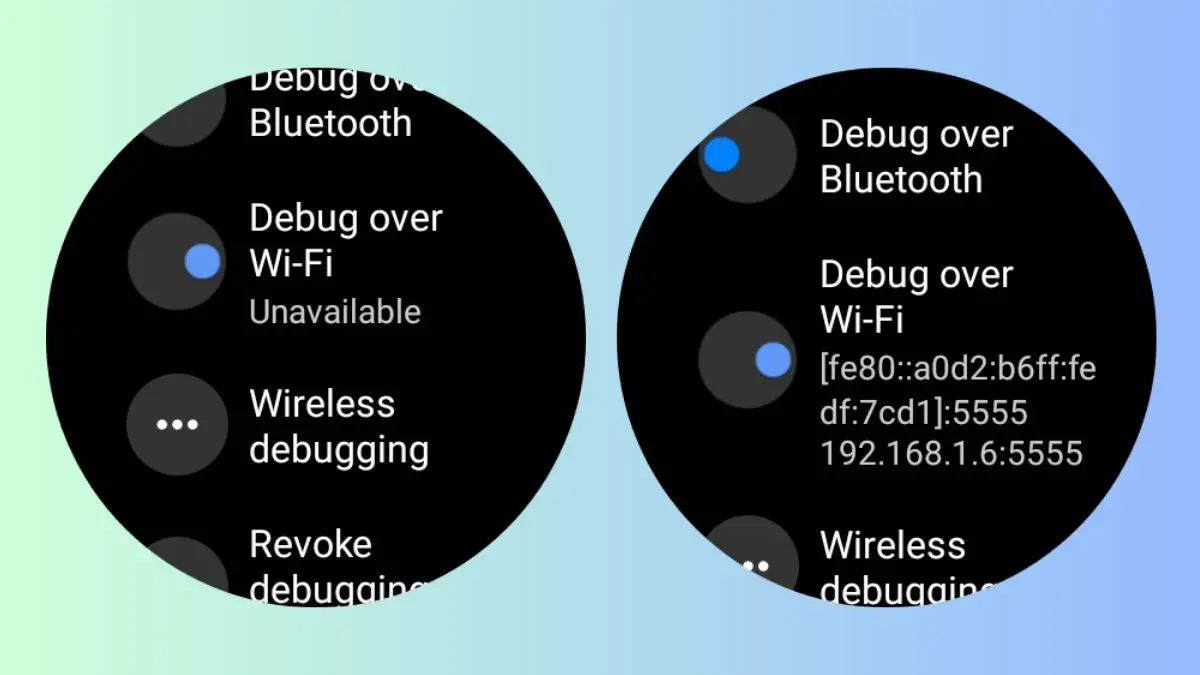
- Within these options, enable ADB Debugging and debugging over WiFi. This opens the door to seamless communication between your watch and PC.
Establishing Connection
- The vital link connecting your devices is established through the ADB connection.
- To initiate this connection, open the Command Prompt and enter “CMD” into the address bar of the platform-tools folder.
- Execute the command to establish a relationship using your watch’s IP address.
- This direct link between devices is the conduit through which the magic happens.
Installing the Watch Face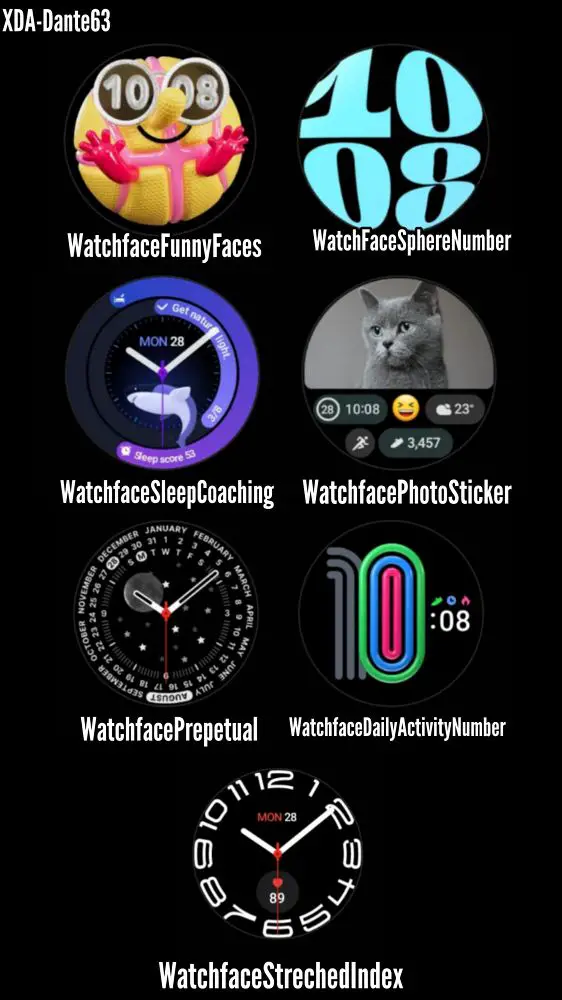
- With the connection established, the time has come to introduce the watch face to your smartwatch.
- Transfer the desired watch face APK to the platform-tools folder and give it a concise name for convenience.
- Execute the installation command in the Command Prompt, and witness the transformation unfold.
Completing the Installation
- The newly installed watch face beckons, but don’t stop there.
- Extend this rejuvenation to multiple faces by repeating the process for each APK.
- The platform-tools folder becomes the canvas on which you craft your smartwatch’s visual identity.
Applying the Watch Face via Galaxy Wearable App
- The Galaxy Wearable app serves as the concluding element of the puzzle.
- Begin by launching the app on your mobile device and proceed to access the “Downloaded” section.
- The array of Pixel watch faces awaits your selection.
- With a tap, your chosen face graces your smartwatch’s display, melding technology and style seamlessly.
FAQs
Can I install Galaxy Watch 6 faces on any smartwatch?
Absolutely! The guide walks you through the process, regardless of your smartwatch’s make.
Is the installation process reversible?
Indeed, you can revert to your watch’s original state by following the same steps in reverse.
Do I need coding experience to follow this guide?
Not at all. The guide simplifies the process for users of all technical backgrounds.
Can I install custom watch faces from other sources?
While this guide focuses on Galaxy Watch 6 faces, similar methods may apply to other custom faces.
Will installing new watch faces affect my smartwatch’s battery life?
The impact on battery life is minimal, as these watch faces are optimized for performance.
Wrap Up
In this era characterized by personalized technology, the remarkable potential of customization lies directly within your grasp. The Galaxy Watch 6 faces transcend mere watch faces; they represent profound avenues for self-expression and distinct individuality. The comprehensive step-by-step guide here has successfully demystified the intricate process of revitalizing your smartwatch. What was once an ordinary accessory becomes an authentic manifestation of your unique style and preferences.
By seamlessly integrating these captivating watch faces, you’re not just enhancing the aesthetics of your smartwatch but also making a personalized statement about who you are. This guide empowers you to effortlessly navigate the transformation, allowing you to infuse your device with a new aura that harmonizes technology and individuality seamlessly.

Selva Ganesh is a Computer Science Engineer, Android Developer, and Tech Enthusiast. As the Chief Editor of this blog, he brings over 10 years of experience in Android development and professional blogging. He has completed multiple courses under the Google News Initiative, enhancing his expertise in digital journalism and content accuracy. Selva also manages Android Infotech, a globally recognized platform known for its practical, solution-focused articles that help users resolve Android-related issues.




Leave a Reply