
The Samsung Galaxy Tab A9/A9+ tablets, designed for everyday use, hold a powerful yet often disregarded feature within their user-friendly interface: Developer Options. While seemingly hidden, this functionality serves as a catalyst, granting users unparalleled control to refine their device settings, thereby unlocking optimized performance. Beyond the surface-level accessibility lies a realm of possibilities, where users can delve into a spectrum of advanced configurations typically unexplored by casual users. These options aren’t solely for tech enthusiasts or developers but act as a conduit for anyone seeking to personalize their device experience. By navigating through these settings, individuals can tap into a treasure trove of optimizations, enhancing app performance and tweaking system behaviors, transforming their Samsung Galaxy Tab A9/A9+ into a tailored, high-performance device far beyond its standard capabilities. Enabling Developer Options on Samsung Galaxy Tab A9/A9+ can unlock more options and potential.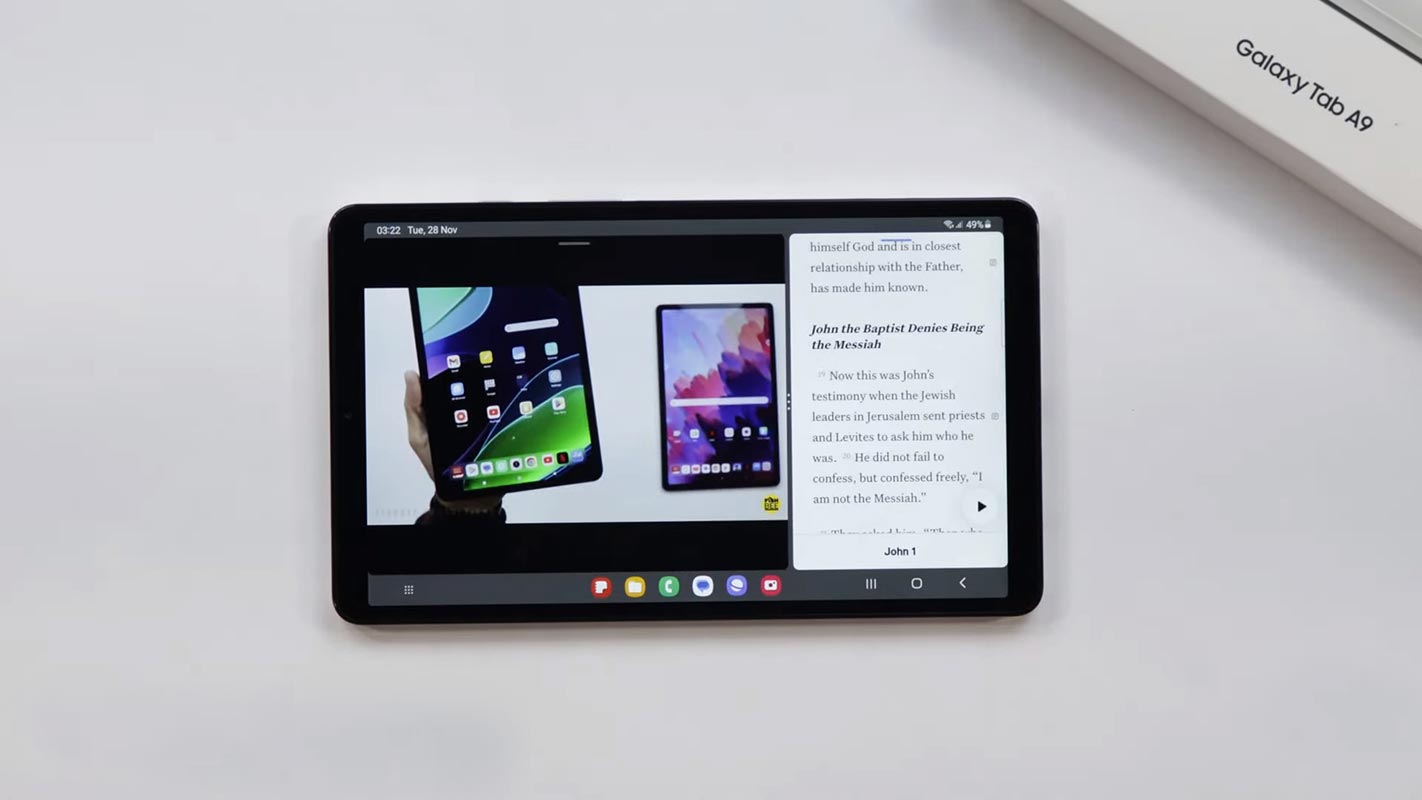
Understanding Developer Options
Developer Options are a gateway to many settings that can significantly impact your device’s functionality. These settings aren’t solely for developers; they’re a toolkit for anyone seeking to tailor their device experience.
How do you access hidden developer options in Samsung Galaxy A9/A9+?
Unveiling Developer Options takes a few simple steps:
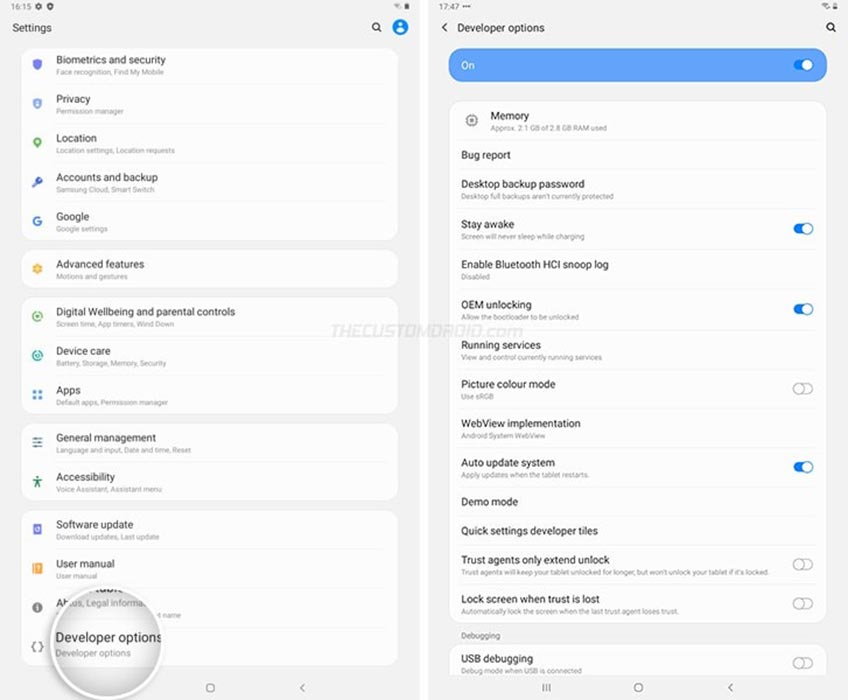
- Navigate to “Settings”: Tap the gear icon in your app drawer or pull down the notification shade and tap the gear-shaped settings icon.
- Access “About Device”: Scroll down in the Settings menu and select “About Device” or “About Tablet.”
- Unlock Developer Mode: Tap the “Software Information” option and find “Build Number.” Tap on “Build Number” repeatedly, around seven times.
- Verification Process: Depending on your device, you might need to verify your action by entering your pattern, PIN, or password.
- Spotting the “Developer Options”: Return to the main Settings menu once activated. You’ll find “Developer Options” in the settings hierarchy, typically under General or System settings.
Navigating and Leveraging Developer Options
Upon accessing Developer Options:
- Explore Settings: Dive into the menu to discover various options tailored for device optimization, debugging, and customization.
- Understanding Use Cases: Recognize how these settings can be utilized in various scenarios, such as fine-tuning app performance or customizing system behaviors.
Disabling Developer Options
When you’re done tweaking settings:
- Simple Disabling: Turn off Developer Options in the settings menu to revert your device to its default configuration.
FAQs
What’s the primary purpose of Developer Options?
The Developer Options menu provides access to advanced settings, enabling users to optimize device performance and customize functionalities beyond standard user options.
Can enabling Developer Options harm my device?
When used judiciously, enabling Developer Options does not pose inherent risks. However, adjusting settings without sufficient knowledge might impact device stability.
Are Developer Options exclusively for app developers?
While designed for developers, these settings cater to anyone seeking deeper device customization or performance enhancements.
Should Developer Options be kept enabled at all times?
Disabling Developer Options when not actively using them is advisable to maintain device security and prevent unintended modifications.
Will enabling Developer Options void my device warranty?
No, enabling Developer Options doesn’t void the device warranty. However, modifying critical settings might affect warranty claims for specific issues.
Wrap Up
Developer Options, while often overlooked in the daily device usage of most individuals, harbor immense potential to revolutionize how users interact with and personalize their devices. Beyond their inconspicuous presence, these options are a gateway to a world of intricate device customization and optimization. They represent a toolkit for individuals craving a more tailored and refined experience with their devices.
Using these settings, users can transcend the limitations of standard configurations, fine-tuning their devices to match their specific preferences and requirements. Whether tweaking system behaviors for improved performance or delving into advanced debugging features, Developer Options cater to diverse user needs. They empower users to take charge of their devices in ways not commonly explored, allowing for a more personalized and optimized device encounter tailored precisely to individual preferences and usage patterns.

Selva Ganesh is a Computer Science Engineer, Android Developer, and Tech Enthusiast. As the Chief Editor of this blog, he brings over 10 years of experience in Android development and professional blogging. He has completed multiple courses under the Google News Initiative, enhancing his expertise in digital journalism and content accuracy. Selva also manages Android Infotech, a globally recognized platform known for its practical, solution-focused articles that help users resolve Android-related issues.




Leave a Reply