
The fastest way to fix Samsung Galaxy A17 battery drain is to optimize background activity, turn off power-intensive features, and update your system software. This guide explains all the effective methods to extend your A17’s battery life and prevent rapid drain. Battery drain on the Samsung Galaxy A17 typically comes from software tasks, background apps, display settings, or battery aging. Because the A17 features a large display and multiple always-running functions, improper configuration can quickly reduce battery performance. Understanding the root cause helps you apply the correct fix and maintain long-term battery health.
Many users mistakenly assume that battery drain always indicates hardware failure, but most issues actually stem from software problems. High screen brightness, location services, and continuous sync processes can significantly reduce battery life. Additionally, apps like social media, messaging, and navigation services consume battery even when running silently in the background.
Essential Settings to Stop Battery Drain
Disable Background App Activity
Background apps are one of the most significant contributors to battery drain.

To stop them:
- Go to Settings → Battery → Background usage limits
- Enable Put unused apps to sleep
- Manually put heavy apps (TikTok, Facebook, Snapchat) to sleep
This ensures that apps do not consume Power when you are not actively using them.
Adjust Screen Brightness & Refresh Rate
The display is the largest power consumer in modern smartphones.
- Set brightness to Auto or below 50%
- Reduce screen timeout to 30 seconds
- Enable Dark Mode to reduce OLED power consumption
If the A17 offers refresh rate options, select 60Hz instead of higher modes.
Optimize Battery via Device Care
Samsung’s Device Care can automatically detect battery issues.
- Open Settings → Device Care → Battery
- Tap Optimize Now
This process closes unnecessary apps, deletes temporary files, and enhances overall performance.
Turn Off Unused Connectivity Features
Wi-Fi, Bluetooth, NFC, and GPS continue to search for signals even when not in use. Turn them off when unnecessary to prevent constant draining.
Advanced Fixes for Persistent Battery Drain
Clear Cache Partition
Corrupted cached files can cause overheating and battery issues.
Steps (no data loss):
- Turn off the device
- Hold Volume Up + Power until recovery mode appears
- Select Wipe Cache Partition
- Reboot
This improves performance and eliminates heavy background tasks.
Identify Rogue Apps
Apps with poor optimization can drain battery excessively.
Go to Battery → Battery Usage and check which apps consume the most Power.
Uninstall or restrict apps that show unusually high usage.
Update Software & Apps
Samsung releases patches to fix bugs, including battery drain issues. Always keep:
- One UI updated
- Android security patches installed
- Play Store apps updated
Outdated apps can cause system instability and poor battery management.
Reset All Settings
If the issue persists, reset all settings without deleting your data.
Go to Settings → General Management → Reset → Reset All Settings.
7-Step Battery Optimization Checklist
- Disable background usage for all non-critical apps
- Reduce screen timeout to preserve display power
- Switch to Dark Mode for lower AMOLED consumption
- Turn off Always-On Display, which runs 24/7
- Update all apps weekly to avoid bugs
- Restart the phone weekly to clear memory
- Enable Power-Saving Mode when the battery gets low
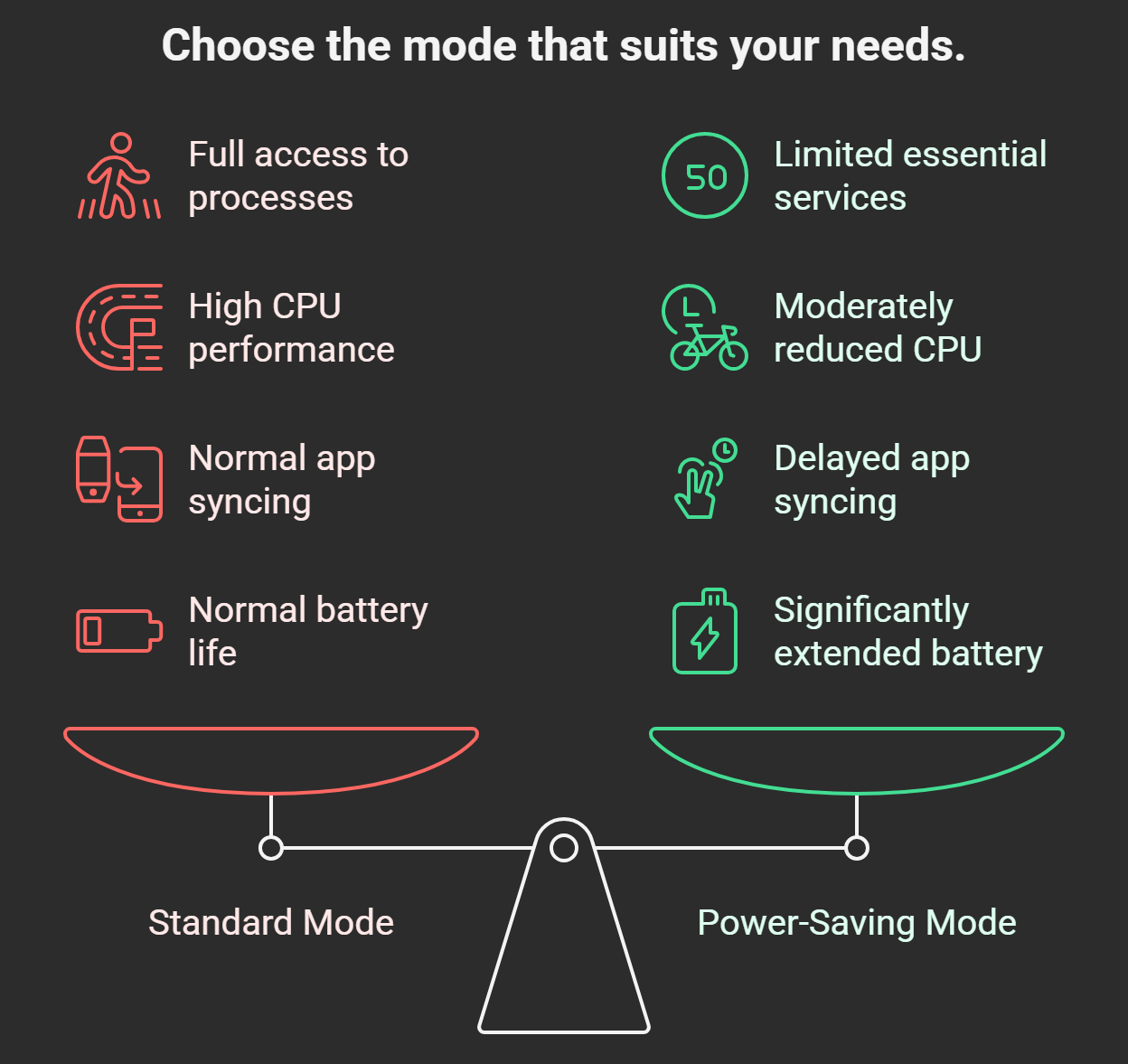
Comparison: Standard Mode vs Power-Saving Mode
When to Replace the Battery
If your Samsung Galaxy A17 still drains quickly after all fixes, the battery may be degraded. Signs include:
- Rapid percentage drops
- Overheating
- Phone shutting down at 20–30%
- Slow charging
Use the Samsung Members app to check battery health. A battery replacement is typically affordable and restores full performance.
Tips to Prevent Future Battery Issues
- Avoid charging your phone past 90% or letting it drop below 20%
- Do not use the phone while charging to prevent heat buildup
- Keep the device cool; heat accelerates battery aging
- Use original Samsung chargers for stable charging cycles
Following these habits keeps your Galaxy A17 battery healthy for years.
FAQs
1. Why is my Samsung Galaxy A17 battery draining so fast?
Most fast-drain issues come from background apps, display settings, or outdated software. Checking battery usage can help you identify the exact cause.
2. How do I fix battery drain after a software update?
Try wiping the cache partition and updating all apps. Sometimes new updates trigger background processes that settle after optimization.
3. Does Dark Mode improve battery life?
Yes. On AMOLED screens, Dark Mode reduces power usage because black pixels use far less energy than bright ones.
4. Should I use Power-Saving Mode all the time?
You can, but it reduces performance slightly. It’s best used when you need extended battery life or during long days of use.
5. When should I replace the Samsung A17 battery?
If the battery drains very quickly, the phone overheats, or shutdowns occur unexpectedly, the battery may be degraded and need replacement.
Wrap Up
Fixing Samsung Galaxy A17 battery drain involves optimizing background activity, adjusting display settings, updating software, and using Samsung’s built-in optimization tools. If issues persist, clearing the cache or checking battery health can resolve deeper problems.

AITeam is the dedicated editorial team of Android Infotech, consisting of experts and enthusiasts specialized in Android-related topics, including app development, software updates, and the latest tech trends. With a passion for technology and years of experience, our team aims to provide accurate, insightful, and up-to-date information to help developers, tech enthusiasts, and readers stay ahead in the Android ecosystem.
For more about our team, visit our About Us page.




Samsung should include these tips officially.
Simple steps but very effective results.
The calibration tip made a big difference.
I was skeptical, but this actually worked.
I noticed better standby time after disabling unused features.
This article saved me from visiting a service center.
The calibration tip made a big difference.
After following these steps, my phone lasts much longer.
This should be bookmarked by all A17 users.
Good advice for long-term battery health.
This article saved me from visiting a service center.
This article saved me from visiting a service center.
Very clear instructions and easy to follow.
My Galaxy A17 feels more efficient now.
Battery performance improved after the update suggestions.
Good advice for long-term battery health.
Helpful tips, especially the app optimization section.
Nice breakdown of common battery drain causes.
Battery performance improved after the update suggestions.
Samsung should include these tips officially.
Good advice for long-term battery health.
Very clear instructions and easy to follow.
This article saved me from visiting a service center.
Good advice for long-term battery health.
This guide really helped reduce my battery drain.
I was skeptical, but this actually worked.
Samsung should include these tips officially.
App management tip was the key for me.
Finally, no more fast battery drop.
Great explanation, especially about background apps.
My Galaxy A17 feels more efficient now.
Samsung should include these tips officially.
App management tip was the key for me.
This article saved me from visiting a service center.
Thanks, this solved my overnight battery drain issue.
Thanks, this solved my overnight battery drain issue.
After following these steps, my phone lasts much longer.
Nice breakdown of common battery drain causes.
Thanks, this solved my overnight battery drain issue.
Good advice for long-term battery health.
This guide really helped reduce my battery drain.
Great explanation, especially about background apps.
I noticed better standby time after disabling unused features.
Simple steps but very effective results.
Very clear instructions and easy to follow.
I was skeptical, but this actually worked.
I noticed better standby time after disabling unused features.
Thanks, this solved my overnight battery drain issue.
This should be bookmarked by all A17 users.
Helpful tips, especially the app optimization section.
Finally, no more fast battery drop.