
Fix Battery Drain Issue on Samsung Galaxy F17– Samsung Galaxy F17 users often face unexpected battery drain after updates, extended usage, or due to misconfigured settings. With a 5,000 mAh battery, the Galaxy F17 is designed to last a full day; however, certain software behaviors, background activities, and signal conditions can significantly reduce its endurance. Below, we outline proven, step-by-step methods to resolve Galaxy F17 battery drain issues, enhance performance, and effectively extend battery life.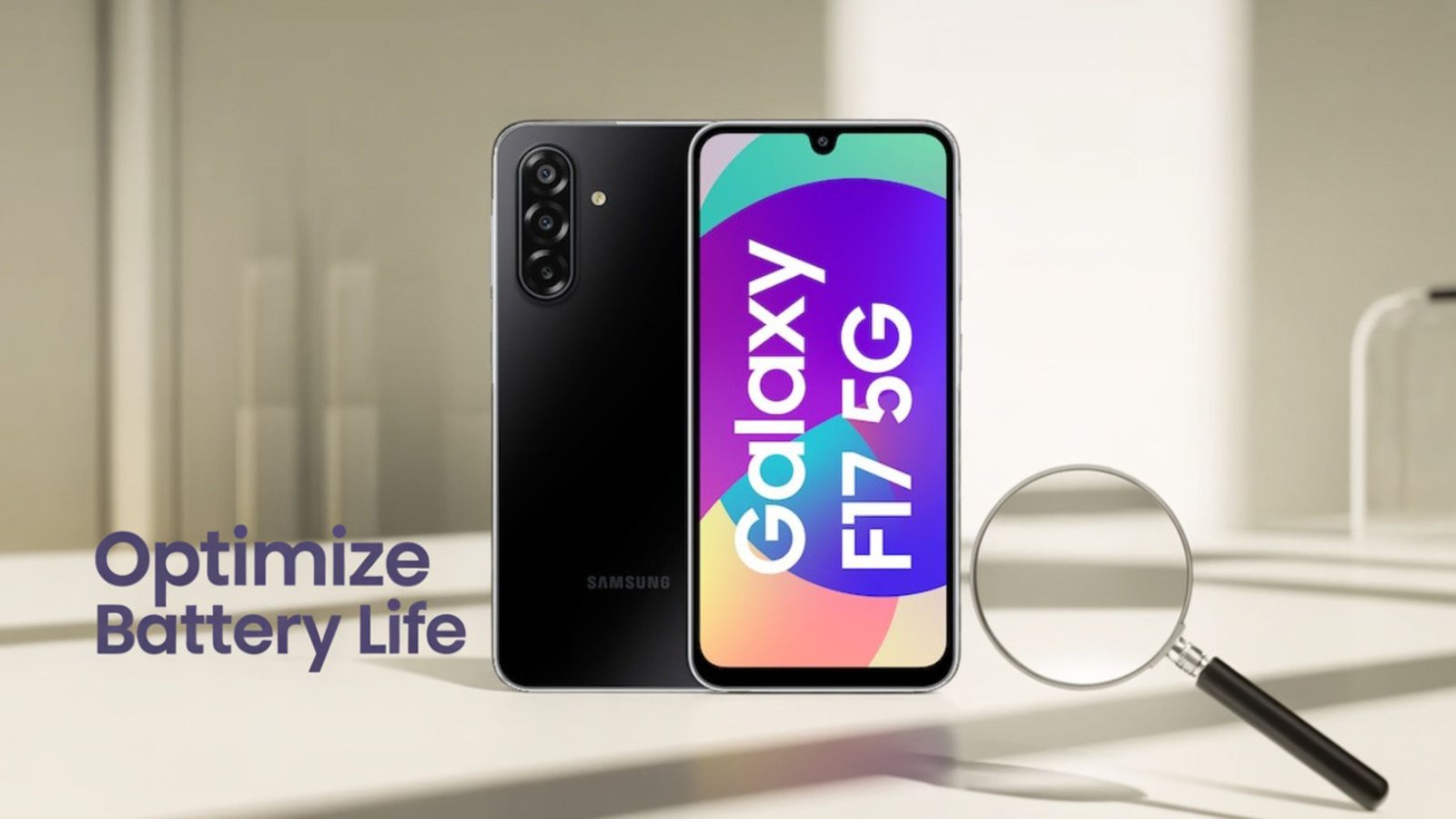
1. Perform Essential System Updates and Optimizations
Keeping your phone updated ensures that critical battery optimization patches are applied.

Update One UI and All Apps
- Go to Settings → Software Update → Download and Install to apply the latest One UI and Android security patches.
- Open Galaxy Store and Google Play Store → tap your profile → Manage apps & device → Update all.
Samsung frequently includes battery drain bug fixes in these updates, especially after major One UI releases.
Run Device Care Optimization
- Navigate to Settings> Battery and Device Care.
- Tap Optimize now to close runaway background services, clear temporary issues, and apply automatic tweaks.
This step resolves minor background battery leaks quickly.
2. Allow Post-Update Indexing to Settle
If your battery drain started immediately after a major software update, the device may be performing background indexing, optimization, and adaptive battery learning.
Allow 2–14 days of typical usage to let Samsung and Google services stabilize. During this period:
- Keep your device connected to a stable Wi-Fi network.
- Avoid unnecessary app installations or settings resets.
- Use the phone normally to train adaptive battery models effectively.
3. Identify Battery-Draining Apps and Services
Locating the culprits is crucial to target and fix abnormal consumption.
Use Battery Usage Tools
- Go to Settings → Battery → Battery usage.
- Review the list of top battery consumers.
- Update, restrict, or uninstall any app that shows abnormal battery percentages compared to actual usage.
Watch for Samsung/Google Service Spikes
Many Galaxy F17 users have reported that Samsung or Google Play services drain abnormally after the One UI 7 update. These are often resolved by:
- Applying subsequent patches.
- Turning off unused services.
- Wiping the cache partition (covered later).
Safe Mode Diagnosis
Boot the device into Safe Mode to isolate third-party apps:
- Hold the Power key → tap and hold Power off → select Safe mode.
- Use the phone for 2 to 3 hours.
If the battery drain disappears, uninstall or restrict recently installed or updated apps that might be the cause.
4. Adjust Power and Display Settings for Efficiency
Proper power mode configuration can dramatically extend battery life.
Enable Power Saving and Light Performance
- Go to Settings → Battery and device care → Battery → Power saving.
- Enable Power saving mode and Light performance profile to limit background activities and reduce CPU draw without affecting daily usability.
Optimize Display Settings
- Reduce screen brightness or enable Adaptive brightness.
- Shorten screen timeout to 15–30 seconds.
- If available, lower screen resolution and refresh rate.
- Activate Dark Mode to cut power draw on AMOLED displays.
These changes can lead to significant improvements, as the display is often the single largest power consumer.
5. Turn Off Unused Radios and Background Scanning
Wireless radios can quietly drain battery power when left running unnecessarily.
Disable When Not Needed
- Turn off Bluetooth, Wi-Fi, and GPS when not in use.
- In Location settings, turn off Wi-Fi and Bluetooth scanning, which run in the background frequently.
Manage Network and Location Settings
- Avoid areas with weak or fluctuating signals, as the modem uses more Power to maintain connectivity.
- Switch to a stable network or enable Airplane mode when coverage is unavailable.
- Set location permissions for most apps to “While in use” instead of “Always”.
- Disable Auto-Sync for nonessential accounts (email, social media, cloud services) to reduce background syncing.
6. Perform Post-Update Fixes: Wipe Cache Partition and Recalibrate
If battery issues persist after an update, performing a cache partition wipe often brings immediate results.
Steps to Wipe Cache Partition
- Power off the Galaxy F17.
- Press and hold the Volume Up and Power buttons simultaneously until the Samsung logo appears on the screen.
- Use the Volume keys to navigate to Wipe cache partition, then confirm with the Power button.
- Reboot the device.
This removes old cached data that can cause post-update drain or service loops.
Battery Recalibration
After wiping cache:
- Fully discharge the battery to 0%.
- Charge uninterrupted to 100%.
- Use normally for several charge cycles to let Device Health Services relearn usage patterns.
This recalibration process stabilizes adaptive battery behavior over time.
7. Consider Advanced Steps if Problems Persist
Factory Reset (Last Resort)
If software misconfigurations persist after all steps:
- Backup your data.
- Go to Settings → General management → Reset → Factory data reset.
A clean installation often resolves deep-seated battery drain bugs or corrupted system settings.
Battery Health Check and Service
If abnormal drain continues after all software fixes and the phone heats excessively or drains rapidly:
- Check battery health via Samsung Members diagnostics or a service center.
- Replace the battery if degraded.
A persistent drain after every software fix typically indicates hardware degradation or defective components.
8. Galaxy F17 Specific Observations
The Samsung Galaxy F17 5G ships with a 5000 mAh battery and 25 W fast charging, designed to deliver full-day endurance with moderate usage. However, community reports have shown:
- Variability in battery life after One UI updates, especially major releases.
- Some users experienced spikes in Google Play Services after the update, which were resolved by wiping the cache or applying hotfix patches.
- Regular firmware updates and battery optimization tweaks typically restore expected performance.
Keeping the firmware current and applying the optimizations mentioned above can ensure long-term battery health and reliability.
9. Quick Step-by-Step Summary (Recommended Order)
- Update System and Apps
- Settings → Software update → Download and Install
- Update all apps in Galaxy Store and Play Store
- Optimize Device Care
- Settings → Battery and device care → Optimize now
- Enable Power Saving & Light Performance
- Reduce background activity, limit CPU usage
- Identify and Restrict Draining Apps
- Settings → Battery → Battery usage
- Manage Location and Radios
- Set apps to “While in use”
- Disable Wi-Fi/Bluetooth scanning
- Turn off unused radios
- Clear Cache Partition if Drain Started Post-Update
- Follow the recovery mode steps
- Allow 3–7 Days Stabilization
- Adaptive battery models adjust after updates
- Factory Reset or Service if Unresolved
Following these steps carefully will resolve most Galaxy F17 battery drain issues and restore the phone’s expected battery life.

Selva Ganesh is a Computer Science Engineer, Android Developer, and Tech Enthusiast. As the Chief Editor of this blog, he brings over 10 years of experience in Android development and professional blogging. He has completed multiple courses under the Google News Initiative, enhancing his expertise in digital journalism and content accuracy. Selva also manages Android Infotech, a globally recognized platform known for its practical, solution-focused articles that help users resolve Android-related issues.




Leave a Reply