
How to Fix Samsung Galaxy S26 Privacy Display Not Working: A Comprehensive Troubleshooting Guide – The Samsung Galaxy S26 represents the pinnacle of mobile innovation, introducing sophisticated privacy display technology designed to shield your sensitive information from prying eyes. However, encountering a situation where the privacy display features fail to activate or malfunction can be incredibly frustrating. We understand that maintaining digital privacy is paramount in the modern era.
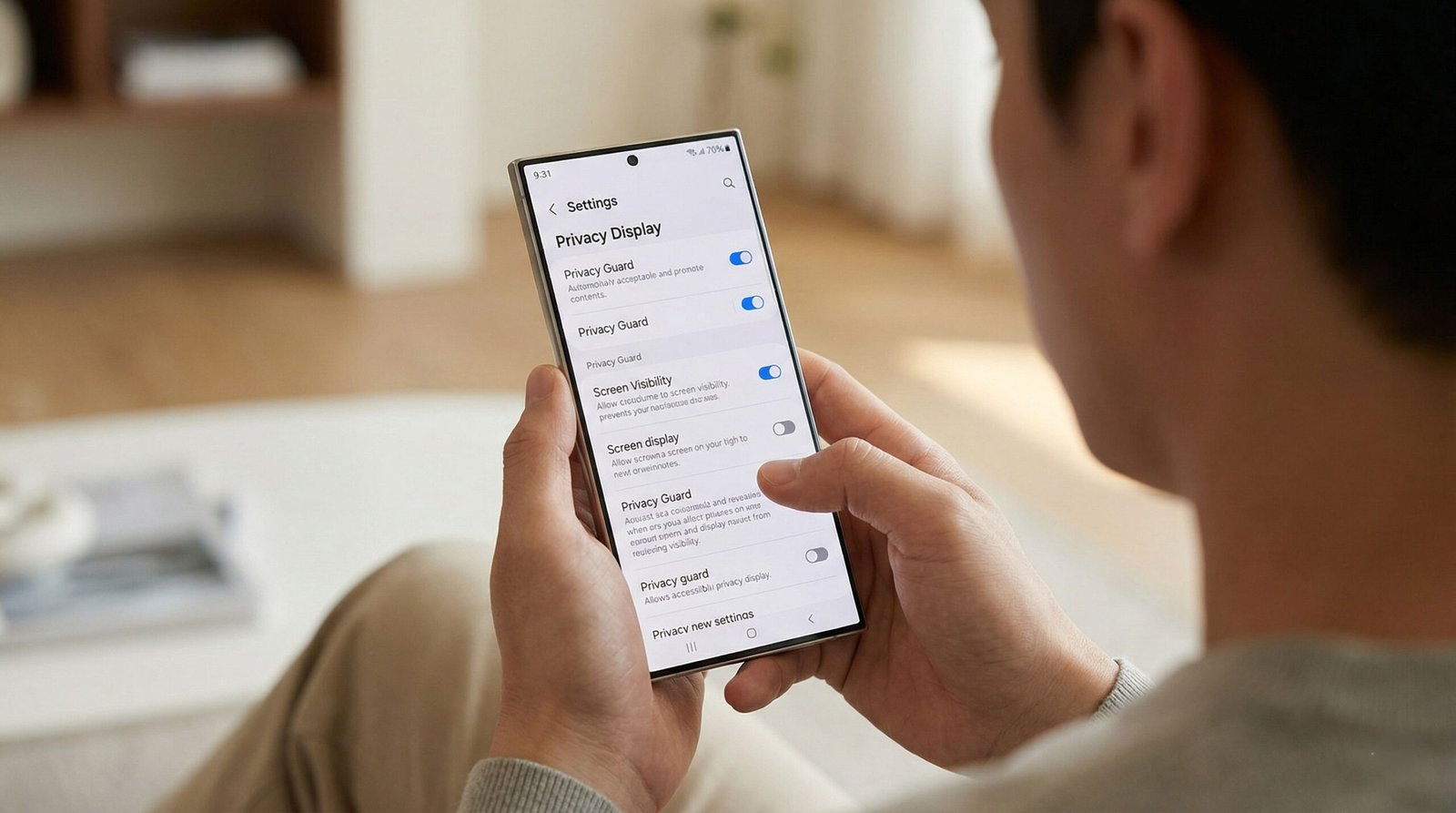
In this exhaustive guide, we provide expert-level technical solutions to resolve issues with the Samsung Galaxy S26 privacy display. We will navigate through software configurations, hardware diagnostics, and system-level resets to restore your device to peak performance.

Understanding the Samsung Galaxy S26 Privacy Display Mechanics
Before diving into the fixes, it is essential to understand that the Samsung Galaxy S26 utilizes a combination of hardware-integrated light polarization and software-driven luminance control to restrict viewing angles. When this system fails, it is typically due to a software conflict, a misconfigured setting, or, in rare cases, a sensor malfunction.
1. Verify Display Settings and Advanced Visibility Enhancements
The most common cause for the privacy display not working is an accidental toggle or a conflict with other visibility enhancements.
- Navigate to Settings: Open the Settings app and select Display.
- Toggle Privacy Mode: Locate the Privacy Screen or Privacy Shield option. If it appears to be on, toggle it OFF, wait ten seconds, and toggle it back ON. This refreshes the display driver’s instruction set.
- Check Eye Comfort Shield: Sometimes, the Eye Comfort Shield or Adaptive Color Tone settings can interfere with the polarization levels required for the privacy display. Disable these temporarily to see if the privacy functionality returns.
- Disable Extra Brightness: High-intensity luminance can sometimes “wash out” the privacy filter effect. Ensure Extra Brightness is disabled while testing the privacy features.
2. Audit Secure Features and Knox Security Protocols
The Samsung Knox security framework deeply integrates with the hardware. If certain security policies are active, they may override or disable specific display features to prevent screen recording or unauthorized viewing.
- Secure Folder Conflict: If you are accessing apps within the Secure Folder, ensure that the privacy display settings are not specifically restricted within the Security and Privacy menu.
- Block Screen Capture: Navigate to Settings > Security and Privacy > More Security Settings. If Block Screen Capture or high-level enterprise MDM (Mobile Device Management) profiles are active, they may conflict with the display’s privacy layer.
- Auto Screen Lock: Ensure your Auto Screen Lock settings are functioning correctly, as the privacy display often syncs with the device’s security state.
3. Managing Third-Party Overlay and Accessibility Apps
One of the primary culprits for Samsung Galaxy S26 display issues is the presence of third-party overlays. These apps draw over the system UI and can effectively “mask” the privacy filter.
The “Display Over Other Apps” Conflict
Many users install blue light filters, custom brightness sliders, or edge lighting apps. These applications use the “Display over other apps” permission, which can break the Samsung Galaxy S26’s native privacy rendering.
- Access Special Access: Go to Settings > Apps. Tap the three-dot menu (or search) for Special Access.
- Modify Overlays: Select Display over other apps.
- Isolate the Culprit: Systematically disable this permission for non-Samsung apps, particularly screen dimmers or third-party security suites.
- Restart the Device: Always perform a hard restart (Power + Volume Down) after modifying these permissions to clear the cached display state.
4. Utilizing Safe Mode for Software Isolation
To determine if the privacy display failure is caused by a system bug or a third-party application, we must isolate the operating system.
- Enter Safe Mode: Power off your Galaxy S26. Power it back on, and when the Samsung logo appears, press and hold the Volume Down button until the device finishes booting.
- Testing: You will see “Safe Mode” in the bottom left corner. Test the privacy display now.
- The Verdict: If the privacy display works perfectly in Safe Mode, a third-party app is definitely the cause. You should begin uninstalling recently added apps, starting with those related to customization, battery saving, or security.
5. Software Integrity and Firmware Updates
Samsung frequently releases OTA (Over-The-Air) updates to patch display driver bugs. If your Galaxy S26 is running an outdated version of One UI, the privacy display logic might be corrupted.
- Manual Update Check: Go to Settings > Software update > Download and install.
- System WebView Updates: Ensure the Android System WebView and Google Play System Update (found in Settings > Security & Privacy > Updates) are current. These components often handle how privacy layers are rendered across different applications.
6. Advanced Hardware Diagnostics via Hidden Menus
If software tweaks fail, we must verify the integrity of the S26 display hardware and its ambient light sensors, which help regulate the privacy filter’s intensity.
- Launch Diagnostic Mode: Open the Phone app and dial *#0#*.
- Sensor Test: Tap on Sensor. Ensure the Light Sensor is responding to changes in environment brightness. The privacy display relies on these readings to adjust its polarization angle.
- Display Test: Check the Red, Green, and Blue tiles to ensure there are no dead pixels or sub-pixel failures that could prevent the privacy layer from appearing uniform.
7. Resetting System Logic Without Data Loss
Before resorting to a full wipe, we recommend a Reset All Settings procedure. This reverts the system’s configuration database to its factory state without deleting your photos, videos, or apps.
- Path: Settings > General Management > Reset > Reset settings.
- Effect: This will reset your Wi-Fi passwords, Bluetooth pairings, and display preferences. Often, this clears corrupt preference files that prevent the privacy display from initializing correctly.
8. The Final Resort: Factory Data Reset
If the privacy display remains non-functional after all the above steps, the issue may lie deep within the encrypted system partition.
Warning: This will erase all data on your device. Ensure you have a full Samsung Cloud or Google Drive backup.
- Path: Settings > General Management > Reset > Factory data reset.
- Setup Tip: After the reset, do not immediately restore from a backup. Test the privacy display on a “clean” setup first to ensure the problem isn’t being re-imported from your old settings.
Identifying Hardware Failure: When to Visit a Service Center
If you have performed a Factory Data Reset and the Samsung Galaxy S26 privacy display still does not function, you are likely facing a hardware defect. This could be a failure in the OLED substrate or a malfunction of the privacy-specific polarizing layer.
Key Indicators of Hardware Issues:
- Vertical or Horizontal Lines: Physical damage to the display connector.
- Flickering when Privacy Mode is ON: Failure of the voltage regulator that controls the privacy filter.
- Unresponsive Areas: Physical impact damage affecting the digitizer and the privacy layer simultaneously.
We recommend visiting an Authorized Samsung Service Center. Since the Galaxy S26 is a flagship device, these issues are typically covered under the manufacturer’s warranty, provided there is no evidence of physical or liquid damage.
Summary of Resolution Steps
To ensure your Samsung Galaxy S26 remains the ultimate tool for mobile privacy, follow this prioritized checklist:
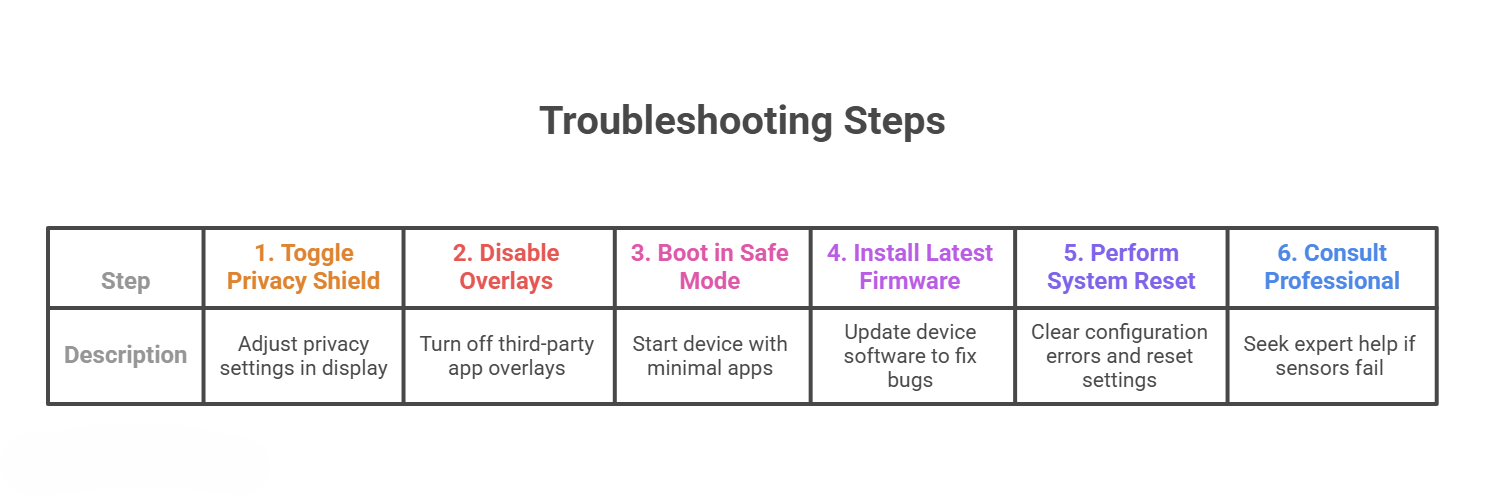
By following this rigorous troubleshooting protocol, you can resolve most privacy display malfunctions and ensure your Galaxy S26 continues to protect your personal information with its cutting-edge visual security features.

Selva Ganesh is a Computer Science Engineer, Android Developer, and Tech Enthusiast. As the Chief Editor of this blog, he brings over 10 years of experience in Android development and professional blogging. He has completed multiple courses under the Google News Initiative, enhancing his expertise in digital journalism and content accuracy. Selva also manages Android Infotech, a globally recognized platform known for its practical, solution-focused articles that help users resolve Android-related issues.





Leave a Reply