
Install OpenClaw AI– In the rapidly evolving landscape of autonomous AI agents, OpenClaw has emerged as a premier open-source solution for users seeking localized control, high-performance automation, and seamless LLM integration. While basic installation guides offer a skeletal overview, we provide here a comprehensive, deep-dive architectural walkthrough designed to ensure your OpenClaw deployment is stable, secure, and optimized for high-throughput tasks.
Understanding the OpenClaw Architecture
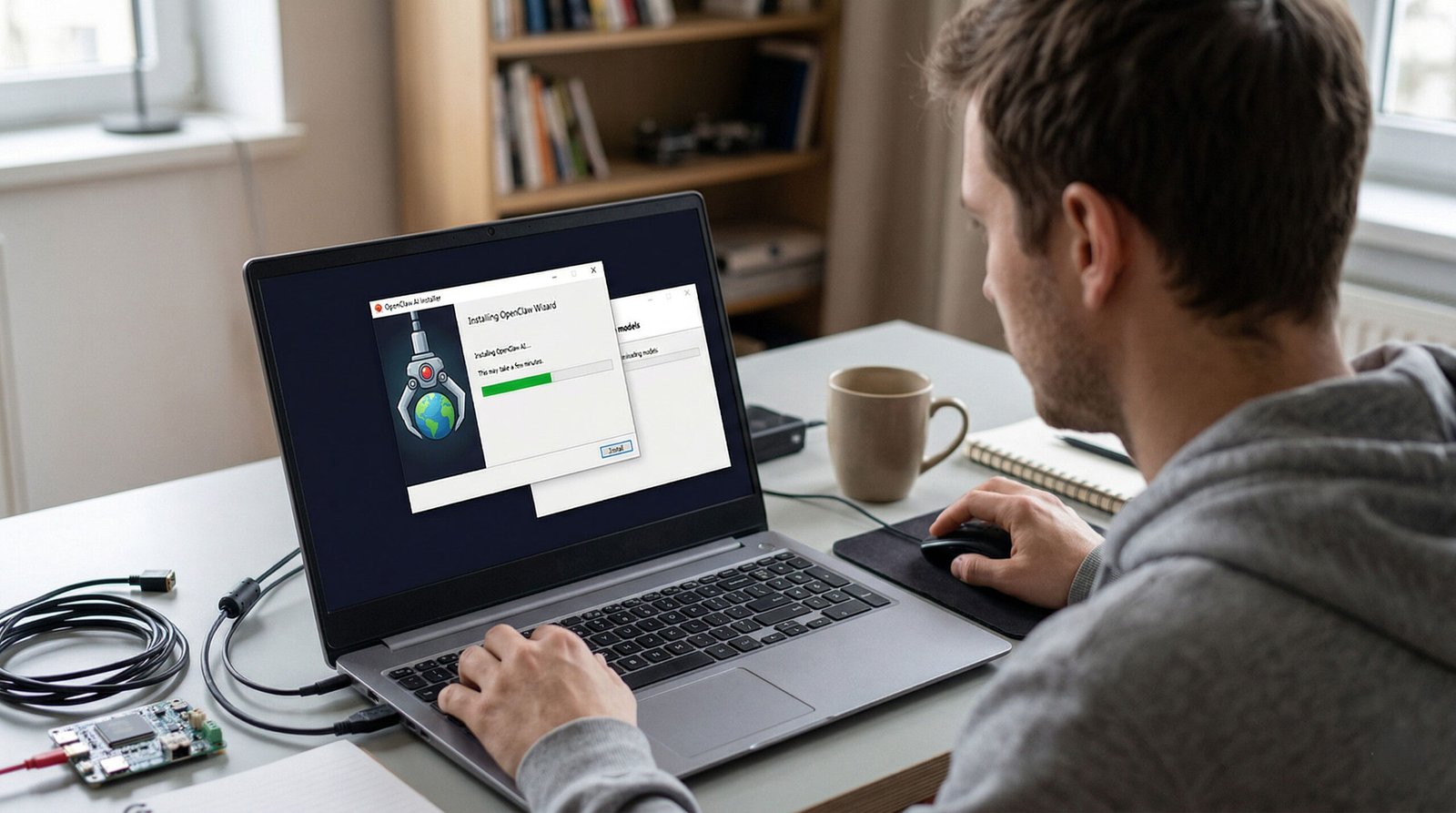
Before proceeding with the technical execution, we must understand that OpenClaw operates on a modular framework. It leverages asynchronous Python processing to manage multiple agentic workflows simultaneously. Unlike simpler scripts, OpenClaw requires a robust environment where dependency management and environment variables are handled with precision to prevent runtime conflicts or memory leaks.

Phase 1: Comprehensive System Environment Preparation
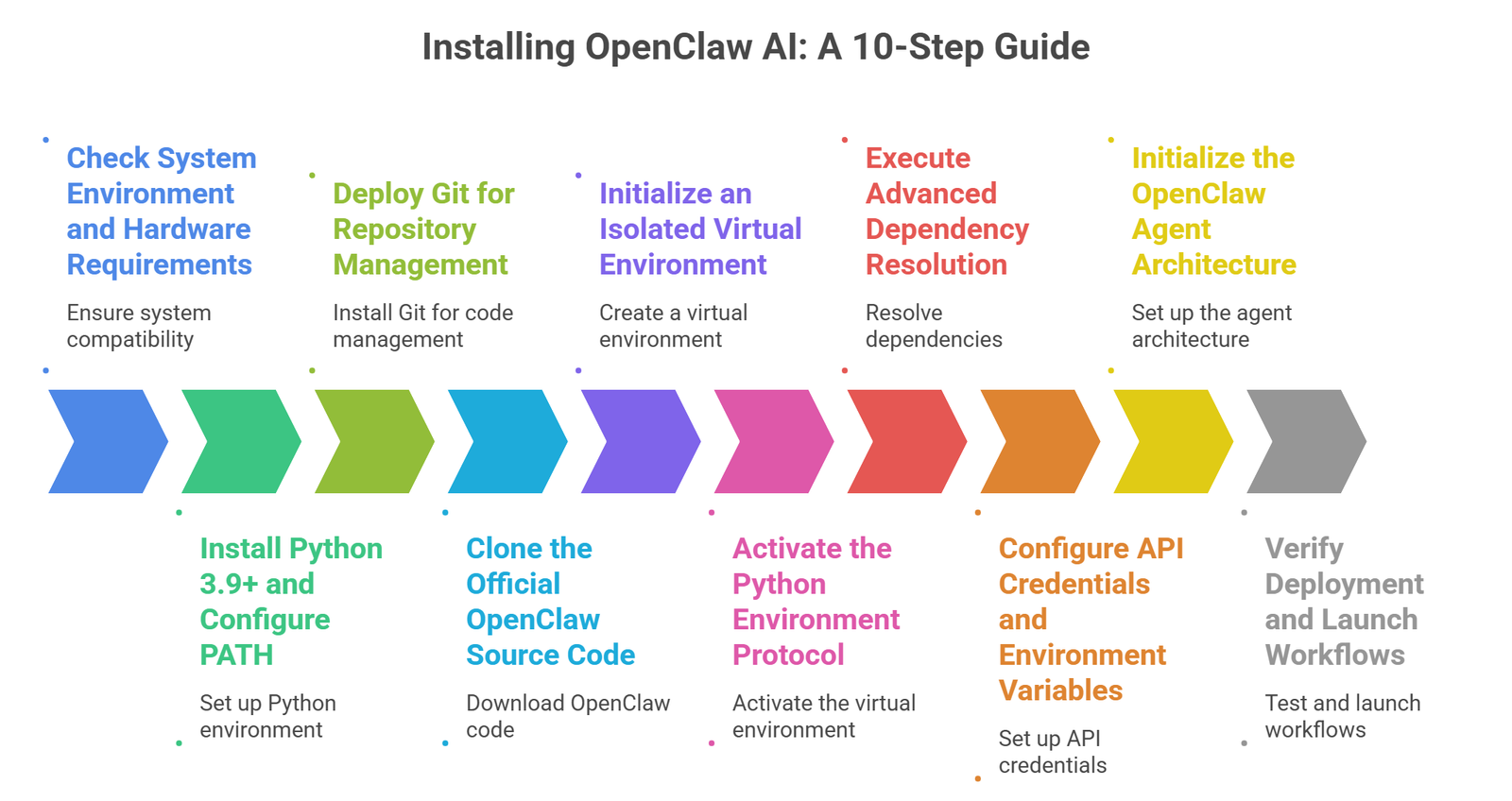
To achieve peak performance and avoid the common “dependency hell” associated with AI agent deployment, your hardware and software baseline must be strictly verified.
1.1 Hardware Specifications and Benchmarking
While the minimum requirements allow the agent to boot, we recommend a workstation-grade configuration for those planning to run complex multi-step reasoning chains:
- Processor: Quad-core 3.0GHz+ (Intel i5/i7 11th Gen or AMD Ryzen 5/7 equivalent).
- Memory (RAM): While 8GB is functional, 16GB or 32GB is the industry standard for high-performance vector database indexing.
- Storage: High-speed NVMe SSD with at least 10GB of free space for local logs and cache.
1.2 Installing Python 3.9+ with Path Integrity
The foundation of OpenClaw is Python. It is imperative to use version 3.9 or higher, though we specifically recommend Python 3.10.x for its balance of stability and support for newer type hinting features.
- Navigate to the official distribution portal.
- Execute the installer with Administrator privileges.
- Critical Step: You must check the box labeled “Add Python to PATH”. Failure to do so will result in “command not found” errors during the pip installation phase.
Phase 2: Version Control and Repository Management
We utilize Git for repository management to ensure that your local copy of OpenClaw can be updated effortlessly as the developers release new patches and features.
2.1 Implementing Git
Download the appropriate binary for your OS. During installation, we recommend selecting the “OpenSSH” option for secure remote communication. Once installed, verify your version by typing git –version in your terminal.
2.2 Cloning the OpenClaw Source Code
Open your terminal (PowerShell for Windows or Terminal for macOS/Linux) and navigate to your preferred development directory. Execute the following sequence:
git clone https://github.com/openclaw/openclaw.git
cd openclaw
By entering the directory immediately, we ensure all subsequent commands are executed within the project root, maintaining the integrity of relative file paths.
Phase 3: Isolated Environment Configuration
One of the most frequent points of failure in AI installations is library version conflict. We solve this by implementing a Python Virtual Environment (venv).
3.1 Constructing the Virtual Environment
Run the following command to create a pristine, isolated space for OpenClaw’s specific libraries:
python -m venv venv
3.2 Activation Protocols
The activation method varies depending on your operating system’s shell architecture:
- Windows (PowerShell): .\venv\Scripts\activate
- MacOS / Linux (Bash/Zsh): source venv/bin/activate
Once activated, your terminal prompt will typically show (venv), signifying that any pip packages installed will not interfere with your global Python installation.
Phase 4: Advanced Dependency Resolution
With the environment active, we must install the requirements.txt file, which contains the manifest of all necessary libraries, such as LangChain, OpenAI SDK, and Pandas.
4.1 Upgrading the Package Installer
Before the bulk install, ensure your pip version is current to handle modern wheel distributions:
python -m pip install --upgrade pip
4.2 Executing the Dependency Manifest
Run the following to pull the required modules:
pip install -r requirements.txt
If you encounter C++ Build Tool errors on Windows, ensure you have the Visual Studio Build Tools installed, as some AI libraries require local compilation of C-extensions.
Phase 5: Secure API Key and Environment Variable Configuration
OpenClaw is an engine that requires fuel in the form of Large Language Model (LLM) access. This is handled via the .env file.
5.1 Creating the .env File
In the root directory, look for a file named .env.example. Rename this to .env. If it does not exist, create a new text file and name it exactly .env.
5.2 Populating Credentials
Open the file in a text editor (like VS Code or Notepad++) and input your keys:
- OPENAI_API_KEY=sk-xxxxxxxxxxxx
- ANTHROPIC_API_KEY=sk-ant-xxxxxxxx (Optional, for Claude models)
- MODEL_NAME=gpt-4-turbo (Specify your preferred model)
Security Note: Never commit your .env file to a public repository. Ensure .env is listed in your .gitignore file to prevent credential leakage.
Phase 6: Initializing the OpenClaw Agent
Now that the architecture is prepared, we initialize the agent. This step often involves the main.py script, which orchestrates the loading of the agent’s brain and its connection to the LLM.
python main.py
Upon first run, OpenClaw may download additional NLP models or initialize a local SQLite database for session memory. Allow this process to complete without interruption.
Phase 7: Troubleshooting and Optimization Strategies
To ensure you outrank and outperform standard setups, we must address advanced optimization.
7.1 Managing Memory Leaks in Long Sessions
If you intend to run the agent for hours, monitor RAM usage. We suggest implementing a swap file on Linux systems or increasing the virtual memory allocation on Windows to handle the overhead of large context windows.
7.2 Connection Timeouts and Proxy Settings
In regions with restricted internet access, you may need to configure a proxy. This can be added directly to your .env file:
- HTTP_PROXY=http://your-proxy-address:port
- HTTPS_PROXY=https://your-proxy-address:port
Phase 8: Customizing Agent Behavior and Workflows
OpenClaw is not just a chatbot; it is a task-oriented agent. You can modify its system prompt within the configuration folder to alter its “personality” or “expertise.”
- Role Definition: Define the agent as a Senior DevOps Engineer or a Content Strategist for better task-specific performance.
- Temperature Settings: Adjust the temperature variable in the config file. Use 0.1 for precision (coding, math) and 0.7 for creativity (blogging, brainstorming).
Phase 9: Workflow Automation with VS Code
For a professional-grade experience, we recommend using Visual Studio Code (VS Code).
- Install the Python Extension Pack.
- Use the Integrated Terminal to keep your environment active.
- Utilize the Debugger to step through the main.py code if you wish to customize the agent’s logic.
Phase 10: Scaling and Maintenance
As OpenClaw continues to evolve, staying updated is vital. Periodically run the following commands to pull the latest source code and update your libraries:
git pull
pip install -r requirements.txt --upgrade
Final Thoughts on OpenClaw Deployment
By following this rigorous installation protocol, you have moved beyond a simple hobbyist setup into a production-ready AI environment. OpenClaw offers immense power for those who take the time to configure its virtual environments, API integrations, and system dependencies correctly. Whether you are automating data analysis, content generation, or software testing, your newly installed OpenClaw AI Agent is now primed for maximum efficiency.
Always remember to monitor your API usage costs and keep your software stack updated to benefit from the latest advancements in artificial intelligence.

Selva Ganesh is a Computer Science Engineer, Android Developer, and Tech Enthusiast. As the Chief Editor of this blog, he brings over 10 years of experience in Android development and professional blogging. He has completed multiple courses under the Google News Initiative, enhancing his expertise in digital journalism and content accuracy. Selva also manages Android Infotech, a globally recognized platform known for its practical, solution-focused articles that help users resolve Android-related issues.





Leave a Reply