
OpenAI Pulse for Personalized Daily News Updates– OpenAI has recently introduced Pulse, a feature designed to deliver personalized daily briefings of trending news, updates, and insights that match your unique interests. Instead of sifting through endless sources of information, Pulse gives you a concise feed of 5–10 curated cards daily. These cards are generated by combining your chat history, Memory, preferences, and even connected apps like Gmail or Google Calendar, making them highly relevant to your professional and personal needs. We explain what OpenAI Pulse is, how to set it up properly, and the steps to curate topic-specific feeds so you can benefit from this powerful tool.
What is OpenAI Pulse?
Pulse is an AI-powered daily digest that presents short, card-style updates about the topics you care most about. Each card contains a headline and a quick summary, linking to more detailed insights if you explore further.
- Personalized content: Built from your chat history, Memory, and feedback loops.
- Multi-source integration: Pulls information from leading publishers, including TechCrunch, Exchange4Media, and The Cryptonomist.
- Smart connectors: With your consent, Pulse can connect to tools like Google Calendar and Gmail to surface contextual reminders and meeting-related insights.
- User-driven feedback: Giving thumbs up/down on cards, you help refine the type of updates you see.
Currently, Pulse is being rolled out to Pro users on mobile, but it will expand to more platforms soon.

Benefits of Using OpenAI Pulse
- Saves Time – You receive one concise, curated digest instead of checking multiple news outlets.
- Focused Content – Cards are tailored to your exact topics of interest, minimizing irrelevant noise.
- Actionable Updates – Save cards, ask follow-ups, or convert insights into actions (tweets, summaries, reminders).
- Continuous Refinement – With every feedback action, Pulse aligns more with your evolving preferences.
Steps to Set Up OpenAI Pulse for Topic-Based Briefings
Getting Pulse to deliver laser-focused updates requires a few quick setup steps. Here’s a detailed walkthrough:
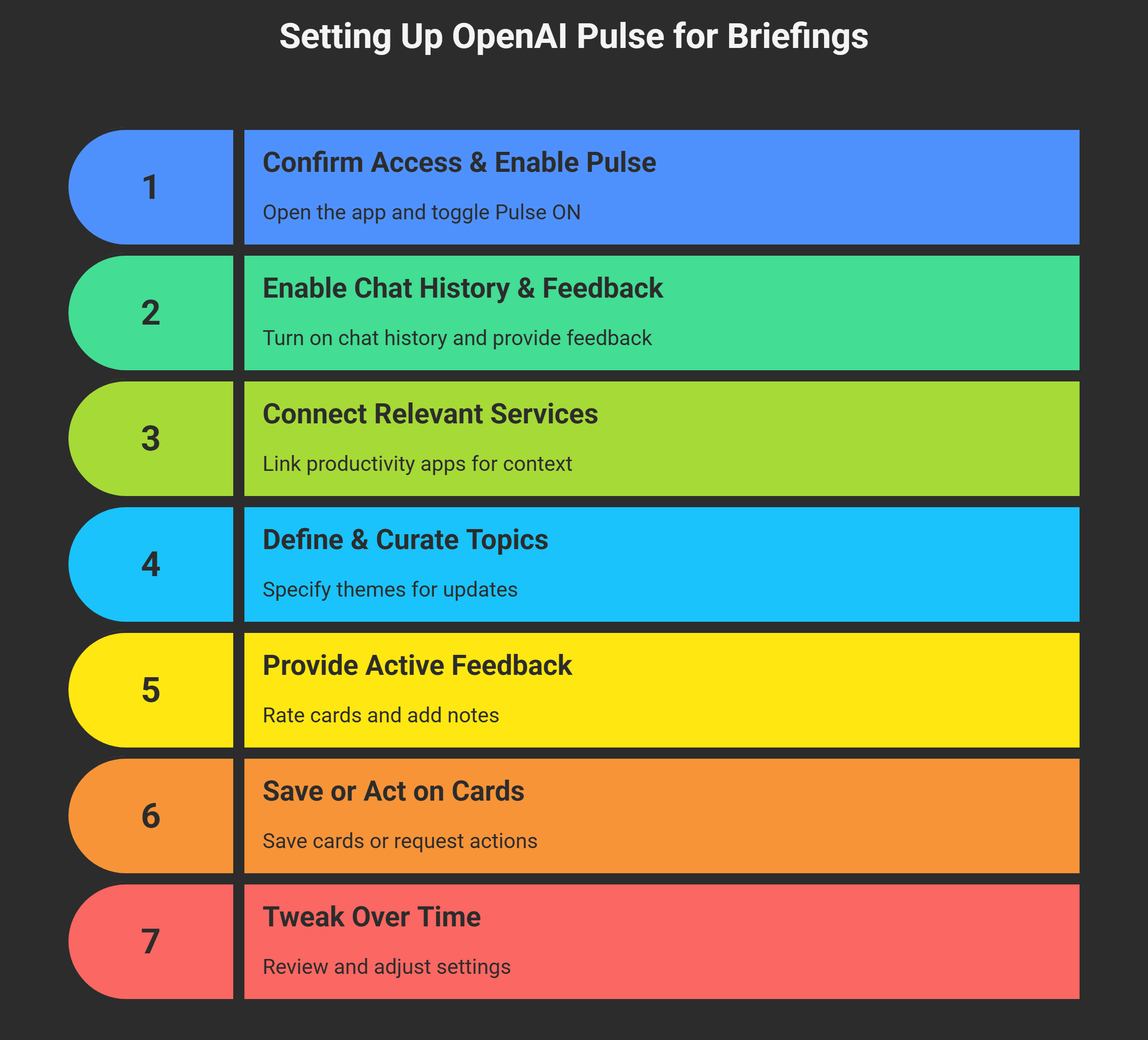
Step 1: Confirm Access & Enable Pulse
- Open the ChatGPT mobile app.
- Go to Settings → Pulse.
- Toggle Pulse ON (if available to your account).
✅ Why it matters: Without enabling it, Pulse won’t generate daily cards for you.
Step 2: Enable Chat History, Memory & Feedback Loops
- In Settings → Data Controls, ensure Chat History & Memory are turned on.
- Start giving thumbs up/down feedback on cards as soon as they appear.
✅ Why it matters: Pulse relies on your activity and feedback to learn what topics are relevant to you.
Step 3: Connect Relevant Services (Optional but Powerful)
- Navigate to Settings → Connectors.
- Link your Google Calendar, Gmail, or equivalent productivity apps.
✅ Why it matters: Pulse can then surface updates tied to your schedule (e.g., showing climate policy news before your sustainability meeting).
Step 4: Define & Curate Your Topics
- Use the Curate option to specify the themes you want.
- Example prompts:
- “Keep me updated on AI, climate change, and financial markets.”
- “Include daily insights on startups and renewable energy policy.”
✅ Why it matters: This step filters content, ensuring your daily cards remain focused and meaningful.
Step 5: Provide Active Feedback
- Rate each card with thumbs up/down.
- Add quick notes like “too broad” or “more market analysis.”
✅ Why it matters: The system continuously refines itself, eliminating irrelevant updates and prioritizing the most valuable insights.
Step 6: Save or Act on Interesting Cards
- Save cards directly into a chat for later reference.
- Ask follow-up actions like:
- “Summarize this article into a LinkedIn post.”
- “Draft a tweet based on this update.”
✅ Why it matters: Pulse doesn’t just deliver information—it helps you act on it instantly.
Step 7: Tweak Over Time
- Regularly review your curated topics.
- Add new interests or remove irrelevant ones.
- Reassess connected apps for fresh context.
✅ Why it matters: Pulse adapts as your professional and personal goals evolve.
Example: Setting Up Pulse for Climate Tech News
Let’s say your focus is climate technology. Here’s how you can configure Pulse effectively:
- Enable Pulse in the app.
- In Curate settings, specify:
- “Provide daily updates on climate tech, renewable energy, and policy changes.”
- Connect your Google Calendar so that Pulse can remind you about relevant events.
- Give positive feedback on cards like solar startup funding and negative feedback on unrelated finance updates.
- Save critical updates to revisit later, e.g., “Summarize top 3 solar funding stories.”
Over time, Pulse will generate a streamlined, highly relevant digest of climate tech insights tailored just for you.
Workarounds If You Don’t Have Access to Pulse Yet
If Pulse isn’t available in your account, you can still mimic its functionality with existing ChatGPT features.
1. Use Daily Scheduled Prompts
Set a recurring task:
- “Every morning, give me 5 latest news items on AI and climate, with one-sentence commentary.”
2. Leverage Memory
Keep Memory on so ChatGPT learns your preferred topics and tailors updates accordingly.
3. Build a Mini-Pulse
Over time, your scheduled prompts + memory act like a personalized digest, giving you the same advantage as Pulse users.
Final Thoughts on Using OpenAI Pulse Effectively
OpenAI Pulse is a game-changing tool for professionals wanting to stay ahead without drowning in information overload. By combining AI-powered curation, user feedback, and integration with productivity tools, Pulse ensures you get relevant, timely, and actionable insights daily.
Whether you’re tracking AI trends, financial markets, climate policy, or startup news, Pulse delivers a visionary, evolving briefing that adapts to your interests. And even if you don’t have access yet, using scheduled prompts and memory features can help you replicate a similar experience.

Selva Ganesh is a Computer Science Engineer, Android Developer, and Tech Enthusiast. As the Chief Editor of this blog, he brings over 10 years of experience in Android development and professional blogging. He has completed multiple courses under the Google News Initiative, enhancing his expertise in digital journalism and content accuracy. Selva also manages Android Infotech, a globally recognized platform known for its practical, solution-focused articles that help users resolve Android-related issues.





Leave a Reply