
We rely on our smartphones for almost everything, so it can feel like a disaster when something as critical as the power button stops working. This essential component allows us to turn our phones on and off, reboot them, and even take screenshots. Unfortunately, power buttons can sometimes break or become unresponsive. However, don’t worry! You can try several methods to turn on your phone without using the power button. These solutions can range from using a charger, entering recovery mode, using ADB commands, leveraging scheduled power on/off features, or utilizing apps to wake the screen. Each method offers a unique approach to tackle the issue, ensuring you can keep your phone operational even with a faulty power button.
Method 1: Using a Charger
One of the simplest ways to turn on your phone if the power button isn’t working is by using a charger.

- Plug your phone into a charger. Many phones automatically turn on when they are connected to a power source.
- Wait for the battery icon to appear. If the battery is completely drained, it may take a few minutes before the phone turns on.
This method works because charging often triggers the phone to power on. It’s a quick fix that doesn’t require any technical know-how.
Method 2: Using Recovery Mode (for Android)
Recovery mode can be a lifesaver if you’re using an Android phone.
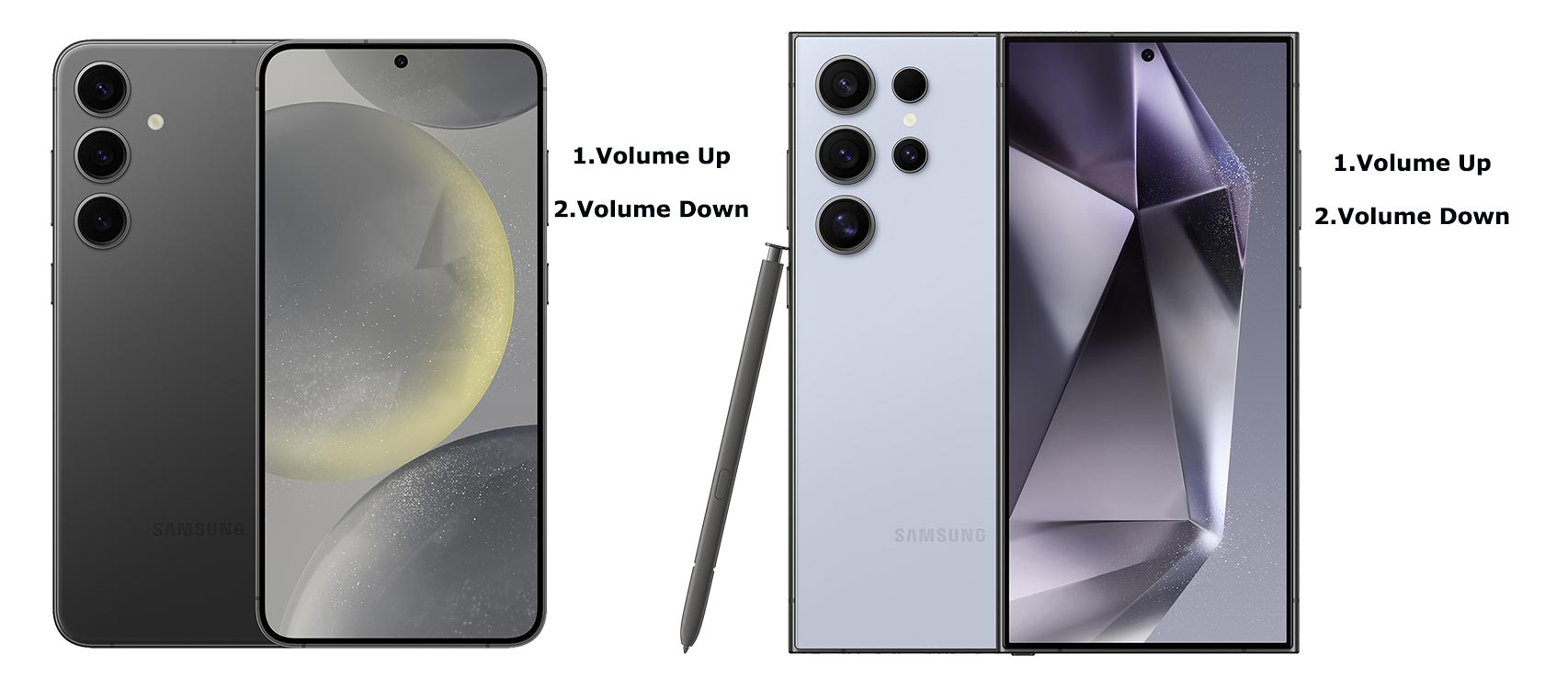
- Press and hold the volume down button.
- Connect the phone to a computer via a USB cable.
- Keep holding the volume down button until the recovery mode screen appears.
- Use the volume buttons to navigate to “Reboot system now” and press the power button to select it. If the power button is broken, some phones allow you to use the volume buttons to confirm the selection.
Recovery mode is a built-in feature on Android devices that allows you to perform various system operations. This method is especially useful if your phone’s software is malfunctioning.
Method 3: Using ADB Commands (for Android)
For more tech-savvy users, ADB commands offer another way to turn on your Android phone.
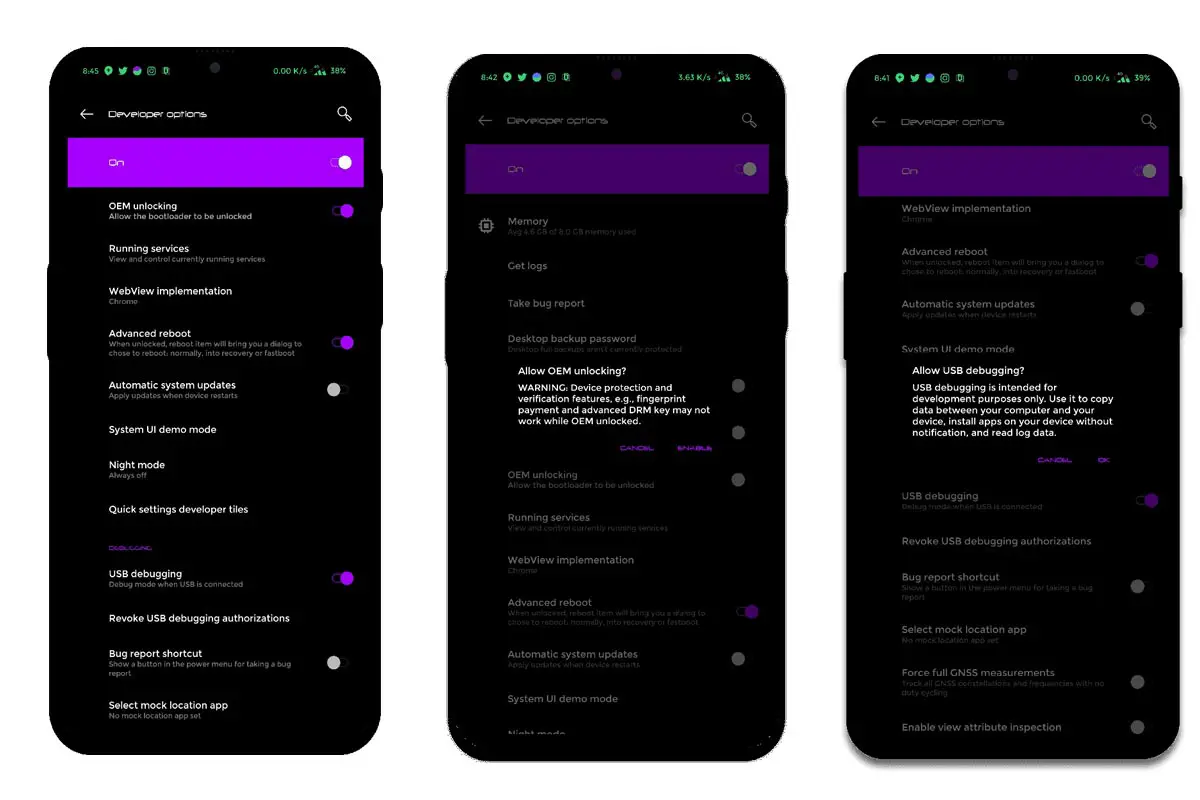
- Enable USB debugging on your phone. (Note: This method won’t work if USB debugging isn’t enabled and your phone is completely off.)
- Download the ADB drivers. Install it on your PC.
- Connect your phone to a computer via a USB cable.
- Open Command Prompt (Windows) or Terminal (Mac/Linux) on your computer.
- Type the following command and press Enter:
- Copy code
- adb reboot
- This should reboot your phone.
ADB (Android Debug Bridge) is a versatile command-line tool for communicating with your device. It can be unsafe if you’re not used to command-line interfaces, but it’s very powerful.
Method 4: Using Scheduled Power On/Off
Some phones have a scheduled power on/off feature. If you’ve previously set this up, it can be a great way to turn your phone on without the power button.
- If your phone has a scheduled power on/off feature and you have it set up, it will turn on at the scheduled time.
- Wait for the scheduled time for the phone to power on automatically.
This feature is typically found in the settings menu under the battery or power management options. It’s a handy trick, but setting it up requires some forethought.
Method 5: Use an App (if the phone is on but the screen is off)
If your phone is on but the screen is off, you can use certain apps to wake it up without the power button.
- If your phone is already on but the screen is off, you can use apps like “Gravity Screen” or “Wave to Unlock” to turn it on.
- If the app is already installed, download it from the Play Store (Android) or App Store (iOS) and follow the instructions to enable screen unlocking without the power button.
These apps use your phone’s sensors to detect motion or gestures, allowing you to wake your phone without touching the power button. This is a great workaround, especially for phones that frequently experience power button issues.
FAQs
Can I turn on my phone without a power button if it’s completely off?
Yes, you can try methods like using a charger or entering recovery mode using an Android phone. However, some methods, like ADB commands, require the phone to be partially functional.
What should I do if I need to do something else?
If none of these methods work, you might need to take your phone to a professional for repair, and the power button might need to be replaced.
Is it safe to use ADB commands on my phone?
Using ADB commands is generally safe if you follow the instructions carefully. However, it requires USB debugging to be enabled, which might not be possible if your phone is completely off.
How can I prevent my power button from breaking in the future?
Avoid applying too much pressure on the power button, keep your phone in a protective case, and regularly clean the area around the button to prevent dust and debris buildup.
Are there other ways to turn on a phone without a power button?
Other methods include using scheduled power on/off features, apps to wake the screen, or getting creative with hardware solutions like temporarily reassigning another button to act as the power button.
Wrap Up
A broken power button can be frustrating, but there are several ways to turn your phone on without it. Methods like using a charger to power up your device, entering recovery mode on Android, or utilizing ADB commands can help you bypass the need for a functional power button.
Each method has specific steps and requirements, making it essential to choose the one that best suits your situation. If these solutions don’t work, seeking professional help to repair your power button might be necessary. Additionally, remember to back up your data regularly and consider setting up features like scheduled power on/off to prevent future issues. These proactive measures can help you avoid the inconvenience of a non-functional power button, ensuring your phone remains operational when you need it most.

Selva Ganesh is the Chief Editor of this Blog. He is a Computer Science Engineer, An experienced Android Developer, Professional Blogger with 8+ years in the field. He completed courses about Google News Initiative. He runs Android Infotech which offers Problem Solving Articles around the globe.



Leave a Reply