
In today’s competitive app market, thorough testing is crucial to ensure a smooth user experience before launching your app on platforms like the Google Play Store. Launching an app involves meticulous testing to identify and resolve bugs or usability issues, ensuring the product meets user expectations. One effective strategy is to conduct structured testing with dedicated testers. This approach involves gathering a team of around 20 testers who can provide diverse perspectives and comprehensive feedback on the app’s functionality, design, and overall user experience. Utilizing Google Play Console apps allows developers to detect and rectify issues early, improving the app’s quality and increasing its chances of success upon launch. By engaging testers early and consistently throughout development, developers can refine their apps to meet high standards and deliver a polished product to users.
Internal Testing on Google Play Console
Google Play Console allows developers to conduct internal testing before making their apps available to the public. This phase will enable developers to gather feedback from a controlled group of users and address any issues that may arise.
Benefits of Internal Testing
Internal testing provides several advantages:

- Early identification of bugs and glitches.
- Real-world feedback from potential users.
- Opportunity to refine app features based on user experience.
Initiating Internal Testing
To start internal testing:
- Navigate to the Internal testing section within Google Play Console.
- Access the Testers tab and select the user lists you invite for testing.
- Ensure testers understand their role and responsibilities during this phase.
Adding Testers
Selecting the right testers is crucial for meaningful feedback:
- Choose testers who represent your target audience.
- Consider including testers with varying device types and operating systems for comprehensive testing.
Step-by-Step Guide to Adding 20 Testers
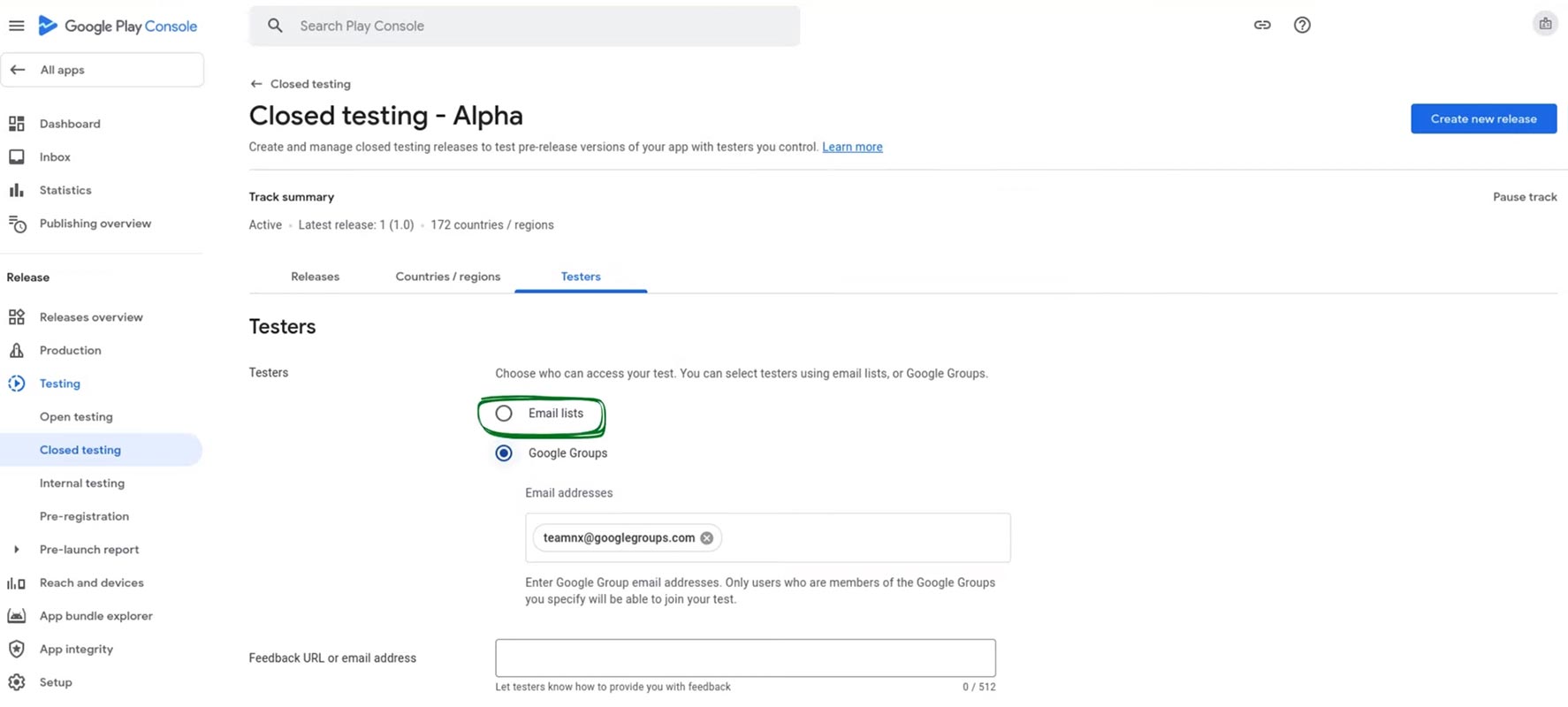
- Access the Internal testing page on Google Play Console.
- Navigate to the Testers tab and click on “Manage testers.”
- Add testers by entering their email addresses or Google Group names.
- Communicate clear instructions on how testers can access the app and provide feedback.
Collecting Feedback
Feedback from testers is invaluable for refining your app:
- Provide testers with a feedback URL or email address.
- Encourage detailed feedback on usability, performance, and any encountered issues.
Setting Up Feedback Mechanisms
Establish effective feedback channels:
- Regularly remind testers to provide feedback throughout the testing period.
- Utilize Google Play Console tools to streamline feedback collection and analysis.
Maintaining Tester Engagement
To keep testers engaged and committed:
- Clearly outline the duration of the testing phase (at least 14 days).
- Set expectations for the frequency and format of feedback submissions.
Communicating Effectively
Maintain open communication:
- Address any queries or concerns promptly.
- Acknowledge and appreciate the efforts of your testers in improving the app.
Applying for Production Access
Once testing is complete, it’s time to prepare for the app’s public release:
- Review the app’s performance and stability.
- Prepare necessary documentation for the production access application.
Steps to Apply for Production Access
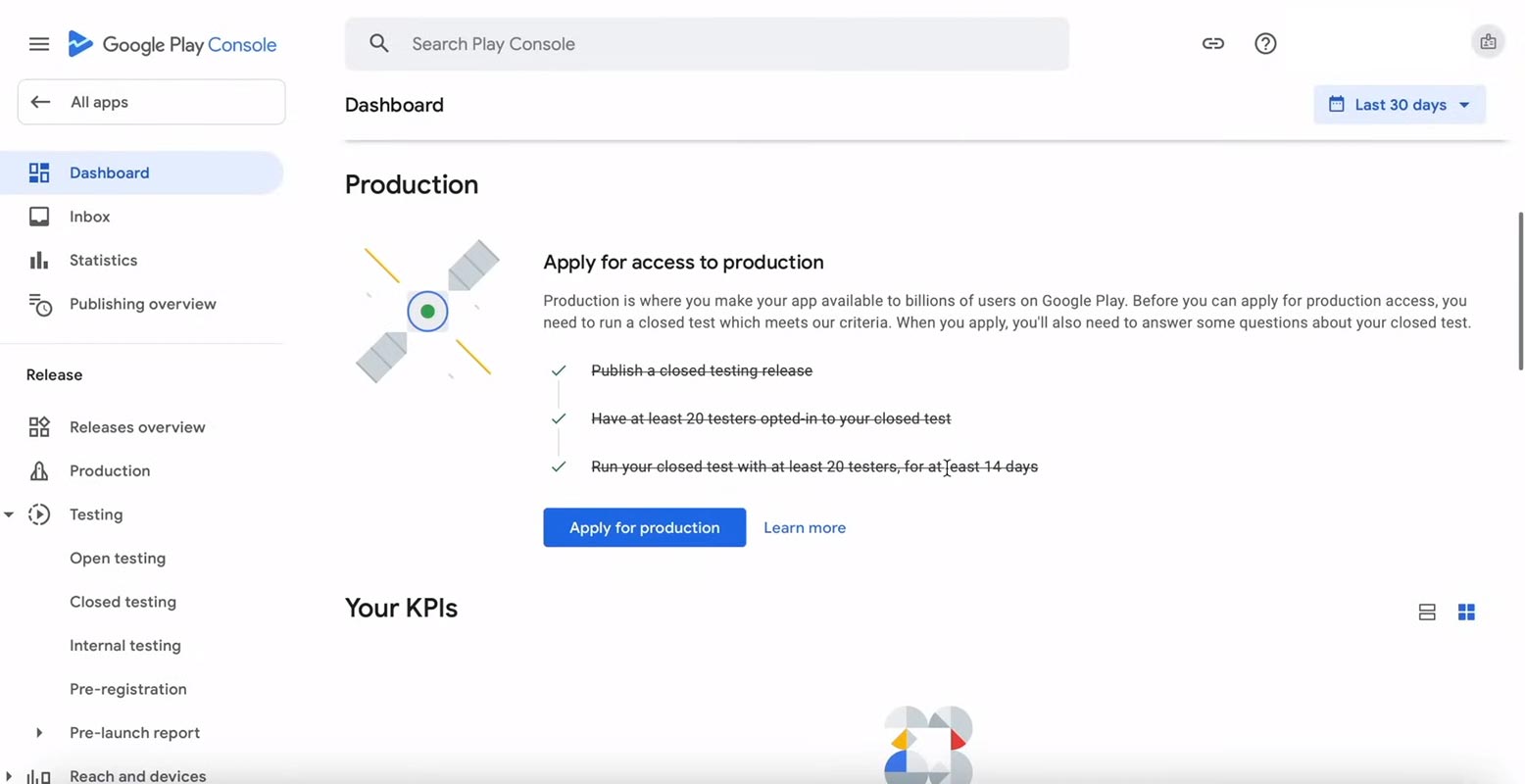
- Navigate to the Production release section on Google Play Console.
- Complete the application form detailing your app and its testing phase.
- Apply and await Google’s review (typically within seven days).
Publishing Your App
Upon approval, your app is ready to reach millions of users on Google Play:
- Monitor the app’s performance post-release.
- Address any post-launch issues promptly to ensure a positive user experience.
FAQs
How many testers should I aim for initially?
Aim for at least 20 testers to gather diverse feedback before the app launch.
Can I add or remove testers during the testing phase?
You can manage your tester list as needed throughout the testing phase.
What should I do if testers encounter bugs?
Encourage testers to report bugs promptly through designated feedback channels.
Is it necessary to have testers from different demographics?
Yes, testers from varied demographics provide valuable insights into app usability across various user groups.
How can I encourage testers to provide detailed feedback?
Communicate the importance of detailed feedback and how it contributes to app improvement.
Wrap Up
Effective app testing is pivotal in the app development lifecycle, ensuring a high-quality product. Following structured steps to recruit 20 dedicated testers, you can significantly enhance your app’s overall quality and user satisfaction upon launch. Thorough testing is essential as it helps identify and rectify bugs, glitches, and usability issues, thereby polishing the app to meet high standards.
A well-tested app functions smoothly and stands out in the competitive market, garnering positive user reviews and loyalty. Engaging dedicated testers who meticulously evaluate the app across various devices, operating systems, and scenarios helps uncover potential pitfalls early on, allowing for timely improvements. This proactive approach minimizes post-launch issues and boosts confidence among stakeholders and end-users, ensuring a successful app deployment and long-term success in the dynamic app ecosystem.

Selva Ganesh is a Computer Science Engineer, Android Developer, and Tech Enthusiast. As the Chief Editor of this blog, he brings over 10 years of experience in Android development and professional blogging. He has completed multiple courses under the Google News Initiative, enhancing his expertise in digital journalism and content accuracy. Selva also manages Android Infotech, a globally recognized platform known for its practical, solution-focused articles that help users resolve Android-related issues.




Leave a Reply