
Gmail is an unwavering cornerstone of digital communication, catering to a broad user base. This detailed guide immerses itself in a critical dimension of Gmail’s functionality—the “Create an Event” feature. It intends to offer practical solutions for users grappling with the recent modifications that have stirred confusion. By meticulously deciphering the nuances of this change; the guide aspires to equip users with knowledge and tactics to effortlessly adapt to the overhauled event creation process, thereby elevating their overall Gmail usage encounter. As a dependable tool, Gmail’s significance in streamlining communication is undeniable, and this guide seeks to bolster that significance by fostering a deeper understanding of its evolving attributes.
Understanding the Gmail “Create an Event” Feature
The “Create an Event” option in Gmail has been a valuable tool for seamlessly transitioning from email conversations to scheduled events. It eliminated the need for manual data transfer and facilitated efficient event creation. However, recent adjustments made by Google have led to confusion among users, as the option seems to have disappeared.
Finding the “Create an Event” Option in Gmail
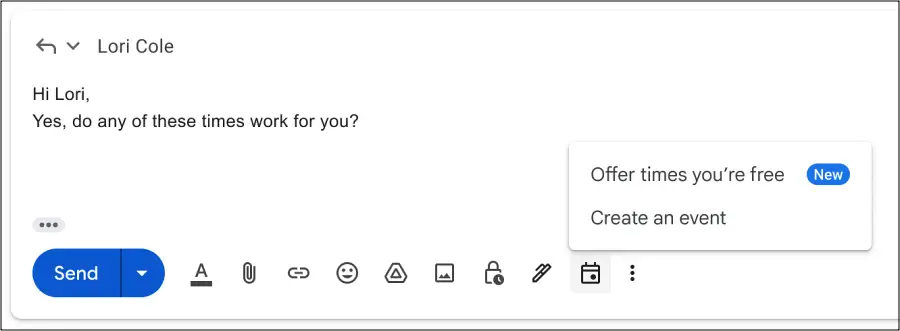
Contrary to its apparent absence, Gmail still has the “Create an Event” feature. Google has shifted its user interface by relocating the option to a new spot. Instead of the familiar “More” overflow icon, users can now access the “Create an Event” feature by clicking on the calendar icon—the second from the right—in the bottom right window when viewing an email.
Navigating the Calendar for Event Creation
Once the calendar icon is clicked, users are directed to the Calendar sidebar. Here, they can pinpoint the desired date for the event creation. After selecting the preferred time slot, the event’s subject is automatically assigned as the event title, streamlining the scheduling process.
Streamlined Scheduling: Benefits of the New Approach
Google’s decision to revise the user experience for event creation aims to enhance efficiency. By integrating the “Create an Event” option within the email interface, Google minimizes the need for back-and-forth exchanges in lengthy email threads when arranging meetings or appointments. This transition from email to event is designed to save time and streamline communication.
User Feedback and Concerns
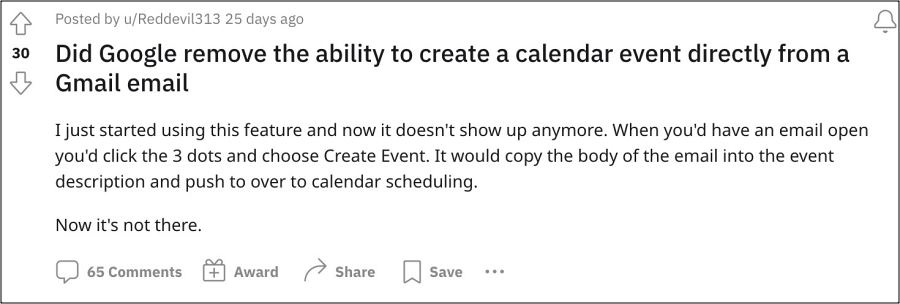
Despite Google’s intentions, user feedback indicates a divergence of opinions regarding the new location and functionality of the “Create an Event” option. Some users view this as a positive step toward simplification, while others perceive it as a regression. Unlike Tasks, which offers this integration, the updated feature no longer copies the email body into the event description and lacks a direct link to the original email.
Adjusting to the Change: Making the Most of It
A workaround to address the missing email body and link is manually inserting the email link into the calendar event after its creation. However, this underscores the primary concern—users previously enjoyed seamlessly integrating all necessary information. Adjusting to this change requires embracing and optimizing the new workflow to fit individual preferences.
FAQs
Has Google removed the “Create an Event” option from Gmail?
Google has not released the “Create an Event” option; it has been moved to a new location within the Gmail interface.
Where can I find the “Create an Event” option now?
Instead of the “More” overflow icon, you can access the “Create an Event” feature by clicking on the calendar icon in the bottom right window when viewing an email.
Does the new approach improve efficiency in scheduling events?
The new approach streamlines scheduling by reducing the need for prolonged email discussions when setting up meetings or appointments.
Can I still include the email content in the event description?
Unlike the previous feature, the updated “Create an Event” option does not automatically copy the email body into the event description. Users can manually insert the email link to bridge this gap.
How can I adjust to this change effectively?
Adapting to the change requires a shift in workflow. Embrace the new location, understand its benefits, and explore ways to optimize your event creation process within Gmail.
Wrap Up
In technology, change is a constant force, and the shift of the “Create an Event” option’s placement in Gmail serves as a tangible reminder of this reality. Amid diverse user views, the novel scheduling approach promises notable time-saving benefits through its restructured process. Embracing the modified landscape becomes crucial, enabling users to harness the help of the change.
Users embracing the shift optimize workflows, utilize streamlined event creation, and navigate interface intricacies more smoothly in Gmail. This deliberate acknowledgment of transformation empowers users to navigate the evolving landscape smoothly, effortlessly transitioning from email exchanges to orchestrating scheduled events, ultimately shaping a more efficient and effective digital experience.

Selva Ganesh is a Computer Science Engineer, Android Developer, and Tech Enthusiast. As the Chief Editor of this blog, he brings over 10 years of experience in Android development and professional blogging. He has completed multiple courses under the Google News Initiative, enhancing his expertise in digital journalism and content accuracy. Selva also manages Android Infotech, a globally recognized platform known for its practical, solution-focused articles that help users resolve Android-related issues.




Leave a Reply