
In today’s fast-paced world, time is of the essence. That’s where the speed dial feature on your Google Pixel comes into play, revolutionizing how you connect with contacts. Unlike conventional phones, which allow you to assign a number for swift dialing, Google Pixel employs a unique approach. This guide will meticulously take you through configuring the speed dial on your Google Pixel, guaranteeing lightning-fast calls at your fingertips. With this feature, you’ll no longer have to navigate through a series of menus or contacts; it’s all about efficiency and immediacy. Say goodbye to time-consuming dialing and hello to a seamless communication experience with your Google Pixel.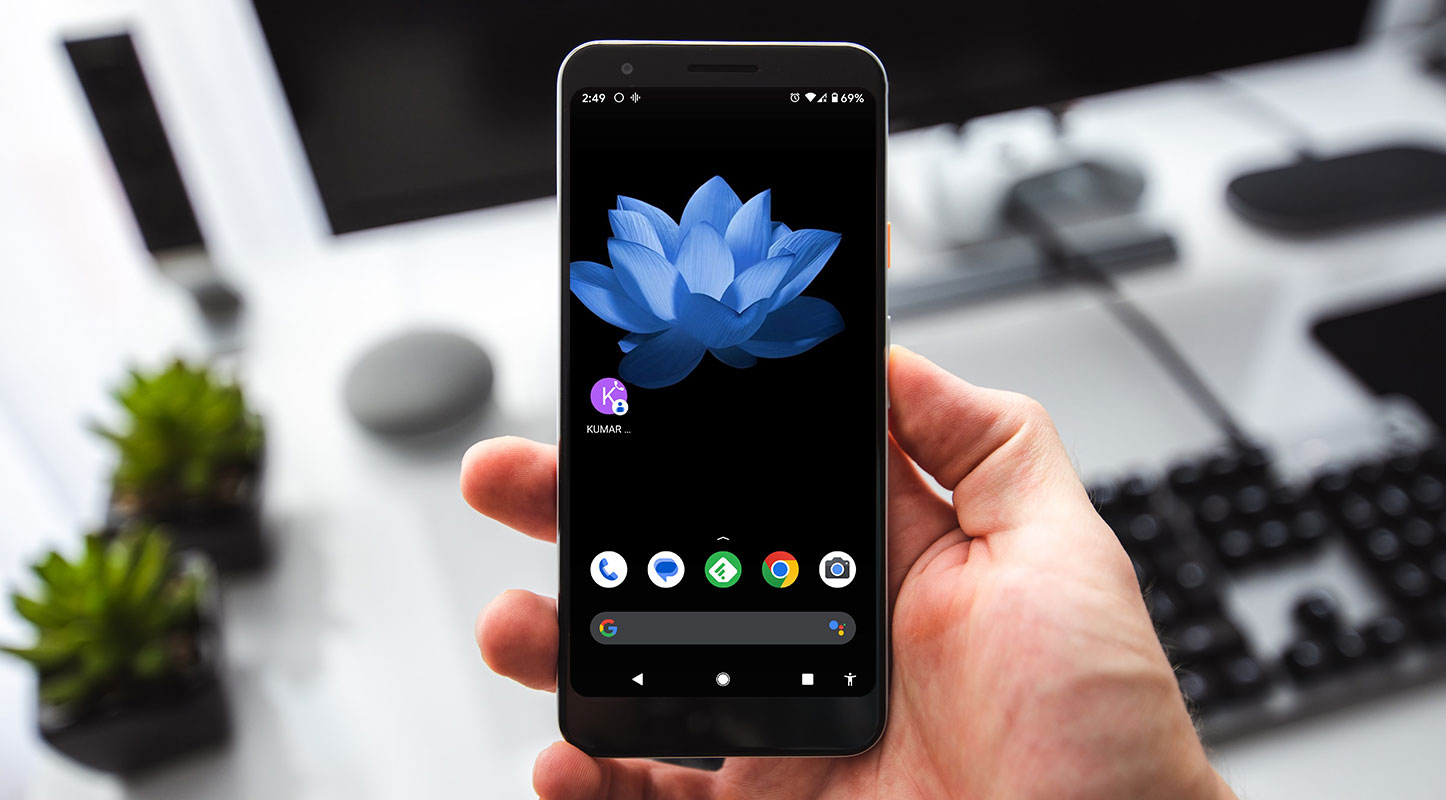
Understanding Speed Dialing on Google Pixel
Before we dive into the steps, it’s crucial to understand how speed dialing works on a Google Pixel. Unlike traditional methods, Google Pixel utilizes the Favorites screen within the Phone app. This screen displays your starred contacts and frequently contacted ones right below. It would be best if you starred the contacts you want to add to Speed Dial, and tapping on their name will prompt you to choose which number you want to call them at, in case you have multiple numbers saved.

Making a Single Number Your Default Choice
If you dial the same number repeatedly, there’s a nifty trick. Before making a call, you can tick ‘Remember this choice.’ This will set that number as your default choice, saving you the trouble of navigating through the dialer screen every time.
Exploring Third-Party Options
If you’re still yearning for a traditional speed dial feature, don’t fret. You can always search the Play Store for third-party phone apps that might cater to your needs. Additionally, don’t forget to provide feedback through your phone’s Settings to let the development team know your thoughts about this feature.
Adding and Removing Speed Dial Numbers
Now that you’re familiar with the concept let’s get down to the practical steps of adding and removing speed dial numbers on your Google Pixel.

Adding a Speed Dial Number
- Touch and hold an empty area on your Home screen.
- Tap on Widgets.
- Scroll down to the Contacts section and touch and hold the Direct dial.
- Drag the widget to your preferred Home screen and release.
- Ensure sufficient space on the selected Home screen for adding the widget.
- Tap on the contact you want to add.
- If the contact has multiple numbers, select the applicable one.
Removing a Speed Dial Number
- From your Home screen, touch and hold the ‘Speed Dial’ or ‘Direct Dial’ icon.
- Drag the item up to Remove (at the top) and release.
FAQs
Can I assign more than one number to a speed-dial contact?
You can choose which to assign to speed dial if a contact has multiple numbers saved.
Is there a limit to how many contacts I can add to speed dial?
There isn’t a strict limit, but keeping the list manageable for quicker access is advisable.
Can I rearrange the order of speed dial contacts?
Unfortunately, the order is typically determined by when you star the contacts. You might want to prioritize your most frequently called contacts.
Do third-party phone apps affect the overall performance of my Google Pixel?
It depends on the specific app. It’s recommended to choose reputable ones with good user reviews.
Can I customize the appearance of speed dial widgets on my Home screen?
Unfortunately, the appearance is usually standardized, but you can explore alternative widgets for customization options.
Wrap Up
Configuring speed dial on your Google Pixel is a transformative step towards streamlining your calling routine. Though it may diverge from the conventional approach you’re used to, the Favorites screen method presents its own set of advantages, ensuring a swift and hassle-free calling experience. This feature enables you to access your most important contacts with just a tap quickly. While it might take a bit of adjustment, the efficiency it brings to your communication process is well worth it.
However, fret not if you are nostalgic for the traditional speed dial setup. The Play Store offers a range of third-party applications that cater to this preference, allowing you to customize your calling experience to your heart’s content. So, whether you embrace the modern approach or yearn for the classic, Google Pixel ensures you have the flexibility to tailor your phone’s functionality to suit your needs perfectly.

Selva Ganesh is a Computer Science Engineer, Android Developer, and Tech Enthusiast. As the Chief Editor of this blog, he brings over 10 years of experience in Android development and professional blogging. He has completed multiple courses under the Google News Initiative, enhancing his expertise in digital journalism and content accuracy. Selva also manages Android Infotech, a globally recognized platform known for its practical, solution-focused articles that help users resolve Android-related issues.





Leave a Reply