
When navigating voice and video communications on mobile platforms, experiencing an interrupted or failed call attempt can leave us searching for immediate answers. On WhatsApp, the status screen provides specific terminology following an unsuccessful connection. Understanding what each message signifies—whether Unavailable, Declined, No Answer, or Reconnecting—helps clarify whether you are facing network latency, a busy recipient, or hardware-level restrictions. Below is our comprehensive guide to every WhatsApp call message, what triggers it, and how to resolve potential connection errors.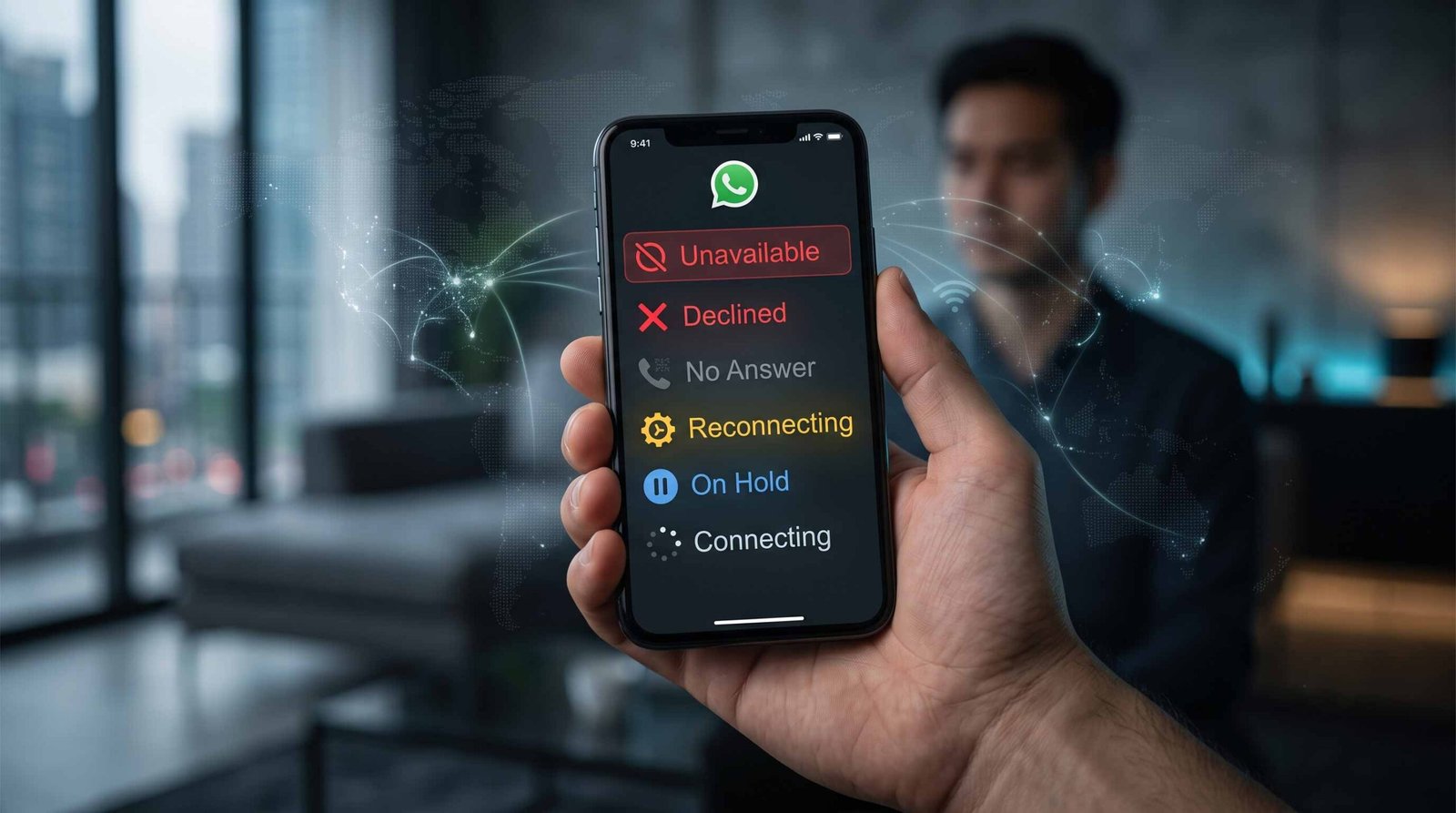
Decoding WhatsApp Call Statuses and Errors
1. WhatsApp Call “Unavailable”
The Unavailable status is one of the most misunderstood indicators on the platform because it originates from two distinctly different scenarios:

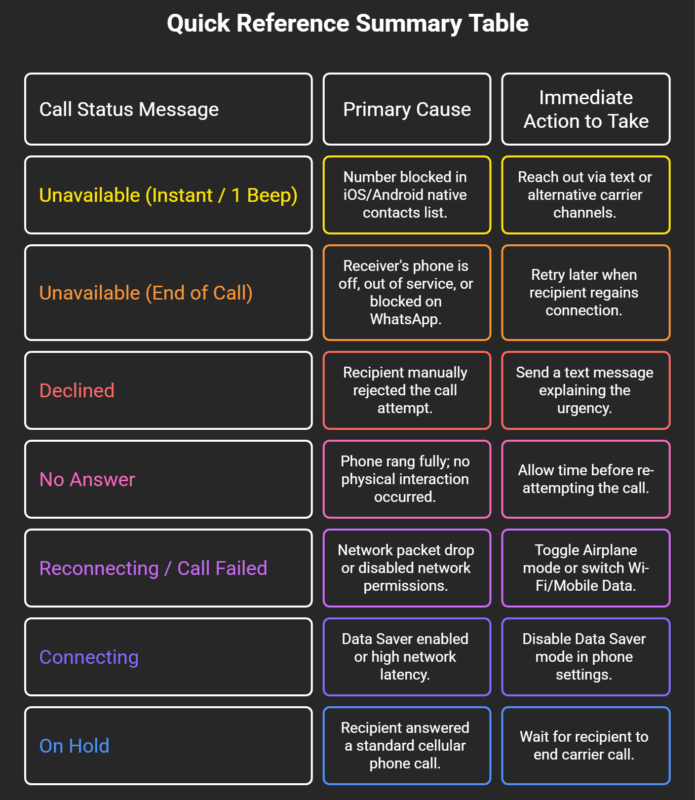
- Unavailable at the Start of the Call (After One Beep): If you initiate a call, hear a single short ring or beep, and the screen instantly flips to Unavailable, this typically points to a device-level block. This occurs frequently when calling an iPhone user who has blocked your mobile phone number in their native iOS device contacts rather than within WhatsApp itself. Because the operating system halts the connection at the device level, WhatsApp cannot route the audio stream. Interestingly, standard text messages may still deliver, but voice and video connection attempts will immediately fail with this prompt.
- Unavailable at the End of the Call: If the call rings continuously and eventually ends with the Unavailable message, the recipient’s physical phone is either completely turned off, operating without cellular or Wi-Fi coverage, or your contact profile has been blocked directly within the WhatsApp application settings.
2. WhatsApp Call “Declined”
Seeing Declined indicates a clear, intentional action. The person on the receiving end actively pressed the red reject button on their device screen or used a hardware shortcut (such as pressing an iPhone’s side button twice) to dismiss the incoming real-time alert. This confirms that their device was turned on, connected to an active network, and actively alerted them of your incoming reach-out.
3. WhatsApp Call “No Answer”
The No Answer status appears when a call completes its full ringing cycle without any physical interaction from the receiving party. Unlike a declined status, No Answer means the recipient did not tap any screen options. Common causes include:
- The recipient was physically away from their device.
- The phone was set to Silent or Do Not Disturb (DND) mode.
- The recipient intentionally let the call time out.
- The recipient was actively engaged in a native cellular phone call that obscured the full-screen WhatsApp notification.
4. Network Interruptions: “Reconnecting,” “Call Failed,” and “Unable to Initiate”
When a call experiences severe packet loss or data dropouts, WhatsApp displays specific infrastructure warnings:
- Reconnecting: Occurs during an ongoing call when the local device loses stable data flow. The app holds the session open briefly while attempting to re-establish the connection path.
- Call Failed / Unable to Initiate Call: These fatal errors occur right when you hit the call button. They signal that your device lacks an active internet connection, local network permissions are turned off, or local network security firewalls (such as restrictive public Wi-Fi or certain VPN configurations) are actively blocking Voice over IP (VoIP) protocols.
5. Hearing a “Beep” or Seeing “In Another Call”
Hearing a low beep sound during an attempt or mid-conversation indicates call waiting activity:
- If you hear a tone while placing a call, the recipient is currently speaking with someone else on a separate WhatsApp call.
- If you hear a subtle tone while already inside an ongoing conversation, your device is signaling an incoming second call.
6. Call Stuck on “Connecting”
If your screen stays frozen on Connecting without advancing to “Ringing,” the data handshake cannot complete. This behavior is primarily caused by:
- Data Saver / Low Data Mode: Active operating system settings restricting background transmission speeds.
- Extreme Low Bandwidth: Edge/2G cellular network conditions.
- VPN Routing: Virtual Private Network nodes interfere with UDP/IP data transport.
7. WhatsApp Call “On Hold”
The On Hold message appears automatically when the person you are conversing with receives and answers a primary cellular call on their device. Because standard carrier calls take hardware priority over third-party VoIP apps, WhatsApp automatically pauses the audio stream until the user returns to the app.
Quick Reference Summary Table
Technical Troubleshooting: Restoring WhatsApp Call Performance
If you routinely face Unavailable, Connecting, or Call Failed errors while placing legitimate calls, follow these standard technical resolution steps:
- Toggle Operating System Data Modes: Ensure Low Data Mode (iOS) or Data Saver (Android) is toggled off. These modes restrict necessary network throughput for real-time media streams.
- Verify Hardware Permissions: Navigate to your phone’s privacy settings and confirm WhatsApp has explicit access to both your Microphone and Camera.
- Inspect Active VPN Connections: Certain network tunnels block specific UDP ports required for WhatsApp calling protocols. Disable active VPN connections and attempt the call again over standard cellular or Wi-Fi bandwidth.
- Reset Network Stack: Toggle your device’s Airplane Mode on for 10 seconds and turn it back off to re-register with local cellular towers.
Frequently Asked Questions
1. Does “Unavailable” always mean I am blocked on WhatsApp?
No. While a block can cause this status, Unavailable also occurs if the recipient’s phone is powered off, lacks signal coverage, or if your phone number is blocked only in their device’s native contact list rather than the WhatsApp app itself.
2. What is the difference between “Ringing” and “Calling” on WhatsApp?
Calling means WhatsApp is attempting to reach the recipient’s device over the network. Ringing confirms that the call signal has successfully reached their phone and the alert is actively sounding on their end.
3. How can I tell if a call was deliberately rejected or simply missed?
If the call ends with the Declined status, the recipient actively tapped the reject button. If it ends with No Answer, the phone rang until it timed out without any manual input.
4. Why does a WhatsApp call instantly disconnect with one beep?
This usually occurs when you try calling an iPhone user who has placed your mobile number on their native iOS device block list. The device rejects the incoming VoIP connection request immediately.
5. Can I receive standard phone calls while on a WhatsApp call?
Yes. When a standard carrier call comes in, your phone alerts you. If you choose to answer the carrier call, your ongoing WhatsApp call is automatically placed On Hold.
6. Why does my WhatsApp call stay stuck on “Connecting”?
This usually points to insufficient network bandwidth, aggressive battery optimization rules limiting background processing, or an active VPN interfering with the connection.
7. Does a single gray tick mean my WhatsApp call will say “Unavailable”?
If your text messages show a single gray tick (meaning sent but not delivered), placing a call to that contact will typically result in an Unavailable status because their device is currently offline or unreachable.
8. Why do I hear a beep while talking on a WhatsApp call?
A beep sound during an active conversation indicates that a second incoming call is trying to reach your line.
9. Will a WhatsApp call go through if the recipient is on Focus or Do Not Disturb mode?
Yes, the call will usually connect and display Ringing or end as No Answer, but the recipient’s device will suppress sound and vibration alerts depending on their specific profile settings.
10. How do I fix “Call Failed” errors on public Wi-Fi networks?
Public networks (like those in hotels or airports) frequently restrict VoIP traffic. Switch from Wi-Fi to cellular mobile data to establish a direct, unblocked connection.

Selva Ganesh is a Computer Science Engineer, Android Developer, and Tech Enthusiast. As the Chief Editor of this blog, he brings over 10 years of experience in Android development and professional blogging. He has completed multiple courses under the Google News Initiative, enhancing his expertise in digital journalism and content accuracy. Selva also manages Android Infotech, a globally recognized platform known for its practical, solution-focused articles that help users resolve Android-related issues.




Leave a Reply