
Enable Native App Lock in Google Pixel Mobiles– For years, securing sensitive data on stock Android required creative workarounds. While custom OEM skins offered integrated security toggles, Pixel owners had to rely on cumbersome third-party lockers or isolate entire profiles through features like Private Space. With the arrival of the Android 17 QPR2 Beta 3 update, Google finally introduced a dedicated, native App Lock security layer directly into the Pixel Launcher and core system settings.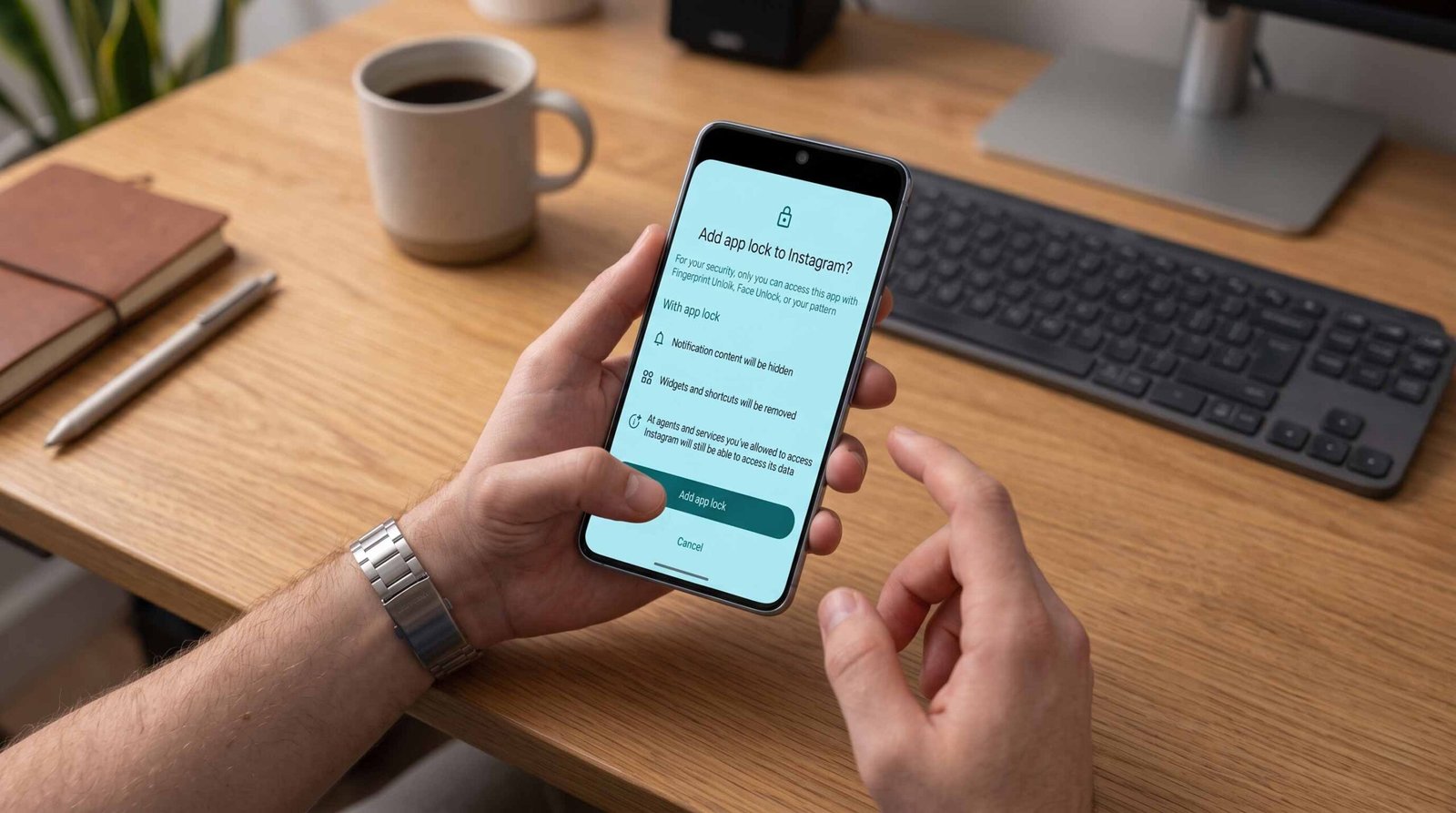
We have spent significant hands-on time evaluating this system across multiple Pixel devices. In this comprehensive guide, we provide our field-tested walkthrough on how this feature functions, how to configure it correctly, the exact privacy protections it enforces, and the technical caveats you must understand before locking down your critical apps.

Why Native Pixel App Lock Replaces Third Party Tools
Our long-term security testing with stock Android consistently highlighted two major flaws with legacy locking methods:
-
Accessibility-Based Lockers: Third-party locker utilities from the Play Store frequently required invasive system-wide accessibility permissions, continuously consumed background memory, caused interface lag, and presented serious security vulnerabilities due to intrusive advertising libraries.
-
Profile Isolation Overkill: While Private Space in Android 15 provided airtight isolation, it was designed to hide entire workspaces under separate Google accounts rather than offering quick, biometric protection for daily apps on the main screen.
Google’s native implementation eliminates these compromises. By embedding hardware-backed biometric verification into the system launcher and surface window manager, locking an app no longer degrades performance or introduces privacy risks.
Supported Devices and Software Prerequisites
Before proceeding with the setup, ensure that your device satisfies the specific OS build requirements established in the beta channels:
-
Eligible Pixel Hardware: Google Pixel 6, Pixel 6 Pro, Pixel 6a, Pixel 7, Pixel 7 Pro, Pixel 7a, Pixel Fold, Pixel Tablet, Pixel 8, Pixel 8 Pro, Pixel 8a, Pixel 9, Pixel 9 Pro, Pixel 9 Pro XL, and Pixel 9 Pro Fold.
-
Firmware Version: Android 17 QPR2 Beta 3 (or any subsequent stable quarterly platform release).
-
System Lock Credentials: An active Fingerprint Unlock, Face Unlock, or secure PIN/Password/Pattern already established within device settings.
How to Lock Apps Directly from the Pixel Launcher
The fastest way to protect an individual application is through the direct home screen or app drawer shortcut. This method requires no navigation through deep settings menus.
-
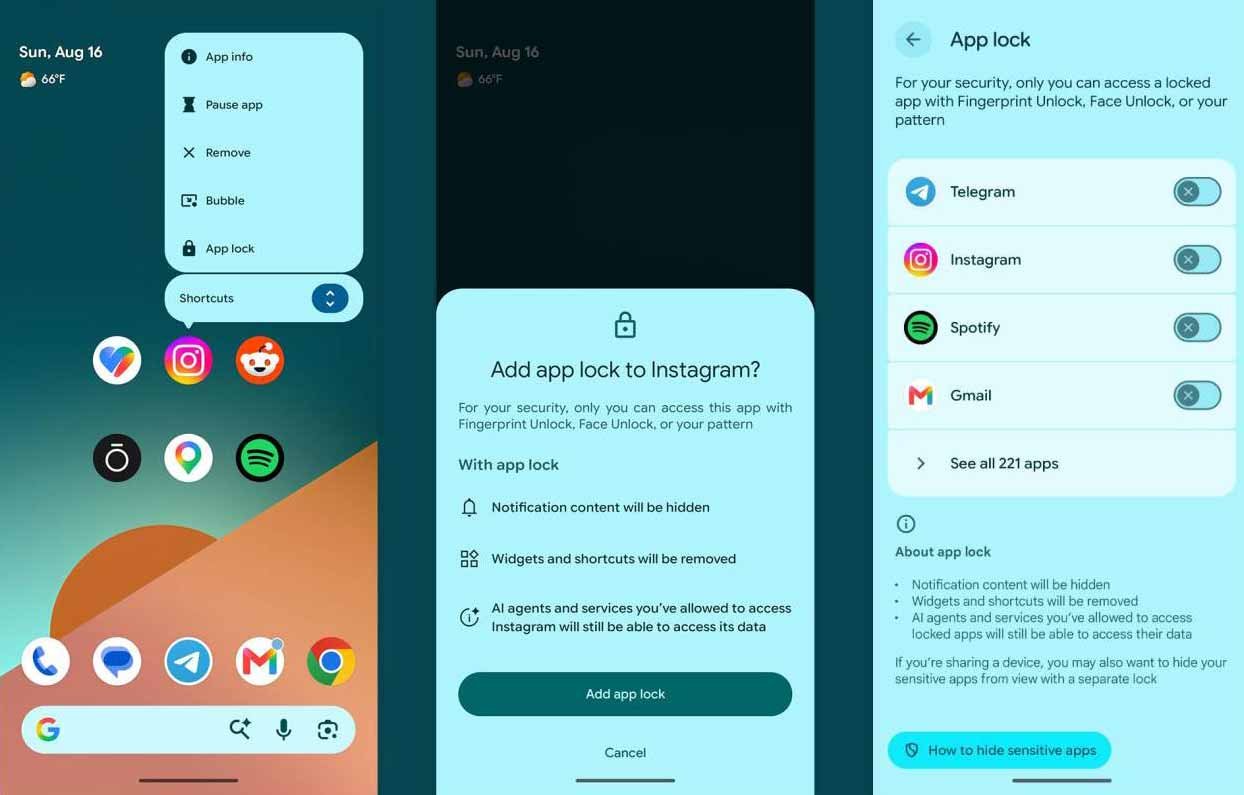
Locate the specific application you want to secure on your Home screen or inside the App drawer.
-
Press and hold the application icon until the pop-up context menu appears.
-
Tap the App lock option positioned alongside standard entries like App info and Pause app.
-
Authenticate immediately using your Biometric fingerprint, Class 3 Face Unlock, or Device PIN.
-
Once authenticated, the application is instantly bound to the system security protocol.
Every subsequent attempt to launch this application triggers the system authentication prompt, blocking screen rendering until identity verification succeeds.
How to Manage Locked Apps from Android System Settings
When securing multiple applications simultaneously—such as banking suites, social networks, galleries, and private messaging platforms—using the centralized settings panel provides a much cleaner administrative view.
-
Launch the Settings application on your Pixel device.
-
Scroll down and enter the Security & privacy hub.
-
Select the dedicated App lock sub-menu.
-
Pass the required Biometric or PIN verification challenge.
-
Review the comprehensive list of installed user and system applications.
-
Toggle the switch to ON for each application requiring protection.
-
To revoke protection, simply toggle the switch off at any time.
Core Privacy Protections Triggered by App Lock
Google engineered this feature with multiple defensive layers that activate automatically the moment an app is placed under lock status.
1. Automatic Notification Masking
When an application is locked, incoming message contents, sender identities, and alert details are stripped from both the Lock screen and the active Notification shade. The system simply informs you that a new notification exists without exposing sensitive financial numbers or chat previews to surrounding observers.
2. Desktop Widget Suppression
To eliminate desktop data leakage, any active widgets linked to a locked application are automatically cleared and hidden from the home screen grid. This prevents interactive elements from broadcasting unauthenticated calendar entries, photos, or balance summaries.
3. Deep-Link Shortcut Removal
Static and dynamic launcher shortcuts—such as long-press options to jump directly into a specific direct message or compose a private document—are suppressed from the launcher interface until the primary application is unlocked.
4. Recents Overview Obfuscation
When navigating between active tasks using the Overview screen (app switcher), the real-time window preview of any locked application is blanked out or blurred by the Window Manager, preventing visual eavesdropping across open tasks.
Understanding the Artificial Intelligence Exception
While the native lock mechanism completely seals the user interface against unauthorized physical access, it is critical to distinguish between interactive UI security and system-level background permissions.
Any on-device machine learning models, background sync engines, or connected artificial intelligence services that have been granted operational permissions prior to locking will retain programmatic access to process their authorized tasks.
For instance, an integrated AI assistant or an automated cloud backup service will continue to process scheduled synchronizations, smart routines, and background context parsing. The native App Lock acts as an uncompromising biometric gate for human interactions, rather than a completely isolated software sandbox.
Comparing Native App Lock and Private Space
Understanding the architectural differences between Google’s two primary security features ensures you deploy the right tool for your specific workflow.
| Feature Attribute | Native App Lock | Android Private Space |
| Primary Focus | Rapid per-app biometric authentication | Full sandboxed environment isolation |
| Account Structure | Operates on primary user profile | Allows unique secondary Google accounts |
| Launcher Display | App icon remains visible on launcher | Entire space can be completely hidden |
| Background Sync | Notifications arrive in masked state | Apps pause completely when space locks |
| Recommended Use | Banking, Photos, Personal Messengers | Secondary accounts, covert applications |
Frequently Asked Questions
Which Google Pixel models support the native App Lock feature?
Native App Lock is compatible with the Google Pixel 6 series, Pixel 7 series, Pixel 8 series, Pixel 9 series, Pixel Fold, and Pixel Tablet running Android 17 QPR2 Beta 3 or higher.
Does native App Lock allow setting an independent PIN code?
No, the feature integrates directly with your primary device security credentials, accepting your device PIN, pattern, password, or registered biometrics.
Will locking an app completely block incoming notifications?
No, notifications still arrive normally, but the text previews, sender details, and attached images are masked until you authenticate and open the app.
What happens to home screen widgets when an app is locked?
The system automatically removes active widgets tied to locked apps from your home screen to prevent data exposure.
Can I unlock secured apps using Face Unlock on supported Pixel phones?
Yes, Pixel devices with Class 3 biometric Face Unlock hardware (such as the Pixel 8 and Pixel 9 families) can use facial recognition to unlock secured apps.
Do locked applications stay locked after a system reboot?
Yes, the locked state is written to secure system preferences and persists through phone restarts, shutdowns, and software updates.
Can native App Lock secure system apps like Settings and Photos?
Yes, native App Lock functions across both downloaded third-party applications and built-in system applications.
Does App Lock block background data usage for the selected apps?
No, background services, sync mechanisms, and push notifications continue to function silently in the background.
How do I remove the lock from an application?
Long-press the application icon and choose the option to unlock, or navigate to Settings > Security & privacy > App lock and switch the toggle off.
When will native App Lock reach all stable Pixel devices?
Following its preview in Android 17 QPR2 Beta 3, the feature is scheduled to roll out globally in the public stable Android 17 quarterly platform release.

Selva Ganesh is a Computer Science Engineer, Android Developer, and Tech Enthusiast. As the Chief Editor of this blog, he brings over 10 years of experience in Android development and professional blogging. He has completed multiple courses under the Google News Initiative, enhancing his expertise in digital journalism and content accuracy. Selva also manages Android Infotech, a globally recognized platform known for its practical, solution-focused articles that help users resolve Android-related issues.





OEM skins losing their exclusive bragging rights is great for the entire Android ecosystem. Google finally did the right thing with Pixel security.
Now that Google has finally added native app locking, my Pixel is practically perfect. I cannot wait to see what else they bring in future updates.
Third-party lockers always felt like a ticking time bomb regarding security privacy. A native system layer is the absolute best approach.
The Pixel Launcher integration is seamless and fast. It feels like it has been part of the OS all along.
I have been waiting for native app locking since I bought my first Pixel phone. Android 17 QPR2 Beta 3 truly delivers on user demands.
It took way too long, but credit where credit is due—this implementation is fantastic. Pixel devices just became much more secure for everyday sharing.
Having this embedded directly in system settings makes me trust the security even more. Google delivered a very polished feature here.
I am wiping my third-party app locker right now. Stock Android is finally catching up to the modern smartphone standard.
Isolating entire profiles was just too clunky for everyday tasks. A native app lock layer is infinitely better and much faster to use.
The beta has been super stable for me, and the app lock feature is rock solid. This is easily the best quality-of-life update in years.
Custom skins had this for a decade, but better late than never. I am glad Google is finally listening to power users.