
Samsung Galaxy S26 Ultra Red Screen Issue – We have analyzed widespread reports surrounding the Samsung Galaxy S26 Ultra red screen tint issue. Device owners worldwide have expressed concern over a distinct, unwanted reddish or pinkish patch appearing across the center or edges of their display panels.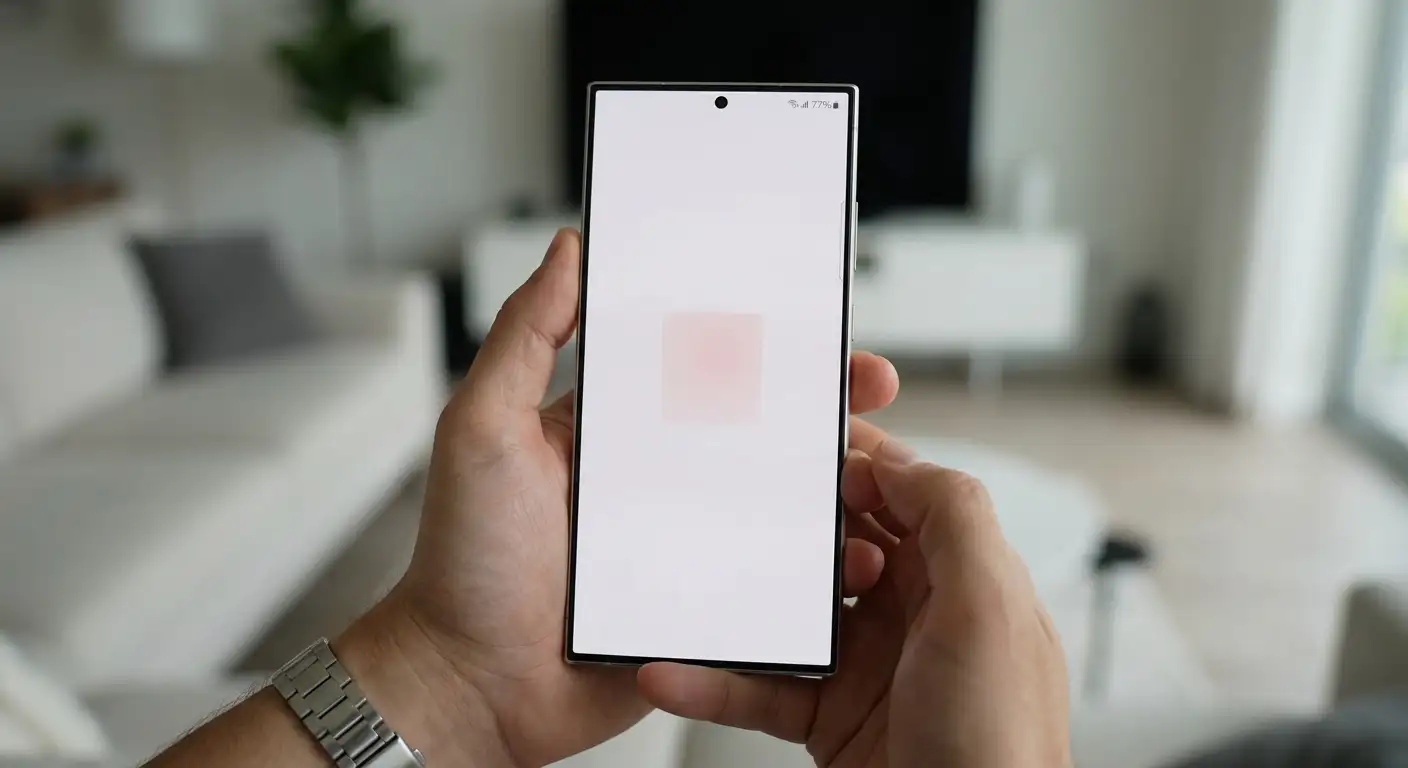
If you are experiencing a persistent pink or red discoloration on your device, you are not alone. In this comprehensive guide, we break down what causes the red tint, evaluate Samsung’s latest software fixes, and outline actionable steps you can take to resolve or minimize the problem.

What Is the Samsung Galaxy S26 Ultra Red Screen Tint Issue?
The Samsung Galaxy S26 Ultra red screen issue manifests as a visible color shift on the AMOLED panel. Affected users notice a reddish, pinkish, or purplish rectangle or patch. This discoloration is most noticeable when viewing:
-
Light gray or white backgrounds (such as system menus, browser pages, or document apps).
-
High screen brightness settings.
-
Direct sunlight or bright outdoor environment conditions.
Unlike typical manufacturing flaws that are immediately obvious upon unboxing, this specific issue generally appears after 2 to 3 months of regular use. This delay led many users to worry that their expensive displays were suffering from hardware degradation or OLED “burn-in”.
What Really Causes the Red Display Tint?
When reports first surfaced, speculation grew that the red hue was linked to the hardware implementation of Samsung’s Privacy Display technology. However, official investigations confirmed that the hardware architecture is not at fault.
1. Abnormal RGB Pixel Calibration
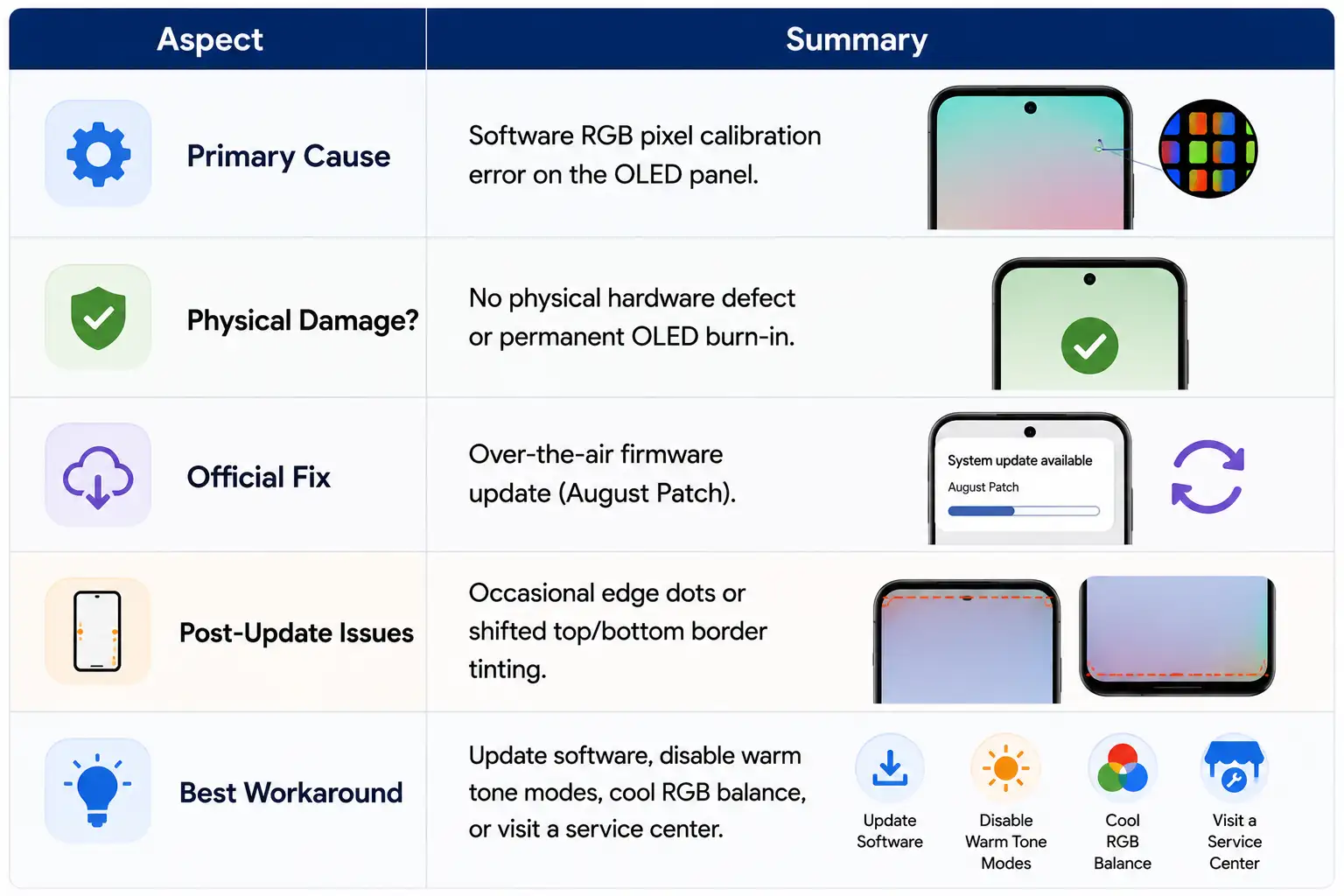
Samsung officially confirmed that the red tint stems from an abnormal RGB (Red, Green, Blue) pixel color calibration error in the system software. The display panel itself remains physically healthy; however, the software governing pixel brightness sends excessive voltage or incorrect color balance values to the red sub-pixels under specific operational profiles.
2. Operational Triggers
The red tint is most frequently triggered when the smartphone operates under high automatic brightness, particularly during extended outdoor exposure. High thermal load combined with max-luminance display drive modes accelerates the software’s improper pixel mapping, making the red hue clearly visible.
3. No Physical OLED Burn-In or Hardware Defect
It is important to emphasize that this is not permanent OLED burn-in. Burn-in occurs when static images leave permanent ghosted marks on organic light-emitting diodes. Because the S26 Ultra issue is caused by software-level pixel mapping errors, it can be adjusted and corrected electronically without replacing the physical screen.
Status of Samsung’s Software Fix (August Update)
To address the display anomaly, Samsung developed a dedicated firmware patch.
The August 26 Patch
On August 26, Samsung began distributing an over-the-air (OTA) system update containing an automated RGB pixel recalibration script specifically for the S26 Ultra. For a large percentage of users, installing this patch successfully resets the central pixel drive values, restoring natural whites and accurate color reproduction.
Settings > Software update > Download and install
The New Secondary Display Artifacts
While the update corrected the central screen tint for many devices, early feedback highlights that the patch introduced new calibration artifacts on certain display panels:
-
Top and Edge Artifacts (Screen Dots): Some users report seeing tiny, bright colored dots or spots lining the top border or extreme edges of the screen.
-
Tint Migration: On certain units, rather than disappearing completely, the red tint shifted from the middle of the screen to the top and bottom edge margins.
These new artifacts confirm that sub-pixel calibration varies slightly across individual manufacturing batches, requiring further software refining from Samsung’s engineering teams.
Immediate Workarounds and Step-by-Step Fixes
If your Samsung Galaxy S26 Ultra currently shows a red tint or display color mismatch, we recommend executing the following sequential troubleshooting steps to mitigate the issue.
Step 1: Install the Latest System Software Update
Before tweaking manual settings, ensure your device has received the recalibration patch.
-
Connect your phone to Wi-Fi and ensure battery level is above 30%.
-
Open Settings.
-
Scroll down and tap Software update.
-
Select Download and install.
-
Allow the phone to restart completely after installation finishes.
Step 2: Disable Automated Display Tone Features
Certain display management tools dynamically adjust color temperature based on ambient lighting. Disabling these helps prevent the display processor from over-amplifying red values.
-
Turn off Adaptive Color Tone: Go to
Settings>Displayand toggle off Adaptive Color Tone. -
Disable Eye Comfort Shield: Go to
Settings>Display> Eye Comfort Shield and turn it off. Warm light modes add yellow/red hues that exacerbate the tint. -
Disable Extra Dim: Go to
Settings>Accessibility>Visibility enhancements(or Quick Panel) and turn off Extra Dim. -
Turn off Color Correction: Navigate to
Settings>Accessibility>Visibility enhancements>Color correctionand set the toggle to Off.
Step 3: Manually Adjust White Balance Settings
You can manually counteract the reddish hue by adjusting the RGB sliders in the device display settings.
-
Open Settings and tap Display.
-
Select Screen mode and choose Vivid.
-
Locate the White Balance slider.
-
Drag the slider toward Cool (blue side) to neutralize warm red tones.
-
Tap Advanced settings beneath the slider.
-
Reduce the Red (R) slider slightly while keeping Green (G) and Blue (B) balanced until white backgrounds appear neutral.
What to Do If the Red Tint or Dots Persist
If updating software and adjusting color profiles does not resolve the red tint, or if your panel displays dot artifacts post-update, direct intervention is required.
Visit an Authorized Samsung Service Center
Samsung officially advises customers experiencing persistent tinting or post-update edge dots to visit an authorized Samsung Service Center.
At the service location, technicians can execute a deep, hardware-level display recalibration routine using specialized service tools. This process directly flashes factory pixel mapping curves to the display controller, correcting RGB distribution far more effectively than standard over-the-air consumer patches.
Key Takeaways

Selva Ganesh is a Computer Science Engineer, Android Developer, and Tech Enthusiast. As the Chief Editor of this blog, he brings over 10 years of experience in Android development and professional blogging. He has completed multiple courses under the Google News Initiative, enhancing his expertise in digital journalism and content accuracy. Selva also manages Android Infotech, a globally recognized platform known for its practical, solution-focused articles that help users resolve Android-related issues.




Leave a Reply