
Sideload the Meta Muse App on Android Phones– Meta has expanded its artificial intelligence ecosystem with Muse from Meta, an autonomous agent application engineered to manage calendars, execute multi-step research, organize complex personal workflows, and coordinate connected services. Because availability through the Google Play Store can vary depending on regional rollout schedules or device certification tiers, many users choose manual package installation.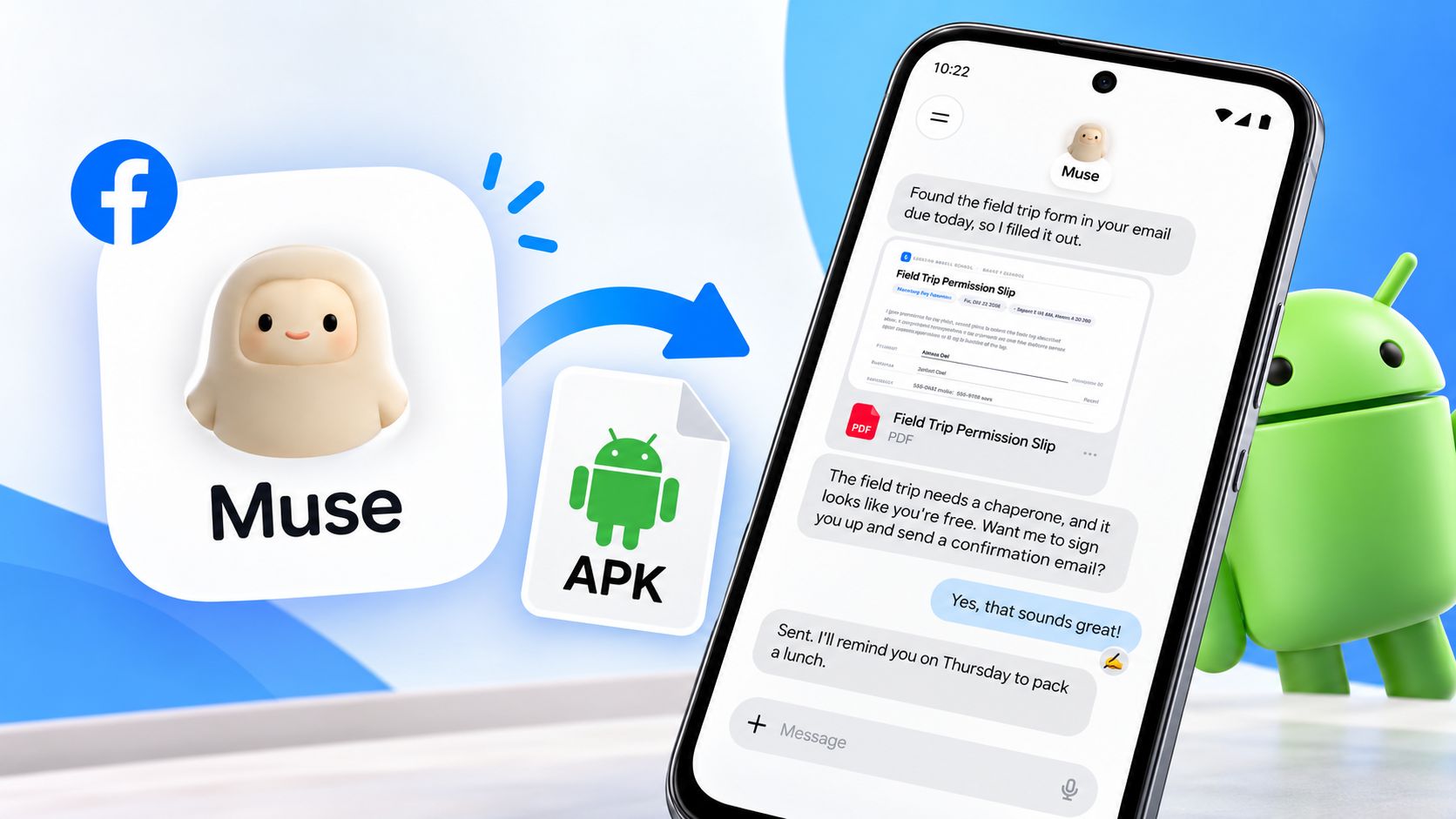
Sideloading allows you to install the official package directly using an Android application package file without waiting for an official regional listing. We have tested this process across diverse Android environments to outline the safest, most efficient deployment path.

Understanding Muse from Meta and Package Architecture
Before initiating an installation, understanding what you are installing ensures security and system stability. Muse from Meta operates on Android using the package identifier com.facebook.aura. Unlike standard chat applications, this autonomous agent integrates directly with system services, web browsers, calendars, and productivity tools to perform background tasks under user supervision.
The software is distributed in two primary release formats:
-
Standalone APK: A single compiled package containing the core executable code, base assets, and resources necessary to launch the application on compatible device architectures.
-
Split APK or App Bundle: A collection of split archives divided into base files, language packs, and specific hardware screen densities (commonly bundled inside formats like APKM or XAPK).
For standard manual installation, acquiring a verified universal or architecture-compatible standalone APK simplifies execution and avoids the need for secondary split-installer software.
Minimum Device and Operating System Requirements
Muse relies on modern background synchronization and background agent execution protocols. Confirm that your smartphone meets these hardware and software specifications prior to downloading:
-
Operating System: Android 10.0 or higher.
-
Processor Architecture: 64-bit ARM (arm64-v8a) processors found in modern Android smartphones.
-
Storage Space: At least 250 MB of free storage space for installation, caching, and local agent databases.
-
Account Prerequisite: A verified Meta account, Facebook login, or Instagram profile to authenticate and sync workspace connectors.
-
Google Play Services: An updated runtime environment to handle push notifications and cloud verification.
Step by Step Guide to Sideloading Muse on Android
Manual installation on contemporary Android releases relies on granular, per-app security permissions rather than the legacy global toggle.
1. Source the Genuine Application Package
Acquiring your file from a reputable repository is paramount. Rogue repositories frequently repackage popular releases with adware or unwanted tracking scripts.
-
Utilize established mirrors such as APKMirror or Uptodown, which preserve original developer cryptographic signatures.
-
Locate Muse from Meta and verify that the package name matches com.facebook.aura.
-
Download the latest stable build (typically between 38 MB and 45 MB in download size) directly to your Android device.
2. Enable Unknown Source Permissions for Your Installer
Android isolates permission grants to the specific program initiating the package deployment (such as Google Chrome or your default File Manager):
-
Open your device Settings.
-
Navigate to Apps or Applications, then tap Special App Access.
-
Select Install unknown apps.
-
Locate the browser you used to download the file (e.g., Chrome) or your local Files application.
-
Toggle the switch to Allow from this source.
3. Verify Cryptographic Integrity
To confirm that the package originated directly from Meta without modification or tampering, examine the file details before installation:
-
Open your file manager and view the file properties.
-
Compare the published SHA-256 hash provided on the repository listing against the downloaded file if your file utility supports hash verification.
-
Verified Meta packages will share the identical signing key used across official Meta Android software distributions.
4. Execute the Installation
-
Launch your browser downloads tray or navigate to the Download directory in your device file manager.
-
Tap the downloaded file (e.g., Muse_from_Meta.apk).
-
Android will parse the package. Tap Install when prompted.
-
Allow the built-in system scanner (such as Google Play Protect or Samsung Device Care) to inspect the code.
-
Once the prompt confirms success, tap Open.
Initial Setup and Permission Management
Once opened, Muse from Meta requires initial configuration to function effectively as a proactive agent:
-
Authentication: Sign in using your Meta account, or link through an active Facebook or Instagram profile.
-
Notification Access: Grant background notification permissions. The application alerts you whenever the agent needs explicit confirmation before spending money, sending sensitive communications, or finalizing calendar bookings.
-
App Connectors: Select which external tools you want the agent to read. You can link your Google Calendar, web browsing profiles, and productivity platforms one by one while keeping financial or private data restricted according to your preferences.
Sideloading via Direct File Transfer vs App Store Deployment
| Attribute | Direct Sideloading (Manual APK) | Official App Store (Google Play) |
| Availability | Immediate global access regardless of regional geofencing | Subject to phased staged rollouts and regional bans |
| Automatic Updates | Manual download required for future build revisions | Updates automatically in the background |
| Security Risk Profile | Depends entirely on user source selection discipline | Screened continuously by automated Play Store policies |
| Hardware Compatibility | Can be tested on non-certified hardware builds | Restricted by developer device filtering manifests |
| Installation Complexity | Requires manual permission changes in device settings | One-tap automated installation |
Essential Security Considerations
Sideloading bypasses the automated screening of the primary app store, making personal vigilance necessary. When installing background-agent software like Muse:
-
Never Disable Play Protect: Keep Google Play Protect active. Even when installing outside the Play Store, Play Protect parses APK signatures against known malware definitions.
-
Revoke Installation Rights After Setup: Once Muse is running, return to Settings > Apps > Special App Access > Install unknown apps and turn off permissions for your browser and file manager. This eliminates the possibility of drive-by downloads installing software later.
-
Review Connector Approvals: Muse requests broad access to accomplish autonomous tasks. Periodically review the connected accounts dashboard within the application settings to revoke permissions from services you no longer require.
Resolving Common Installation Errors
In practice, users occasionally encounter installation roadblocks during manual deployment:
-
App Not Installed / Package Invalid: This error usually indicates an architectural conflict (such as attempting to run an x86 or 32-bit package on a 64-bit device) or an incomplete download. Clear your download cache and re-download the package.
-
Signature Conflict: If an older internal preview or test version already exists on your phone, Android blocks the update due to differing cryptographic keys. Back up your settings, uninstall the existing build entirely, and run the new installer.
-
Parse Error: Occurs when your Android operating system version is lower than the minimum SDK level required by the manifest (Android 10.0 or older). Update your device software to resolve this issue.
Frequently Asked Questions
1. Is it safe to sideload Muse from Meta on an Android phone?
Sideloading is safe provided you obtain the package from verified mirrors like APKMirror or Uptodown that preserve Meta’s original cryptographic signatures. Never download packages from unknown forums or modified third-party sources.
2. What is the official package name for the Muse application?
The official package identifier registered by Meta Platforms for the application is com.facebook.aura. Confirming this string protects you against counterfeit applications.
3. Will sideloaded versions of Muse update automatically?
No, applications installed directly via an APK do not receive automatic background updates through the Google Play Store. You must download and install newer package versions manually as they are released.
4. Do I need root access to install Muse via APK?
Root access is not required. Modern Android operating systems allow any user to authorize package installations through standard system settings without modifying system firmware.
5. Why does my phone say “Install blocked by Play Protect”?
Google Play Protect displays cautionary prompts when an application is obtained outside its store. If you verified the file signature and obtained it from a trusted archive, select more details and proceed with the installation.
6. Can I sideload Muse on an Android tablet?
Yes, recent releases of Muse support both smartphone and tablet form factors running Android 10 or later. The interface scales dynamically to larger displays.
7. Does Muse work if my region is not officially supported yet?
The application will install and run, but certain backend connectors or cloud features may still enforce server-side location checks or require an active VPN depending on regional compliance rules.
8. What should I do if the installer crashes during extraction?
A crash during package parsing usually points to a corrupted download. Delete the file, verify that you have sufficient local storage, and download a fresh copy using a stable network connection.
9. Can I revoke permissions granted during the sideloading process?
Yes, you should immediately return to your system settings and turn off Install unknown apps for your browser and file management tools once the installation finishes.
10. Does sideloading void my Android device warranty?
Sideloading a standard application package does not void your hardware warranty. It is a native capability built directly into the Android operating system.

Selva Ganesh is a Computer Science Engineer, Android Developer, and Tech Enthusiast. As the Chief Editor of this blog, he brings over 10 years of experience in Android development and professional blogging. He has completed multiple courses under the Google News Initiative, enhancing his expertise in digital journalism and content accuracy. Selva also manages Android Infotech, a globally recognized platform known for its practical, solution-focused articles that help users resolve Android-related issues.




Leave a Reply