
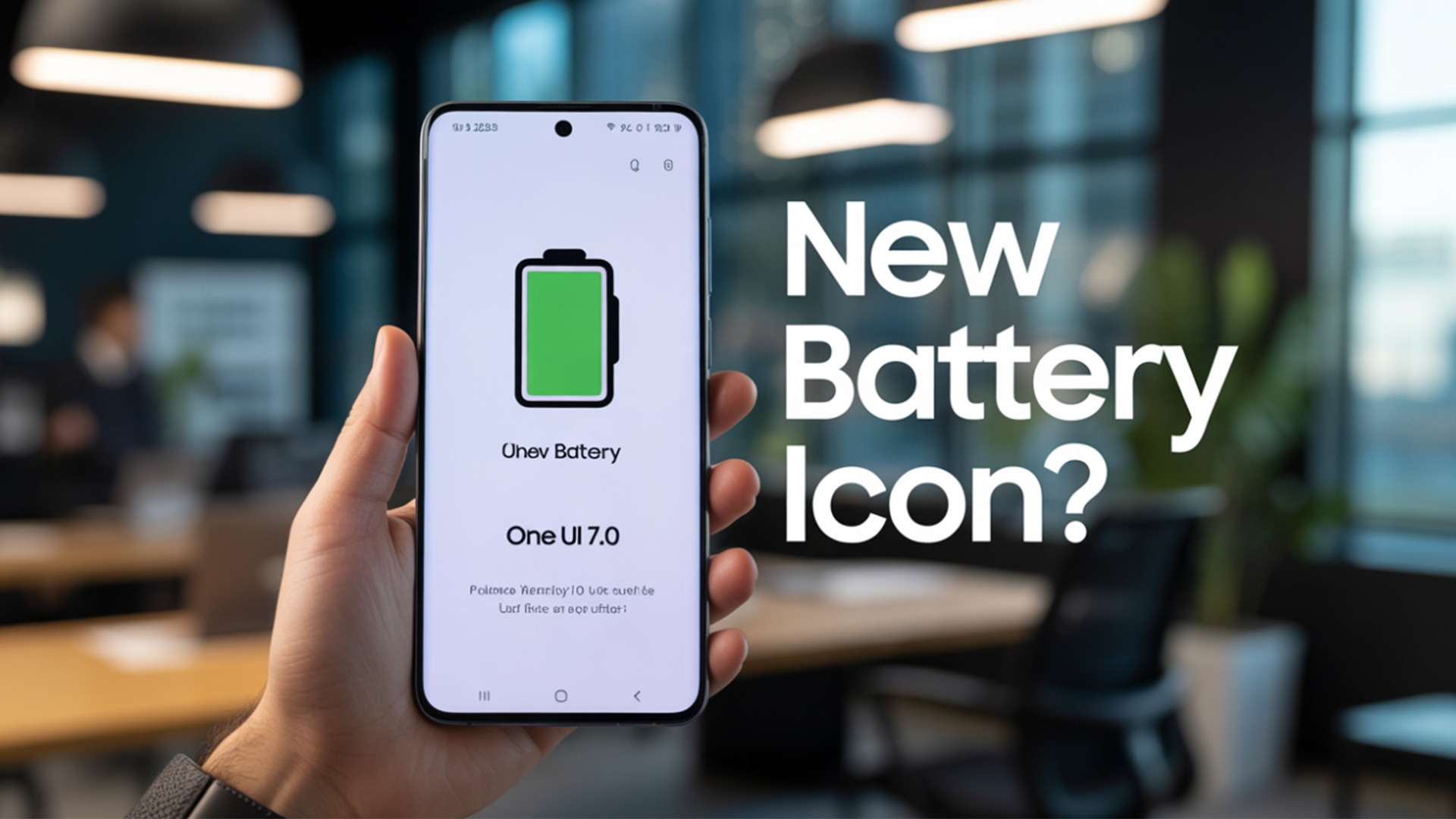
The recent Samsung Galaxy One UI 7.0 update has brought several changes to the beloved Galaxy ecosystem, but one particular update has sparked heated debate among users—the new battery icon. If you’ve updated your Galaxy device to One UI 7.0, you might have noticed the bigger, chunkier battery icon in your status bar. And if you’re like many in the Samsung community, you’re not thrilled about it. We will walk you through everything you need to know about the new battery icon, how to change or tweak it potentially, and what your options are moving forward. We’ll also dive into community reactions, why Samsung may have made this change, and some handy workarounds if you dislike the new design.
What is Samsung One UI 7.0?
One UI 7.0 is Samsung’s latest software skin built on Android 15, bringing a fresh look, enhanced performance, and a host of new features to Galaxy devices. While many of these updates have been praised, such as improved animations, better app transitions, and enhanced privacy settings, one visual change stands out—the redesigned battery icon.
The New Battery Icon: What Changed?
If you’re wondering what all the fuss is about, here’s a breakdown of the battery icon changes in One UI 7.0:
- Icon Size Increased – The new battery icon appears larger and broader in the status bar.
- Chunkier, Bold Design – Samsung has opted for a bold, chunky design that’s hard to miss.
- Emoji-like Feel – Some users feel the icon now looks like an emoji, giving the status bar a playful but arguably unrefined appearance.
- Alignment Differences – A few users have noticed slight alignment inconsistencies compared to other status bar icons.
While some might appreciate the visibility, many find it aesthetically unpleasing, especially those who prefer a minimalistic or sleek interface.
Why Did Samsung Change the Battery Icon?
Samsung hasn’t provided an official, detailed explanation for the new design, but based on industry trends and UI design principles, here are a few possible reasons:
- Improved Visibility: Larger icons are easier to see, especially for users with visual impairments.
- Consistency Across Devices: Aligning design language with Galaxy Watches, Tablets, and other Galaxy products.
- Emoji-Inspired UI Trends: The tech world embraces playful, emoji-like design elements.
- Feedback from Beta Testing: Believe it or not, some beta testers may have requested clearer battery indicators.
Despite these potential justifications, not everyone is impressed.
User Reactions: Mixed but Largely Negative
Samsung’s forums, Reddit threads, and social media platforms have been flooded with user opinions. Here’s a snapshot of what people are saying:
- “The new battery icon looks ridiculous. It’s way too fat!”
- “Absolutely hate it. Who approved this?”
- “I get that visibility matters, but this is just ugly.”
- “It feels like an emoji battery, not a professional status icon.”
- “We need an option to revert or customize it.”
There’s a strong demand for either a return to the old design or more customization options.
Can You Change the Battery Icon After the One UI 7.0 Update?
Here’s the truth: natively, Samsung does not offer a built-in option to change the battery icon. However, there are a few workarounds you can try:
1. Theme Store Customization
Samsung’s Galaxy Theme Store allows limited customization, and some themes may subtly alter status bar icons, including the battery icon. It’s worth exploring:
- Go to Settings > Themes.
- Search for themes that showcase different battery icon designs.
- Apply the theme and check the status bar.
Note: Not all themes affect the battery icon.
2. Good Lock App (QuickStar Module)
Samsung’s Good Lock app offers deep UI customization, though it depends on your region and device compatibility.
Steps:
- Install Good Lock from the Galaxy Store.
- Open QuickStar within Good Lock.
- Explore available status bar customizations.
While QuickStar offers various tweaks, changing the battery icon may be limited.
3. Third-Party Apps (With Limitations)
Apps like Status Bar & Notch Customizer or Super Status Bar from the Play Store allow some status bar modifications, but:
- Requires accessibility permissions.
- It may not fully integrate with One UI’s status bar.
- It can sometimes cause inconsistencies.
Use caution when experimenting with these apps.
- Download Battery Icons from the Play Store.
4. Root Your Device (Advanced Users Only)
If you’re tech-savvy and willing to root your device, you can unlock full system-level customization, including status bar icons. However, rooting comes with risks:
- Voids warranty.
- This can lead to security vulnerabilities.
- It may cause software instability.
Only attempt this if you’re experienced and accept the consequences.
How to Provide Feedback to Samsung
If you dislike the new battery icon, the best course of action is to provide feedback directly to Samsung:
- Samsung Members App:
- Open the app.
- Go to Support > Feedback.
- Submit your thoughts on the battery icon.
- Official Forums:
- Participate in discussions on Samsung’s Community Forums.
- Voice your concerns and upvote similar feedback.
The more users express dissatisfaction, the higher the chances that Samsung may reconsider the design in future updates.
The Importance of Battery Icon Design
You might wonder why there is so much fuss over a tiny battery icon. But in reality, the status bar is prime UI real estate:
- It’s visible all the time.
- It reflects the phone’s overall design language.
- Even minor icon changes impact user experience.
Thus, a poorly designed battery icon feels intrusive and distracting, diminishing the premium feel many expect from Samsung Galaxy devices.
Alternatives: Battery Percentage and Widgets
While you may not love the new icon, there are other ways to monitor battery life:
- Enable Battery Percentage:
- Go to Settings > Notifications > Status Bar.
- Toggle on Battery Percentage.
- Battery Widgets:
- Use home screen widgets that display battery info more clearly.
- Many third-party widgets offer sleek, minimal designs.
These won’t fix the icon, but can reduce your reliance on it.
Will Samsung Change the Battery Icon Back?
Historically, Samsung has occasionally adjusted UI elements based on feedback. During beta phases, they often test designs, gauge reactions, and refine accordingly. So, there’s a possibility that:
- Future Beta Releases might tweak the battery icon.
- Stable One UI 7.0 Rollout could feature a refined icon.
- Samsung may add customization options for the status bar.
For now, it’s a waiting game.
Conclusion: Love It or Hate It, Here’s What You Can Do
The new battery icon in Samsung Galaxy One UI 7.0 is dividing opinions. While some appreciate its bold, visible design, many loyal users are calling for change. Unfortunately, direct customization options are limited unless you use third-party apps or advanced tweaks.
The best course of action? Provide feedback, explore available workarounds, and stay updated on future software changes. Samsung listens to its user base, especially during beta testing, so your voice can make a difference.
Until then, whether you’re stuck with the chunky emoji battery icon or find a theme that suits you, remember—software evolves. And with enough feedback, so can the battery icon.

Selva Ganesh is a Computer Science Engineer, Android Developer, and Tech Enthusiast. As the Chief Editor of this blog, he brings over 10 years of experience in Android development and professional blogging. He has completed multiple courses under the Google News Initiative, enhancing his expertise in digital journalism and content accuracy. Selva also manages Android Infotech, a globally recognized platform known for its practical, solution-focused articles that help users resolve Android-related issues.




New battery/power decisions HORRIBLE.
Next phone will be ‘not Samsung’
Super helpful article for One UI 7 users. Thanks for breaking it down simply and clearly!
Your steps made this process so easy. I wish Samsung had a simpler toggle for these changes.
This guide was a lifesaver after the One UI 7 update on my Galaxy phone. Thanks for sharing it here!
Glad I found this article, the new battery icon confused me at first. Now it’s set to how I like it.
I followed your steps and it worked perfectly. Appreciate your clear screenshots and guidance!
Very useful, I was looking for this exact solution. The update really moved a lot of things around!
I updated last week and didn’t like the new battery style. This guide helped me get it back to the percentage view.
How, did you get rid of the icon or just put the percentage in the icon. I find it difficult to read with the background I have.
Finally, a clear explanation for customizing the battery icon after One UI 7. Thanks for sharing this tip!
I appreciate this walkthrough since I couldn’t find the option easily. Samsung should make this easier to access.
This helped me adjust the battery icon to my liking after the update. It’s surprising how many small things change.
I was wondering about this after the One UI 7.0 update changed how the icons look. Thanks for the clear guide!