
AI-generated images are visuals created by artificial intelligence based on the text prompts you provide. This technology, powered by Meta AI, is now integrated into WhatsApp, making it incredibly easy to create custom images directly in your chats. Whether you want to add a creative touch to your conversations or have fun, this feature offers endless possibilities. WhatsApp’s AI image generation feature is available in select countries and supports multiple languages, including English, Spanish, Portuguese, French, and Hindi. If you can access this feature, you can create AI-generated images with just a few taps.

Prerequisites
Availability of the Feature
Before you generate AI images, it’s important to note that this feature has yet to be available worldwide. Meta is gradually rolling out this feature so that it may be available in your region later. Keep an eye out for updates from WhatsApp to know when it becomes available in your country.
Supported Languages
As of now, AI image generation in WhatsApp supports the following languages:
- English
- Spanish
- Portuguese
- French
- Hindi
You’re good to go if your WhatsApp is set to one of these languages!
How to Generate AI Images in WhatsApp?
There are two main ways to generate AI images in WhatsApp: directly interacting with Meta AI or within any individual or group chat. Here’s how you can do it:
In a Chat with Meta AI
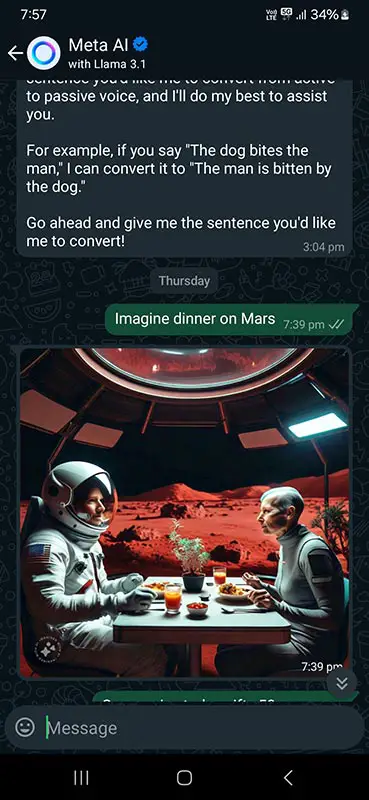
- Open the Chat with Meta AI
- First, you need to open a chat with Meta AI on WhatsApp. If you don’t still need to start a conversation with Meta AI, you can search for it in your contacts or start a new chat.
- Type Your Prompt
- In the message field, type imagine followed by your desired text prompt. For example, you could imagine a sunset over the mountains.
- Preview the Image
- As you type your prompt, WhatsApp will preview the image. This allows you to see what the AI is creating before you send it.
- Choose and Send the Image
- Once you’re satisfied with the preview, select the image, then tap Send. The AI-generated image will be displayed in the chat and ready for you to share or discuss.
- Optional: Watch a Video of the Generation Process
- WhatsApp allows you to watch a video showing how the AI-generated your image while you type your prompt. This can be a fun way to see the AI’s creativity in action.
In an Individual or Group Chat
- Open the Chat
- Navigate to the individual or group chat where you want to generate an AI image.
- Type Your Prompt Using Meta AI
- Type @ in the message field, then select Meta AI. After that, type imagine followed by your text prompt.
- Alternatively, tap Attach > Imagine, then type your prompt.
- Send the Image.
- After typing your prompt, tap Send. The AI will generate the image based on your prompt and appear in the chat.
Tips for Writing Effective Prompts
Creating the perfect AI-generated image starts with writing a clear and descriptive prompt. Here are some tips:
- Be Specific: The more specific you are, the better the AI can understand your wants. Instead of saying “a car,” try “a red sports car driving on a mountain road at sunset.”
- Use Descriptive Language: Include colors, emotions, and actions in your prompt. For example, “a happy golden retriever playing in a field of yellow flowers” will yield a more vivid image.
- Experiment: Feel free to try different prompts to see what works best. AI can sometimes produce unexpected results, so have fun with it!
Editing AI-Generated Images
If the AI-generated image isn’t exactly what you wanted, don’t worry—you can edit it! Here’s how:
How to Edit an AI Image in WhatsApp?
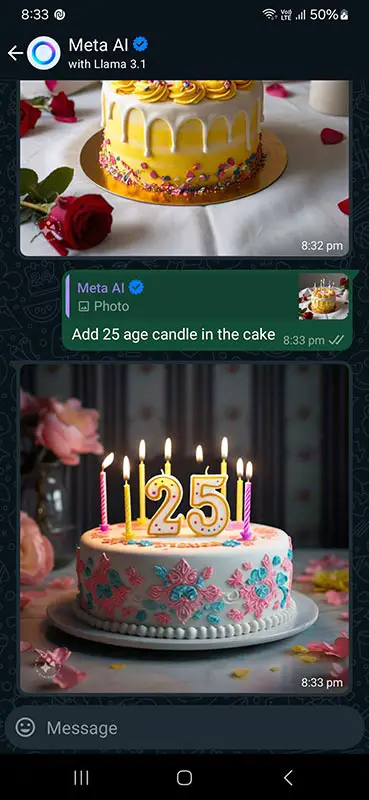
- Open the Chat.
- Go to the chat where the AI image was generated.
- Tap and Hold the Image.
- Tap and hold the image you want to edit.
- Tap Reply
- After holding the image, select Reply. This will open the message field.
- Type a New Prompt
- In the message field, type your new text prompt. You can adjust or change what you want the image to show.
- Send the Updated Image.
- Once you’ve entered your new prompt, tap Send. The updated AI-generated image will appear in the chat.
Best Practices for Editing
- Start Simple: Make minor adjustments to your original prompt to see how small changes can affect the image.
- Refine Gradually: Each time you edit, focus on refining one image aspect, such as color or background.
- Use Feedback: If you’re working in a group chat, get feedback from others to improve your prompt.
Privacy and Security Concerns
When using AI features in WhatsApp, it’s important to understand the privacy implications:
Meta’s Privacy Policy
Meta’s AI image generation is subject to its Privacy Policy. By using this feature, you agree to Meta’s AI Terms of Service. It’s crucial to know what data is being used and how it’s stored.
Deleting AI-Generated Content
You can delete individual chats with AIs or request the deletion of information you’ve shared with Meta AI. If you’re concerned about privacy, take advantage of these options to control your data.
Troubleshooting Common Issues
Even with such an innovative feature, you might need some help. Here’s how to handle common problems:
Feature Not Available
If the AI image generation feature isn’t available in your region, there’s little you can do but wait for an update. Ensure your app is updated to the latest version, and keep an eye on announcements from WhatsApp.
Issues with Image Quality
If the images generated aren’t up to your expectations, try refining your prompts. Be specific, or try a different description to see if the quality improves.
FAQs
Can I use this feature in my country?
This feature is currently available in select countries. If it still needs to be made available in your region, it might be rolled out soon.
How accurate are AI-generated images?
AI-generated images are generally accurate, but the quality depends heavily on the clarity and specificity of your prompt.
Can I delete images after generating them?
Yes, you can delete AI-generated images by tapping and holding the image and selecting Delete.
What if my prompt doesn’t generate the image I want?
If your prompt doesn’t yield the desired result, try refining your description or adding more details to better guide the AI.
Is this feature free to use?
Yes, generating AI images in WhatsApp is free, as long as you can access the feature.
Wrap Up
Creating AI-generated images in WhatsApp offers a fresh and exciting way to enhance your conversations with personalized visuals. Although this feature is being rolled out gradually and may not be available to everyone, those with access can dive into the creative process by experimenting with various prompts. This tool allows users to generate unique images that add a new dimension to their chats, making interactions more engaging and visually appealing. The ability to edit these images further extends the creative possibilities, enabling you to refine and perfect your creations.
As AI technology advances, the potential for what you can create with these tools is virtually limitless. Integrating AI in everyday apps like WhatsApp signifies a shift towards more interactive and dynamic communication methods. Whether using AI-generated images for fun or to convey specific ideas, this feature opens up a world of creativity that is only set to grow as the technology evolves.

Selva Ganesh is a Computer Science Engineer, Android Developer, and Tech Enthusiast. As the Chief Editor of this blog, he brings over 10 years of experience in Android development and professional blogging. He has completed multiple courses under the Google News Initiative, enhancing his expertise in digital journalism and content accuracy. Selva also manages Android Infotech, a globally recognized platform known for its practical, solution-focused articles that help users resolve Android-related issues.




Leave a Reply