
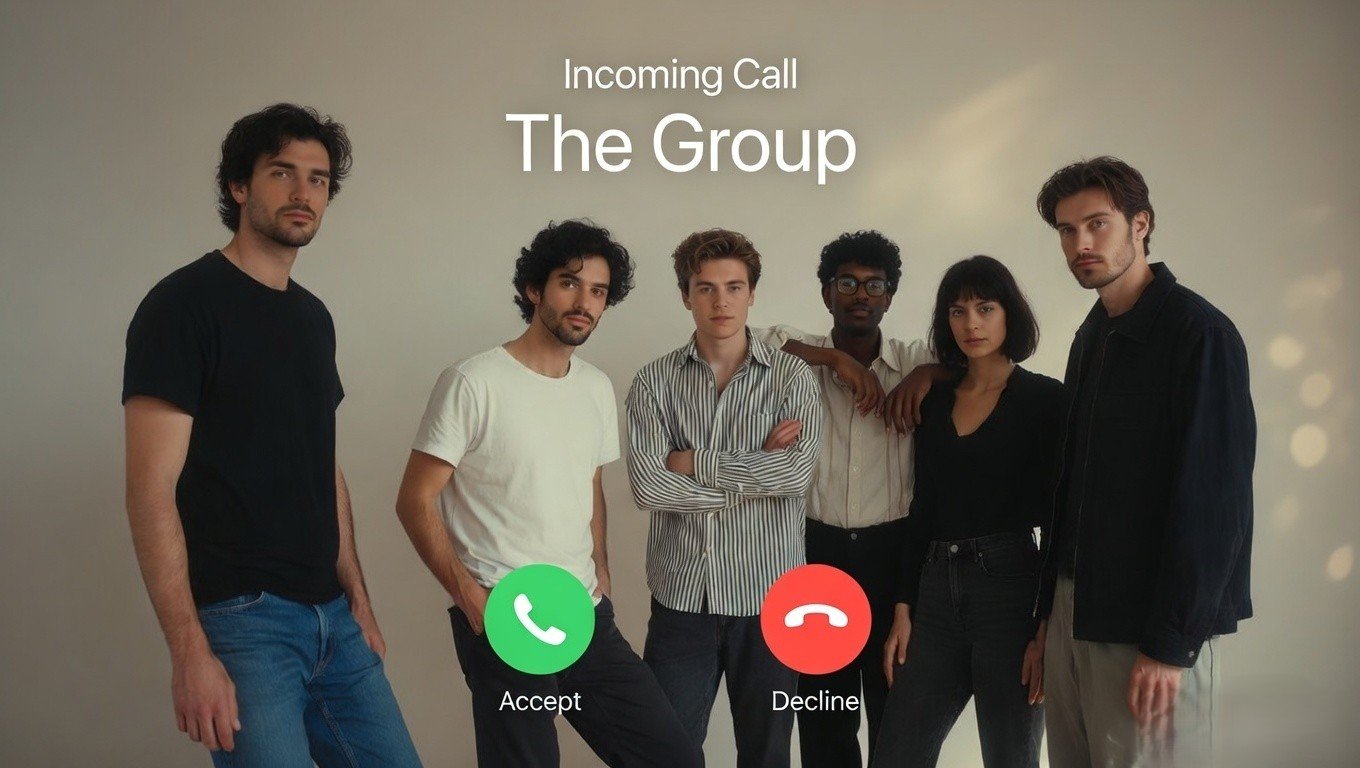
How to Create and Personalize Google Custom Calling Cards on Your Android Phone – In the modern era of digital communication, the way we present ourselves during a telephonic interaction has evolved significantly. Gone are the days of a simple name and number appearing on a recipient’s screen. With the introduction of Google custom calling cards, also known as Contact Posters, Android users now have the power to curate their digital identity. This feature allows you to decide exactly how you appear on the screens of your friends, family, and colleagues when you give them a call.
We understand that for many, the world of smartphone settings can feel overwhelming. Therefore, we have designed this comprehensive guide to help even the most non-technical users navigate the process of creating a professional, stylish, and personalized calling card. By following our detailed steps, you can ensure that your outgoing calls leave a lasting and recognizable impression.

Understanding the Concept of Custom Calling Cards
Before we dive into the “how-to,” it is essential to understand what a Google custom calling card actually is. Essentially, it is a digital business card that is embedded within your Google Account and integrated with the Android Phone app. When you call someone who also has a compatible Android device and your contact information saved, they will see the specific image, font, and layout you have chosen.
This feature is not merely about aesthetics; it is about identity verification and personal branding. In an age where spam calls are rampant, having a personalized calling card helps your contacts identify you instantly, increasing the likelihood that your call will be answered. We believe this is a vital tool for anyone looking to streamline their mobile communication experience.
Pre-requisites for Setting Up Your Calling Card
To ensure a smooth setup process, there are a few basic requirements your device must meet. We recommend checking these before proceeding:
- Updated Google Phone App: Ensure you are using the official Phone by Google app. You can update this via the Google Play Store.
- Android Version: This feature is primarily available on devices running Android 14 and above, though some elements may appear on older versions depending on your manufacturer.
- Google Account Sync: You must be signed into your primary Google Account, as your calling card is linked to your global Google profile.
- Internet Connection: A stable Wi-Fi or data connection is required to upload images and save changes to Google’s servers.
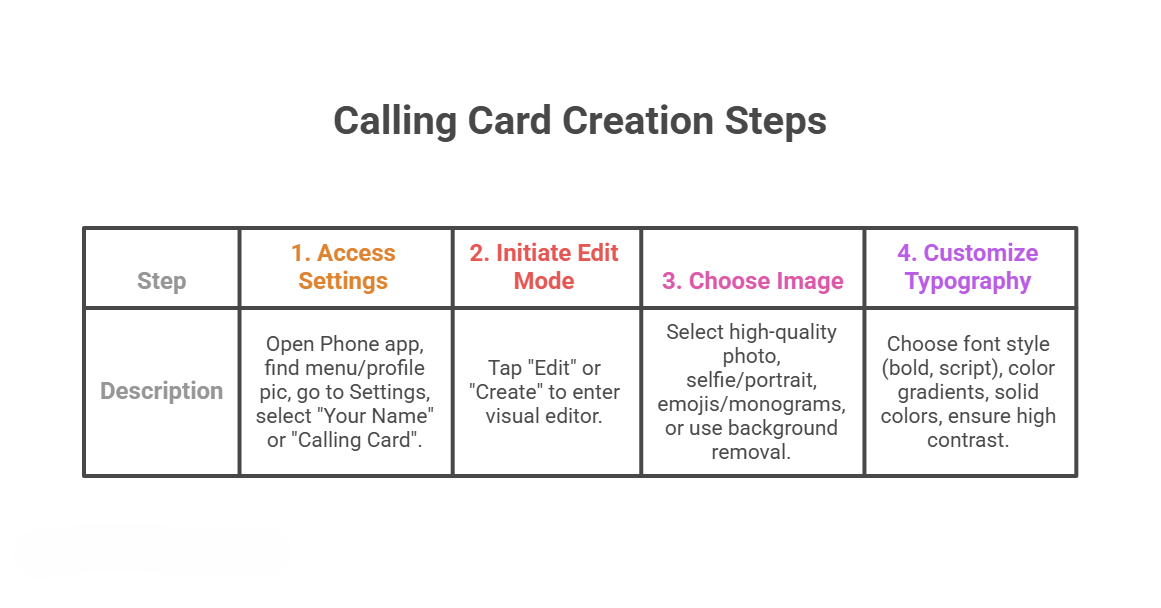
Step-by-Step Guide: Creating Your First Calling Card
Creating your card is a straightforward process located within your contact settings. We have broken this down into simple, easy-to-follow actions.
Managing Privacy and Sharing Options
We recognize that privacy is a top priority for our readers. You have full control over who sees your custom calling card. Within the setup menu, you will find Sharing Settings.
- Contacts Only: This is the most popular setting. Your card will only be shown to people whose phone numbers are already saved in your Google Contacts.
- Always Ask: If you prefer maximum privacy, you can set the app to ask you every time you call someone whether you want to share your card.
- Public (within Google services): This makes your card visible to anyone you call, provided they are using a compatible Google-enabled device.
We strongly advise opting for the “Contacts Only” setting to maintain a balance between personalization and security.
Advanced Customization: Using Emojis and Stickers
For those who want to add a bit of flair without using a personal photograph, the Emoji calling card is an excellent alternative. Android allows you to select any emoji and place it on a vibrant, colorful background.
When you select an emoji, the system automatically suggests a complementary color scheme. This ensures that even a simple smiley face or a professional-looking icon (like a briefcase or a laptop) looks polished and intentionally designed. This is a great way for non-tech people to create a unique look without needing any graphic design skills.
Why Your Calling Card Might Not Be Showing Up
If you have followed the steps above but your contacts claim they cannot see your new card, do not worry. There are a few common reasons for this:
- Recipient’s Device: The person you are calling must also be using a modern Android device with the Phone by Google app. If they are using an older device or a different brand’s default app (like some older Samsung or personal desktop apps), the card may not display.
- Contact Association: The recipient must have your Gmail address or your phone number correctly saved in their contacts. If you are calling from a number they don’t recognize, Google may withhold the card for security reasons.
- Sync Delays: Sometimes, changes to your Google Account can take a few hours to propagate across all servers. If it doesn’t work immediately, give it some time.
The Benefits of a Professional Calling Card
Why should you bother setting this up? We believe the benefits are numerous:
- Enhanced Recognition: In a world of “Unknown Caller” IDs, your face and name act as an immediate trust signal.
- Professionalism: For freelancers and business owners, a well-crafted calling card acts as a digital brand. It shows attention to detail.
- Ease of Use: Once set up, it is entirely automatic. You don’t have to do anything extra when making a call.
- Integration: It integrates seamlessly with your Google Profile, meaning if you update your picture for Gmail or YouTube, you can easily sync it to your calling card as well.
Conclusion: Taking Control of Your Digital Presence
Setting up a Google custom calling card on your Android phone is a small step that makes a significant impact on your daily communication. It moves the mobile experience away from cold, clinical numbers and toward a more human-centric interaction.
We encourage you to experiment with different images, vibrant color schemes, and font styles until you find the look that best represents you. Whether you are a tech enthusiast or someone who simply wants their phone to be easier to use, this feature is a valuable addition to your Android toolkit. By following our guide, you are now equipped to present yourself to the world exactly the way you choose.
Remember to periodically update your card to keep your look fresh and relevant. With Google’s intuitive design tools, your digital identity is literally at your fingertips.

Selva Ganesh is a Computer Science Engineer, Android Developer, and Tech Enthusiast. As the Chief Editor of this blog, he brings over 10 years of experience in Android development and professional blogging. He has completed multiple courses under the Google News Initiative, enhancing his expertise in digital journalism and content accuracy. Selva also manages Android Infotech, a globally recognized platform known for its practical, solution-focused articles that help users resolve Android-related issues.




Leave a Reply